
“A website makes it real.” That’s the tagline of Squarespace, the website builder used by over 14 million businesses worldwide. But to the customers of those businesses, it’s the products and in-person interactions that turn a business from a concept into reality.
Google reviews are a crucial part of that loop. When people think about visiting a business, they might check its website to see its opening hours and get a general feel for its offerings before trekking to its brick-and-mortar location. They’ll then often open Google and double-check what other people think.
Is the food actually as good as it looks on a restaurant’s menu? Did a local services business do a good job with other customers’ repairs, or did a new boutique’s customers come back and buy more products? Has this business been around long enough to stand the test of time? These questions are quickly put to rest with the closest thing to online word of mouth: Google reviews.
Squarespace sites don’t automatically show your business’ Google reviews, and there’s no built-in Google Reviews widget. But it’s not hard to add Google reviews to your Squarespace site. In this guide, we explore three methods: a Google Reviews widget, manually publishing reviews, and embedding Google Maps into your Squarespace website. Let’s take a closer look.
Option 1: Use a Google Reviews widget for Squarespace

The easiest way to embed Google Reviews in your Squarespace site is with Jotform’s Google Reviews Widget. You can display reviews with a custom title, layout, and design that fits your site’s branding. And it’s completely free, even if you remove Jotform’s branding.
Here’s how to embed Google Reviews in Squarespace with Jotform:
- Open Jotform’s Google Reviews Widget Builder, and create a new widget.
- In the Source field, search for your business name and address, then select it from the results and wait a moment while Jotform fetches your reviews.
- Choose the layout option you want, then click Continue.
- Add a title, choose the dark theme if it would fit your site’s design better, and select if you want navigation arrows, pagination, and Jotform branding.
- Click Continue again.
- Finally, choose the review details to share, and customize the button text and colors.
- Click Try on your website for free, and copy the HTML code.
- In another tab or window, open your Squarespace site editor.
- Click the Add Block button, then search for and select the Embed block, and click the pencil icon to edit it.
- In the Content popover, click the Code Snippet button under the Embed as heading, then click the Embed data button and paste your embed code from Jotform.
Squarespace’s editor won’t preview the changes. To see how your Google reviews look in Squarespace, save your site and then open it in a new tab. You’ll see your Google reviews in a Jotform widget, alongside the rest of your site’s content.
If you ever want to change anything, just open Jotform’s my widgets page to see all your widgets and update them from one place. Anything you change on Jotform will automatically update your Squarespace site — no need to re-edit your embedded widget.
Why this works
- Embedding Google Reviews is the easiest way to get stylized customer reviews on your site.
- Jotform’s Google Reviews widget is free and automatically pulls in your most recent reviews.
- Customizable options let your Google Reviews match the rest of your site’s branding.
Option 2: Manually add Google Reviews to Squarespace

Want to feature your favorite customer reviews, similar to building a testimonials section when making a website? Instead of embedding Google Reviews, you could instead use your site’s existing design to showcase quotes from customers. That would also let you intersperse handpicked reviews with feedback you receive via email, social networks, and customer case studies.
Squarespace makes that easy with its Quote block, where you can add both a customer’s review from Google along with their name for social proof.
- Open the Squarespace editor for your site, and click the Add Block button in the area where you want to showcase your favorite customer reviews from Google.
- Search for and select the Quote block, then click the pencil icon to edit it.
- In another tab or window, open your Google listing, find reviews you would like to feature on your site, and copy the review text.
- Back in Squarespace, paste the review under the Quote field. Then copy the customer’s name, and paste it into the Source field.
- Repeat for each quote that you want to showcase, then drag and drop the quote blocks to order them the way you want on your site.
You can also copy other review elements from Google onto your site. You could add emoji stars like ⭐️⭐️⭐️⭐️ for a four-star average, or Unicode stars like ★★★★☆. You could also include a link so that customers can read additional reviews if they’d like.
Every so often, though, you’ll need to come back and update your site with new reviews from Google to keep things fresh.
Why this works
- While it’s more tedious than automatically syncing the most recent reviews, manually adding reviews lets you feature your favorite customer quotes.
- Squarespace’s built-in Quote block automatically formats reviews so that they look polished on your site.
- You can combine reviews from multiple sources alongside Google reviews with this option.
Option 3: Embed Google Maps in Squarespace
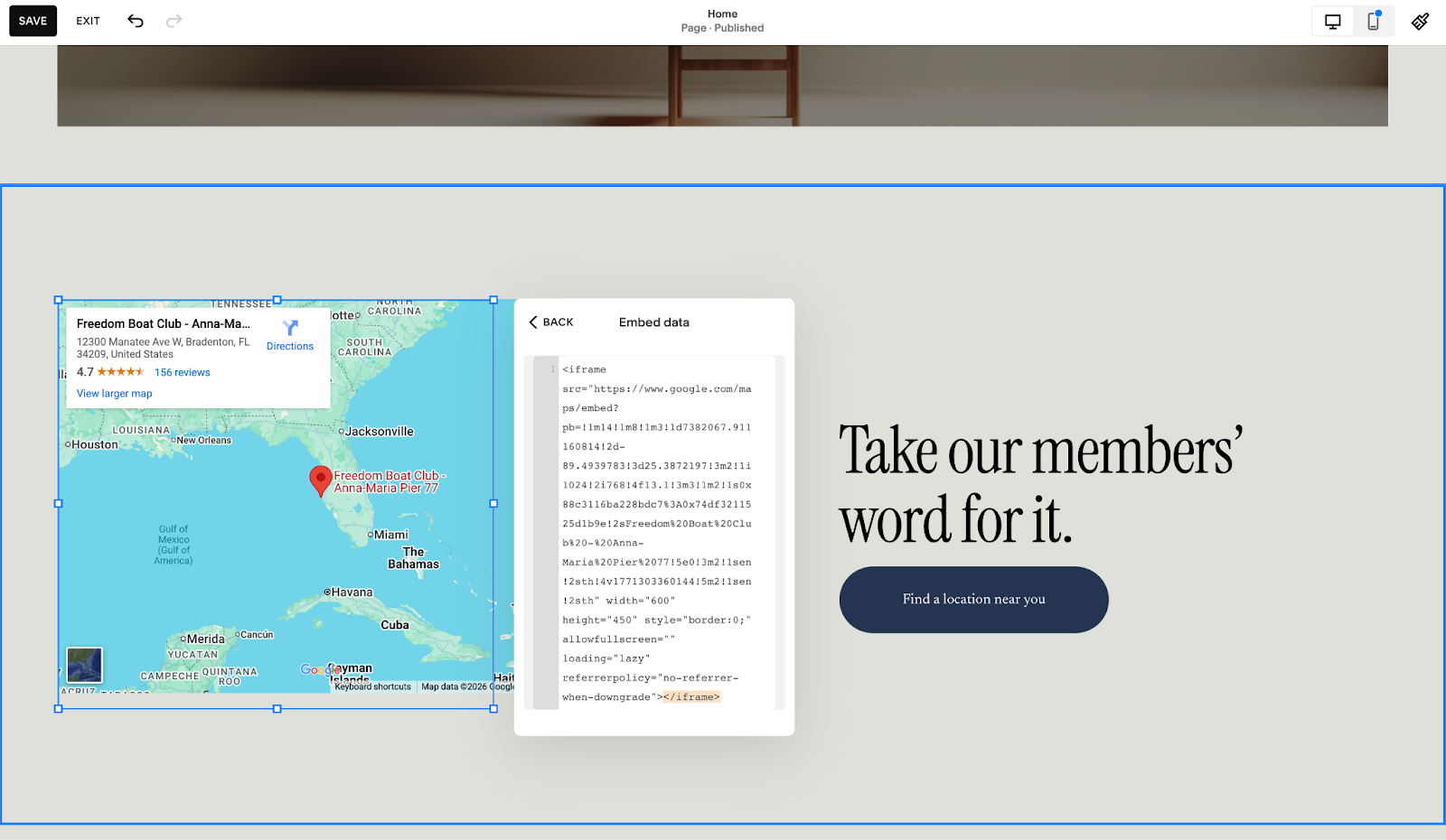
Another way to add your Google star rating to your site is by embedding a Google Map into Squarespace. That takes care of both social validation and directions in one go. Visitors can see your business rating and how many reviews you’ve received, and then they can click to read the reviews if they want more info. The data will be kept updated, so as more people review your business, the review count and — hopefully — the rating will tick up over time.
Squarespace includes a built-in Map widget. It looks nice, with options for a grayscale or satellite view map, but it only shows a pin for your business location. There are no business details, operating hours, or reviews.
The best way to embed a Google Map with reviews into Squarespace is with Squarespace’s Embed block.
- Open the Squarespace editor for your site, and click the Add Block button in the area where you’d like to add a Google Map.
- Search for and select the Embed block, then click the pencil icon to edit it.
- In the Content popover, click the Code Snippet button under the Embed as heading, then click the Embed data button.
- In a new tab or window, open your business’ Google Maps entry. Click Share, then click the Embed a Map tab, then click the Copy HTML button.
- Back in Squarespace, paste the HTML from Google Maps into the Squarespace Embed block’s Embed data text field.
- Now you’ll see a full Google Maps embed block in your Squarespace site, complete with your business address, rating, reviews, and a button for customers to quickly get directions.
Why this works
- Embedding Google Maps lets customers preview reviews and get your business location.
- Visitors can easily click out to read reviews or get directions.
- The Google Maps embed will automatically show your most up-to-date review count and ratings.
Earn customers’ trust on your Squarespace site with widgets
Google reviews aren’t the only way to add social proof to your website. Jotform offers a variety of Free Website Widgets to embed reviews from Airbnb, Google Play and the App Store, Etsy, Tripadvisor, Yelp, eBay, and Facebook. If you sell products on Etsy, promote them on Facebook, and feature them in a local shop, for example, you could showcase reviews from all three to turn your Squarespace website into a feedback hub.
You can also use Jotform’s Form Widgets to embed a contact or support form into your site, or add the AI Chatbot Widget to automatically answer common support questions based on the website content. All of that, with a free Jotform plan, and with only a few minutes of work adding widgets to Squarespace. Give it a try today.
Best practices for Google Reviews on your site
Adding Google Reviews helps boost your local SEO by tying your website to your physical location. They also help your site appear fresh and up to date, with new reviews from customers showing that your business is still thriving. And they let you feature your customers on your site as a way to build community through reviews.
The best way to add Google Reviews to Squarespace is with Jotform’s Google Reviews Widget. It’s free, customizable, and showcases customer reviews in a modern design that integrates well with Squarespace. Other options include manually adding Google Reviews to your site or embedding a Google Maps widget.
This article is for the small business owners, freelancers, local service providers, restaurants, hospitality businesses, ecommerce store owners, and marketers using Squarespace who want to increase trust, conversions, and local SEO by displaying Google reviews on their website.




































Send Comment: