
Although there isn’t a native Facebook reviews Squarespace integration, that doesn’t mean it’s impossible to display your Facebook reviews on your website. What you need is a third-party Squarespace Facebook reviews widget.
Jotform’s Facebook Reviews Widget is the easiest way to embed Facebook reviews on a Squarespace website. We’ll walk you step-by-step through how to embed Facebook reviews on Squarespace using our widget, as well as alternative manual and link-based options.
Option 1: Use a Facebook reviews widget for Squarespace (easy and free)
Making a website look exactly the way you want it can be frustrating. That’s why Jotform offers multiple free website widgets to make adding certain features simple and painless — from our AI Chatbot Widget to widgets that display customer reviews from various platforms.
Our Facebook Reviews widget is the easiest, most reliable way to show Facebook page reviews on Squarespace. With it, you can display live, auto-updating reviews from your Facebook page on your Squarespace website without writing a single line of code.
Here’s a step-by-step walkthrough of using our Facebook Reviews widget to embed Facebook reviews on Squarespace.
- Log into your Jotform account.
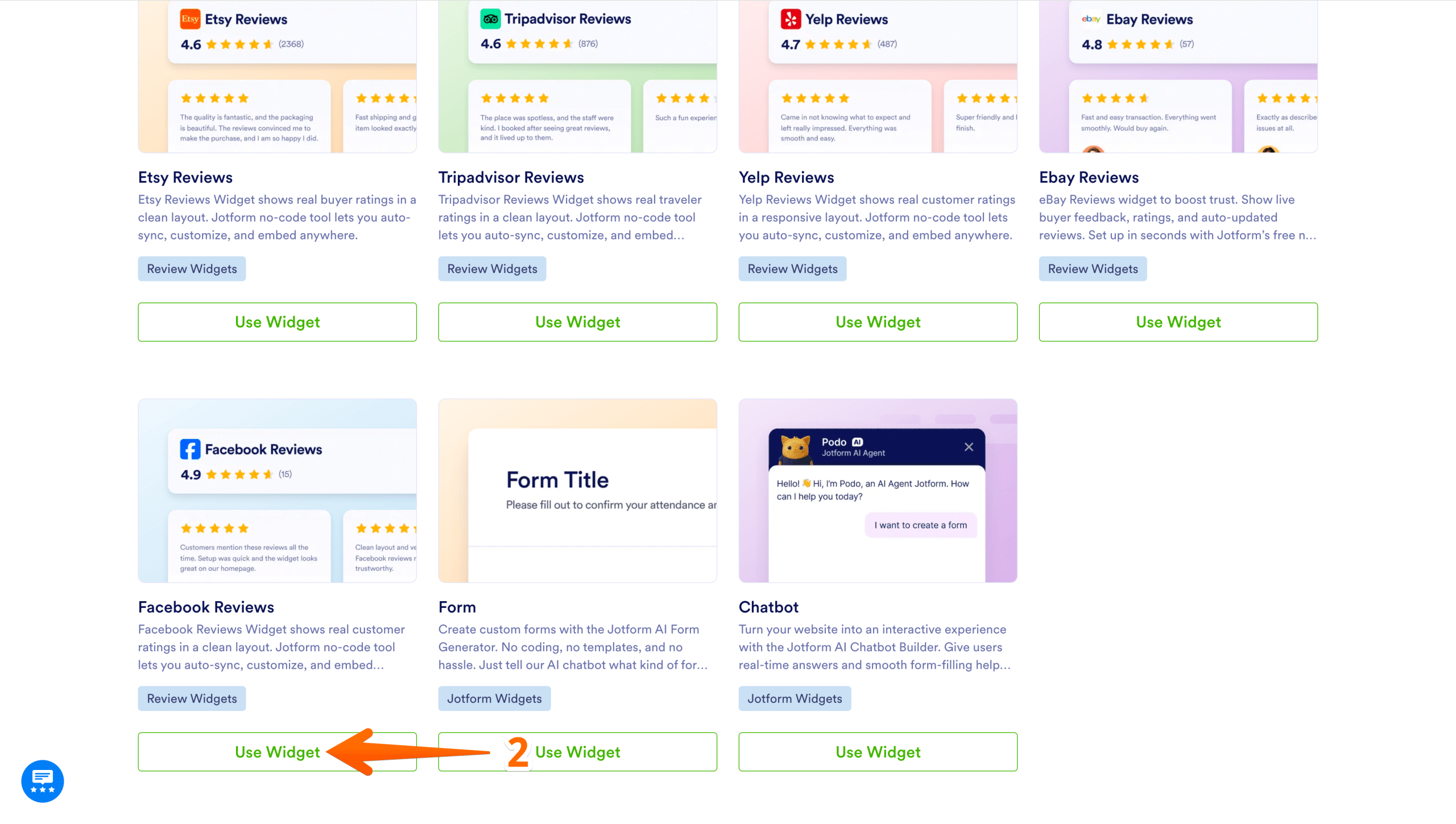
- On our Free Website Widgets page, click on Use Widget under the Facebook Reviews widget.
- In the widget creation page that appears, click on Create new widget button in the top left area to open the Edit Widget configuration panel.

- In the Edit Widget box, enter the URL for your Facebook page’s reviews and wait for your reviews to load.

- Enable the Full Width toggle to set the widget width for desktop, select your preferred layout from the available options (Carousel, Slider, Badge, Grid, List, or Masonry), and click Continue.

- Set the available toggles (Dark Theme, Title, Navigation Arrows, Pagination, and Jotform Branding) on or off — if you enable Title, enter the text you want to display — then click Continue.

- Configure the widget settings and click Try it on your website for free:
- Toggle Widget Header and Header Title on or off and enter your desired header text (e.g., “Facebook Reviews”)
- Check or uncheck Rating and Number of reviews based on your preference
- Toggle the CTA button on or off — if enabled, enter the button text (e.g., “Write a review”) and customize the button and text colors

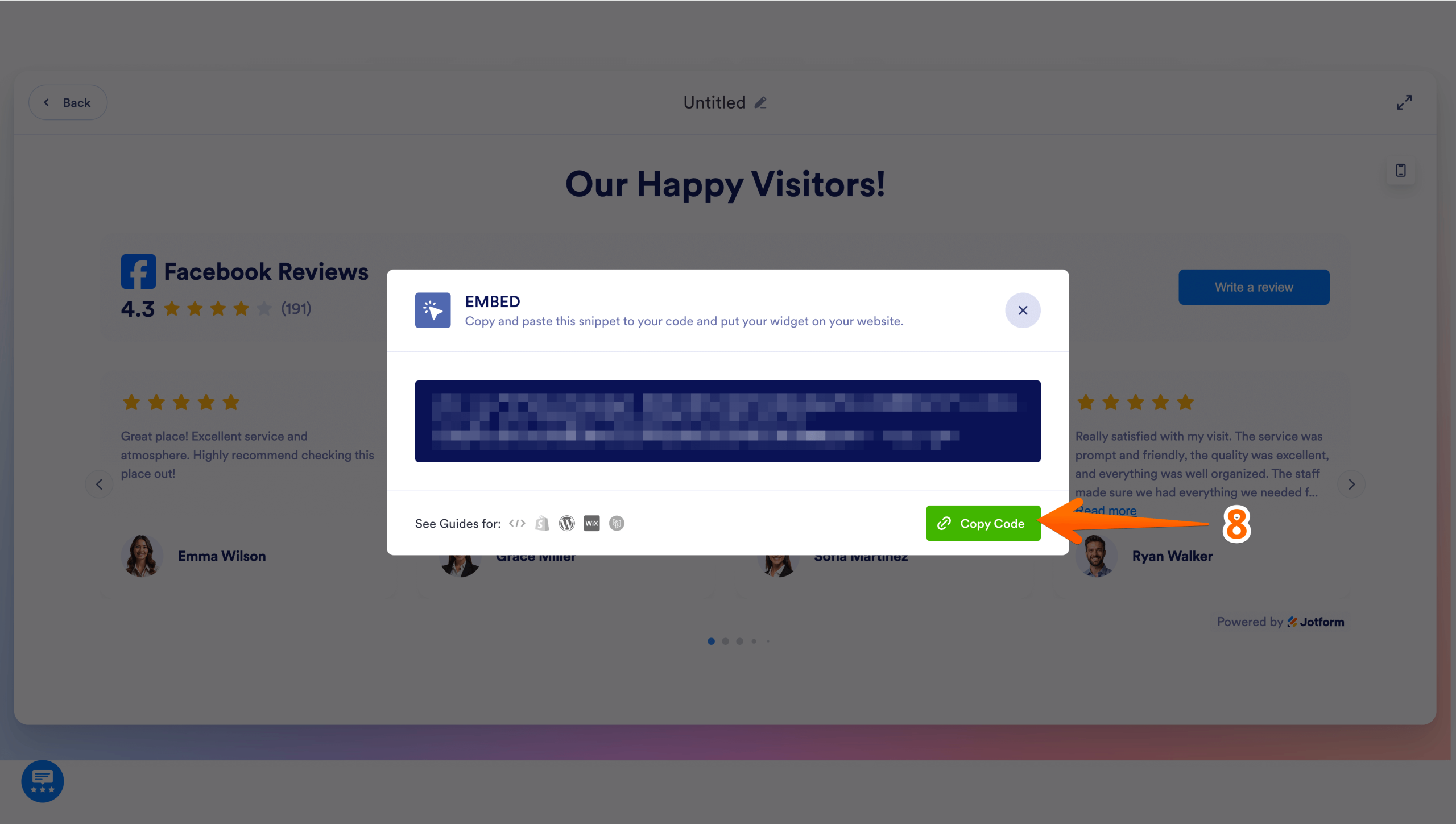
- When the “Embed” window appears, copy the widget’s HTML code by clicking Copy Code.
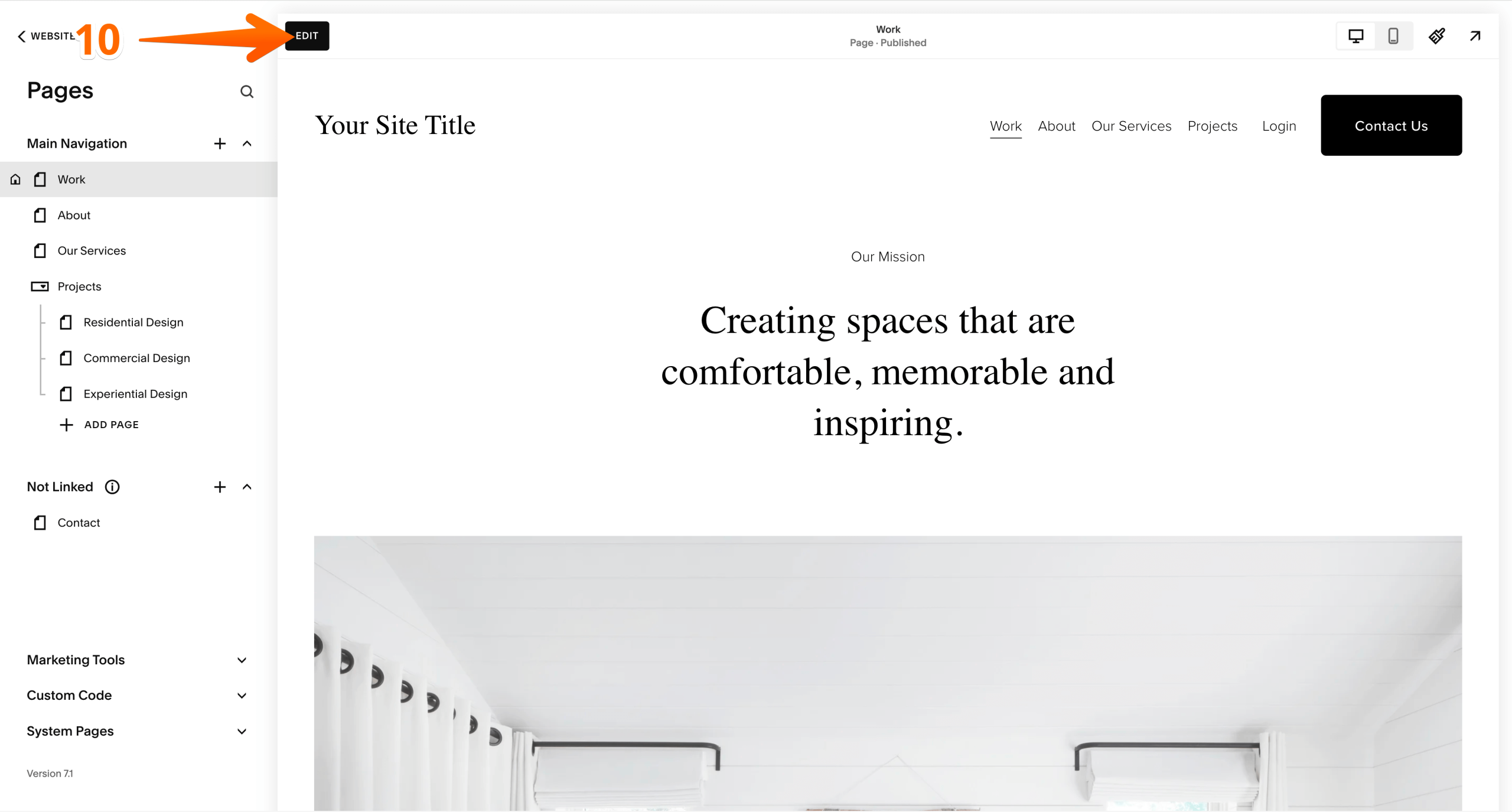
- Now, log into your Squarespace account and navigate to the page where you want to place the widget.
- On the appropriate page or section, click Edit.
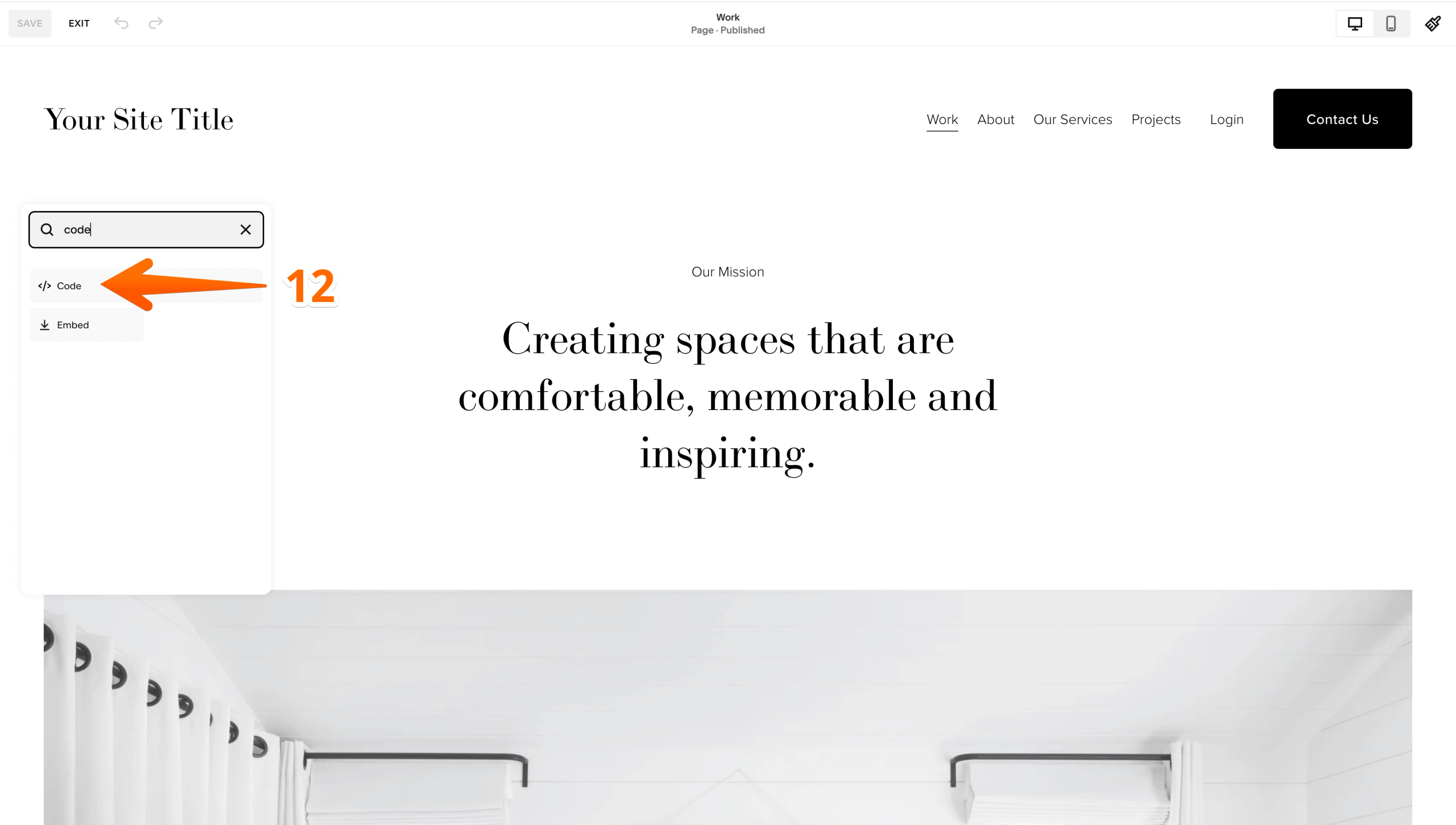
- Hover over the content area and click the + (Add Block) icon.

- From the menu, select the Code block option.
- In the code editor, set the mode to HTML, paste your Jotform Facebook Reviews widget code into the text field, and click Apply.
Note: If the widget isn’t visible or shows “Scripts disabled” in Edit mode, this is normal.
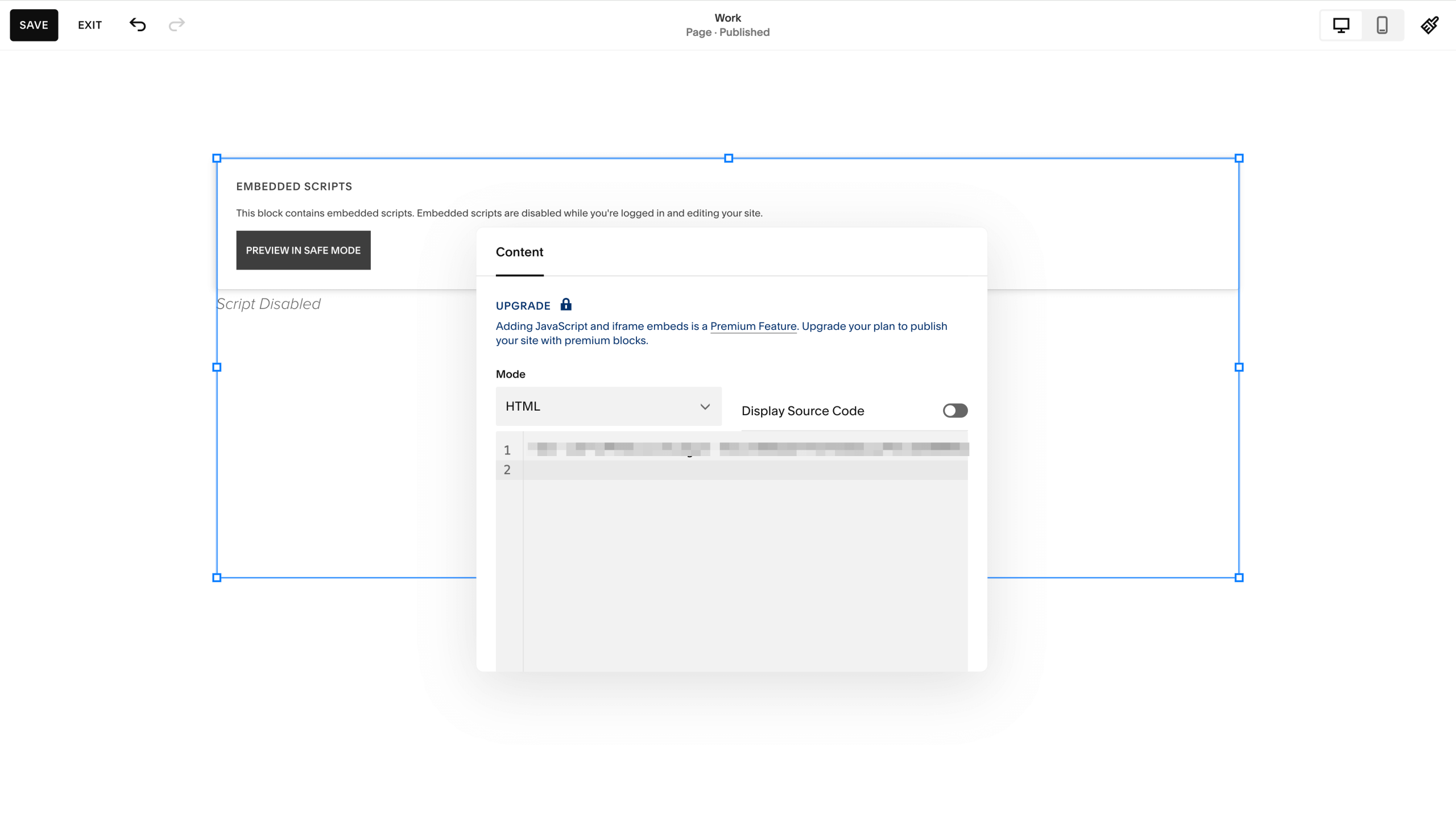
- View the live, auto-updating widget on your website.
Why this works
- Automatic synchronization: The widget connects directly to your Facebook page, displaying the most recent reviews and star ratings without needing manual updates or adjustments.
- No-code implementation: You don’t need any coding skills whatsoever to use the widget; you only need to customize it, then copy and paste.
- Granular customization: You have control over the widget’s appearance, behavior, wording, and navigation.
Option 2: Manually add Facebook reviews to your Squarespace website
Another method you can use to add Facebook reviews to Squarespace is manually adding selected reviews to your website as testimonials. This approach works well if you want to maintain complete control over which reviews show up on your site. The downside, however, is that the reviews you display in this way are static — showing new or different reviews will require manual updates.
To embed Facebook reviews on a Squarespace website as individual testimonials, you can use one of several page elements, including List Sections, manual blocks, and a blog-based block. We’ll provide a brief walkthrough for each.
Using a List Section to add a testimonial section
This is the fastest and easiest method to add a pre-designed testimonial layout.
- Log into your Squarespace account and navigate to the page where you want to add the testimonial section.
- Click Edit, and then choose Add Section.
- In the left-hand menu, click Testimonials or List to view several pre-formatted layouts.
- Click Edit Content.
- On the Content tab, paste the text of a Facebook review in the Title field and the customer’s name or other source information (such as “posted on Facebook” for anonymous testimonials) in the Description field.
- On the Elements tab, toggle images, titles, or buttons on or off as needed.
- On the Design tab, choose between Carousel (for a scrolling slideshow) and Simple List (for a static grid).
- Click Done, and then click Save.
Using a blog and summary block
This method, which allows you to manage testimonials like blog posts, is best for large review collections.
- Log into your Squarespace account.
- In the Pages panel, add a new blog under the “Not Linked” section and name it “Testimonials.”
- Create a blog post for each testimonial, entering the reviewer’s name as the title and pasting the review text in the Excerpt field (under Options in post settings).
- Navigate to the page where you want the testimonials to appear.
- Click Edit, and then choose Add Section.
- Insert a Summary Block and select your “Testimonials” blog as the source.
- In the block settings, click the Design tab and select Carousel. Filter it to show only the “Excerpt.”
Using simple manual blocks
Add a Quote Block for a clean, stylized quote and source, or manually arrange Text Blocks and/or Image Blocks to create a custom layout.
Why this works
- Selective social proof: Adding reviews manually allows you to curate your best reviews, so you can hand-pick five-star testimonials that highlight specific services.
- Design consistency: Built-in Squarespace page elements automatically use your site’s colors, fonts, and button styles, so your reviews look like part of your brand rather than an “add-on.”
- SEO benefits: Typing or pasting review text into a Text Block or Blog Excerpt enables search engines to index it as “local content,” which can improve your organic search rankings, especially if the reviews you include are SEO keyword-heavy.
Option 3: Link to your Facebook page reviews
Instead of embedding reviews, you can simply use a button or link to direct your website visitors to your Facebook page’s Reviews section. This approach doesn’t display Facebook reviews on Squarespace, but the fact that visitors can easily read real customer reviews via the provided link still has benefits.
Why this works
- Builds immediate trust and credibility: You’ll validate your business reputation by directing site visitors to Facebook — a trusted, third-party platform — where they can read about real peer experiences.
- Leverages social proof: By providing a direct link to real, unfiltered feedback on Facebook, you’ll make your business appear more authentic compared to showing only hand-picked testimonials on your website.
Add powerful functionality to your Squarespace site with no-code widgets
Whether you choose Jotform’s Facebook Reviews Widget for automatic updates or prefer manual control over your testimonials, displaying real feedback builds trust with potential customers.
Using Jotform’s Facebook Reviews widget is hands down the fastest, easiest way to embed Facebook reviews on Squarespace, and you don’t need to be a developer to use it. There’s no coding required — just copy and paste.
Beyond reviews, Jotform’s Website Widgets library also contains multiple free tools to enhance your Squarespace site. You can use our widgets to
- Add an AI Chatbot to answer FAQs and handle inquiries automatically.
- Integrate contact forms for effortless lead capture.
- Display customer insights from various platforms.
These no-code solutions help transform your Squarespace website into a more engaging, conversion-focused platform without the technical headaches. Explore our full collection of Free Website Widgets today.
This article is for Squarespace site owners and marketers who want to display Facebook reviews on their website, compare no-code options, and choose between widget embeds, manual testimonials, or simple links to build trust with visitors.




































Send Comment: