
Slack notifications not working? Here's why
There’s no doubt that Slack has revolutionized work, especially remote work. One of its most important features, and one of its major pain points, is notifications. Mobile app notifications alert you of new messages when you’re away from your desk, and when you’re busy with one channel, notifications let you know about messages from other channels..
When you’re learning how to use Slack, its notification quirks can become apparent. Notifications either malfunction (showing up after they would have been useful) or stop working altogether. Reasons for notifications not working properly are often a complex mix of device settings, system rules, and app behavior. This article will take a look at common causes of and fixes for Slack notification malfunctions, and it will present a third-party solution for many common Slack notification issues.
5 common reasons Slack notifications stop working
The following is a list of common Slack notification issues and how to rectify them. Notifications are affected by many different settings, so having notifications set correctly in one area but incorrectly in others could affect how they work.
1. Do Not Disturb is active
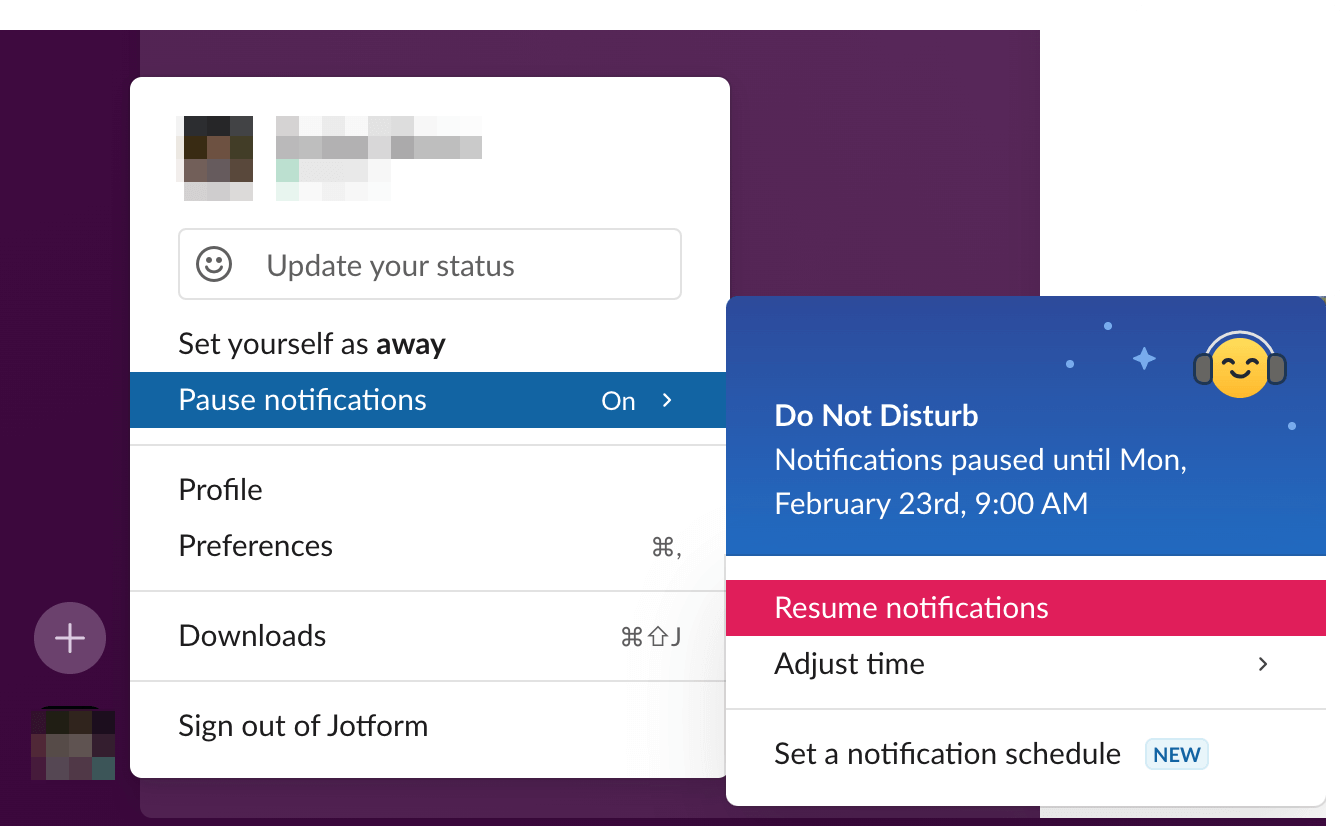
Sometimes Slack’s Do Not Disturb settings are set incorrectly.
- You can review them by simply clicking your profile picture and checking that your notifications are not paused or set to Do Not Disturb.
2. A channel is muted
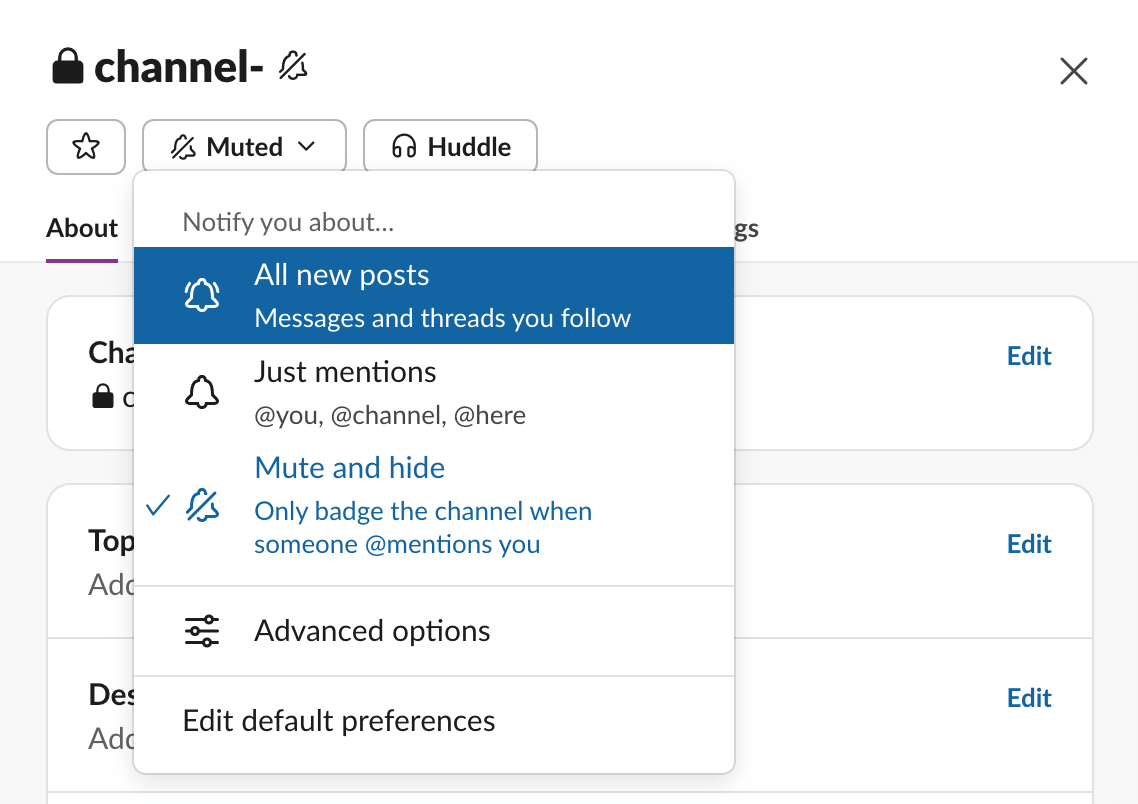
The ability to mute Slack channel notifications is useful when the channel you once monitored is no longer active or relevant to your work. However, if that channel once again becomes active or pertinent to your job, and it’s still muted, you will certainly miss important notifications.
- To unmute a channel and once again receive notifications of activity in that channel, simply go to the channel, click the channel name at the top, and search for the Notifications dropdown. To reactivate the notifications for that channel, select either All Messages or Just Mentions.
3. Incorrect desktop system settings
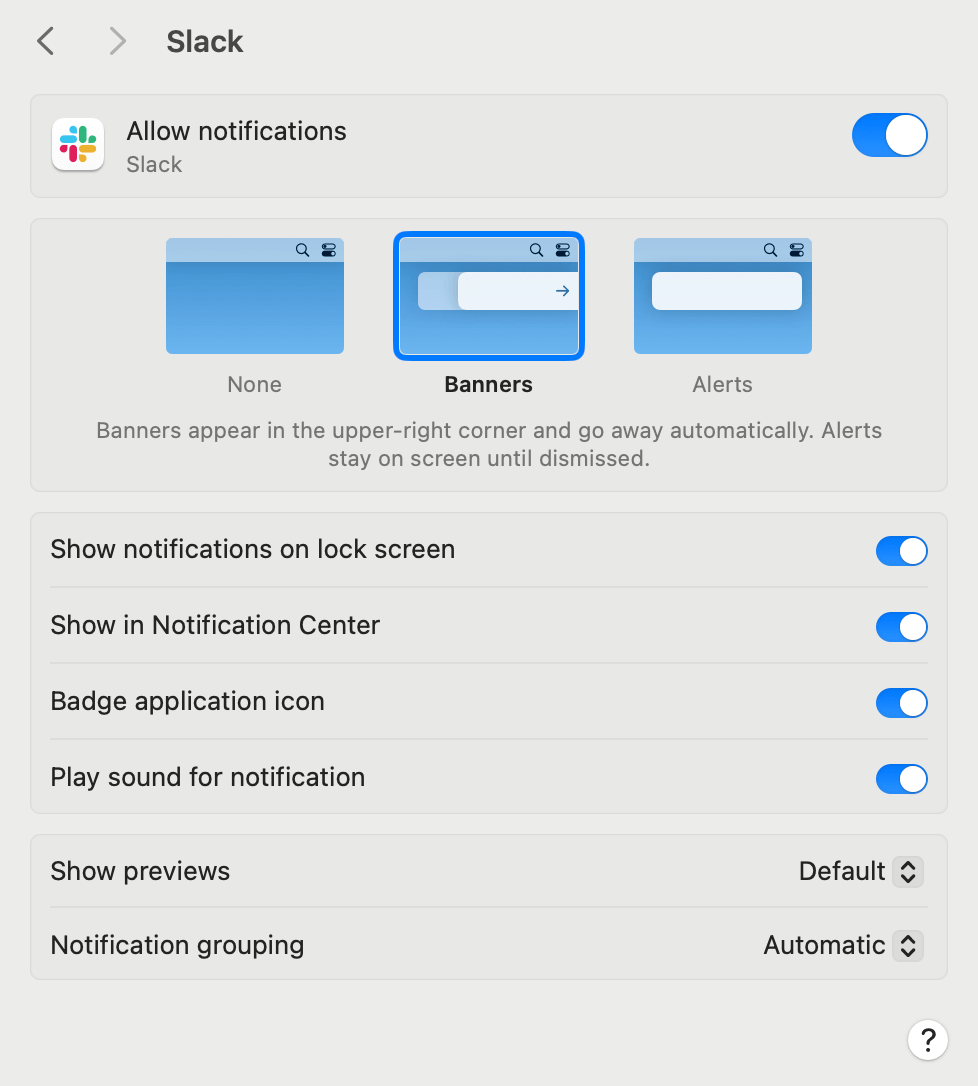
Whether you are running Slack on macOS or Windows, make sure notifications are allowed at the operating system level, because failing to do so could affect every layer above it. The good news is, it’s a very similar process for both operating systems.
- For Windows 11, go to Settings, then System, then Notifications. Once there, activate notifications for apps.
- For macOS, go to System Settings, then Notifications, then Slack. Enable notifications by ensuring Allow Notifications is on.
4. Incorrect mobile system settings
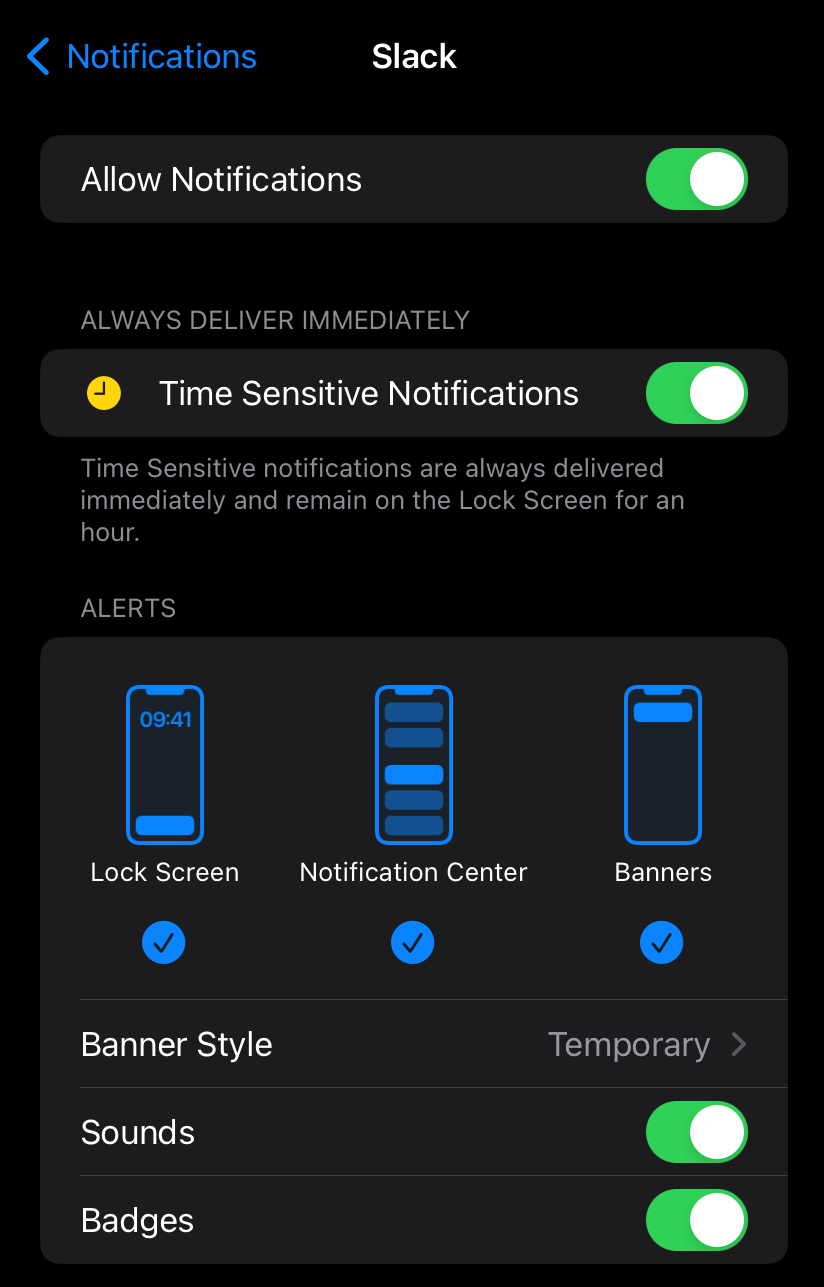
While system settings may be correct on your computer, when you are away from your desk you may not be getting notifications.
- On your phone, go to the Notifications section under Settings to ensure Allow Notifications is on. You can also customize this setting with alerts and banners.
5. Full cache
Slack, like many other applications, has a cache that makes things such as message retrieval and navigating between channels faster and easier. However, when this cache gets too full, it can have the opposite effect.
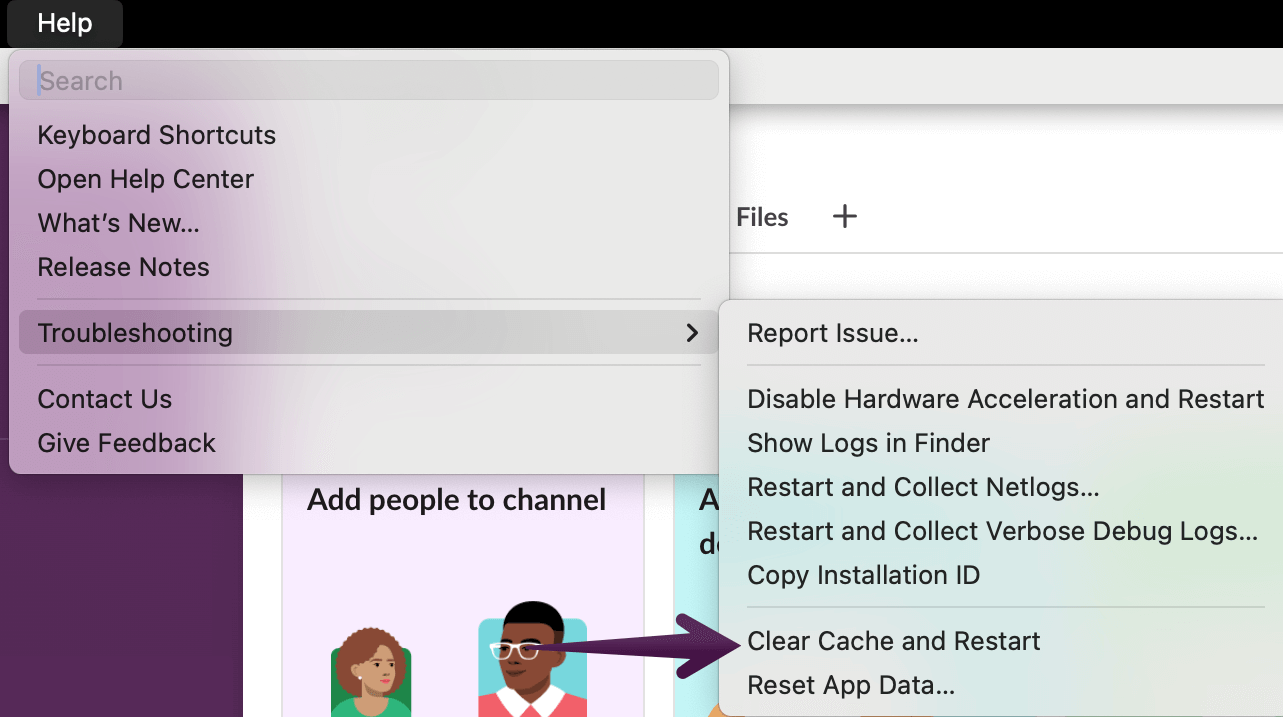
- To clear the cache in Slack, go to Help → Troubleshooting → Clear Cache and Restart. Slack will restart automatically with a fresh cache.
Impact of these issues
Slack notification issues can have an impact on your company’s productivity, creating problems that Slack was designed to solve.
Unreliable notification delivery
Not receiving Slack notifications reliably can undermine confidence in the application, and the continuation of the issue despite repeated fix attempts can result in time spent looking for an alternative solution.
Loss of critical information
Unreliable notifications can force teams to hunt for information (leads, support tickets, approvals, etc.) that they should have been notified about. Rather than responding to the initial notification immediately, employees, especially in environments with high message and submission volume, must go back and search for it.
Wasted time
Employees who have Slack notification issues wind up spending time troubleshooting these issues instead of being productive, which can have a direct impact on an organization’s bottom line.
Unresponsiveness
Probably one of the worst impacts is the perception of unresponsiveness from the person receiving the Slack message. This can be particularly problematic for client-facing environments.
Lack of visibility
The lack of responsiveness mentioned earlier can lead to teams not being as visible on a project as they should be. That lack of visibility can have a negative impact on clients, management, and other team members.
Unreliable workflows
Notifications that don’t work for critical revenue-generating sales teams or customer service teams can create workflow bottlenecks that can lead to missed opportunities in acquiring or retaining customers.
Pro Tip
Jotform’s Slack integration lets you automatically send form submission data to Slack channels or users. Whether you’re collecting poll results, customer data, or survey responses, Jotform’s Slack integration can make sure your teams are reliably notified of all important submissions.
A reliable alternative: Jotform native Slack notifications
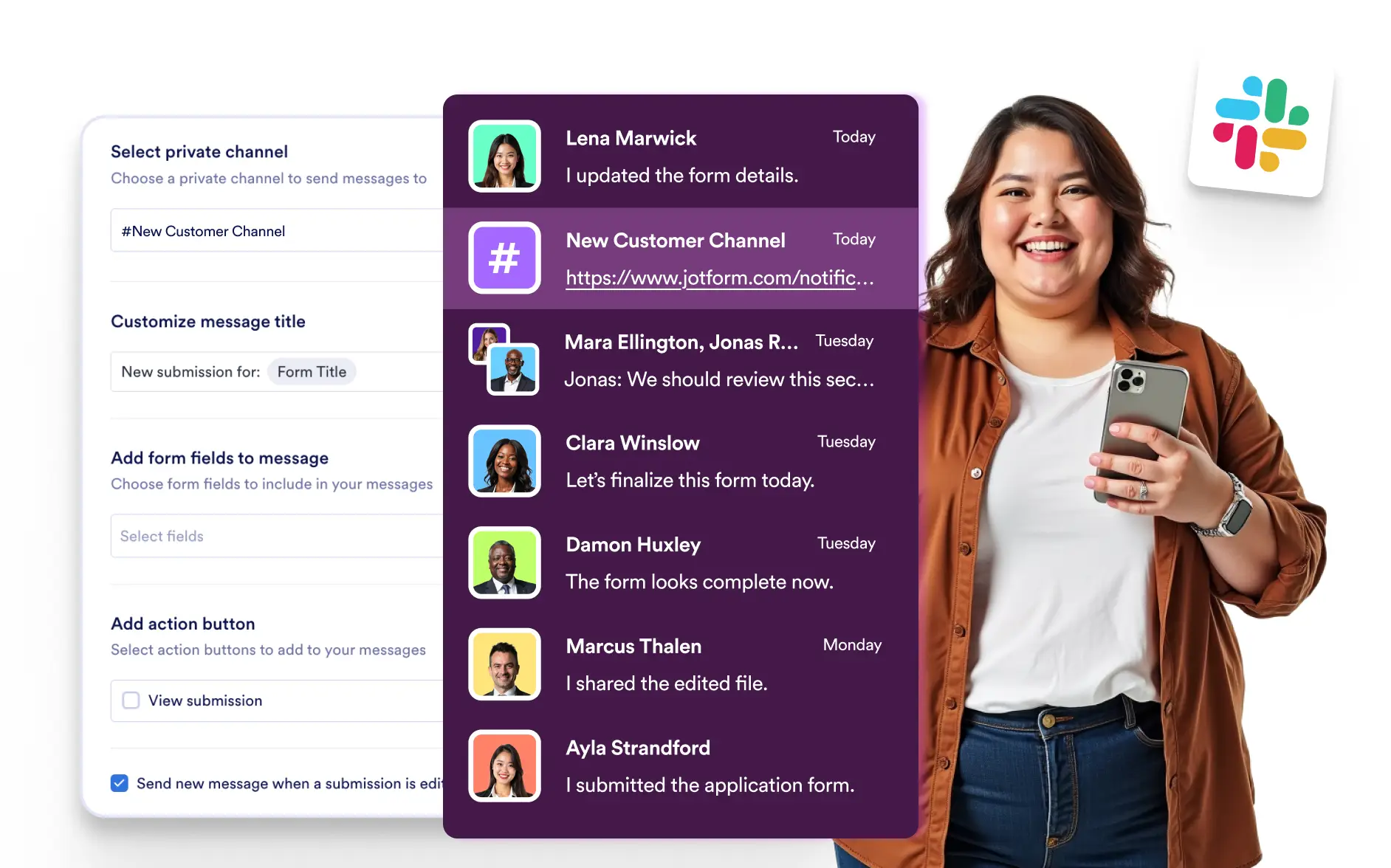
Jotform’s Form Notifications feature allows users to receive submission alerts in real time through channels such as Push, SMS, WhatsApp, Slack, and Microsoft Teams. While not one of the many Slack alternatives itself, Jotform works in conjunction with Slack to relieve notification pain points.
Rather than relying on a single channel, users can choose the type of notifications they check most frequently, verify them in seconds, and get instant updates on new form activity. This leads to faster follow-up times, stronger team visibility, and a more reliable way to manage time-sensitive submissions. Jotform alerts are sent at the server level, so they are not dependent on user device settings.
Enabling the channel of your choice is easy using either Form Settings or Form Integrations. A simple verification step later (phone number for SMS, QR code for WhatsApp, or the mobile app for Push notifications), and you’re on your way to never missing a critical alert again. Users are shown previews of each notification before activation.
With Jotform’s integrations with other applications, users can receive alerts in both Slack and Teams simultaneously. This ensures teamwide visibility and timely responses to critical messages, whether you’re gathering leads, making appointments, or handling internal requests. And if you’re wondering how to collect feedback that comes in via Slack, Jotform has a solution for that as well.
Because Jotform’s integrations are native, there’s no need to rely on additional third-party automation tools to connect Slack with other notification channels.
Pro Tip
Jotform provides fast, high-quality customer support via phone, email, or Podo (Jotform’s AI Agent). Contact support via live chat for instant resolution.
Jotform and Slack: Working together to improve productivity
Slack is firmly established as a premier communication tool for organizations, but its notifications frequently fail because of the sheer number of ways to configure them. Incorrect device settings, unintentionally muted channels, system restrictions, or app-related issues can lead to critical notifications not being delivered in a timely fashion.
Jotform Form Notifications remove this uncertainty with consistent notification delivery across multiple channels (SMS, WhatsApp, Push, Slack, Teams) and server-level reliability that doesn’t depend on user device behavior. Teams across your organization benefit from real-time alerts every time leads, approvals, appointments, or internal requests are submitted, without the need to troubleshoot multiple operating systems or Slack settings. Even if Slack notifications fail completely, notifications from Jotform’s Slack integration will still be sent.
Combining Slack with Jotform gives you an ideal solution for catching all your mission-critical alerts. Your team will no longer have to worry about missing Slack notifications.
This article is for anyone who relies on Slack notifications for day-to-day work and needs practical ways to troubleshoot missed alerts, reduce workflow delays, and maintain reliable visibility into submissions, messages, approvals, and other time-sensitive updates.








































Send Comment: