Jotform makes it easy to add email verification to your Card Forms so you can collect real, valid email addresses from your users. With this feature, form fillers receive a quick verification code in their inbox, which they enter to confirm their email before moving forward.
This setup helps you reduce fake submissions, slow down bots, and keep your data cleaner and more reliable. It’s a simple way to improve security while keeping the form experience smooth for your users.
Note
This guide shows how to require Email Verification in Jotform Cards. For Classic Forms, You’ll find all the steps in our guide on How to Implement Email Verification on Your Forms.
Setting Up the Email Verification
Whether you’re creating a new form or updating an existing one, you can set up the Email Verification of your Card Form in a few easy steps. Here’s how to do it:
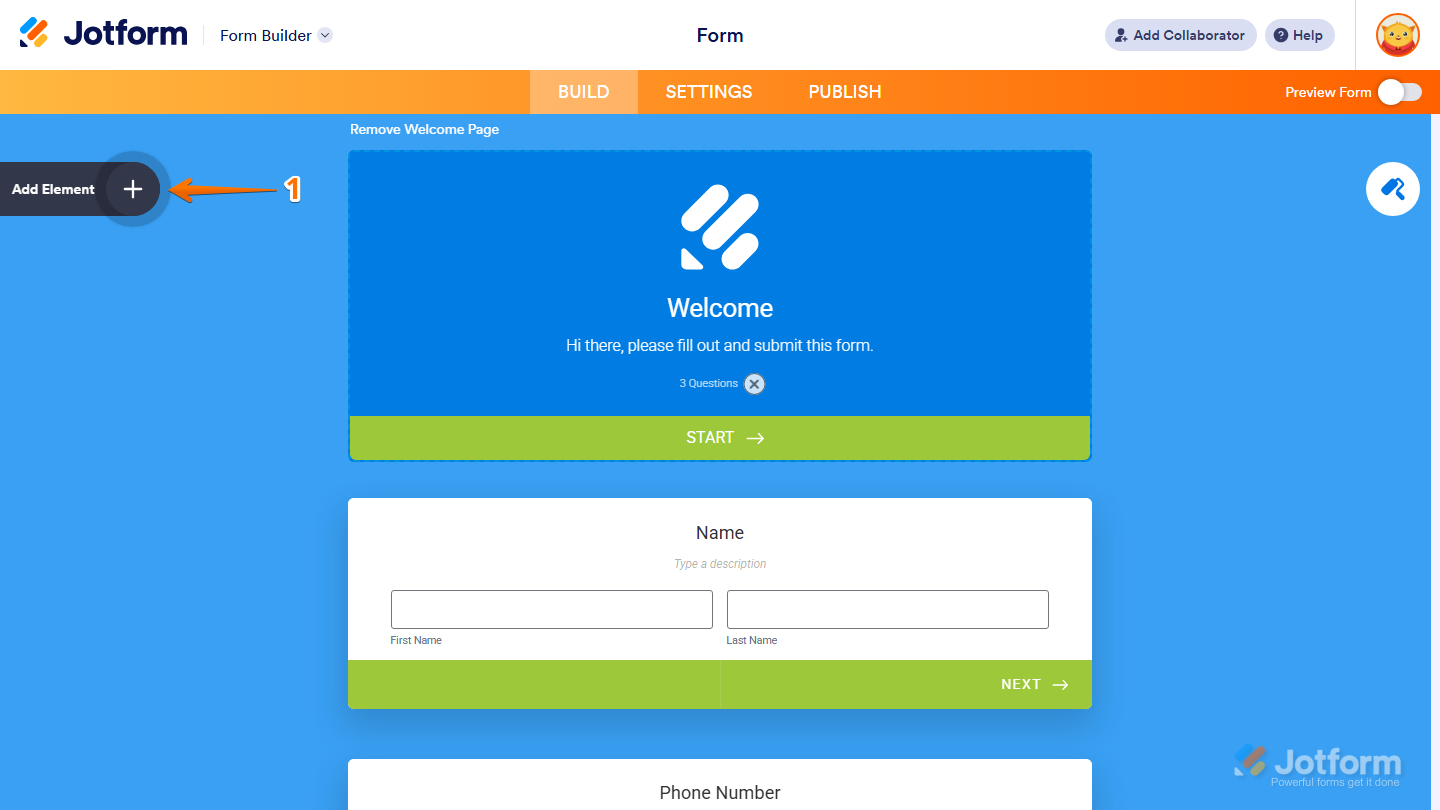
- In Form Builder, click on Add Element on the left side of the page.
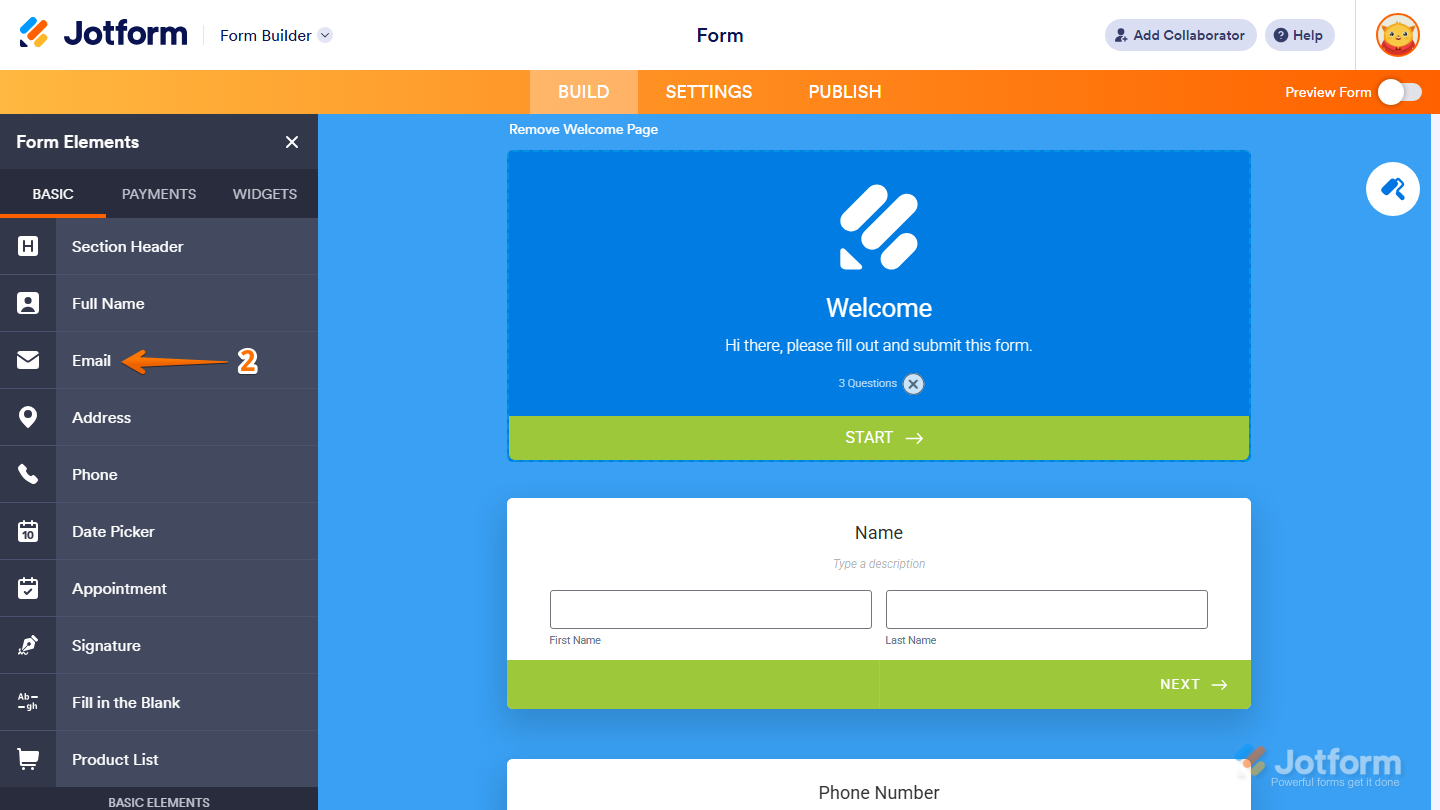
- Then, under the Basic tab, click on the Email field or just drag and drop it where you want it to be on your form.
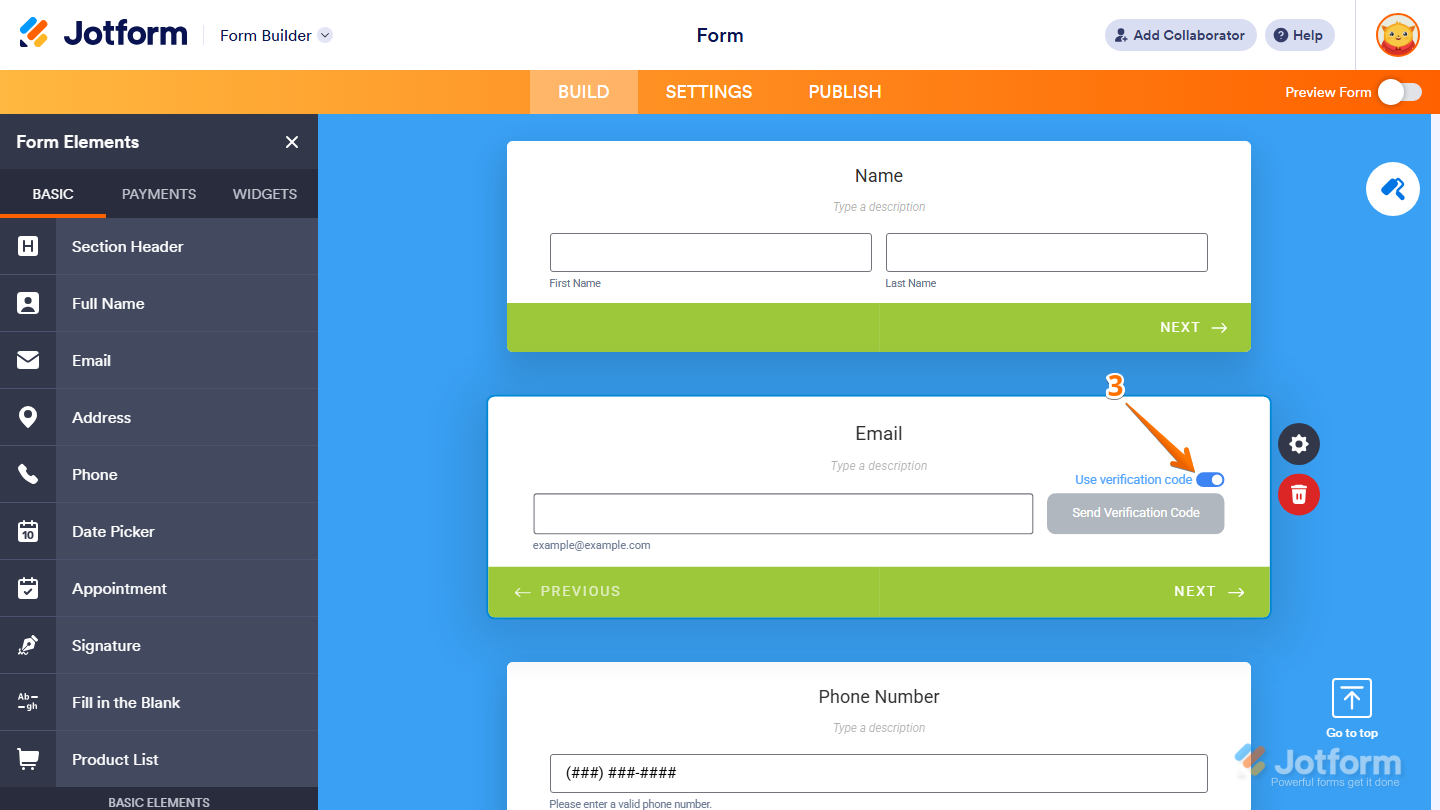
- Now, toggle on the Use Verification Code, and you’re done.
And you can also do it this way:
- In Form Builder, in the Email Field that you’ve just added, click on the Gear icon.
- Then, in the Email Properties window that opens on the right side of the page, under the Confirmation tab, toggle on the Validate with Verification code and you’re all set.

How Does it Work?
Once you’ve turned on Email Verification in your Jotform Card Form, here’s a simple, step-by-step look at what happens from the moment someone enters their email to when it’s successfully verified.
- The user types their email into the Email field in your Jotform Card Form and clicks on Send Verification Code.

- Once the user clicks on Send Verification Code Jotform automatically sends a unique verification code to the email they provided, which can be found in their Email inbox.

- After the user enters the verification code, they can proceed to the next card or submit the form. A blue checkmark appears beside the email address, confirming that the email has been verified.

You’re all set! Email Verification is now active on your Card Form. This helps protect your form from fake submissions and ensures you collect accurate, verified email addresses from your users.
Pro Tip
Make sure users check their spam or junk folder if they don’t receive the verification code immediately.

Send Comment:
6 Comments:
September 16, 2025
Is it possible to edit the verification email with our own branding and from address?
Currently it displays the Jotform logo and is addressed from noreply@jotform.com.
September 16, 2024
Good day. I don't have the email verification option.
October 3, 2022
need the instruction on how this is done in the background.
Anyone can set up a fake email once they know this is what will happen
May 29, 2022
Can I edit the verification email that is sent to a customer?
February 1, 2022
VERIFICATION CODE IS 6 DIGIT. AND SPIN IS 4 DIGIT.
December 14, 2021
Is this email verification only available in Card format? How about Classic?