- Once you’ve designated your signers and added the appropriate places for them to sign, go to the Send tab.
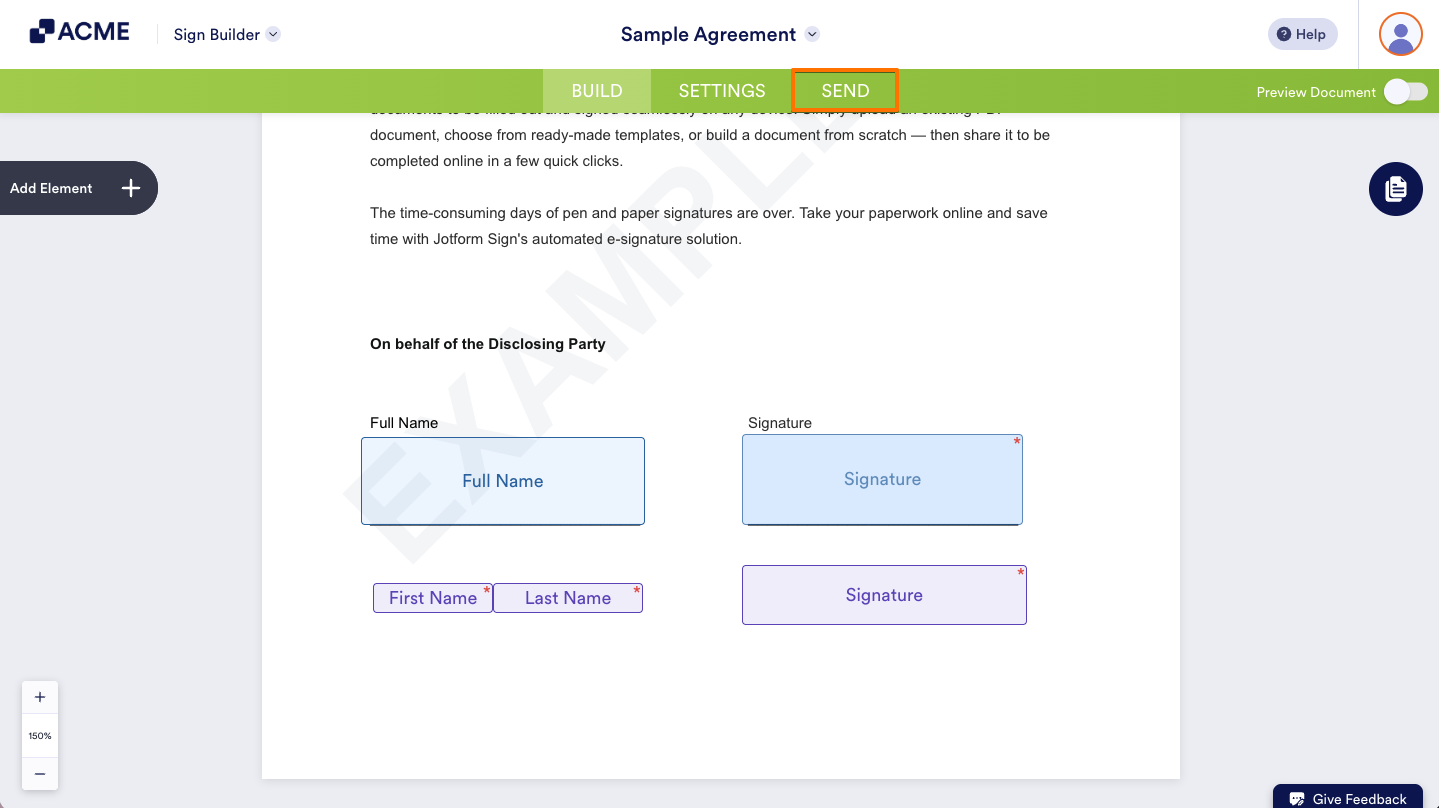
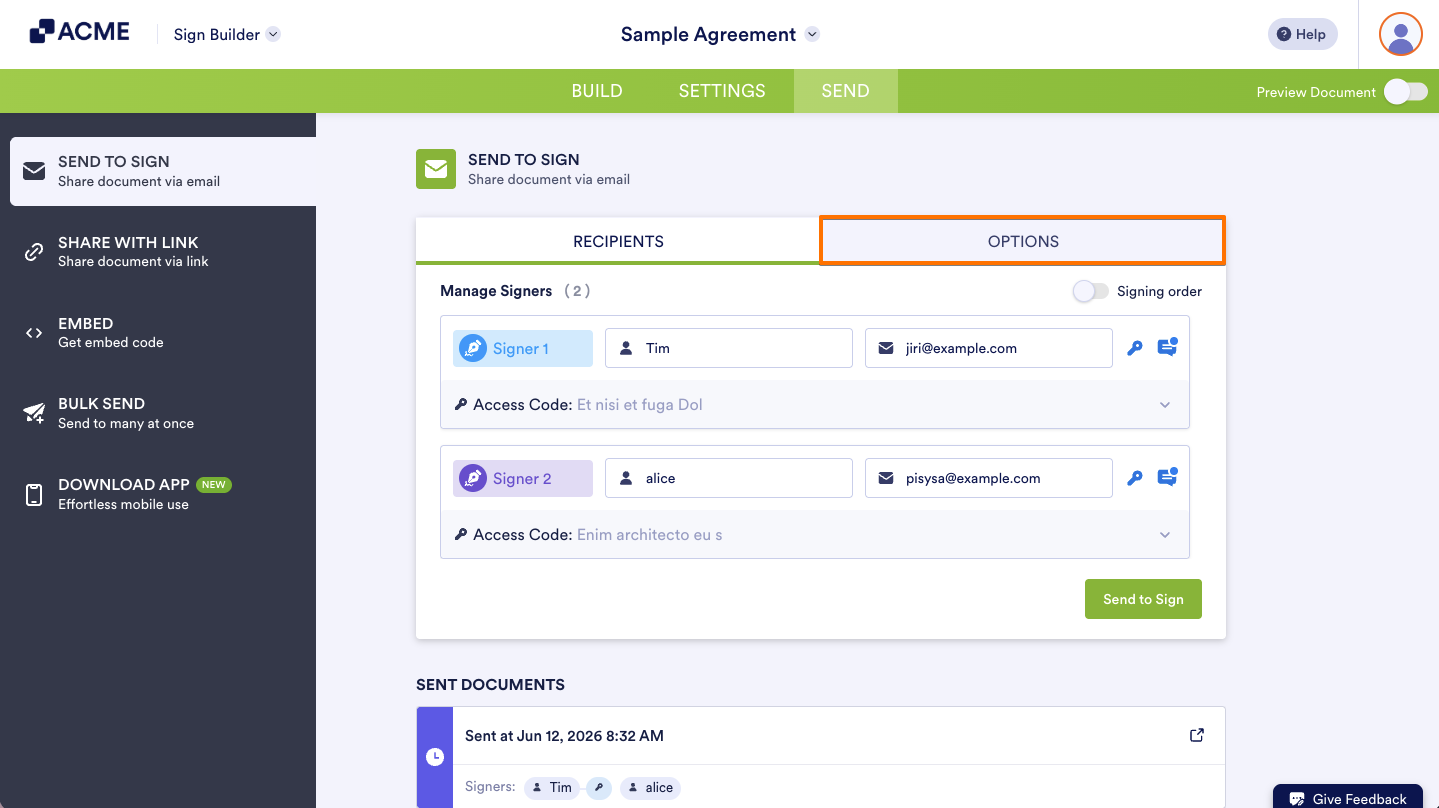
- After you fill in your signers names and emails, but before you click Send to Sign, go to the Options tab.
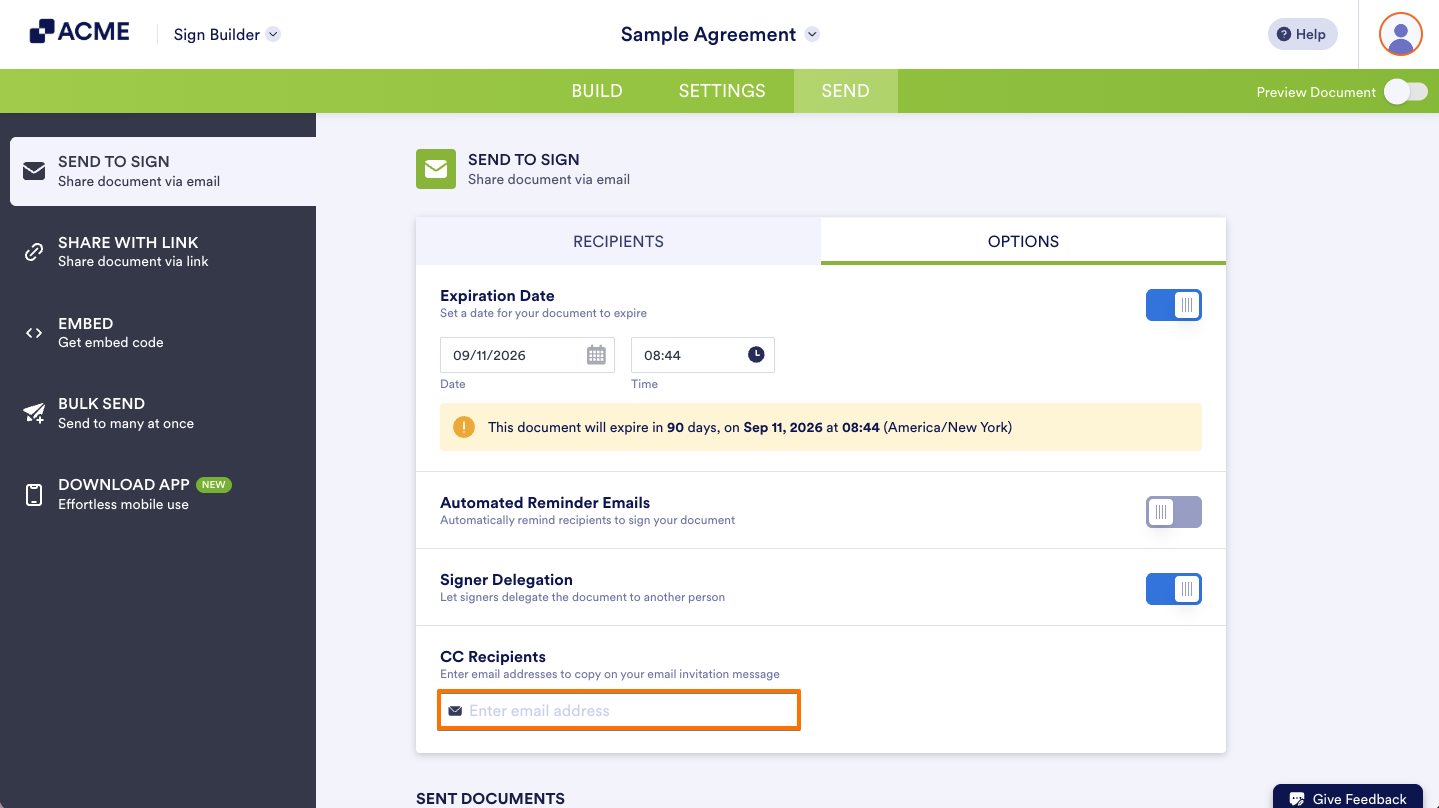
- Type in the emails of the people you’d like to CC where it says CC Recipient.
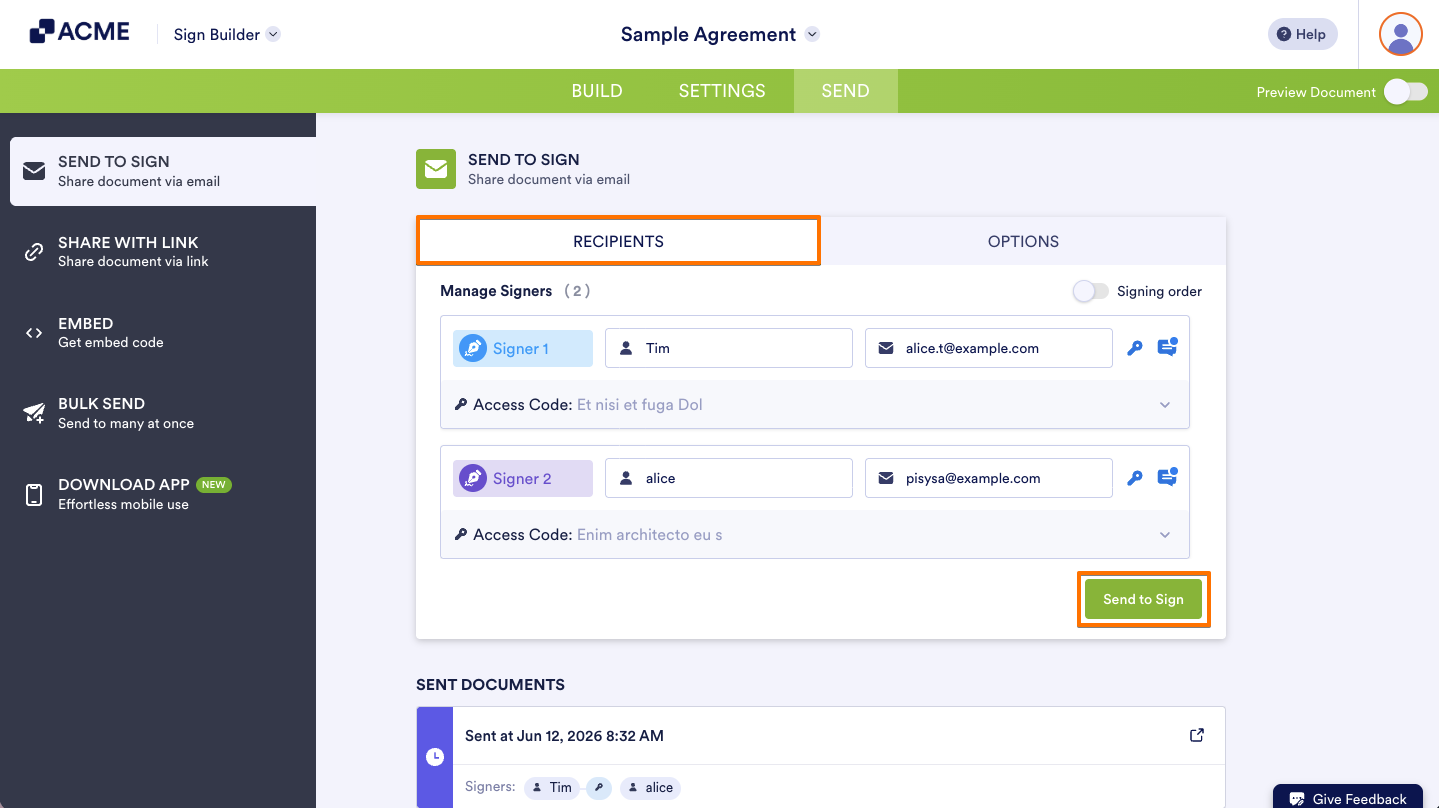
- Move back to the Recipients tab and click Send to Sign.
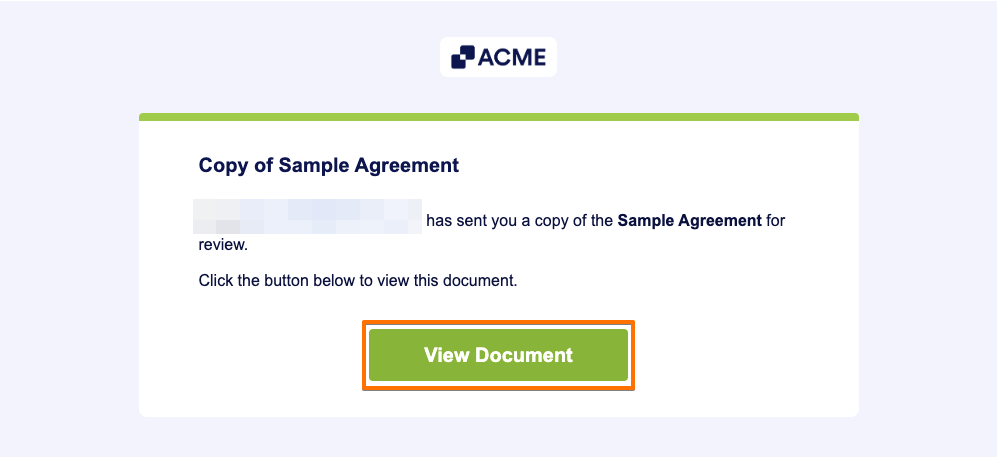
- The users you CC’d will receive an email from Sign document stating the document owner has copied them. Click the green View Document button to see the document.
Ensure no one is left out of the loop in your signing process; include all necessary parties with the CC feature, and make your document circulation comprehensive and efficient.
Disclaimer: The information provided in this guide is for general informational purposes only and is not intended to constitute legal advice. While we strive to keep the information accurate and up-to-date, laws and regulations vary by jurisdiction and can change frequently. Should you have specific legal questions about any of the information on this site, you should consult with a licensed attorney in your area.

Send Comment: