All sign requests are logged at Sign Inbox as soon as you send the document to other parties for their signature. It allows you to track which documents are waiting for your signature, the documents you signed but still awaiting the other party’s signature, the completely signed documents, and even those you canceled and declined by other parties.
Tracking the signing process is very simple. Let’s get started!
Tracking Documents Directly in Sign Inbox
You can view and track documents directly in Sign Inbox, similar to how you view your form submissions in Inbox. Here’s how:
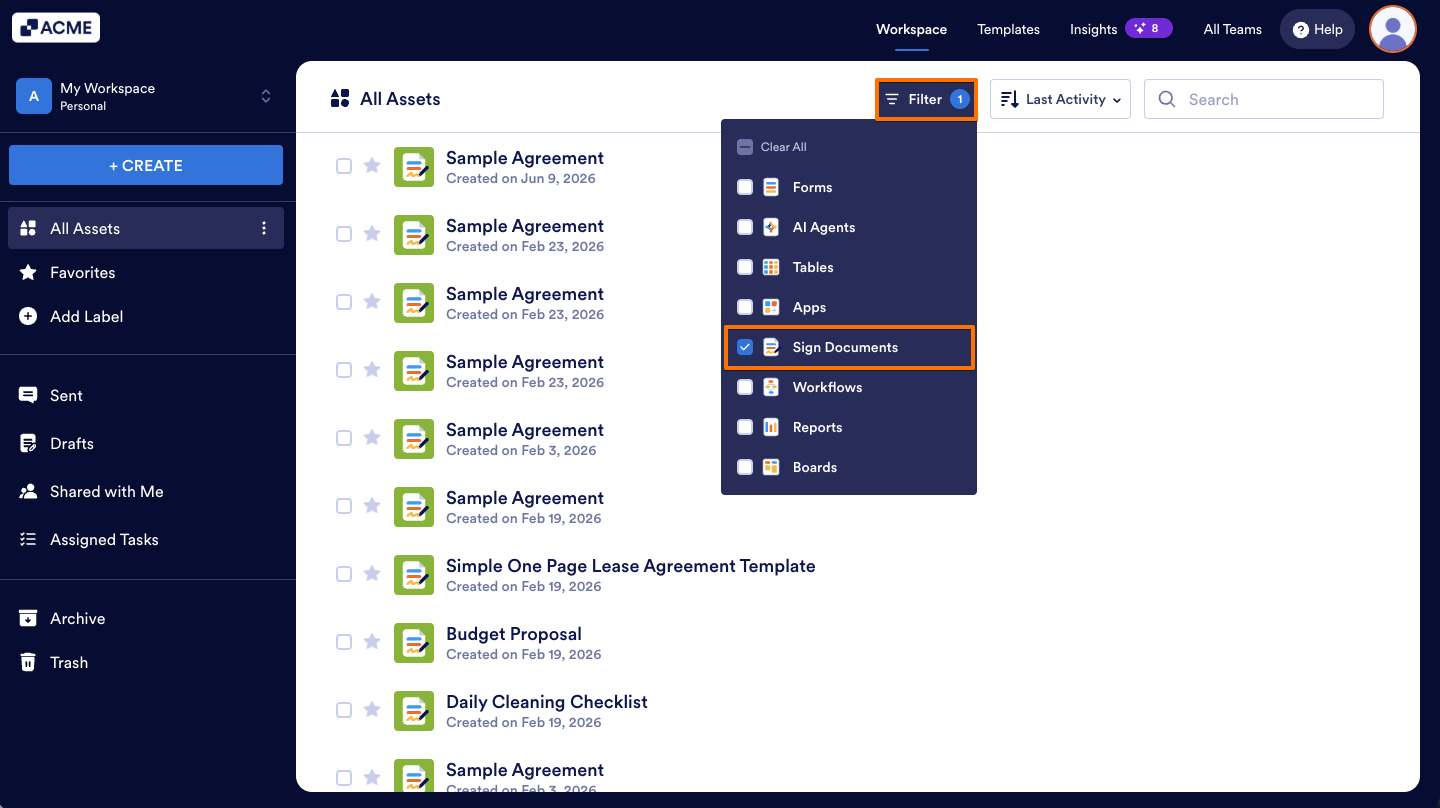
- On your My Workspace page, on the upper side of the page, click on the Filter dropdown.
- Select Sign Documents option from the dropdown list.
- Then, hover your mouse over one of your Sign Documents and click on the Sign Inbox option.
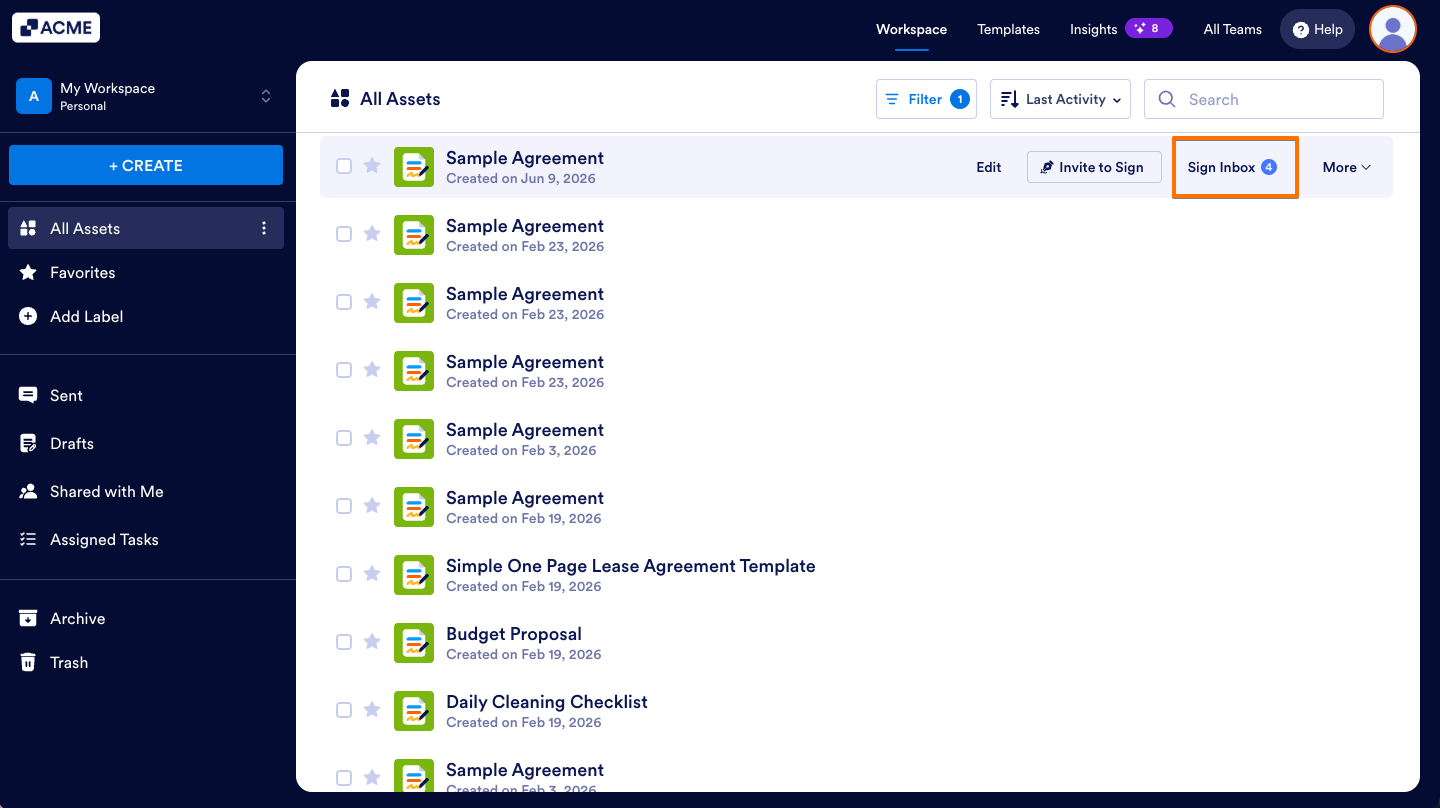
The page will take you to the Sign Inbox, where you can see the following tabs:
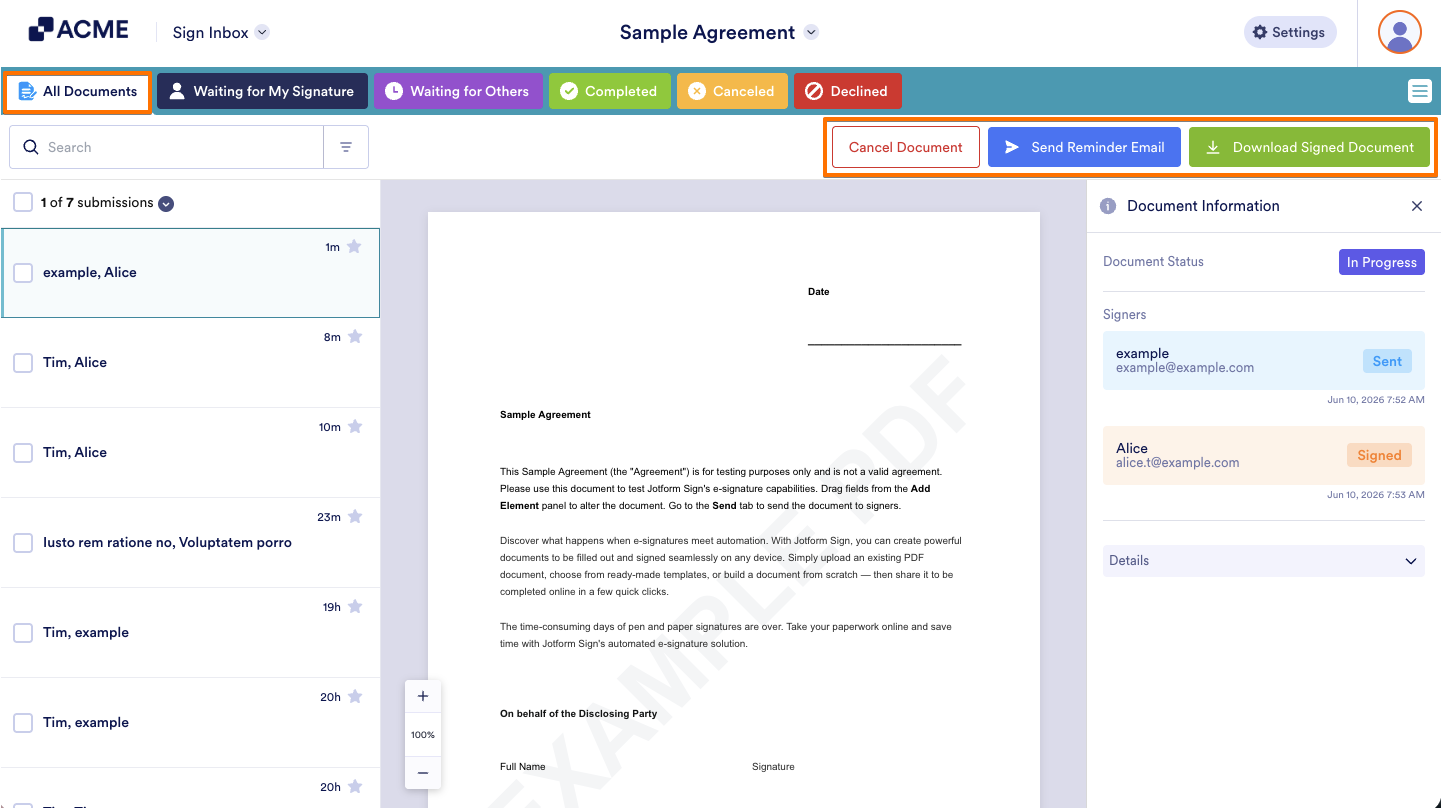
All Documents
Regardless of the document status, you’ll see them all under the All Documents tab. When you click a document, you’ll see three buttons on the top-right side of the page, namely:
- Cancel Document — Click this button to cancel the sign request for the documents. You can cancel any documents that have yet to be signed by all parties.
- Send Reminder Email — Click this button to manually send an email to the other party reminding them about the requested document. You can only send one reminder email a day.
- Download Signed Document — You can download a document, except for documents with no signature yet from all parties.
Note
The Download option is only available for documents with a Signed, Canceled, or Declined status. This means that if the signing process isn’t yet finished, the document can’t be downloaded.
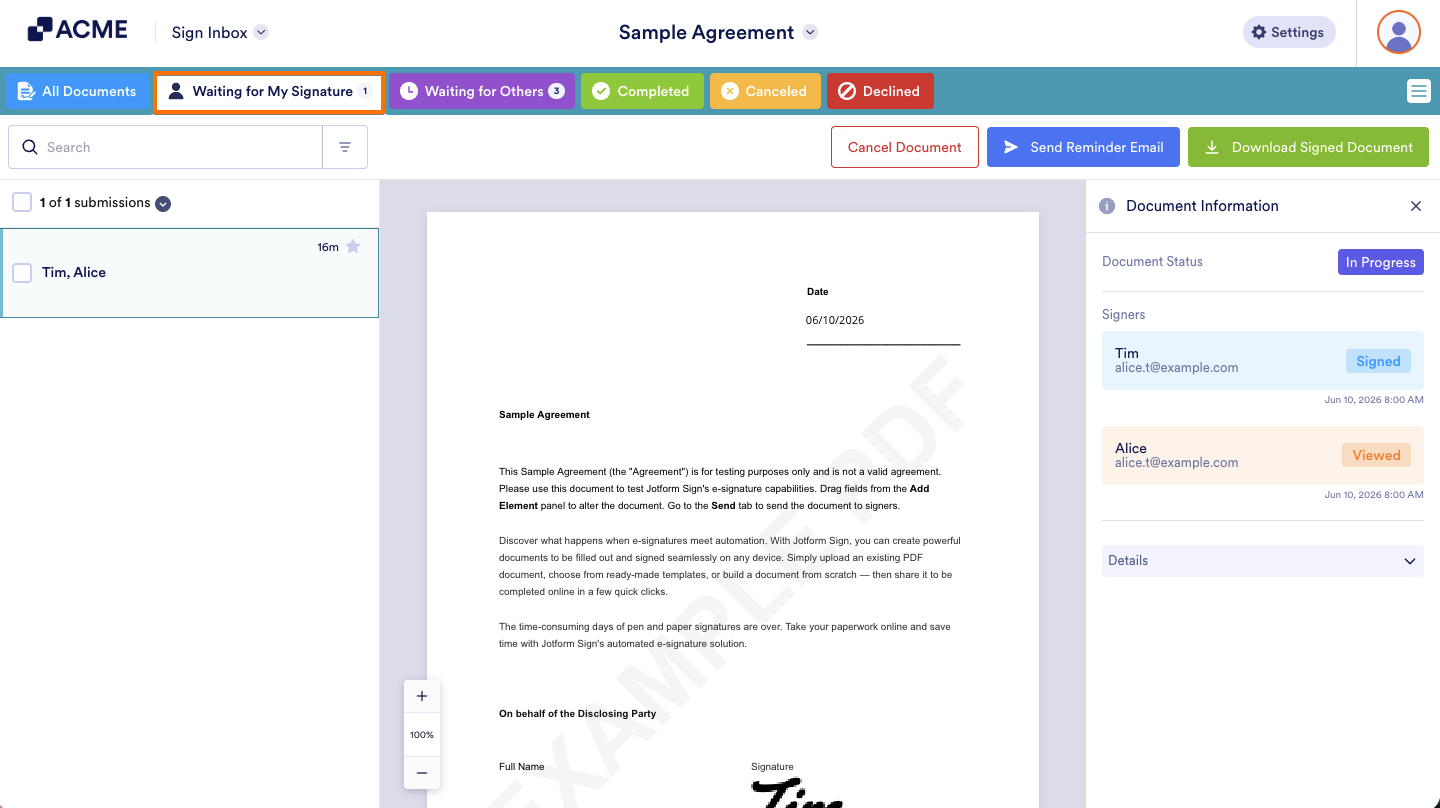
Waiting for My Signature
All documents awaiting your signatures, whether signed by the other party or not, are displayed under the Waiting for My Signature tab. All three action buttons, as explained above, are available on this tab.
Waiting for Others
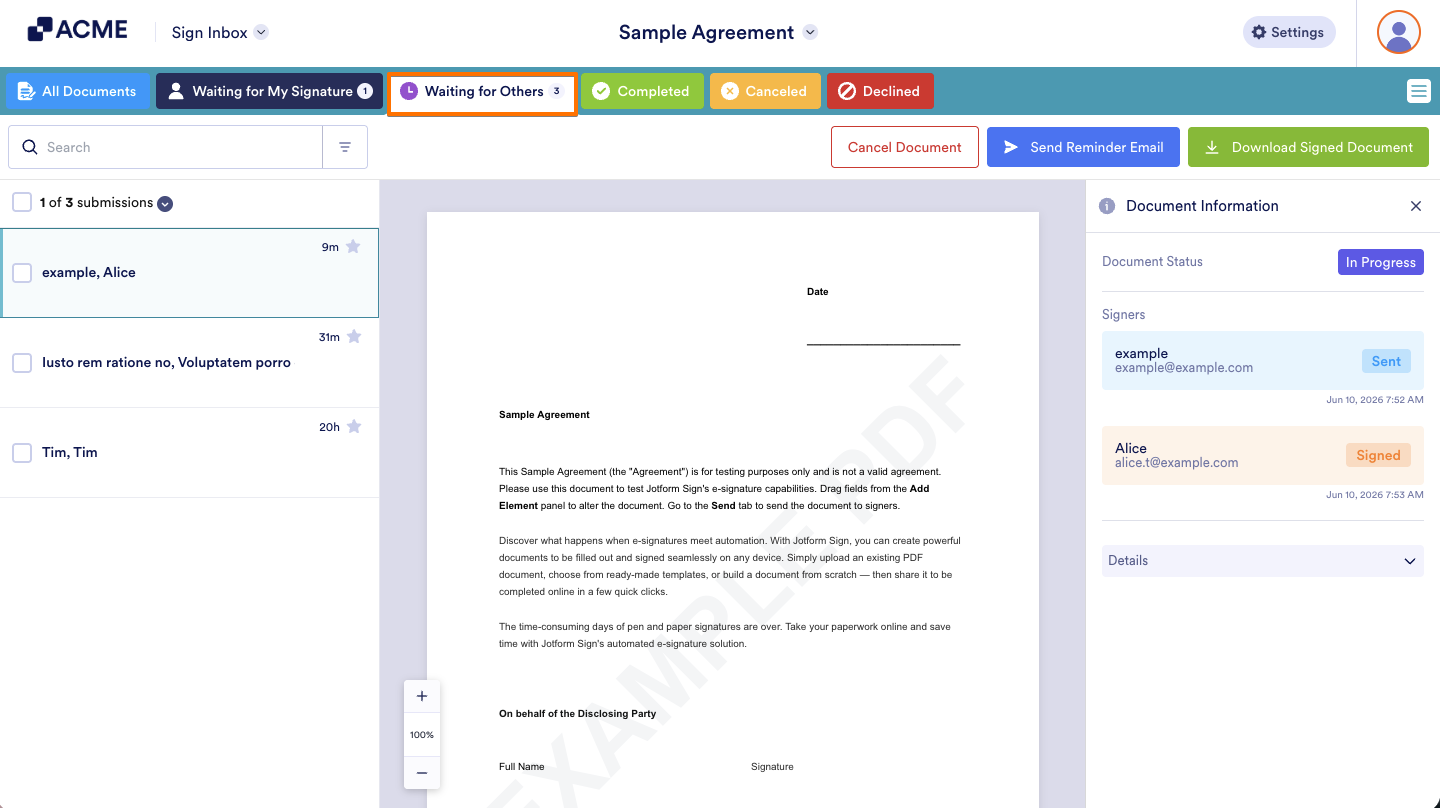
The Waiting for Others tab displays the documents waiting for signatures from other parties. The same action buttons are available on this tab as well.
Completed
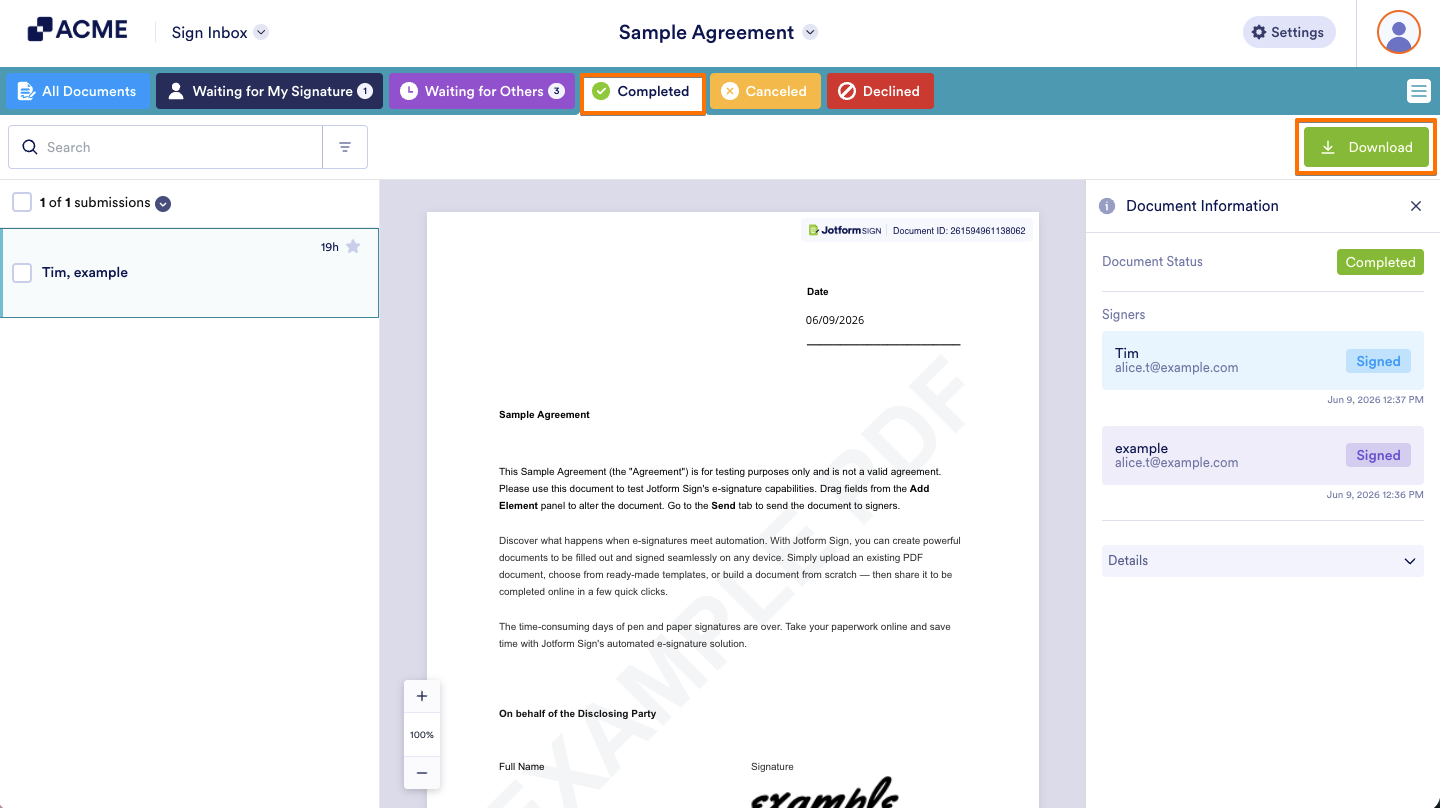
The Completed tab is where you’ll find the documents signed by all parties. You’ll find the Audit Trail at the bottom of the completed documents. You’ll only see the Download button on this tab.
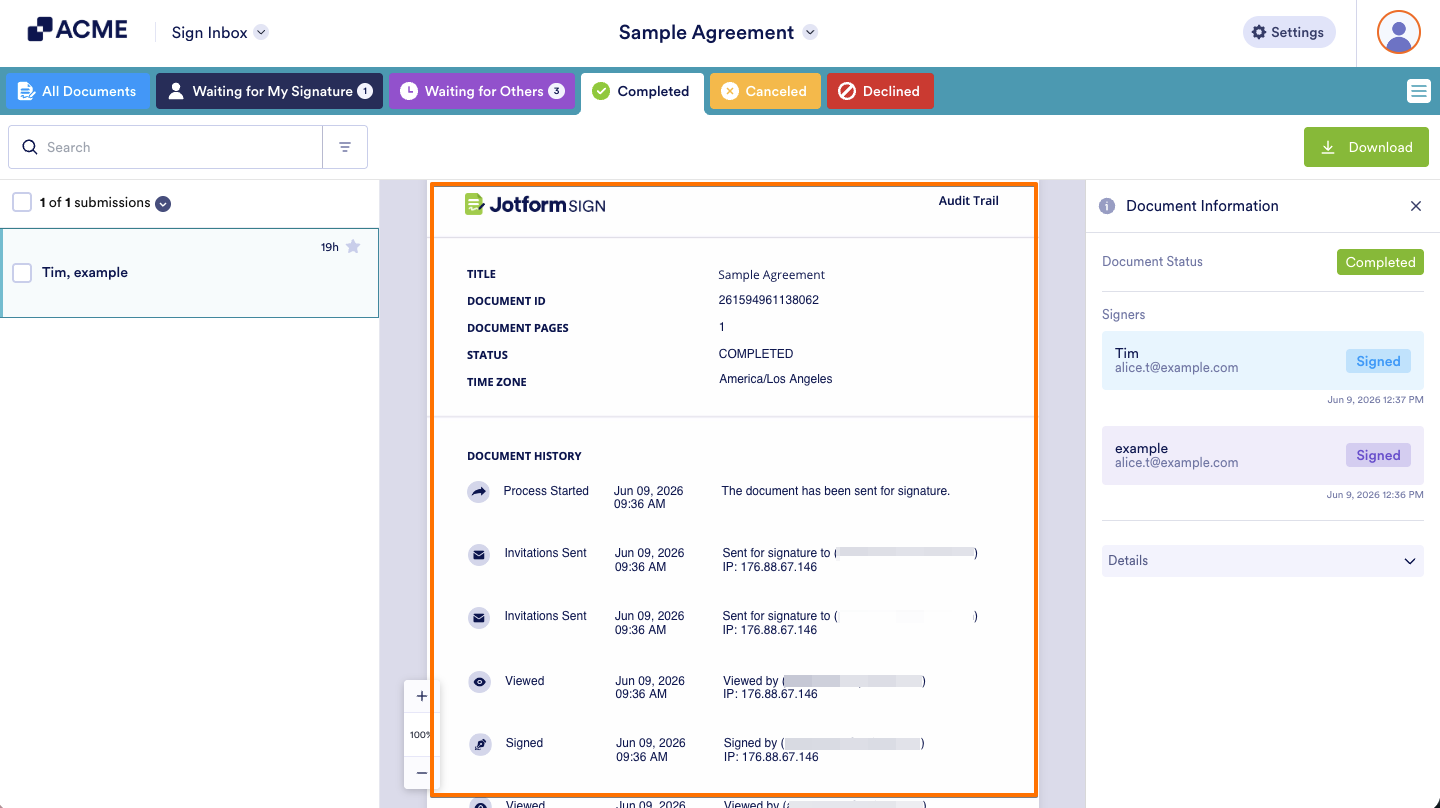
The Audit Trail includes the following information:
- Title — The title of the document you’ve uploaded. You can always change this at the top of the Sign Builder.
- Document ID — The unique ID of the document
- Document Pages — The number of pages of the document.
- Status — It’s either Completed, Canceled, or Declined.
- Time Zone — The document’s time zone is based on your account’s settings.
- Document History — The history includes when the flow started, the invitations sent, the document viewed and signed, if the original signer delegated the document, and lastly, when all parties completed the signing request.
Canceled
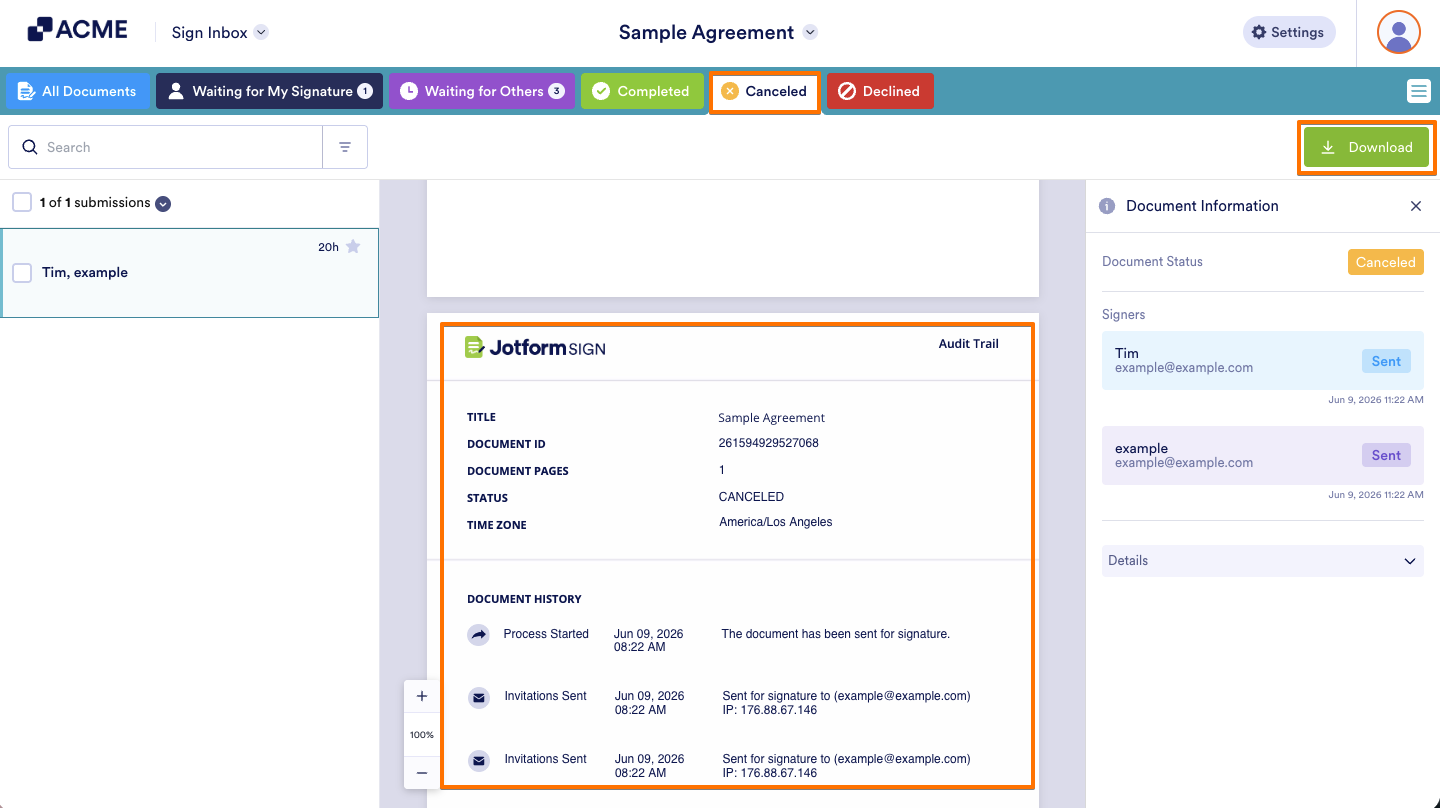
The Canceled tab contains all the documents you’ve canceled. You can’t restart canceled documents. They also include the Audit Trail with the time and date of the cancellation. You can also download the canceled documents.
Declined
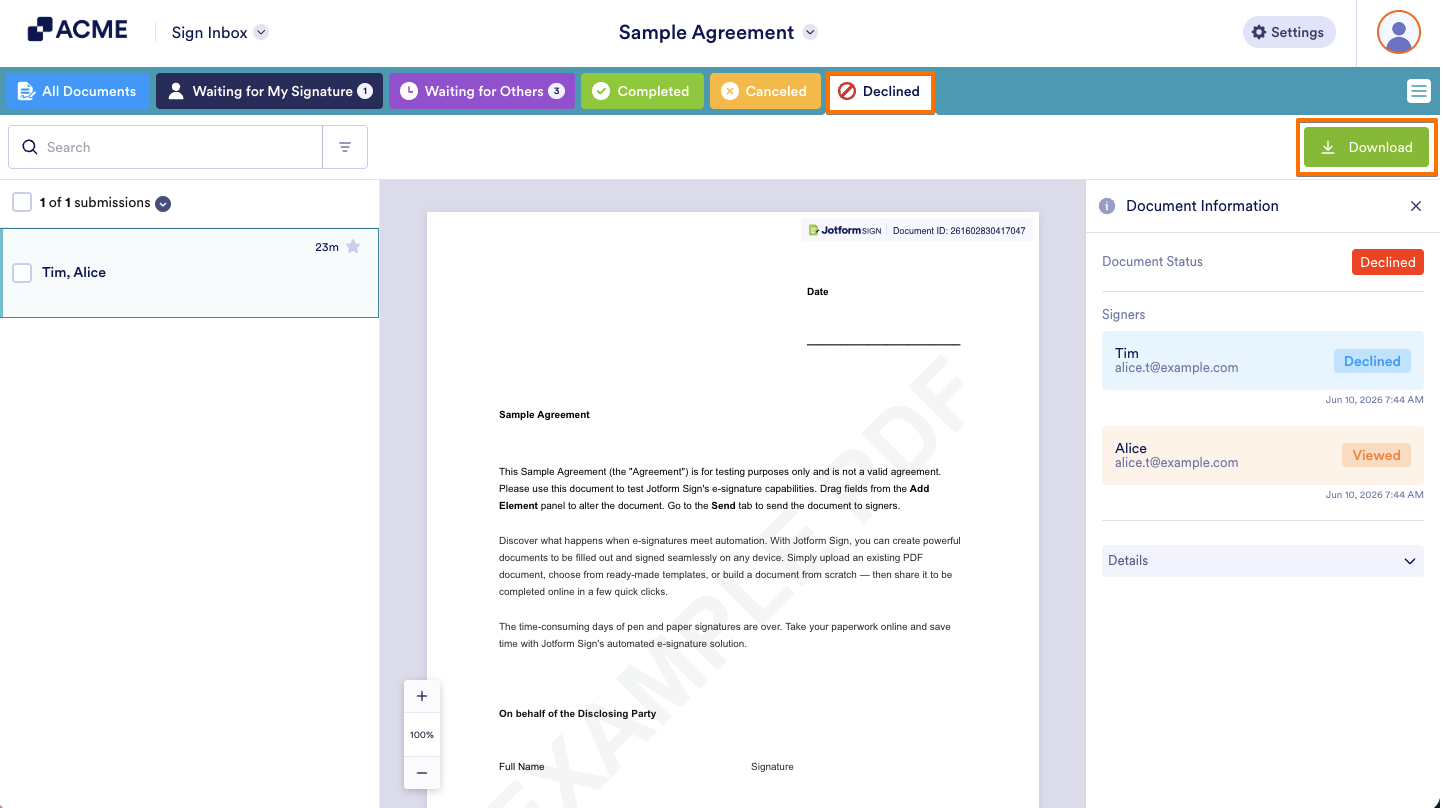
Lastly, the Declined tab is where you’ll find the documents that the other party declined to sign. You can also download these documents.
Tracking Individual Documents via Sign Builder
If you’re in the Sign Builder, you can track individual submissions on the Send tab. See the below image, for example:
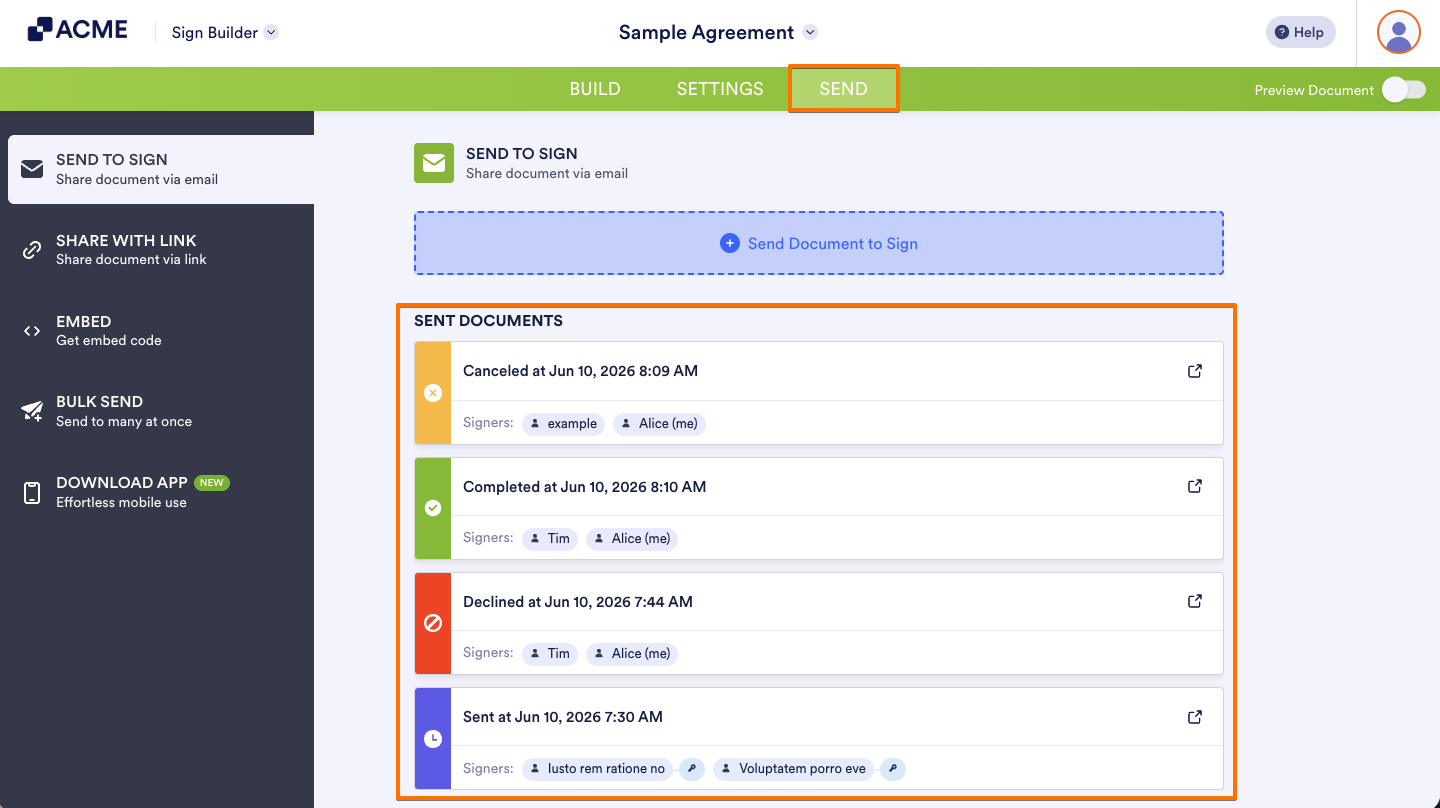
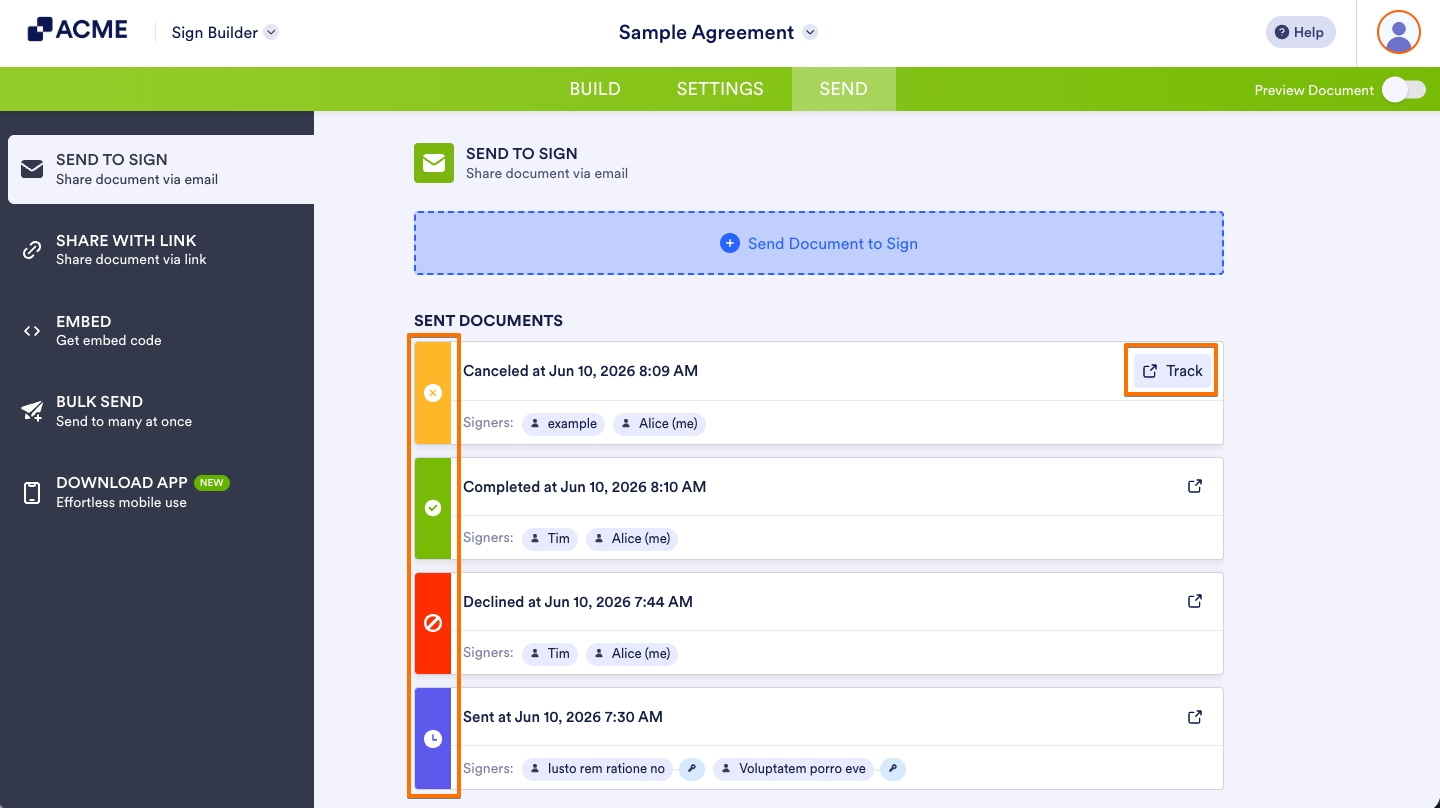
You’ll see that each document is colored and labeled with its status. You’ll see the Track arrow on the right side of each document. Click that to view the document in Sign Inbox. At the bottom, you’ll find the See All Signing Flows link. The link also redirects you to the Sign Inbox.
Disclaimer: The information provided in this guide is for general informational purposes only and is not intended to constitute legal advice. While we strive to keep the information accurate and up-to-date, laws and regulations vary by jurisdiction and can change frequently. Should you have specific legal questions about any of the information on this site, you should consult with a licensed attorney in your area.

Send Comment: