Jotform’s Add to Contacts Button widget lets visitors quickly download your contact details in VCF format so they can easily add them to their contacts. It’s useful for sales inquiries, consultant introductions, event profiles, appointment pages, and other situations where people may need to reach someone again later. By making important contact information easy to keep, it helps visitors stay connected after interacting with your form.
Here are a few ways to use it:
- Help prospects save a sales representative’s contact details after submitting an inquiry.
- Let event attendees keep a speaker’s contact information for later.
- Give consulting clients a direct contact for follow-up.
- Help appointment visitors save business contact details for future use.
Note
The Add to Contacts Button widget is available on both Classic and Card Forms. Check out our guide on When to Use Card Forms to learn more.
Whether youʼre creating a new form or updating an existing one, you can add and set up the Add to Contacts Button widget in just a few steps. Hereʼs how to set it up:
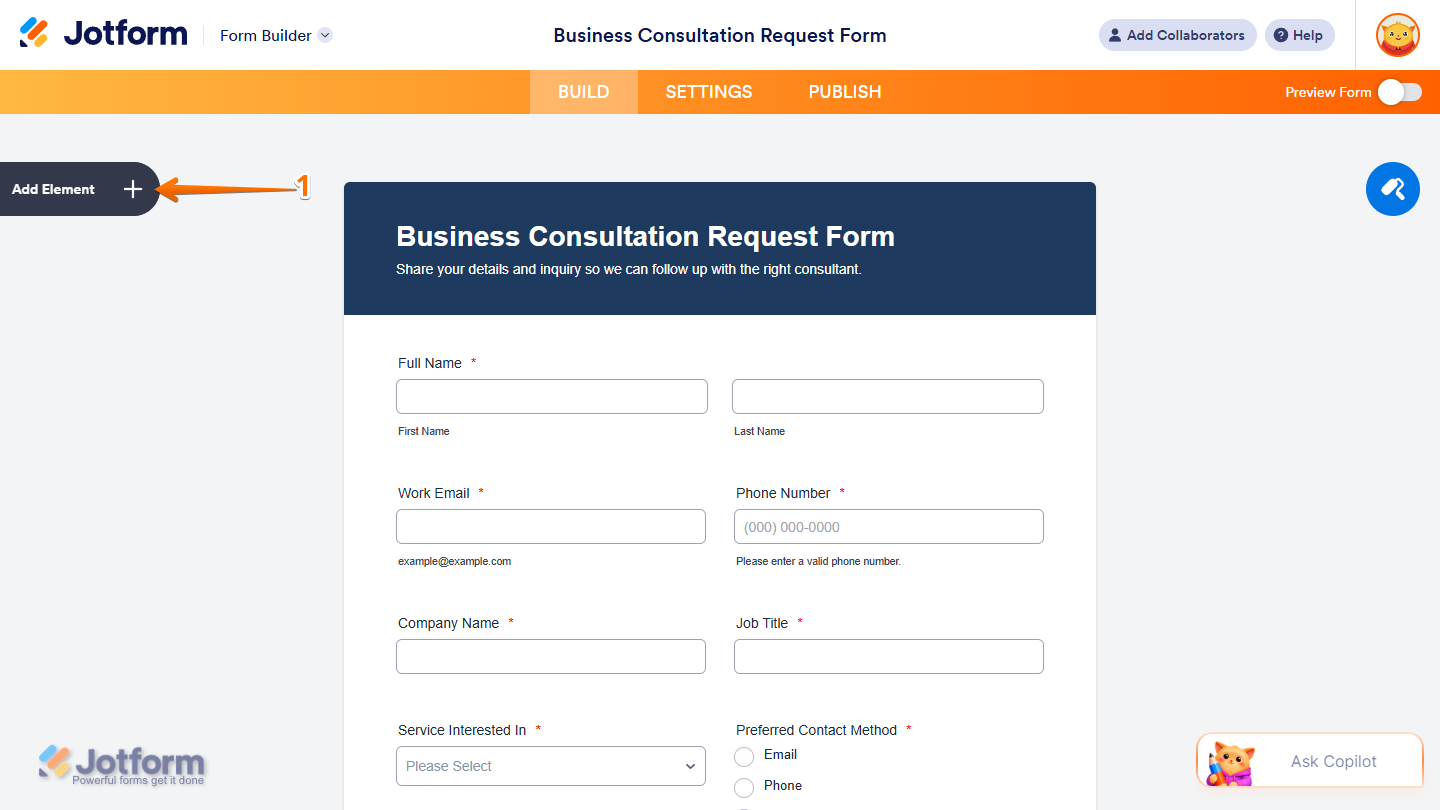
- In Form Builder, click on Add Element on the left side of the page.
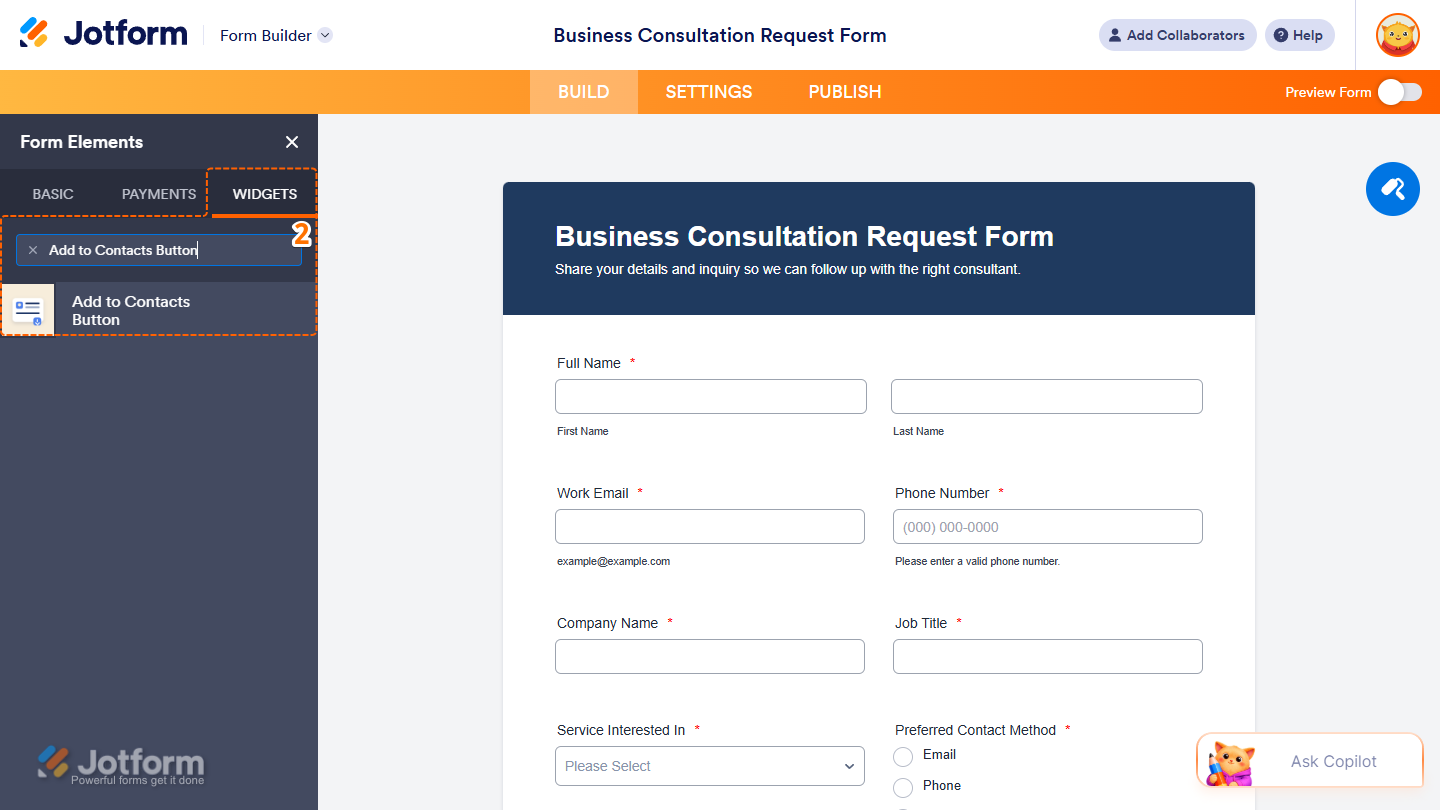
- Now, in the Form Elements menu, under the Widgets tab, search for Add to Contacts Button and click on it. Or, drag and drop it to where you want it to appear on your form.
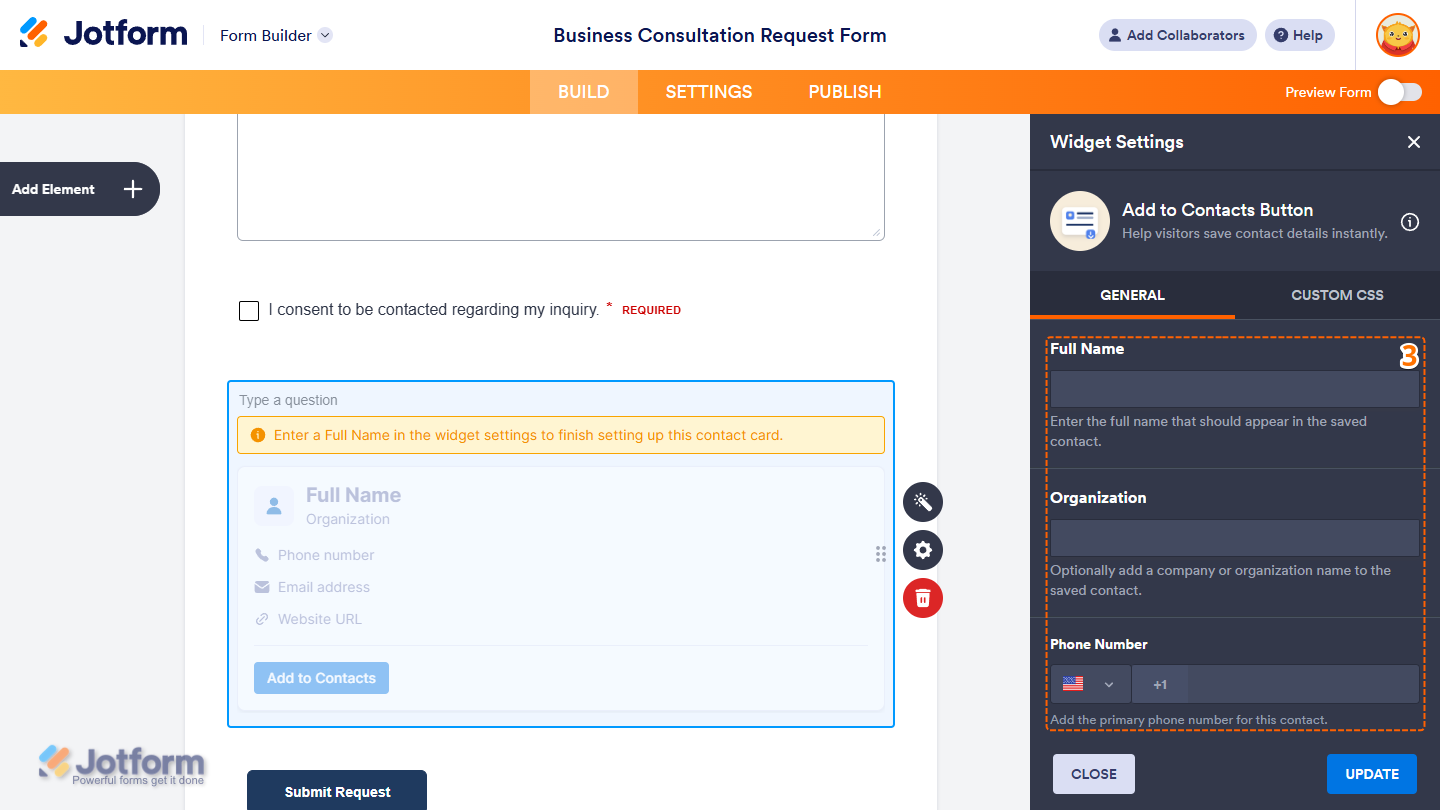
- Next, in the Widget Settings menu that opens on the right side of the page, you’ll see this list of settings you can configure:
- Full Name — Enter the full name for the contact.
- Organization — Enter the company or organization name for the contact.
- Phone Number — Click on the Downward Arrow icon next to the country flag and in the Dropdown menu, select a country, and then on its right, enter the contact’s phone number.
- Then, scroll down to the bottom and continue to set up these settings:
- Email Address — Enter the email address for the contact.
- Website URL — Enter the website URL for the contact.
- Button Text — Enter the text you want to display on the download button.
- Once everythingʼs set, click on Update.
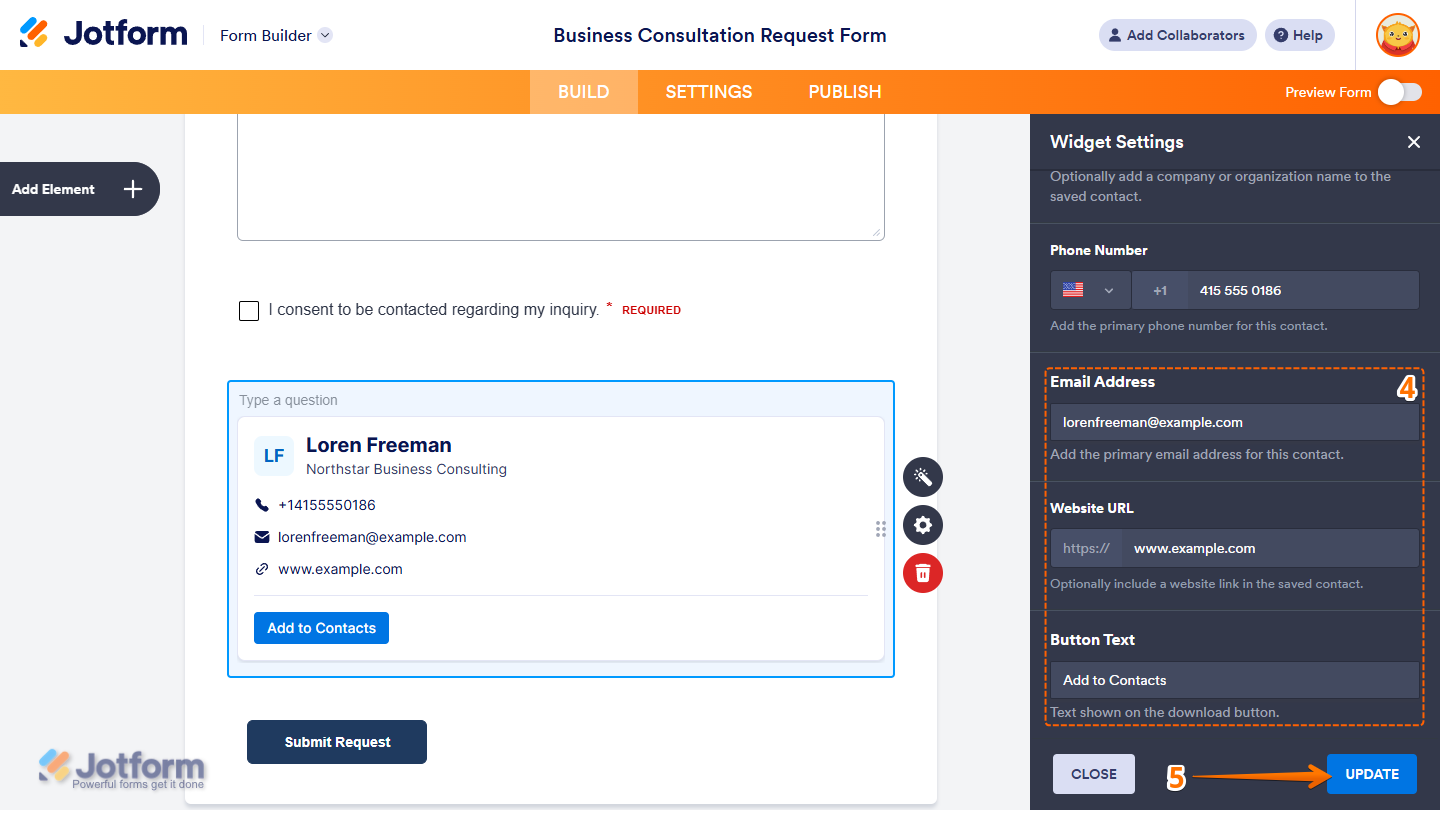
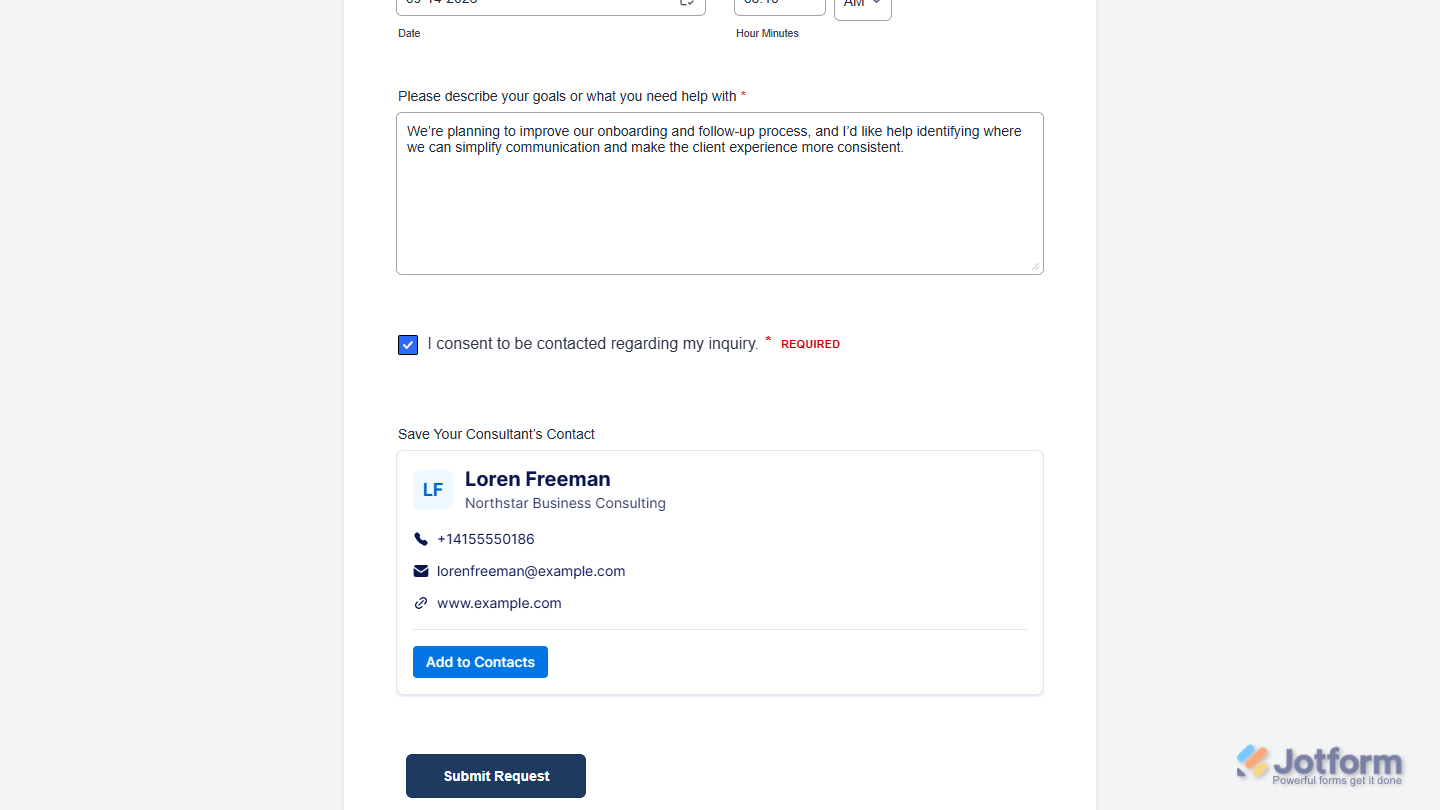
That’s it! You’ve now successfully added and set up the Add to Contacts Button widget on your form. Now, users can download the contact information you added as a VCF file. Wondering how it looks in action? Check out this Demo form.
Notes
- For advanced styling of the Add to Contacts Button widget, you can add your own custom CSS code under the Custom CSS tab in the Widget Settings. Our guide on How to Inject CSS Codes to Widgets walks you through everything.
- You can also configure the widget properties, like alignment, labels, size, visibility, and more, to control how it looks and behaves on your form. Check out our guide on How to Access and Configure the Question Properties of a Widget to learn more.

Send Comment: