Jotform’s Audio Player widget lets you add playable audio directly to your form, giving respondents helpful information without sending them to another page. It works well for listening exercises, training materials, spoken instructions, product or event previews, and other forms where audio can provide additional context or make content more accessible.
Here are a few ways to use it:
- Guide learners through listening exercises.
- Share training and onboarding instructions.
- Preview audio for events or products.
- Add spoken context to feedback requests.
- Provide accessible form instructions.
Note
The Audio Player widget is available on both Classic and Card Forms. Check out our guide on When to Use Card Forms to learn more.
Whether youʼre creating a new form or updating an existing one, you can add and set up the Audio Player widget in just a few steps. Hereʼs how to set it up:
- In Form Builder, click on Add Element on the left side of the page.
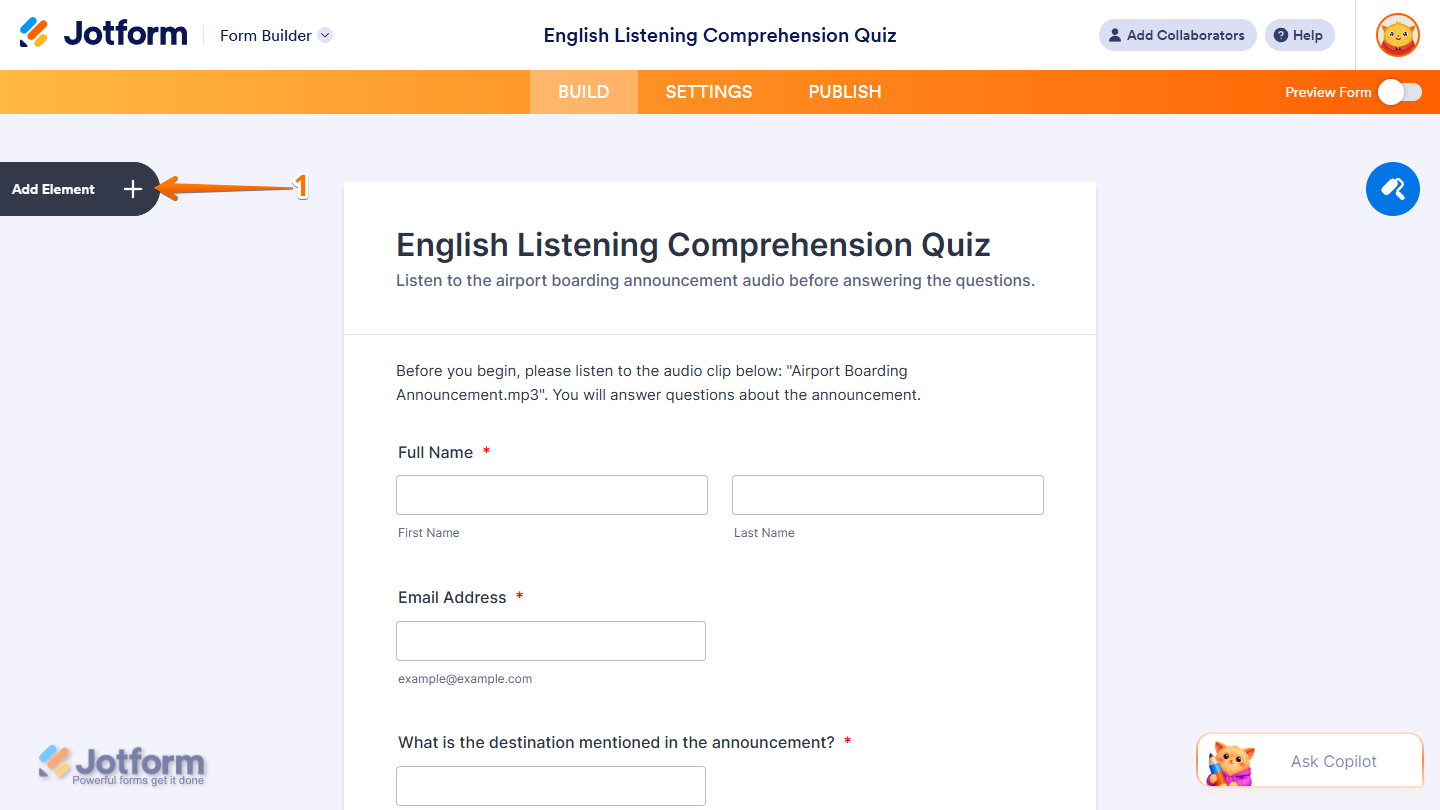
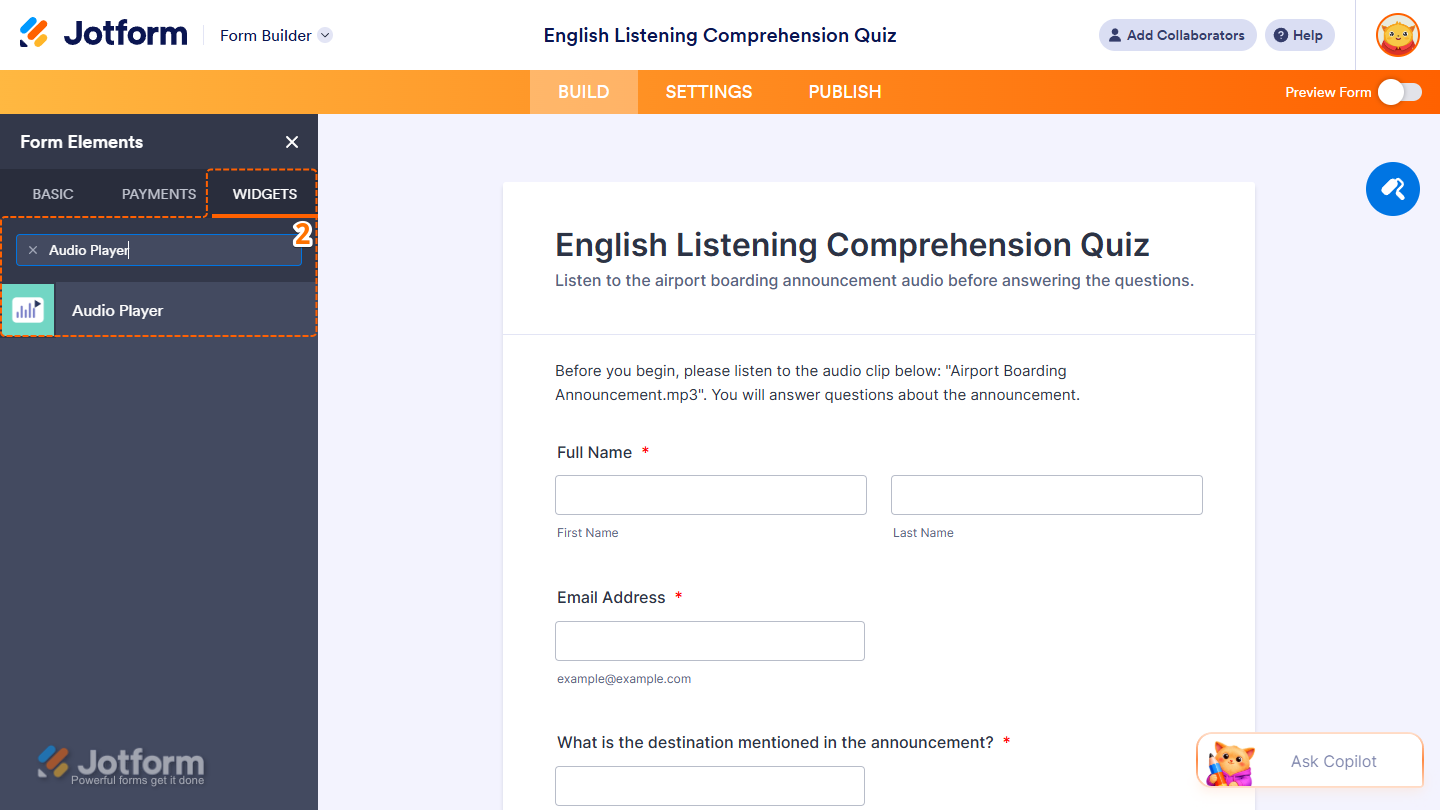
- Now, in the Form Elements menu, under the Widgets tab, search for Audio Player and click on it. Or, drag and drop it to where you want it to appear on your form.
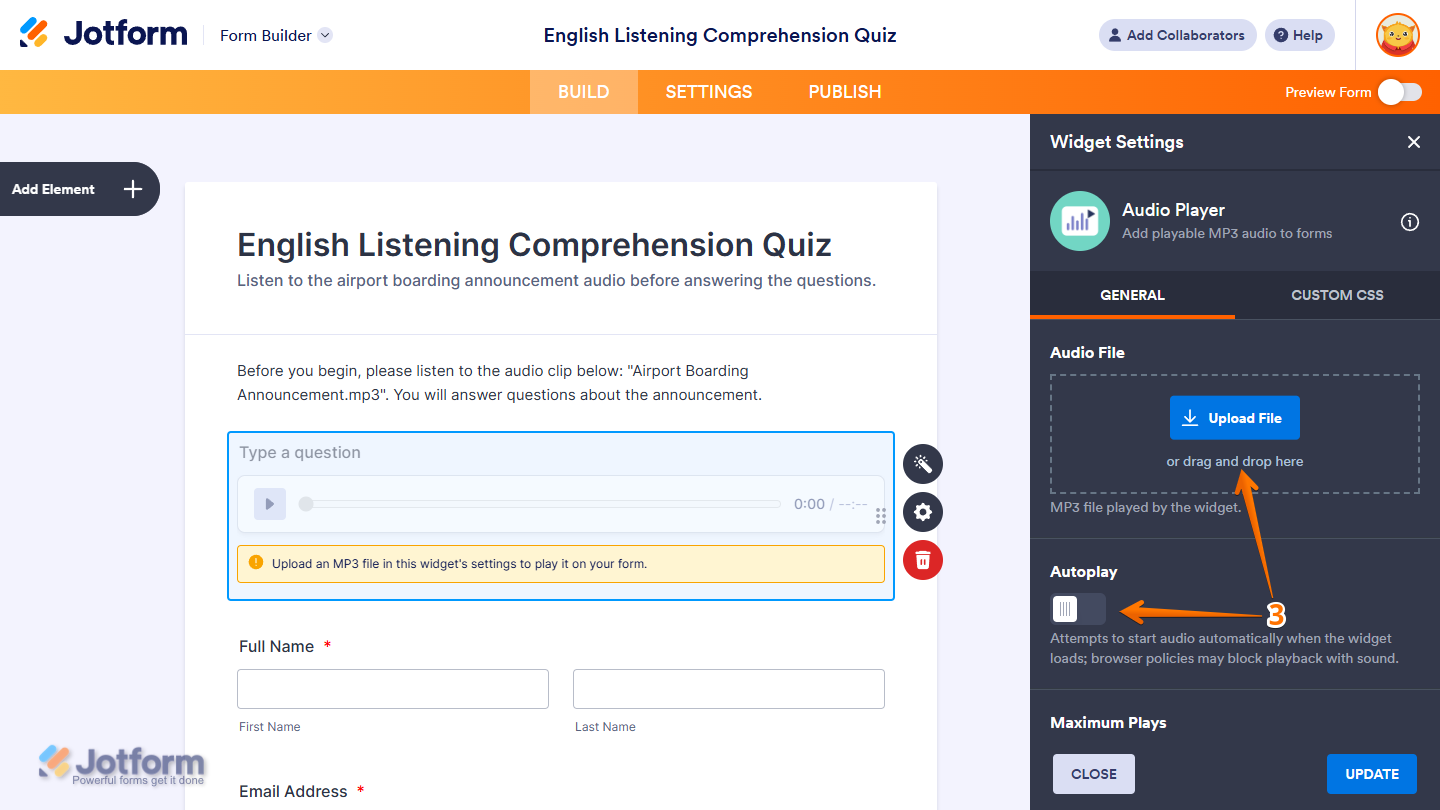
- Next, in the Widget Settings menu that opens on the right side of the page, you’ll see this list of settings you can configure:
- Audio File — Drag and drop an MP3 file into the Upload area, or click on Upload File, and then select an MP3 file from your device.
- Autoplay — Toggle this on to automatically play the audio when the widget loads. Some browsers may block autoplay with sound.
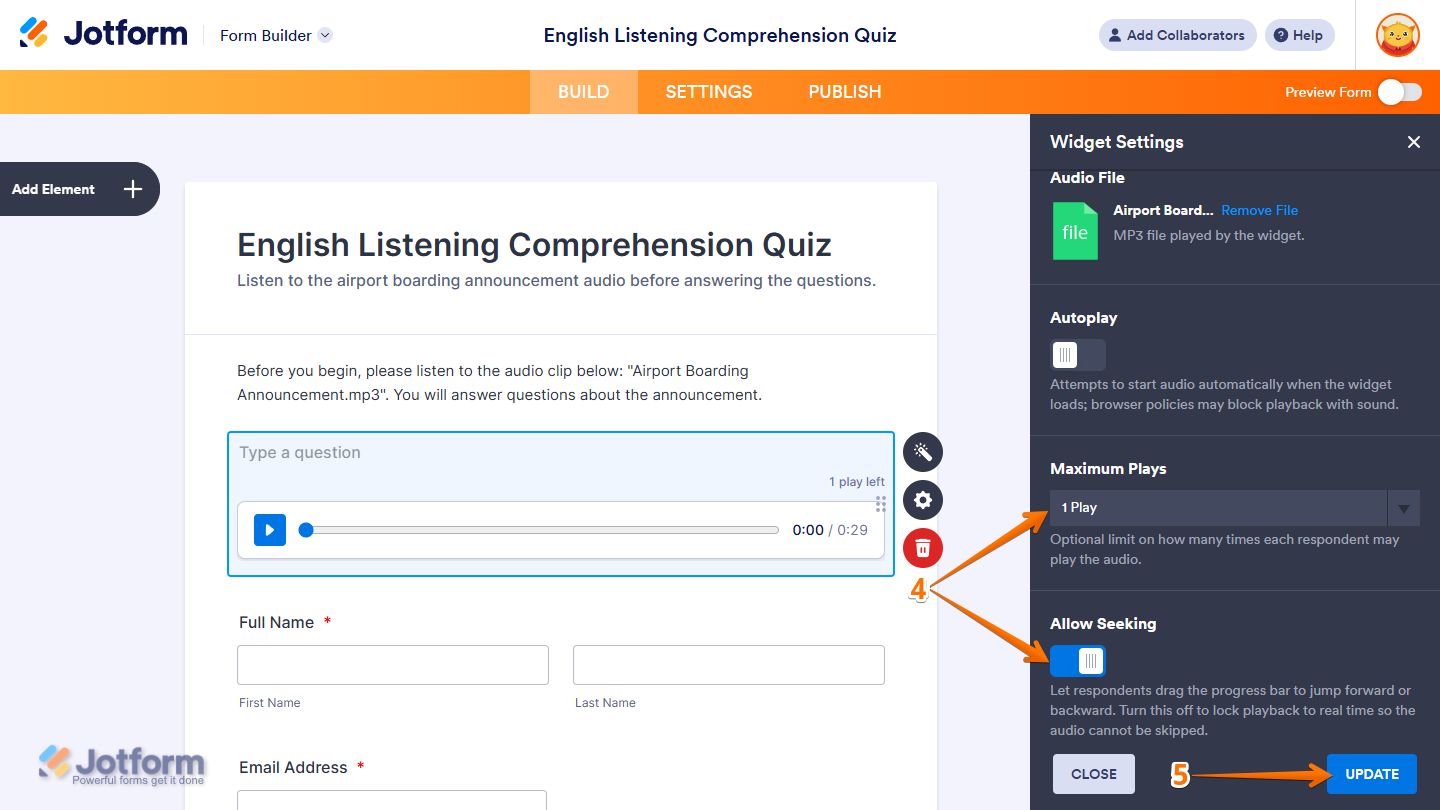
- Then, scroll down to the bottom and continue to set up these settings:
- Maximum Plays — Click on the Downward Arrow icon and in the Dropdown menu, select the maximum number of times each respondent can play the audio, or select Unlimited to remove the play limit.
- Allow Seeking — Toggle this off to prevent respondents from dragging the progress bar to skip forward or backward through the audio.
- Once everythingʼs set, click on Update.
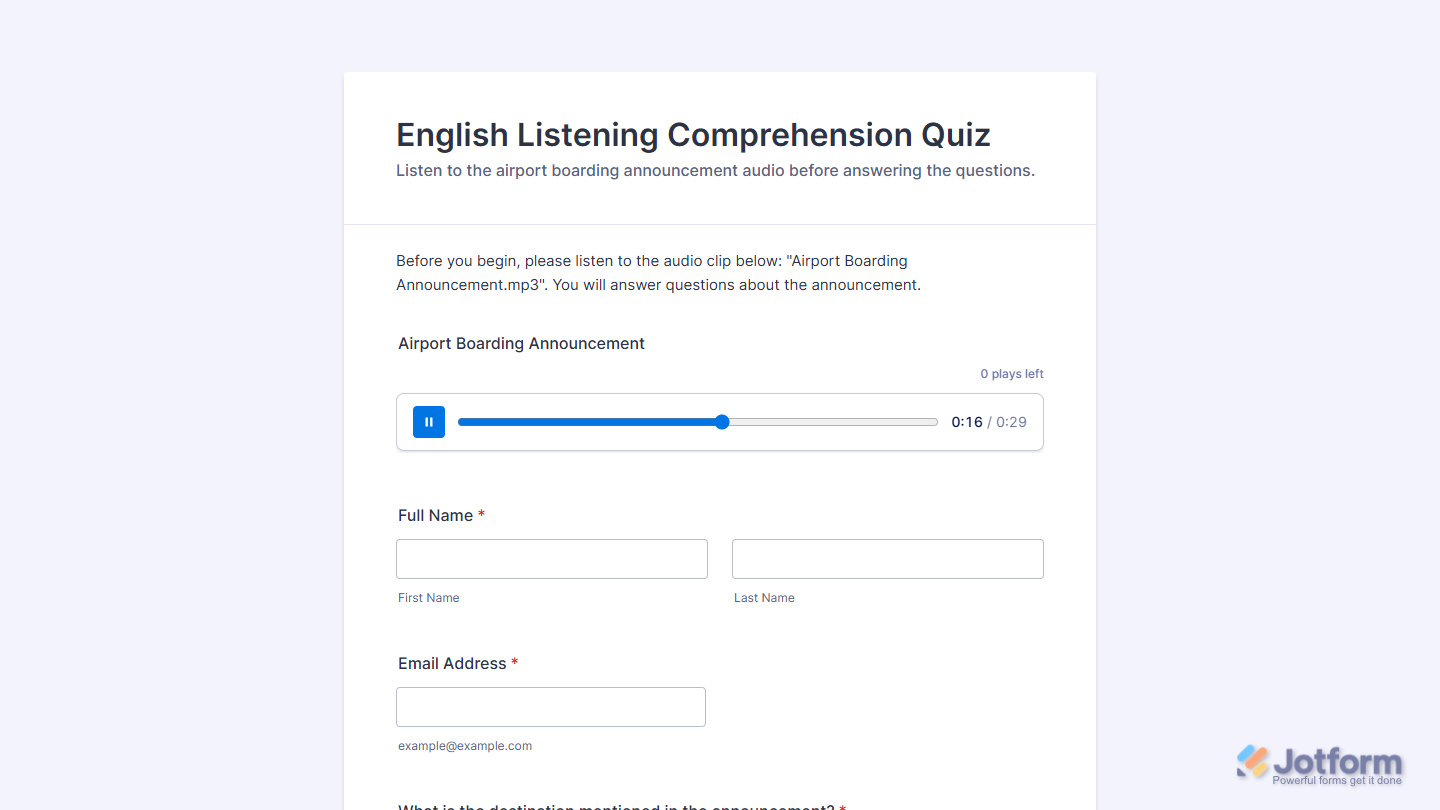
That’s it! You’ve now successfully added and set up the Audio Player widget on your form. Wondering how it looks in action? Check out this Demo form.
Notes
- For advanced styling of the Audio Player widget, you can add your own custom CSS code under the Custom CSS tab in the Widget Settings. Our guide on How to Inject CSS Codes to Widgets walks you through everything.
- You can also configure the widget properties, like alignment, labels, size, visibility, and more, to control how it looks and behaves on your form. Check out our guide on How to Access and Configure the Question Properties of a Widget to learn more.

Send Comment: