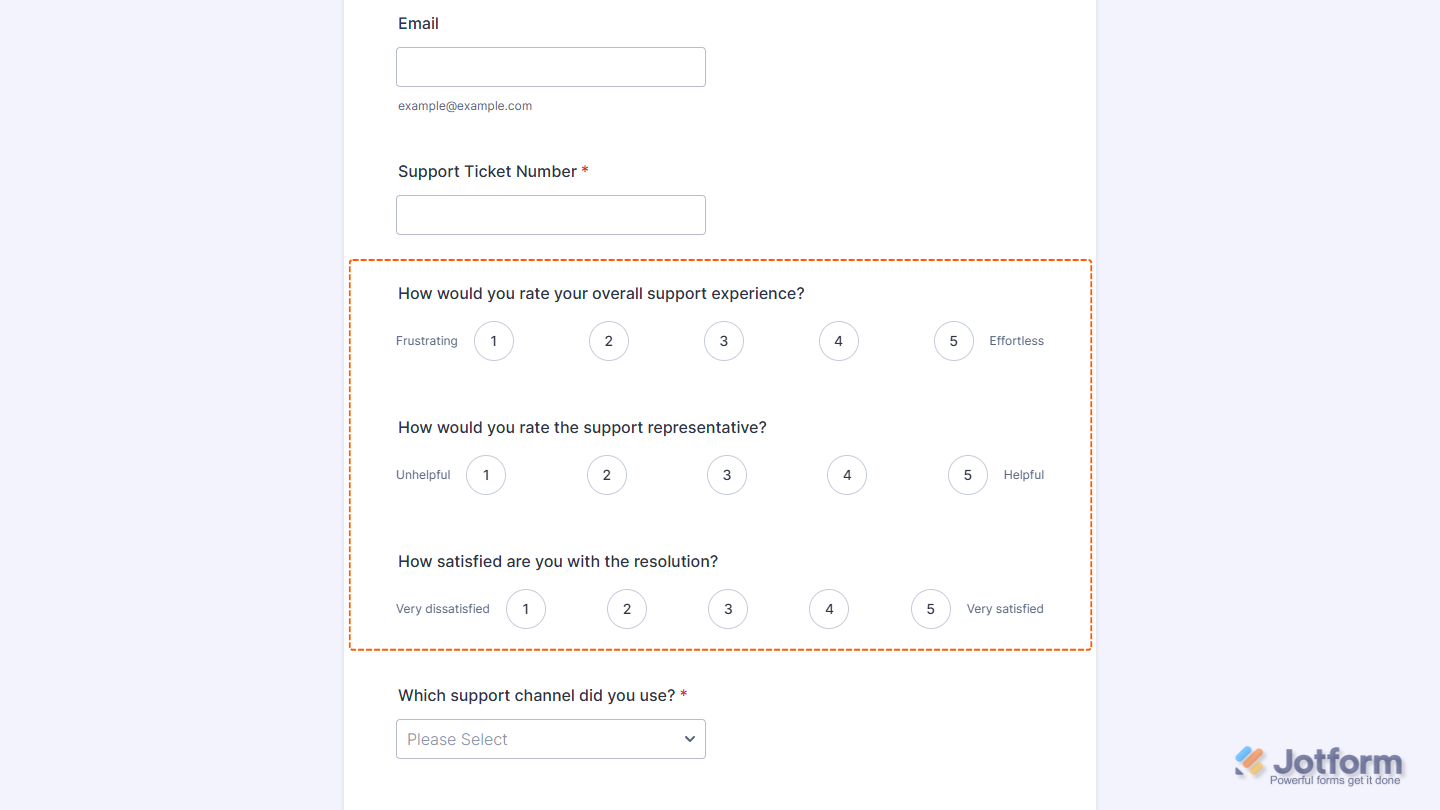
Jotform’s Bipolar Likert Scale widget lets you measure opinions between two opposing statements, giving respondents a range of choices instead of limiting them to a simple yes-or-no response. It’s useful for satisfaction surveys, attitude assessments, product research, employee evaluations, and other forms where you want a more nuanced view of how people feel. By presenting both ends of a scale clearly, you can collect responses that better reflect where each respondent’s opinion falls.
Here are a few ways to use it:
- Measure customer service experiences from frustrating to effortless.
- Assess student confidence before and after a lesson.
- Capture product sentiment between opposing statements.
- Evaluate employee feedback across workplace tradeoffs.
Note
The Bipolar Likert Scale widget is available on both Classic and Card Forms. Check out our guide on When to Use Card Forms to learn more.
Whether youʼre creating a new form or updating an existing one, you can add and configure the Bipolar Likert Scale widget in a few easy steps. Here’s how to do it:
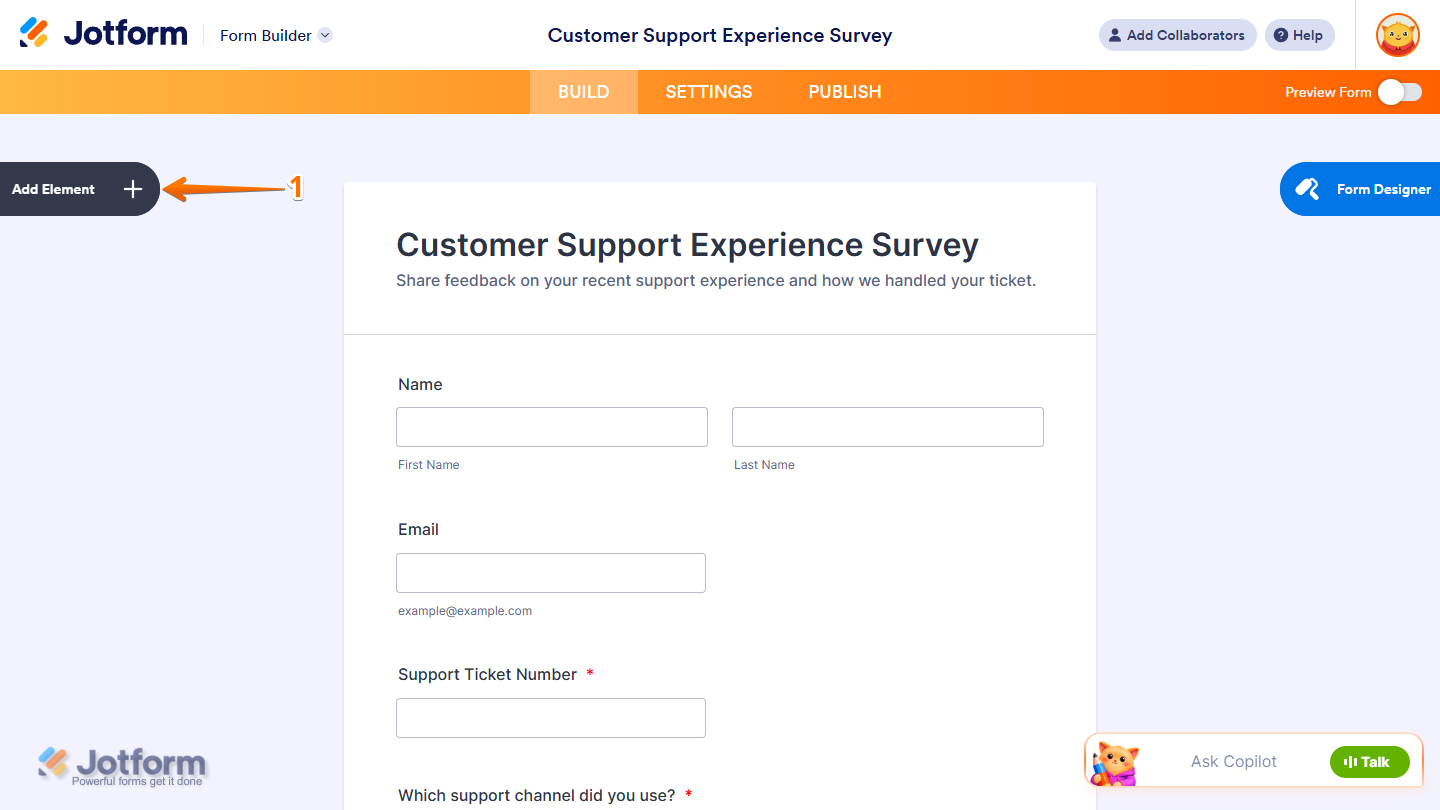
- In Form Builder, click on Add Element on the left side of the page.
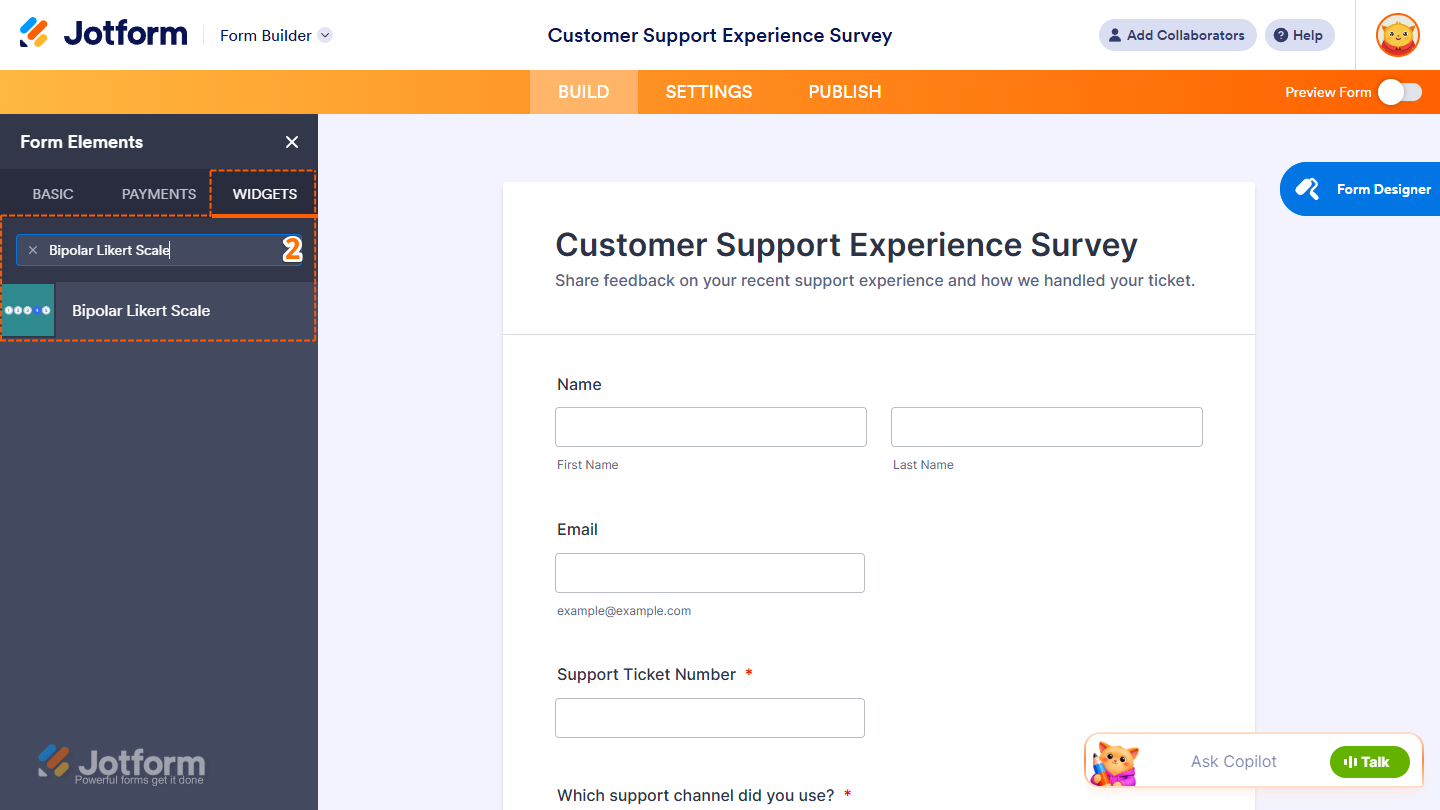
- Now, in the Form Elements menu, under the Widgets tab, search for Bipolar Likert Scale and click on it. Or, drag and drop it to where you want it to appear on your form.
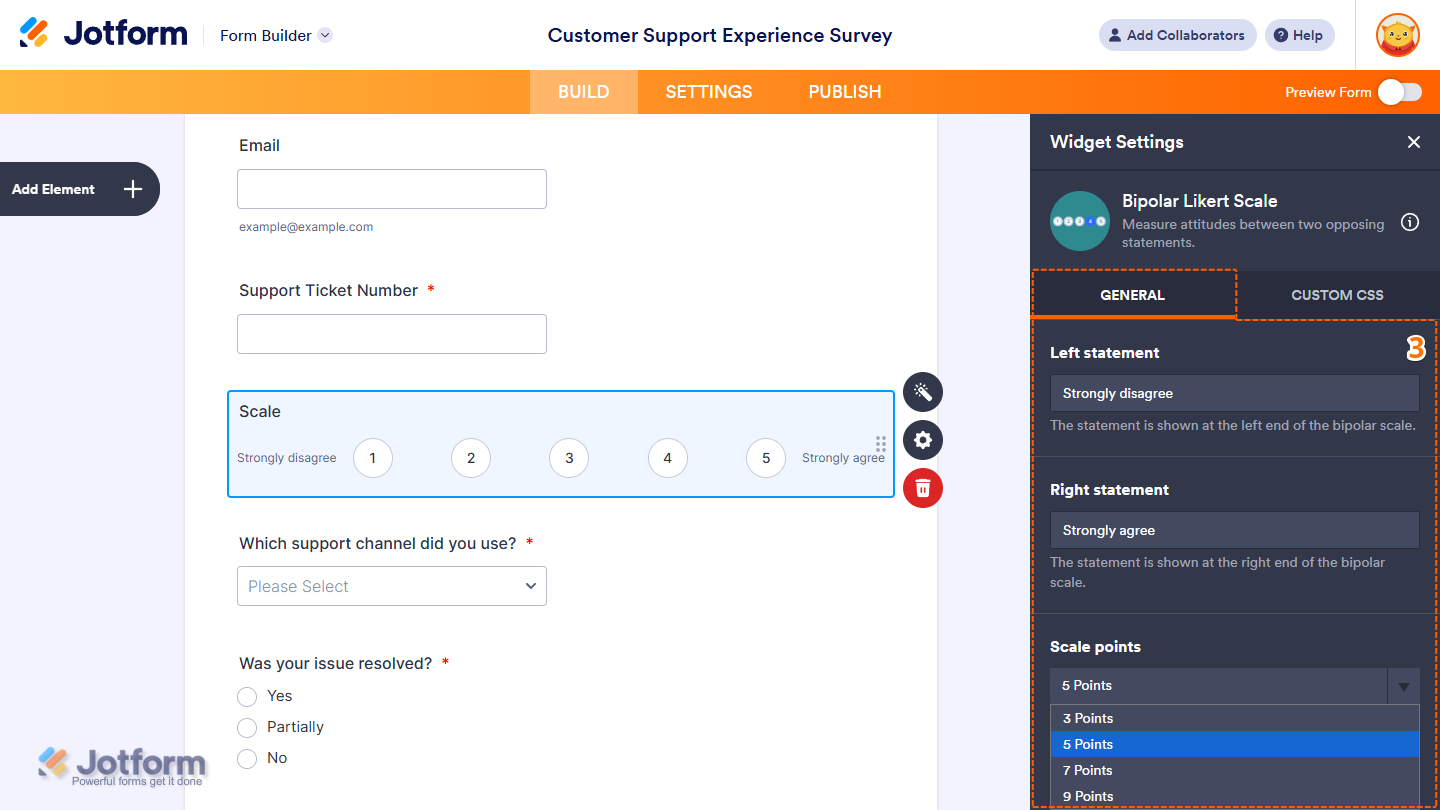
- Next, in the Widget Settings menu that opens on the right side of the page, you’ll see this list of settings you can configure:
- Left Statement — Enter the statement for the left end of the scale.
- Right Statement — Enter the statement for the right end of the scale.
- Scale Points — Click on the Downward Arrow icon and in the Dropdown menu, select the number of points you want to use for the scale.
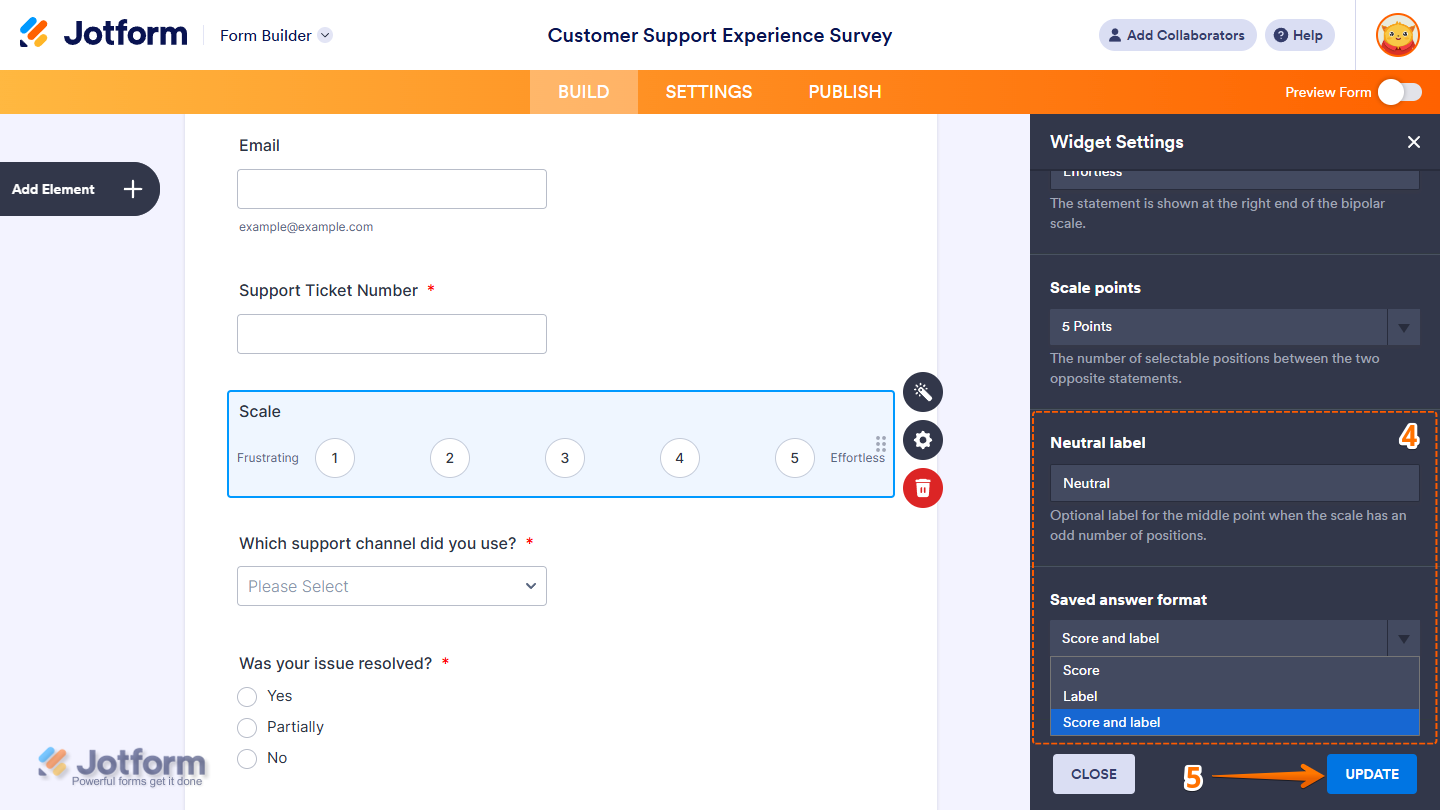
- Then, scroll down to the bottom and continue to set up these settings:
- Neutral Label — Enter the label for the middle point of a scale with an odd number of points.
- Saved Answer Format — Click on the Downward Arrow icon and in the Dropdown menu, select how you want responses to be saved:
- Score — Save the selected score.
- Label — Save the label for the selected response.
- Score and Label — Save both the selected score and its label.
- Once everythingʼs set, click on Update.
That’s it! You’ve now successfully added and set up the Bipolar Likert Scale widget on your form. Wondering how it looks in action? Check out this demo form.
Notes
- For advanced styling of the Bipolar Likert Scale widget, you can add your own custom CSS code under the Custom CSS tab in the Widget Settings. Our guide on How to Inject CSS Codes to Widgets walks you through everything.
- You can also configure the widget properties, like alignment, labels, size, visibility, and more, to control how it looks and behaves on your form. Check out our guide on How to Access and Configure the Question Properties of a Widget to learn more.

Send Comment: