Jotform’s PDF Embedder widget lets you seamlessly upload and display PDFs directly in your forms, with no coding required. Ideal for sharing important files like terms and conditions, regulations, insurance forms, or safety instructions, it enhances form professionalism and user clarity.
Here are a few ways to use it:
- Display contracts, agreements, or waivers directly within a form before users sign.
- Show instruction manuals or guides alongside a submission form.
- Embed brochures or product catalogs for easy reference.
- Present policy documents (privacy policy, terms, and refund policy) before acceptance.
- Share event programs or schedules within a registration form.
- Display application guidelines before applicants begin filling out the form.
- Provide training materials or onboarding documents during employee intake.
- Show floor plans, diagrams, or maps for event or venue bookings.
- Embed academic requirements or course outlines in enrollment forms.
- Present the compliance documents for users to review before proceeding.
Whether you’re creating a new form or updating an existing one, adding and setting up the PDF Embedder widget is simple—here’s what to do:
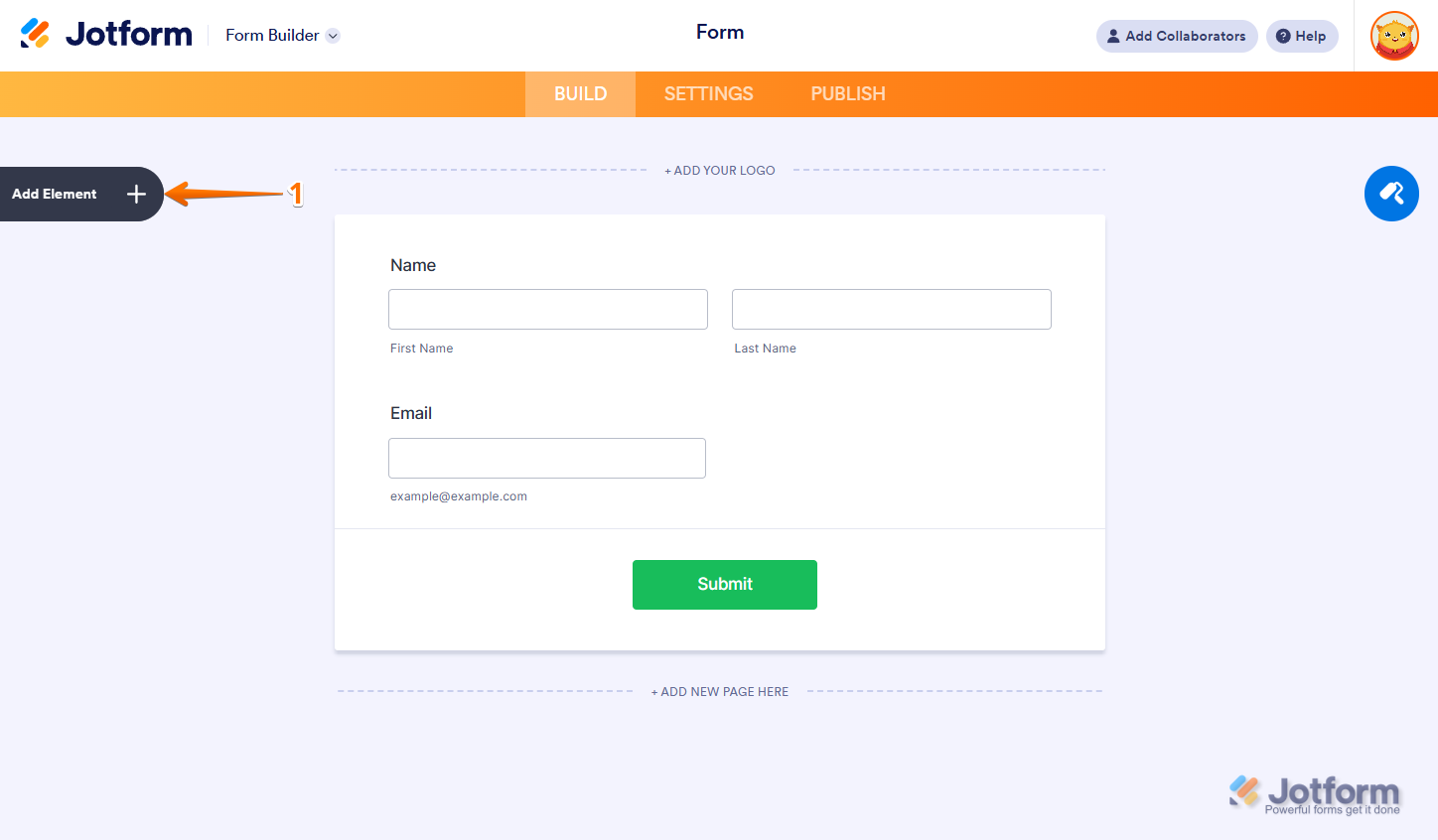
- In Form Builder, click on Add Element on the left side of the page.
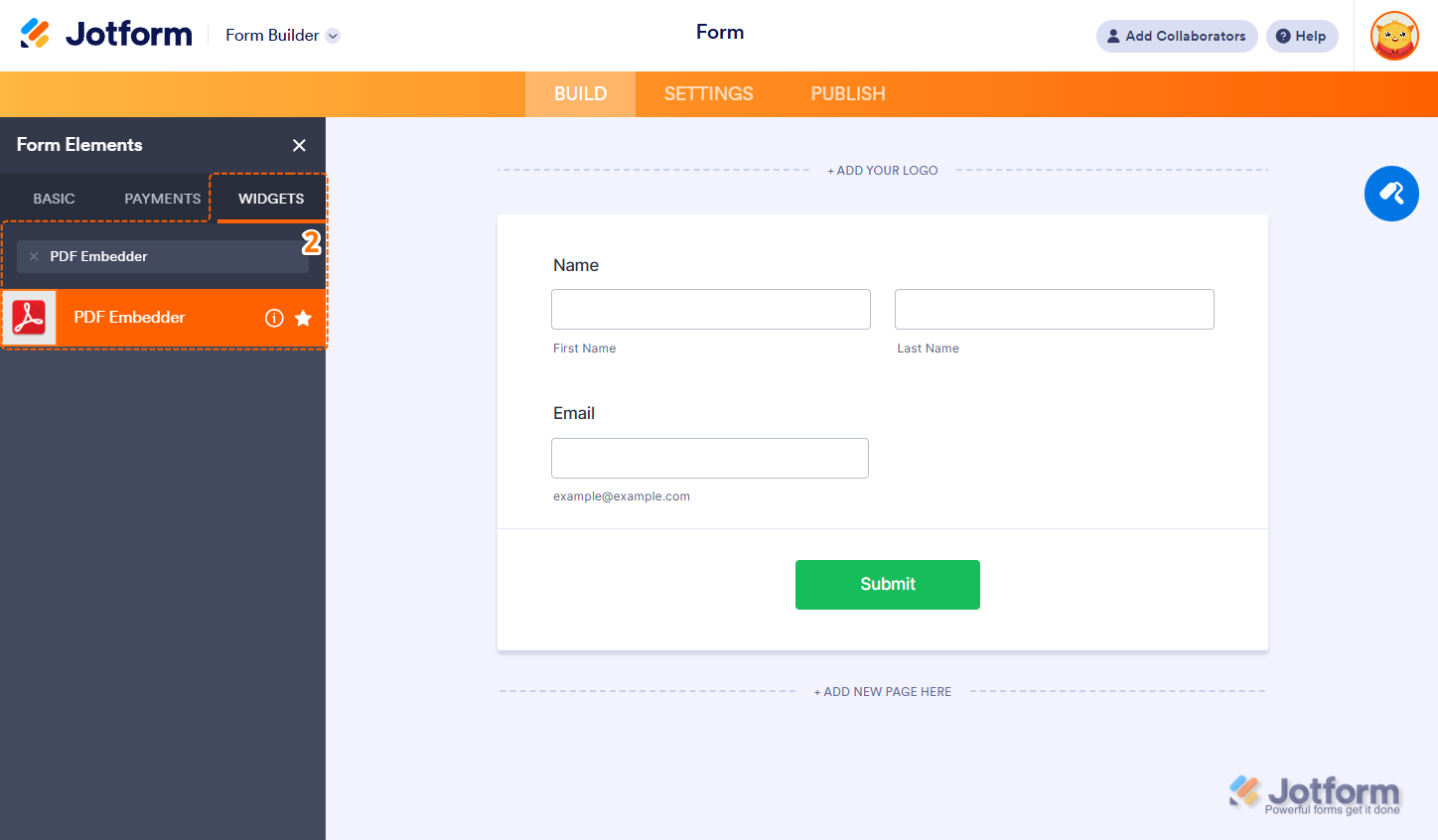
- Now, in the Form Elements menu, under the Widgets tab, search for PDF Embedder and click on it. Or just drag and drop it to where you want it on your form.
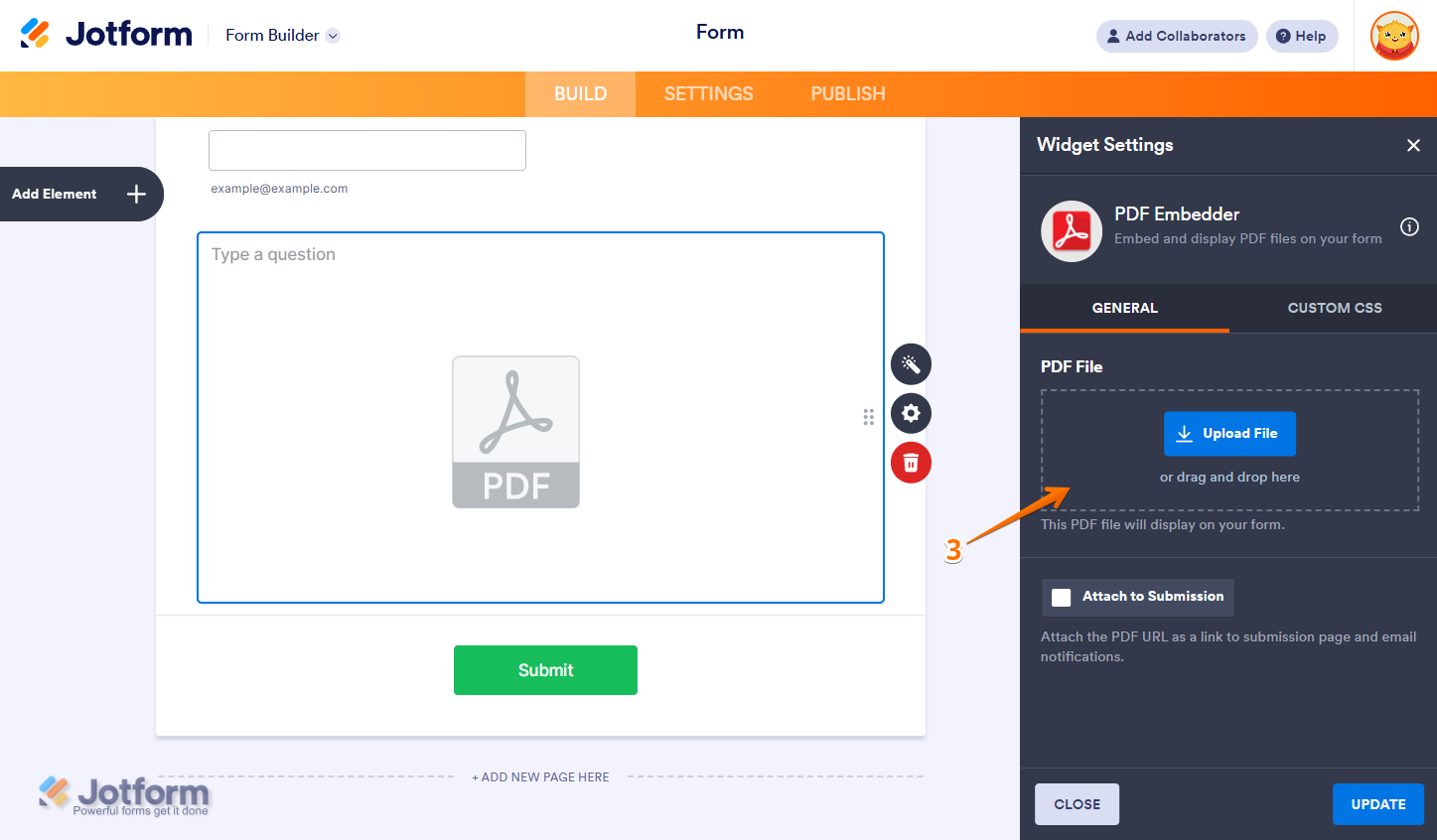
- Next, in the Widget Settings menu that opens on the right side of the page, under the General tab, click the Upload File button, then select the file from your device to upload. Or, drag and drop the PDF file to the file upload canvas.
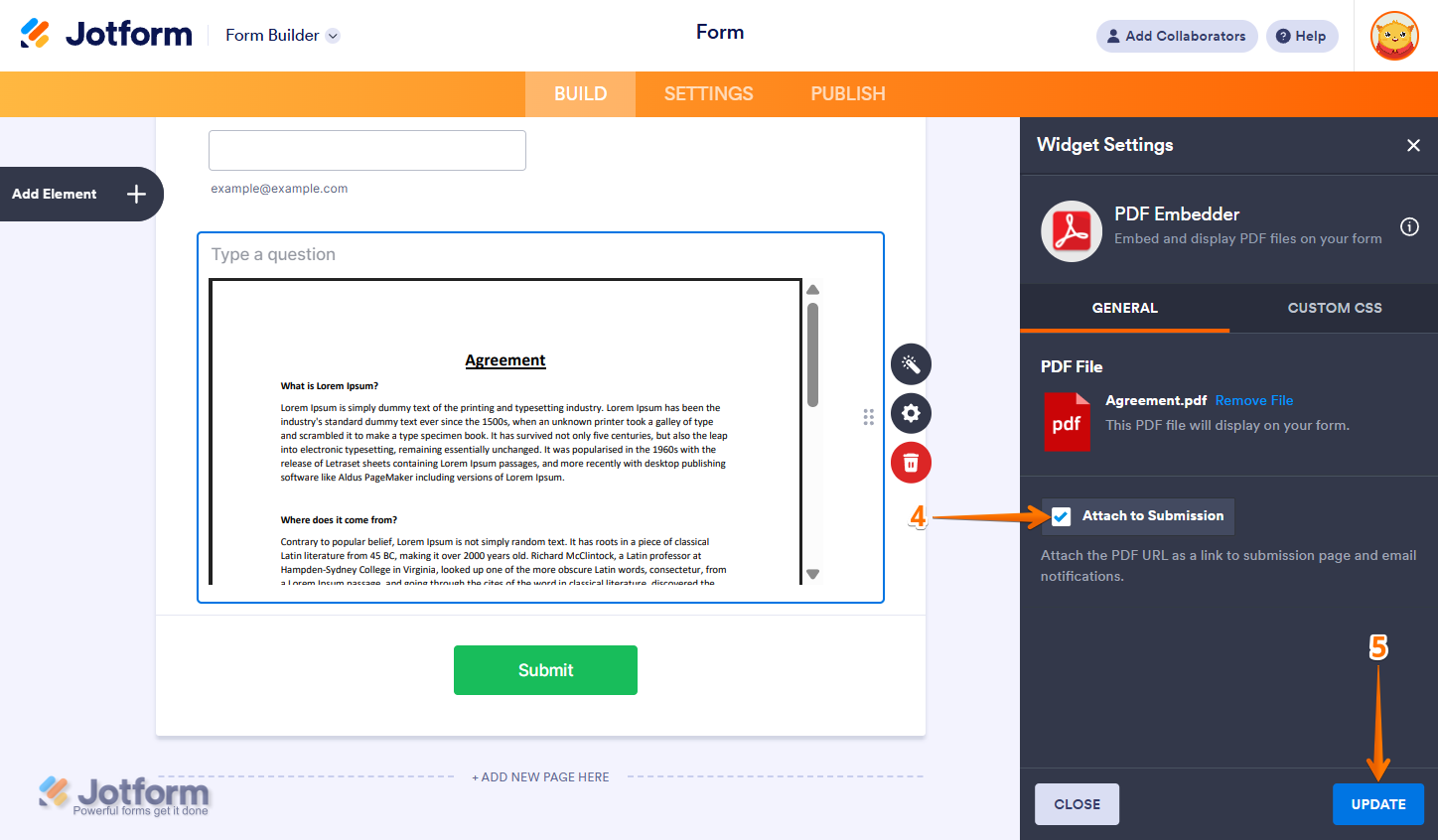
- Then, in the same window, check the Attach to Submission option to link the PDF to both the Thank You Page and the Emails of your form.
- Once you’re done, click on Update.
That’s it! You’ve successfully added and configured the PDF Embedder widget to your form. Your PDF document is now displayed directly on the form, making it easily accessible to users without requiring a download. Want to see it in action? Check out this live Demo Form!
Notes
- For advanced styling of the PDF Embedder widget, you can add your own custom CSS code under the Custom CSS tab in the Widget Settings. Our guide on How to Inject CSS Codes to Widgets walks you through everything.
- You can also configure the widget properties, like alignment, labels, size, visibility, and more, to control how it looks and behaves on your form. Check out our guide on How to Access and Configure the Question Properties of a Widget to learn more.

Send Comment: