Jotform’s US County Finder widget helps you automatically identify a user’s county based on the address they enter in your form. Once the address is filled in, the correct county appears without manual input, helping you avoid errors and collect more accurate location data.
Here are a few ways to use it:
- Identify the correct county from a user’s address.
- Reduce errors caused by manual county entry.
- Collect accurate data for surveys or polling forms.
- Support forms related to local or county services.
Things You’ll Need to Set This Up
The US County Finder widget requires a Google Maps API Key to work. Take a look at our guide on How to Get Google Maps API Key for Jotform Mapping Widgets for more details. Make sure the Geocoding API is enabled when generating your key.
Whether you’re starting fresh or updating a form, adding and setting up the US County Finder widget takes only a few steps. Here’s a quick how-to:
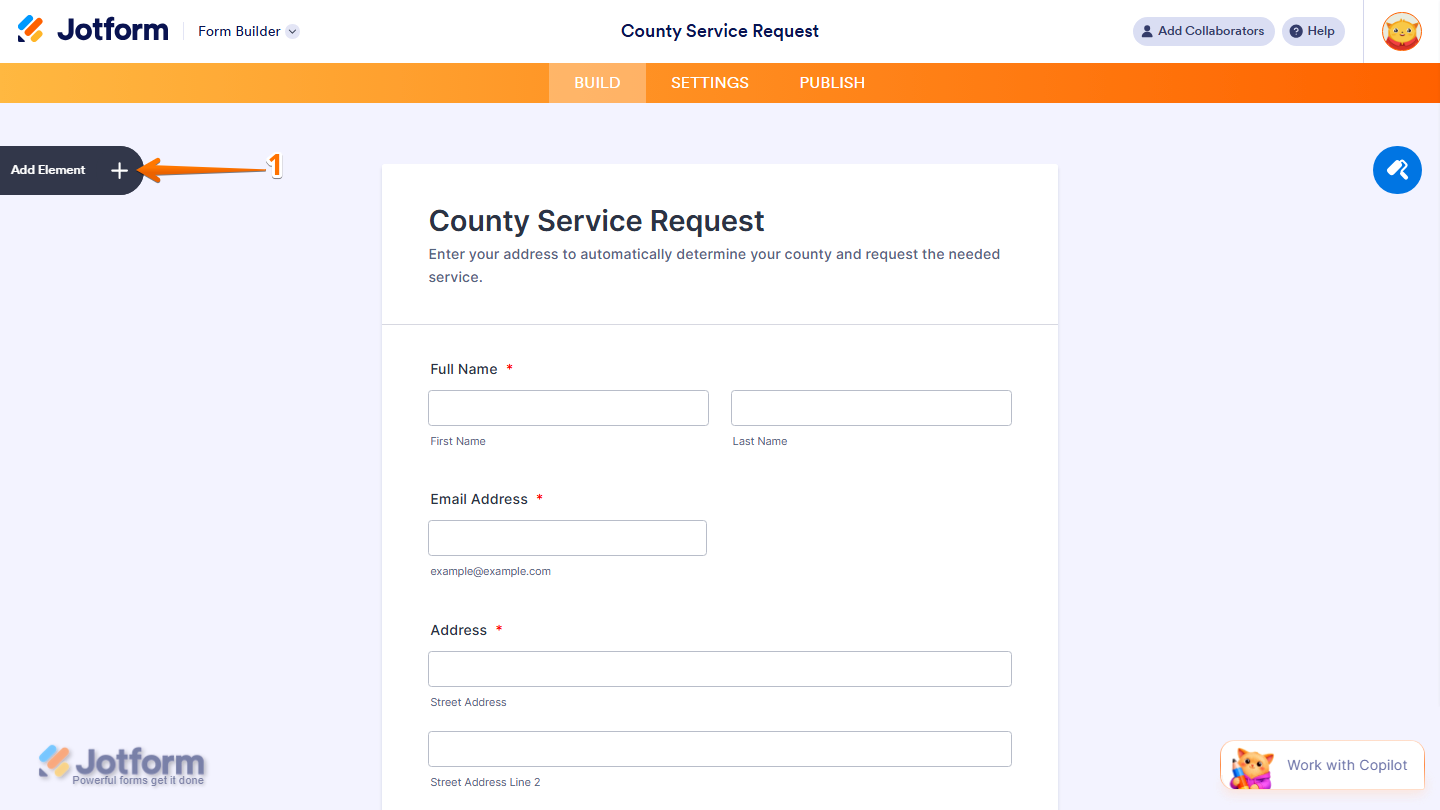
- In Form Builder, click on Add Element on the left side of the page.
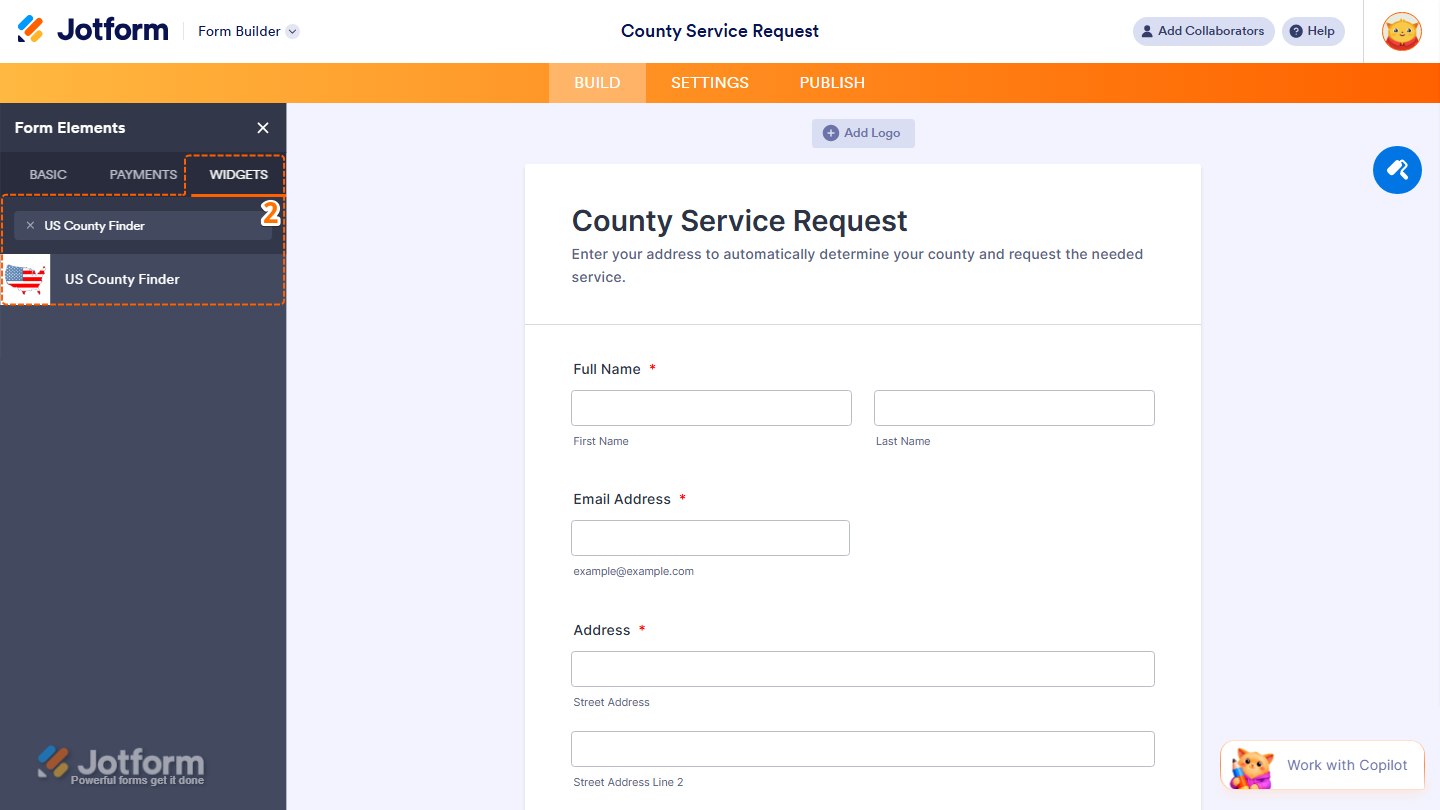
- Now, in the Form Elements menu, under the Widgets tab, search for US County Finder and click on it. Or, just drag and drop it to where you want it to be on your form.
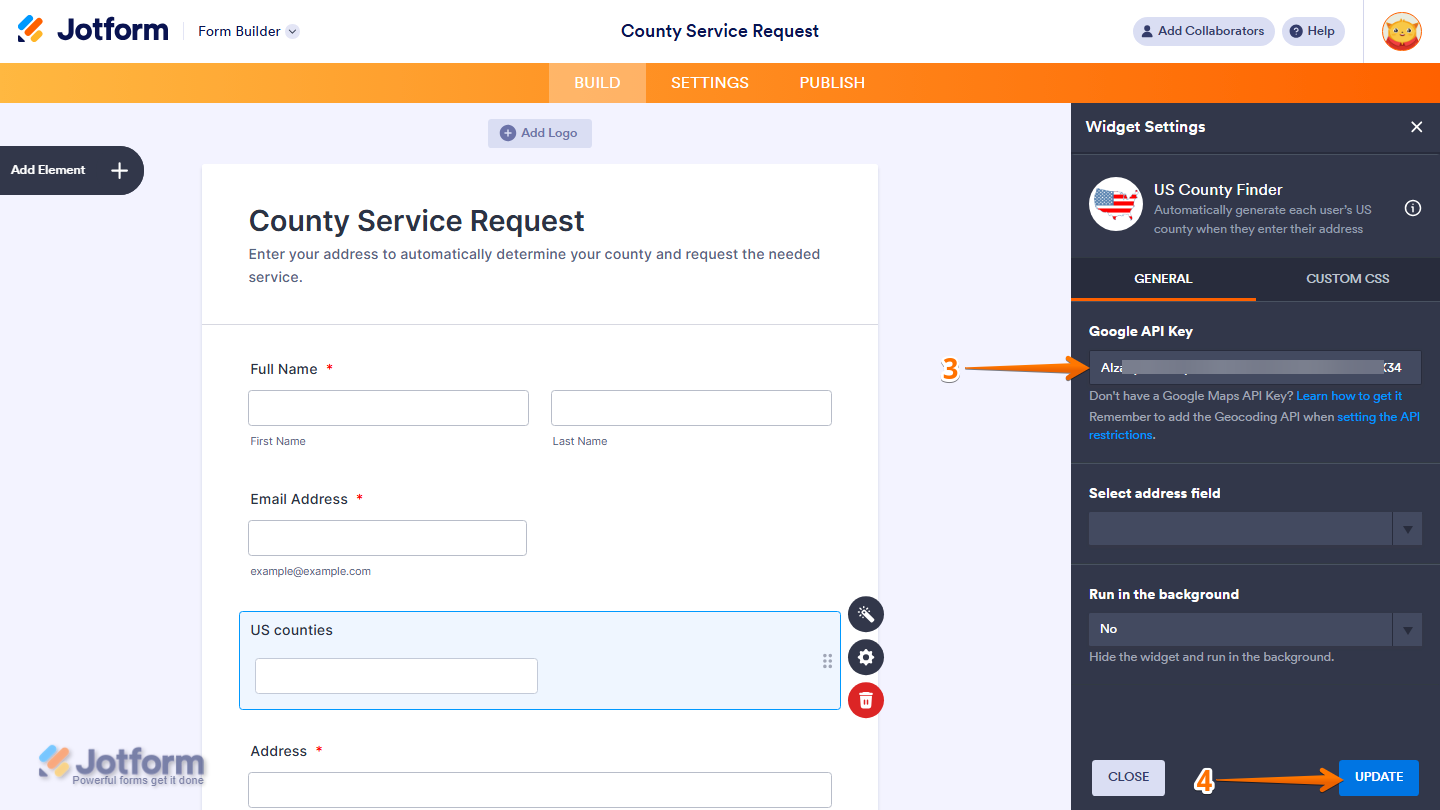
- Next, in the Widget Settings window that opens on the right side of the page, under the General tab, set up these things:
- Google API Key — Enter your Google Maps API key and make sure the Geocoding API is enabled.
- Select Address Field — Choose the form field that contains the address to identify the county.
- Run in the Background — Choose Yes to run the county lookup in the background, or No to display it on the form.
- When your settings are ready, click on Update.
That’s it. You’ve successfully added and set up the US County Finder widget on your form.
Note
- For advanced styling of the GeoComplete widget, you can add your own custom CSS code under the Custom CSS tab in the Widget Settings. Our guide on How to Inject CSS Codes to Widgets walks you through everything.
- You can also configure the widget properties, like alignment, labels, size, visibility, and more, to control how it looks and behaves in your form. Check out our guide on How to Access and Configure the Question Properties of a Widget to learn more.

Send Comment: