Sign documents makes it easy to preview your document from each signer’s point of view before sending it out for signing. This helps you confirm that the right fields, roles, and signing order are assigned to the correct recipients.
Previewing a document lets you see exactly what each signer will see during the signing process. It’s a quick way to review the signing experience, catch potential issues, and make sure your document is set up the way you intended.
Preview mode lets you switch between signer views and review each recipient’s signing experience before sending the document. Here’s how:
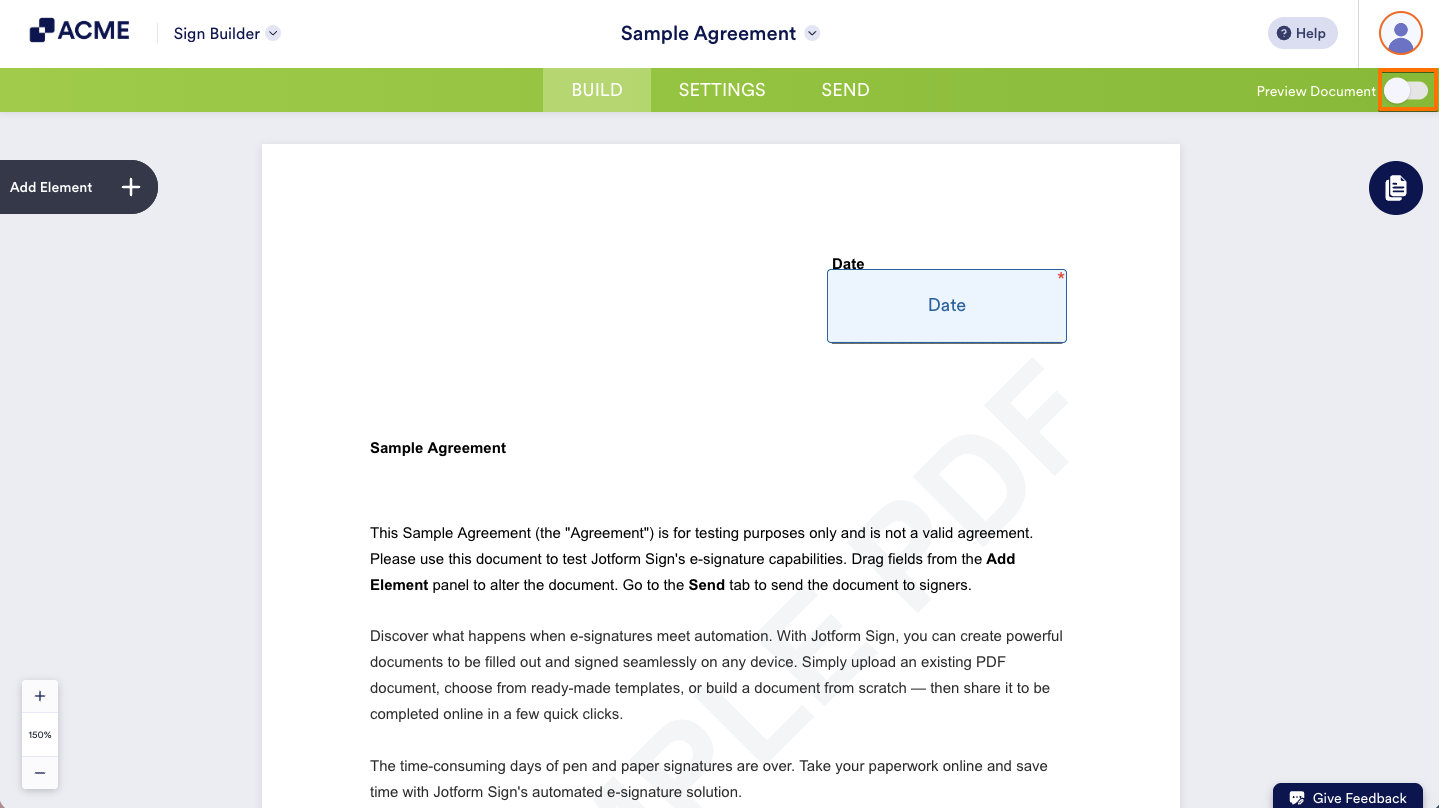
- In Sign Builder, in the green navigation bar at the top-right side of the page, toggle on Preview Document.
- Then, in the top-left corner of the page, click on the Previewing As dropdown.
- Now, select the signer whose view you want to preview from the Dropdown menu.
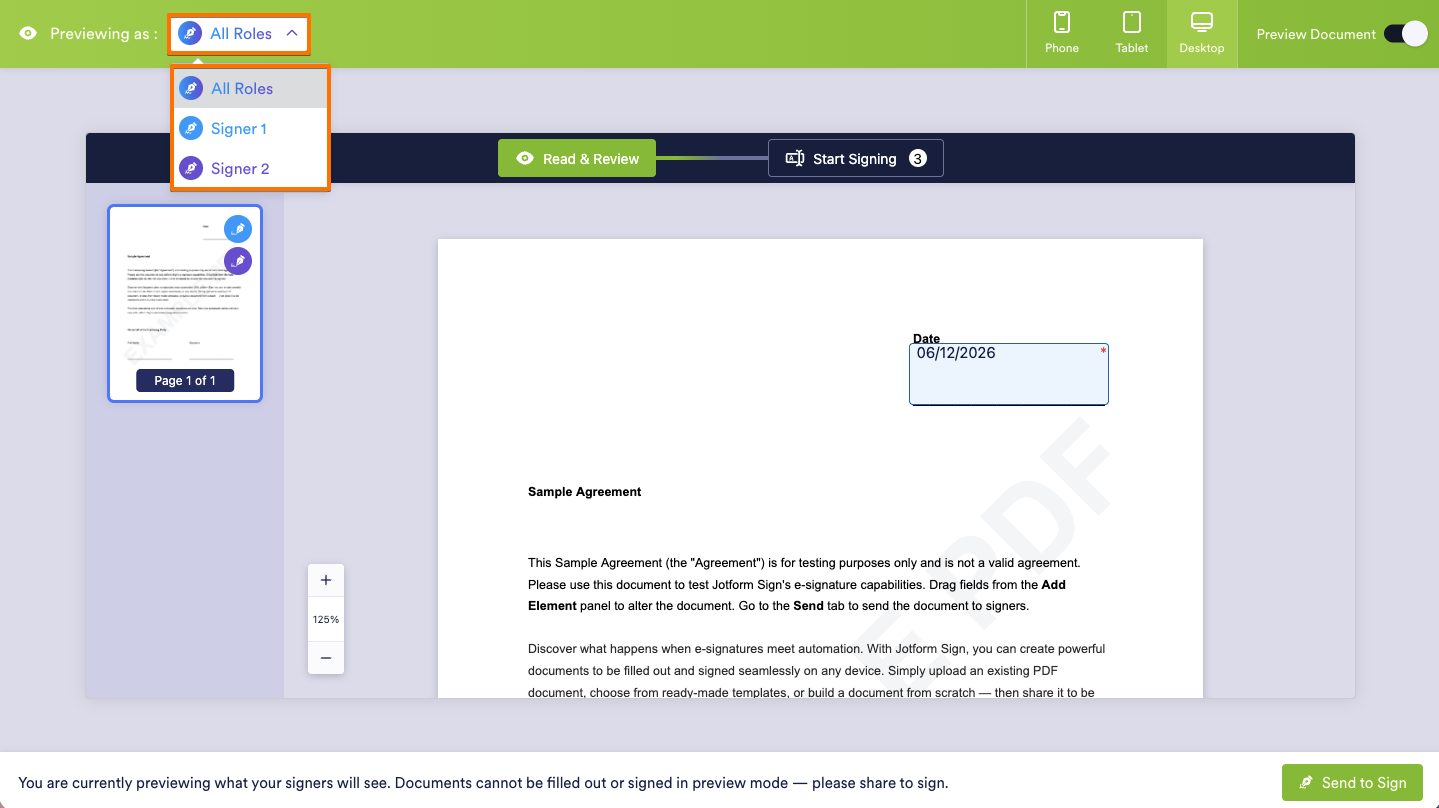
And that’s it! The document will automatically update to show the fields, roles, and signing experience from that signer’s perspective.
Note
- Preview mode lets you see the document from your signers’ point of view. Documents cannot be filled out or signed while previewing. To complete the signing process, you’ll need to send the document for signing.
- You can switch between signers from the Previewing As Dropdown menu at any time to review each signer’s assigned fields and signing experience.

Send Comment: