
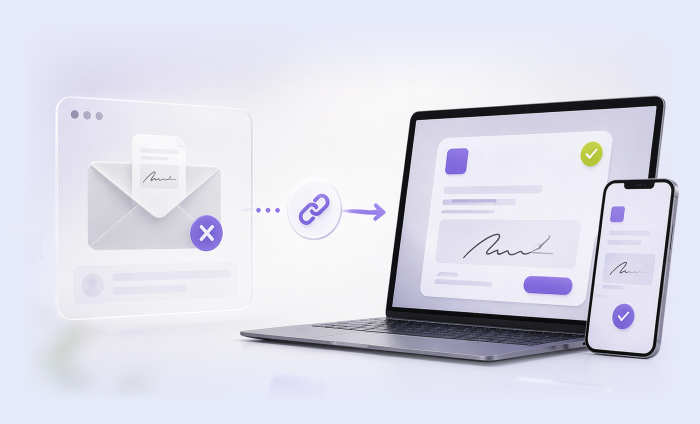
Electronic signatures are the currency that keeps modern businesses running smoothly. Gone are the days of chasing down clients or coworkers so they can sign a form in person. With modern technology, you can easily send, receive, and finalize e-signatures and streamline your operations.
One of the most popular e-signature programs, Docusign, makes it easy to sign, send, and track documents. You can use it to send e-signature documents through email, SMS, and WhatsApp. The software is even better, however, when you use it via the most flexible and fastest way to reach recipients: a shareable link.
Using a Docusign link gives you the freedom to share your documents in any format. In this article, we break down how to send Docusign forms as links instead of emailing them.
Share a Docusign link with PowerForms
The first way to send a document to sign via a Docusign link is through PowerForms, self-service online PDFs made from templates. This software reduces the friction of sending and signing (to one or more recipients) by creating unique URLs that are accessible without a login.

Here’s how to get started:
- Open the Templates page.
- On the template you wish to use, click the three-dot Action menu on the right.
- In the dropdown menu, select Create PowerForm.
- Check that the information under Summary is accurate; edit where necessary.
- Make any necessary updates under the Options tab, including in the boxes labeled Message to Signers, Email Validation, and Usage Limits.
- Click Create.
- A Copy PowerForm URL popup will appear. From there, you can copy your form’s URL or its embed code and share it.
Keep in mind that you must have PowerForms administrator permissions to create these documents. If you’re looking for a more mobile-friendly experience, Docusign also offers Web Forms, which allows you to send a Docusign document using links.
Send a Docusign link with Web Forms
With Web Forms, you can create publicly available documents that can be sent or embedded via links instead of email. This method is ideal for users working on mobile devices.
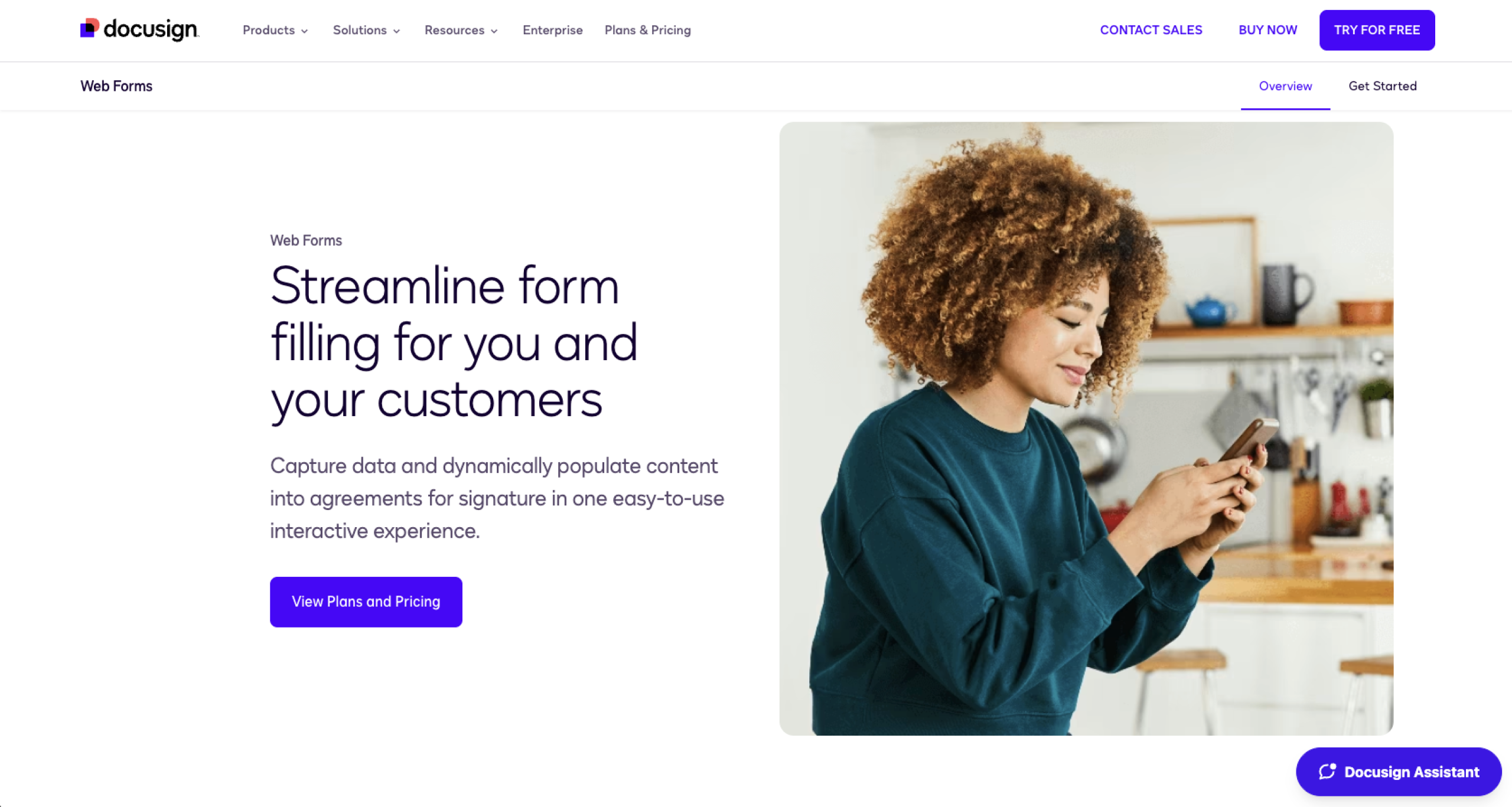
Use these steps to start building and sharing your Web Forms:
- Open the Templates page, click or tap the arrow next to the Start button, and select Web Forms.
- From the Web Forms menu, select Create Web Form or Upload Web Form.
- If you chose Upload Web Form, upload the document that you want to edit and turn into a Web Form. If you chose Create Web Form, select eSignature Template or Creating Your Form from Scratch.
- Select the template you wish to use, name your Web Form, and click or tap Apply.
- Edit your Web Form in the Web Forms Builder.
- Once you’ve finished, click or tap Activate, adjust your Access Settings, and click or tap Activate again.
- These steps will generate your URL. Click or tap Copy Link to share your Web Form using a link.
To share Docusign URLs using these methods, you’ll need to sign up for Docusign’s Business Pro Unlimited plan. With this limitation, you might want to try alternatives such as Jotform, an easier and more affordable option.


How to send a document for signature with Jotform Sign
Jotform Sign helps you create e-signature documents that can be shared directly with signees via links rather than email with just a few clicks. Simply build your form to your preferences (or choose from more than 1,000 e-signature form templates), and follow these steps:
- Open the Sign Builder and click or tap Send in the top menu.
- Select Share with Link (on the left).
- Answer the Creating the Link for Yourself or Your Client prompt from the Step 1 dropdown menu.
- Specify any other signers, if applicable. Include their names and email addresses.
- Click or tap Create Link. Then click or tap Copy Link to share your form URL.
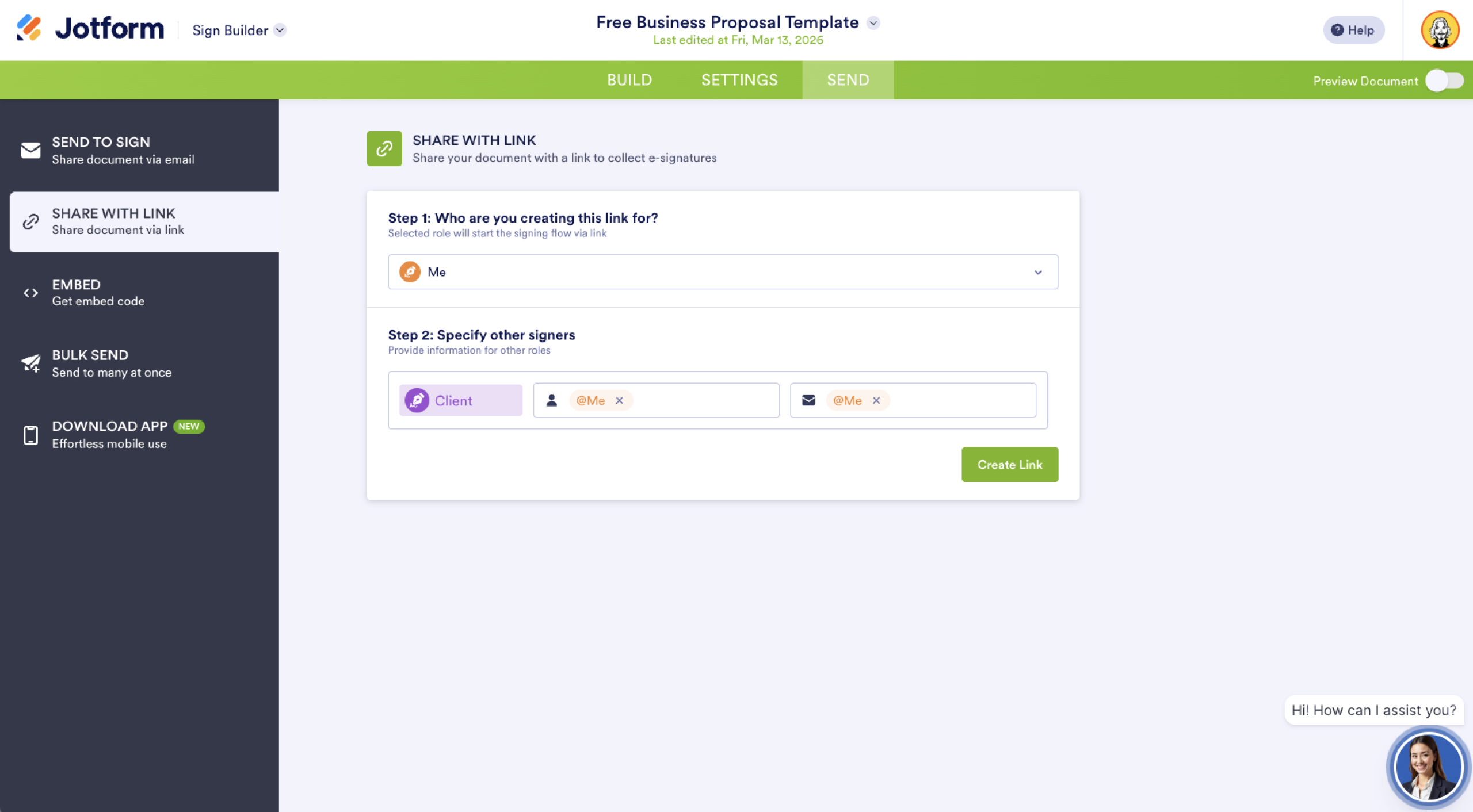
You can share the link with the designated signee you chose in Step 3, but the link is public and can be shared freely.
Tips for sending a Docusign link
If you’re committed to using Docusign, you can decrease friction in the process by adding these steps to your Docusign e-signature workflow:
- Set up notifications to track signature progress and responses.
- Follow up with recipients to ensure your link works and that they received it.
- Set a deadline so your signees know when you’ll stop collecting signatures.
If you’re using Jotform Sign, you can increase your link’s effectiveness by
- Embedding your Jotform Sign document on your website
- Adding relevant documents and recipients to Jotform Workflows to automate your e-signature process
- Converting existing PDFs to signable forms so they’re ready to go
These tips will enhance how your team communicates with signees.
Try Jotform as a Docusign alternative
Docusign may be a popular way to send e-signature documents, but its link-sharing limitations can be counterintuitive to your workflow and budget. Jotform Sign offers a simple and free way to create and share forms for signature collection. It also provides advanced features:
- More than 40 integrations for tasks from automation to data management
- An intuitive drag-and-drop Form Builder
- A template library of customizable e-signature forms
- Notification and reminder emails
If you prefer to share your e-signature forms as links rather than via email, try using Jotform Sign as an alternative to Docusign. You’ll have flexible options not available in Docusign and more control over the e-signature process.
FAQs
Docusign offers several ways to send your document without using email, including through SMS or WhatsApp messages. If you want to share a link, you can create a PowerForm or Web Form to generate a shareable URL.
Docusign offers easy sharing options via email, SMS message, or WhatsApp. However, you can also build Web Forms and PowerForms that generate URLs for direct sharing or embedding on your web page.
This article is designed for business professionals, freelancers, and teams who regularly send documents for signature and want a faster, more flexible way to collect them.








































Send Comment: