
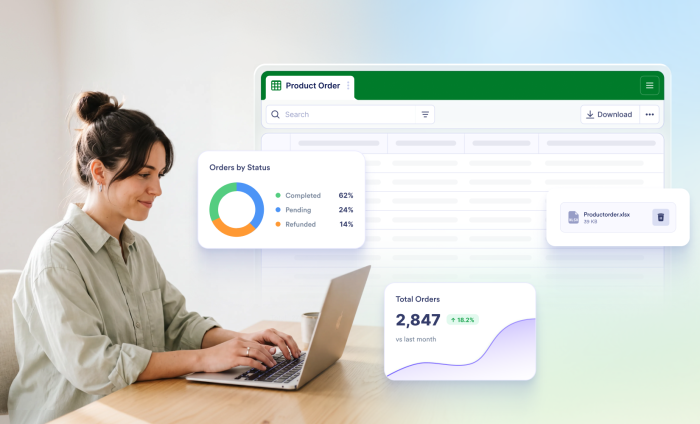
One thing became clear after talking to some of our beta users who have experimented with features from Jotform AI Data Assistant: The export-to-work loop is real.
When users store and/or download data from one platform and open it in another, just to manipulate it on the software they’re used to, that’s “exporting to work.”
And nearly all of us are familiar with the workflow because all of us have done it at some point.
It may look something like this: collect responses > download CSV > open Excel (or another spreadsheet app) > filter > clean data > calculate > make chart > email somebody.
But now that AI is entrenched in our workflows, exporting to work — while still necessary for some tasks — is no longer the most efficient way to get things done, especially as it relates to your form submissions.
The AI assistance I’m thinking of is the kind that provides value because it turns gnarly, data-related tasks into plain and understandable information that can be easily conveyed to others.
Among the capabilities of the Data Assistant are some very handy features that let you organize and analyze data conversationally before engaging in the old export-to-work two-step.
You’ll still export data for bigger use cases (God knows spreadsheets aren’t going anywhere), but, at minimum, you can save some time on the front end by getting insights before your export takes place.
Here are seven jobs you can easily handle conversationally before reaching for another tool.
Get a quick total or breakdown
It shouldn’t take a data export to get quick insights from your data. In the previous school district example, which lists several sample schools and their information, I prompted the Jotform AI Data Assistant with How many orders did each school submit by size?
Within seconds I get a breakdown of orders, by school, which I can then communicate to the stakeholders who requested the information, put in an email to a vendor, or simply use as reference.
Find the responses that need attention
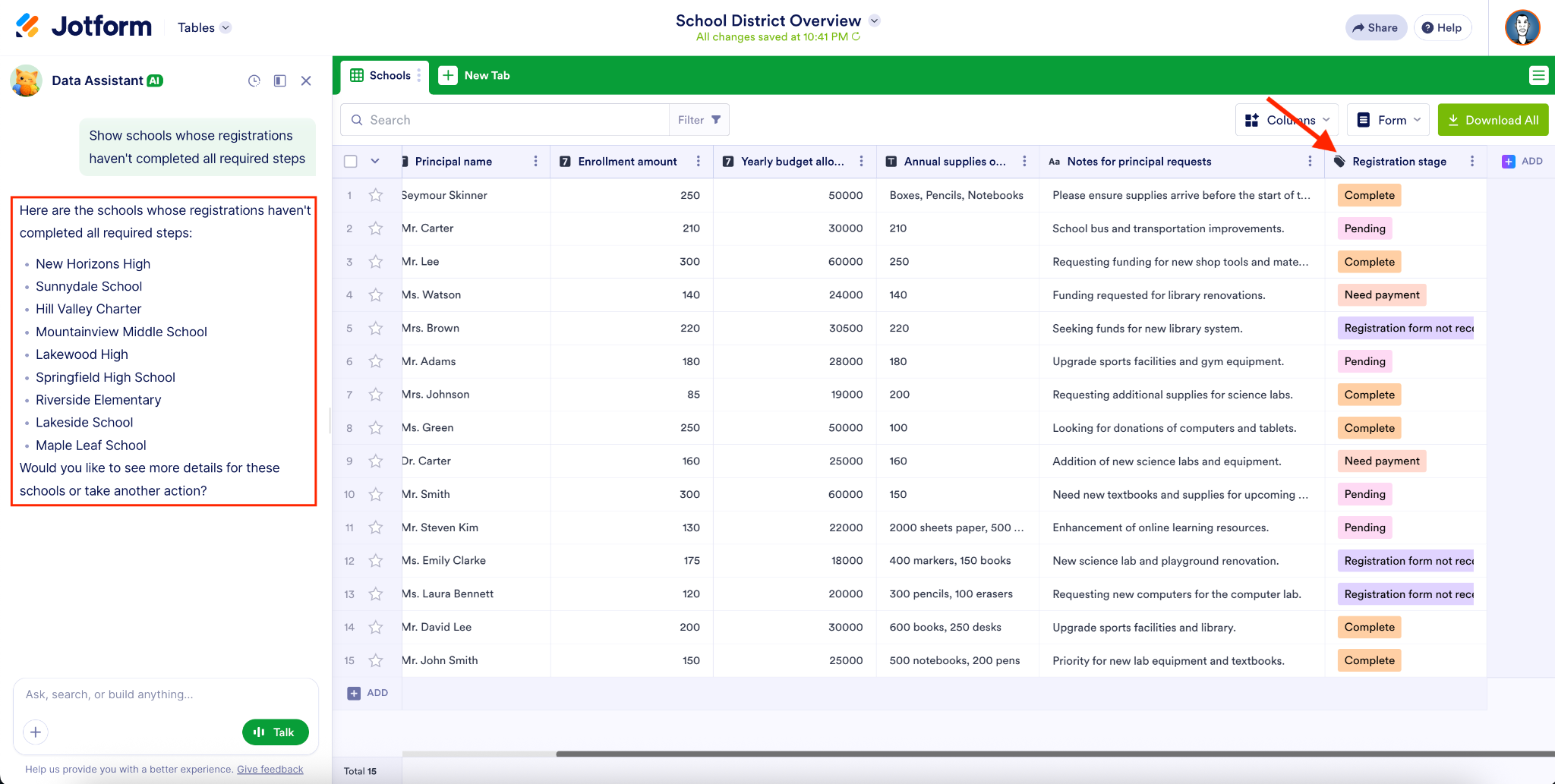
At those times when every minute counts, the ability to request information from an assistant conversationally comes in handy. In this example, the assistant quickly identifies incomplete registrations at my request, so that I can move on with next steps.
Analyze open-ended feedback
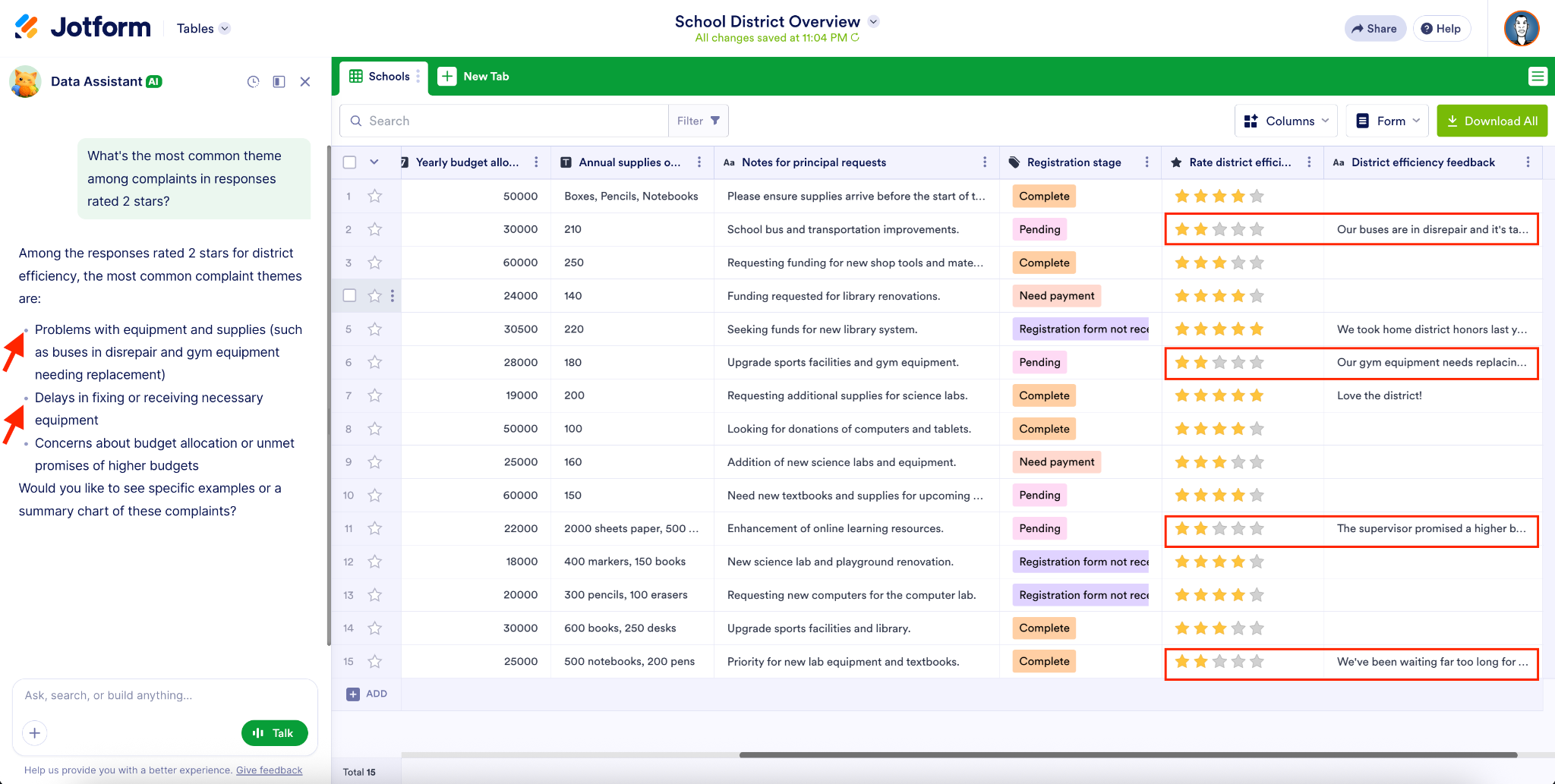
Whether you’re talking about products, people, or something else, customer feedback is what drives improvement. Now you can understand the most constructive feedback with the help of a prompt — and save valuable time in the process.
For instance, in the previous example, you can ask the Assistant to highlight a theme of the most critical customer feedback so that you can act quickly or give a takeaway in a meeting. This really comes in handy at scale, when you’re synthesizing hundreds (or even thousands) of individual responses.
Create an instant visual
For your form submission data, instead of downloading data, opening a spreadsheet, filtering the data, and making a chart…just make a chart.
You’ll get an instant visual that’s insightful and shareable, courtesy of the Jotform AI Data Assistant. Here I’ve created a quick, downloadable chart of registrations by school level.
Create a streamlined view of your data
In this example, I’m streamlining the way I view my data.
Make a uniform change across records
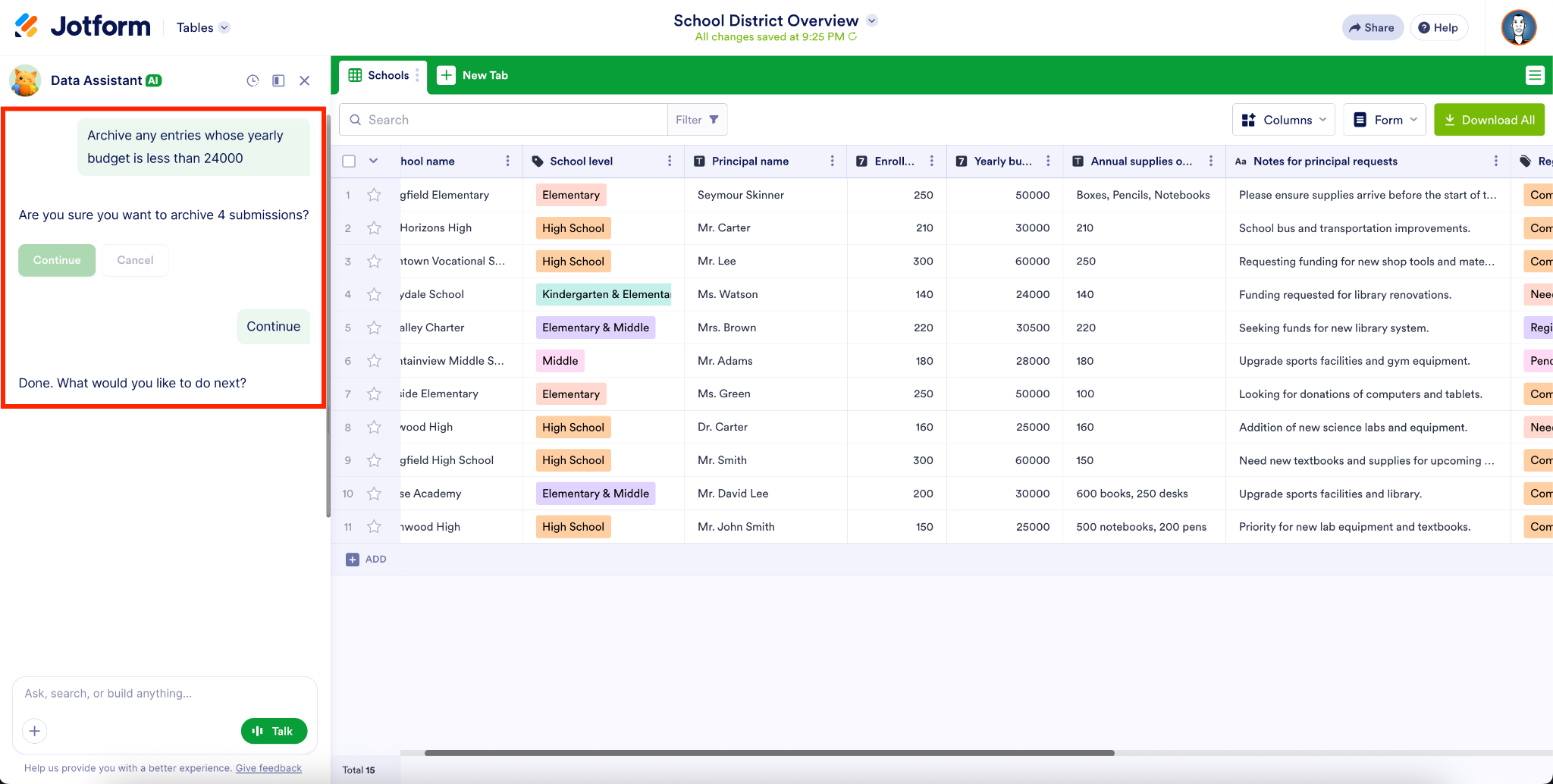
If you need to make wholesale changes (or rearrange your data) within your table, you can do it quickly and at scale with the assistant’s help. In this example, simply archiving a handful of entries requires nothing more than an easy prompt.
Take the next step based on data insights
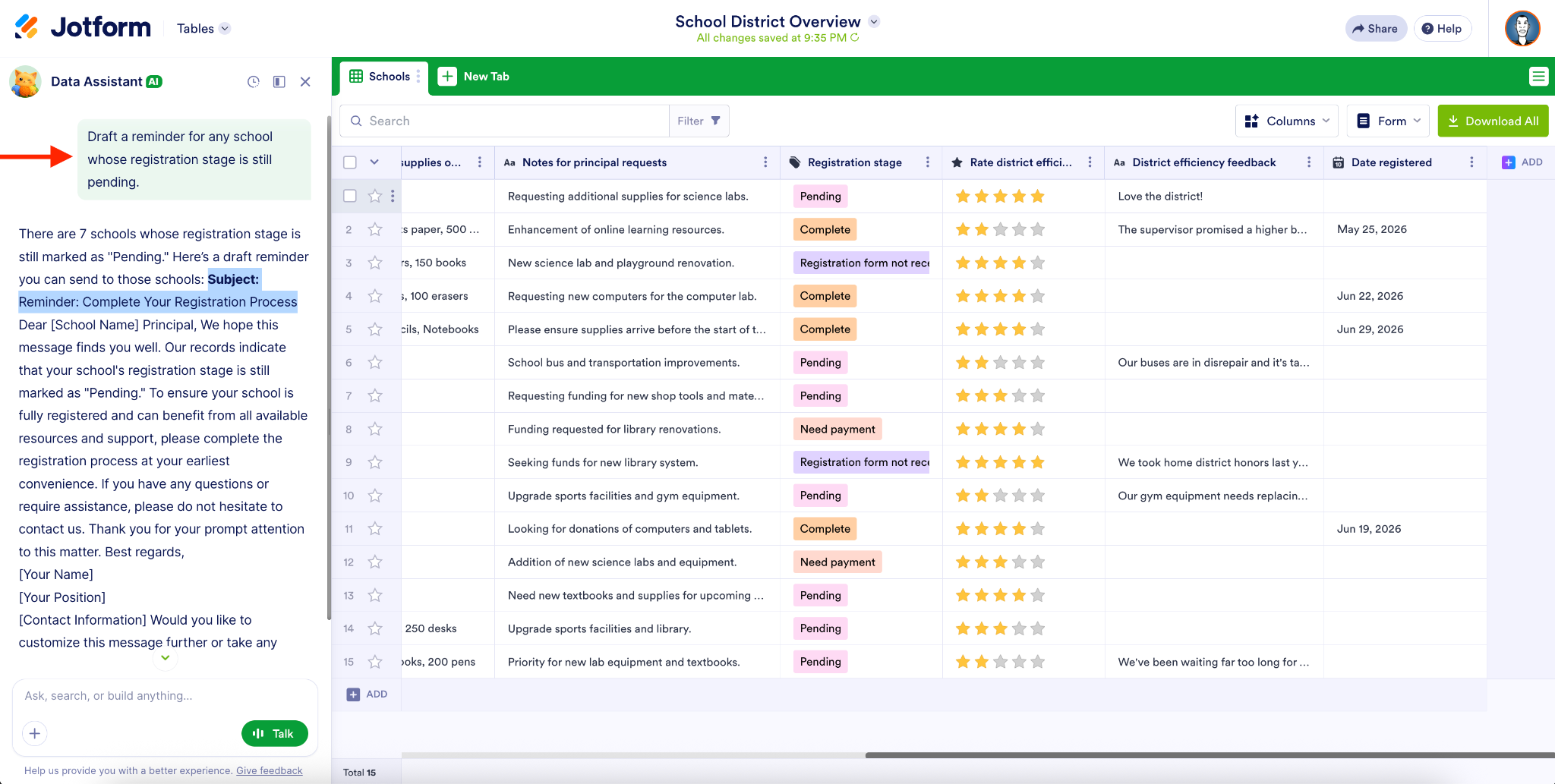
The data we’re reviewing is mostly just a prelude to our next action. For this education example, I want to review the school data before I send an email to the principals so the district can keep business progressing.
That’s an easy enough thing to do with Jotform’s AI Data Assistant, where the task can be as general (“Draft a reminder for any school whose registration stage is still pending”) or as specific as I need it to be (i.e., “Draft individual reminders to schools whose registration stage is pending and whose budget is over $25,000. Address the principal by name.”).
Get faster insights by ditching non-essential parts of your workflow
Look, spreadsheets are anything but obsolete. We all have good reasons to use them, whether it’s collaboration using an agreed upon Enterprise tool or serious data mining that’s more efficiently carried out in the feature-rich Excels of the world.
But the advent of the Jotform AI Data Assistant (and tools like it) now offers the possibility of gaining faster, more complementary insights from your form-related data.
Getting these insights doesn’t have to be a formal exercise anymore. Before you’re tempted to export your data in order to make a change, try making the change right in your Jotform table.




































































































Send Comment:
3 Comments:
September 18, 2026
The idea of moving certain data tasks away from spreadsheets makes a lot of sense, especially when repetitive exports and manual updates start creating extra work. It’s interesting to consider which workflows are better handled directly through forms, automation, or connected data systems instead of constantly maintaining separate spreadsheet files.
September 3, 2026
This is a practical shift. The biggest benefit isn’t really replacing spreadsheets, but removing the unnecessary back-and-forth before you even get to the analysis. Being able to quickly spot trends, incomplete responses, or recurring feedback directly from the collected data can save a lot of time, especially when dealing with hundreds of submissions.
August 27, 2026
How can I get the Trade tasks