
Top Canva apps
Canva is one of the fastest and easiest ways to create high-quality social media graphics, brand images, and other visual assets. Its design features are second to none, but it can do so much more.
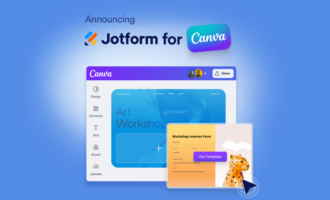
As well as its excellent template-based editor and Canva AI tools, there’s the Canva Apps Marketplace. Here is where you add Canva integrations from other apps so you can embed interactive elements in your designs, incorporate tools that Canva doesn’t offer, and otherwise connect the rest of your design workflow. For example, you can embed forms in your designs with the Jotform Canva app.
I looked through the Canva Apps Marketplace to find the best apps for Canva. These seven Canva extensions stood out because they all add genuinely useful features. While I felt that these were the most valuable apps in my testing, there are lots of other productivity apps for Canva in the marketplace. If you need a feature or option that Canva doesn’t provide natively, have a look around.
But now, let’s dive into the best Canva apps for 2026.
1. Jotform: Add a smart chatbot and custom forms to your page
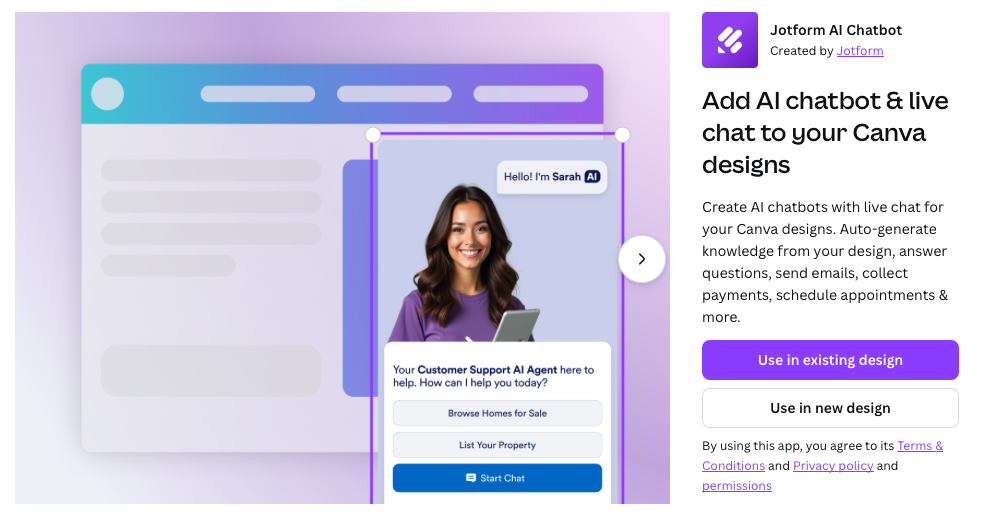
Jotform offers not one but two great Canva integrations inside the Canva Apps Marketplace: Jotform AI Chatbot and Jotform Form App for Canva. They’re both a great way to make your Canva designs more functional. Let’s look at them one by one.
Jotform AI Chatbot
AI chatbots are incredibly powerful marketing tools, and Jotform AI Chatbot for Canva enables you to add one to your designs. Even better, it trains itself on the content in your design so that it can answer questions or direct people to other resources.
I think Jotform AI Chatbot works really well with information-heavy designs, like newsletters and presentations. That way, you can add an AI chatbot that can actually help your target audience understand your message.
What it’s best for:
- Turning info-heavy designs into interactive marketing material
- Directing your audience to additional resources, generating leads, and answering frequently asked questions
How to use it:
- Create your design in Canva, and then find Jotform AI Chatbot in the Apps Marketplace tab in the sidebar.
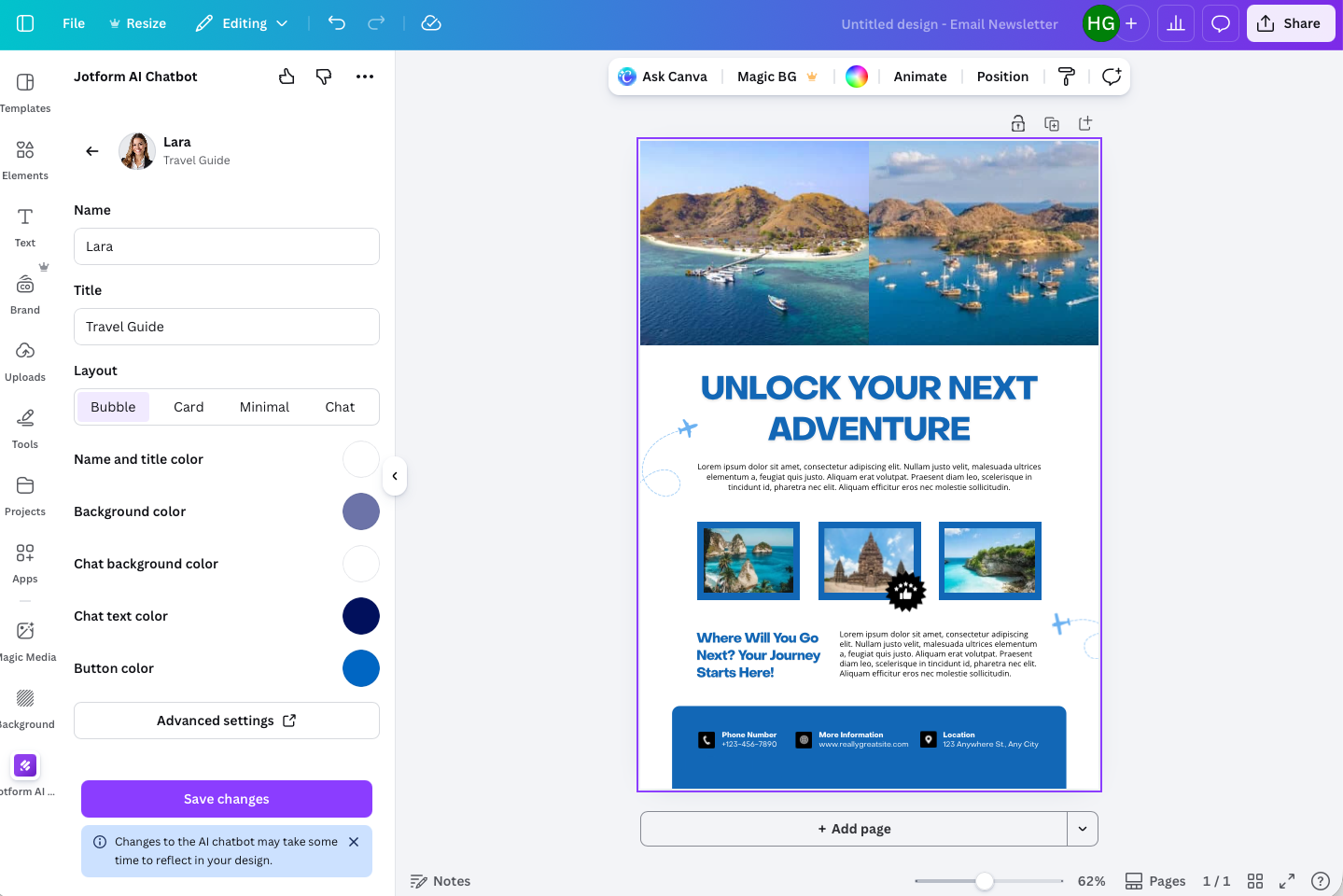
- Your Jotform AI Chatbot will automatically train itself on the content in your design. You can also click Advanced settings to go to the Jotform website and further customize your chatbot. When you’re ready, click Save changes and you can place your chatbot inside your design.
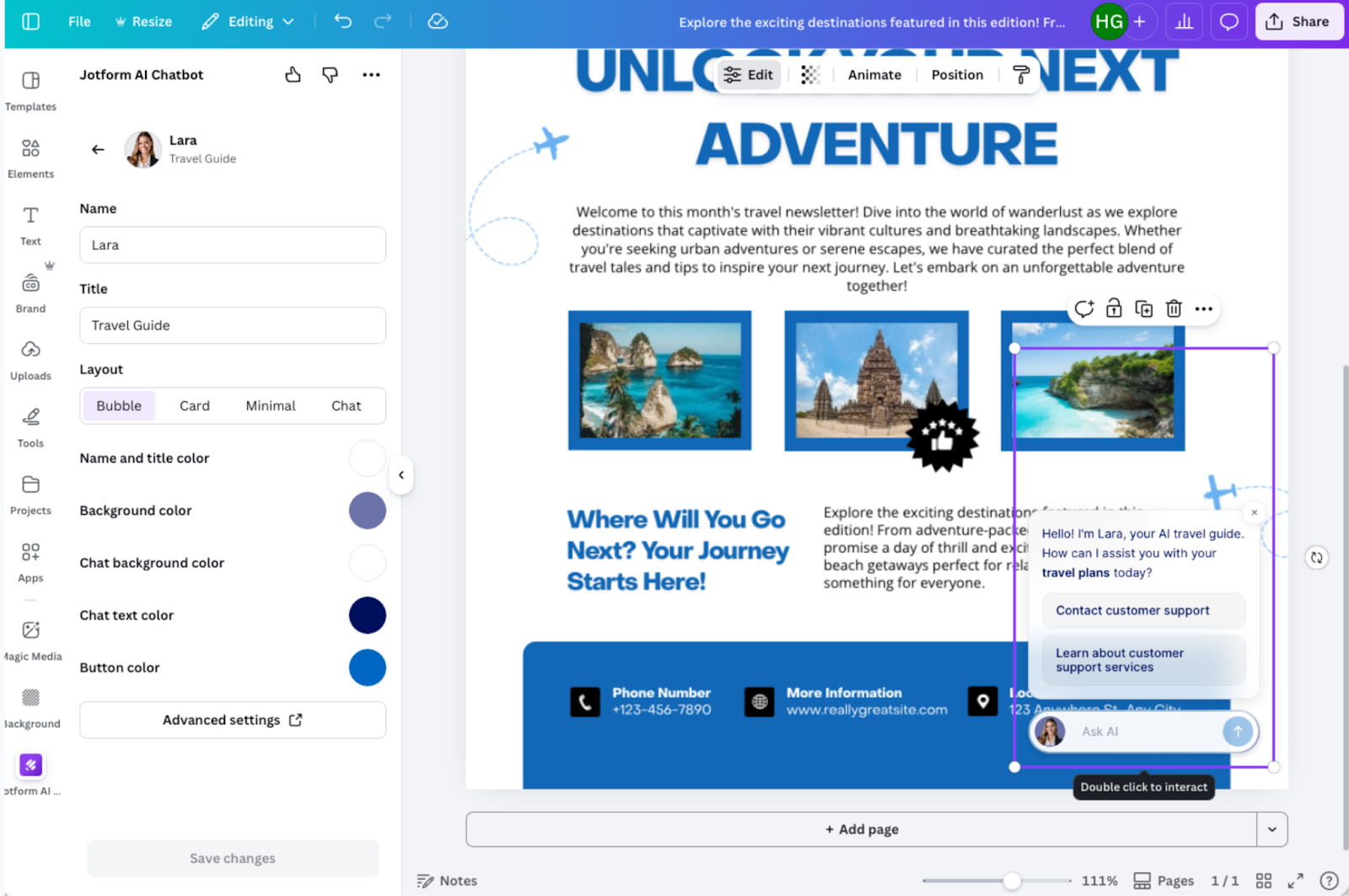
- Now, once you publish your design on Canva, present it, or otherwise add it to an interactive platform, the chatbot will be there ready to help.
Jotform Form App
It’s no secret that Jotform is one of the best form-building and data collection apps around, so I think being able to add forms to your Canva designs is such an easy win. I found it really easy to do. Once you open the Jotform Form App for Canva, you can add any of Jotform’s thousands of templates or embed one of your own forms.
What it’s best for:
- Turning designs into actionable, data-collecting forms
- Gathering information from leads, event attendees, and potential customers with interactive forms in your marketing materials
How to use it:
- Jotform’s Form Canva app couldn’t be easier to use. You create your design then select the Jotform app in the Canva Apps Marketplace.
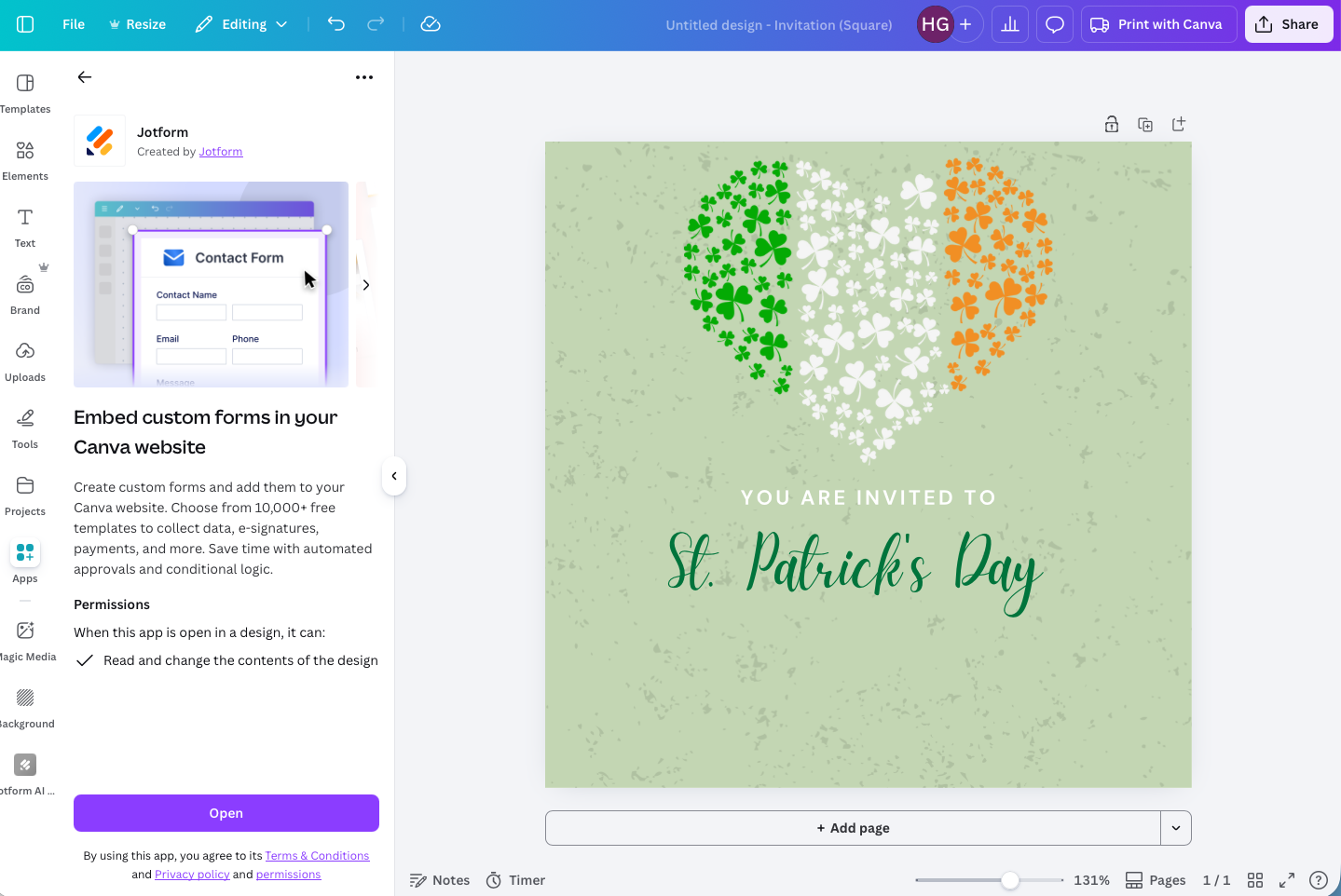
- Once you’ve got the Jotform Form app open, you can select from any of Jotform’s great templates or, as I prefer to do, use one of your own custom Jotform forms. You need to log into your Jotform account to get access to them and start collecting data, so if you don’t have a Jotform account yet, you should get one first.
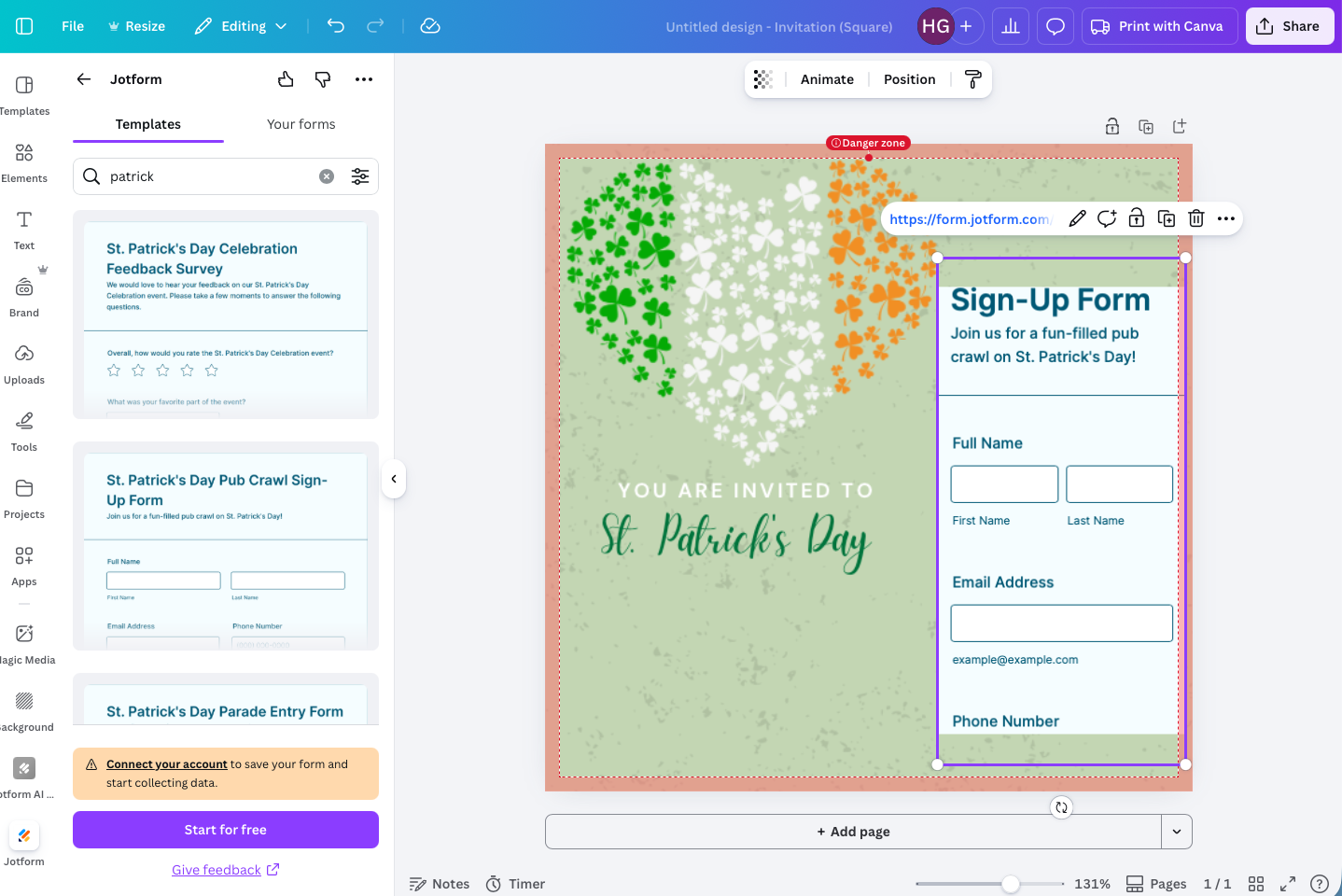
- Once you have your form embedded, your Canva designs are ready to be shared and to start gathering data.
2. Google Maps: Add Google Maps to your designs
Google Maps is one of the most iconic web apps. Everyone knows exactly what a Google Map pin looks like. So, when you’re trying to share an address or location in one of your Canva designs, instead of trying to recreate the look, why not embed an actual Google Map?
I’m a big fan of Google Maps (I think they’re Google’s best product by a serious distance) and the Canva integration is a fitting add-on. It earns its place in both your Canva account and this list.
What it’s best for:
- Showing people the exact location of your business or event
- Making it very easy for people to navigate to your business or event from your invitation or announcement
How to use it:
- Find Google Maps in the Canva Apps Marketplace tab and search for the location you want to embed.
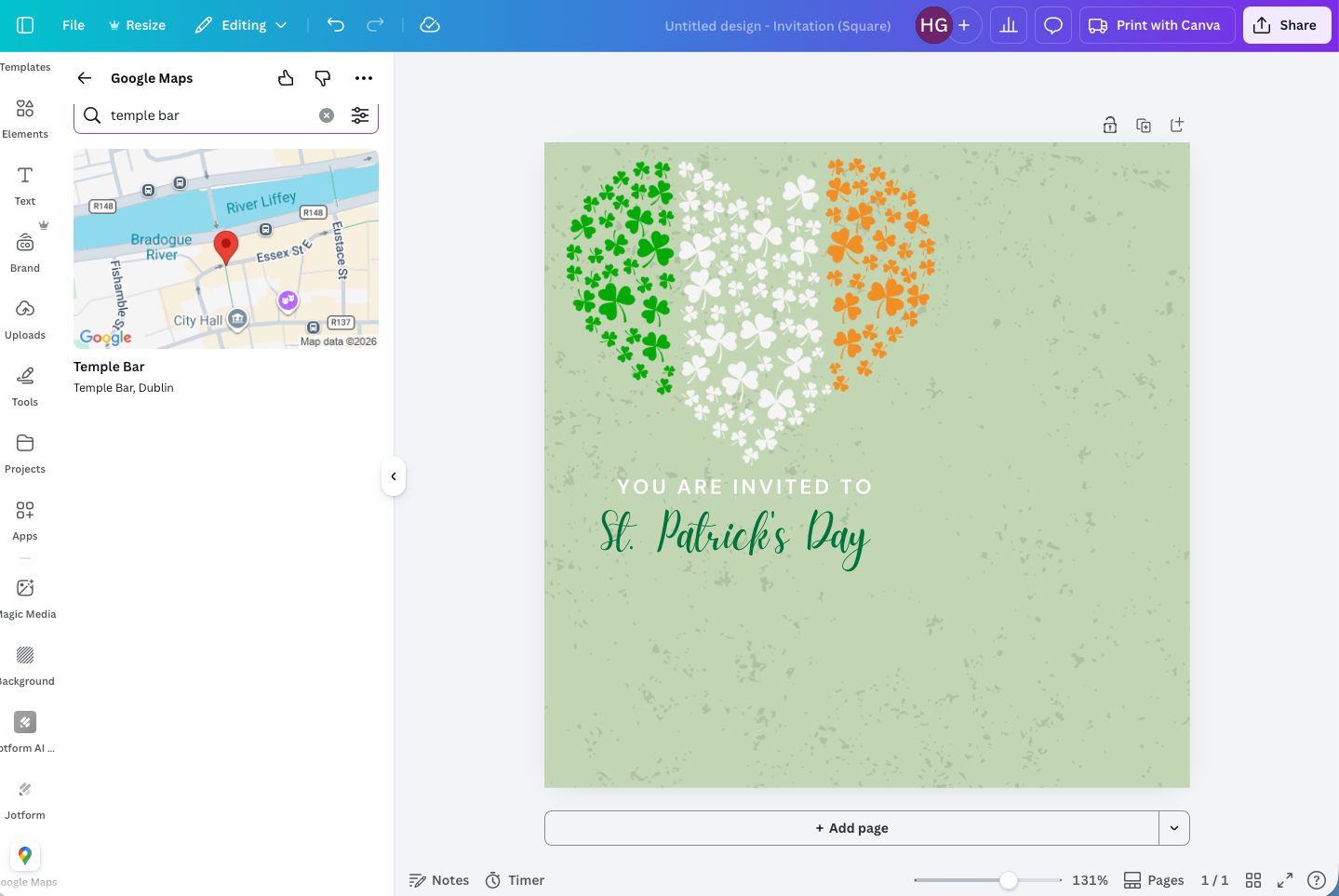
- Position the map on your design like any other Canva element.
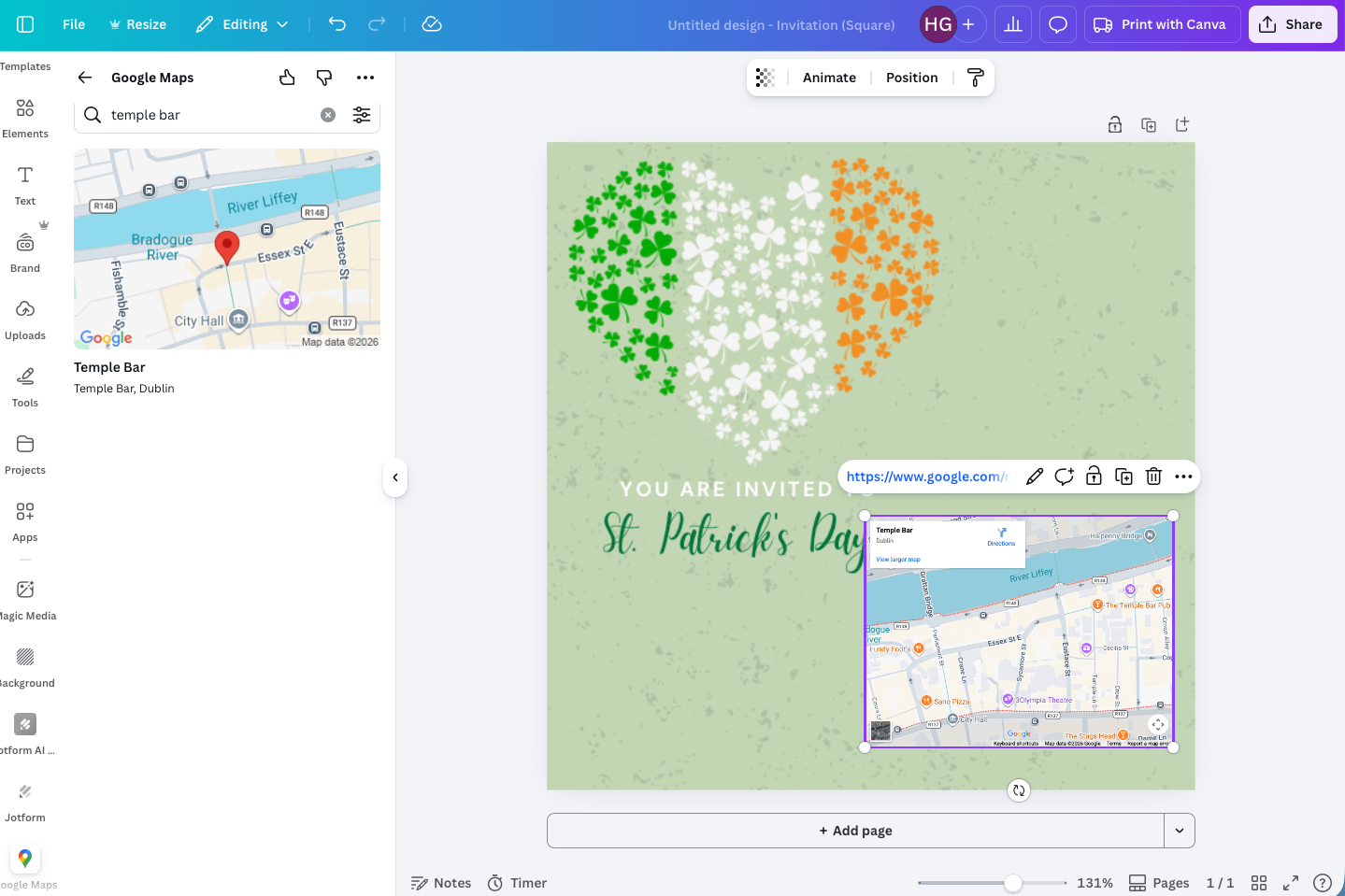
- And just like that, you’re done.
3. Gen QR: Make it easy for people to follow links on your designs
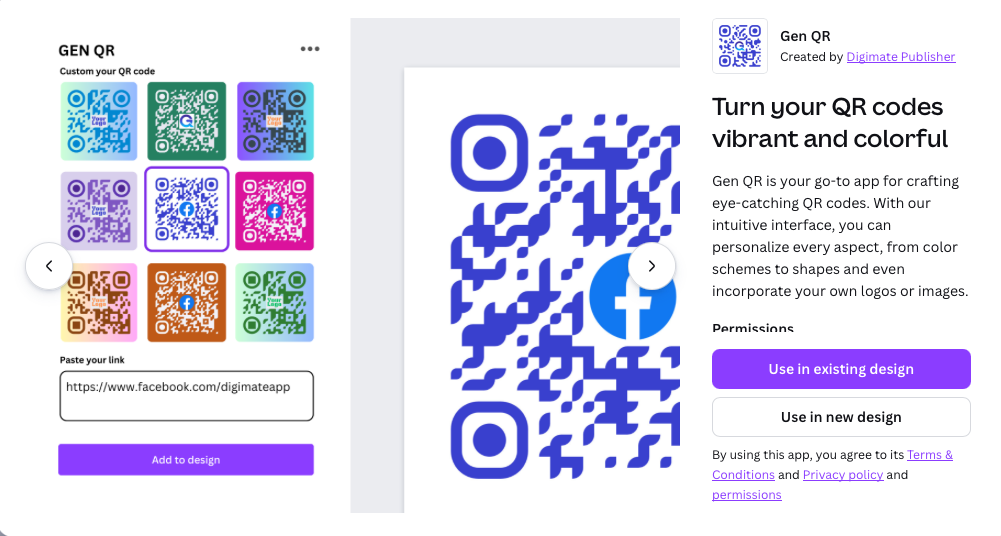
While plenty of Canva designs end up online, it’s also a great tool for making printed marketing materials like business cards, posters, and flyers. But what happens if you want your offline design to bring people to your website, social accounts, or even a Jotform form? Well, that’s where a QR code comes in. With a quick scan, your link opens.
I tested a few of the QR apps in Canva and really liked Gen QR for the simple reason that it makes it very easy to blend a QR code into your design. I find so many QR codes incredibly ugly and distracting, so I really liked the level of color control you have.
What it’s best for:
- Embedding a QR code in your offline designs
- Making it easy for anyone who sees your marketing materials to get in contact
How to use it:
- Find the Gen QR app in the Canva Apps Marketplace tab.
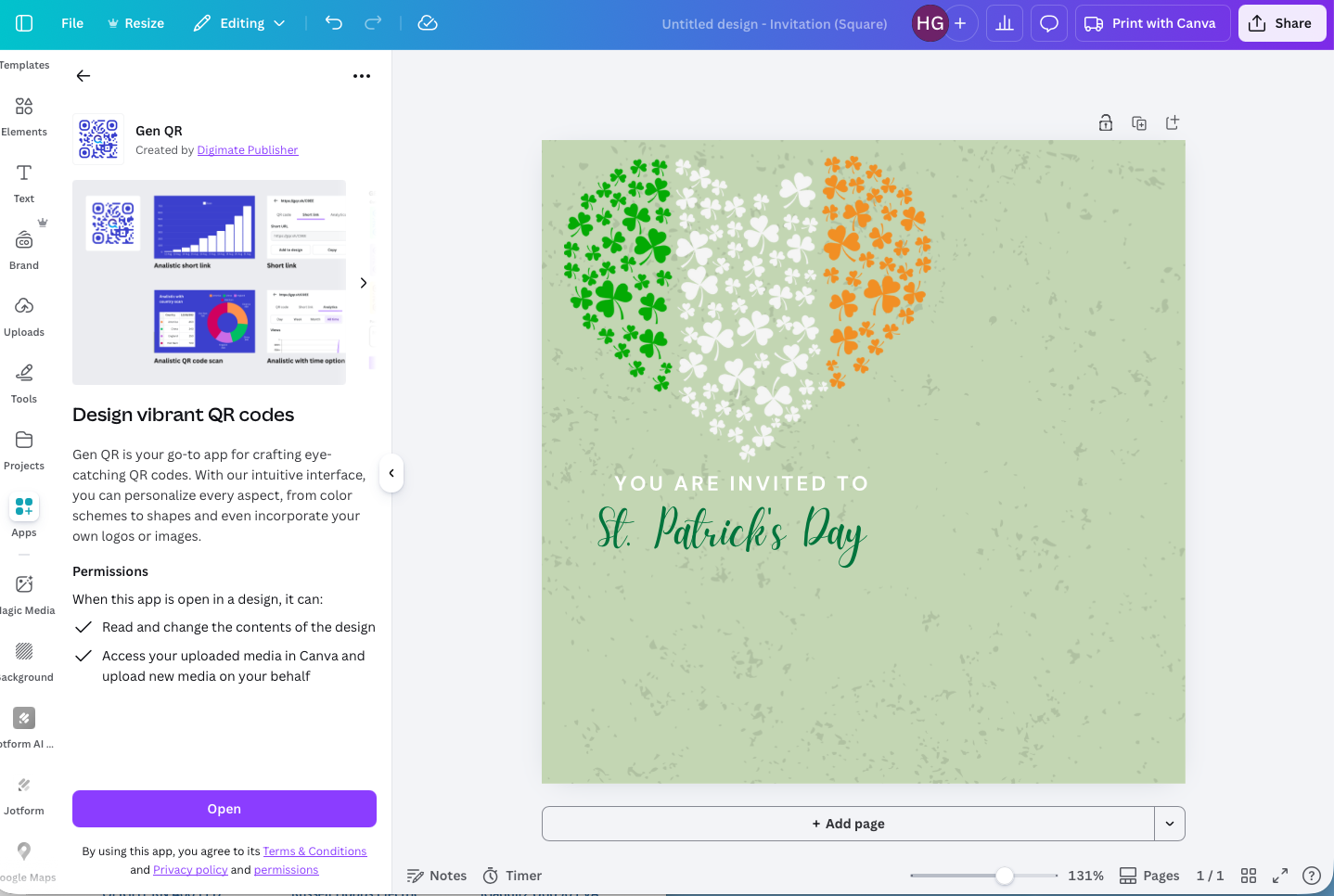
- Add the link you want to turn into a QR code and then configure the color scheme and design. You have lots of options here. I went with something that matched my design for the example, but you could go with something that contrasts it or otherwise stands out more.
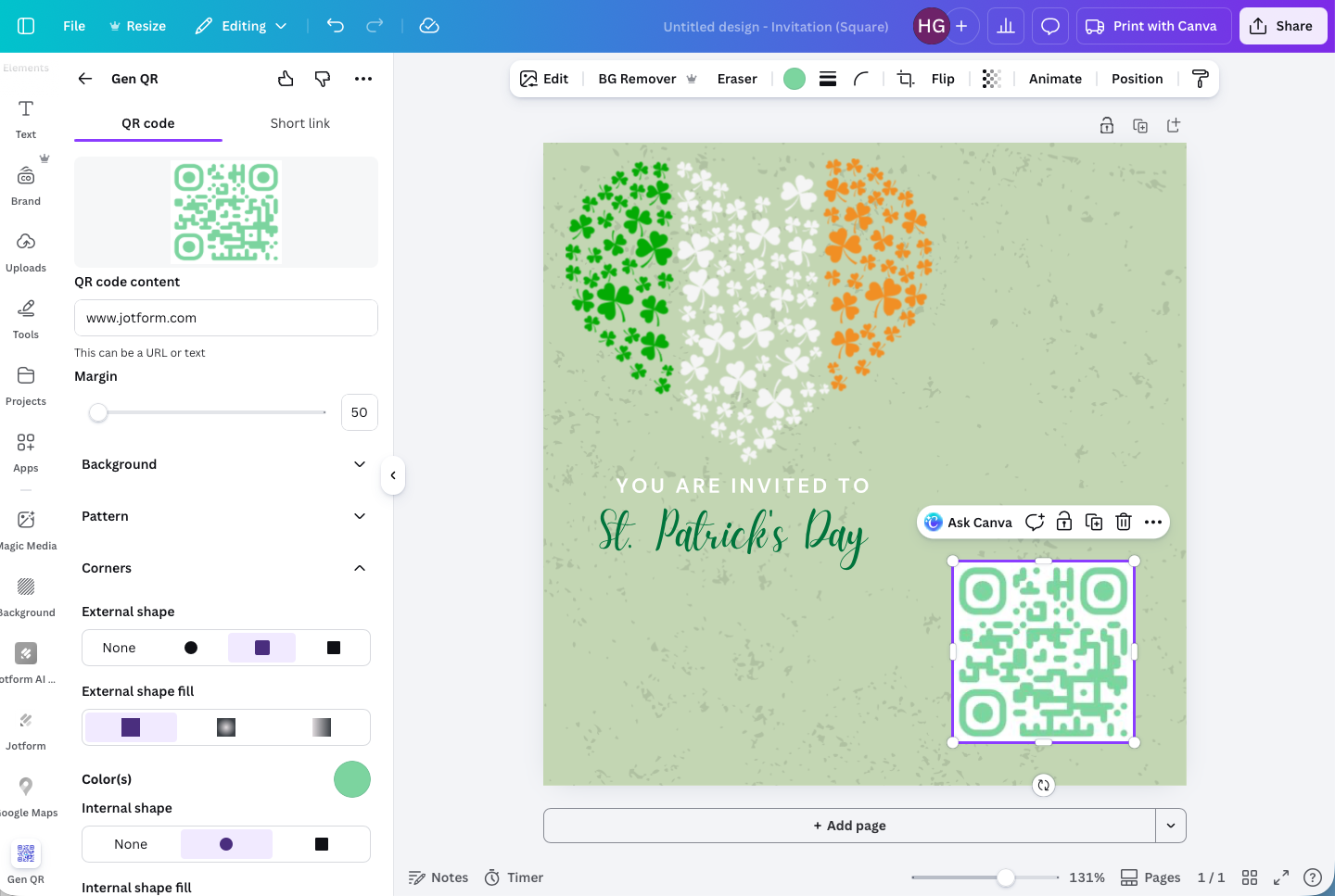
- It’s as simple as that — your design is ready.
4. PatternedAI: Design seamless patterns
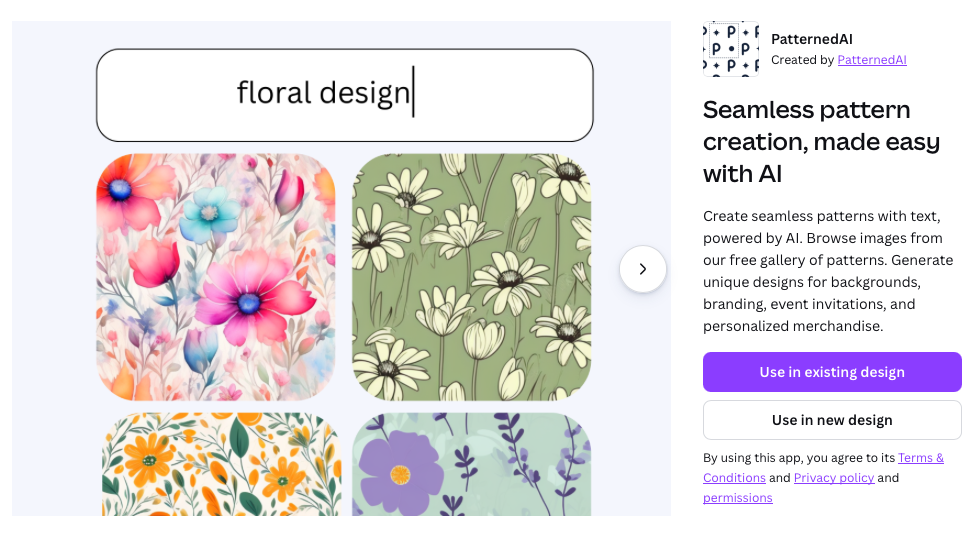
Seamless patterns are great backgrounds for all kinds of designs. From personal things like invitations to professional presentations, a repeating pattern can really tie everything together. To create one in Canva, I really like PatternedAI.
PatternedAI has a few options: You can use one of its built-in patterns, turn any image into a repeating pattern, or use its AI to generate a new pattern based on your prompt. I liked all the patterns I was able to create with it, though you do need an account if you want to create AI-generated ones.
What it’s best for:
- Creating patterns using AI
- Finding professionally designed repeating patterns
How to use it:
- Find PatternedAI in the Canva Apps Marketplace tab and open it.
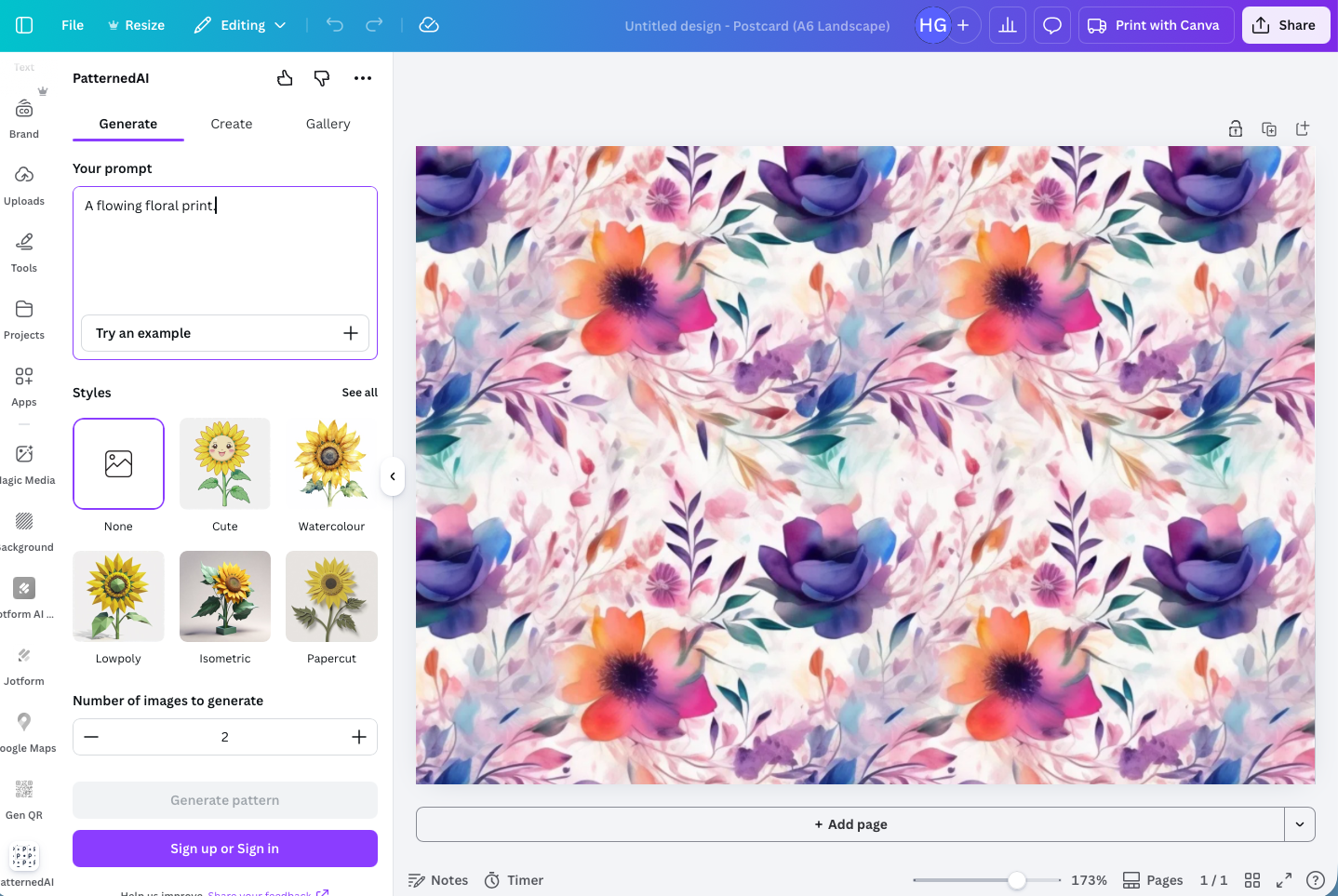
- PatternedAI gives you three options: Generate, Create, and Gallery. Generate allows you to create a prompt using AI, though you will need to sign up for a PatternedAI account to use it.
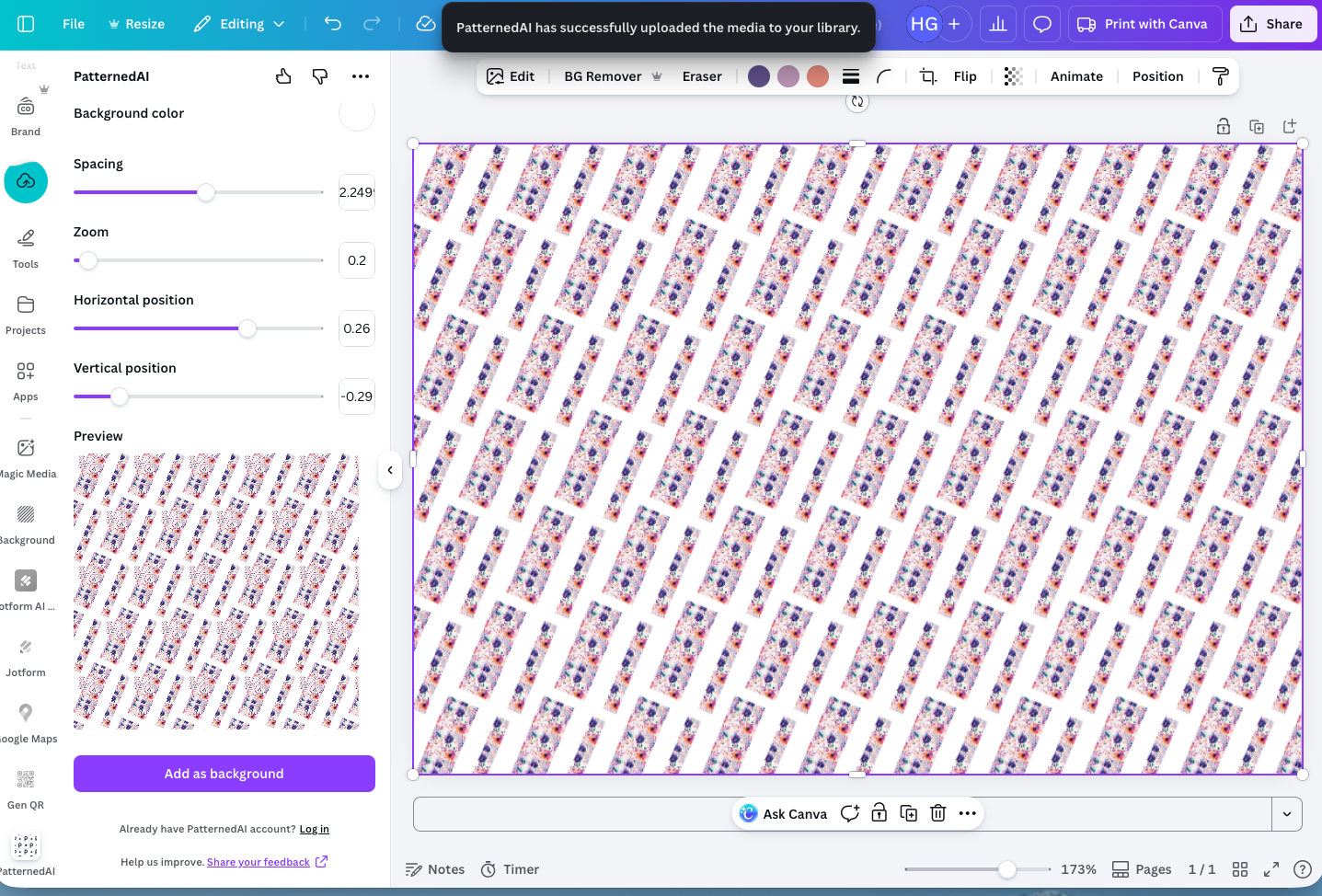
- Create allows you to create repeating patterns out of any image.
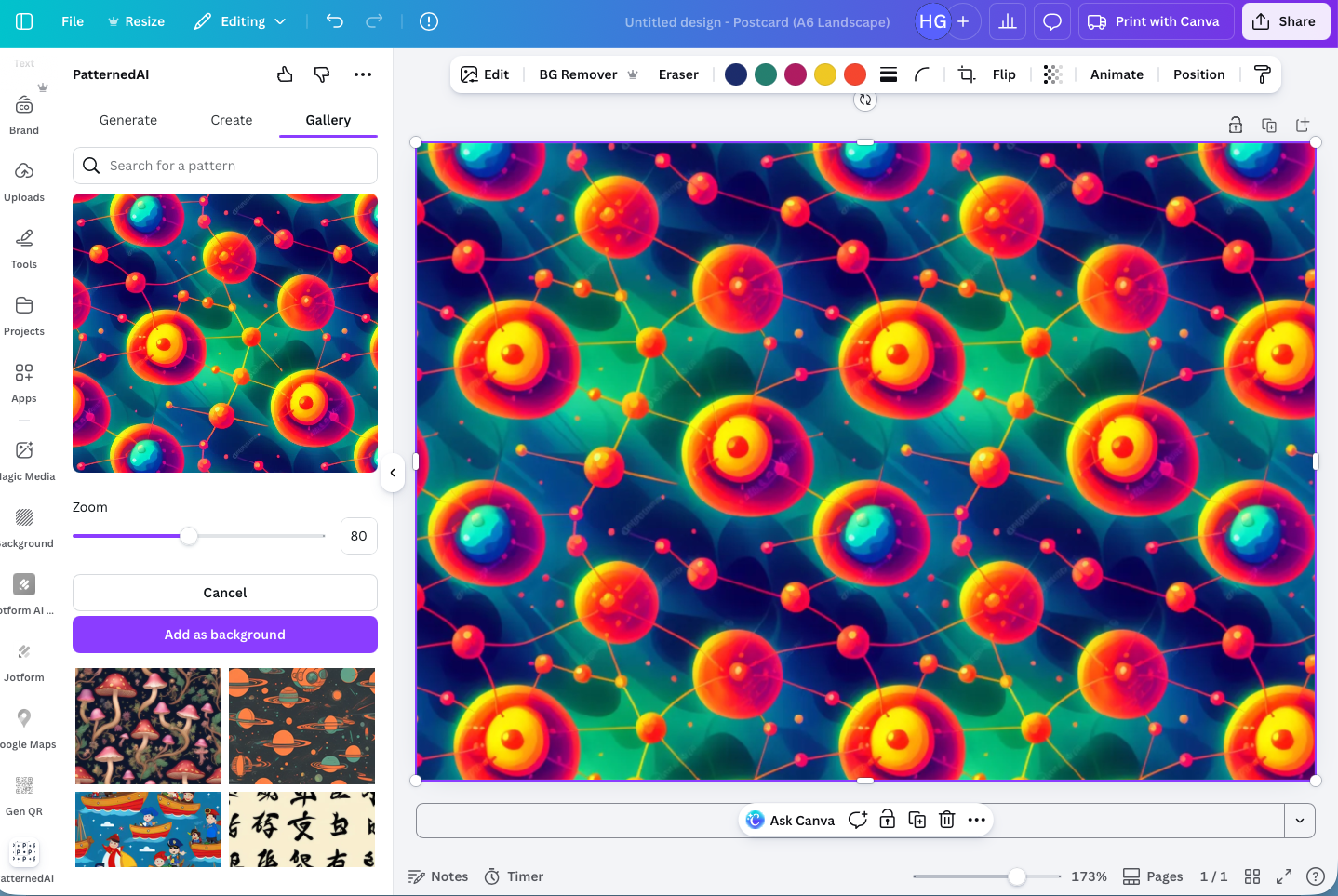
- Finally, the Gallery includes professionally designed patterns you can use.
While all three options worked well, I was very impressed with the included patterns.
5. LinkedIn: Connect with your professional network

LinkedIn has been around for more than two decades, but it has recently had a huge resurgence in popularity. If you want to get in on the professional networking action, then Canva’s LinkedIn app is a great way to bring something different. It allows you to post your Canva designs directly to LinkedIn.
While I could have picked almost any of the social scheduler Canva tools for this slot, I went with LinkedIn because I think good graphic design really stands out among all the buzzword-heavy text you find on the platform. Everyone’s putting great visuals on Instagram but not everyone is doing it on LinkedIn, which means there’s a great opportunity to stand out.
What it’s best for:
- Standing out on LinkedIn
- Creating brand-appropriate content for LinkedIn
How to use it:
- Find the LinkedIn app in the Canva Apps Marketplace and connect your LinkedIn account.
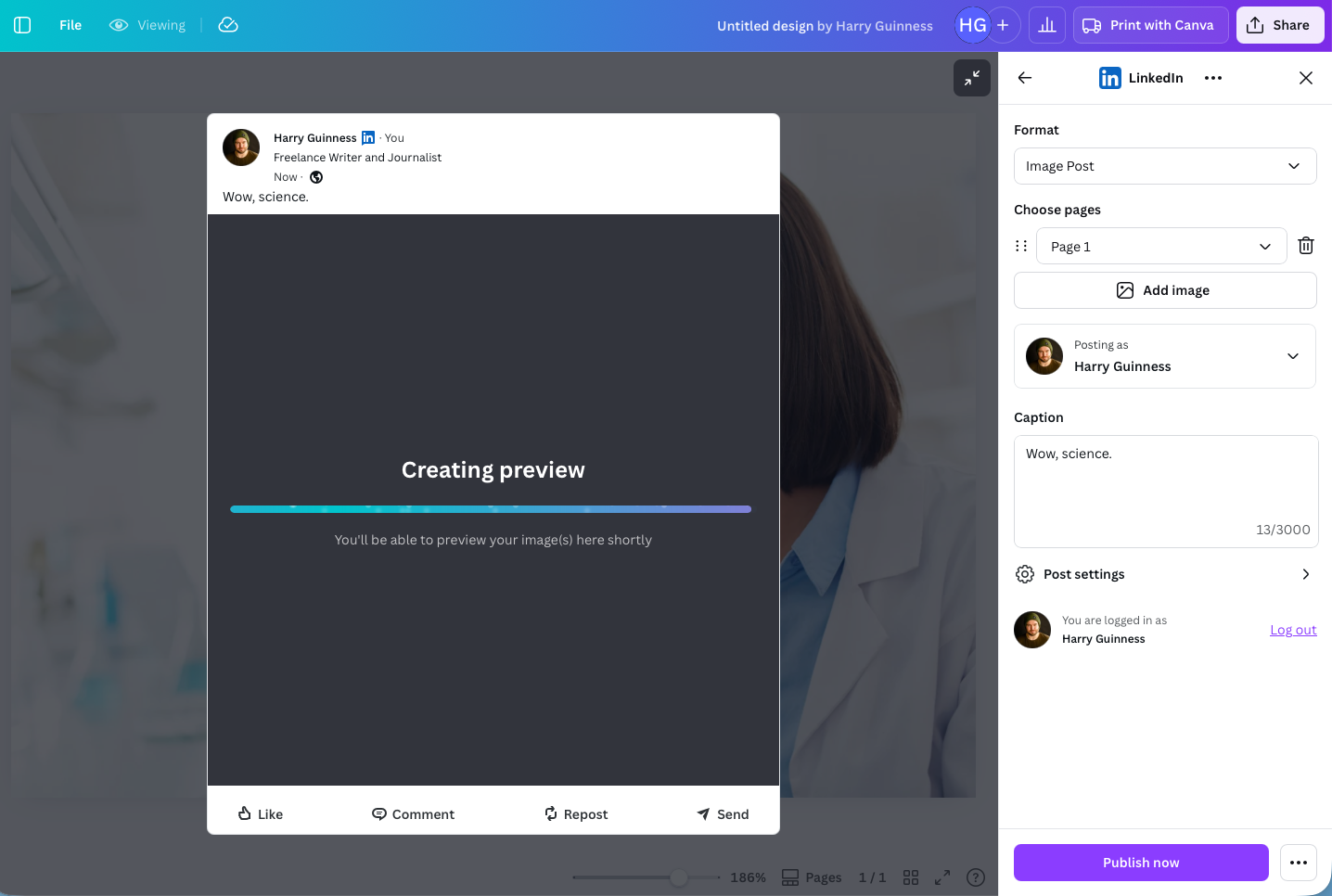
- Create your design and then go to Share > See All > Social > LinkedIn. Add your caption and click Publish now to post directly to your LinkedIn account. (Once you’ve done this once, it should appear in the suggested share options.)
6. Brandfetch: Add brand logos to your designs
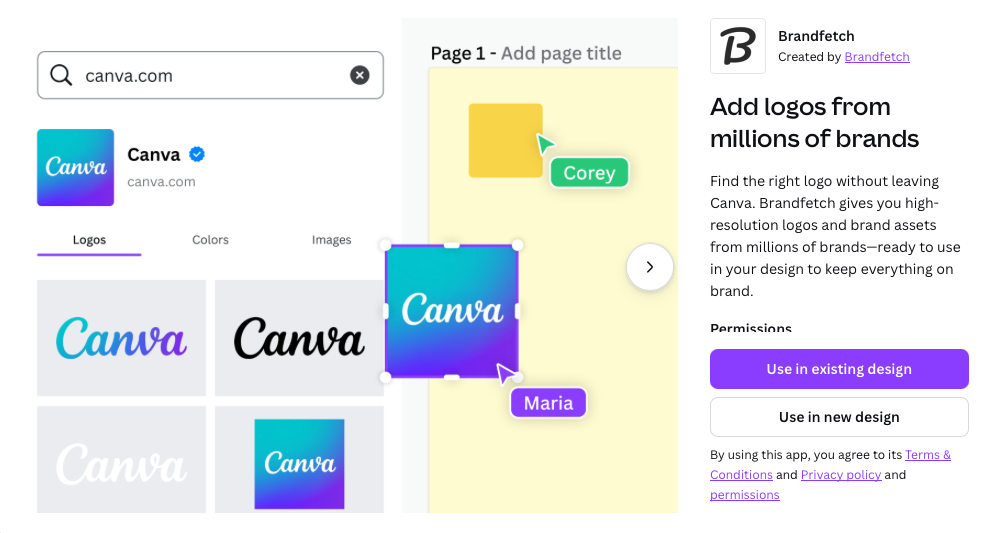
If you’re creating marketing images, testimonials, updating your web copy, or just want to display the organizations you’re partnered with, you often need to use a brand’s logo. However, finding a clean PNG on a transparent background can be a pain — which is where Brandfetch comes in. It’s a database of thousands of brands with countless logos ready to add to your design.
These are the kinds of apps I love. Brandfetch solves a real problem that I regularly have, and it does it right in Canva. It worked well in my testing, even for less popular brands.
What it’s best for:
- Quickly finding and embedding brand logos
- Making it easier to build marketing campaigns, testimonials, and customer or client pages
How to use it:
- Find Brandfetch in the Canva Apps Marketplace tab and open it.
- Use the search bar to look for a brand. I obviously went with Jotform. Brandfetch then displays a list of the available logos, as well as brand colors and any other marketing images in its collection. Click on one to add it to your design.
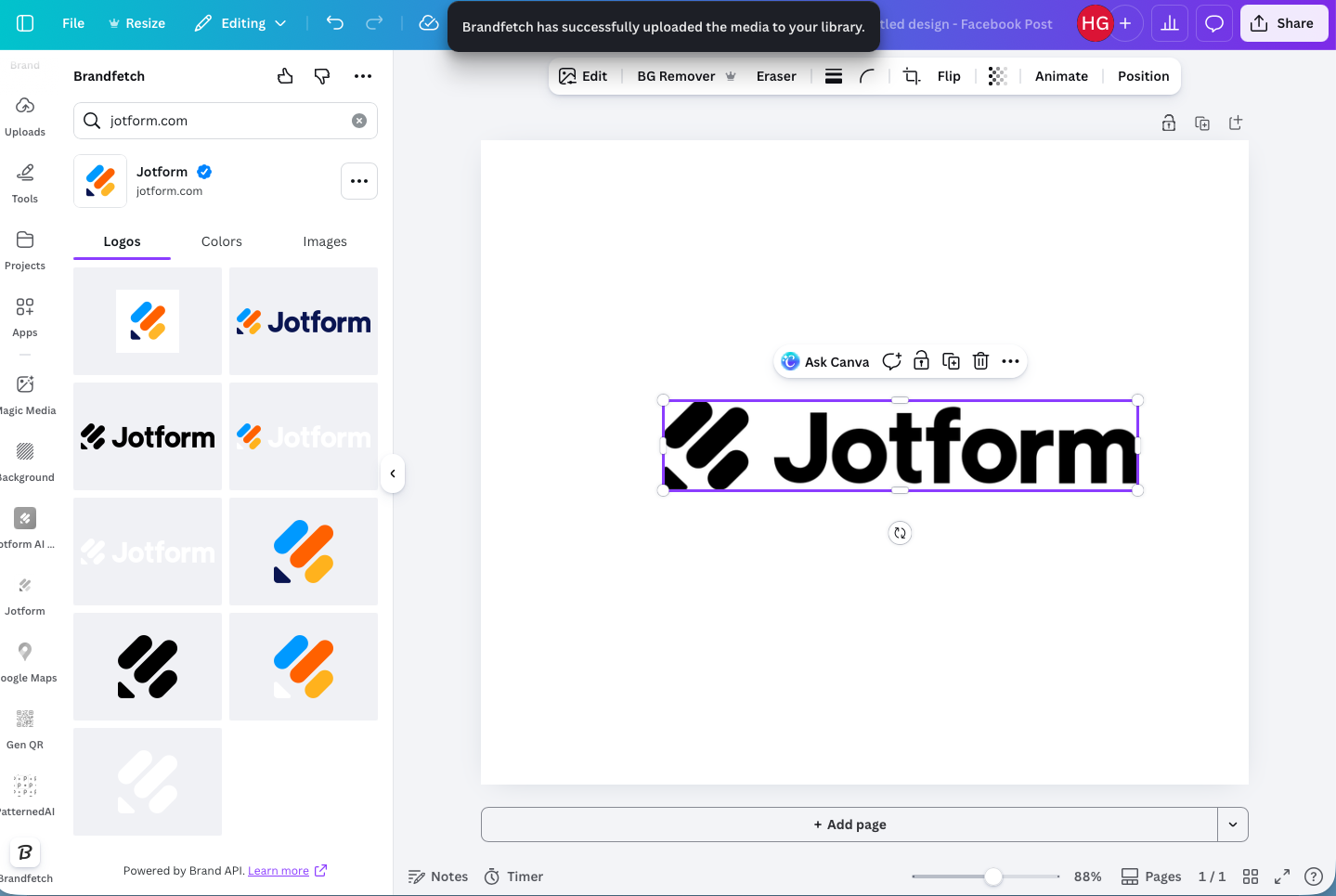
- And it really is as easy as that. If you regularly work with logos, give it a go.
7. ChatGPT: Create designs from your favorite AI chatbot
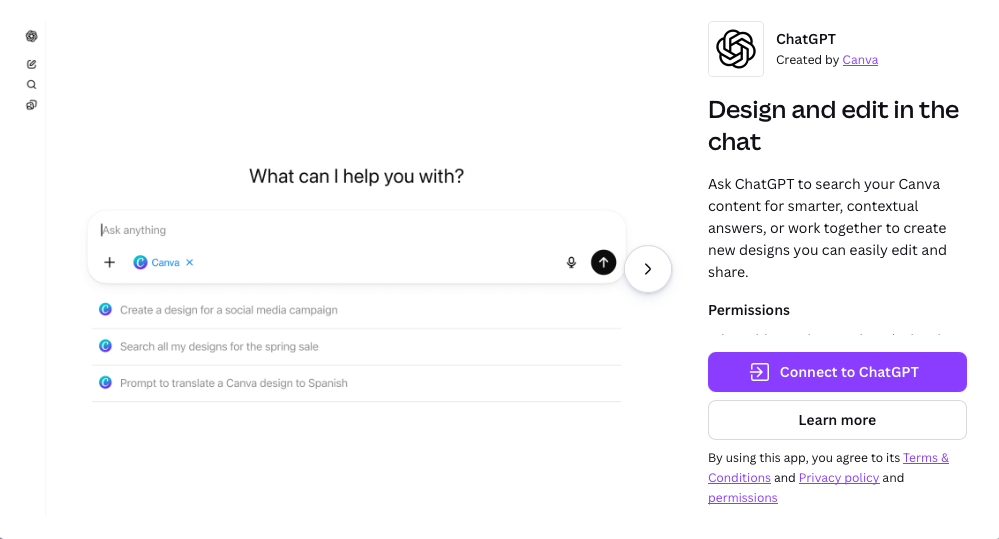
ChatGPT’s Canva App integration is a little different. Instead of having access to ChatGPT inside of Canva, it gives you access to Canva inside ChatGPT.
This means you can have ChatGPT generate designs with Canva, edit your designs, and search through them. If you use the chatbot a huge amount, like I do, you’ll appreciate how cleanly it ties the two apps together. You can go from brainstorming to an editable Canva design in seconds.
What it’s best for:
- Adding Canva to ChatGPT
- Turning AI brainstorming sessions into instant designs
How to use it:
- Find ChatGPT in the Canva Apps Marketplace and click Connect to ChatGPT. Sign in with your ChatGPT account.
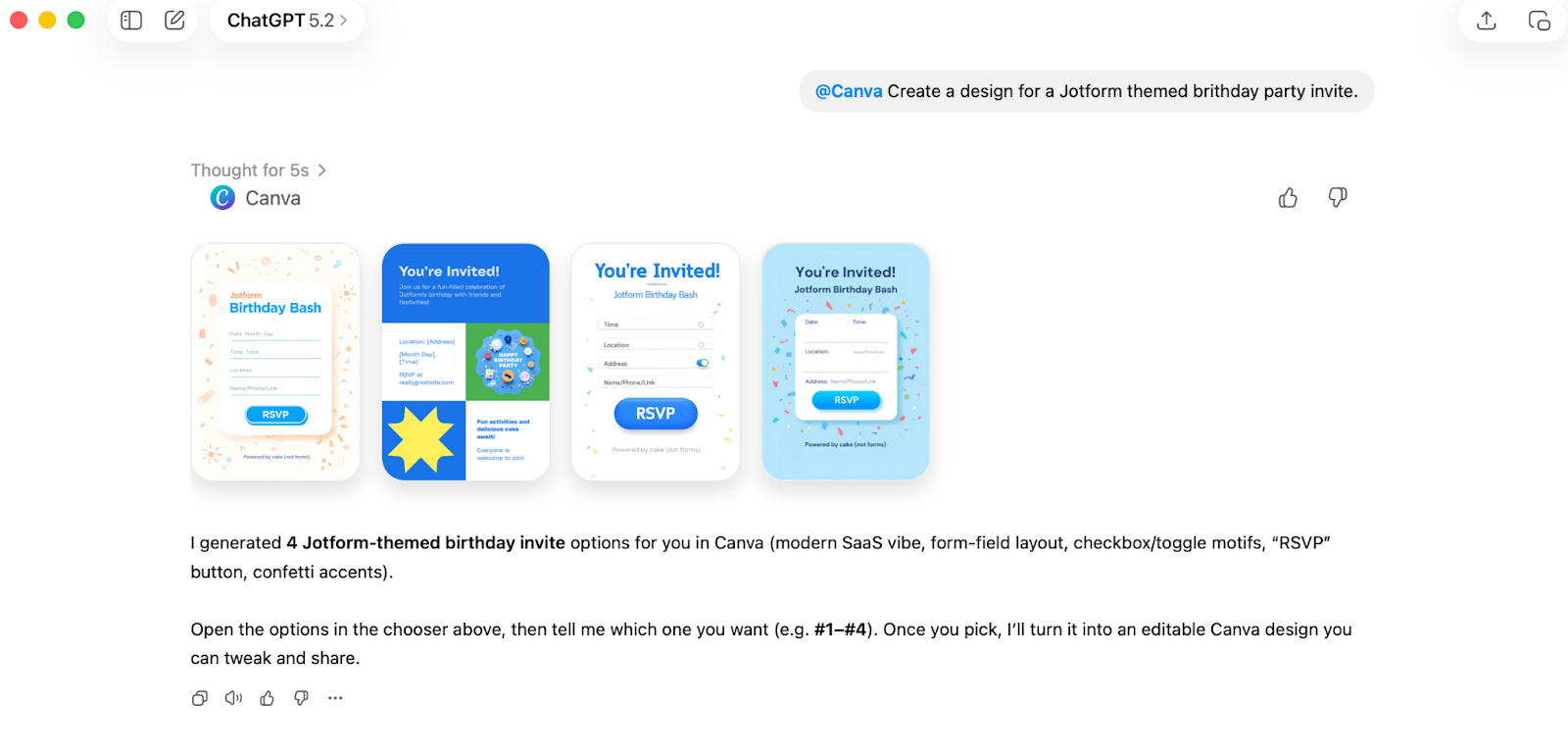
- Then, when you’re using ChatGPT, you can trigger Canva by typing @Canva followed by your prompt. I went with creating a Jotform birthday party invite, but you can use any idea you want. You can also search Canva or prompt it to edit one of your designs.
Turn your Canva designs into interactive experiences
While Canva is still an incredible design tool, it’s also so much more than that. In 2026, it can be the bridge between your customers and your marketing, conversion, or data collection goals.
After I tested dozens of apps in the Canva Apps Marketplace, my biggest takeaway was that the best Canva apps do more than just enhance your design workflows. They take your static designs and make them more interactive and actionable.
Take Jotform AI Chatbot and Jotform Forms — two of the best apps I tested. They turn your design into a lead generation tool. With Jotform AI Chatbot, it only took me a few minutes to turn a simple Canva design into a fully functioning chatbot that could answer customer questions and encourage them to visit my website. Similarly, with Jotform Forms I was able to add a data collection flow directly to a newsletter design.
It’s also worth noting that both apps are just as powerful away from Canva as they are with it. You can use them to create fully automated data collection pipelines and AI chatbots — a Canva design is just the visible layer.
To make the most of Canva apps, I recommend you start slow. Test something like Jotform AI Chatbot or Jotform Forms with one project and then build out your full stack from there.
FAQs about the best Canva apps
No, not all Canva apps are free.
However, some of the best Canva apps — including Jotform AI Chatbot and Jotform Forms — are free. Other apps require a paid subscription to the associated service to use.
Canva’s free plan includes thousands of templates and millions of other design assets, basic design tools, and limited AI features.
Canva Pro and Canva Business, the two paid Canva plans, include more templates, over 100 million design assets, advanced design tools, and further AI features. Canva Business also includes team collaboration capabilities.
Canva has a completely free tier. It isn’t a free trial — you can use it forever.
This article is for designers, marketers, social media managers, content creators, and small business owners who use Canva regularly and want to extend its capabilities with powerful apps for productivity, automation, content creation, and collaboration.



























Send Comment: