
Jotform AI, integrations with ChatGPT and Claude, the AI Data Assistant…. If you’ve been keeping track, we’ve dropped some big news this year.
While these headline product launches and features rightfully get a lot of attention, there are some under-the-radar product enhancements that may help boost your productivity just as much.
If your Jotform use involves PDFs, data management, or payments, you’ll be pleased to know that these five new features are built just for you.
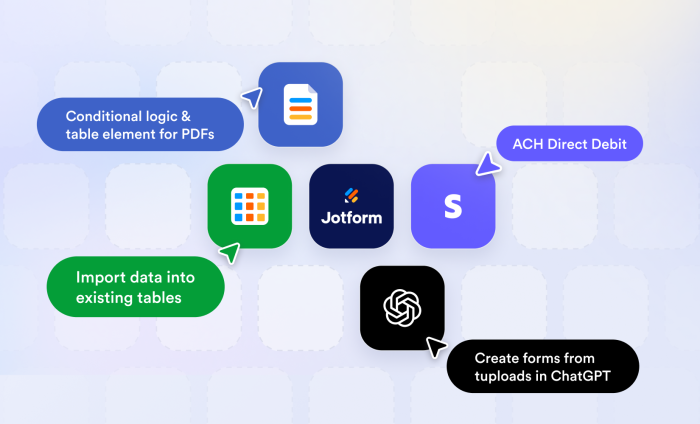
New features at a glance
| New feature | Associated product | What it can do |
|---|---|---|
Conditional logic for PDFs |
Make structured information easier to present, scan, and compare within a PDF. |
|
Import data into existing tables |
Import external data like Google Sheets into an existing Jotform table. |
|
ACH Direct Debit |
Securely link customer bank accounts, simplifying checkout and verification. |
|
Create forms from uploads in ChatGPT |
Create editable/shareable forms or Smart PDFs from images in ChatGPT. |
1. Conditional logic for PDFs
A staple feature of Jotform, conditional form logic allows you to capture complex data in one form. This update aims to do the same for PDF creation.
Each PDF element now has conditions. Just select the element, open the Settings menu (by clicking on the gear icon), go to the new Conditions tab, and click the Add Condition button to set up the rule.
When you create a condition to show an element, that element will appear on your PDF whenever the defined condition is met. In the following example, the Signature section will be displayed only when the corresponding form answer (Full Name) is filled out.
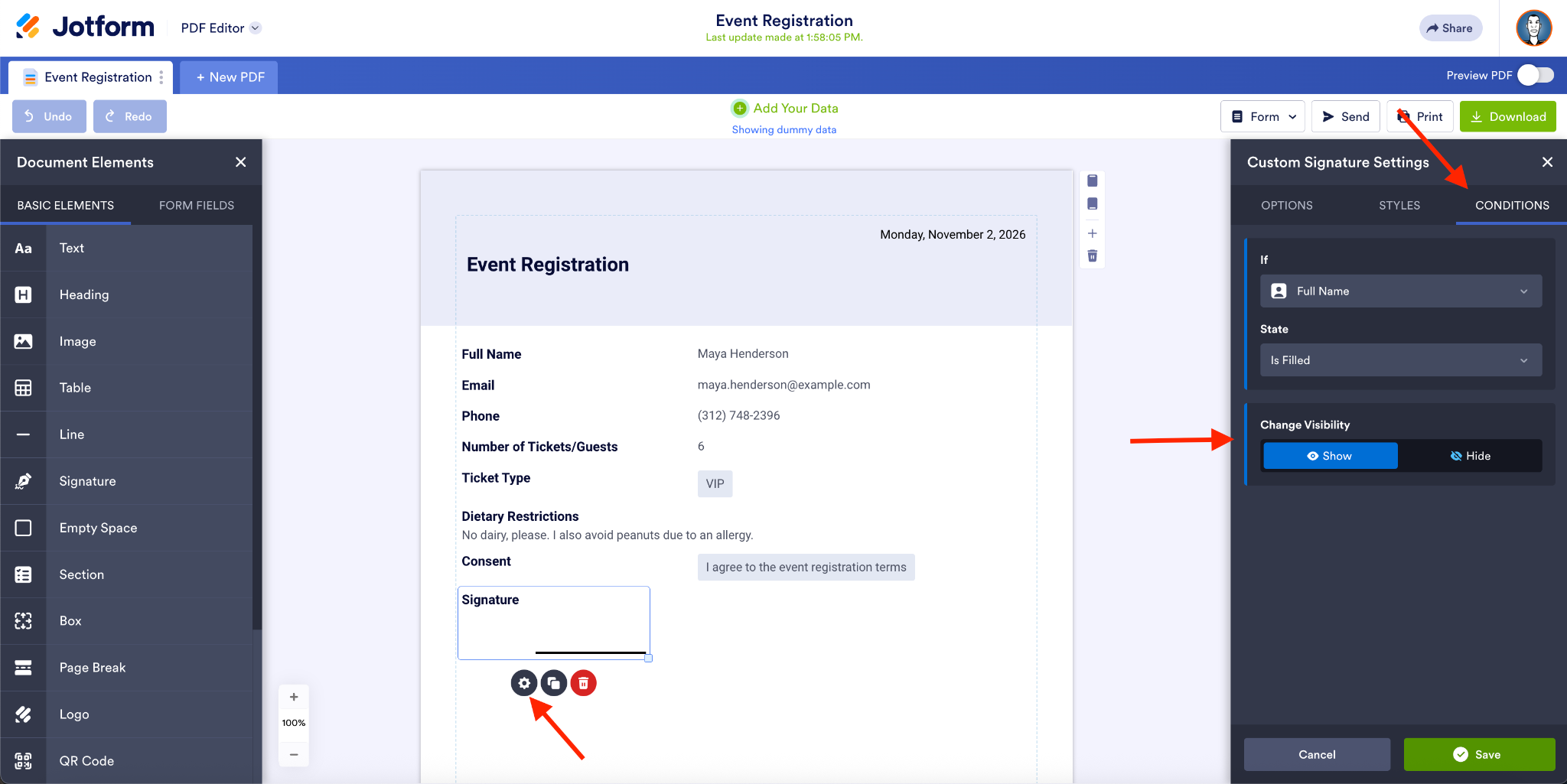
Now, you can independently configure conditional behavior for different parts of a document. Conditional logic clears the way for you to use a single document for different submissions or purposes, as opposed to maintaining multiple PDFs.
Pro Tip
Preview conditional documents using submission data to verify which elements will appear in the final PDF before downloading, sending, or sharing it.
This is only one example. You can choose to show QR codes, additional content, or full-on sections of the PDF.
2. Table element for PDFs
Speaking of PDFs, the new Table element gives you the flexibility to organize document content into rows and columns instead of blocks of text.
You can fill the cells of your table with data from your form fields or customize the info to suit your needs.
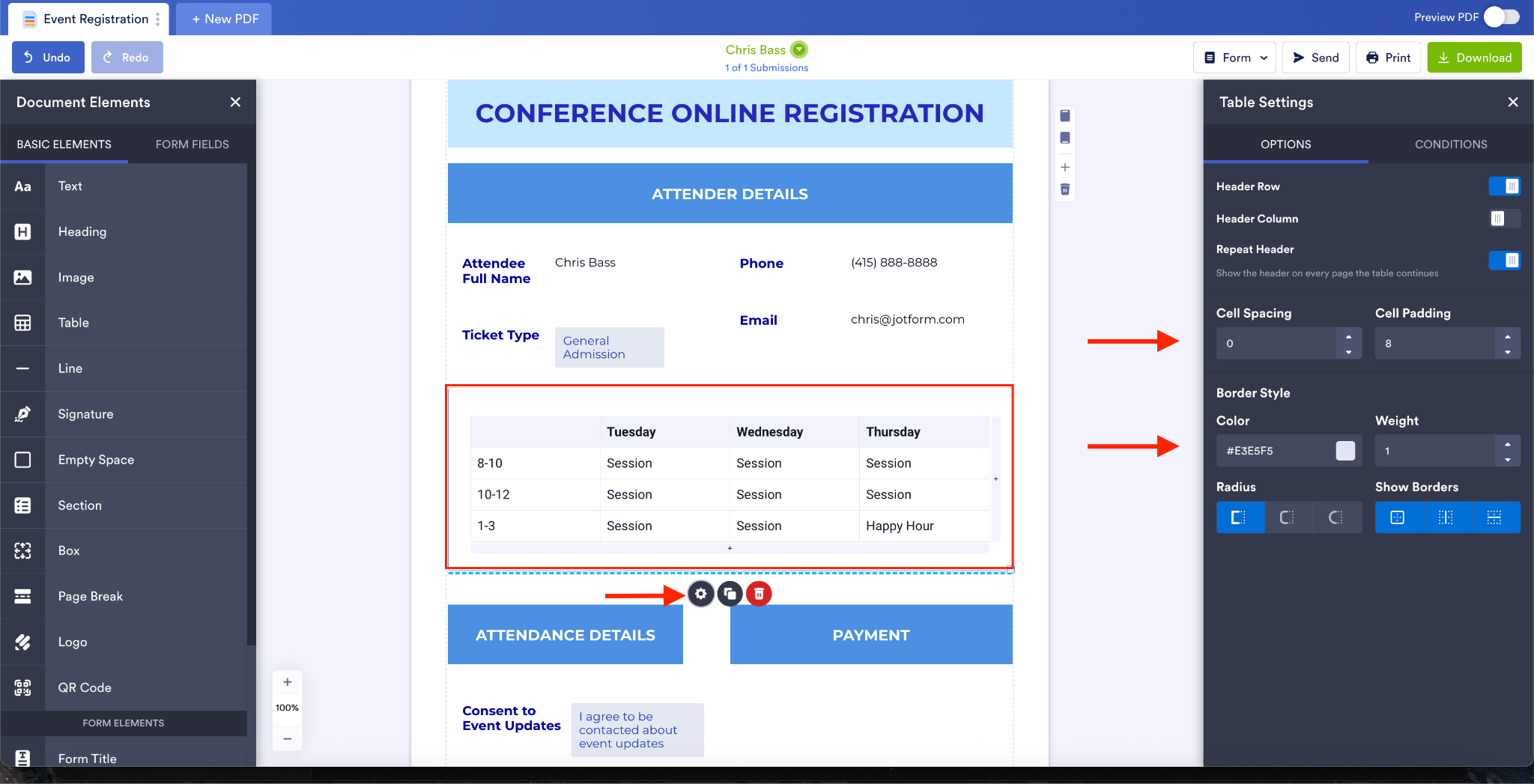
In the Table Settings, you can adjust the table’s cell spacing and cell padding, border color and weight, and more.
The Table element gives you a consistent and polished way to present structured information. And like other PDF elements, the table can also be shown/hidden via conditional logic.
3. Import data into existing tables
We’re excited to announce that you can now import data into an existing table, including from Google Sheets.
It’s pretty common to use third-party tools or spreadsheets to manage data related to your Jotform workflows, so this capability is right on time for Jotform Tables.
In addition to importing external data into an existing table, you can
- Import data into both columns created from form fields and columns added directly in Tables
- Preview how the imported data will appear in the existing table after your file upload
- Change the mapping (from the auto-match system) before completing the import
You can start the import flow from the tab’s context menu. (Note that you may need to authenticate your Google account to import Google Sheets.)
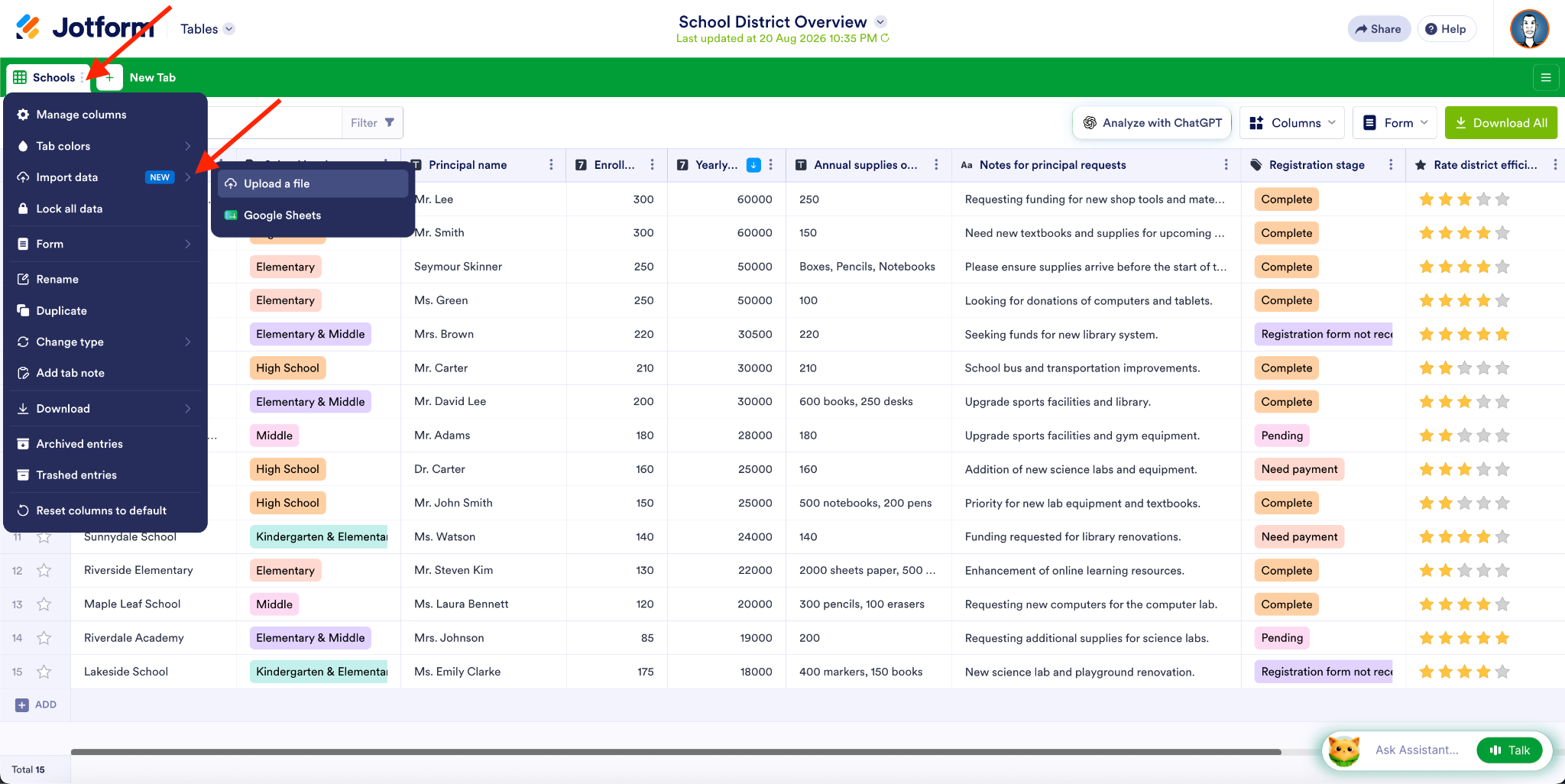
After you upload a file, you’ll see a preview of how the imported data will appear in the existing table.
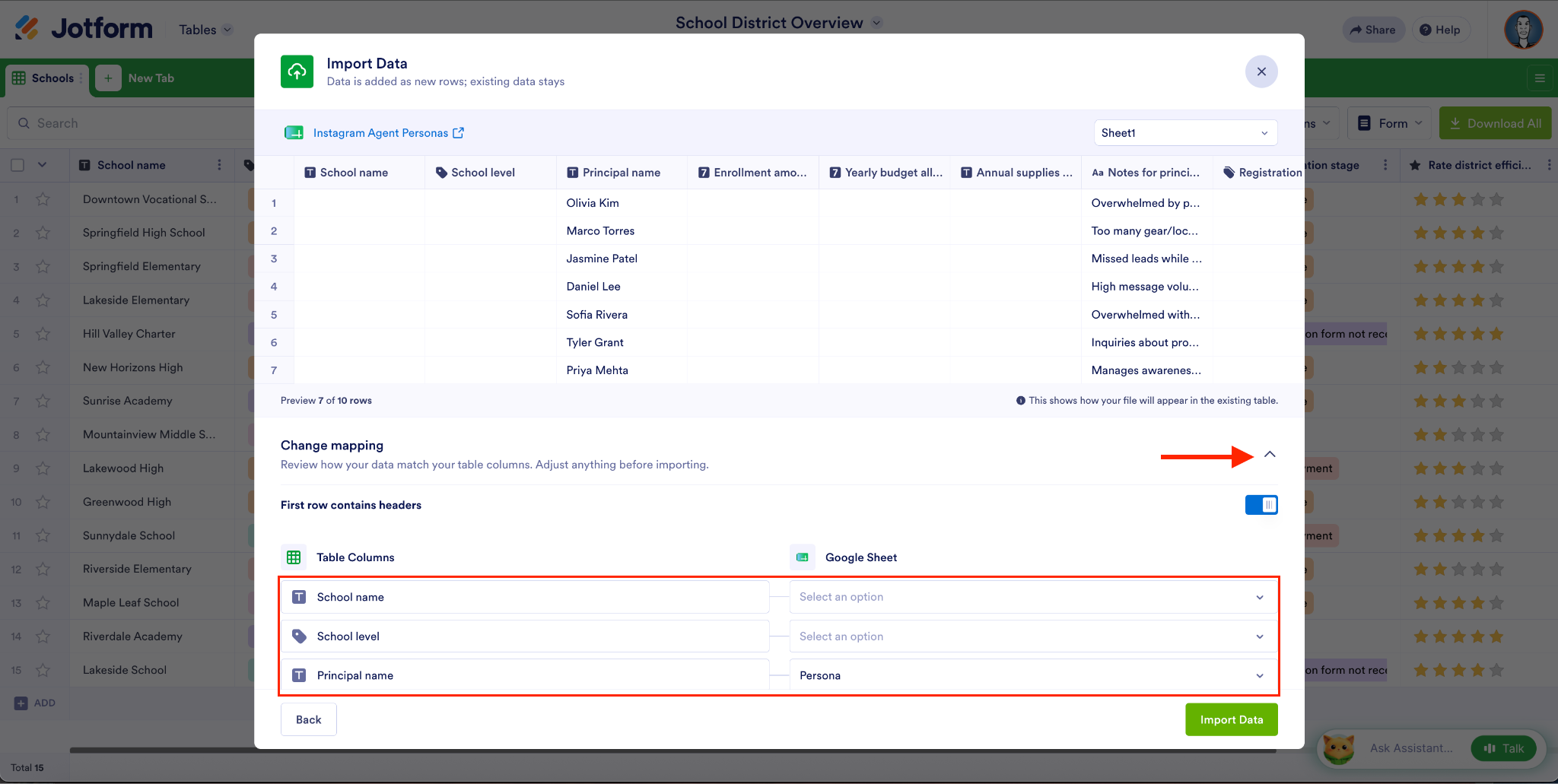
Our system will automatically map the table columns with the data in the cells of your imported sheet.
Click the Import Data button to merge your sheets.
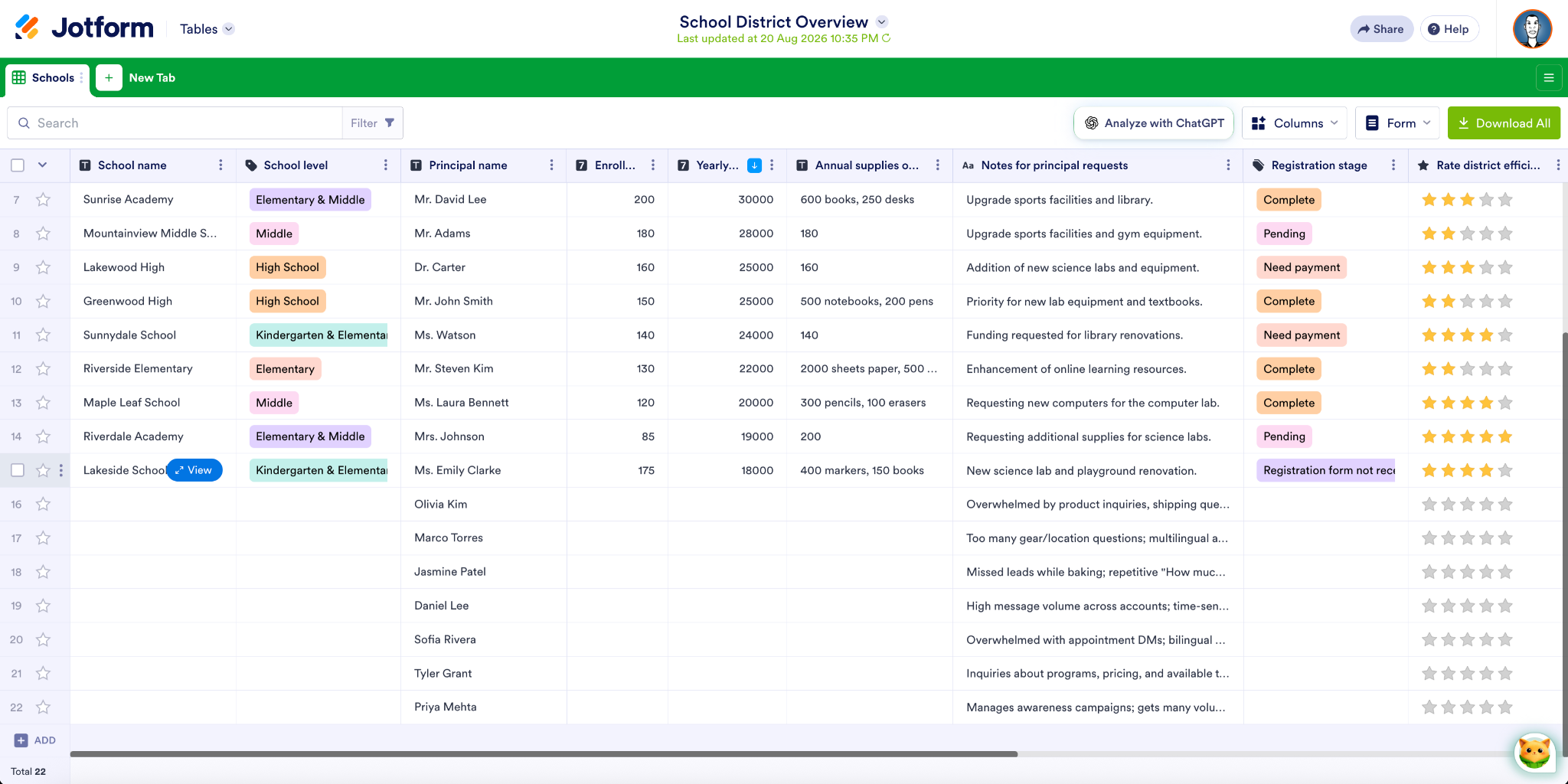
In the previous example, I’ve matched two sheets that, frankly, don’t have much to do with one another. The ability to change the mapping is what I want to highlight. I’ve adjusted the mapping for Principal name and Notes so the data I’m importing matches my existing table.
4. Stripe ACH Direct Debit (with Financial Connections)
Stripe is the payment backbone for many forms and apps. Now you can give your customers a secure and convenient way to pay directly from their bank accounts with Stripe ACH Direct Debit.
Why you’ll love using ACH as a payment method
- You can securely link your bank account through Stripe.
- Since it’s attached to a bank account, ACH is a more reliable payment method than credit cards.
- ACH is perfect for recurring charges — such as subscriptions, donations, and membership fees — since a bank account rarely changes or expires like a credit card does.
- The ACH method doesn’t incur credit card fees.
To offer your customers ACH via Stripe, just add or update the Stripe payment integration on your form and then enable ACH Direct Debit.
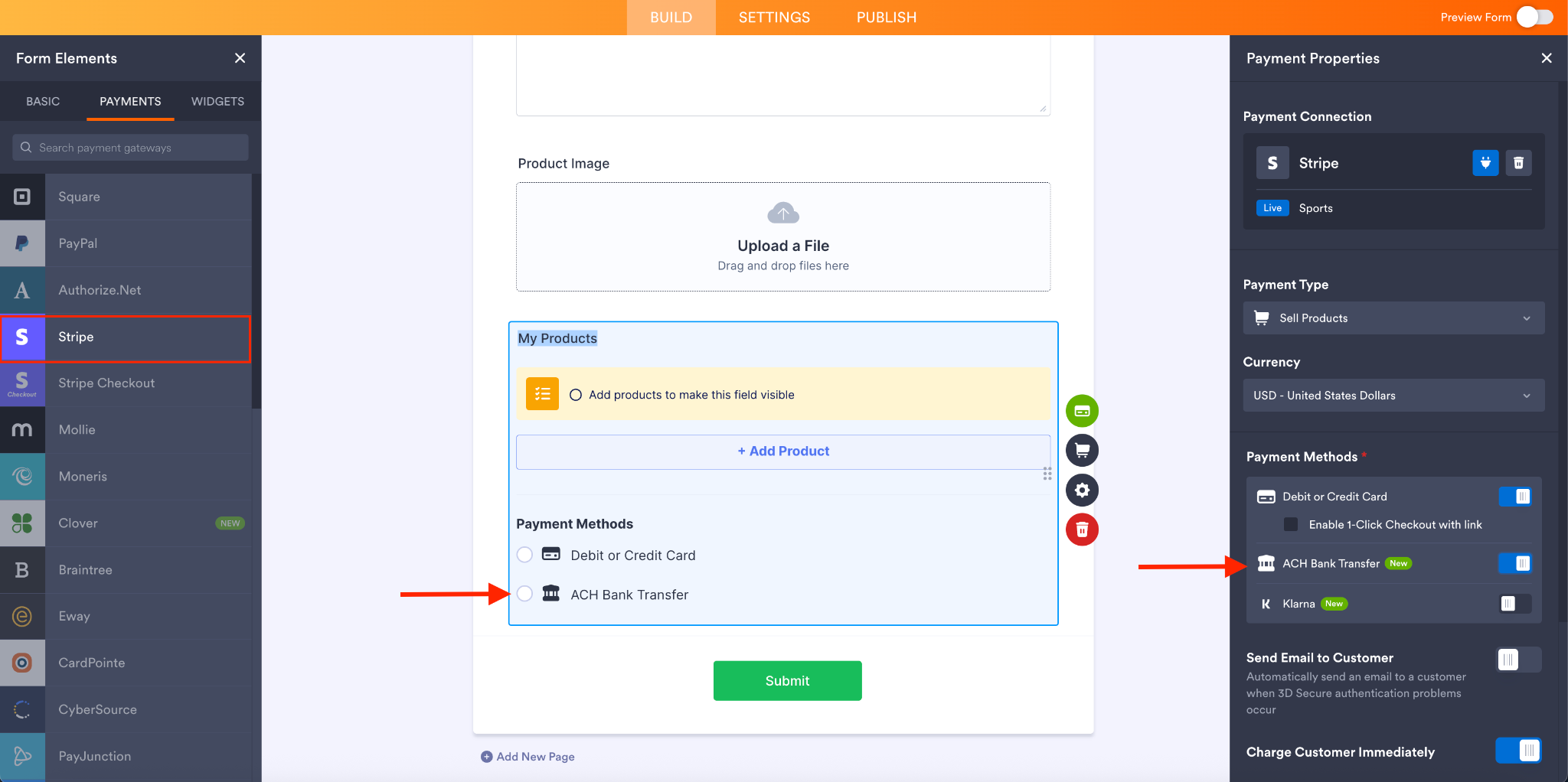
Once it’s set up, you’ll be able to start accepting ACH Direct Debit payments from eligible US bank accounts, giving customers a convenient alternative to paying by card.
Start accepting bank payments today!
5. Create forms from uploads in ChatGPT
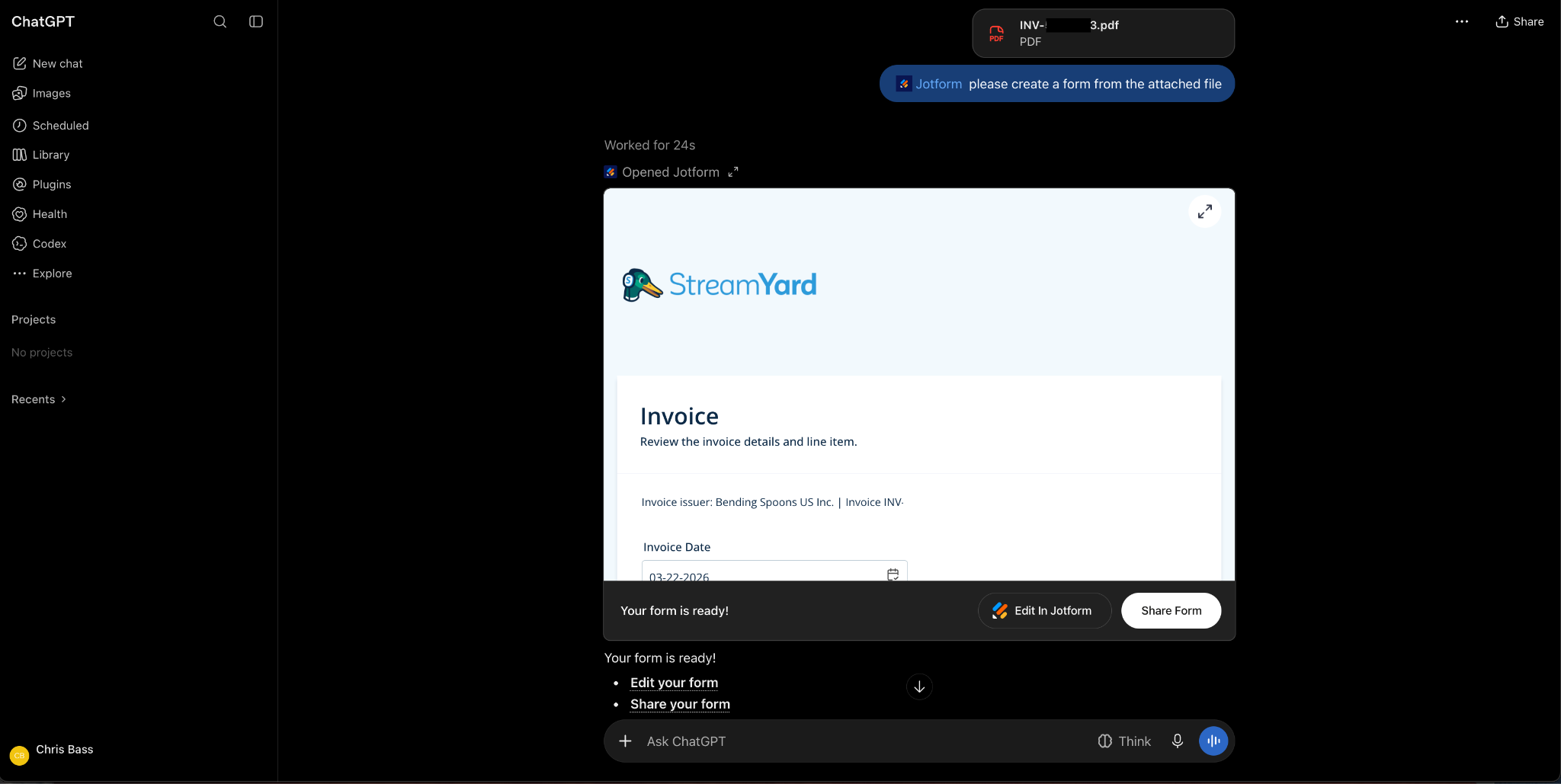
Creating forms — or Smart PDF documents — inside ChatGPT just got easier. With this new feature, you can upload an image to your AI workspace and ask ChatGPT to create a form or PDF out of it. Seconds later, you’ll have a functional document you can edit, share, or customize further in your Jotform workspace.
Creating forms from uploads fast-tracks your workflow and transforms the process of digitizing paper records. Just follow these simple steps:
- Type in your prompt: “@jotform please create a form from the attached file.”
- Attach your image file.
- Get your digitized form.
We’ll be sure to keep you updated on more under-the-radar features in the future. (There are lots more where these came from.) If you’d like to hear more about specific products or features, or you’d like to request new features, feel free to let us know in the comments.












Send Comment: