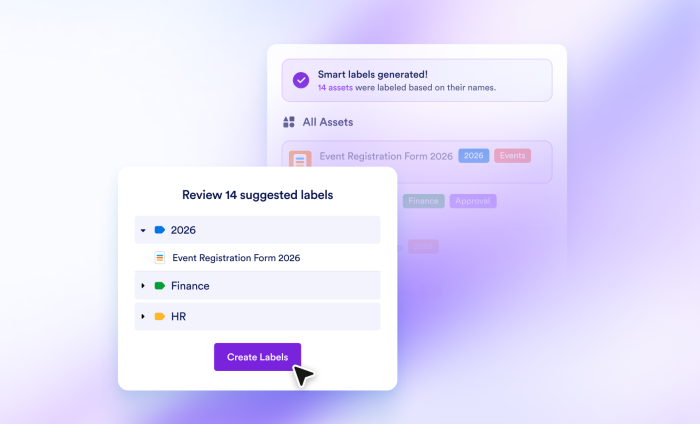
As your team grows, your Jotform workspace grows with it. Over time, though, managing multiple forms, tables, and other assets can start to feel like a full-time job.
To help you keep all your Jotform assets organized effortlessly, we’re introducing Smart Labels.
Powered by AI, Smart Labels analyze your existing Jotform asset names, detect patterns such as dates, locations, or form types, and suggest an organized label structure tailored to your workflow.
Whether you’re starting fresh or tackling a cluttered workspace, here’s how to use Smart Labels to get organized in seconds.
What are Smart Labels?
Smart Labels do the heavy lifting for you. Instead of spending time creating and applying tags one by one, you can use AI to scan your workspace content and generate structured categories.
You’ll always know which labels were created by AI by looking for the sparkle icon next to them, so you can easily distinguish your custom tags from AI-generated ones.
Step by step: How to use Smart Labels
Smart Labels are now live for all Enterprise customers and all users with Bronze, Silver, or Gold plans. Follow these simple steps to automatically categorize your workspace assets.
1. Generate your labels
You can access Smart Labels in two ways, depending on what type of plan you have.
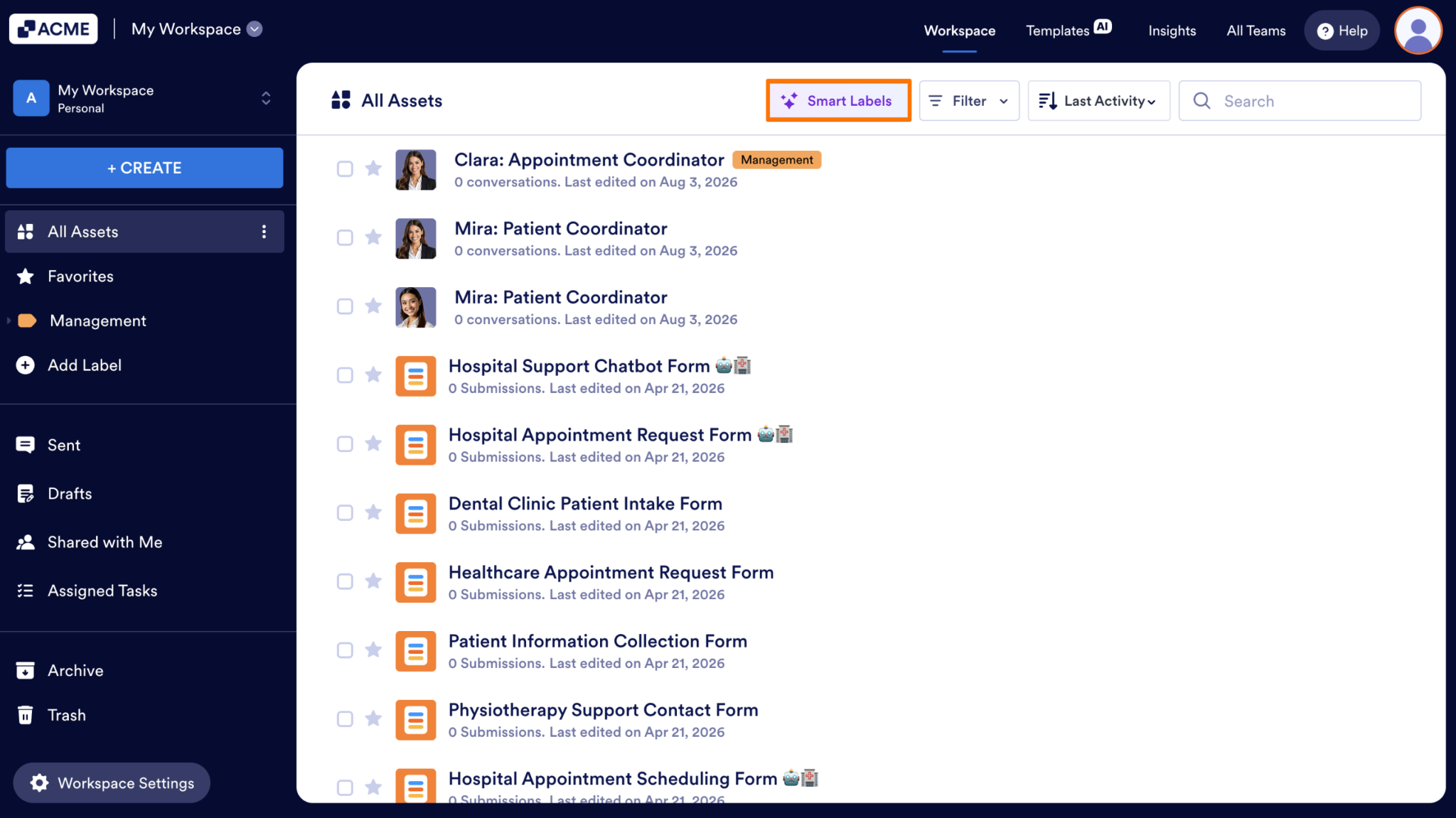
- Enterprise customers: Select Smart Labels directly from the top toolbar in My Workspace.
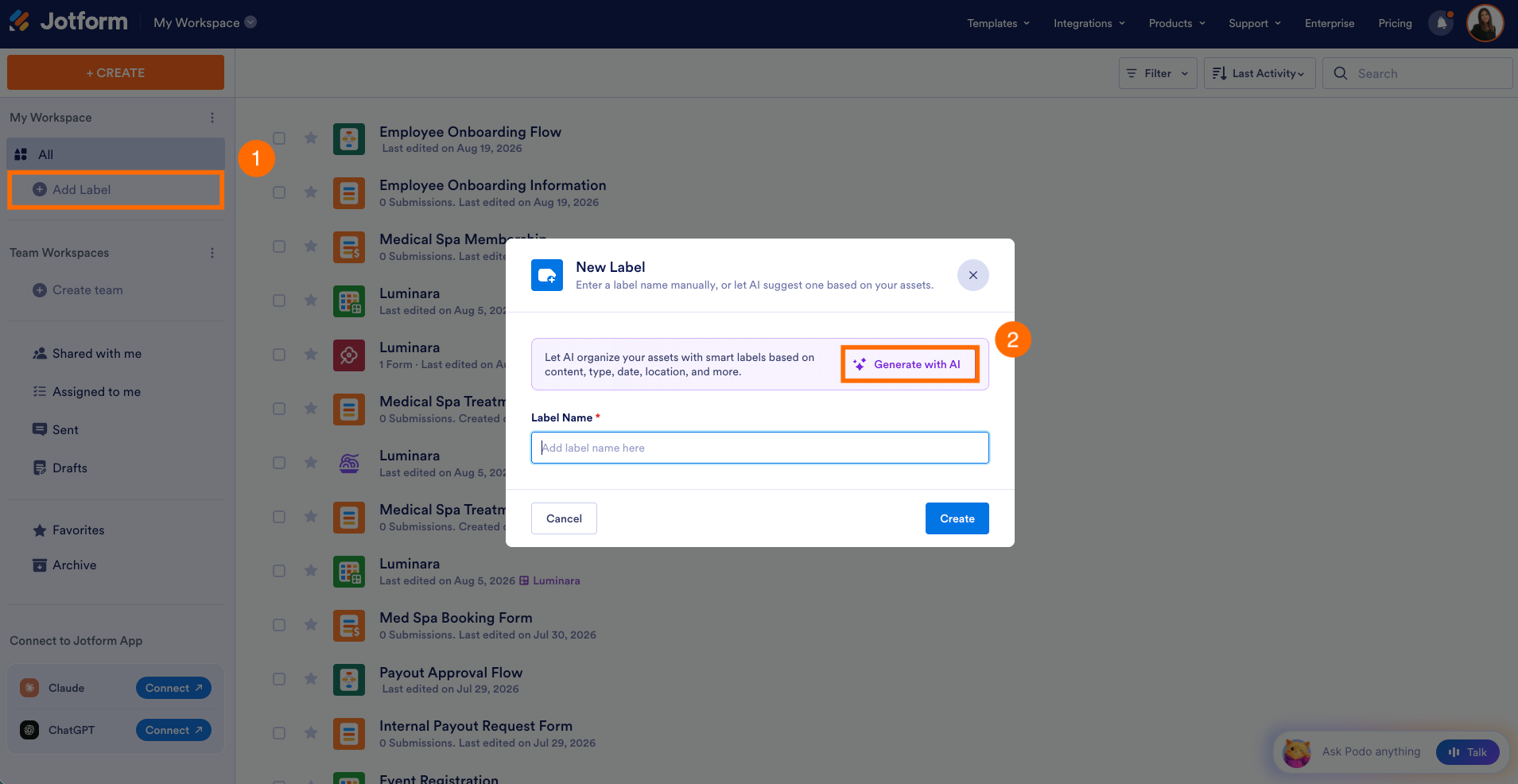
- All users: In My Workspace, select + Add Label in the left menu, and then select Generate with AI.
2. Review and customize
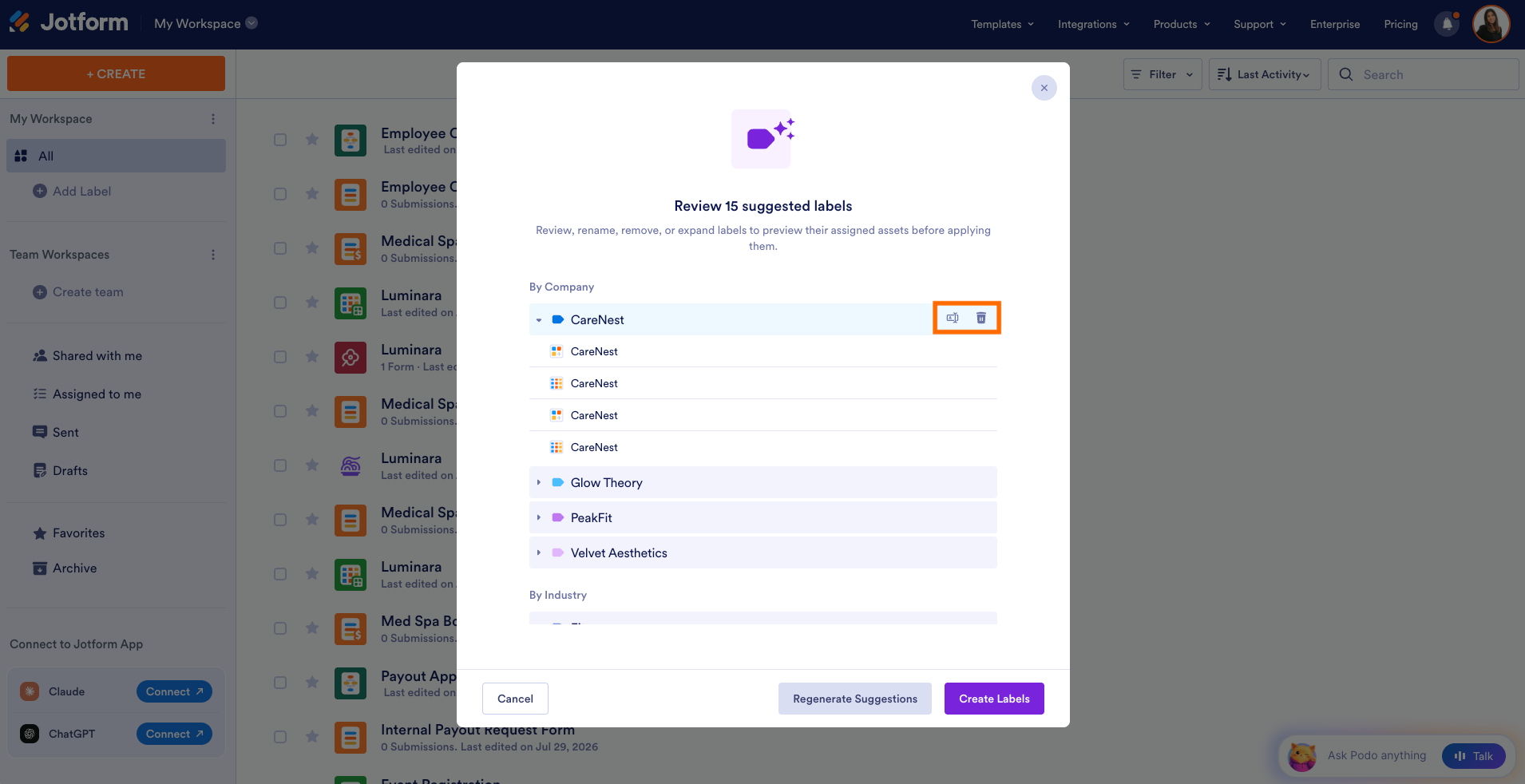
AI gives you a head start on organizing your workspace, but you remain in complete control. Once the analysis is complete, a pop-up window will display the recommended categories. Before applying them, you can
- Review the suggestions to ensure they match your workflow
- Rename or remove any labels you don’t need
- Regenerate the suggestions to explore a different organizational structure
3. Apply and organize
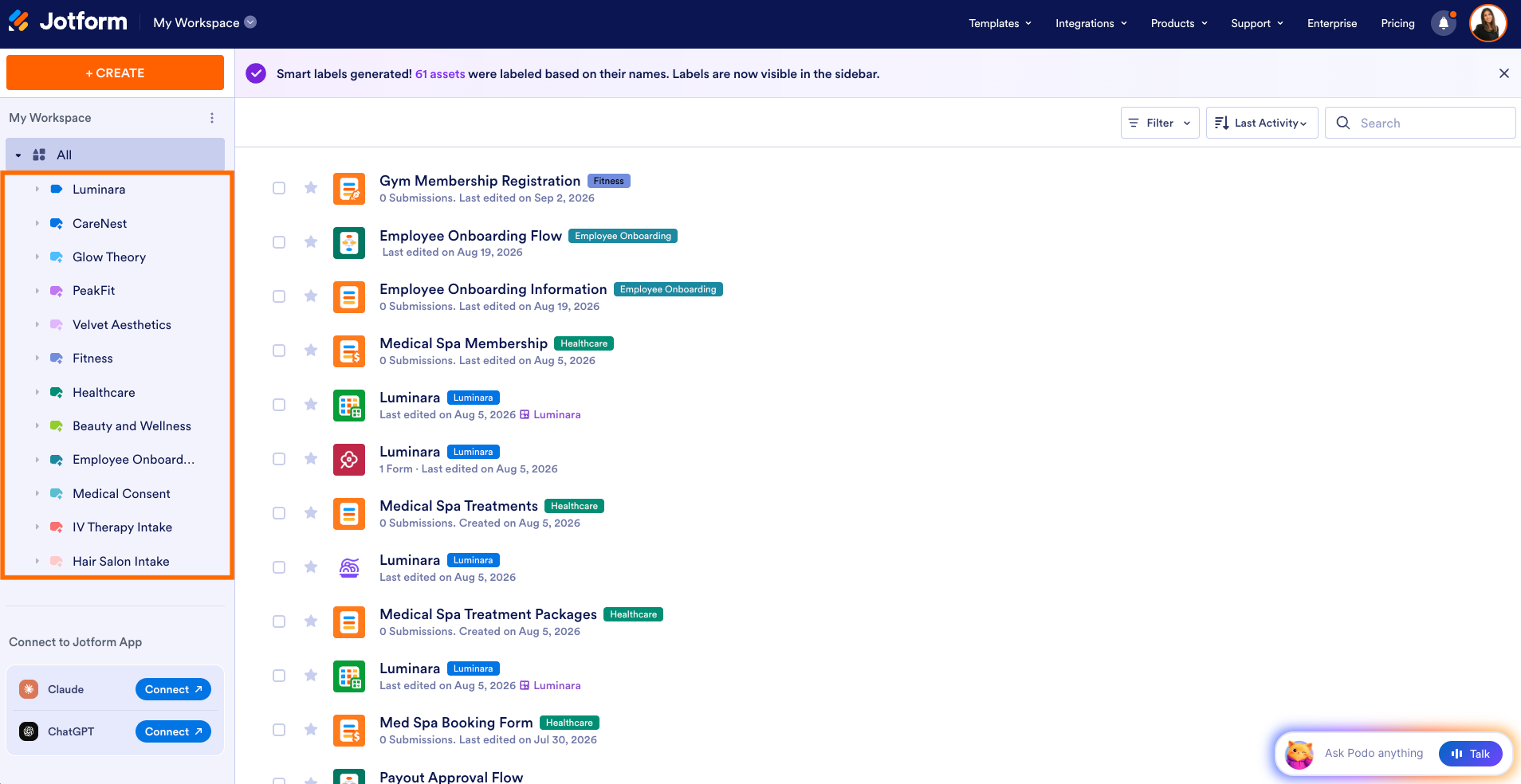
Once you’re satisfied with the label structure, confirm your choices. Your new Smart Labels will instantly appear alongside your existing labels in the list in the left menu, indicated by the sparkle icon.
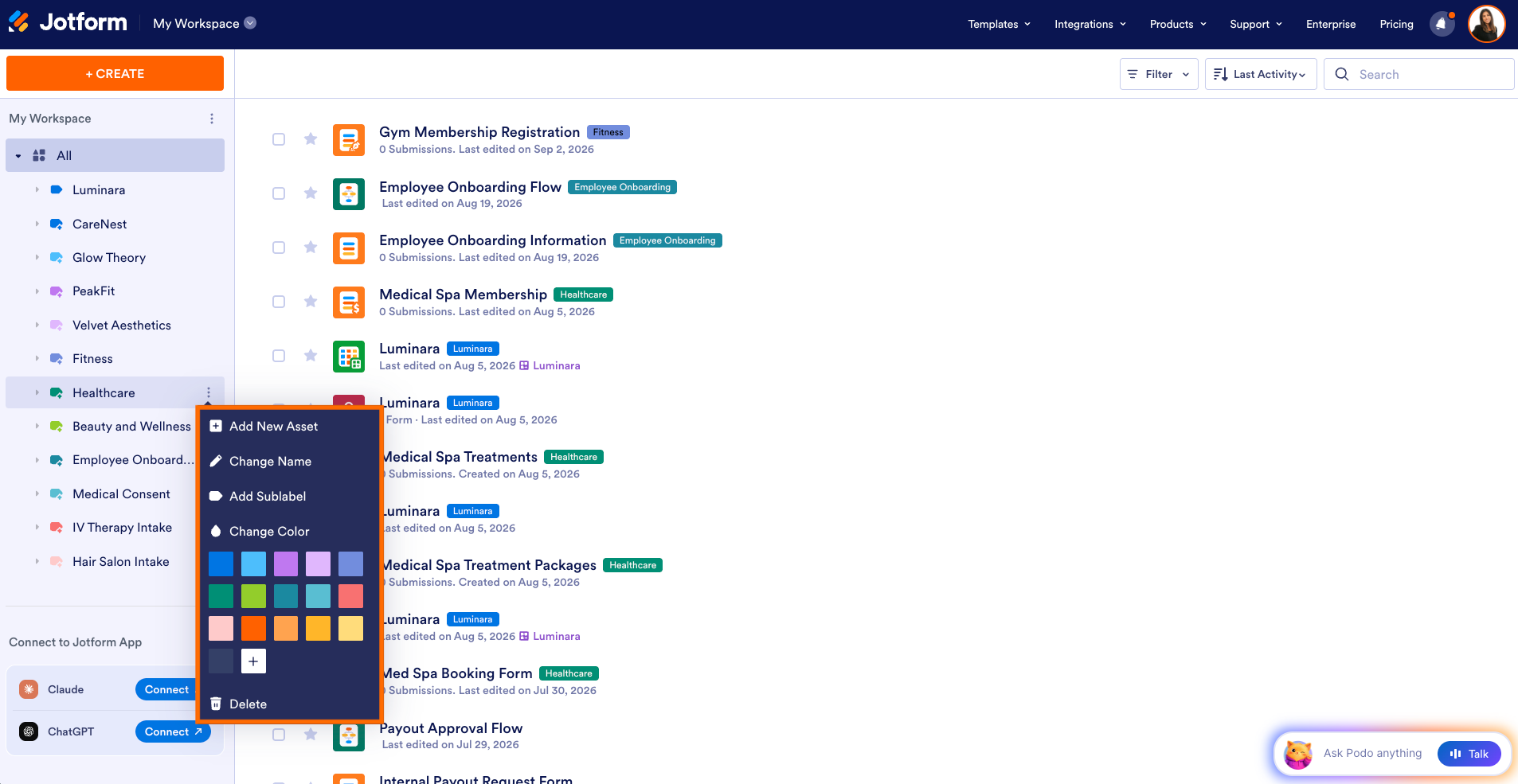
Want to change a label’s name or color? In the list of labels on the left, select the three dots next to the label to customize it.
Bonus tip: Bulk cleanup made easy
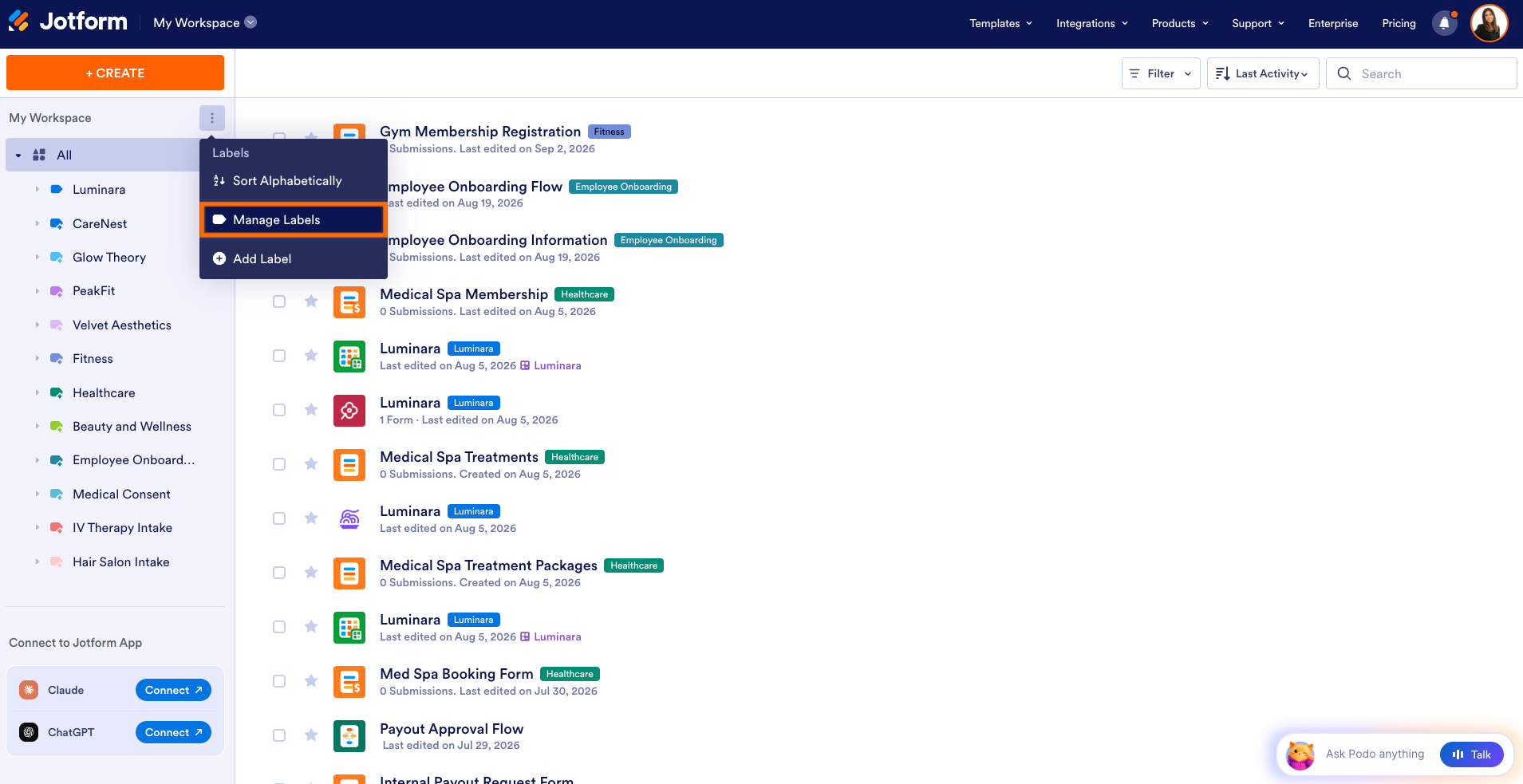
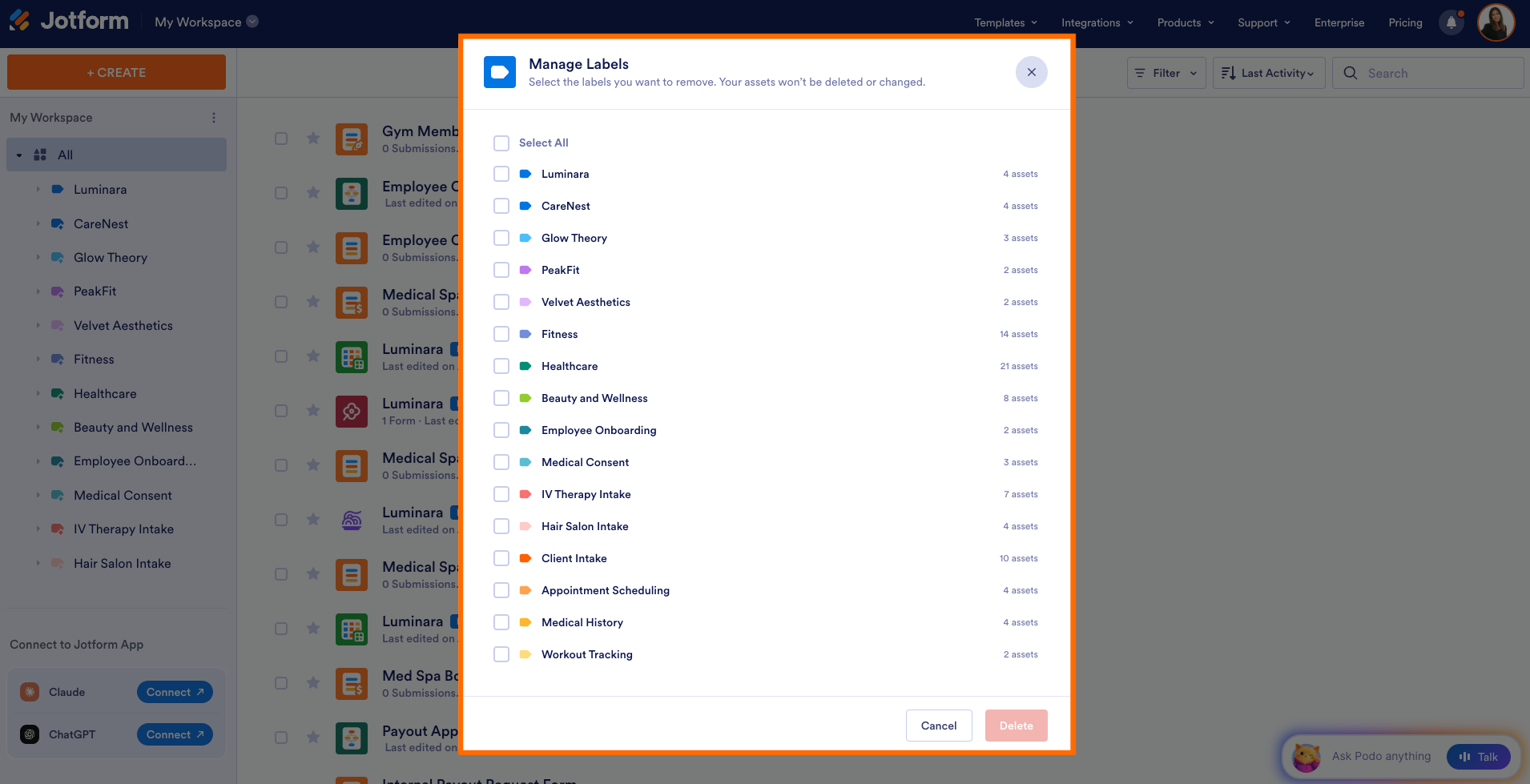
Need to reset or declutter existing labels? You can easily manage your workspace at scale. Just click the three dots next to My Workspace in the left menu, select Manage Labels, then select and delete multiple labels at once.
Ready to streamline your workspace?
No more digging through disorganized assets or wasting time on manual tagging. Head to your Jotform workspace today to try Smart Labels and let AI do the organizing for you.

































































































Send Comment: