
An online survey created in Google Forms is an excellent way to gather critical information from your target audience. However, survey creation requires time you may not always have. That’s where tools like ChatGPT can be helpful, expediting the process by doing the heavy lifting for you.
Here’s the problem: There is no native integration between ChatGPT and Google Forms. If you want to use these tools together, you’ll need to find a work-around.
Google Apps Script is a scripting platform that can help you create a survey in Google Forms using ChatGPT, but it involves working with code. While the platform’s technical complexity may be intimidating for some users, creating a survey is a fairly straightforward exercise, given the right set of instructions.
In this article, we’ll show you how to create a survey in Google Forms using ChatGPT via Google Apps Script. (To learn the basics of Google Forms, start by reading How to create a Google form and How to use Google Forms.) We’ll also introduce you to a powerful alternative: Jotform, a form builder tool with a built-in ChatGPT app that’s easier to use.
Looking for the best alternative to Google Forms?
Jotform’s full-featured form-building solution is mobile-friendly and has the most integrations in the industry. Use it to collect payments, automate workflows, gather leads, and more.
Step by step: How to create a survey in Google Forms using ChatGPT
Google Forms is a basic form builder that is popular because of its intuitive interface. But its simplicity can sometimes be its downfall, as it doesn’t come with advanced features many users need. In this case, it lacks a native integration with ChatGPT.
To create a survey in Google Forms using ChatGPT, you have to bring Google Apps Script into the mix. While this solution takes additional time and can be complex, it gets the job done. If you haven’t used code before, it can feel overwhelming. But don’t worry — we’ll walk you through it, step by step:
- Open ChatGPT.
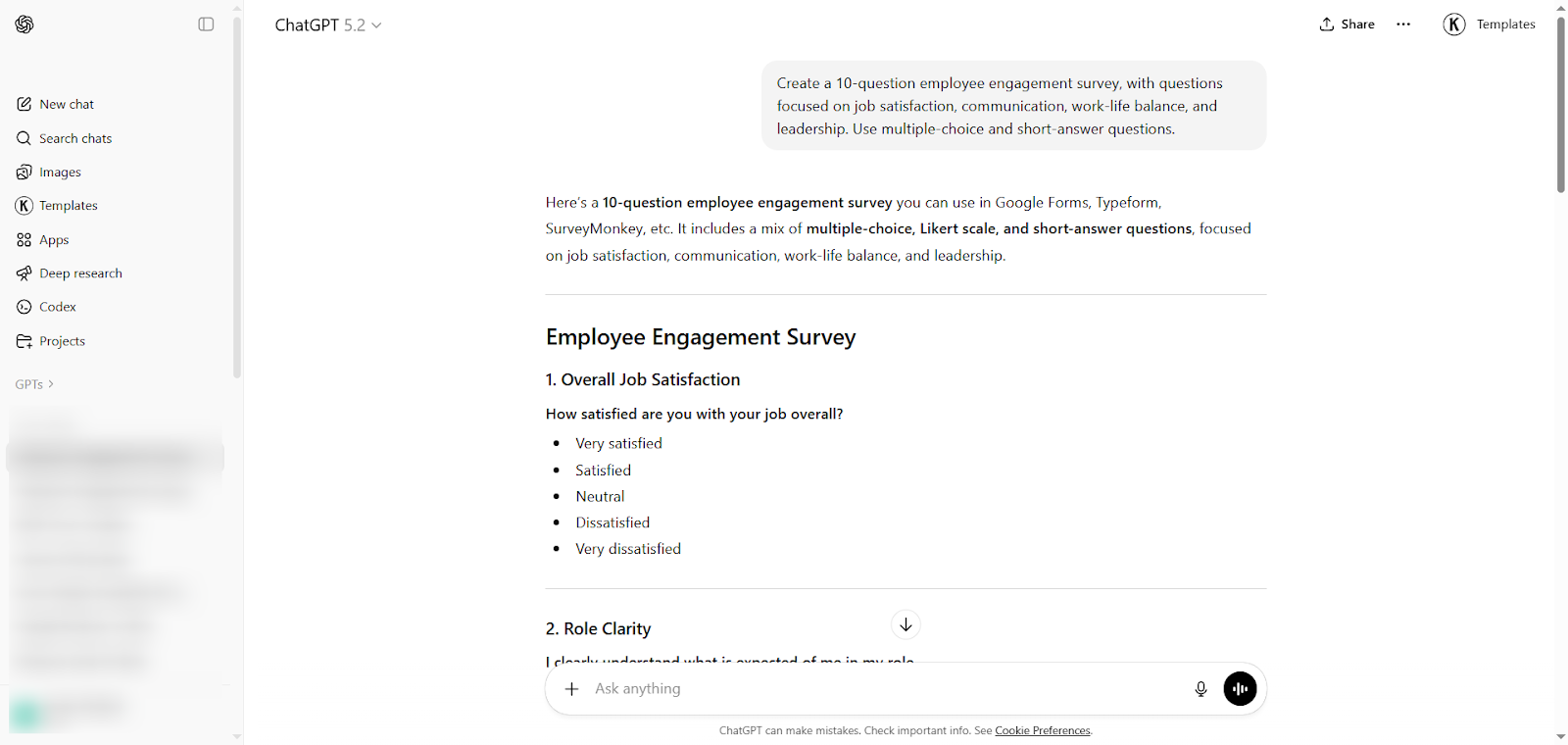
- Prompt ChatGPT to provide you with survey questions. For the best results, make your prompt as specific as possible.
Example: Create a 10-question employee engagement survey with questions focused on job satisfaction, communication, work-life balance, and leadership. Use multiple-choice and short-answer questions.
You can specify different question types you’d like to use in the survey and even ask ChatGPT to add a multiple-choice grid in Google Forms. You can also check out Google form survey templates and see whether you’d like ChatGPT to follow a specific template.
ChatGPT will then generate the quiz content for you.
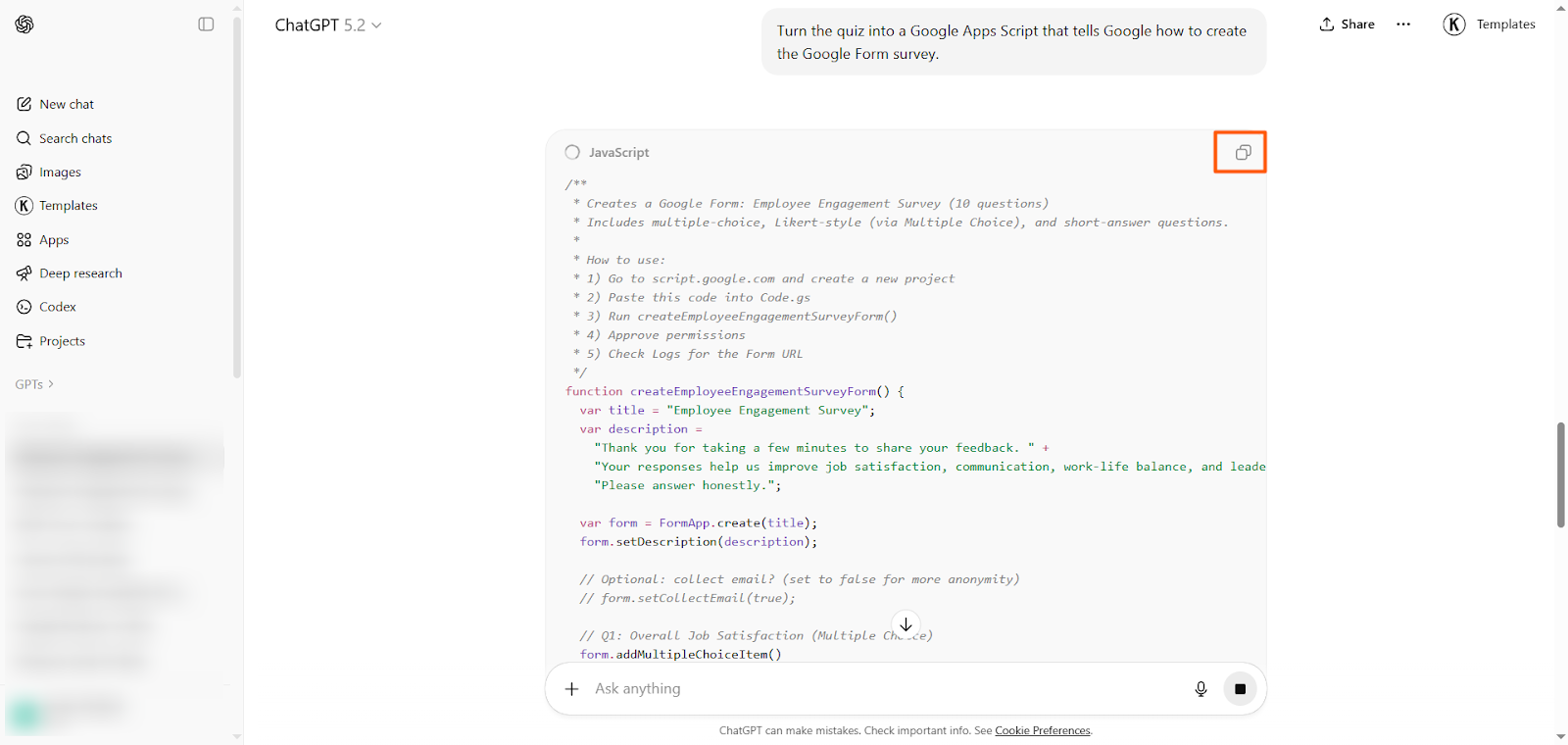
- Next, prompt ChatGPT to turn the survey into a Google Apps Script that tells Google how to create your Google Form.
ChatGPT will provide you with a block of code. Click the copy icon.
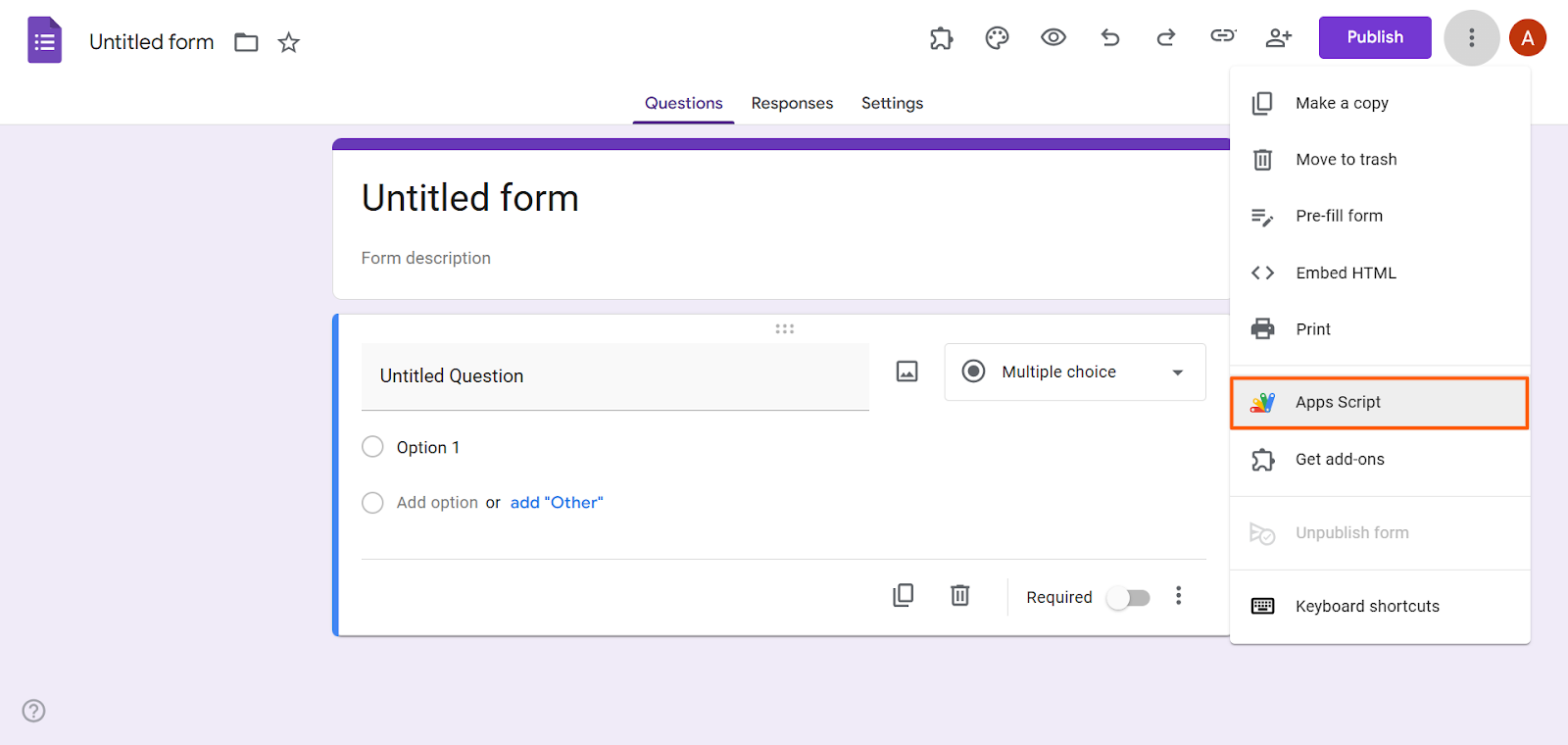
- Go to Google Formsand open a blank form.
- Click the vertical three-dot icon and select Apps Script from the dropdown menu.
- Paste the code from ChatGPT into the script.
- Click Save. Then, click Run.
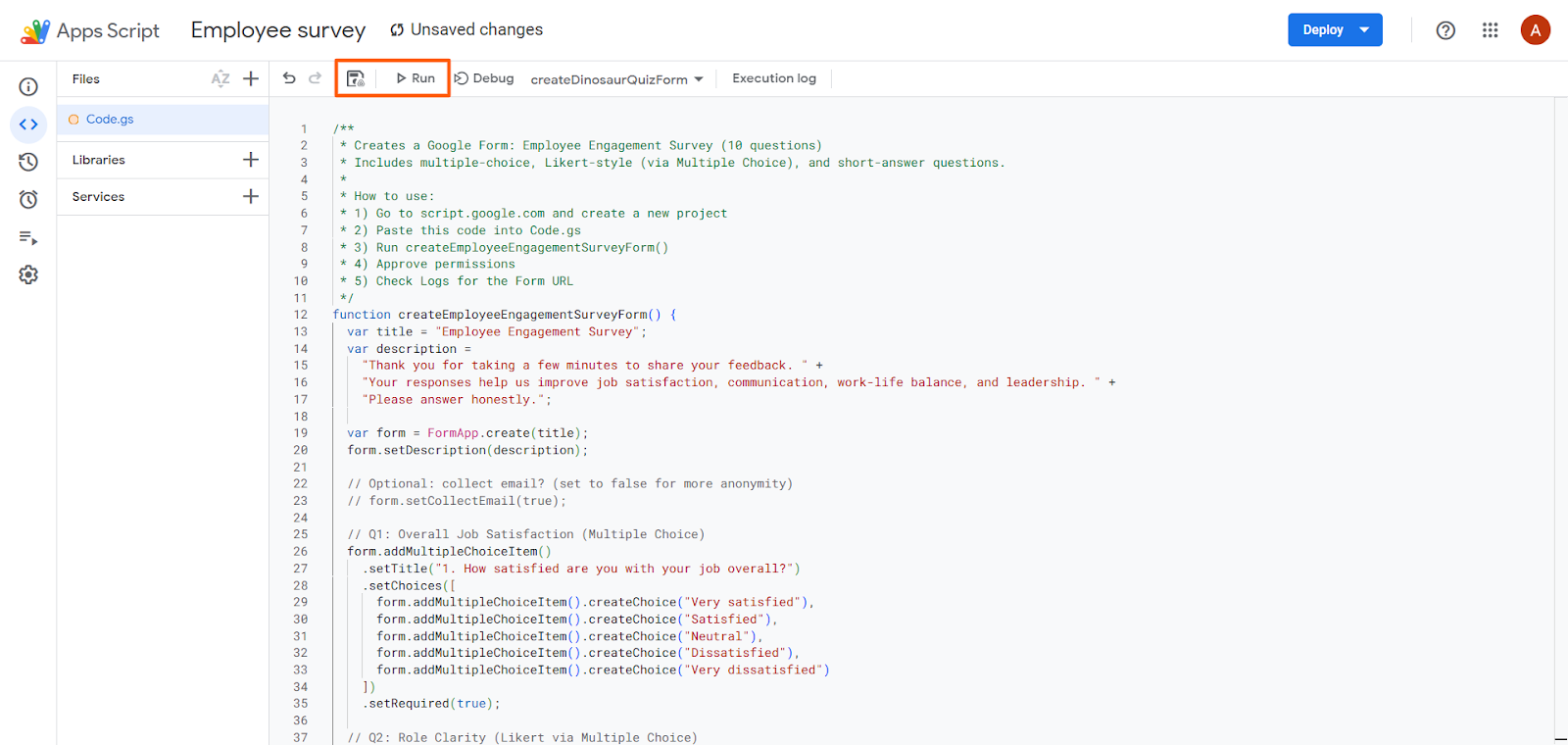
Google Apps Script may request permissions before completing the action you have requested. Provide any necessary authorization. The script will then create your survey in Google Forms, which you can access through your Google Drive.
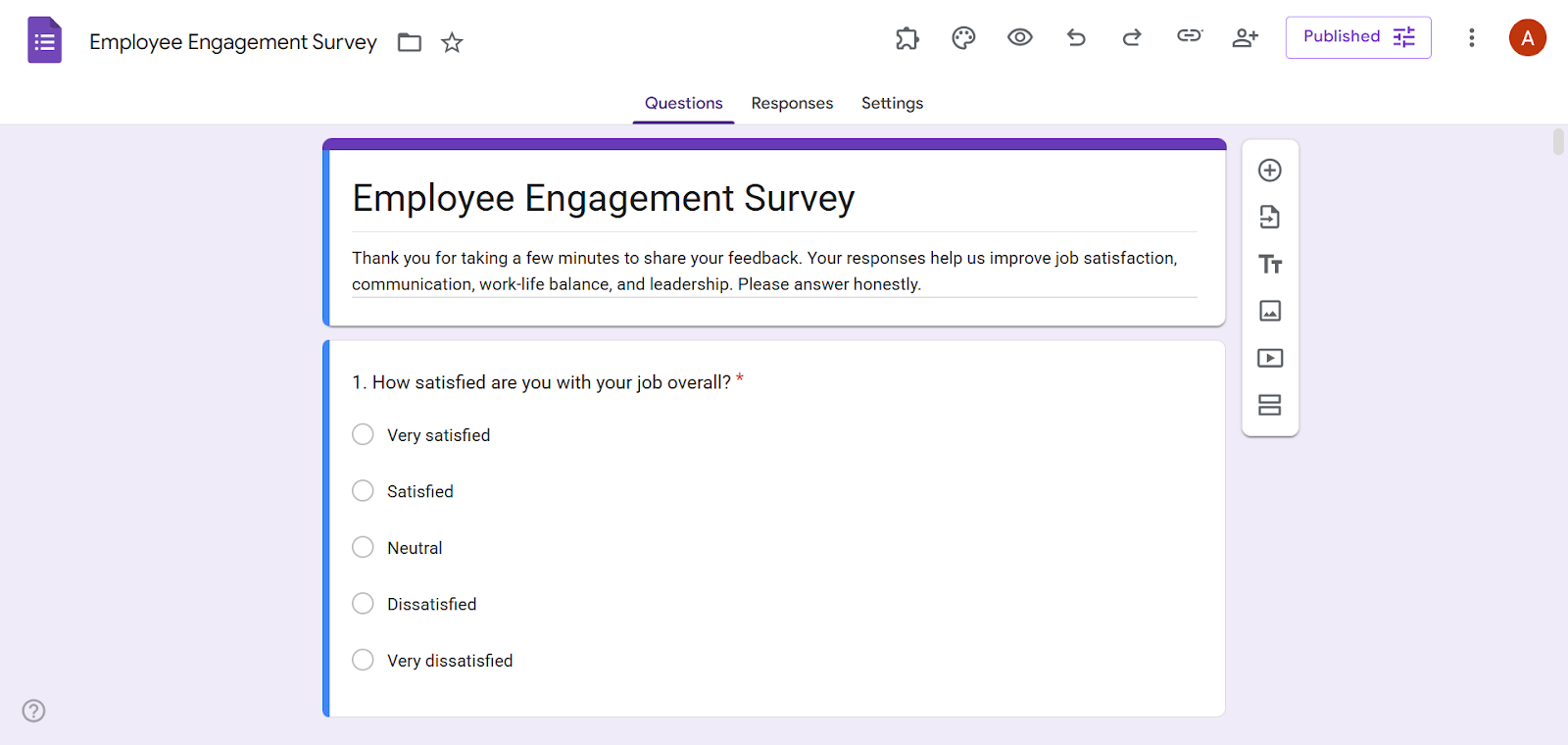
- Review the survey and make any necessary edits. Then, click Publish.
Troubleshooting tips and tricks
While Google Apps Script is fairly intuitive, it’s not a beginner-friendly tool. If it doesn’t seem to be executing the code correctly, try these troubleshooting suggestions:
- Make sure you have copied and pasted the entire script from ChatGPT into Google Apps Script. If you are missing even a single letter, the script may not work properly.
- If you have written over a previously used Google Apps Script file, it may be causing issues. Use a new file for each script.
- If Google Apps Script provides you with a specific error, copy and paste that error into ChatGPT and prompt it to resolve the issue and provide a new script.
Jotform ChatGPT App: A better way to create surveys with AI tools
Whether you’re looking to build a survey or create a quiz in Google Forms using ChatGPT, you’re probably going to end up disappointed. It’s time to explore other form builders that can do a better job. Enter Jotform!
One of the best Google Forms alternatives around, Jotform is a form builder you’re going to love. It’s just as easy to use as Google Forms, but it comes with advanced features that make your life easier, such as conditional logic, deep customizations, and so much more.
Plus, unlike Google Forms, Jotform has a native ChatGPT app that lets you create surveys, quizzes, forms, polls, and more right inside ChatGPT itself.
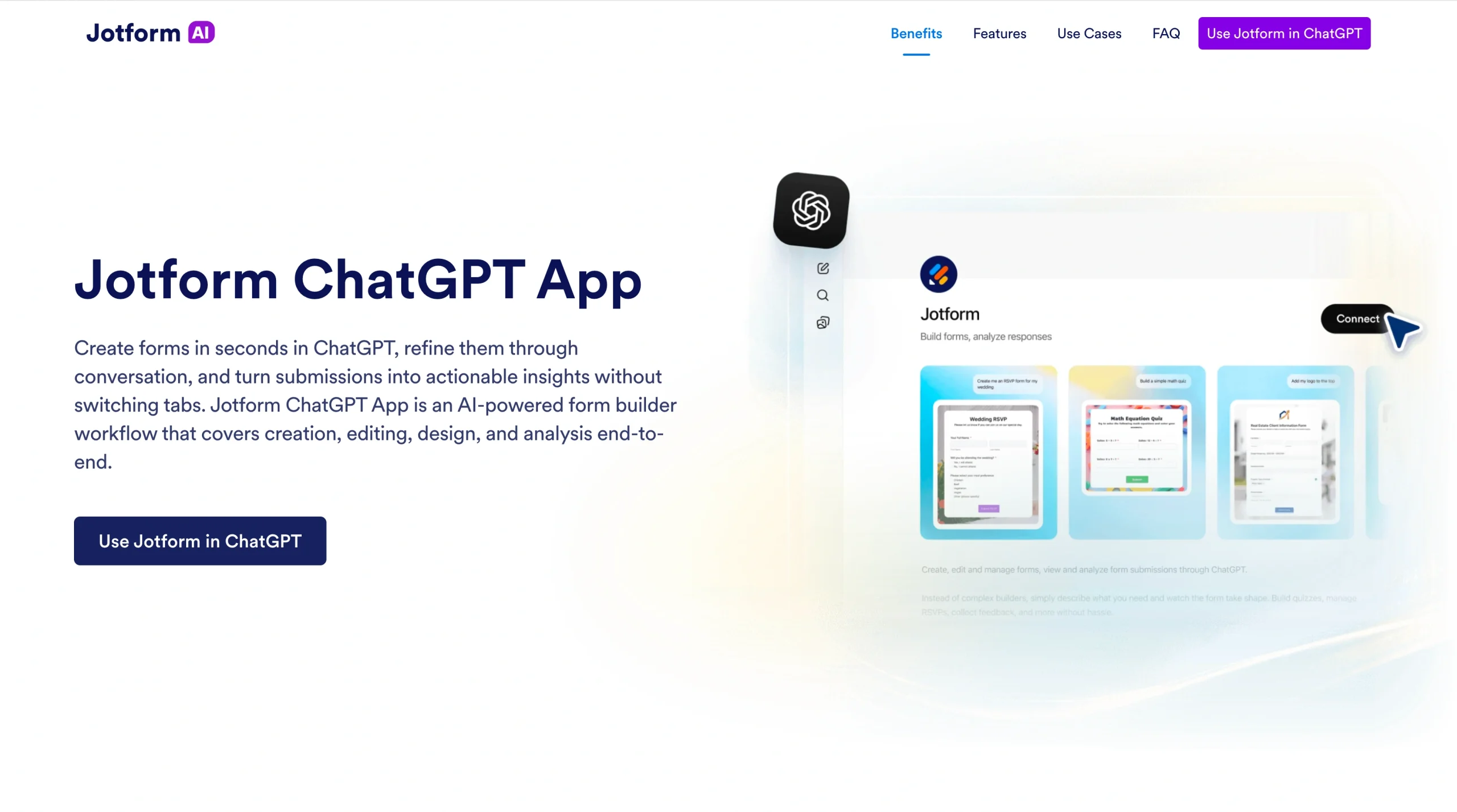
Take a look at what you can do with the Jotform ChatGPT App:
- Take actions with simple prompts — Prompt the Jotform ChatGPT App to create a survey, edit a form, update questions, or change form structures. Just follow the conversational nature of the tool and get the job done without any hassle.
- Build visually engaging forms — From themes and layouts to colors and styling, you can use prompts in the Jotform ChatGPT App to design a survey that aligns with your brand.
- Understand your form responses with ease — There’s no need to get lost in the weeds of form responses. Use the Jotform ChatGPT App to pull form response lists, filter submissions by keywords, and pinpoint trends and anomalies for you.
Ideal for employee surveys, educational quizzes, product order forms, customer feedback polls, and more, Jotform’s ChatGPT App can create whatever you need in seconds — no scripting or coding required!
Step by step: How to create a survey using the Jotform ChatGPT App
Jotform’s ChatGPT App is a highly intuitive tool for beginners and pros alike. Even if you’re not familiar with AI tools, you’ll feel comfortable with the app in no time. Keep in mind that you will need to have a ChatGPT account and a Jotform account to get started.
Here’s how to use the Jotform ChatGPT App to build a survey:
- Open ChatGPT.
- Click Apps. Then, search for and click on Jotform.
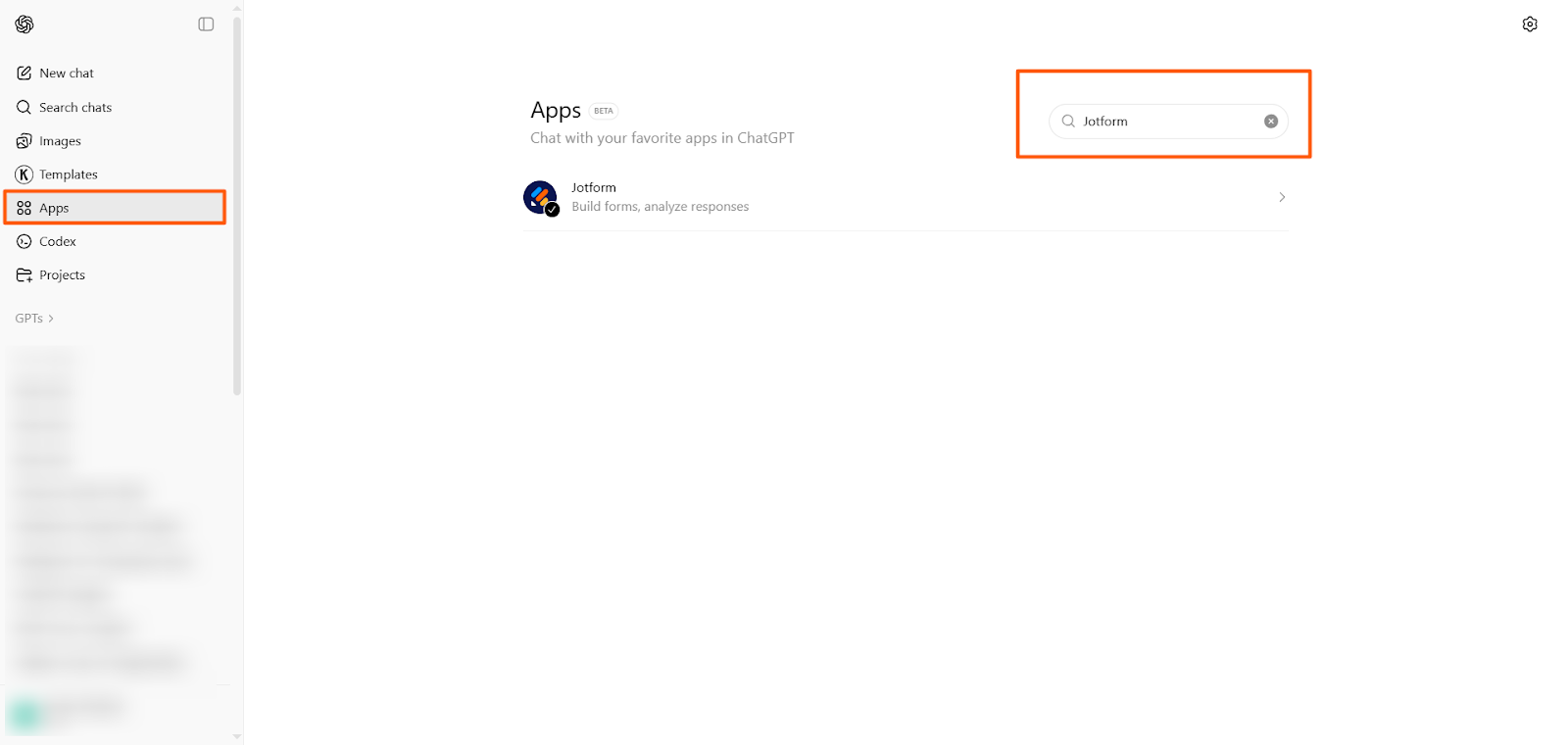
- Click Connect. Follow the prompts to connect the app with your Jotform account.
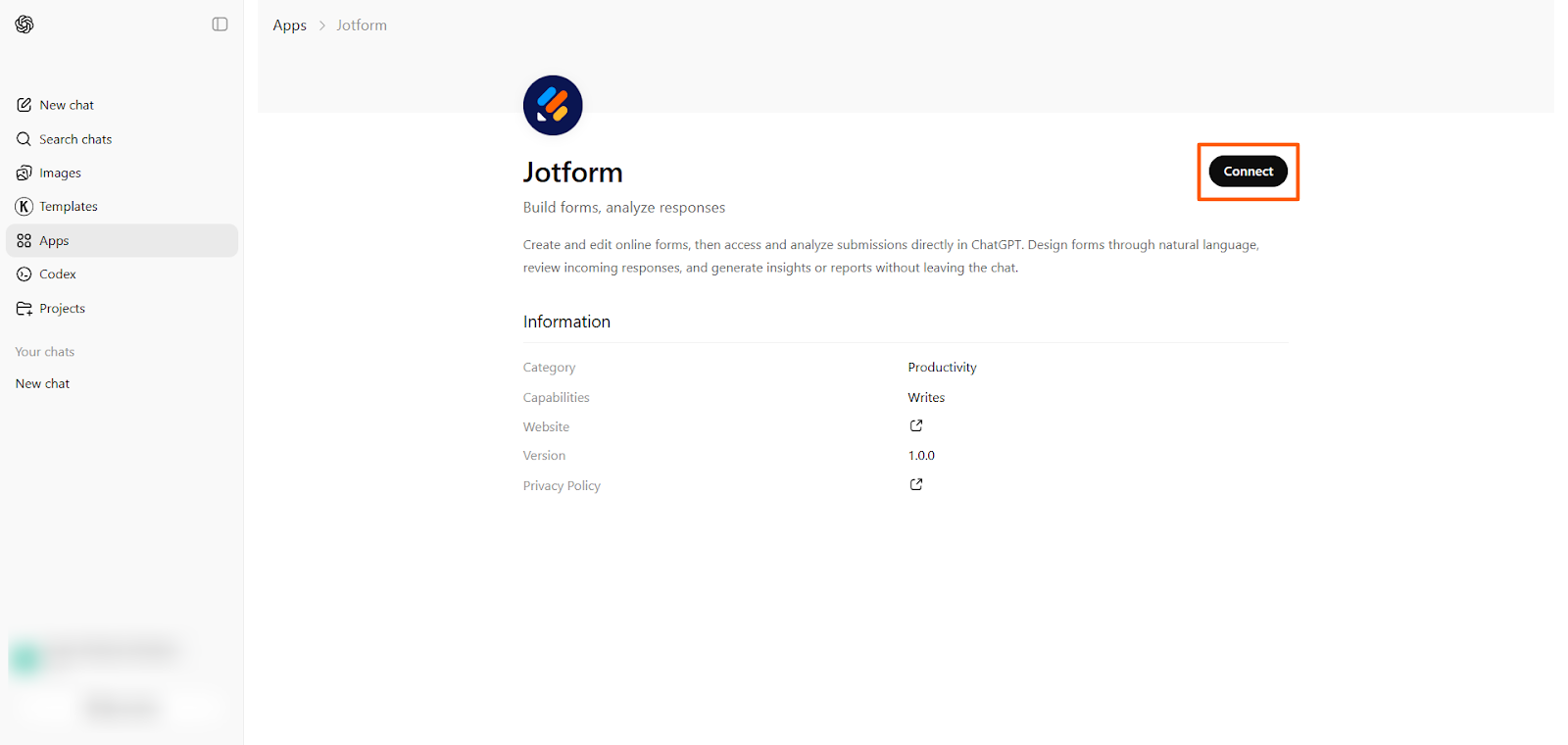
- Click Start chat.
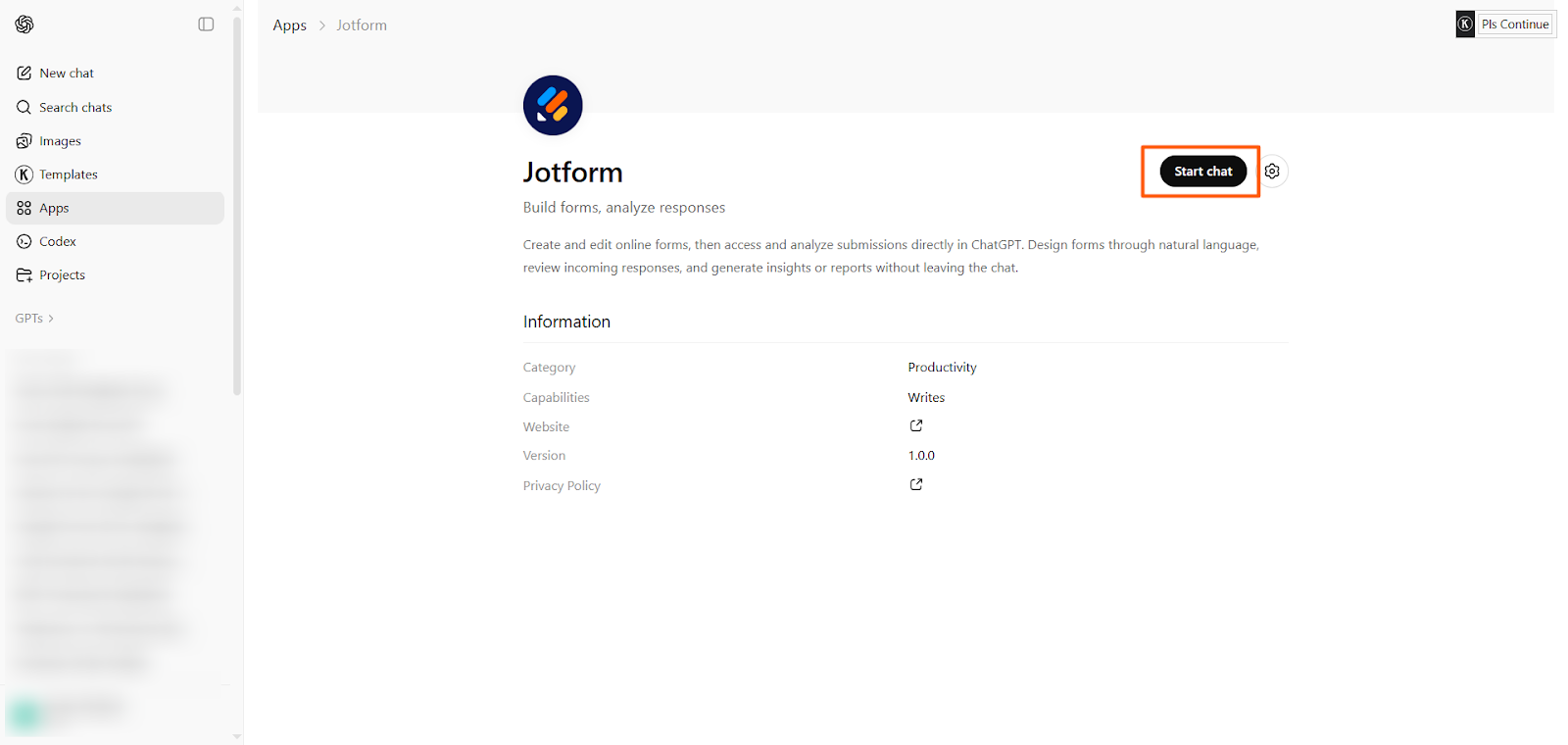
- Provide a prompt to create your survey. Be as specific as possible.
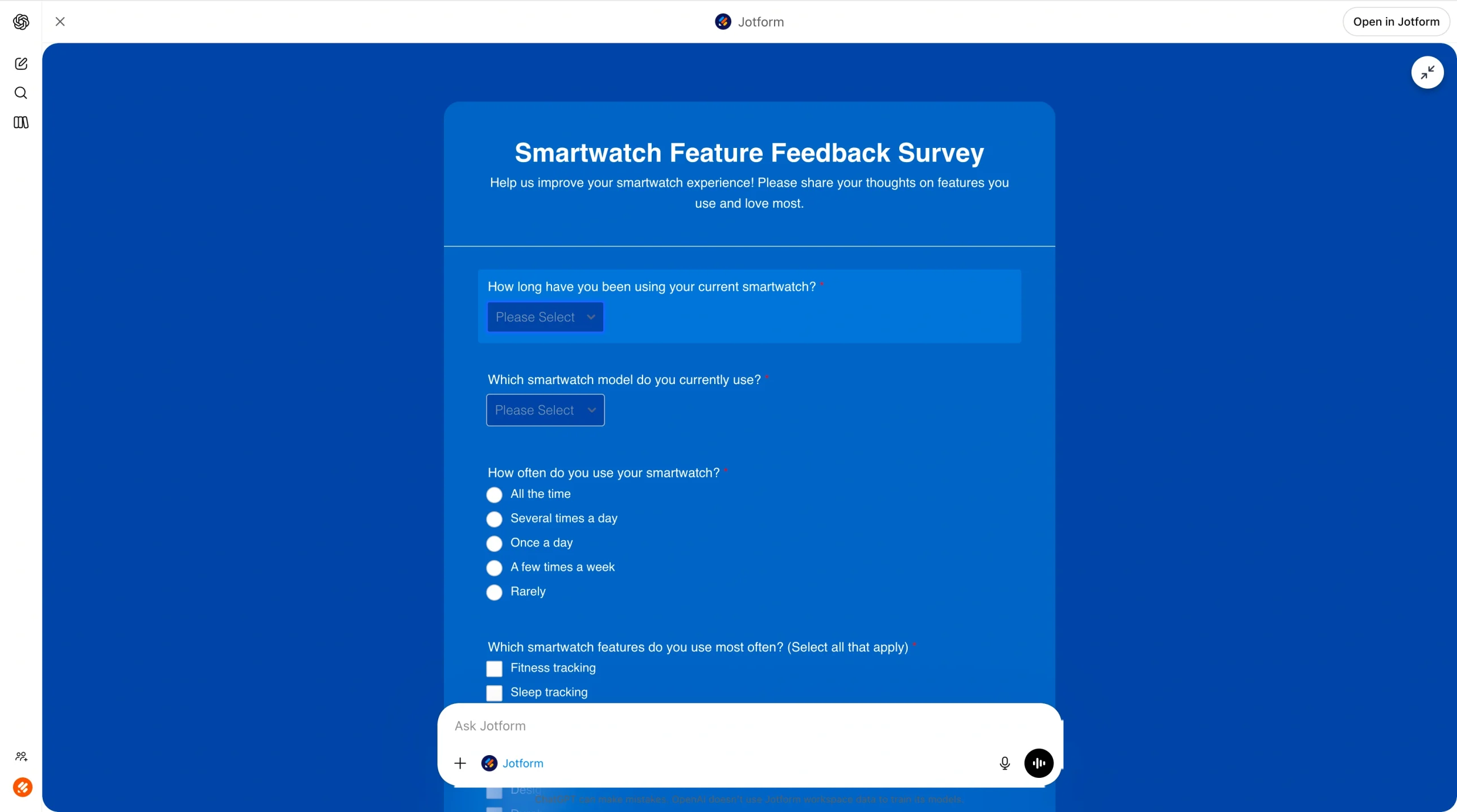
Example: In Jotform, create a product research survey for customers of a smartwatch company. The questions should help the company determine which features customers love most.
ChatGPT will provide a preview of the survey it creates along with an “Open in Jotform” button.
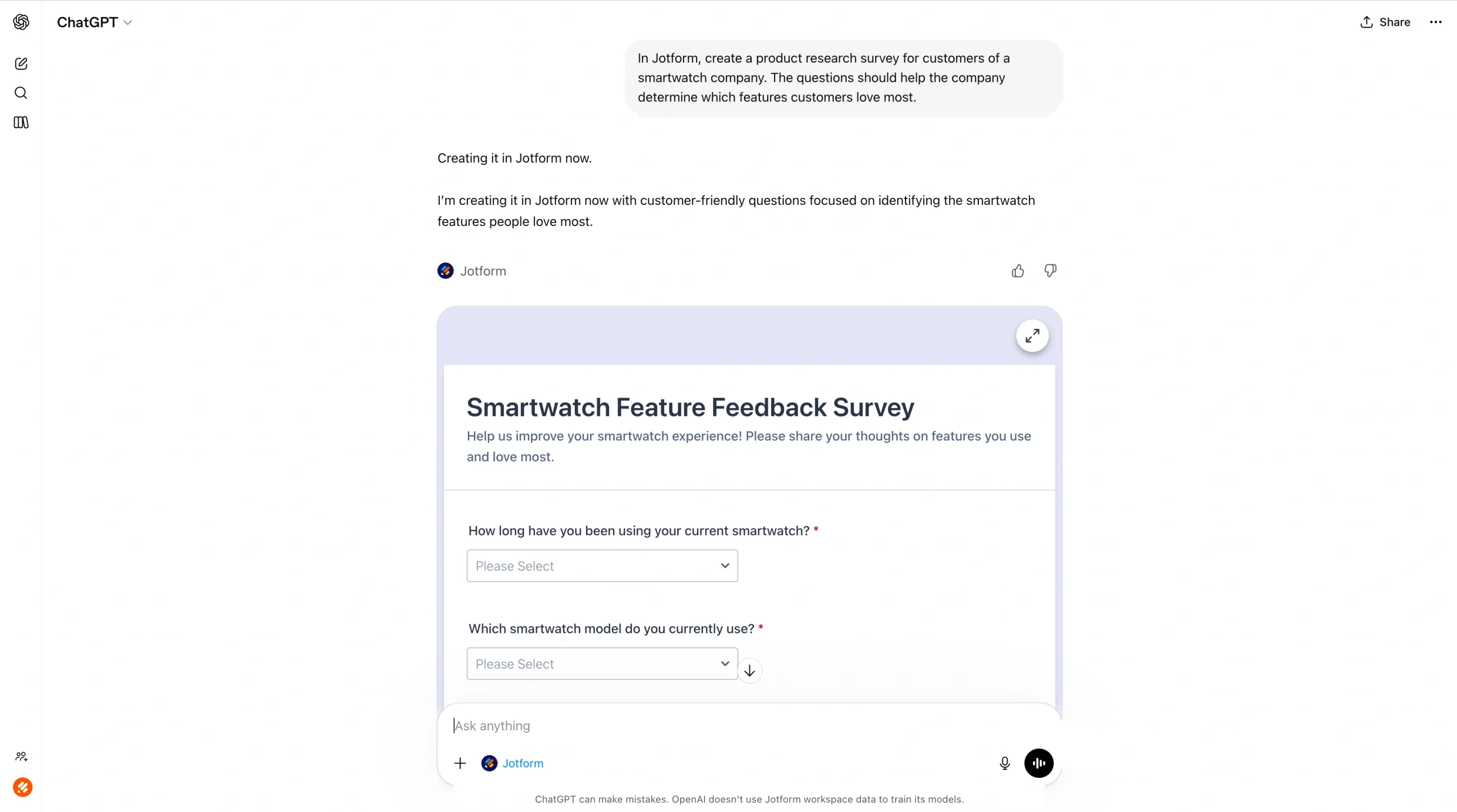
- Click the expand icon on the top right to view the survey in full. You can then edit the survey in the Jotform ChatGPT App by entering additional prompts.
Example: Add a question about how often users wear the smartwatch.
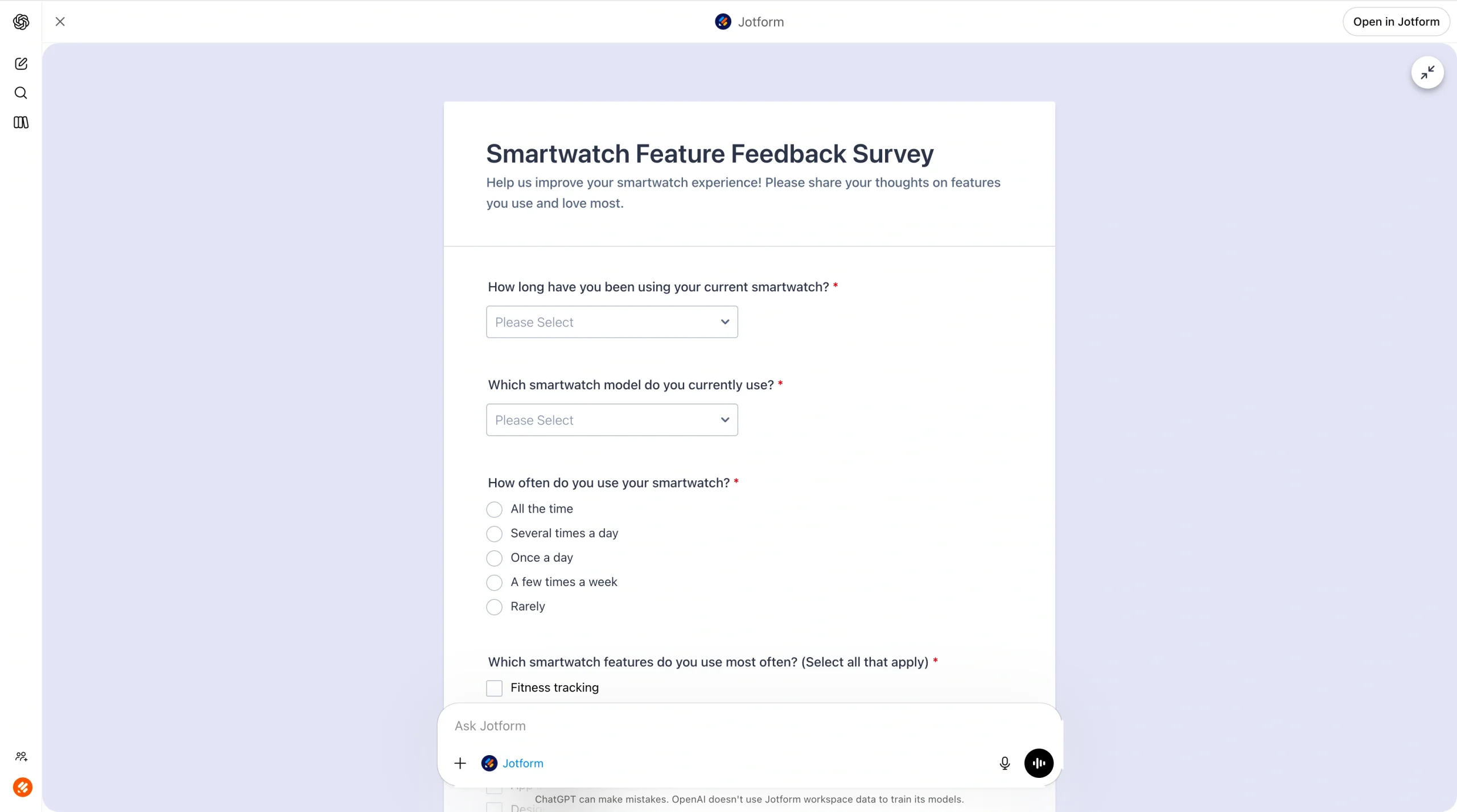
- Enhance the survey further, as needed, by asking for design edits to align with your brand, match a certain aesthetic, etc. For example, you can prompt the Jotform ChatGPT App to “refresh the design so that it is modern and minimalist.”
- Finalize the survey and send it to potential respondents.
- Once you start receiving responses, you can use the Jotform ChatGPT App to analyze your results. As an example, you can prompt the app to highlight trends or pinpoint answers that require further attention. You can also prompt the app to filter responses by specific values.
Which tool should you use to create surveys with ChatGPT?
Google Forms has its merits, but it comes with several downsides. And with no built-in way to connect the app with ChatGPT, you’ll have to use a work-around like Google Apps Script to make a survey using help from the AI tool. While this creative solution does get the job done, it also requires working with code, a strategy that may require specialized knowledge if you run into trouble.
Jotform’s ChatGPT App is a great alternative. You can use it to create surveys, quizzes, and forms easily using ChatGPT — without ever having to deal with a single line of code. Simply prompt the app to provide what you need, and it creates a stunning Jotform survey for you. You can even make design requests and analyze survey responses using prompts in the app.
Learn all about the form builder and explore the Jotform ChatGPT App today. It will completely transform the way you create surveys.
This article is for readers exploring AI-assisted survey creation, comparing Google Forms with Jotform, and looking for a simple way to build, edit, and analyze surveys without needing deep technical knowledge.






































































































Send Comment: