

If you create digital forms and manage a small business, oversee marketing, or organize anything that relies on positive first impressions, you’ve probably noticed how limited the designs for Google Forms can be. The platform is free and reliable, but it’s difficult to personalize its fixed visual style.
You can adjust visual elements such as theme colors, fonts (from a curated list), header images, and background shades, and you can rearrange questions and sections. But beyond that, Google Forms’ customization options are limited. If you want forms that reflect your brand, here’s a breakdown of how to use Google Forms for customization, what it can and can’t do, and where an alternative solution like Jotform offers more flexibility.
| Form Feature | What you can do in Google Forms | What you can do in Google Forms | Jotform customization options |
|---|---|---|---|
|
Theme & layout |
Change the theme color and background shade. |
Modify the layout (columns/grids) or use custom CSS. |
Full Creative Control: Use multi-column layouts and a full CSS editor for pixel-perfect branding. |
|
Changing fonts |
Choose from a curated list of Google Fonts |
Upload your own brand fonts or adjust letter spacing/line height. |
Brand Consistency: Upload custom OTF/TTF files or import any web font to match your brand style. |
|
Header image |
Upload your own image or choose from a preset gallery. |
Change the 4:1 aspect ratio or remove the automatic image overlay. |
Flexible Media: Use any image ratio, add floating logos, or even set a video as your header background. |
|
Custom form URL |
Use the “Shorten URL” toggle for a forms.gle link. |
Create a custom URL (e.g., brand.com/survey) without 3rd party tools. |
Professional Links: Create native vanity URLs or host the form on your own custom domain. |
|
Form logic & flow |
Redirect users to a specific section based on a multiple-choice answer. |
Hide/show individual fields on the same page or perform real-time calculations. |
Smart Forms: Use “If/Then” logic to hide/show fields, update totals, or change the Thank You page dynamically. |
This comparison highlights one limitation in particular: A Google Form will always look like a Google Form, no matter how much you tweak the theme. But if you want to build forms that reflect your brand, the best Google Forms alternative is Jotform. You can even migrate your Google Forms to Jotform with a single click to start customizing and have full design control.
Customizing the theme and layout
With Google Forms, you can apply a preset theme color and pick from Google’s built-in Material Design templates, but you can’t change the layout, spacing, or alignment. You also can’t add custom CSS to match the form to your brand.


If you don’t know how to edit a Google Form, the theme settings can be found in the Painter’s Palette icon at the top of the form editor. Everything related to colors, header images, and fonts lives in this menu.
Here’s how to customize a Google Forms theme and layout:
- Open the Google Form you want to customize.
- Click the Painter’s Palette icon in the upper-right corner.
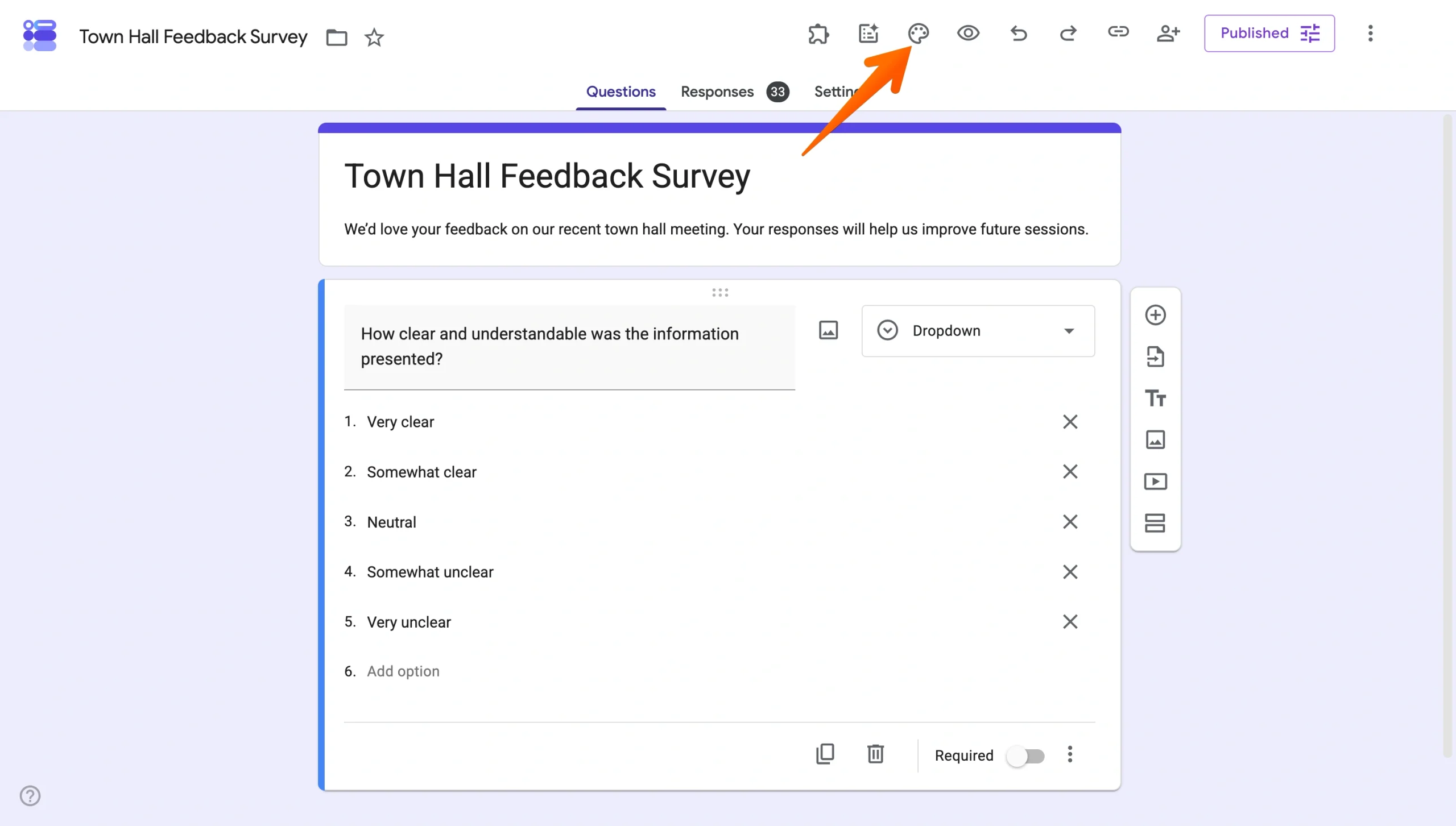
- This opens a new menu; scroll to Color and choose from the available theme colors. To add a custom color, click the + button and use the color picker.
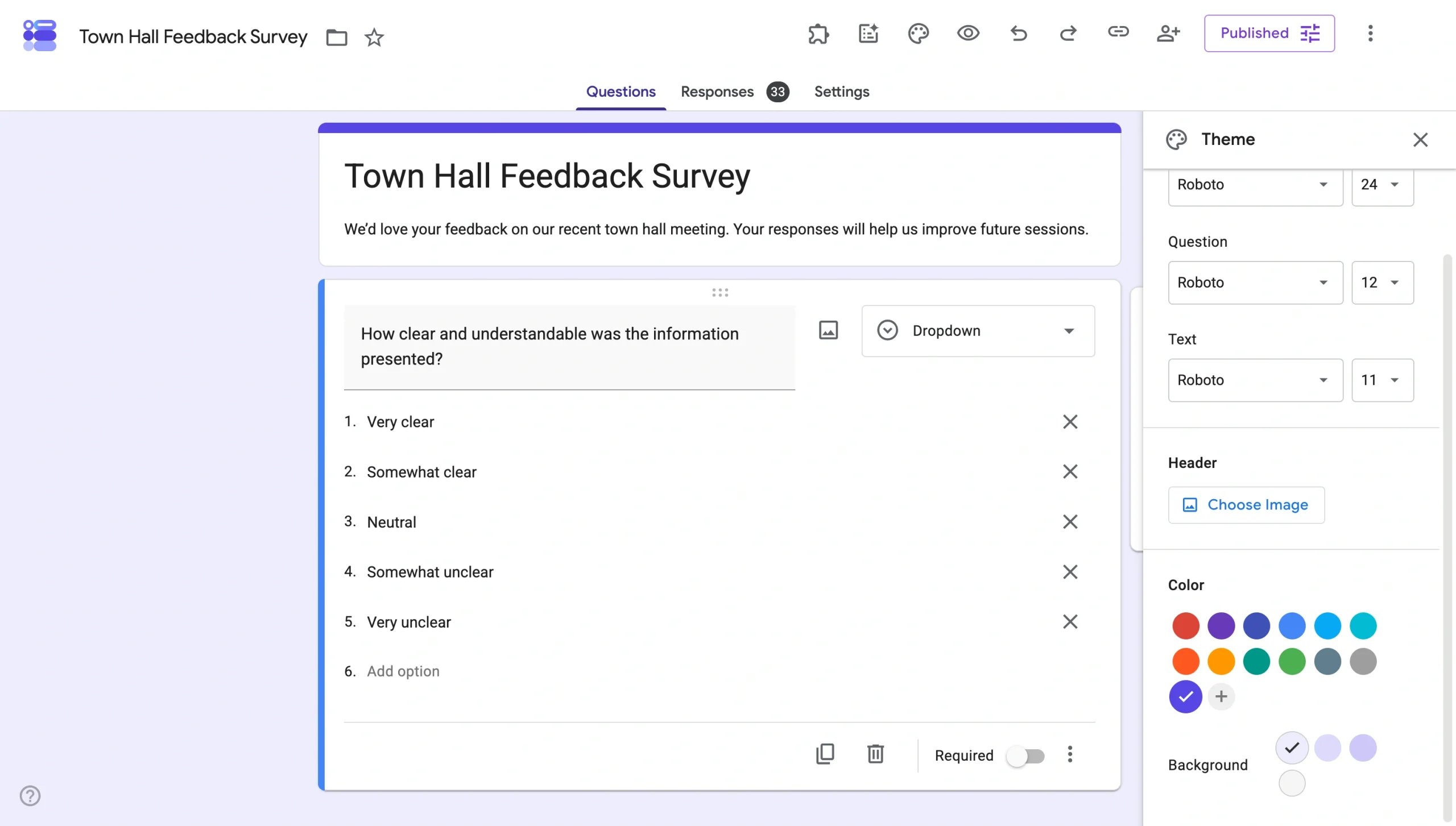
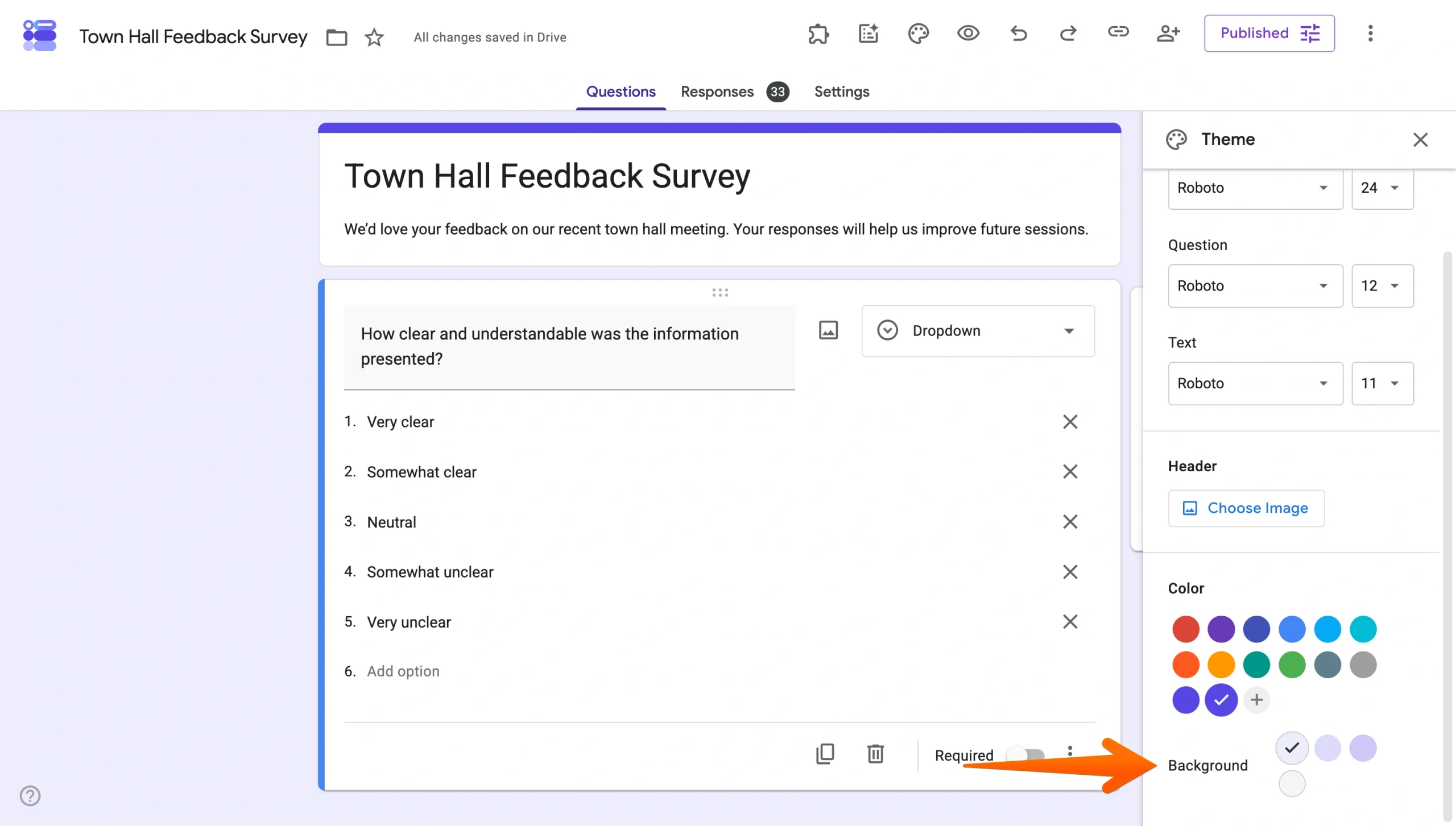
- Below the Theme Color, use the Background Color field to adjust the form’s overall background shade.
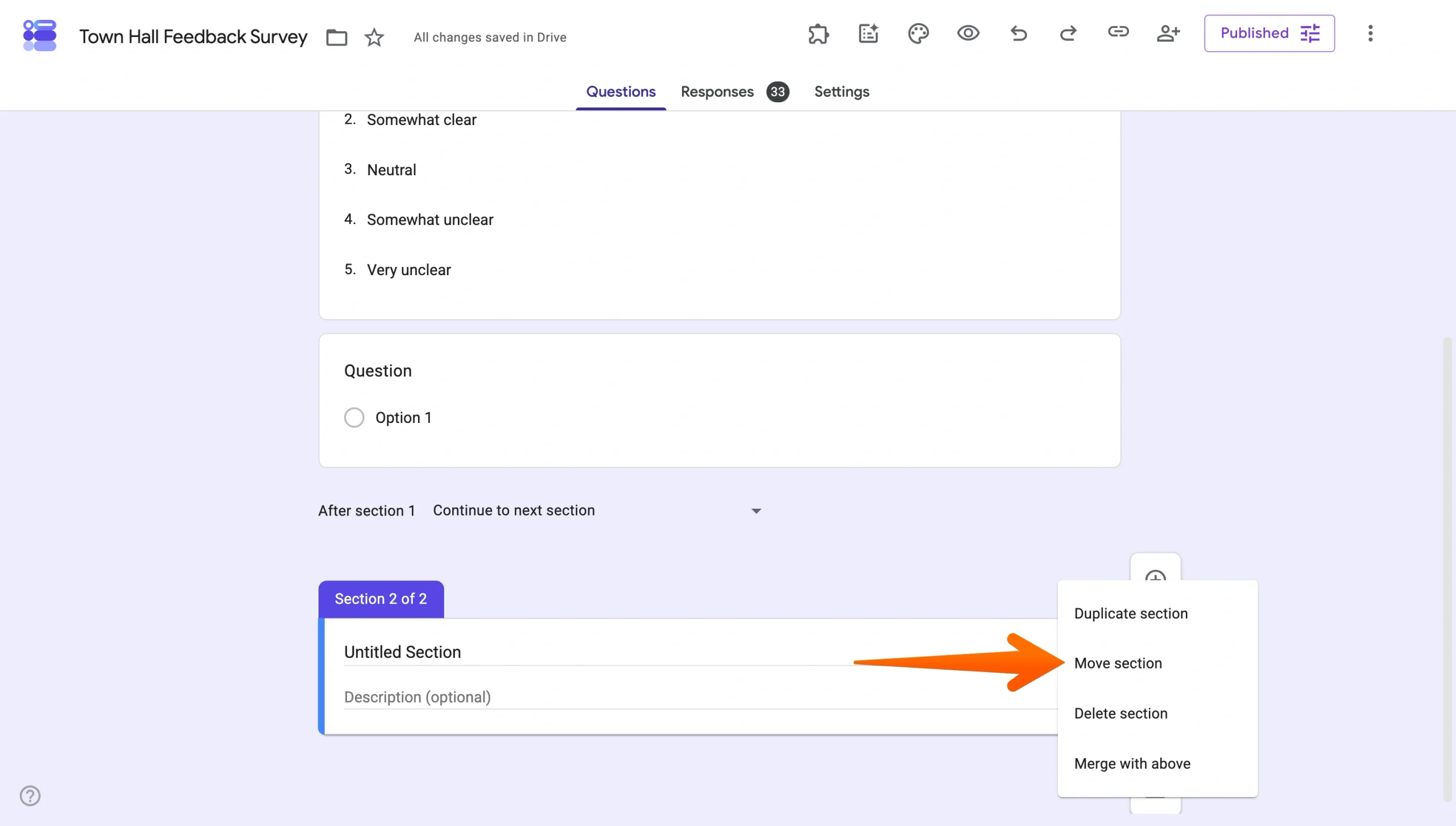
- Drag and drop questions or whole sections to reorder them. For sections, click the Three-dot Menu and select Move Section.
- Click Preview at the top right to confirm the changes look the way you want.
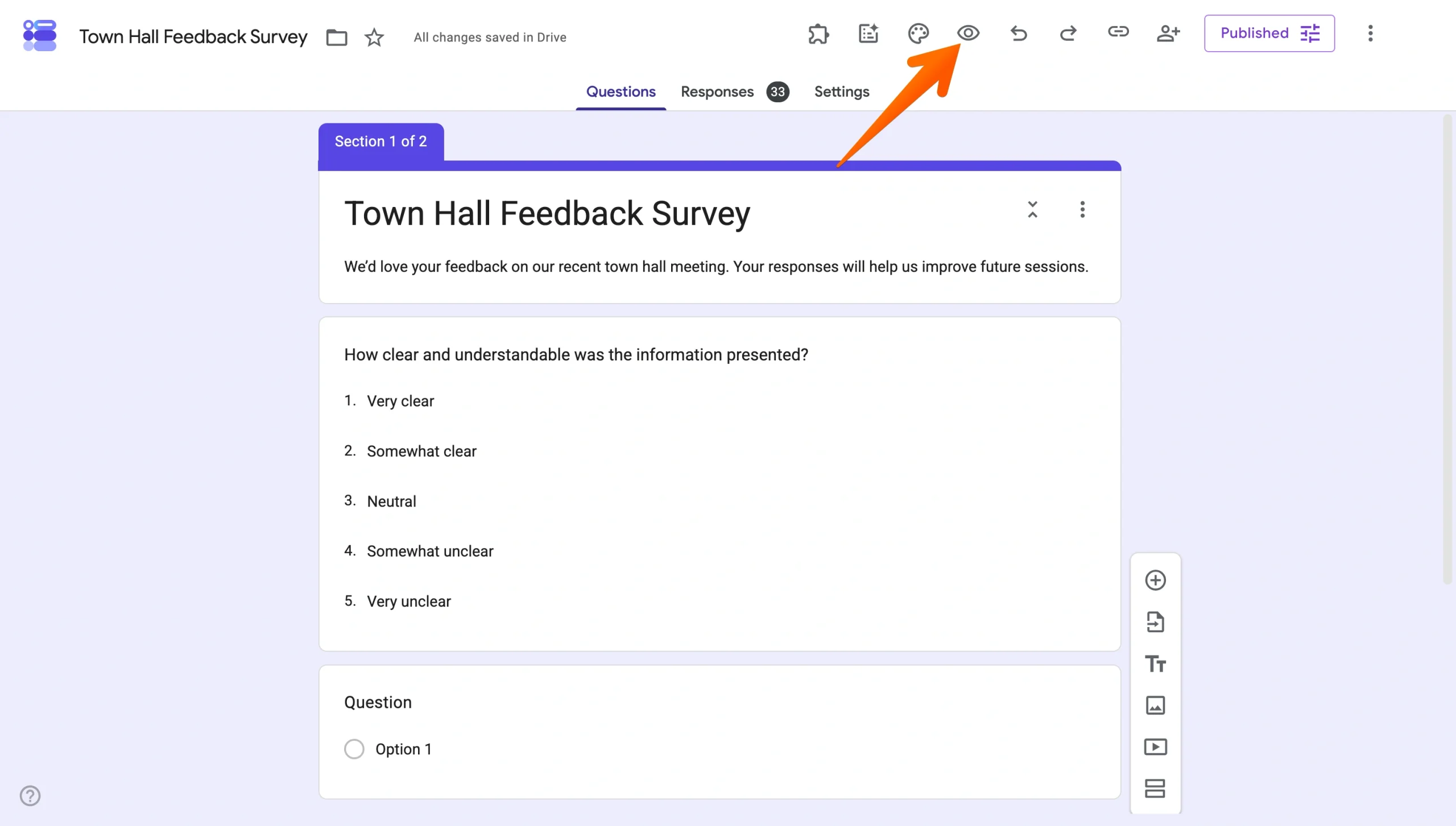
The biggest limitation in customizing your Google Forms themes is that you can’t change the form’s layout. Every Google Form uses the same single-column structure, which makes it hard to create anything that looks unique to your brand. Adding Google Forms columns requires a workaround such as Formfacade.
Changing the fonts and typography
You can choose from a curated list of Google Fonts for the form’s headers, questions, and body text, but you can’t upload your own brand fonts (OTF/TTF) or fine-tune details such as letter spacing, line height, or text shadows.
Google Forms font settings are in the same Painter’s Palette menu where you control the theme color. Google gives you three text levels to style independently, which covers the basics but is limiting if you prefer pixel-level control.
Here’s how to change the font in Google Forms:
- Open the Google Form you want to customize.
- Click the Painter’s Palette icon in the upper-right corner.
- At the top of the menu, find the Text Style section.
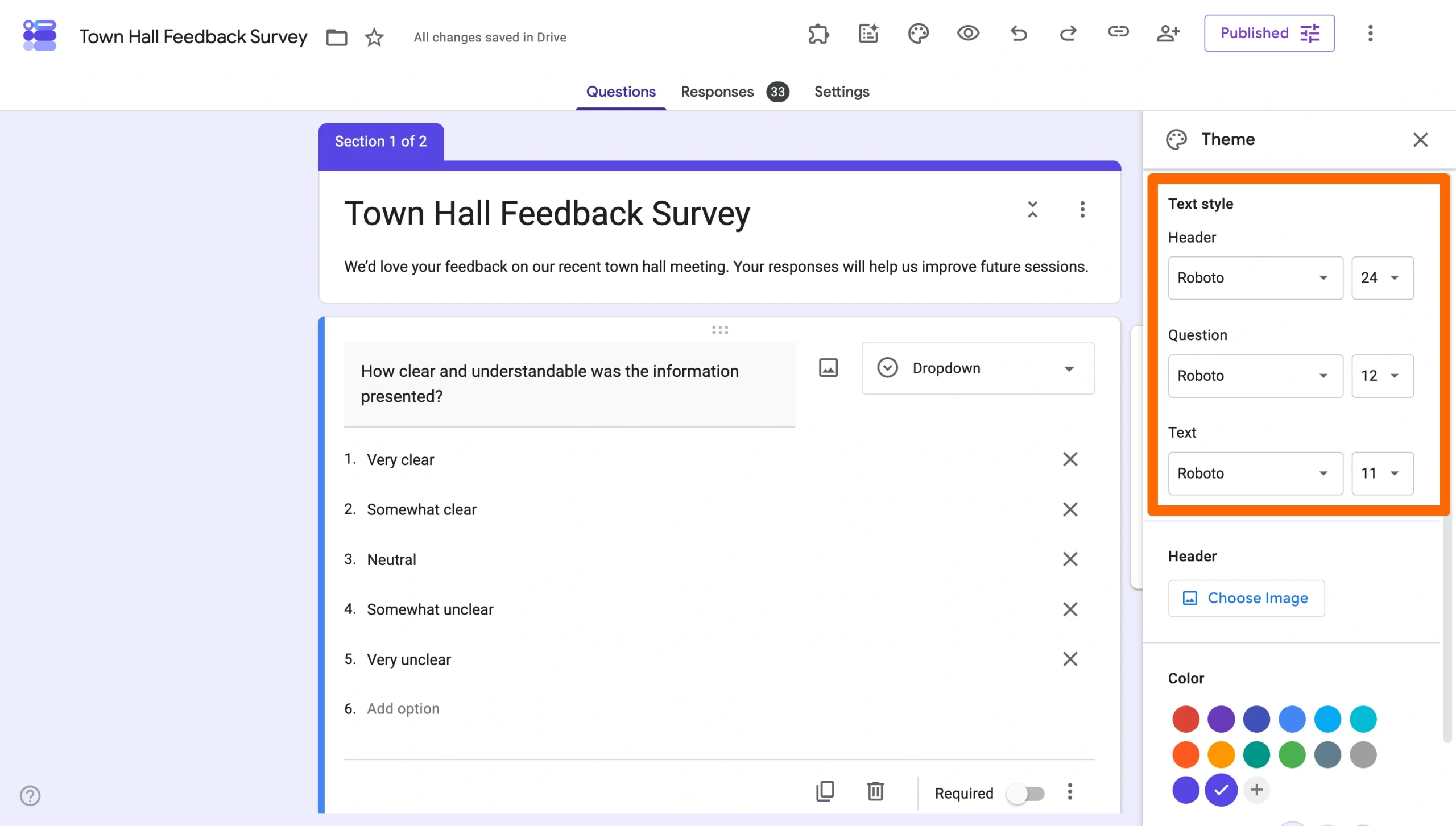
- Use the dropdown to pick a font for each text level (Header, Question, and Text).
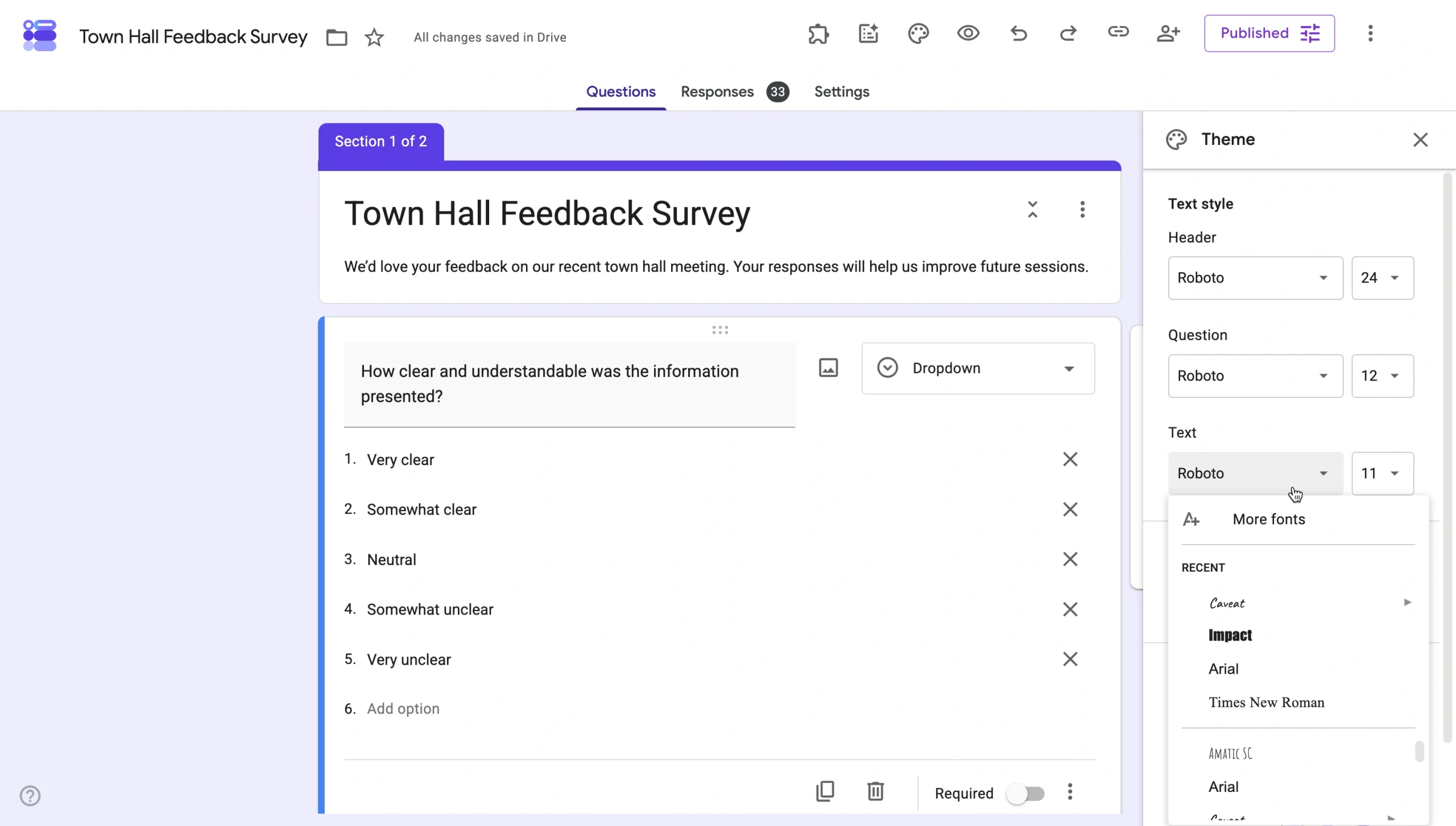
- Adjust the size of each text level as needed.
Font customization in Google Forms is limited. If your brand uses a custom typeface, there’s no way to upload it. And even if your font happens to be on Google’s list, you can’t adjust the spacing or weight to match its appearance across the rest of your branding.
Setting up or changing the header image
You can upload a photo or pick an illustration from Google’s preset gallery, but you can’t change the 4:1 aspect ratio. Your Google Form header image size will be cropped into a thin horizontal strip, no matter its original size.
Adding a header image or logo to a Google Form that appears at the top of every page is the most visible way to brand the form, even if your options are limited. It’s also one of the few ways you can use your own content rather than picking from Google’s preset options.
Here’s how to customize a Google Forms header:
- Open the Google Form you want to customize.
- Click the Painter’s Palette icon in the upper-right corner.
- Scroll to the Header section and click Choose Image.
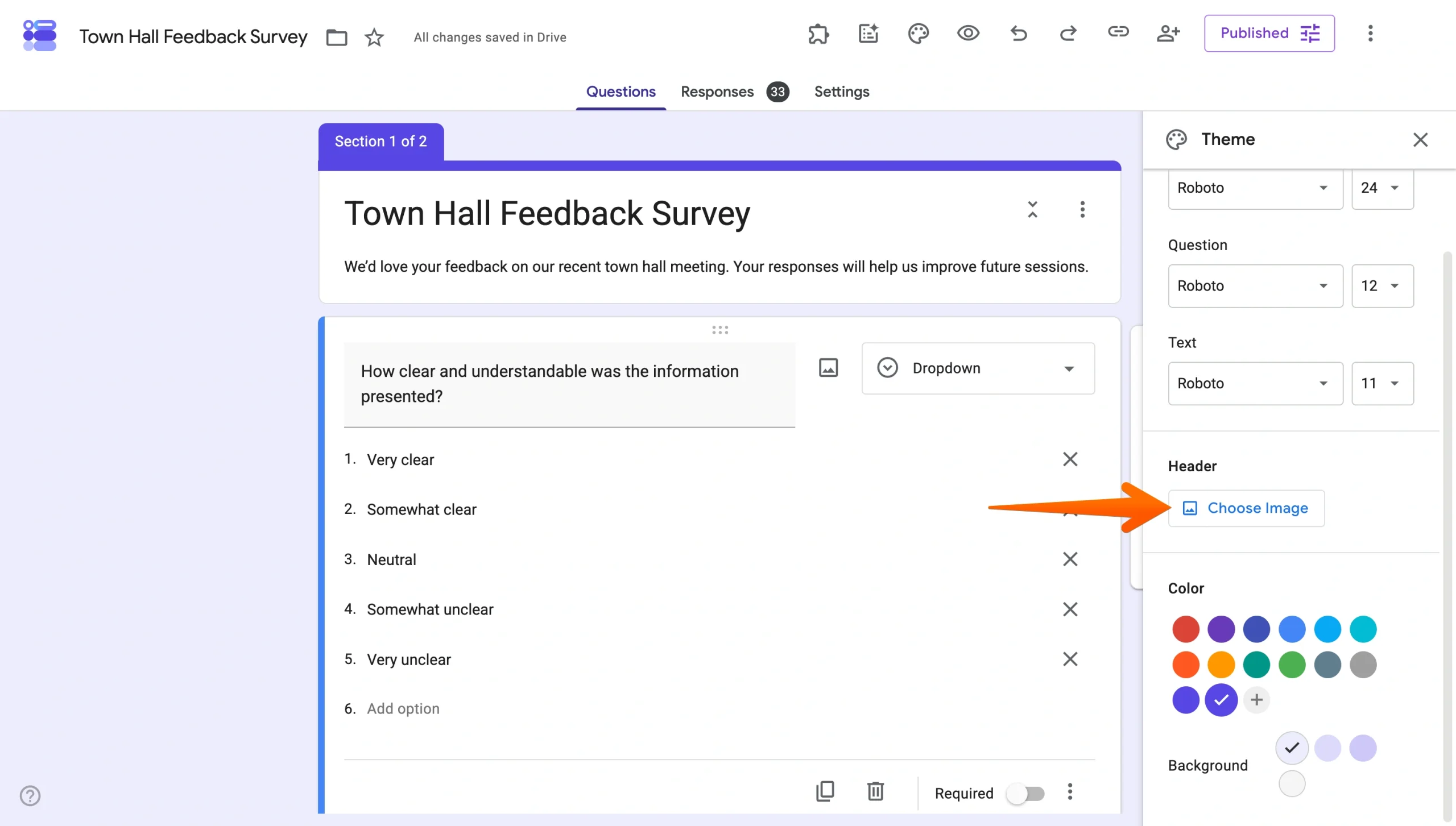
- Pick a source: Themes, Upload, or Photos. Themes pulls from Google’s gallery, Upload lets you upload a file from your computer, and Photos pulls from your Google Photos.
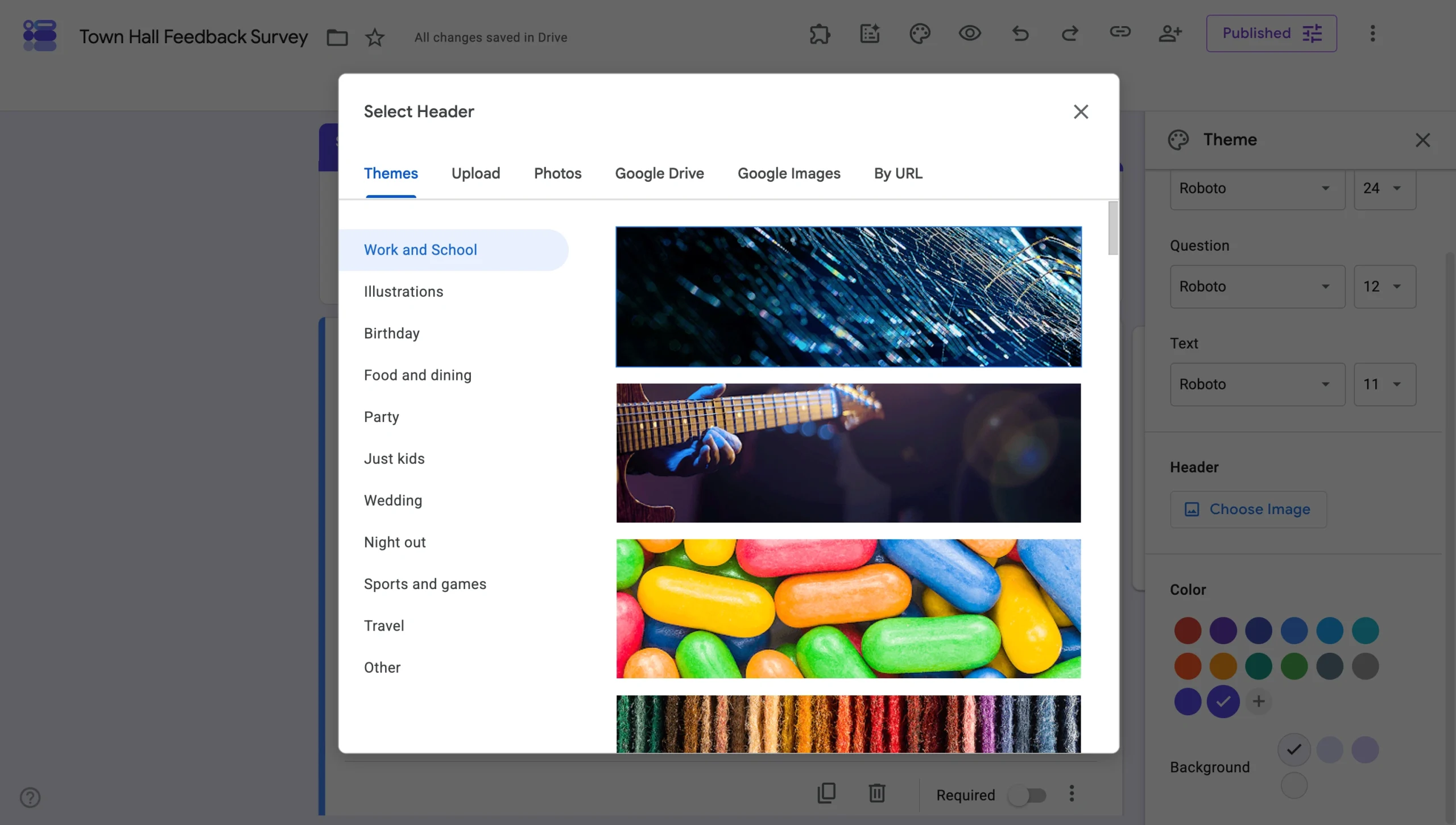
- For Themes, browse the category tabs, select an image, and click Insert. The form’s color palette will update to match.
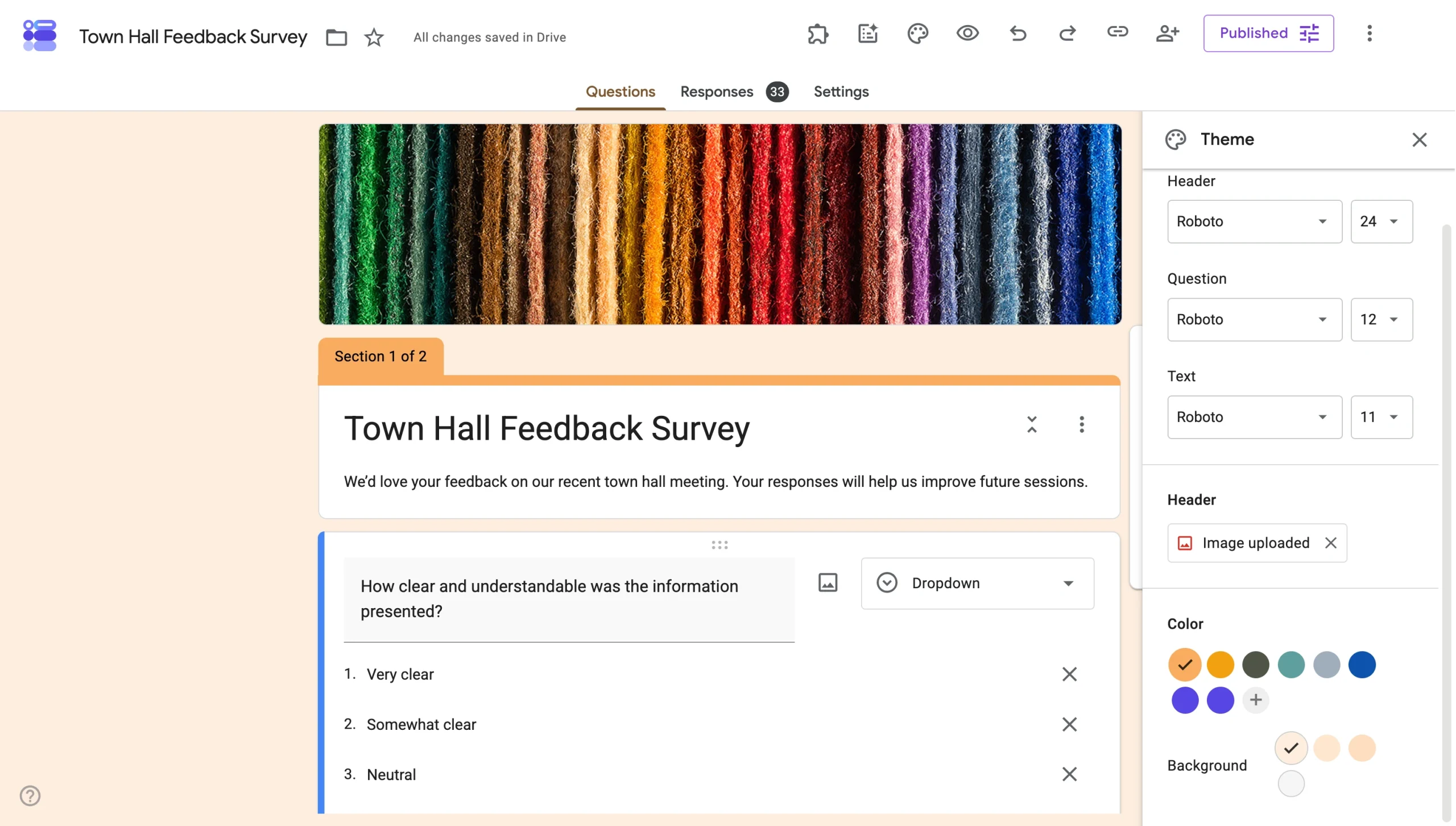
- When uploading an image, use the Cropping Tool to position it within the 4:1 frame, then click Save.
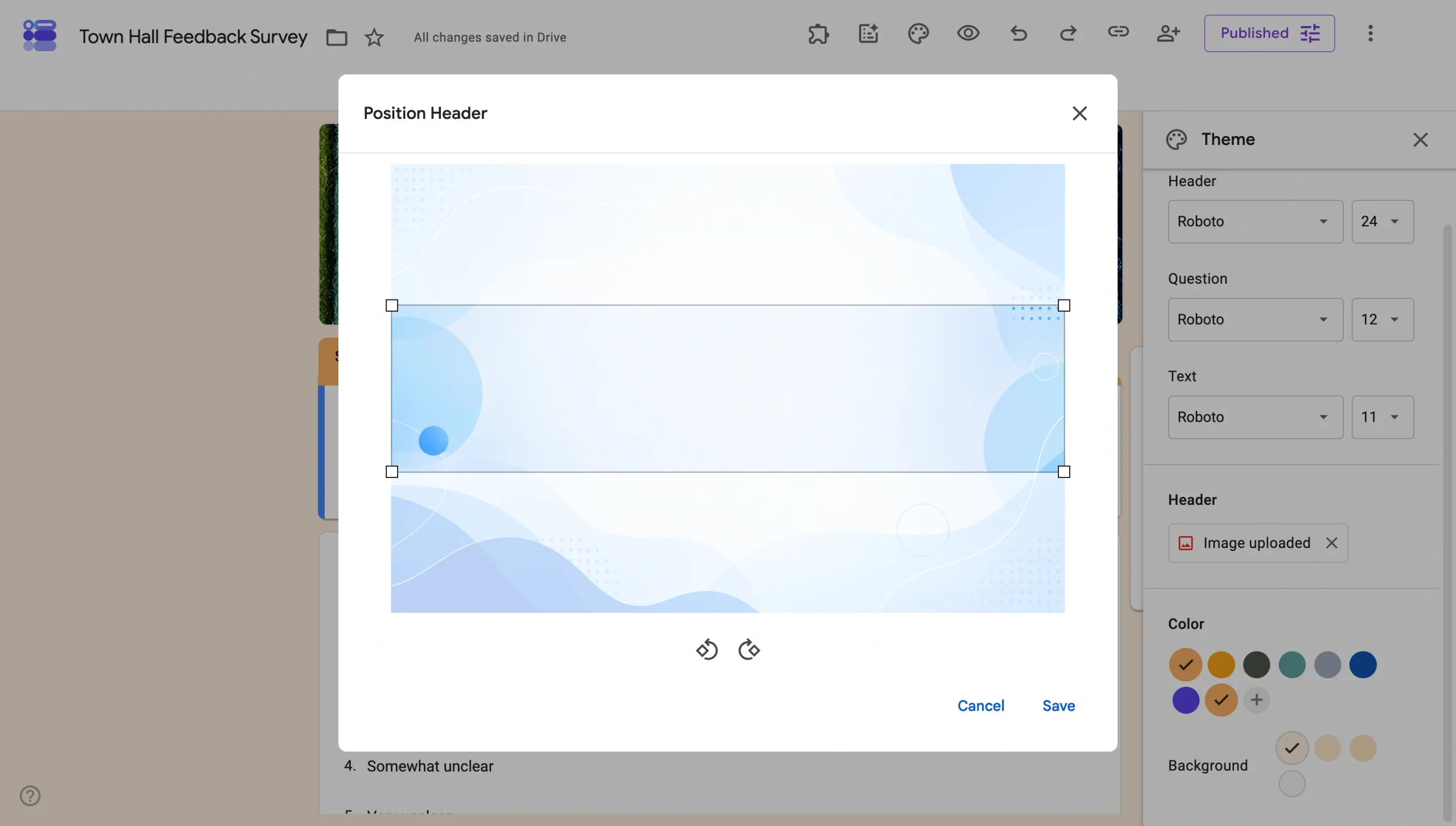
The aspect ratio is the biggest constraint here. A square image or vertical logo will get squished into the horizontal strip, which can look worse than having no image at all.
Creating a custom URL for your Google Form
If you’re wondering how to customize a link in Google Forms, you can toggle on Google’s Shorten URL to get a forms.gle link instead of the long default address, but you can’t create a branded or memorable URL (such as brand.com/survey) inside Google Forms.
When you share a Google Form, the default link looks something like docs.google.com/forms/d/e/long-string-of-characters/viewform. It’s functional, but it’s also long, hard to remember, and clearly not branded. The Shorten URL option trims it to forms.gle/xyz123, which is easier to share, but the domain still belongs to Google. Either way, the URL signals that someone else built the form, which can undermine the trust you’re trying to build with respondents.
If you want a custom URL that uses your own brand domain, you’ll need a third-party tool such as Bitly or Rebrandly or a URL shortener you set up yourself. The process is easy; just copy the Google Forms link, paste it into the third-party tool, and create a branded short link that redirects to the form. This solution works, but it relies on a separate tool to do something that Google Forms doesn’t support.
With Google Forms, every form you share publicly carries either a long default address or a generic forms.gle link. If you want a form that’s tied to a specific marketing campaign or customer-facing experience, you need a URL that reflects your brand.
Setting up form logic and interactivity elements
You can use the Google Forms Go to Section Based on Answer feature to send respondents to different parts of the form, depending on how they answer a multiple-choice or dropdown question. But you can’t run more complex logic, such as hiding fields on the same page, performing calculations, or customizing the thank-you page based on responses.
The Go to Section feature is the only built-in branching logic Google offers, and it works only with multiple-choice and dropdown questions. It’s enough for simple branching surveys, but it’s not enough when you need more nuanced flows.
To set up the Go to Section Based on Answer feature, follow these steps:
- Open the Google Form you want to customize.
- Click on a Multiple Choice or Dropdown question.
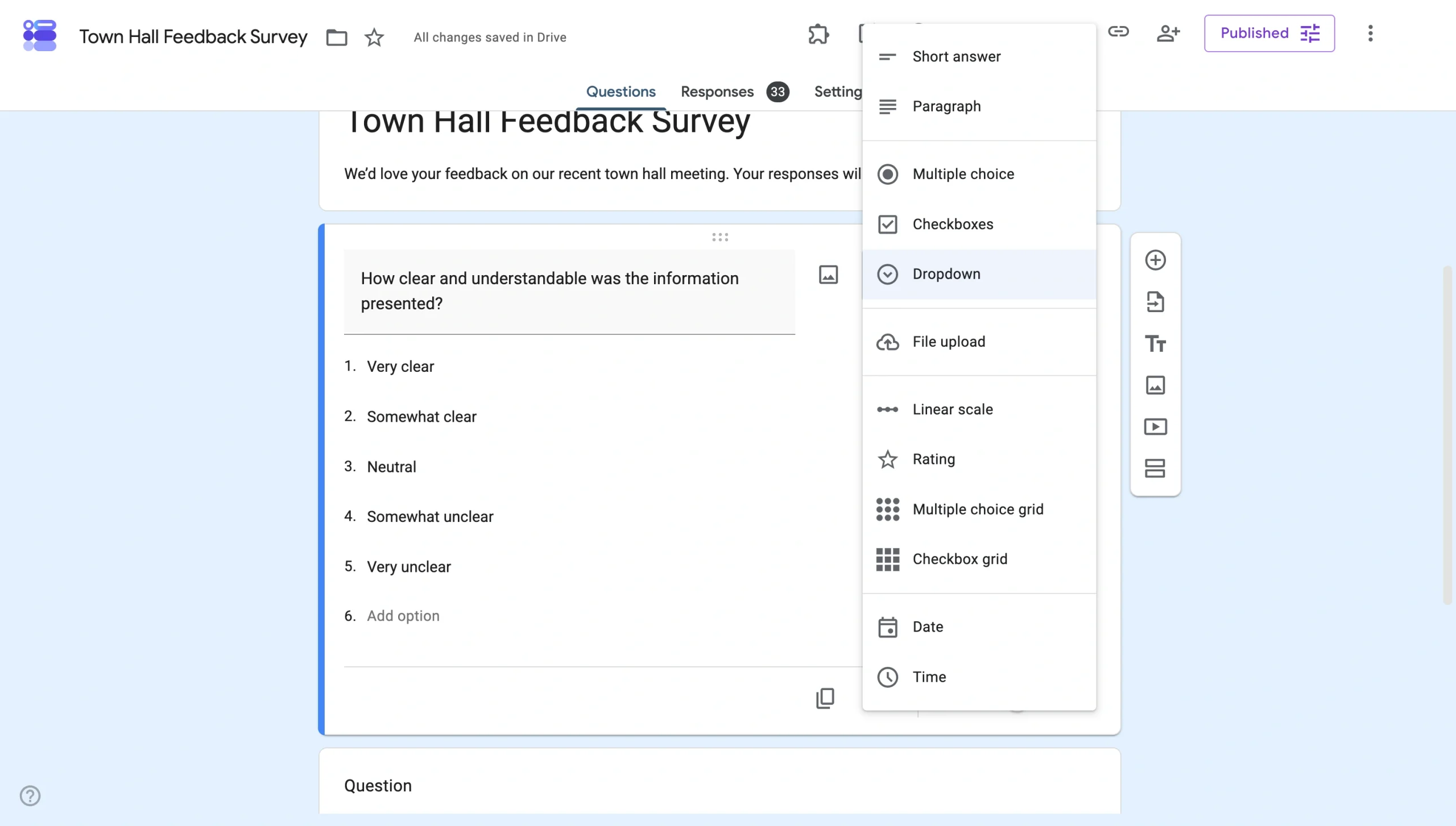
- Click the Three-dot Menu at the bottom right of the question.
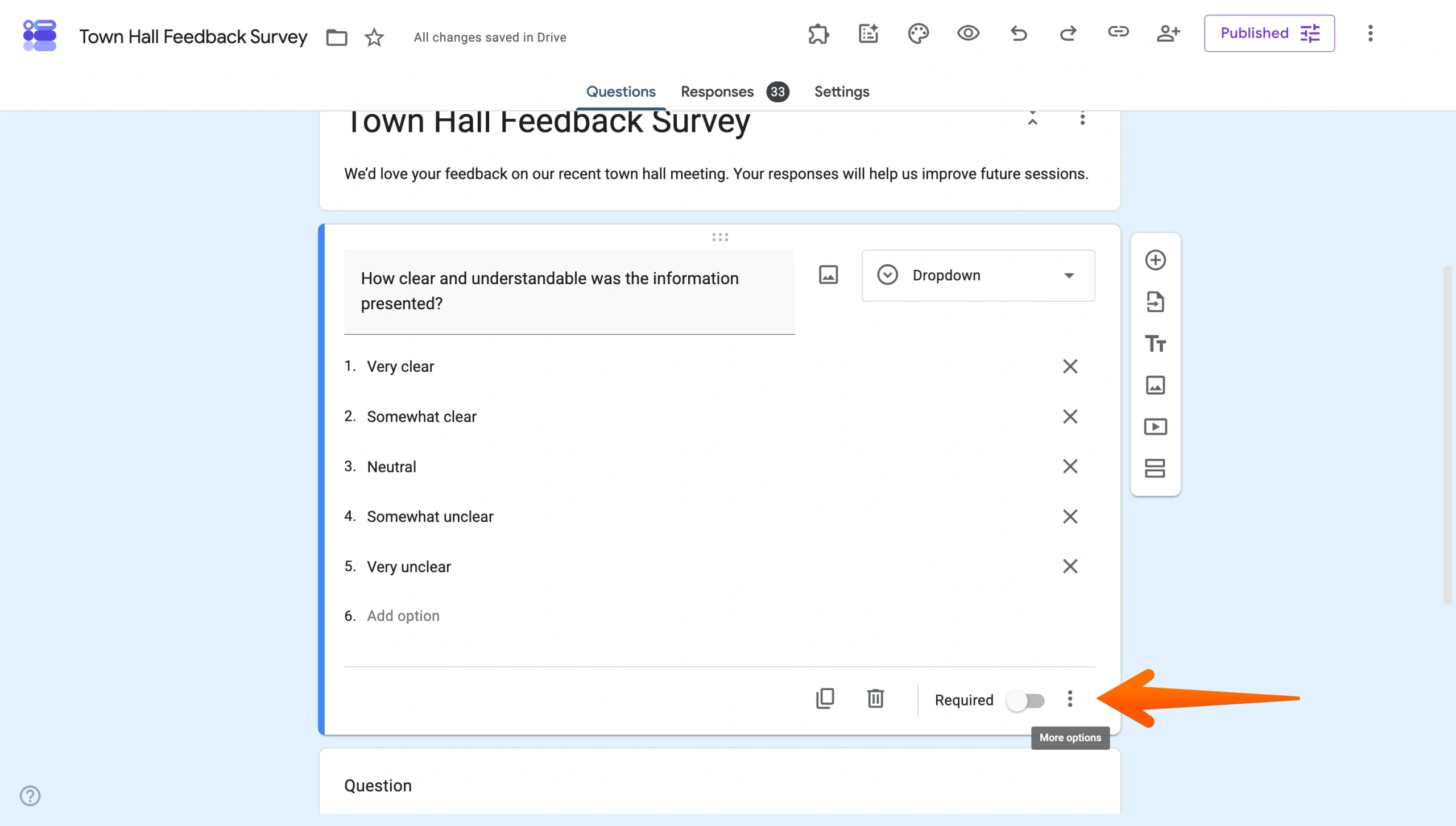
- Select Go to Section Based on Answer.
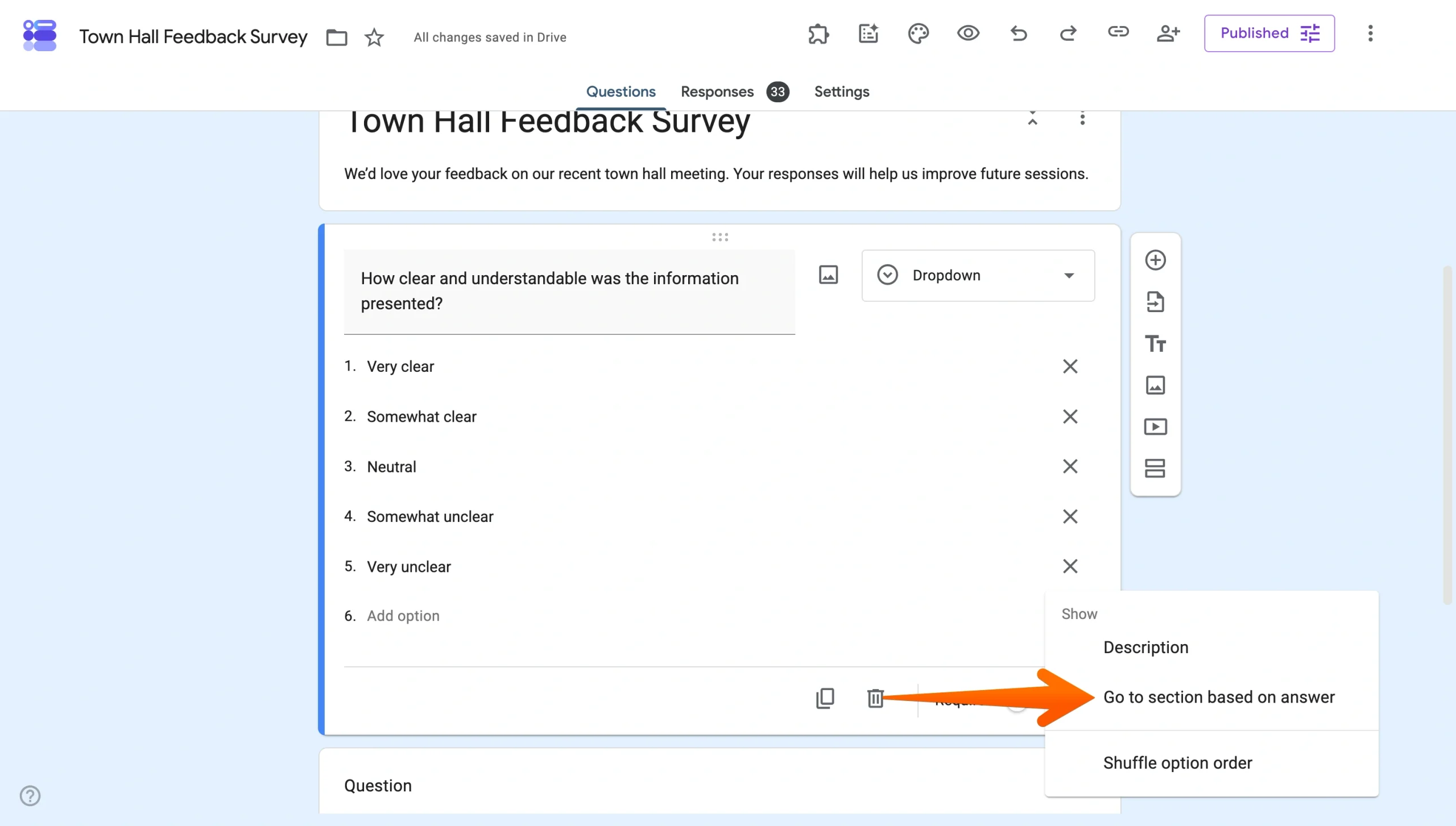
- For each answer option, choose which section respondents should jump to.
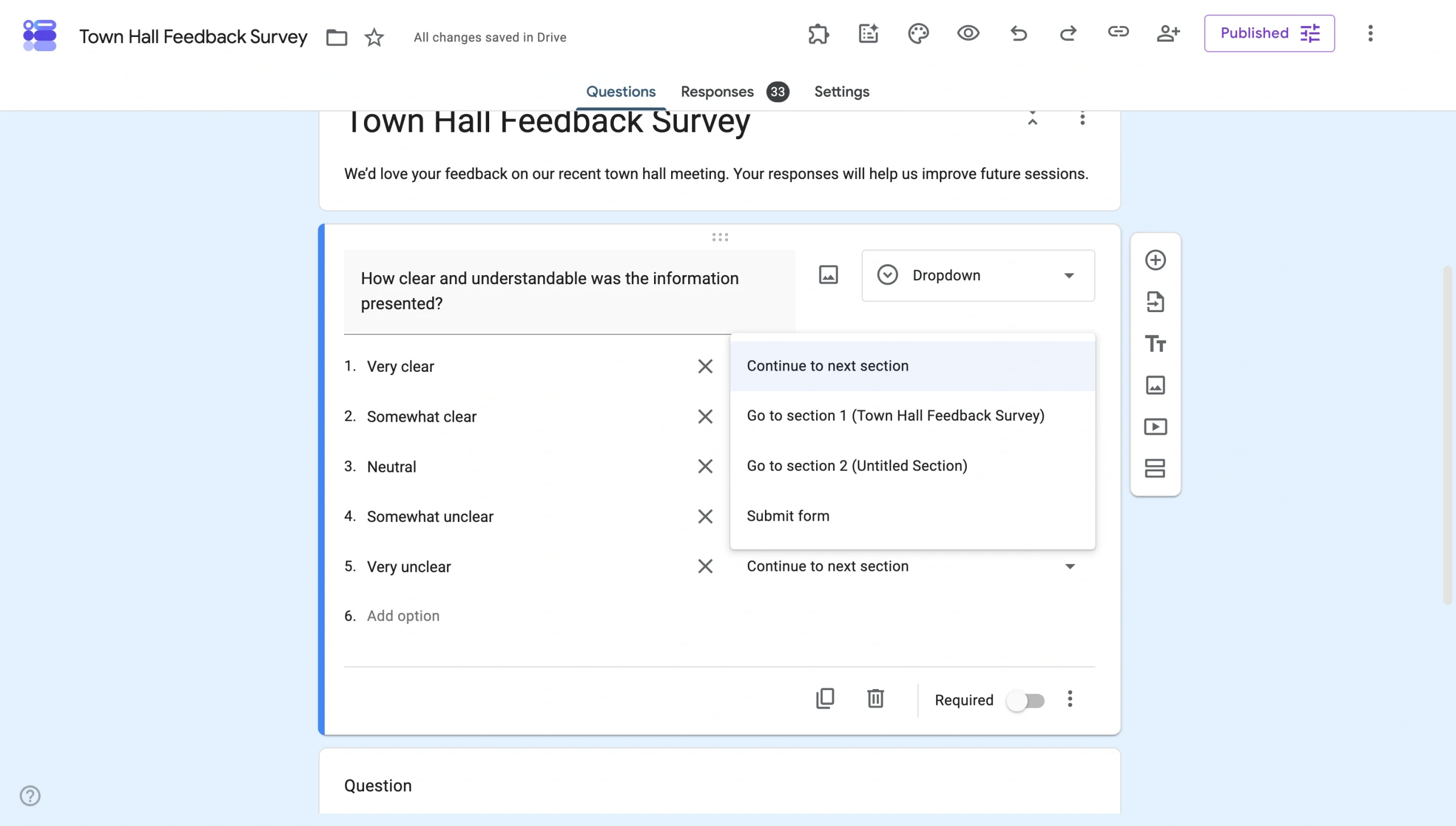
This feature’s logic is limited to the page level only. You can’t hide or show individual fields, score quiz answers in real time, or customize the thank-you page based on someone’s responses. For forms that rely on a respondent’s reactions, this feature falls short.
If you need logic beyond what the Go to Section feature offers, Google Forms add-ons can extend the platform’s functionality but may require a paid subscription.


Jotform: For everything Google Forms can’t do
Google Forms is free and fast, but it’s basic by design. If you need a form that does more than collect responses in a Google-shaped frame, Jotform fits the bill.
Here’s what you can do with Jotform that you can’t with Google Forms:
- Total customization freedom: Adjust the layout, typography, imagery, and logic that Google Forms keeps locked down, plus customize with deeper styling options through a built-in CSS editor.
- More than 20,000 templates and 1,000-plus designer themes: Skip the blank page and start from a ready-made form for healthcare, education, retail, events, or any other industry you’re working in, then adjust the theme to match your brand.
- No login required to fill out the forms: Anyone can open and submit your form, including file uploads, without signing into a Google account first.
- Order forms with payment collection: Accept one-time or recurring payments for products, services, or donations from inside the form using Stripe, PayPal, or other major payment processors.
- Waivers, petitions, and contracts with e-signature collection: Add a signature field directly to your form to handle agreements without requiring a third-party tool.
- Multistep workflow automation: Automate approvals, notifications, and follow-ups based on form responses.
- Mobile-ready forms and fillable PDFs: Build responsive forms that adapt to any device and instantly convert static PDFs into fillable web forms without extra configuration.
If you’re starting to outgrow your current Google Form, you can migrate it to Jotform with a single click and continue customizing with full design control.
FAQs about Google Form customization
You can’t fully customize Google Forms. The platform allows only surface-level changes such as theme color, font selection (from a preset list), header image, and question order. For full control over layout, typography, branding, and form logic, you’ll need a more flexible form builder such as Jotform.
No, Google Forms uses a single-column layout that you can’t change. You can reorder questions and move sections around, but you can’t create multicolumn layouts, adjust spacing, or change alignment.
You can design a Google Form within Google’s limits. You can add a header image, pick a theme color, choose from a curated list of fonts, and adjust the background shade. The design options are easy to use, but your form will still be recognizable as a Google Form.
To customize the theme, click the Painter’s Palette icon at the top of the form editor. From the menu that opens, choose a theme color (or add a custom one with the Plus button), set the background shade, and pick a header image from Google’s gallery or upload your own.
To make a Google Form more colorful, click the Painter’s Palette icon, then pick a theme color or use the Plus button to add a custom color. You can also choose a header image from Google’s gallery, which automatically updates the form’s color palette to match.
This article is for marketing professionals, small business owners, and organizers who care deeply about brand perception. They understand the utility of Google Forms but are frustrated by the “generic” look and feel.































































































Send Comment: