

Steps to grade a Google Form
- Turn on Quiz Mode in Google Forms.
- Choose when you want to release grades.
- Create an Answer key where applicable.
- View (and grade) responses manually if needed.
Interactive step-by-step tutorial
To grade a Google Form, set up the form’s grading feature by first turning on Quiz Mode. Then, create an Answer key, assign point values to each question, and choose how and when respondents will receive their results. Google Forms can automatically grade objective questions based on your answer key, while open-ended questions typically require manual review before you release final scores.
Google Forms provides basic functionality to turn a form into a quiz and to grade answers, but setting it up can be complicated. In this article, we show you how to grade Google Forms step-by-step, including how to set up a Google Forms Answer key. And, if you’re looking for a more sophisticated quiz maker with automatic grading, we’ll introduce you to a Google Forms alternative, Jotform.


1. Turn on Quiz Mode in Google Forms
When you first create a quiz in Google Forms, you must activate the “quiz mode” setting to use automatic grading.
Here’s how to turn a form into a quiz in Google Forms:
- Open the relevant Google Form.
- Click Settings.
- Toggle the Make this a quiz setting to On.
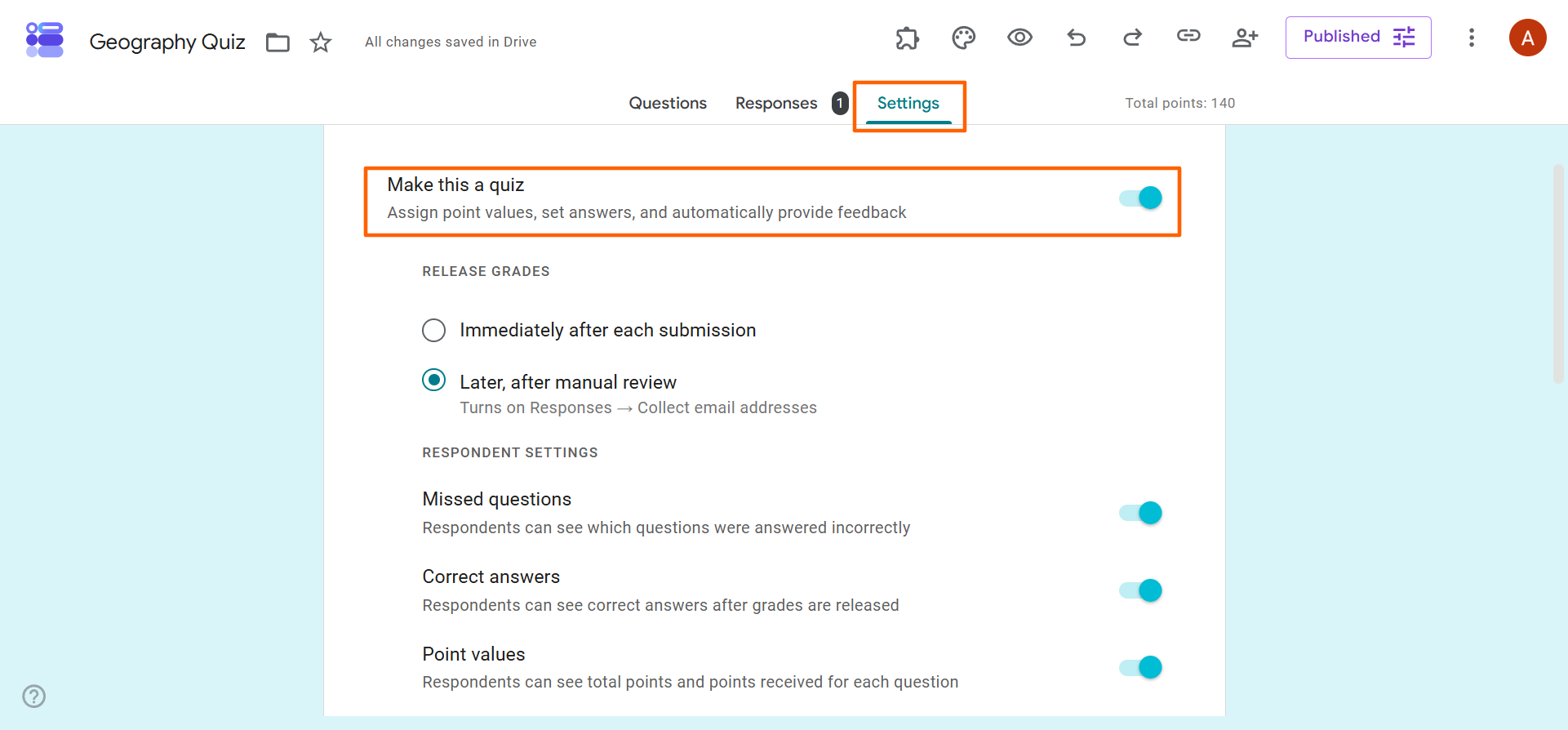
Turning on this setting activates the “Answer key” functionality required for automatic grading.
Pro Tip
Want to make your quiz engaging for your students? Check out our detailed guide, How to use Google Forms, for expert tips and strategies on formatting, structuring, design, and more.
2. Choose when you want to release grades
Google Forms has two options for releasing grades: Immediately after automatic grading or after you review the answers and grades. Your choice will depend on a number of factors which we’ll explore below.
Release grades immediately
Google Forms can automatically grade all applicable questions and release the final grades to respondents immediately. This option is useful if your quiz is made up of closed-ended question formats and you don’t feel the need to manually review the automated grades. It can also be handy if you have a large class or are crunched for time.
Here’s how to release grades immediately in Google Forms:
- Under Settings, scroll down to Release Grades.
- Select Immediately after each submission.
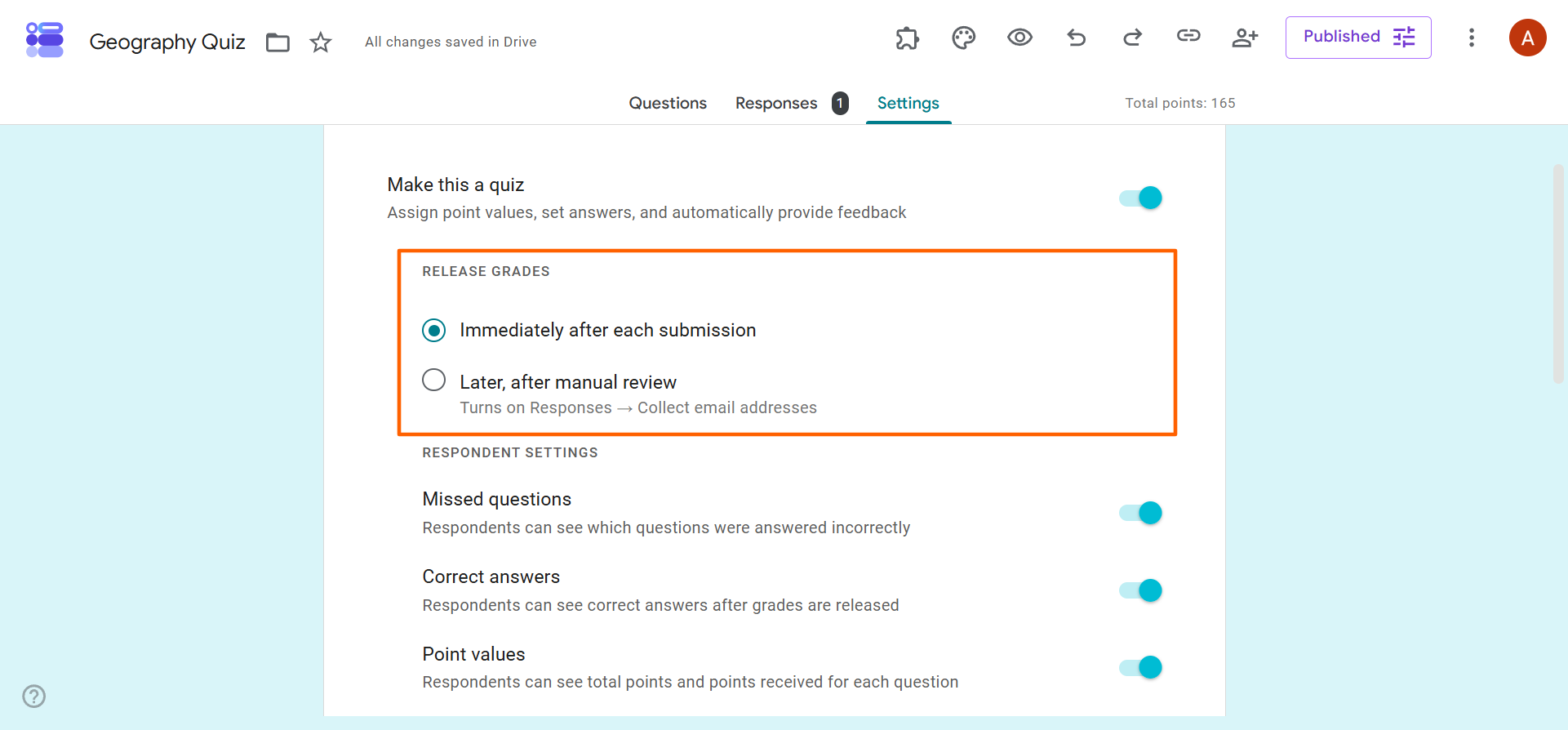
Now, Google Forms will release grades to each respondent immediately. You will not see the responses or grades before they are released.
Release grades after manual review
If you’d rather check student responses and the automatic grading, you have the option to release grades after a manual review. This is a good option if your quiz includes open-ended question formats or if you want to confirm the accuracy of automated grading before releasing quiz results to respondents.
Here’s how to release grades after a manual review in Google Forms:
- Under Settings, scroll down to Release Grades.
- Select Later, after manual review.
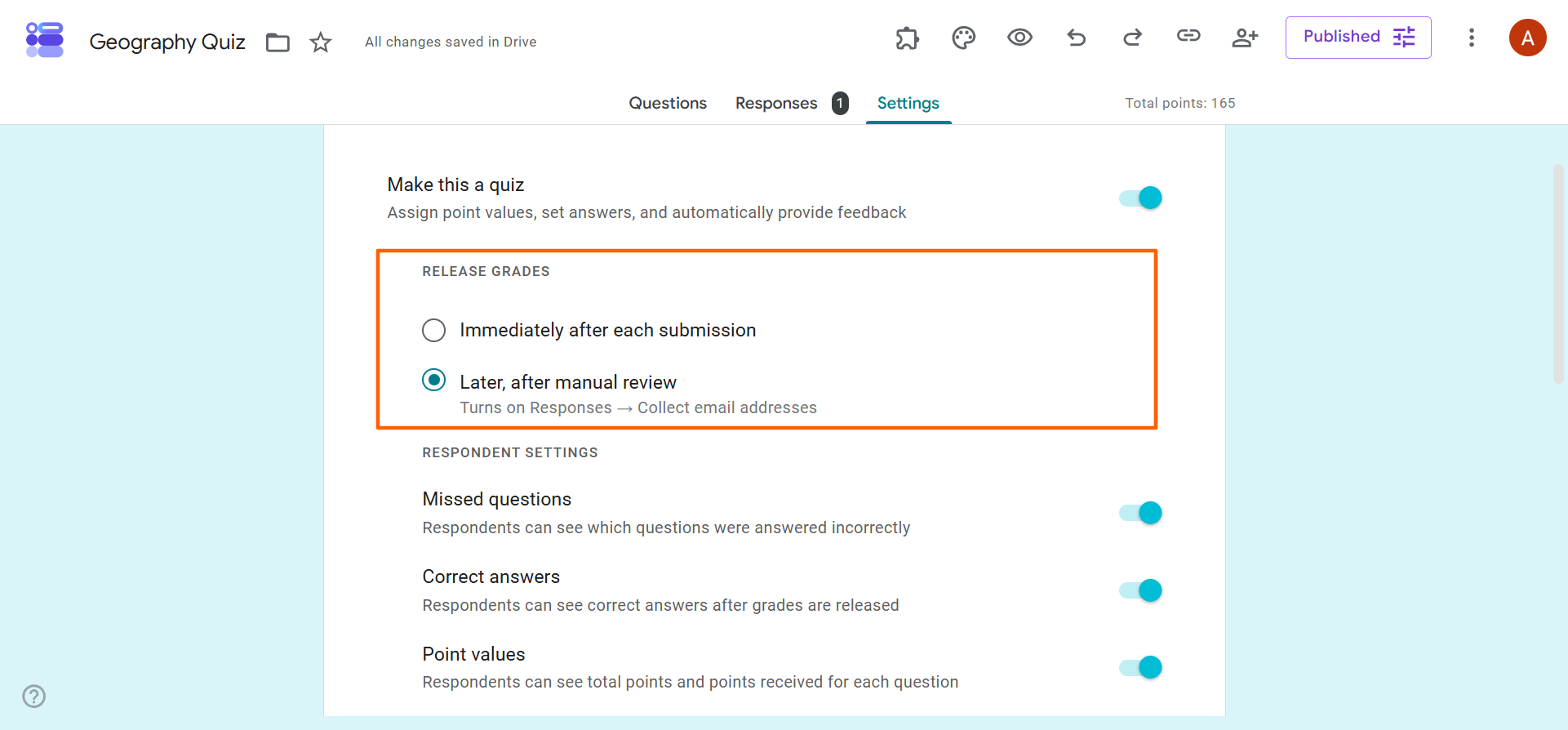
Now, Google Forms will hold the grades until you have had a chance to review and release them.
3. Create an Answer key where applicable
Automatic grading with the Google Forms Answer key feature is available once you have selected the right settings and type in answers to your quiz questions.
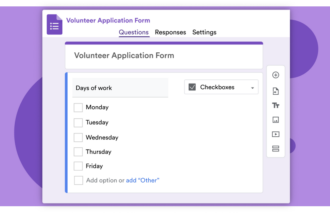
The form builder uses the Answer key setting to automatically grade each question you add to Google Forms. It works best for closed-ended question formats, such as multiple choice or checkbox formats. However, you can still use it with some open-ended question formats such as short answer.
Here’s how to set up the Answer key in Google Forms:
- Click Questions.
- Scroll to the first question in your quiz.
- Click Answer key.
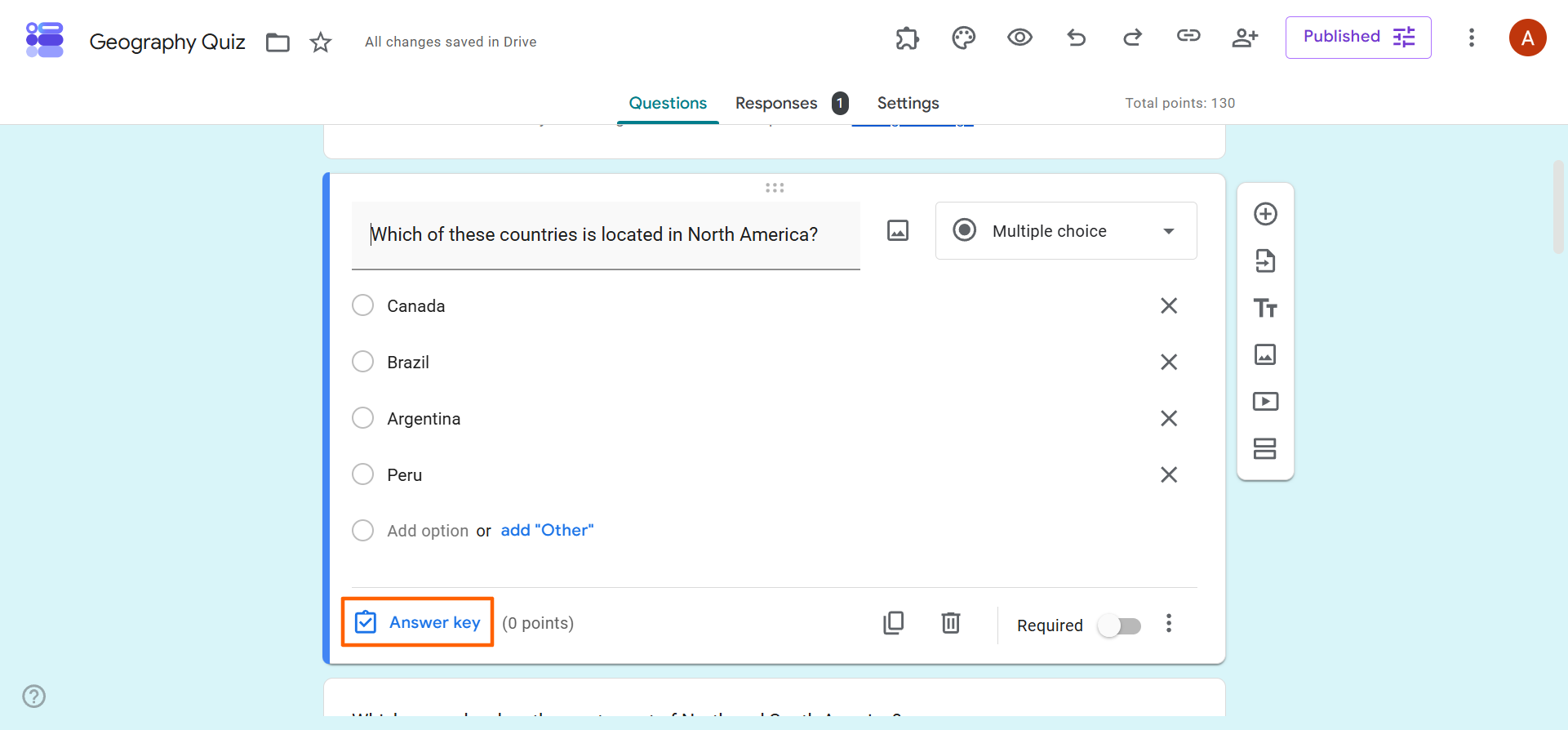
- Select or type in the correct answer for the question, depending on the question format.
- Assign a point value to that question.
- Click Done.
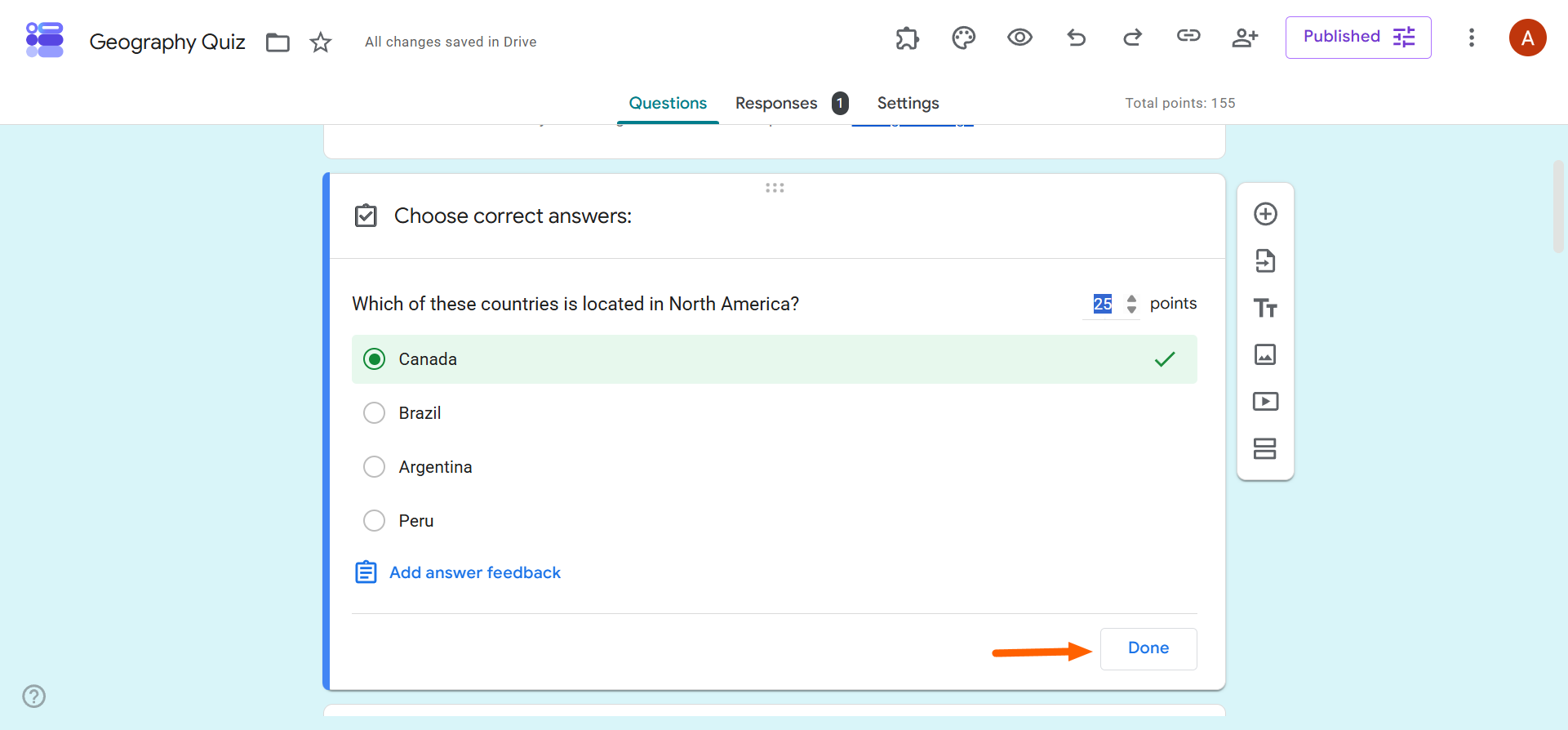
When a respondent takes the quiz, Google Forms will automatically grade the question based on the information you provided in the Answer key.
Do the same for each applicable question in your quiz.
4. View (and grade) responses manually if needed
When the responses start rolling in, it’s time to grade!
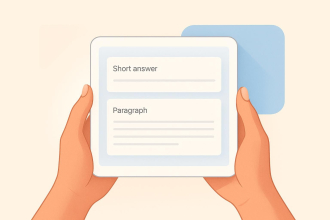
While you can automatically grade a Google Forms quiz, you may need to review the responses to some questions yourself. For example, “paragraph” question formats will require a manual answer review to determine whether it is correct. You can view and grade answers from the Responses tab.
Here’s how to manually grade Google Forms responses in a quiz:
- Click Responses.
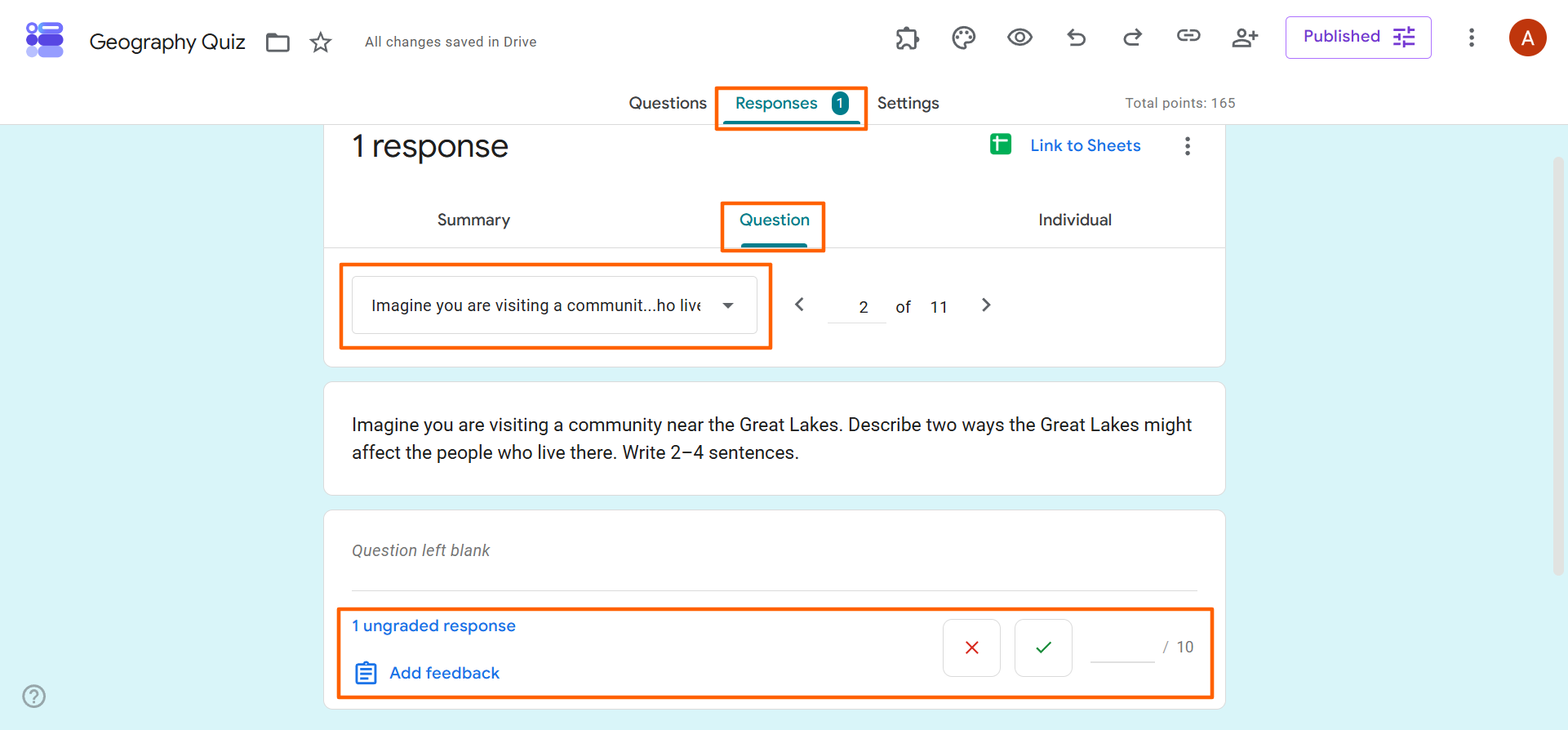
- Select Question view if you want to grade all student answers to the same question prompt at one time. Select the question you want to grade, mark each answer correct or incorrect, and assign the point value.
Select Individual view to grade one student’s entire form from start to finish. Mark the answer correct or incorrect, and assign the point value.
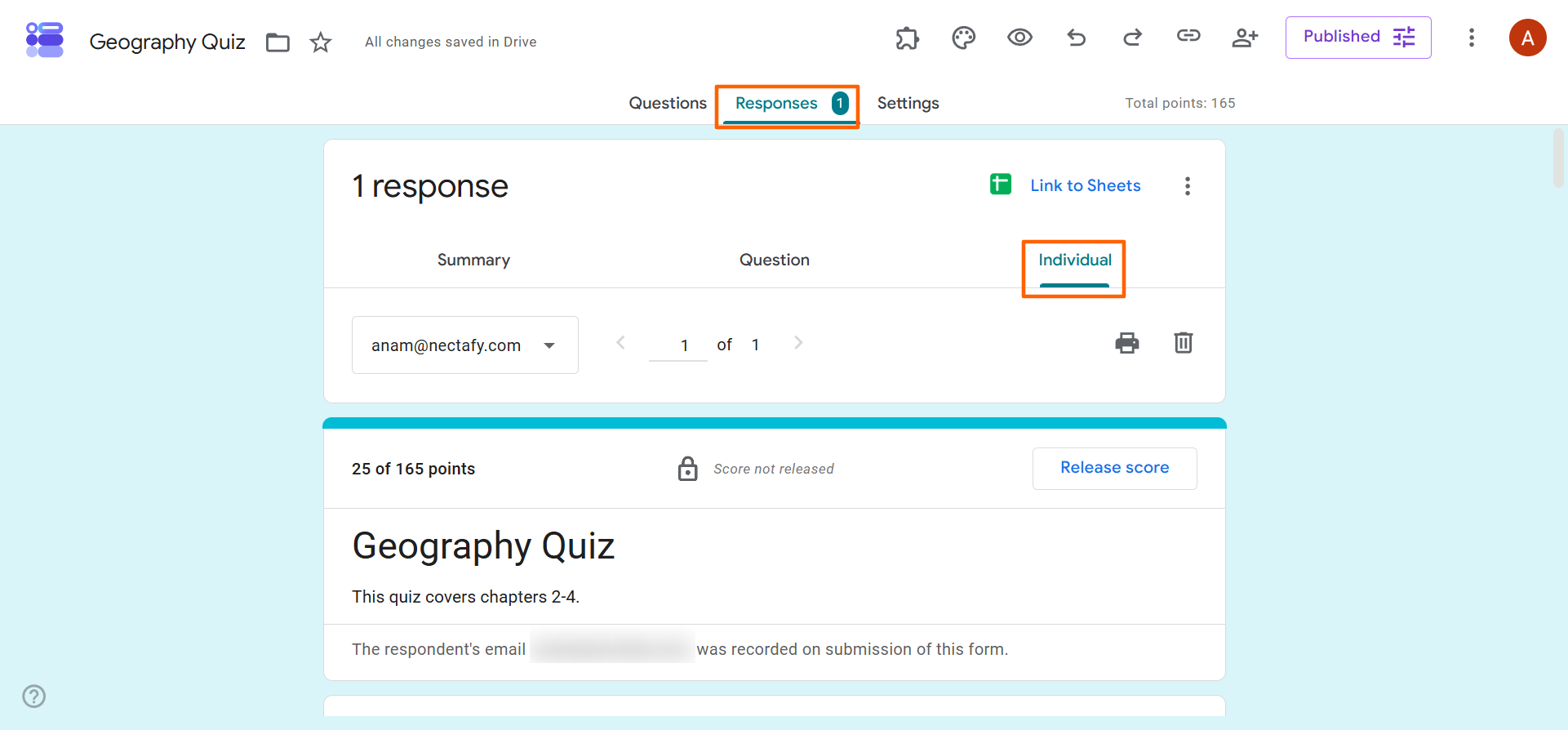
Complete the manual grading for all applicable questions.
Why you should create quizzes with Jotform instead
You’ve seen how to grade Google Forms responses, and the options available are fairly straightforward. Google Forms gets the job done if you have simple requirements, but if you’re an educator or trainer who administers quizzes regularly and needs more than just basic quiz mode, it’s time to explore Jotform.

Jotform is a leading form and quiz builder that gives schools and other educational institutions a more flexible way to create, share, score, and analyze online quizzes and assignments.
You can also go beyond administering quizzes with Jotform, and use its advanced features and comprehensive ecosystem of helpful tools to capture students’ knowledge and share progress over time.
Here is what you get when you use Jotform:
- Intuitive quiz-building tools: With Jotform Quiz Maker, you can build online quizzes from scratch with the simple drag-and-drop builder. Jotform comes with numerous question types like multiple choice, written responses, file uploads, and more.
- Time-saving templates: Don’t want to build a quiz from scratch? Use Jotform’s free quiz templates, like the Multiple Choice Test or the Math Quiz. Most of the work is already done for you; just customize the template for your needs.
- Granular conditional logic: Personalize quizzes by showing respondents specific follow-up questions based on their responses. This allows you to direct learning down specific assessment paths.
- Automatic scoring and calculations: Jotform also allows you to set up scoring for closed-ended questions and calculate results automatically. For open-ended questions, you have the option to manually review the responses, similar to Google Forms.
- Free response analysis tools: Jotform comes with tools you can use to store and review responses. Jotform Tables is a structured workspace where you can track and review answers. Jotform Report Builder enables you to turn quiz results into sharable reports for administrators.
- Easy-to-use apps: Students are on the go, so why not turn your quizzes, class resources, documents, and links into an intuitive mobile app with Jotform Apps? This way, students can access everything they need from any device at any time.
- Free integrations with other educational tools: Jotform comes with 150+ form integrations with popular tools like OneDrive, so you can connect your materials with ease.
Migrate to Jotform and get your 50 percent discount for educational institutions
If you’ve already built your quizzes in Google Forms, you don’t need to go through all the steps to create them again in Jotform. Simply migrate from Google Forms to Jotform using our migration tool, and we’ll transfer your quiz questions, answers, and structure automatically.
Best of all, eligible educational institutions get 50 percent off Jotform Bronze, Silver, and Gold plans, so there are plenty of savings available to you.
Explore Jotform today, and see why it’s a practical choice for schools to scale beyond a basic free quiz workflow.
This article is for teachers, trainers, and anyone using Google Forms to assess knowledge who needs to set up quiz scoring, review responses that need human judgment, and release results clearly.




















































































Send Comment: