

Add an answer key to Google Forms
- Go to Google Forms and create a new form
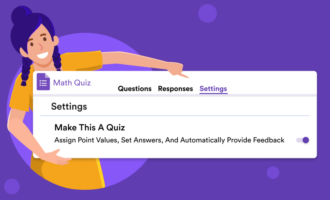
- Click on Settings and toggle on the Make this a quiz switch
- Go back to the Questions tab to add your quiz questions
- Add an answer key to each question
- Add an answer explanation (optional)
E-learning has made online quizzes a practical way for educators to assess student knowledge, provide feedback, and simplify grading. With Google Forms, teachers can quickly create exams or pop quizzes and use answer keys to automatically score responses.
By setting up an answer key, you can mark correct answers, assign point values, and add feedback for students — all within the same form. In this guide, we’ll walk you through how to make an answer key in Google Forms and use it to streamline the grading process.


How to add an answer key to Google Forms
Before you can figure out how to make an answer key in Google Forms, you have to nail down the kinds of questions you want to ask in your quiz. You have several options to choose from:
- Short answer
- Multiple choice
- Checkboxes
- Dropdown
- Multiple-choice grid (responders select an answer within rows and columns)
- Checkbox grid (responders check off one or more answers within rows and columns)
Most of these are self-explanatory and familiar to teachers. For long-form answers, an answer key won’t be of use since you’ll need to grade each response individually — in that case, you can review and grade answers one by one.
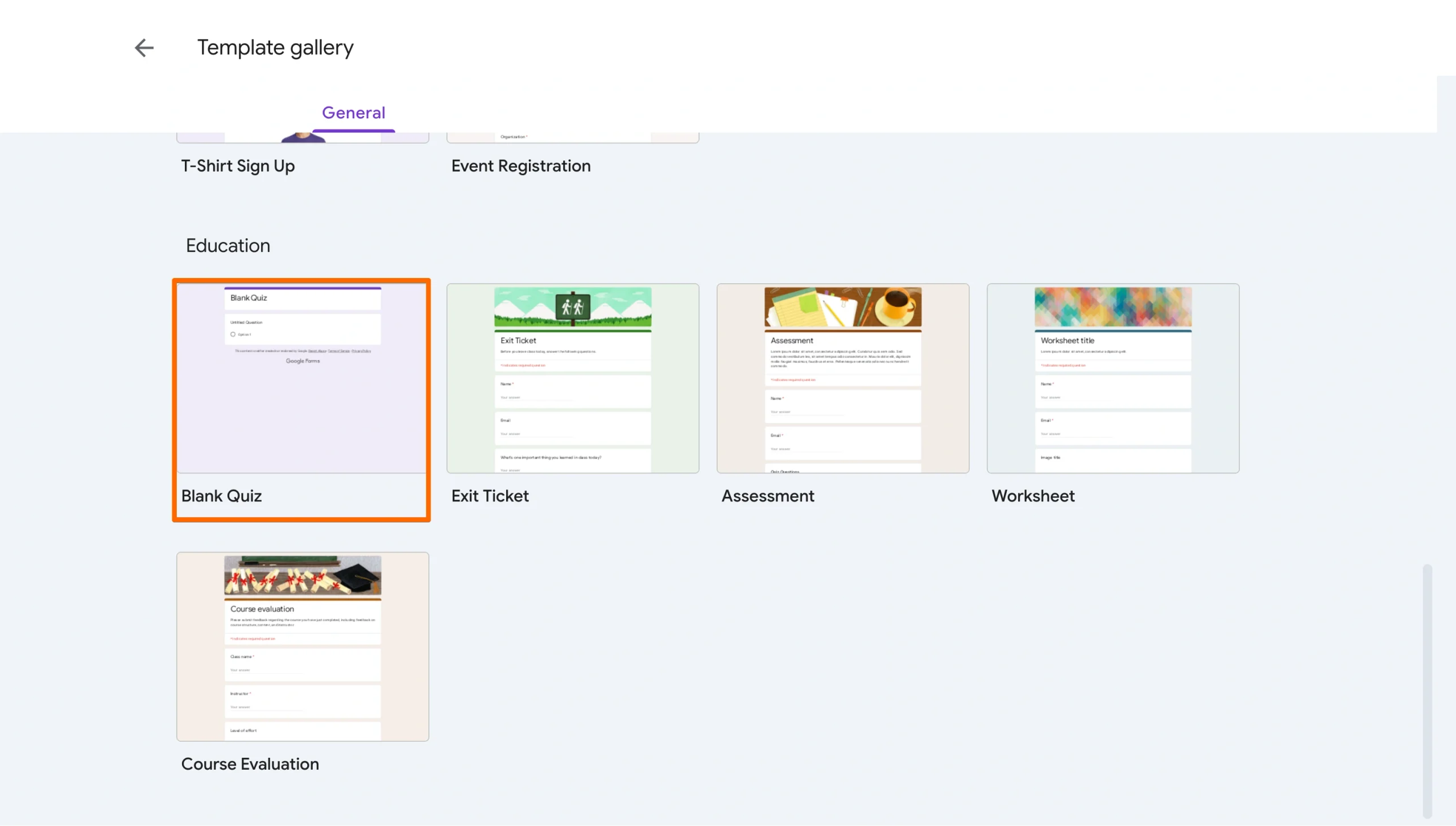
- Open Google Forms and create a new form. For a shortcut, you can also choose the Blank Quiz template.
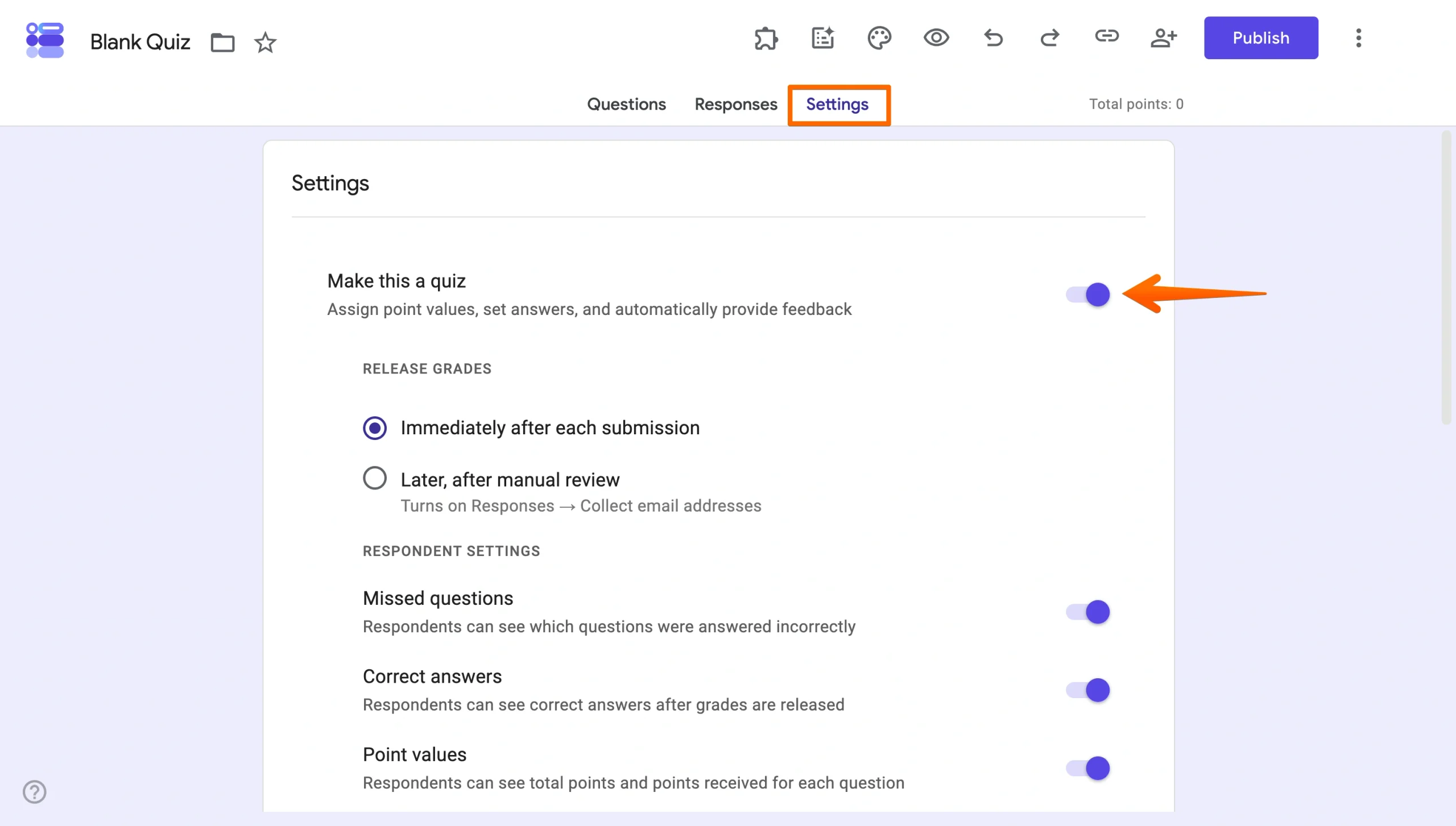
- Click on the Settings tab in your new form. Toggle on the Make this a quiz switch. You can now create your answer key as you build your quiz.
- Go back to the Questions tab to add your quiz questions.
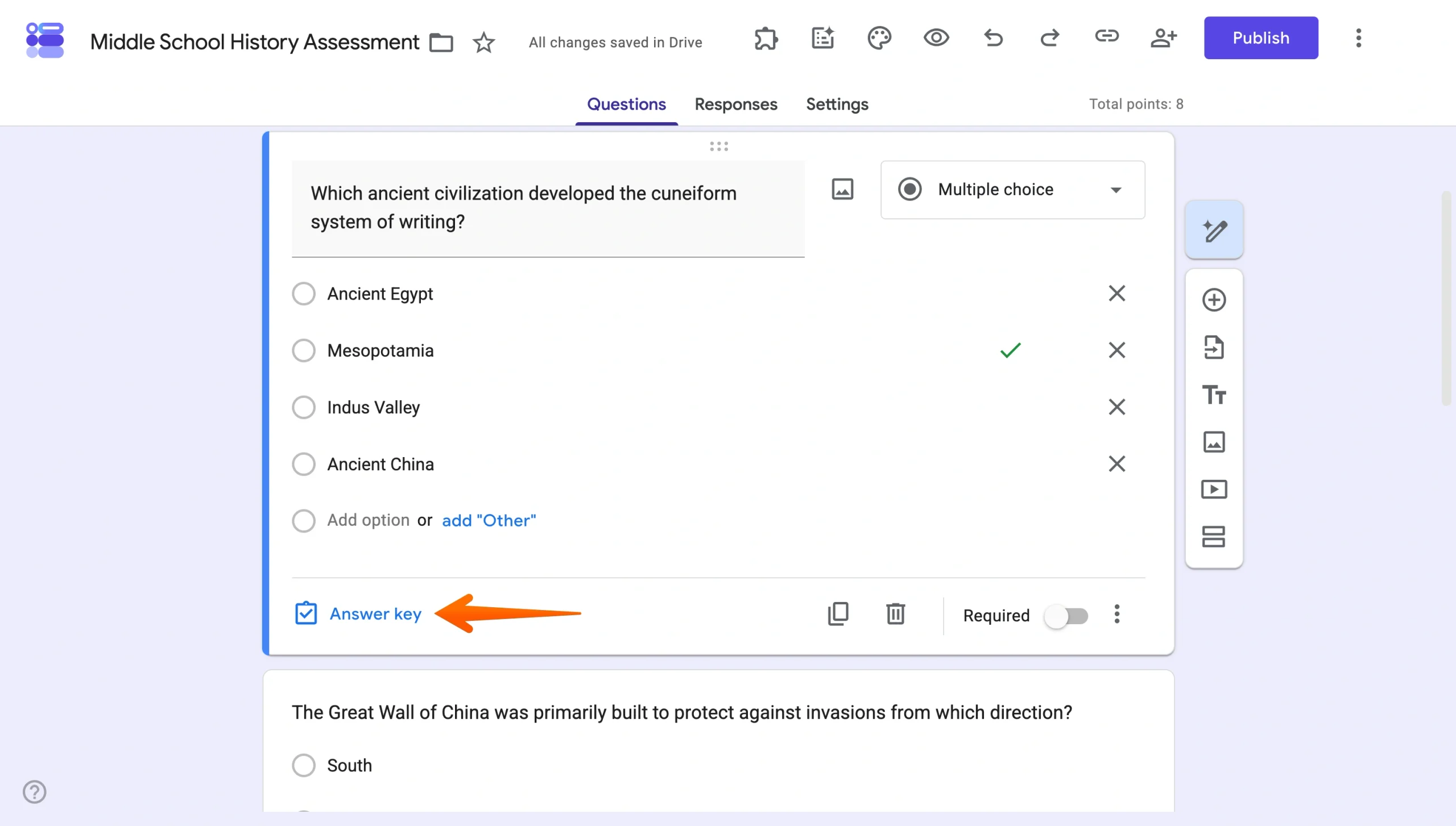
- As you add questions, use the Answer Key option in the bottom left of the question box to enter the correct answer.
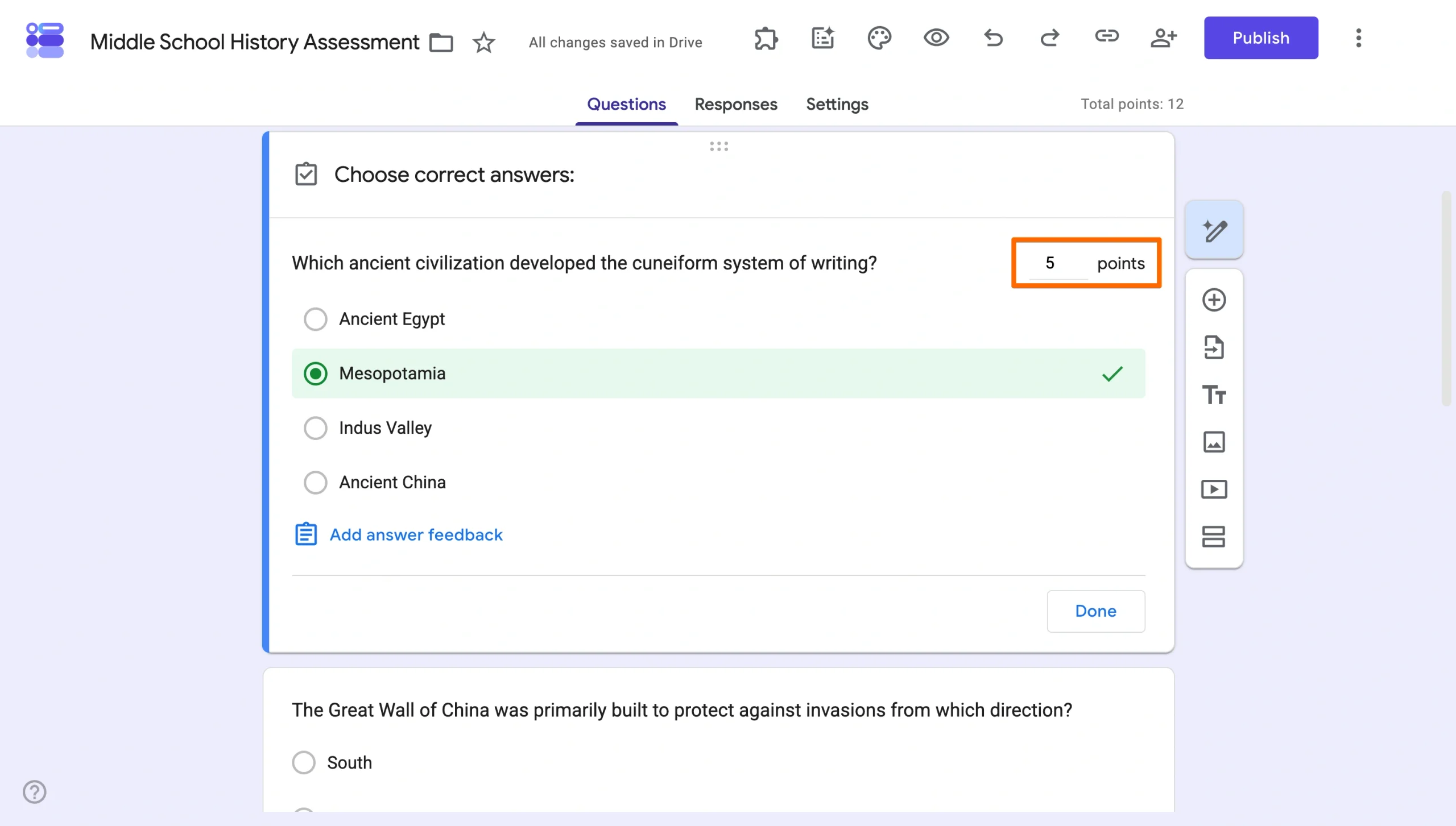
- Then, enter the number of points the question is worth in the top right of the question box.
- Click Add answer feedback to share a message, links, or even YouTube videos to provide more context for both correct and incorrect responses.
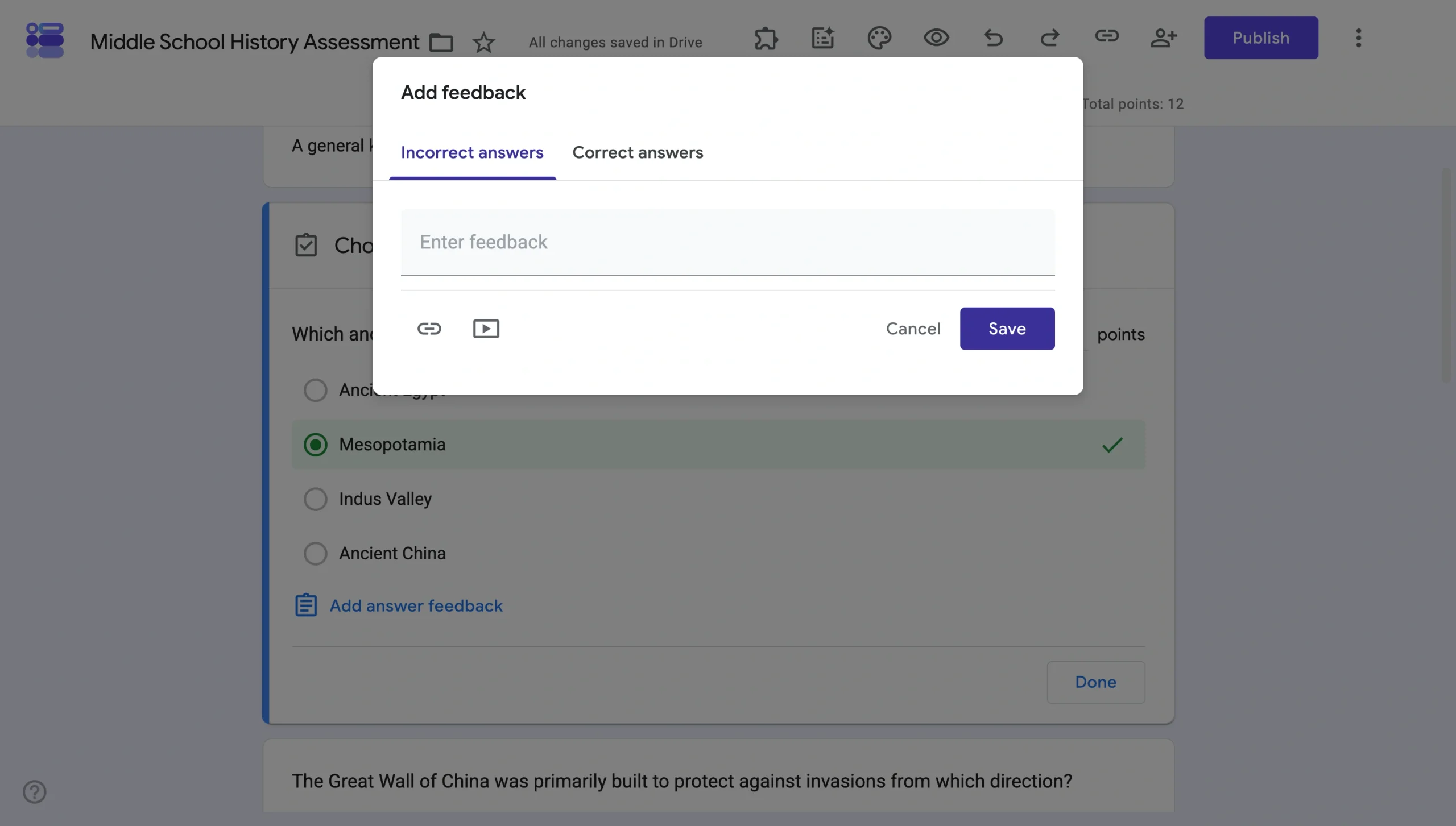
This option helps students learn from their mistakes or get additional information on correct answers.
How to grade with the answer key
Now that you know how to make an answer key in Google Forms, grading your quizzes is automatic, as you can see results immediately. Then, it’s easy to send results directly to your students.
- After students finish the quiz, go back to the form and select the Responses tab.
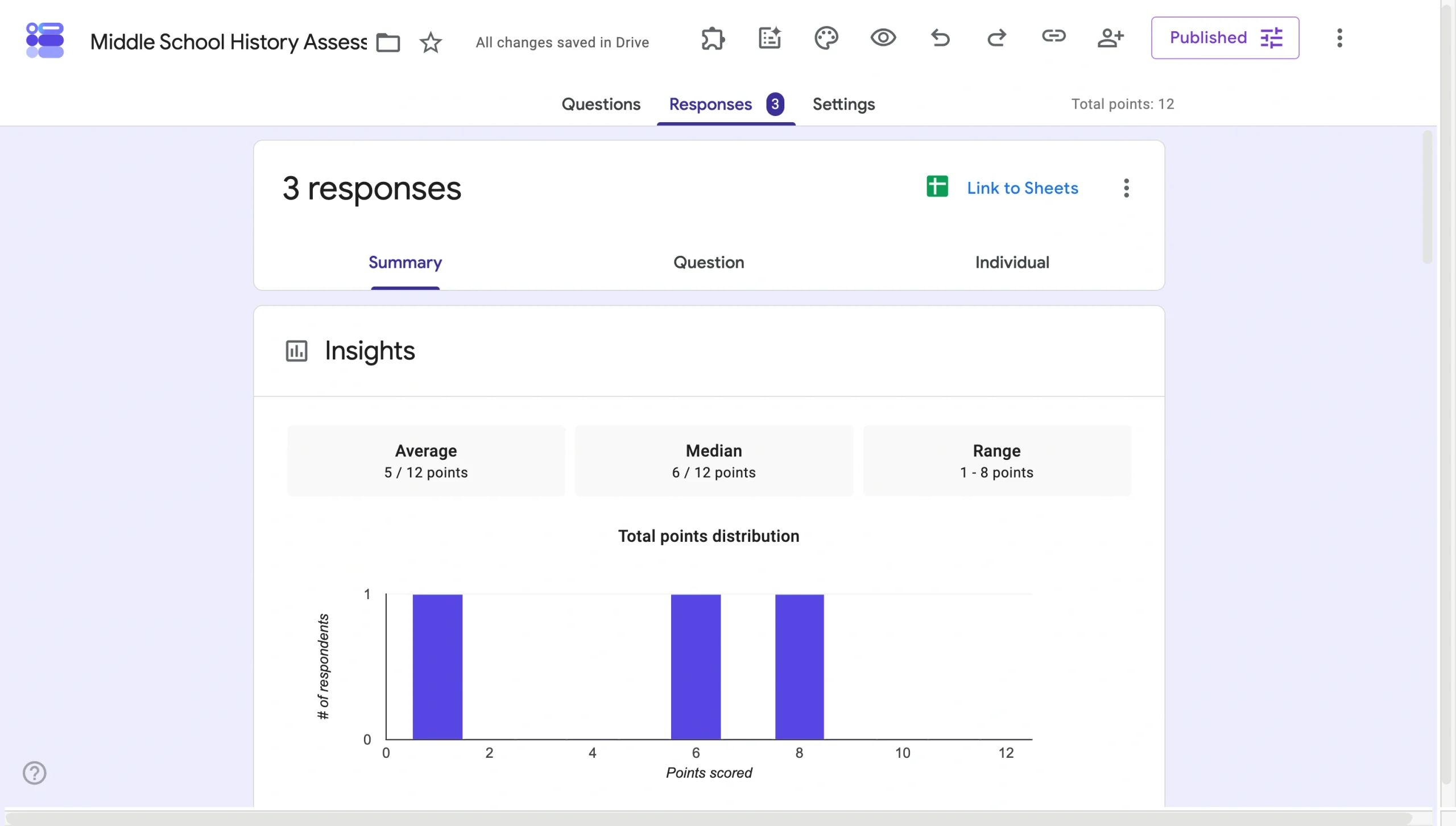
- Click the Summary tab to find the responses from all your students under Scores. If you previously chose to withhold scores from students until you had a chance to review them (in the Settings tab), you can now email the results to them by clicking Release scores.
How to build and score quizzes with Jotform
Even when you know how to make an answer key in Google Forms, you might find that its features aren’t as comprehensive as you were hoping. If you’re looking for a quiz platform or form builder with more options for customization, Jotform is the solution for you.
With Jotform, you can build quizzes and tests effortlessly with more than 2,900 customizable quiz templates to choose from. Add custom images and fonts or, if you want a more interactive quiz, explore using conditional logic to hide or reveal questions based on a student’s previous responses. With Jotform’s Quiz Maker, you can not only create tests of your own but also an answer key to automatically grade and collect results and export the results.
For large class sizes and schools, teachers can customize forms with branding and take advantage of unlimited submission storage with Jotform’s paid plans. The best part is that Jotform doesn’t have to break the bank for cost-conscious schools. Jotform offers educators and school administrators a special educational discount of 50 percent off the monthly cost of its Bronze, Silver, and Gold plans — making it a top choice for those looking for better form-building options at an affordable price.
With Jotform, reviewing and responding to your students’ performance is easier than ever. When you have a clear picture of class progress, you can better plan the trajectory of your teaching plan. Then you can give each pupil the attention they deserve and the opportunity to succeed.
See also Jotform’s detailed guide about: Google Forms
FAQ
The Answer key option appears at the bottom of a question after you turn your form into a quiz. Go to Settings, toggle on Make this a quiz, then return to the Questions tab. Select a question, and you’ll see Answer key at the bottom of the question box.
Add a question and select a question type that supports predefined choices, such as Multiple choice, Checkboxes, or Dropdown. Enter each answer in the available Option fields and click Add option to include more choices.
First, turn your form into a quiz under Settings > Make this a quiz and create an answer key for each question. In the quiz settings, you can choose what respondents can see after their scores are released, including missed questions, correct answers, and point values.
Go to Settings in Google Forms and turn on Make this a quiz. Return to the Questions tab, select a question, and click Answer key. Choose the correct answer or answers, assign a point value, and optionally add answer feedback. Repeat these steps for each question in your quiz.
Google Forms doesn’t have a feature specifically for duplicating an individual answer choice. You can manually enter the same or similar choice in another question. If you want to reuse an entire question along with its answer choices, click the Duplicate icon at the bottom of the question box and edit the copied question as needed.














































































Send Comment:
1 Comment:
March 6, 2023
There is no "answer key" button for me to set correct answers when I make a google quiz. I don't know what's going on, but it's a useless app for me. I could send a screenshot to prove it.