

Using Likert scale in Google Forms
- Open Google Forms, and click Blank Form on the left side of the page.
- Using the dropdown menu, set the question type to Multiple choice grid or Linear scale.
- Add your rows and scale labels.
- Customize your form, then click Publish to share it.
Multiple choice and short answer may be the most common question types found in a survey, but they don’t always give you a clear understanding of your respondents’ thoughts and opinions.
A Likert scale fixes that gap. It lets respondents rate the intensity of their feelings or attitudes along a defined scale, rather than forcing them into a simple yes or no answer. This gives you a clearer and more structured picture of how strongly people actually feel about a given topic. Read on to learn how to use the Likert scale feature in Google Forms.
How to make a Likert scale in Google Forms
Using the Google Forms Likert scale feature may seem complicated, but this step-by-step guide will walk you through the process:
- Go to forms.google.com.
- Open an existing form or create a new form by clicking the + icon.
- Give your form a title and description.
- Change the first question type to Multiple choice grid (for multiple questions) or Linear scale (for a single question).
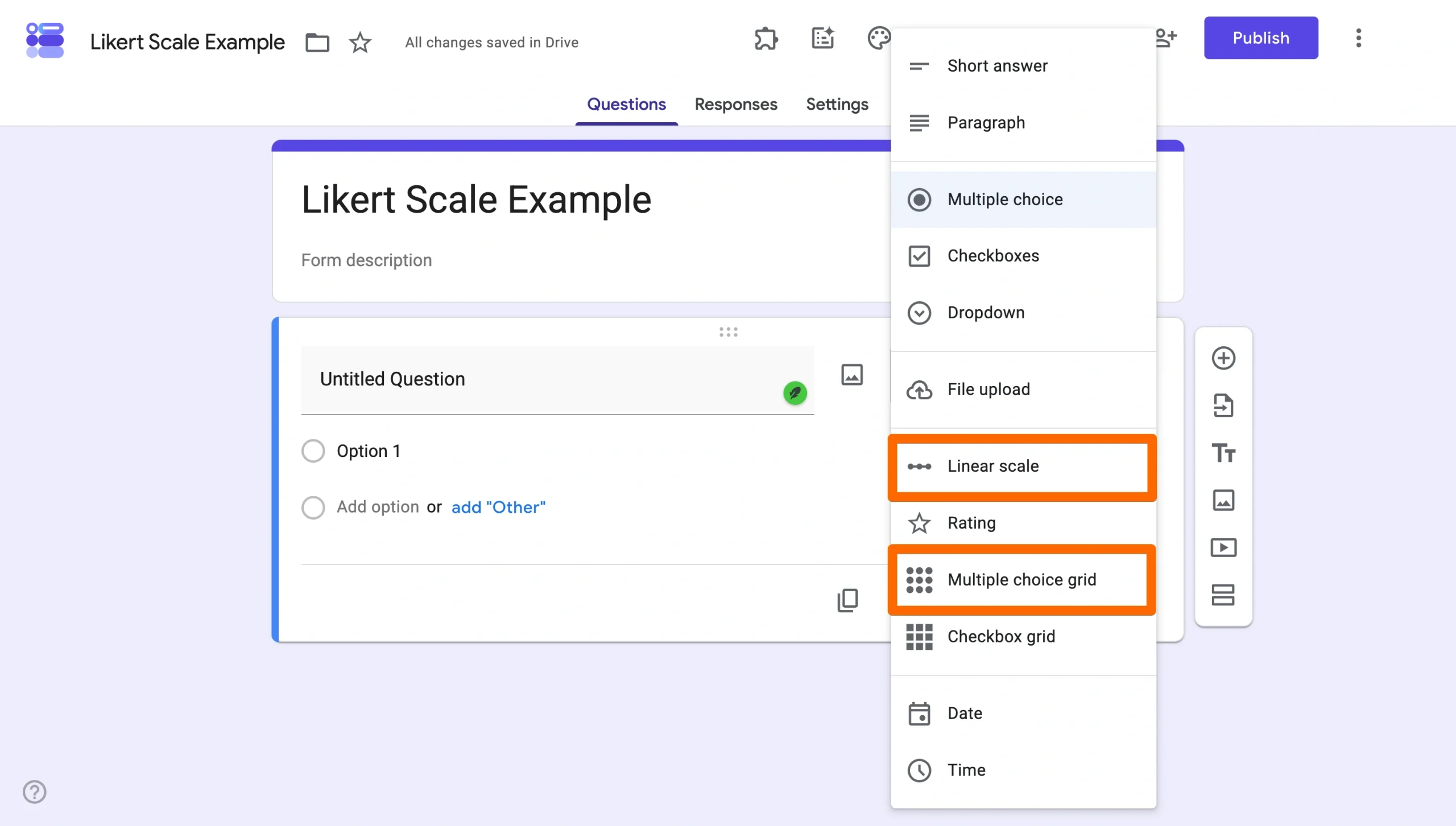
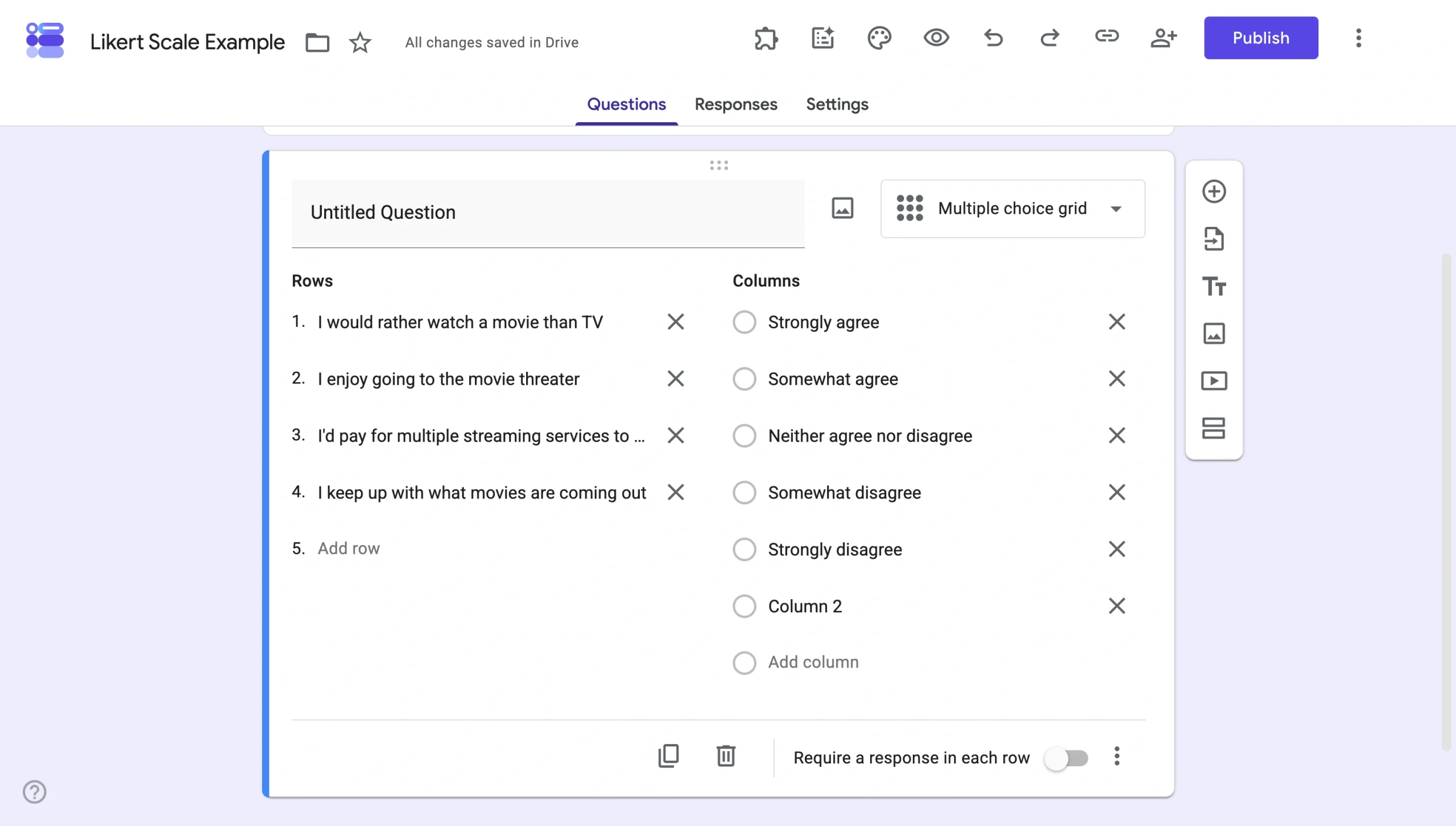
- For Multiple choice grid, use the Rows section to input each question you want to ask and the Columns section to input your Likert scale options. Enable the Require a response in each row toggle if you don’t want to allow respondents to skip questions.
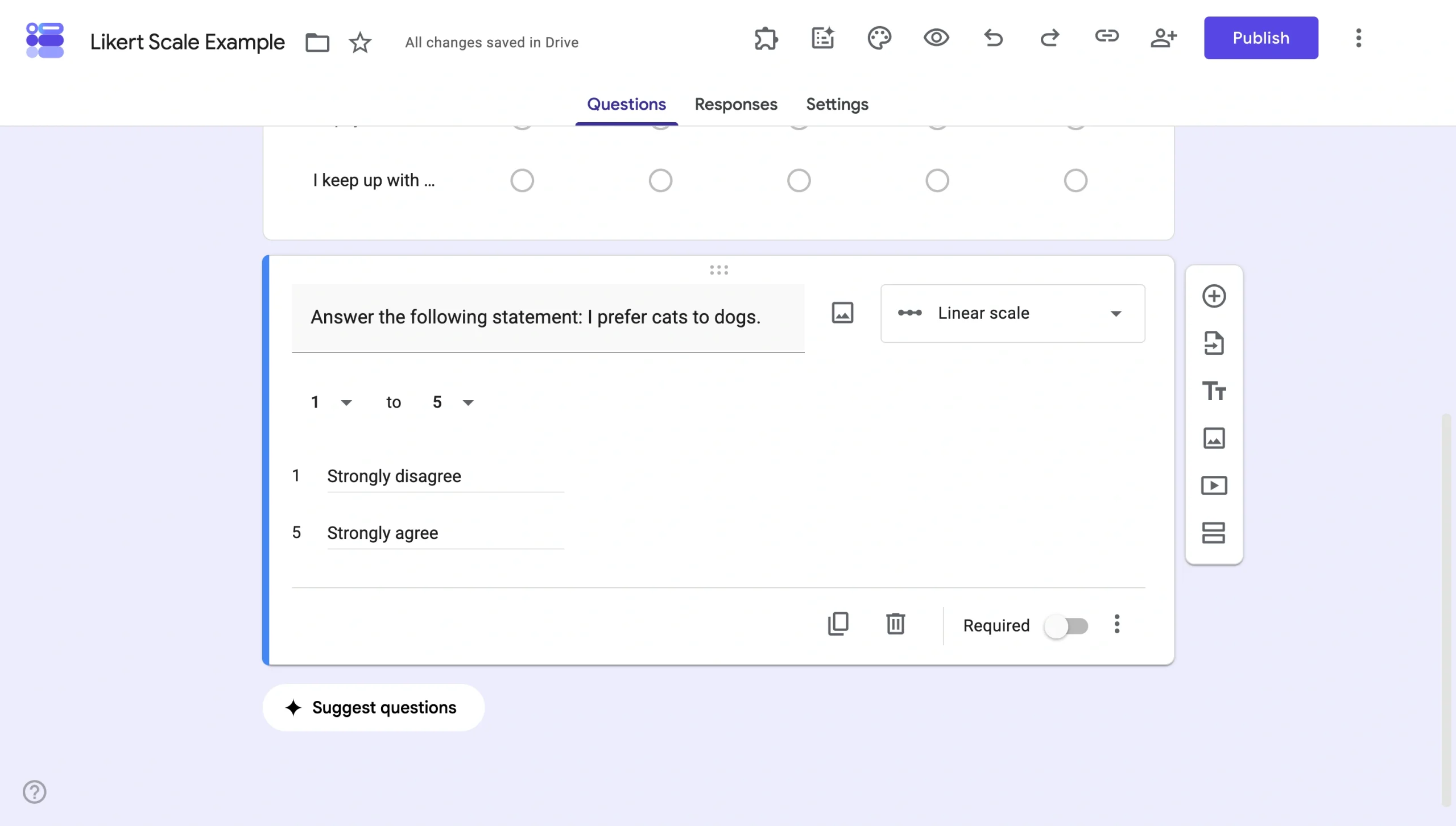
For Linear scale, type out your question, select the number of points you want to include in your scale (ranging from 0 to 10), and label the options. Note that Google Forms allows you to label only the first and last points for this question type, so respondents will have to infer the labels for any options in between.
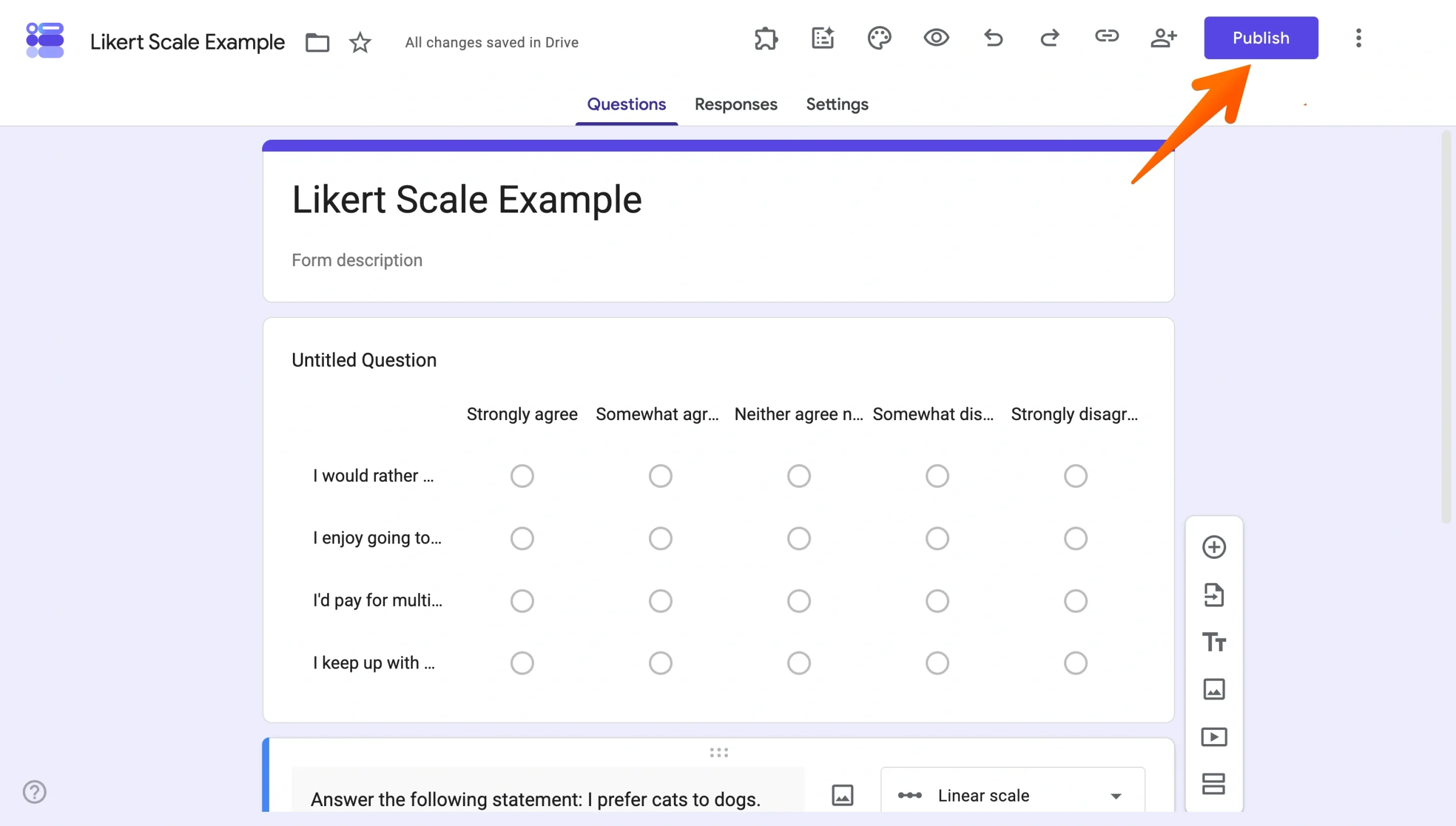
- Customize your form’s design and add any additional questions.
- Share your form by clicking the Publish button in the top right corner, then copy the link, input respondents’ email addresses, or get a code to embed it into a website.
Tips to create an effective Google Forms Likert scale questionnaire
To get the most out of your Likert scale questions, consider the following tips:
- Determine the most appropriate number of points to include on the scale. If you’re asking a question that doesn’t require a hyper-specific response — such as “How satisfied are you with this service?” — you can keep it simple and include just three points: satisfied, neutral, or dissatisfied.
If, however, you need a more precise answer and want respondents to pinpoint exactly how satisfied they are, you can include as many as nine points: completely satisfied, very satisfied, satisfied, slightly satisfied, neutral, slightly dissatisfied, dissatisfied, very dissatisfied, and completely dissatisfied.
- Include a neutral option. While not always necessary, consider allowing respondents to choose a neutral stance rather than forcing them to come down on a particular side of the scale even if that answer doesn’t fully represent their thoughts.
- Avoid double-barreled questions. For clear results and to avoid confusing respondents, stay away from questions that cover more than one topic. For example, “Do you find the new equipment quiet and easy to use?” is a double-barreled question, and respondents may have different responses to whether the equipment is quiet vs easy to use. Instead, break up the question into two separate questions: “Do you find the new equipment quiet?” and “Do you find the new equipment easy to use?”
- Choose your words carefully to avoid bias. Certain words have specific connotations. If you phrase questions in a way that paints one option in a more negative or positive light than the other, you may influence respondents.
For instance, asking “Do you support the city council’s wasteful budget?” instead of “Do you support the city council’s budget?” could encourage respondents to answer a certain way, regardless of how they actually feel about the city council’s budget allocations. Let respondents come to their own conclusions instead of implicitly telling them how they should respond.
Build your Likert scale with Jotform
Building a proper Likert scale in Google Forms often means wrestling with frustrating workarounds, leaving you with clunky multiple-choice grids or disjointed scales that format poorly on mobile.
Jotform skips all of that. Instead of repurposing a generic question type, Jotform gives you a scale rating element that’s ready to drop into your form and fully customizable to match your survey. Here’s how:
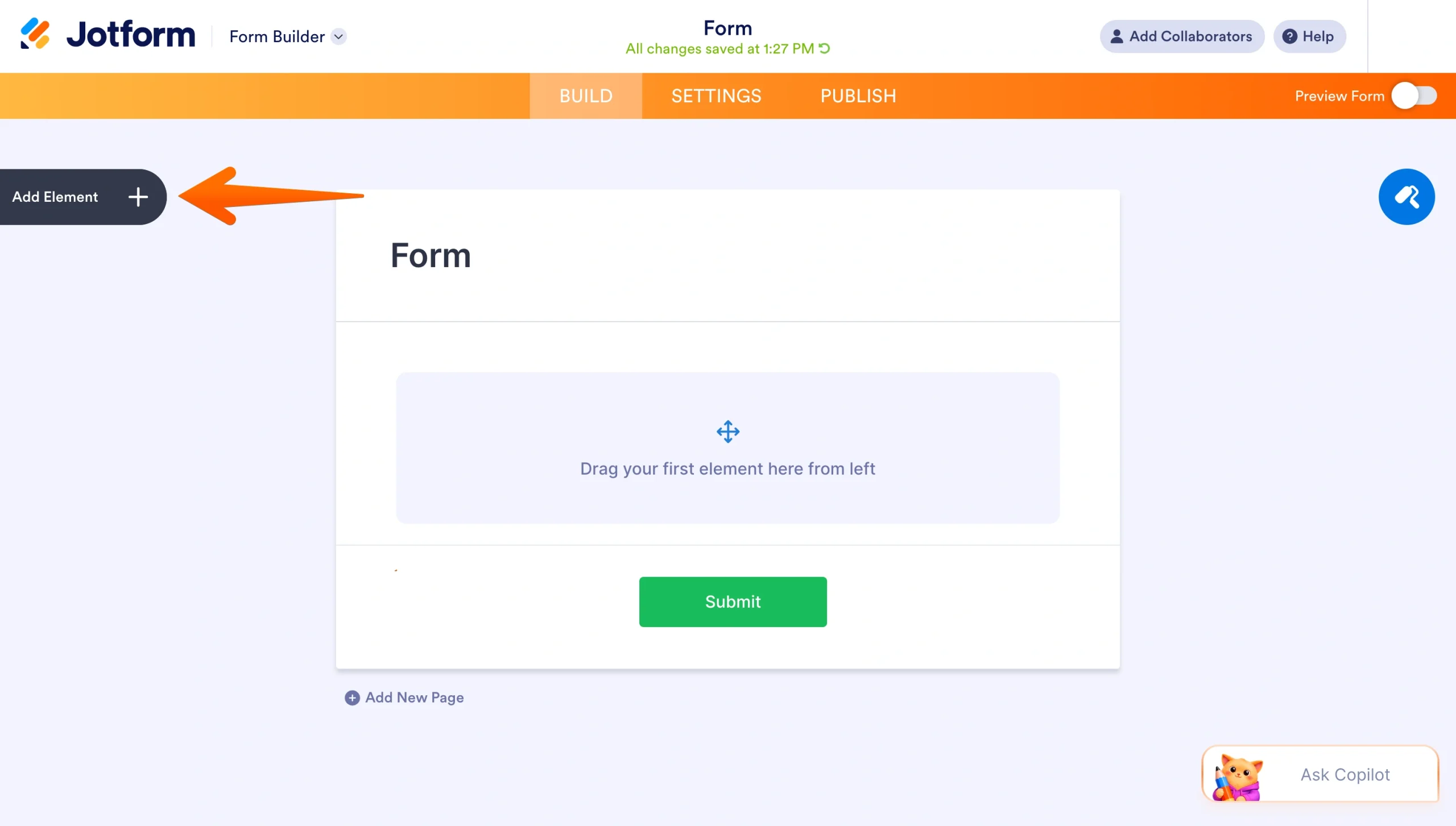
- In Form Builder, click on the Add Element button on the left side of the screen.
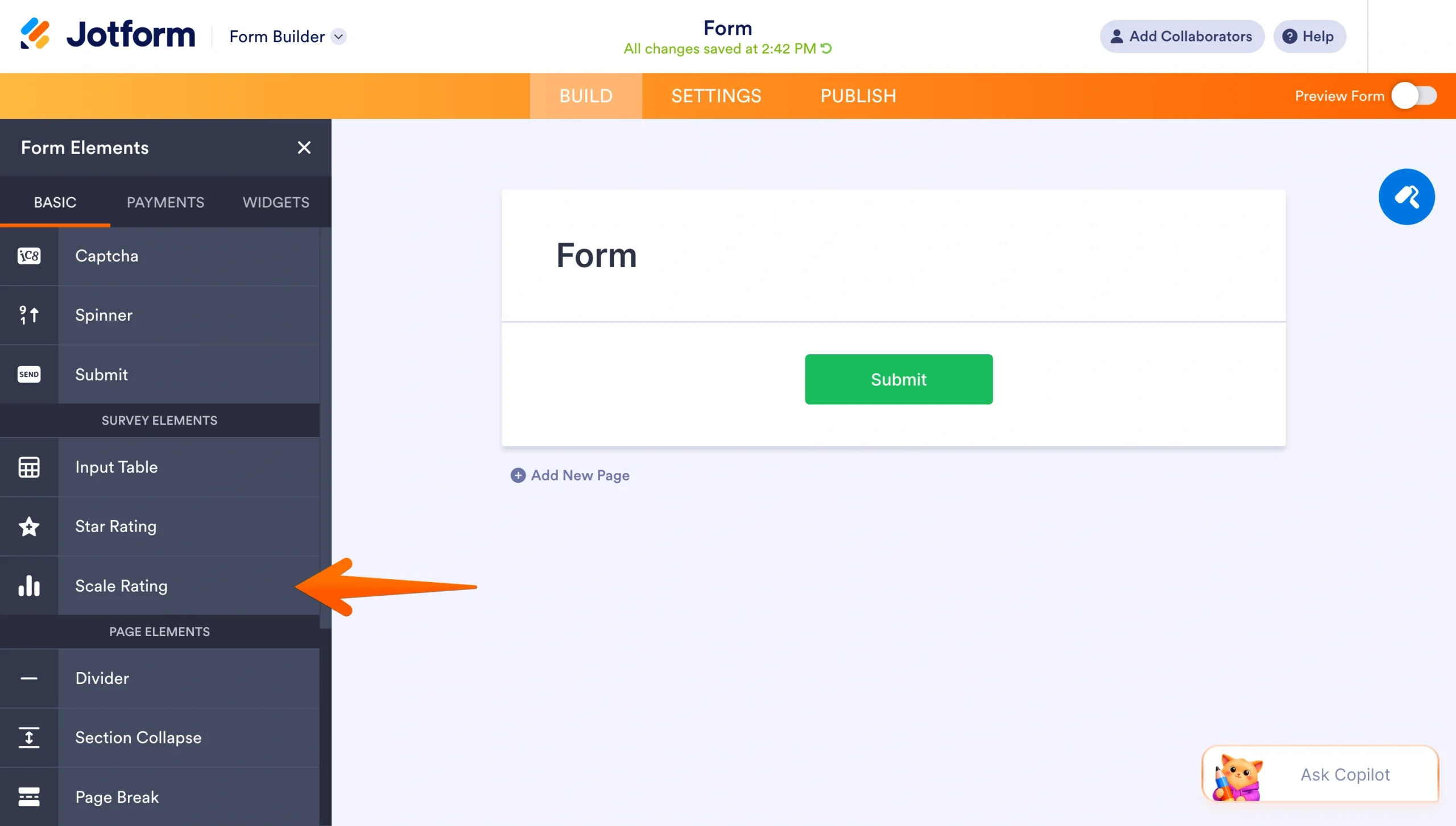
- Scroll down to Survey Elements and click Scale Rating, or drag and drop it onto your form.
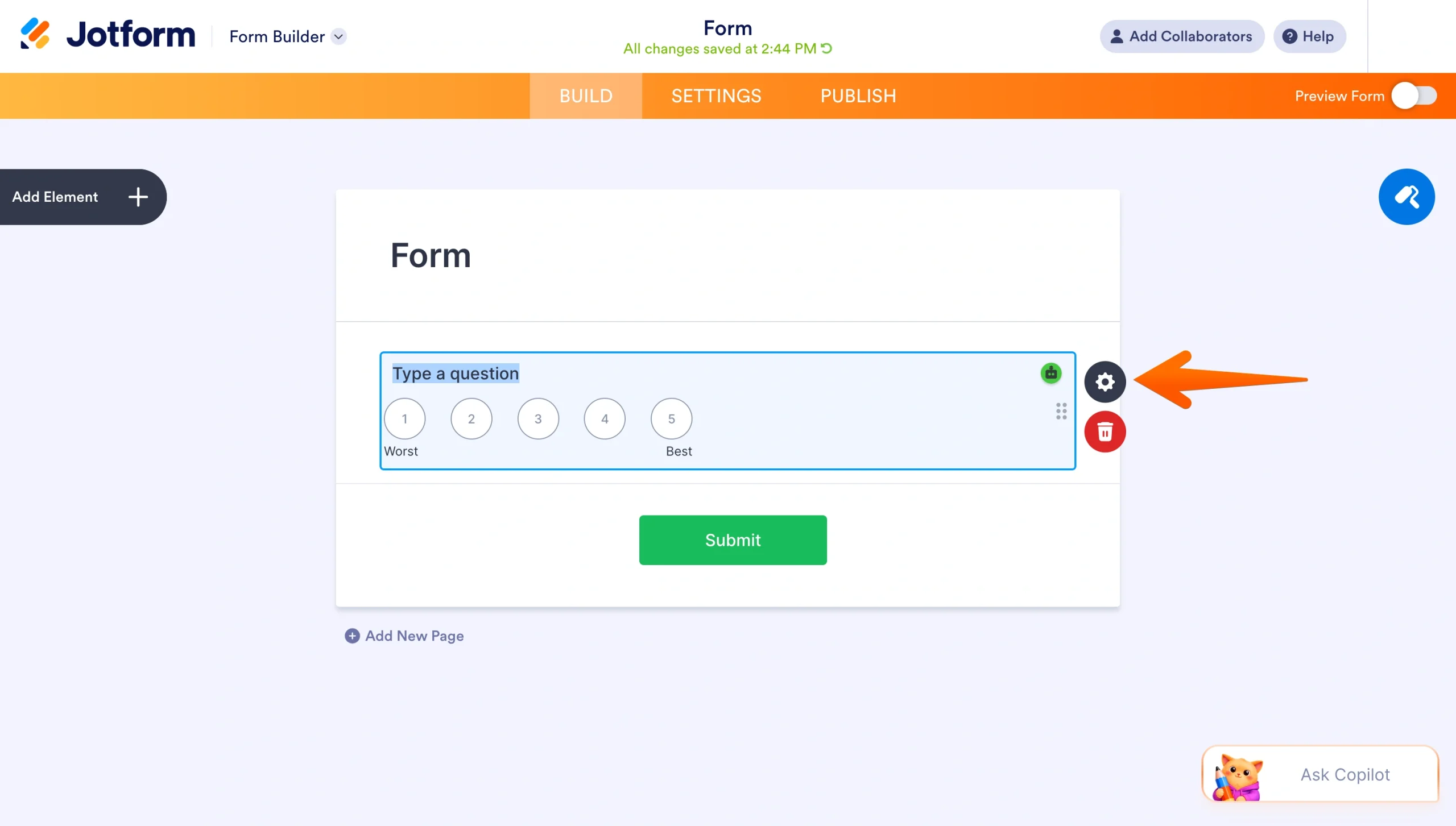
- Click the Gear icon on the right to open the Field Properties menu.
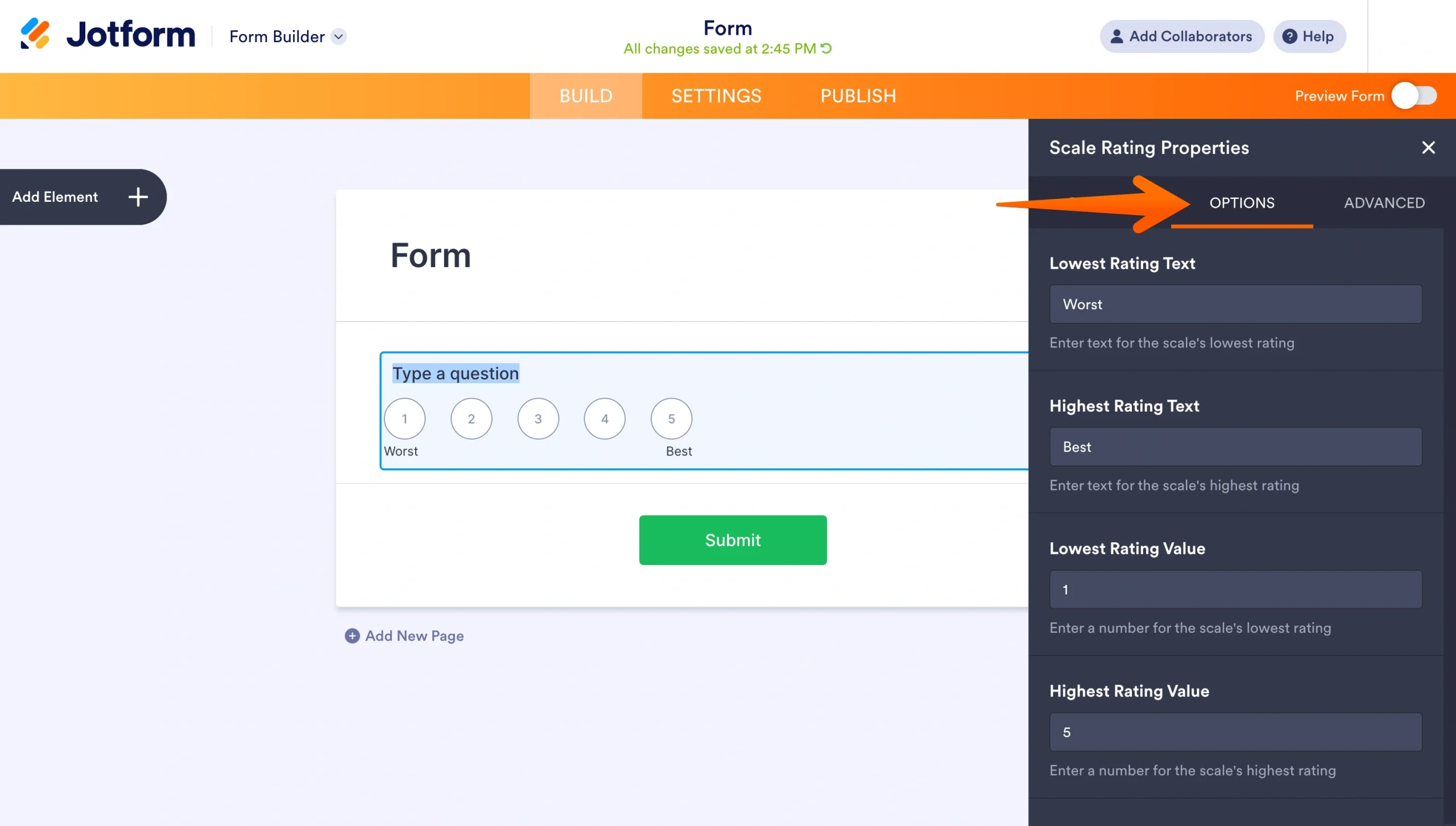
- Head to the Options tab to set your scale’s lowest and highest rating text and values.
Example: “Strongly Disagree” = 1, “Strongly Agree” = 5.
- Add or remove scale points, mark the field as required, or set conditional logic if you only want the question to appear based on an earlier answer.
- Preview your form, adjust the design to match your branding, then publish or embed it.
And that’s it, your Likert scale is ready to collect responses. From here, you can layer on everything else Jotform offers that Google Forms doesn’t:
- No login required to fill the forms: Respondents can fill and submit your form (and even upload files) without a Google account.
- Advanced form logic: Conditional logic, answer piping, multi-language support, and offline forms all built in.
- Payment collection: Accept one-time or recurring payments directly within your form via Stripe, PayPal, and more.
- E-signature collection: Collect e-signatures without a third-party tool.
- Workflow automation: Automate approvals, notifications, and follow-ups based on form responses.
- Mobile-optimized forms: Forms that look and work great on any device, without extra configuration.
- Smart PDF Forms: Convert any existing PDF into a fillable, submittable web form in seconds.
Migrate your Google Forms to Jotform in a single click
Already have a Likert scale survey in Google Forms? You don’t have to rebuild it from scratch. Jotform’s migration tool imports your existing Google Form, including all your questions and structure, in seconds.


Once it’s in Jotform, you can instantly upgrade your Likert scale with a purpose-built scale rating element and everything that comes with it. If you’re ready to put your Likert scale questions to work, build your survey with Jotform and start collecting more actionable feedback today.
This article is for educators, researchers, survey designers, HR teams, and anyone who wants to create clear Likert scale questions in Google Forms for collecting structured opinions and feedback.





























































































Send Comment: