

Whether you’re onboarding employees, intaking patients, scheduling appointments, or managing other data-driven workflows, Google Forms makes it easy to collect the information you need. However, gathering data is only the first step. You also need to make sense of the information. Google Forms has a basic reporting feature you can use to start your analysis. Here’s how to create Google Forms reports and share your findings with others.


How to generate a report using Google Forms
Google Forms reports give you a way to spot trends and anomalies in your data, draw conclusions from it, and share insights about it with other stakeholders. Using the reporting tool, you can generate an automatic summary of your data and sort the submitted responses by question and individual.
For analysis that goes beyond what this automated summary provides, you’ll have to export the data out of the tool.
A common solution is to import the data into Google Sheets, which has more powerful analysis features than Google Forms. Sheets also lets you create reports using Gemini, Google’s AI assistant. Gemini reduces the amount of manual work required, but you’ll still need to manually prompt Gemini to take specific actions. Note that Gemini is not available with all Google plans.
Here’s how to create a Google Forms report with the help of Gemini:
- Open your form in Google Forms.
- Click Responses at the top center of the screen.
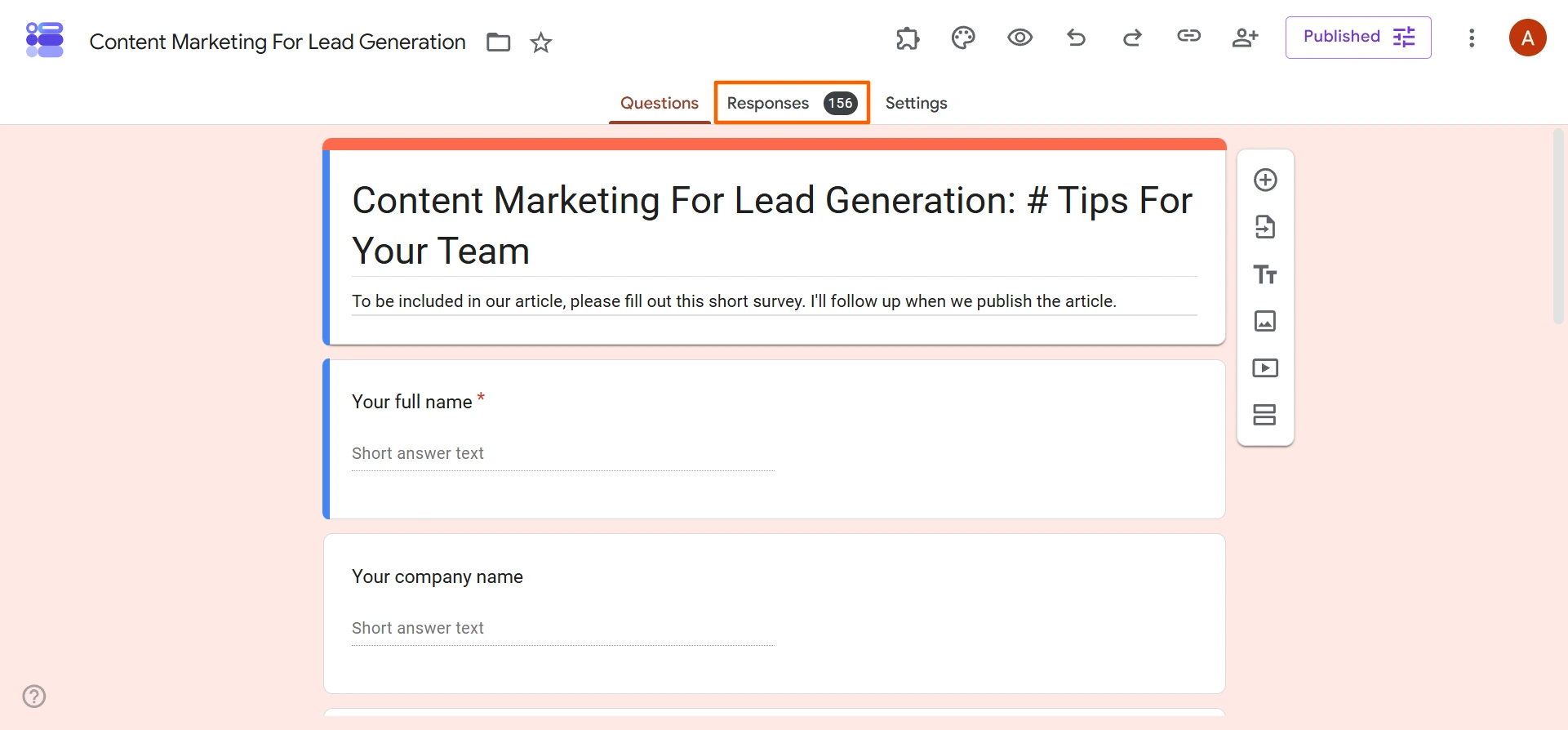
- Click Link to Google Sheets. You will be prompted to open a new or existing Sheet. Choose the option that works best for your needs.
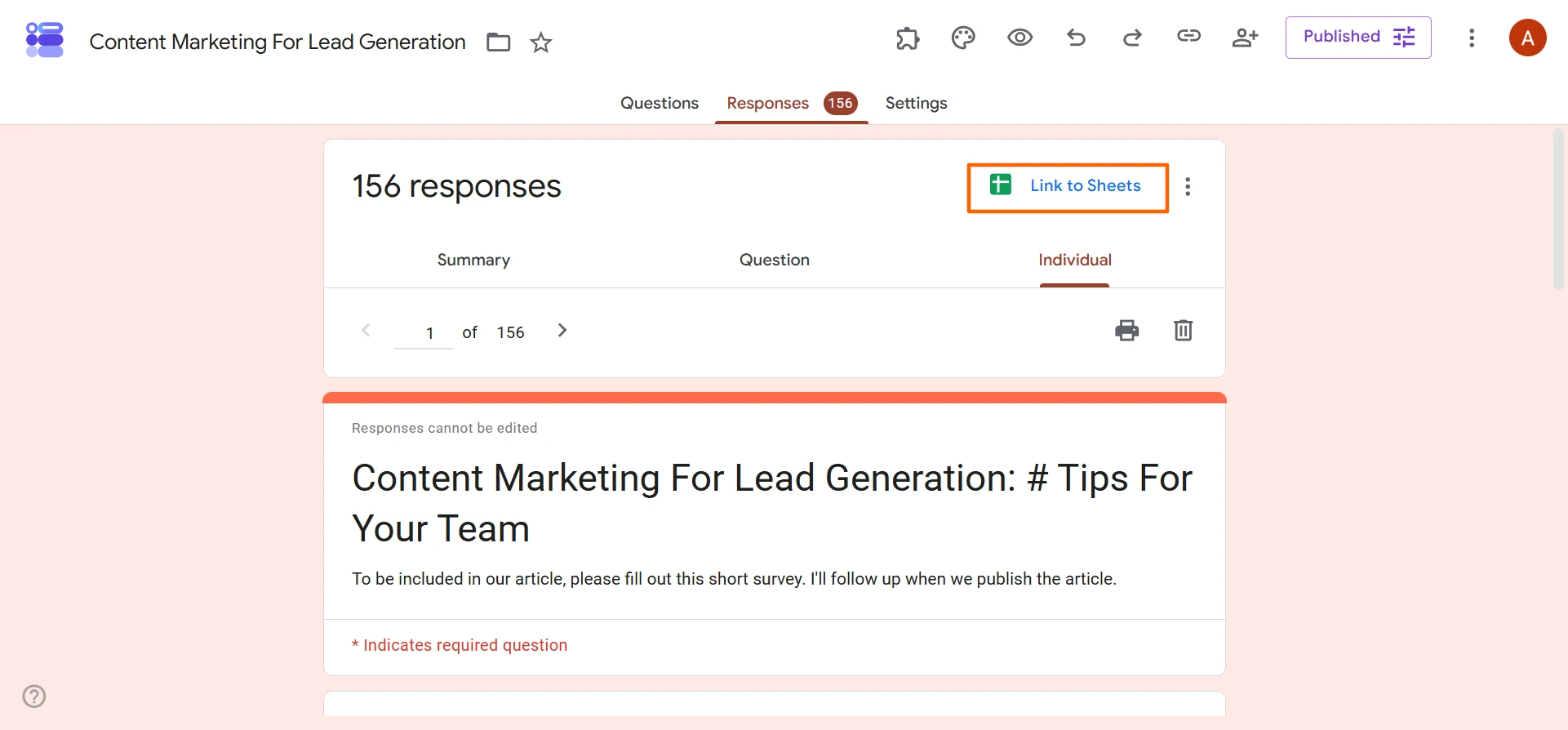
- Review the data in the Google Sheet and remove any data points you do not want included in the report.
- Click on the Gemini icon at the top right.
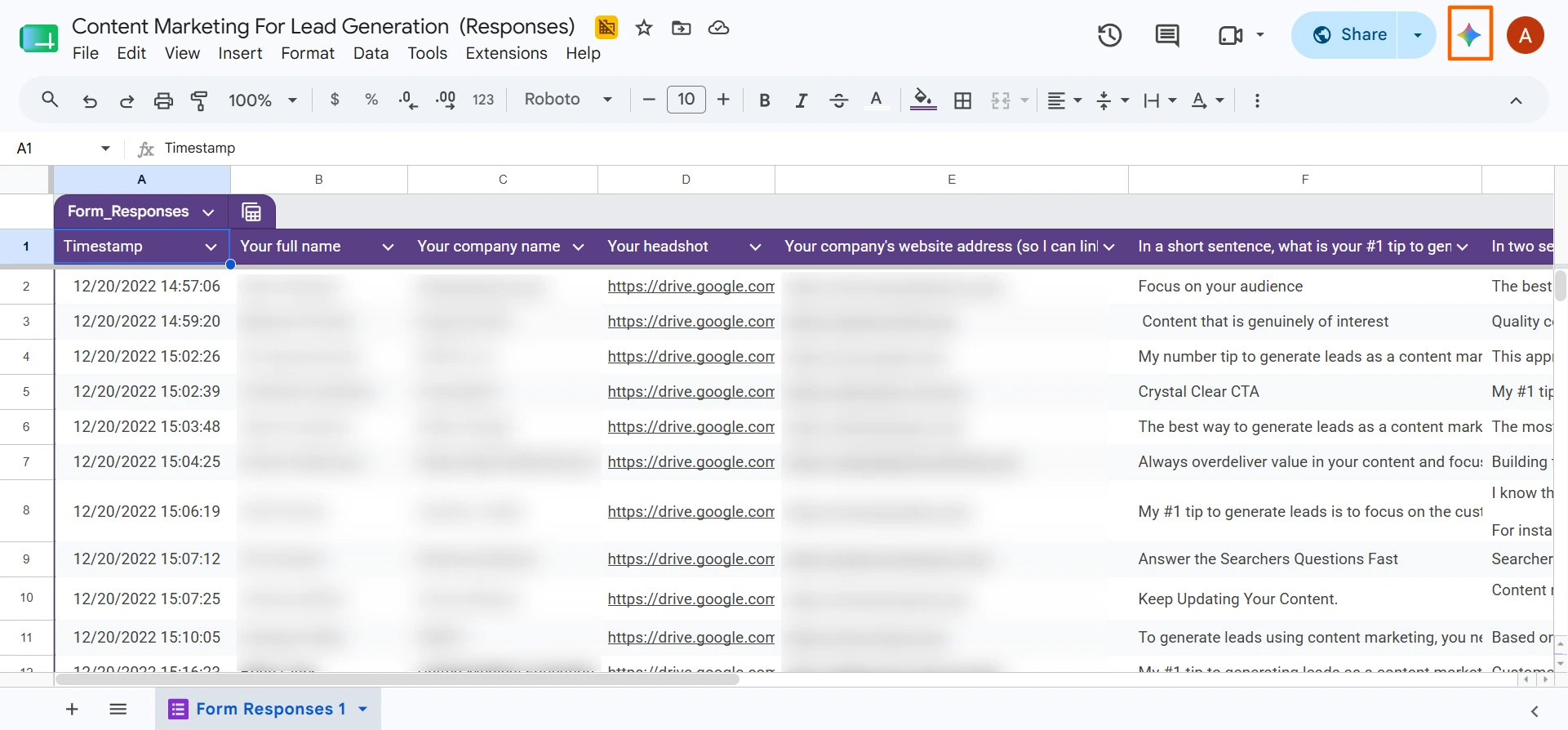
- Type the appropriate prompt into Gemini to learn more about your data. For example, you can ask Gemini questions like
- What are the key trends in this data?
- Are there any outliers or anomalies?
- What are some common threads?
Be specific about how you would like the information presented. You can ask it to generate summaries, create charts and graphs, identify formulas, and more. For example, “Create a pie chart showing 2026 sales by category.”
- You can use the responses Gemini provides as a report on its own, or copy and paste the responses into a separate document if you have insights to add.
Pro Tip
You can create reports in Google Sheets without using Gemini in cases where you want more granular control and greater transparency of the analysis.
To do so, you will need to add a new Sheet tab inside Google Sheets to summarize specific data fields. Then you can highlight the summarized data columns, click Insert, and click Chart to create custom charts and graphs of your data.
How to check form results in Google Forms
If you just need a quick look at the Google Forms responses you’ve gathered so far, there’s no need to export anything — you can easily check the data within the platform’s built-in Responses section. You might be gathering tips and strategies from subject matter experts, Google Forms feedback from customers, or improvement insights from employees. In any of those cases, you can view form responses easily by following these steps:
- Open your form in Google Forms.
- Click Responses at the top center of the screen.
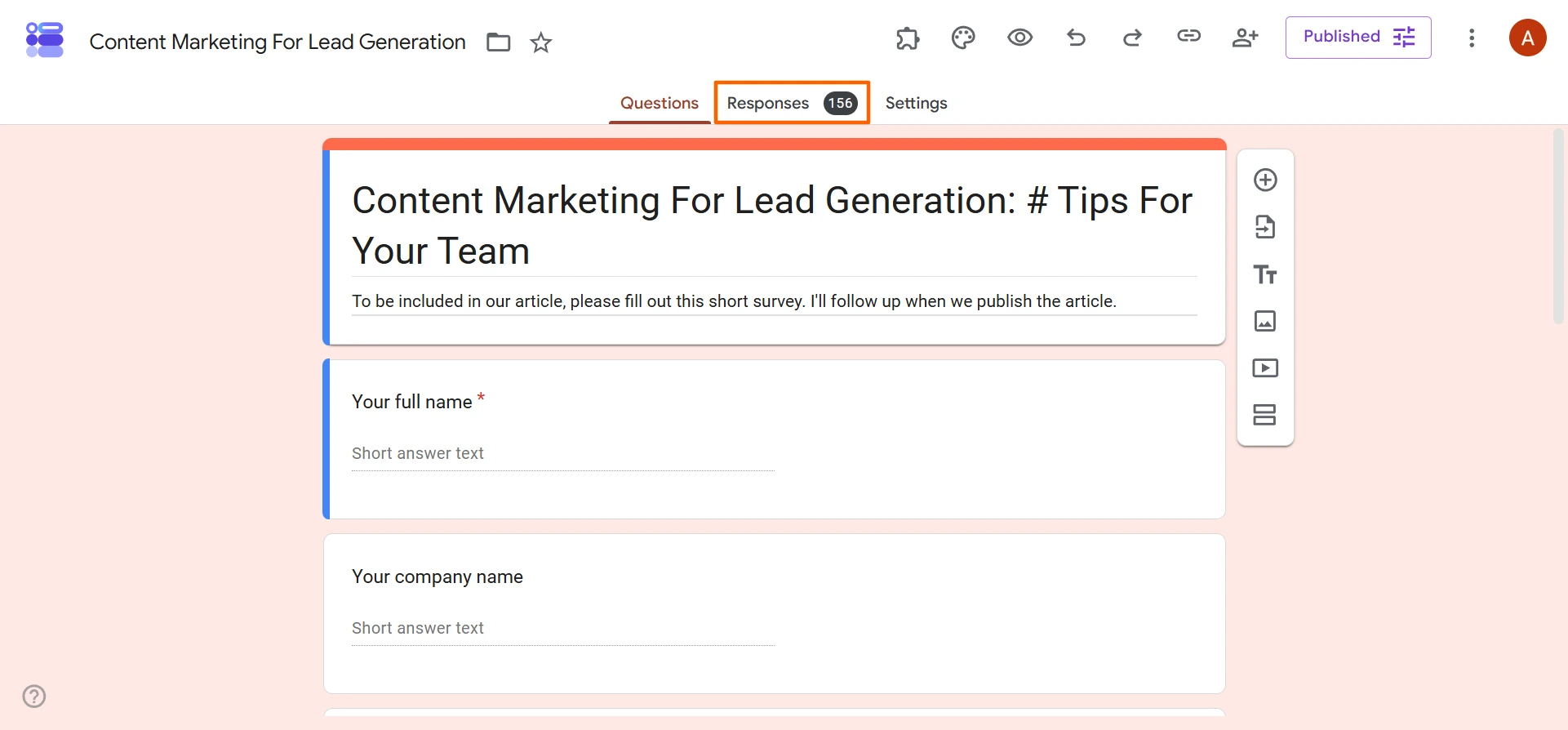
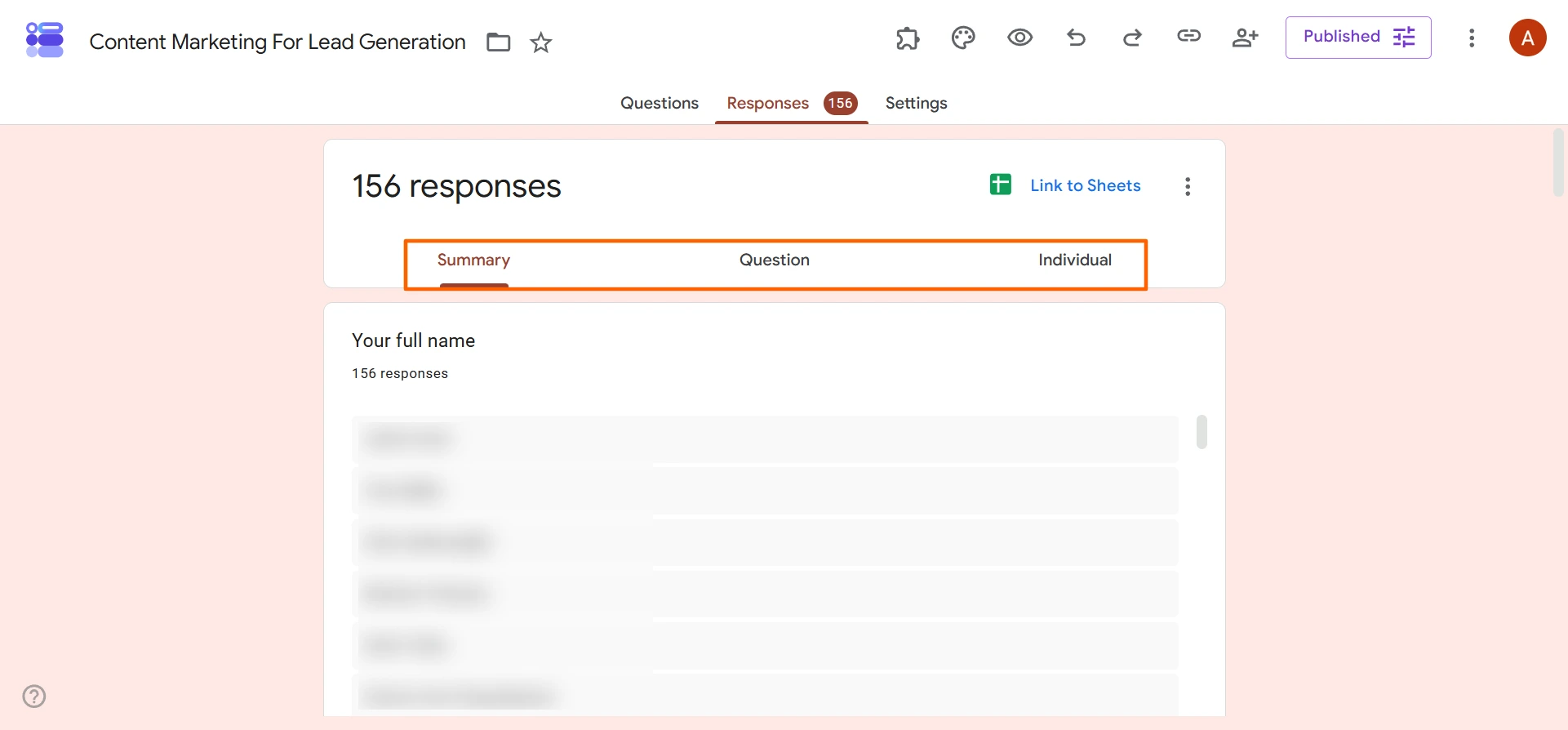
- Click Summary to view all the results. This section also displays simple charts for numerical survey results you can copy and paste into a report elsewhere.
- Click Question if you’d like to see all the responses for each question, by question. Use the dropdown to select the question you’d like to focus on.
- Click Individual if you’d like to view responses by person. Select Previous < or Next > to toggle between submissions.
Pro Tip
If you want to export your Google Forms responses in a CSV format so you can view the results in a BI tool or Microsoft Excel, download a CSV file. Simply select Responses, the vertical three dots, and then Download responses (.csv).
How to share form results with Google Forms
Being able to share collected data and feedback with colleagues facilitates analysis and collaboration, which is another reason Google Forms is a popular online survey tool.
Here’s how to share form responses with Google Forms:
- Open your form in Google Forms.
- Click Responses at the top center of the screen.
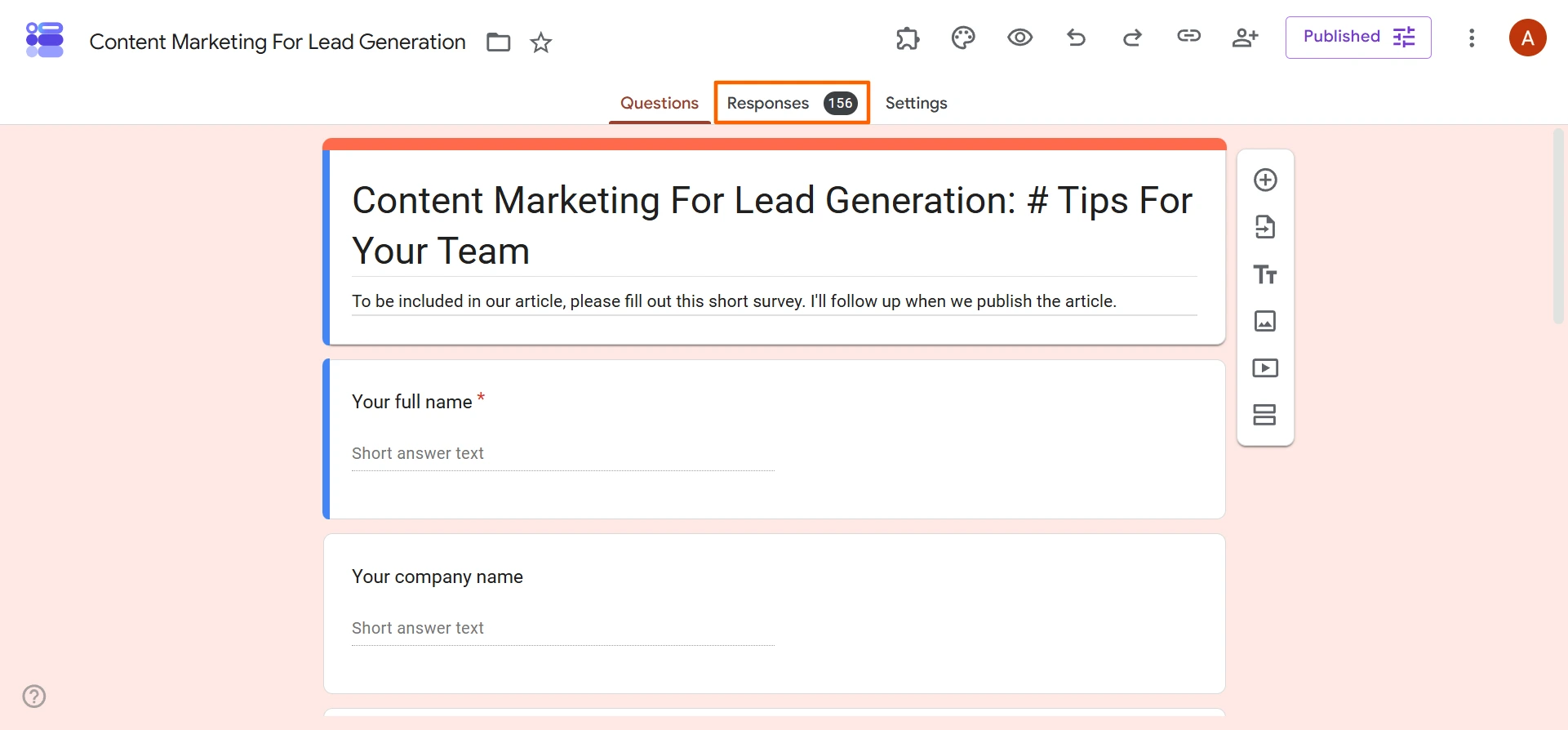
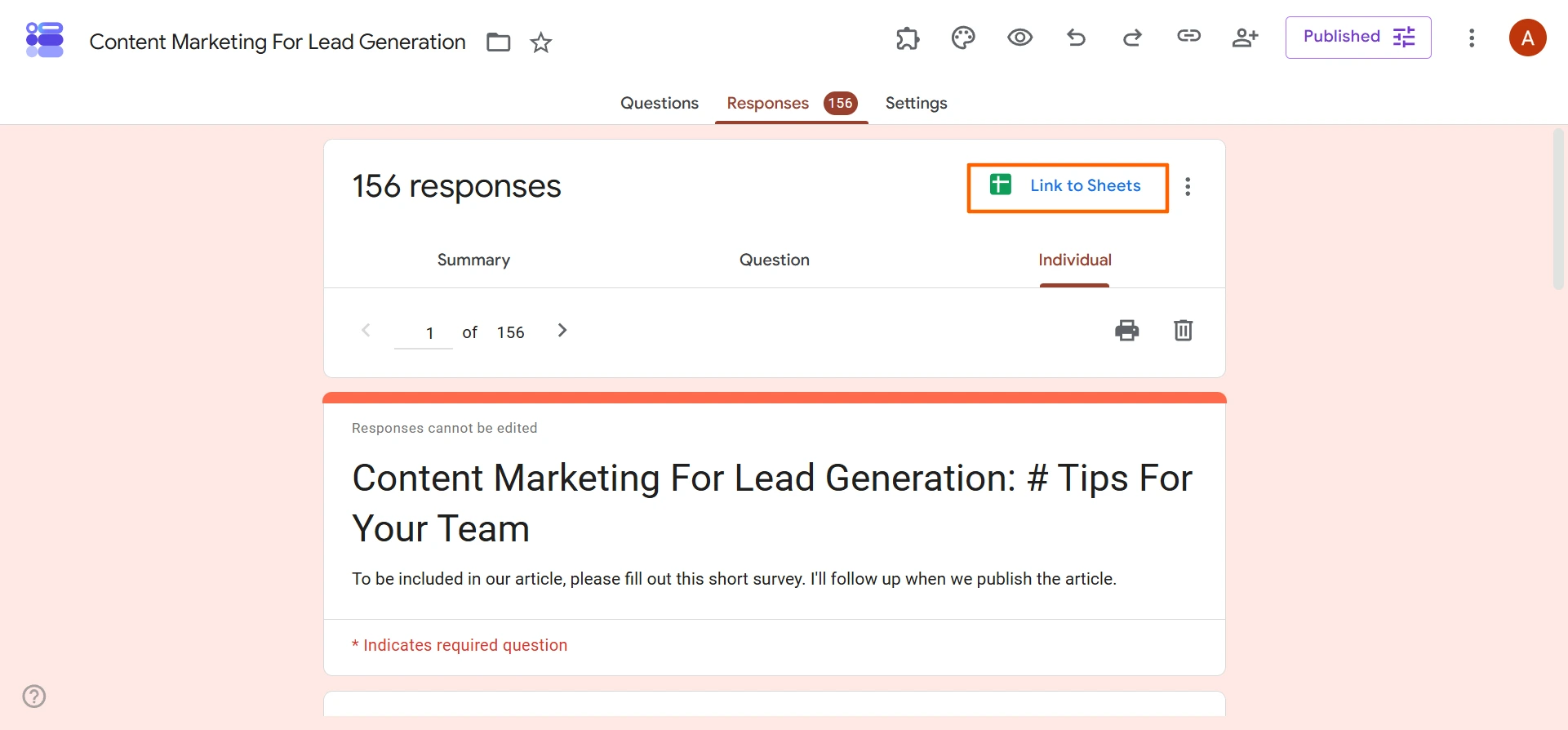
- Click Link to Sheets.
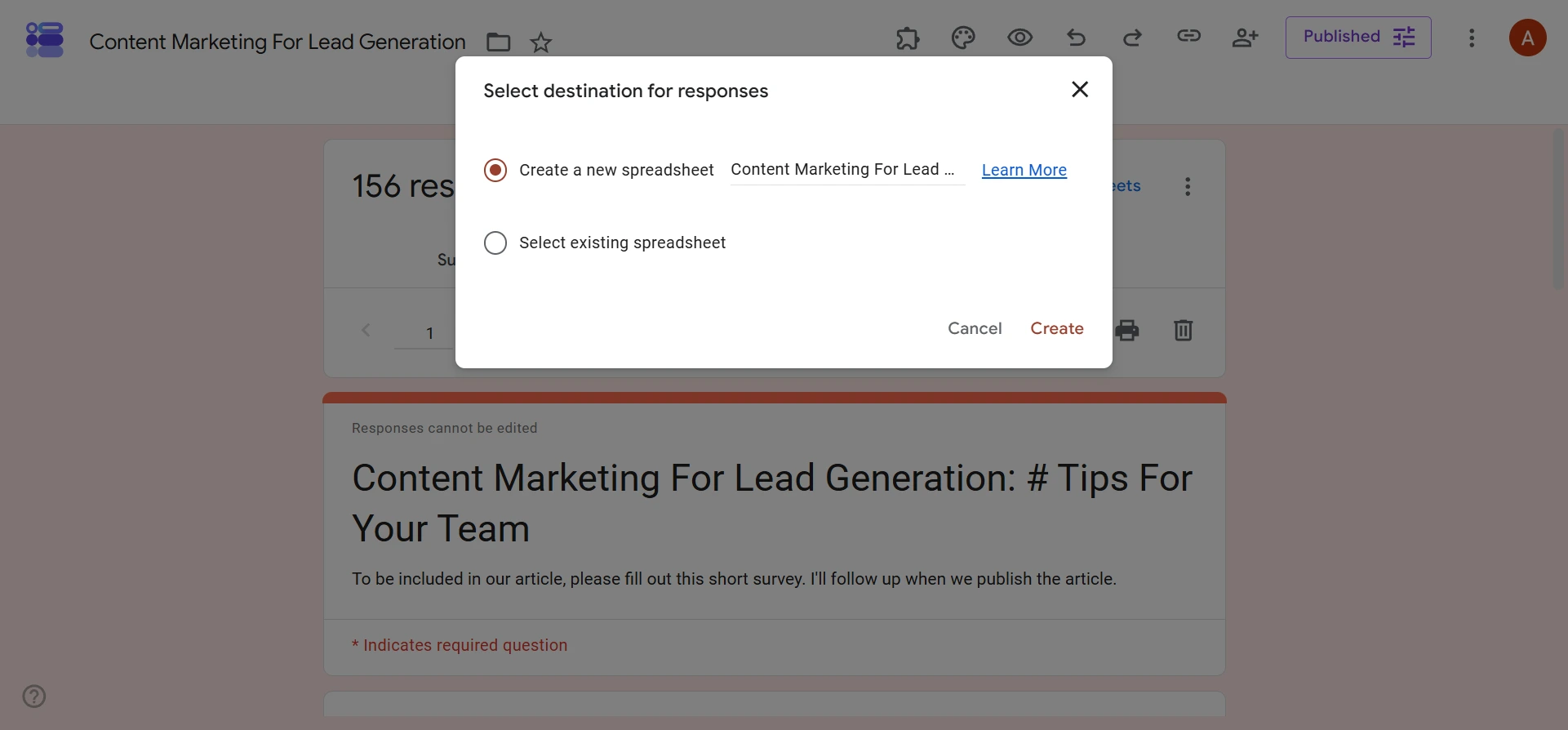
- Select Create a new spreadsheet. The form or survey you want to share should be listed there. Then click Create.
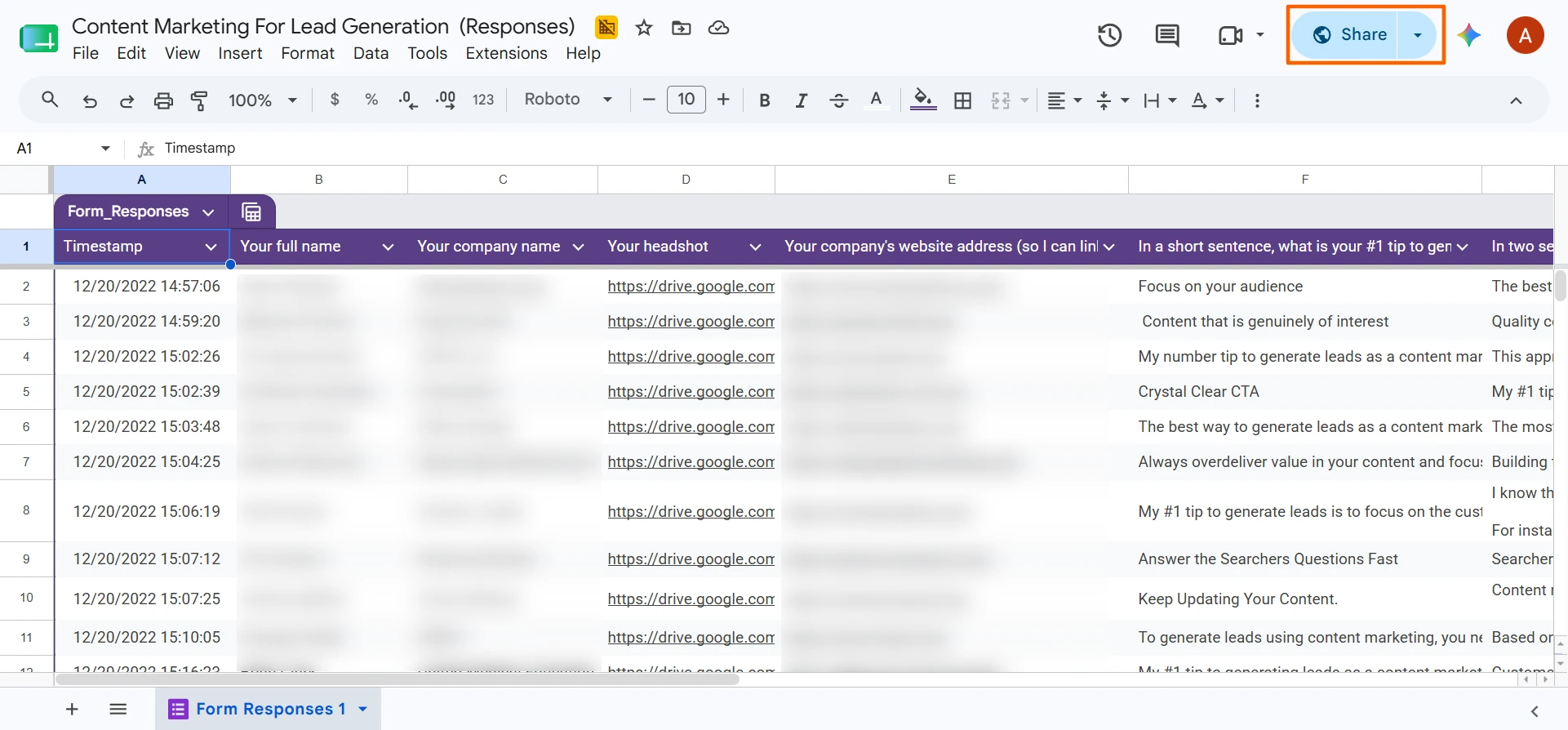
The new spreadsheet will open automatically.
- Click the Share button in the top right of your screen to add email addresses or copy the spreadsheet’s link to share your form another way — such as in a business messaging platform like Slack.
Pro Tip
When you need to turn form content or response insights into presentation-ready material, a Google Forms to Google Slides workflow lets you create slides without copying everything manually.
Why Jotform Report Builder is the ultimate upgrade
While Google Forms offers basic reporting information, any type of advanced analysis requires an export to Google Sheets.
If you’re hoping for a simpler process — one that involves a single tool and has equally powerful reporting capabilities — consider Jotform, a popular Google Forms alternative. It’s an online form builder with all the tools you need to create and personalize stunning, polished forms and surveys for collecting data. Jotform offers a library of 20,000-plus customizable form templates and integrates with more than 100 popular third-party apps. Plus, it delivers code-free, drag-and-drop functionality to make form-building and data collection easy and efficient.
Most importantly, with Jotform’s Report Builder, you can convert those submitted responses into insightful, visually appealing reports in minutes. Using Jotform Report Builder, you can
- Optimize your presentation’s design using a variety of report design options, including different chart types, colors, icons, and shapes
- Embed live reports directly into your website
- Instantly share your reports with colleagues and clients to improve workflows
- Save your reports as PDFs to print and share in meetings
In addition, Jotform comes with Jotform AI, an AI assistant that builds insightful reports and identifies key information in your data. Jotform AI can also build your data collection forms in Jotform, minimizing manual work from the start.

Ultimately, Google Forms and Jotform Report Builder let users convert form responses into professional, data-driven reports, but one requires a data export while the other provides built-in reporting features and advanced AI tools. Which sounds easier to you?
Explore what Jotform has to offer! It’s free to get started, so you can create your first form and analyze the responses with sophisticated tools right away.
This article is for marketers, educators, healthcare teams, and business professionals who use Google Forms and want to create, analyze, share, and present reports from collected response data more effectively.

































































































Send Comment: