Jotform makes it easy to capture important user analytics directly from your form with the Get Referrer Widget. You can simply drag and drop it onto your form, and it will automatically collect referral URLs whenever someone submits a response, helping you understand where your traffic is coming from for online stores, campaigns, or surveys.
Here are a few ways to use it:
- Gain clearer insights into which links or platforms drive the most responses
- Track where your form submissions are coming from
- Monitor product sales, campaign performance, and survey traffic
- Automatically collect referral URLs from users who fill out your form
Adding the Get Referrer Widget
Whether you’re creating a new form or updating an existing one, you can add and set up the Get Referrer widget in a few easy steps. Here’s how to do it:
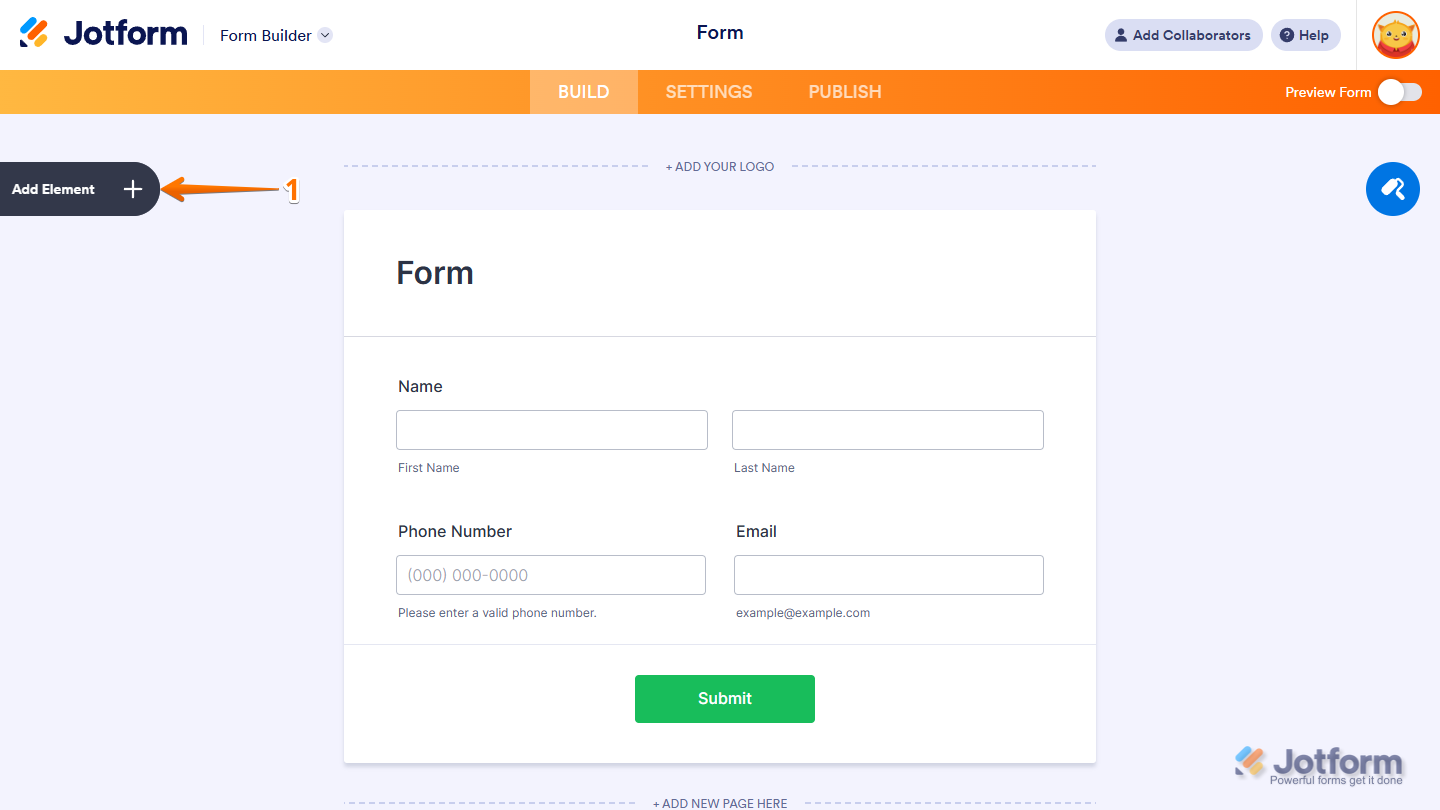
- In Form Builder, click on Add Element on the left side of the page.
- Now, in the Form Elements menu, under the Widgets tab, search for Get Referrer and click on it to add it to your form, and you’re all set.
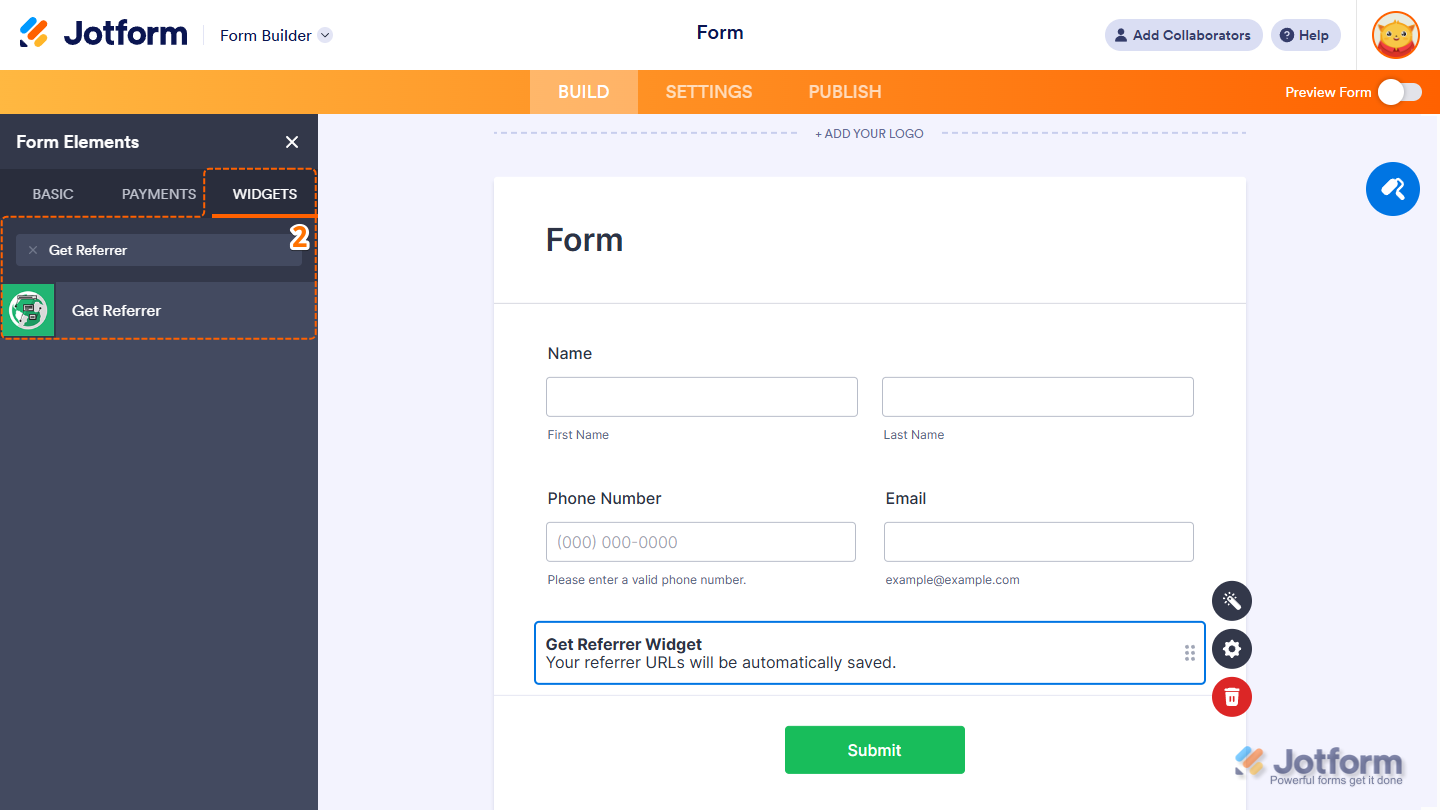
Once you add the widget, it’s automatically saved and ready to capture the referring web address. You’ll be able to view this info right in your Submissions Table. Our guide on How to View Forms Submissions has more details about that. You can also take a look at this demo form to see how it works in action.
Usage Considerations
Sometimes, the Get Referrer widget might not show the full referrer details when someone fills out your form. That’s because it depends on the webpage’s header to pull this info—and in some cases, headers are blocked or limited due to privacy settings. Some browsers or servers with strict privacy rules can prevent the widget from getting that information, which may lead to missing or incomplete data.
To help the widget capture referrer information more accurately, you can add this script to the <head> section of the page where your form is embedded:
<script src="<a href="https://app-widgets.jotform.io/scripts/getUrlReferrer.js">
    https://app-widgets.jotform.io/scripts/getUrlReferrer.js
</a>"></script>
Another option is to use tools like Google Tag Manager, Google Analytics, or other tracking platforms that offer more consistent data about referrers and traffic. Want to capture the exact page where your form is embedded? Check out our guide on Capture the Page URL where the Form is Embedded.



Send Comment:
2 Comments:
August 22, 2023
Same issue, how can this display the full URL not just the root domain?
May 25, 2023
how can I get the full url here, so including url parameters? thanks