Jotform makes it easy to run calculations inside an Input Table using Conditional Logic. With this setup, you can total values, score responses, or generate results based on user input, then display the output directly in the table. This approach keeps everything organized in one place and eliminates manual calculations, helping you collect cleaner data and work faster.
To perform calculations inside an Input Table, you’ll need to use the Update/Calculate Field condition. This is the only conditional logic type that supports math operations, so other condition types like Show/Hide or Enable/Require won’t work for calculations.
Adding and Setting Up the Input Table
Before applying any calculation logic, you’ll first need to add an Input Table to your form. This field will be used to capture the student’s Quiz, Midterm, and Final scores, which will later be processed to compute the average grade for each subject. This is how it’s done:
- In Form Builder, click on Add Element on the left side of the page.

- Then, in the Form Elements menu that opens, under the Basic tab, scroll down to the Survey Elements section and click on the Input Table. Or, just drag and drop it to where you want it to be on your form.

- Next, click on the Gear icon of the Input Table you’ve just added.
- Then, under the Fields tab, in the Input Type section, select the Numeric Text Box.
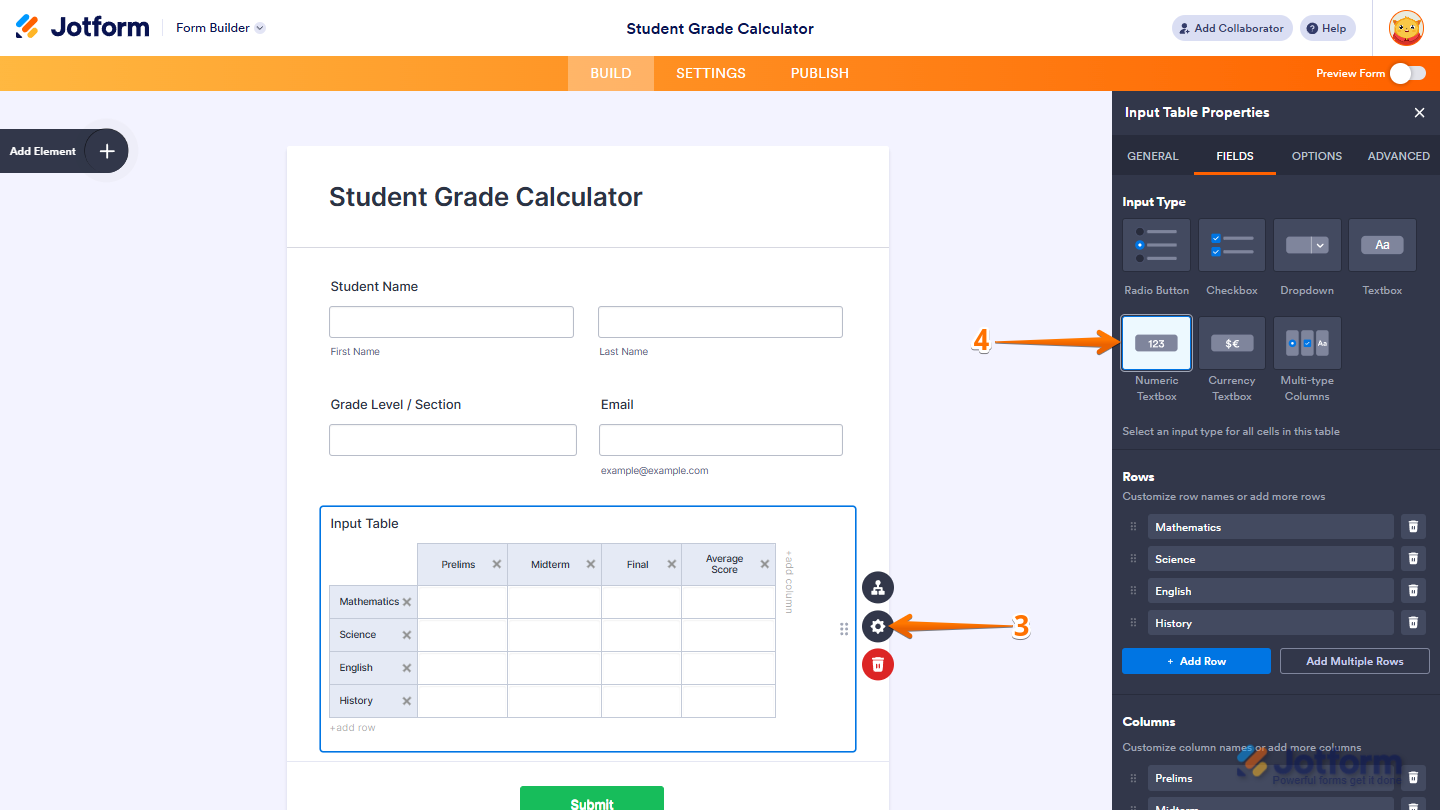
- Now, scroll down and set up the Rows and Columns based on the information you want to collect, and you’re done.
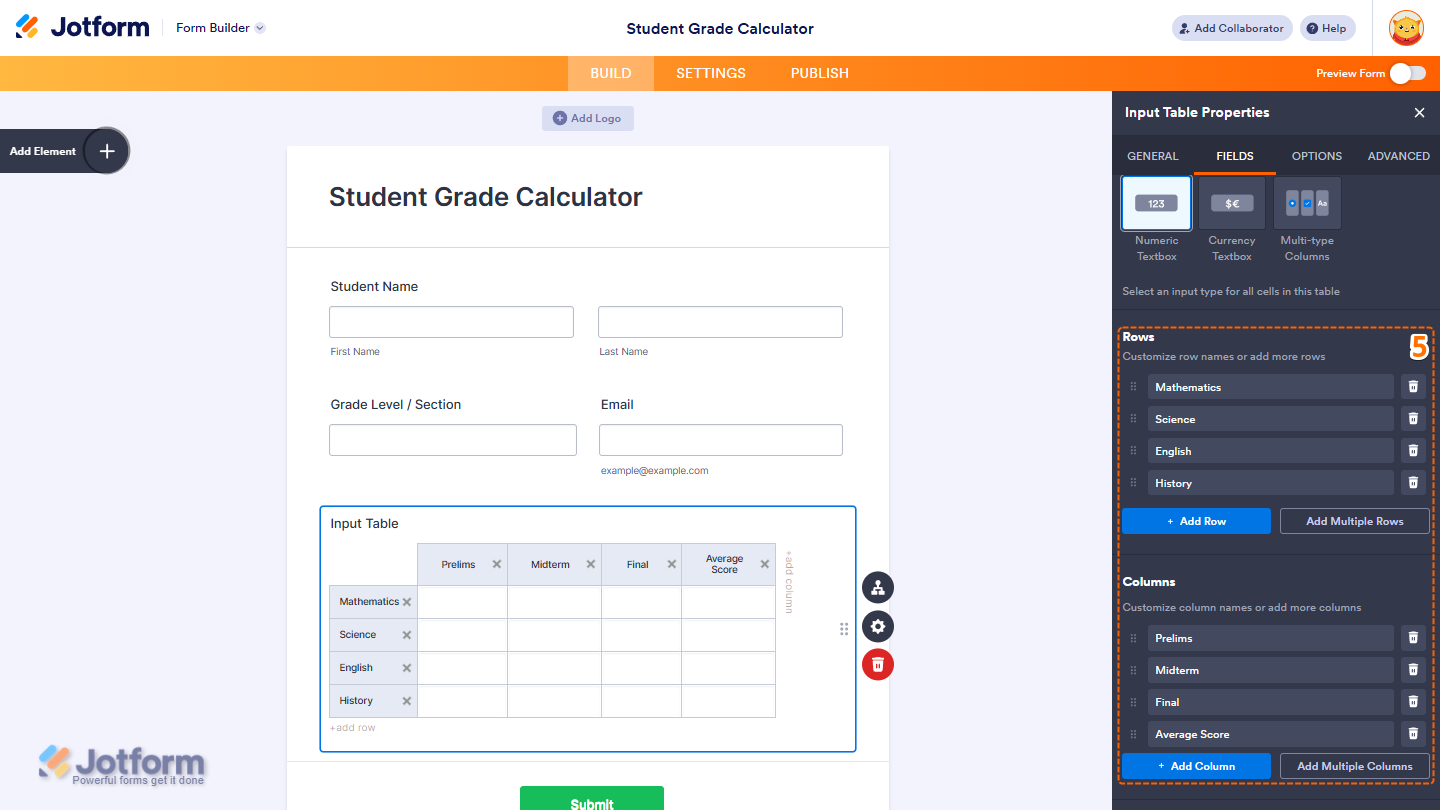
For this example, Rows represent Subjects and Columns represent Quiz, Midterm, Final, and Average scores.
Setting Up Conditional Logic to Calculate Values
Now that your Input Table is ready, the next step is to apply Conditional Logic to compute the values. As mentioned earlier, calculations in Jotform are handled through the Update/Calculate Field condition—this is the only condition type capable of performing math in forms. Here’s how:
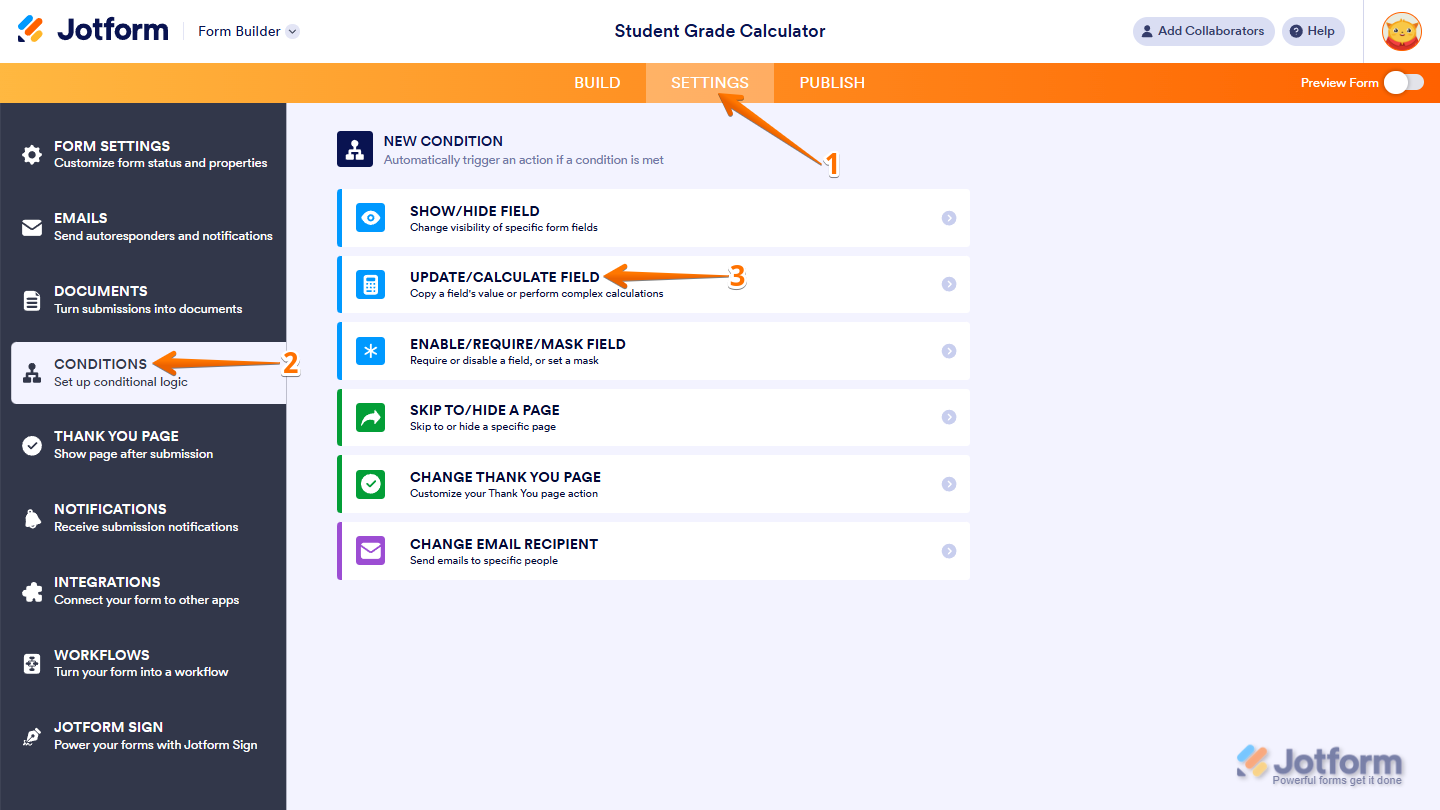
- In Form Builder, in the orange navigation bar at the top of the page, click on Settings.
- Then, in the menu on the left side of the page, click on Conditions.
- Next, in the New Condition list, click on the Update/Calculate field.
- Now, set up the condition like this:
- IF Input Table
- State is Filled
- DO Calculate Field Value
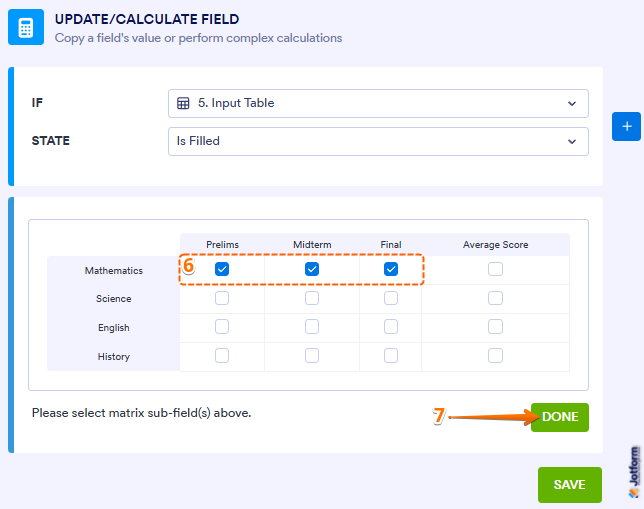
- Next, in the Formula Keypad section on the right side of the window, click on the Add Field button and select Input Table field from the list of fields.

- Then, put a check in the box for the columns and rows that you want to calculate. For example, we’re going to get the Prelims, Midterm, Final of the Mathematics Average Score.
- Now, click on Done.
- Next, set up your formula like this to get the average score of the Mathematic from Prelims, Midterm and Finals to the Average Score Column.
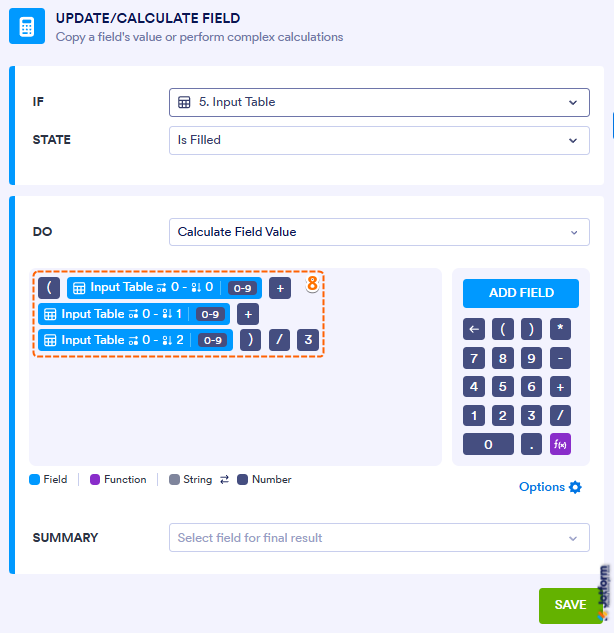
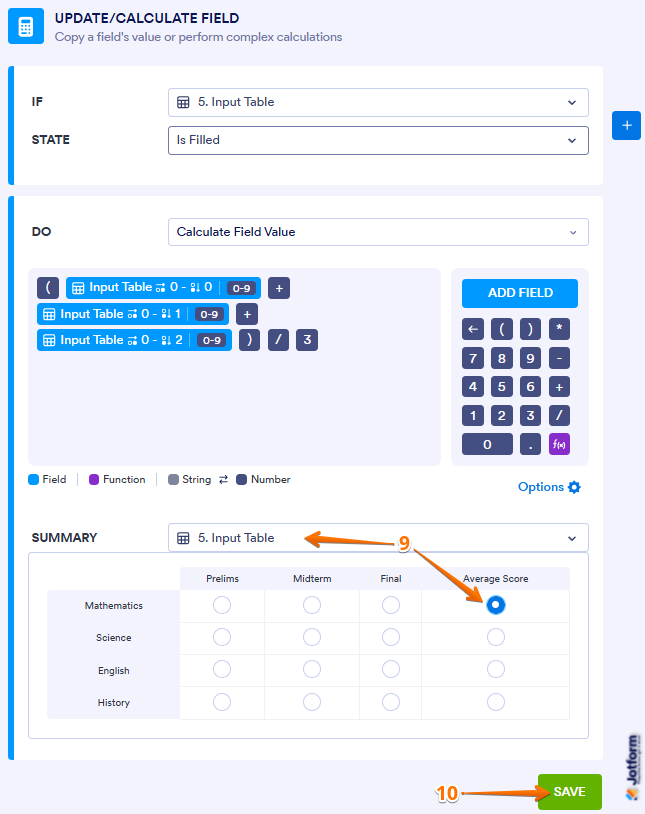
- Then, in the Summary dropdown, select the Input Table field and click on Average Score in the Mathematics row so that the total will be computed or calculated here.
- Finally, click on Save.
Note
The calculation logic applies per row, so you’ll need to create a separate Update/Calculate Field condition for each subject in your Input Table. Repeat the same set up for the other, adjusting the target row in the Summary section accordingly.
You’re all set. Curious how it works on a live form? Check out this demo. If you also want to perform calculations in an Input Table that uses checkboxes or radio buttons. Our guide on How to Perform Calculations with Input Table has more details about that.



Send Comment:
5 Comments:
October 23, 2024
Hi guys, is there a way I can use this function to calculate a date change?
What I'm trying to achieve is for my customers to submit a start date, then for that date to automatically pre-fill an end date field 7 days later. The reason I need the date field is the form automatically goes to a table with a calendar view that displays the events start and end date, however I'm moving to having a fixed end date of 7 days later.
My other option is to limit an end date input field to 7 days or less later than the start date, if that is possible but I couldn't find a way to do it.
April 18, 2023
Help
How do I add calculation values to each option in a dropdown box in an 'Input Table' like you do for a standard dropdown form element.
Standard Dropdown box you enter options ie - Car, Lorry, Bus
then you add the calculation value ie Car £5, Lorry £10, Bus £20
I do not see this facility in the Input Table settings
October 25, 2022
Good day, I would like to sum the total column. The value is displayed in form builder, however when the form is displayed in tables the total is not shown. Is there a way to resolve this issue?
December 23, 2021
Yes, please how can you autofill for all rows?
Response would be highly appreciated.
September 30, 2021
How can you do this for all rows automatically instead of a condition statement per row?