If you’ve embedded your form on multiple web pages, it’s useful to know exactly where each submission is coming from. The Get Form Page URL widget makes this simple by automatically capturing the page URL where the form was submitted—no coding required. This way, you can easily track which pages are performing best and get clearer insights into your submissions.
Pro Tip
Use the Get Referrer widget to track the page that referred a user to your form. This is perfect if you want to see exactly where your visitors are coming from before they submit your form. For a step-by-step guide, check out How to Capture Referrer URL.
Capturing the Page URL Where the Form Is Embedded
It’s simple to see exactly where your form submissions are coming from. With just a few quick steps, you can track which page each response was submitted on and get clearer insights into how your form is being used. Here’s how to get started:
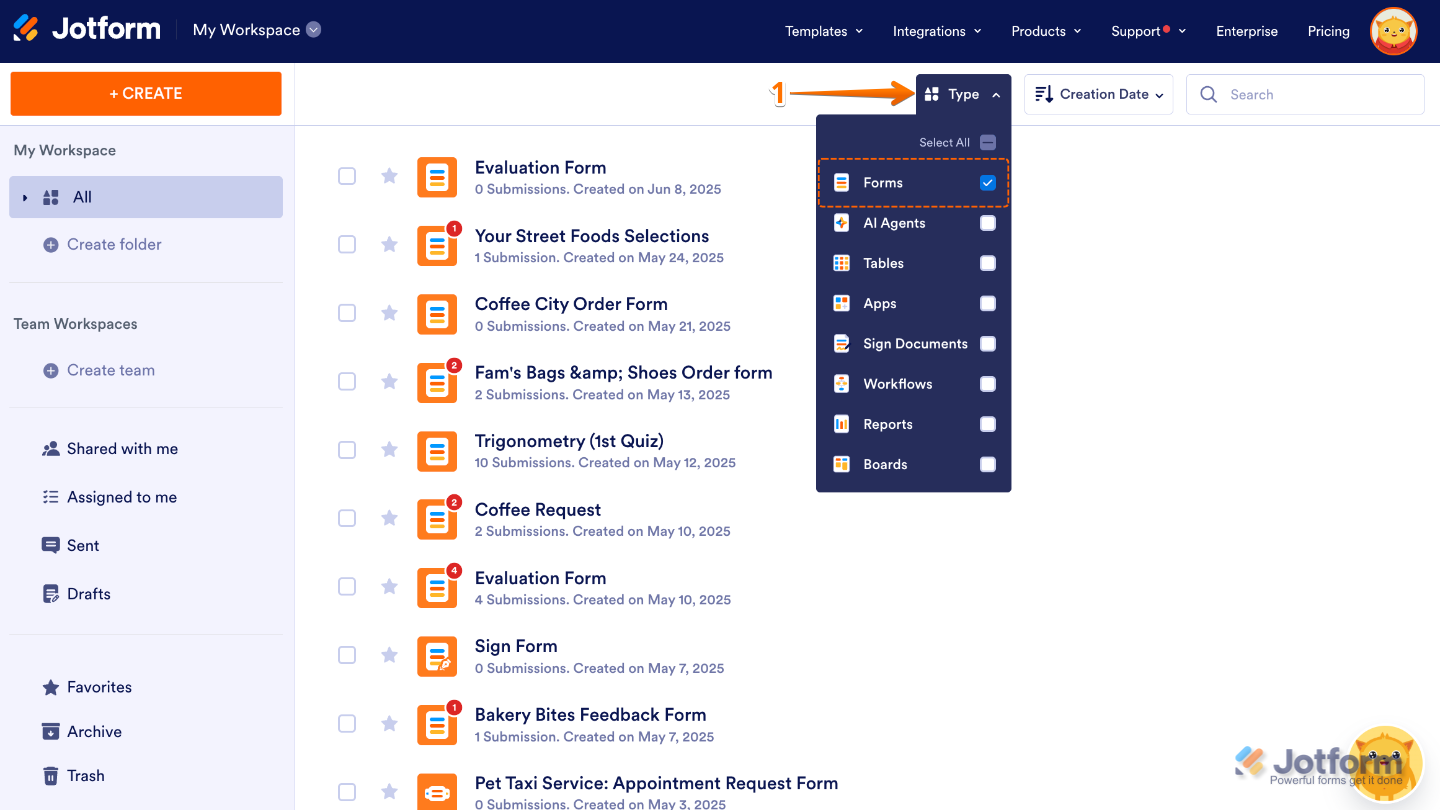
- On your Workspace page, click on Type at the top, and in the Dropdown menu that opens, uncheck the boxes next to all the assets except Forms, so only they’ll be shown on the page.
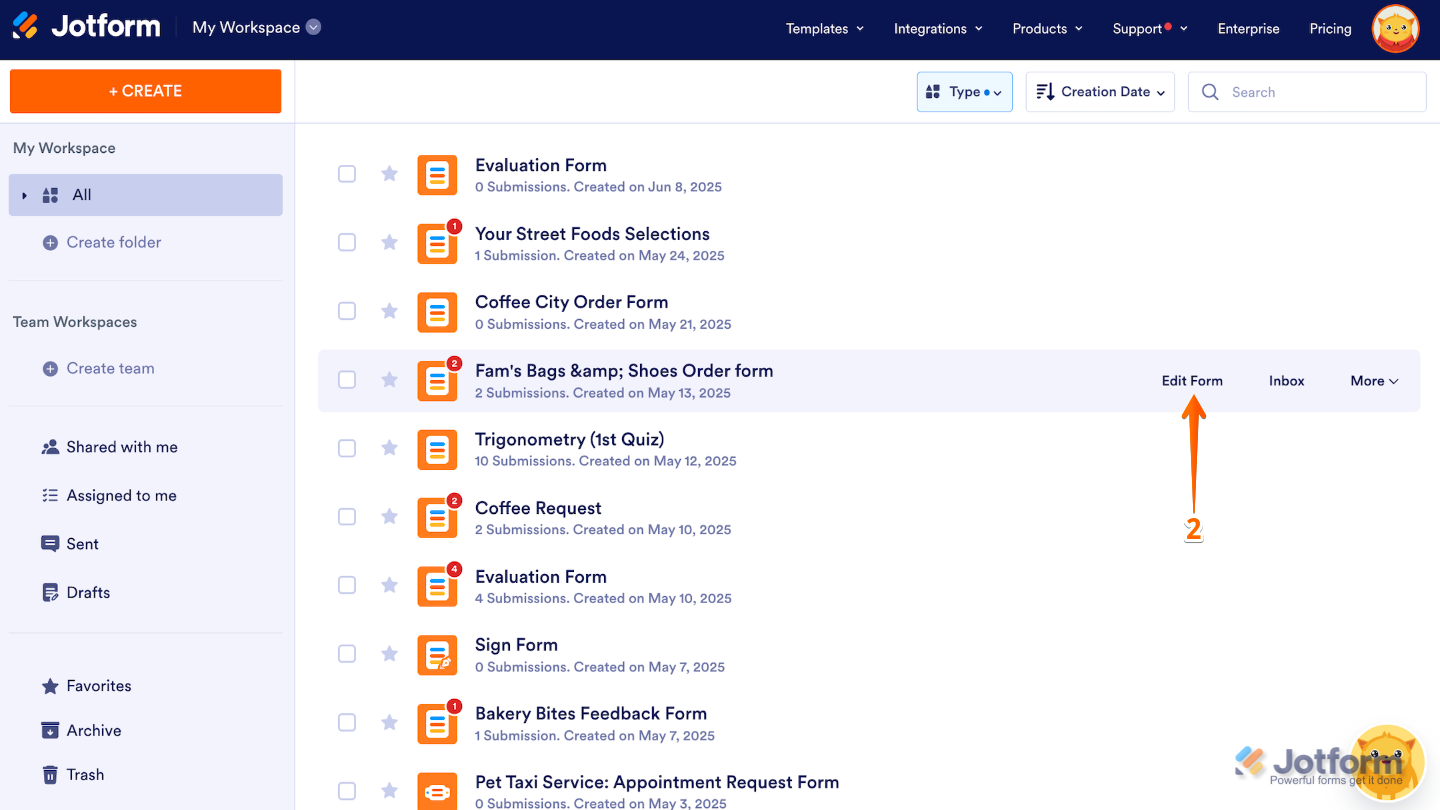
- Now, hover your mouse over the form you want to manage, and click on Edit Form on the right side of the page.
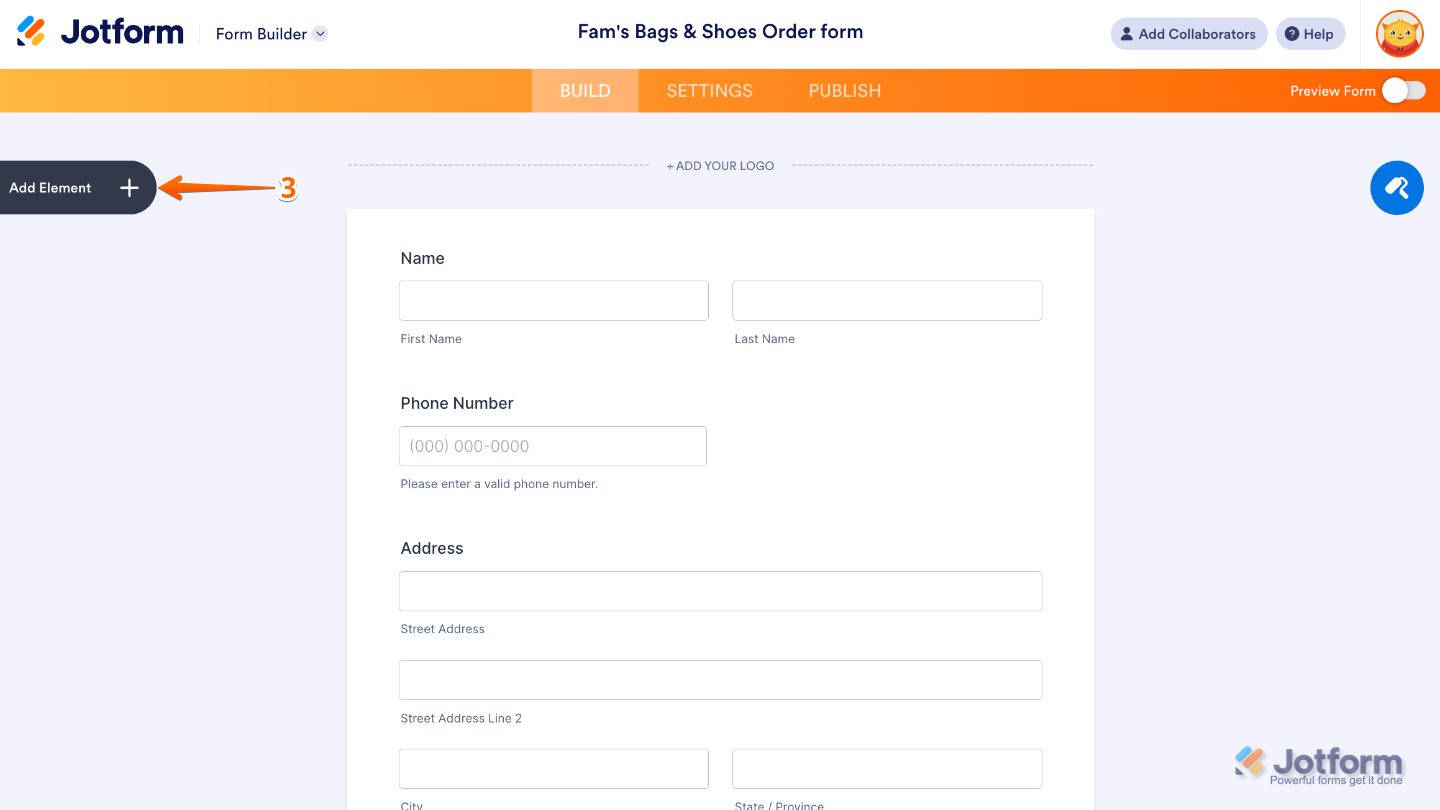
- Next, in Form Builder, click on Add Element on the left side of the page.
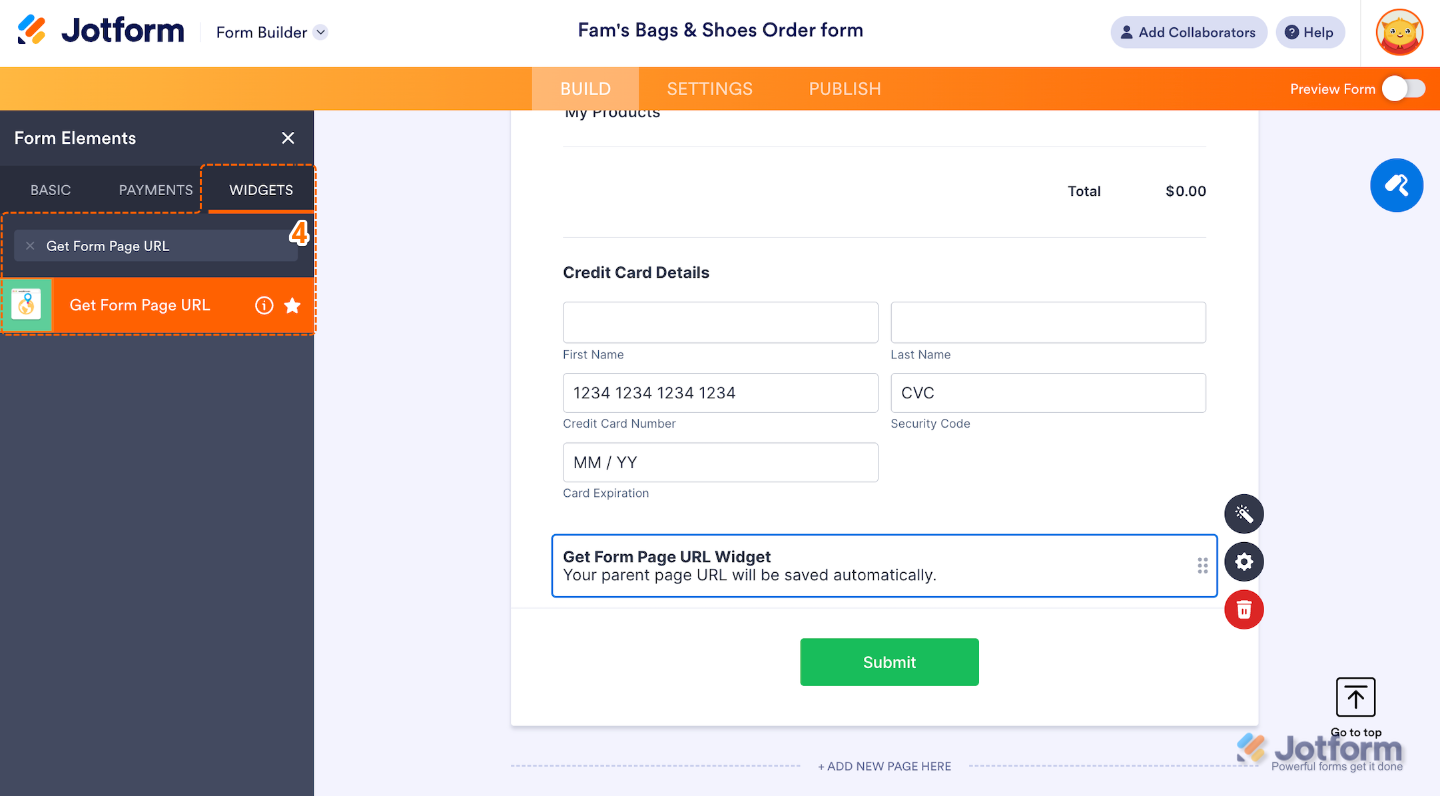
- Under the Widgets tab in the Form Elements menu, search for Get Form Page URL and then click on it. Or, just drag and drop it to where you want it to be on your form.
That’s it. The Get Form Page URL field is now automatically included in your form’s notification emails. When you receive a submission, this field will show you exactly which web page the user submitted the form from. Here’s an example of how it will appear:
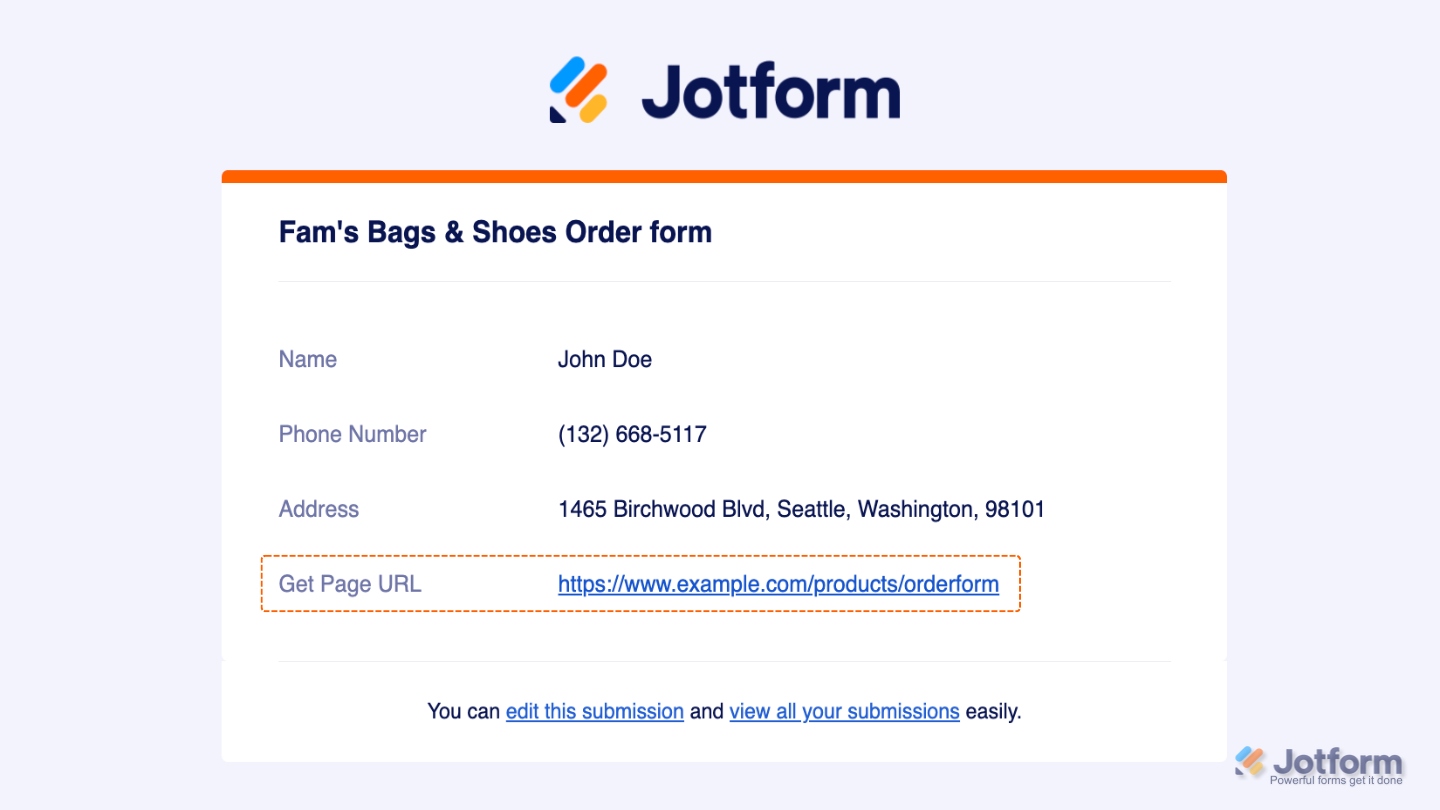
Notes
- The Get Form Page URL field works quietly in the background, but if you want your users to see it, you can use an Update/Calculate Field condition to copy its value into a visible field on the form.
- The captured URL is stored with the submission data, so you can view it anytime in your Inbox, Tables, PDFs, or other submission outputs.

Send Comment:
65 Comments:
December 4, 2024
Anyone found a way of making this work on safari? Especially when embedding a form into a Wix website? The parent url that is returned is just the root, not the actual page.
June 1, 2020
Hi there, I'm having difficulty retrieving the URL of pages that I embed my form into. The test site is I used the JavaScript embed script method for the site.
When I launch the form from Jotfrom, the submission shows that the URL is referred correctly (
However, when the embedded form is filled in from the Google Site, the URL rotates.
Current (bad) behavior:
Expected (good) behavior:
Any help is appreciated. Thanks!
April 21, 2019
Hi there everyone,
I came across this forum while searching for a solution to our website development. We are utilizing GCS (Google Custom Search) engine to enable our customers to search for their products in a designated URLs that we configure in the GCS dashboard.
We generate a page called "Search Results Page" on our website that put all search results of the keyword that customer search for from these URLs and display it in a nice grid view with product Image, Product Description, Product Price etc.
We need to capture the URL of the web page that customer reach after browsing the image when he clicks on it (i.e. Customer will click on the image in the "Search Results Page" without taking him to a new of the image URL so he stays inside our website and browse that URL inside our website so we can get the final URL of the product he wants when he click Add To Cart or Buy it Now)
Or if anyone can suggest a solution that enable us to capture the final URL of the product page that the customer wants ... Like capture the URL address of that product and then he can submit the request of further information to our back office ...
If you have a solution or you can develop an app for this, you will be awarded our contract ...
Anyone who has an idea or a solution, please contact me for further information,
Regards,
January 3, 2018
Your Site is Very Knowledge Site , Looking very easy and good content very nice
April 3, 2016
February 12, 2016
[url=ence/]cheap nolvadex[/url]
May 24, 2015
Thx all.
website me
August 22, 2014
That's Superb it was too good..
May 8, 2014
YES! This is so helpful.
February 15, 2014
My revisions did not show up to the preview and to the embed form. What to do? I am currently using the free plan.
February 12, 2014
i just used this feature and tried to revert one of my forms to an earlier version. now when i click on that form to view or edit the screen is blank, like i deleted all the data of the form i was working on. help!
February 11, 2014
I have done Form Revisions then try to test and submit and got error messages below :
Jotform is currently unavailable
Please try again at a later time.
The most likely causes :
- The server is down for maintenance
- There may be a network problem
-The site may be experiencing excessive load
And also found error message from another user is :
Error
Form ID did not match. Form ID Name : 32922543480453
FYI : this link below is our web site.
February 11, 2014
Excellent change!
Common sense.
I feel like playing with the best team!
MLB
February 5, 2014
Is there any way to revise a submission?
February 4, 2014
How can i paint the application out or post it on my wed site
February 3, 2014
Hello,
I would like to know if it is possible to share a completed online form submission via socail media like fb or twitter?
Thanks
February 3, 2014
ok, eccellente!
January 31, 2014
it helps me a lot
January 31, 2014
Excellent feature.
January 31, 2014
Well done jot form another great service, a long time coustomer
Tommy Browne
January 31, 2014
You have created an awesome product with JotForm. It looks simple, but the complexity behind the scenes is amazing. I rarely ever have to compromise on what I'd like to do because of a form limitation. And, then I usually find that if I did feel limited, it was only because I was not aware of another feature. Revision is a great addition to a near perfect product. Thank You! I've referred several people now.
January 31, 2014
Great product and thanx for the feature. I kinda lost some of my form creations earlier and was wondering how to recover them.
There are some more improvements I would like to see though in terms of being able to customize forms more easily compared to the default css for the forms. Hope something more simpler is possible in the future.
Thanx for the great product once again.
January 31, 2014
Can you have another go at answering the question posed be Antonio Ooi please. He seemed to have real concerns which weren't addressed in the reply.
January 31, 2014
i really love JOT
January 30, 2014
Hi Aytekin, this is awesome, you guys are brilliant, love the jot!