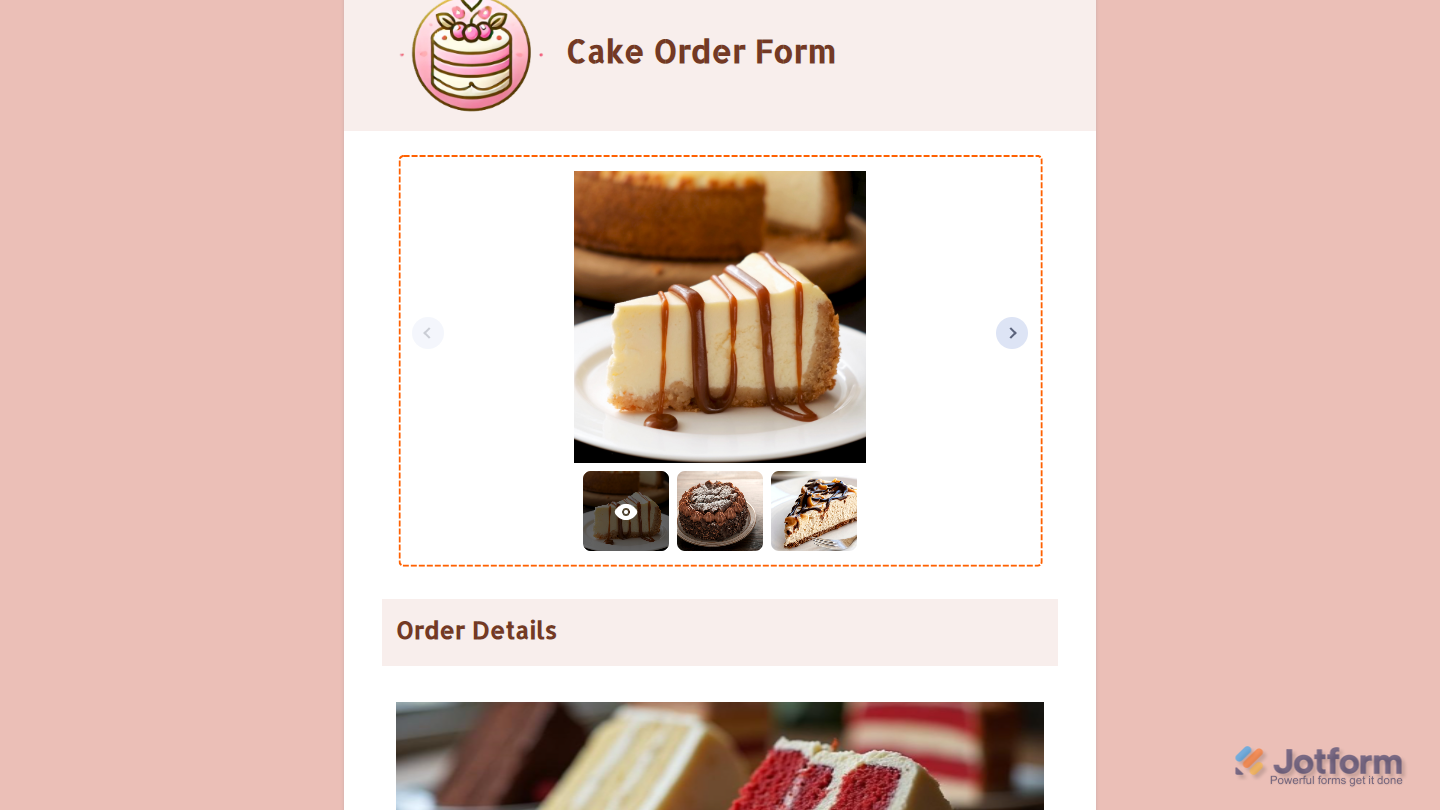
With Jotform’s Image Slider widget, you can show multiple images one at a time in a rotating slideshow right on your form. It’s a great way to display before-and-after shots, step-by-step visuals, or feature highlights without crowding the page. The slider keeps your form clean and compact while still letting you share a series of images. Users can scroll through the images at their own pace or let them play automatically, making your form more dynamic and engaging.
Here are a few ways to use it:
- Showcase product images or service highlights in order or request forms.
- Display portfolios, galleries, or past work in booking or application forms.
- Guide users with visual steps or examples in multi-step workflows.
- Highlight promotions, features, or key information at the top of your form.
- Create a more engaging and interactive experience with a dynamic slideshow.
Note
The Image Slider widget is available in both Classic and Card Forms. You can check out our guide on When to Use Card Forms to learn more.
Whether you’re creating a new form or updating an existing one, you can add and set up the Image Slider widget in a few easy steps. Here’s how to do it:
- In Form Builder, click on Add Element on the left side of the page.
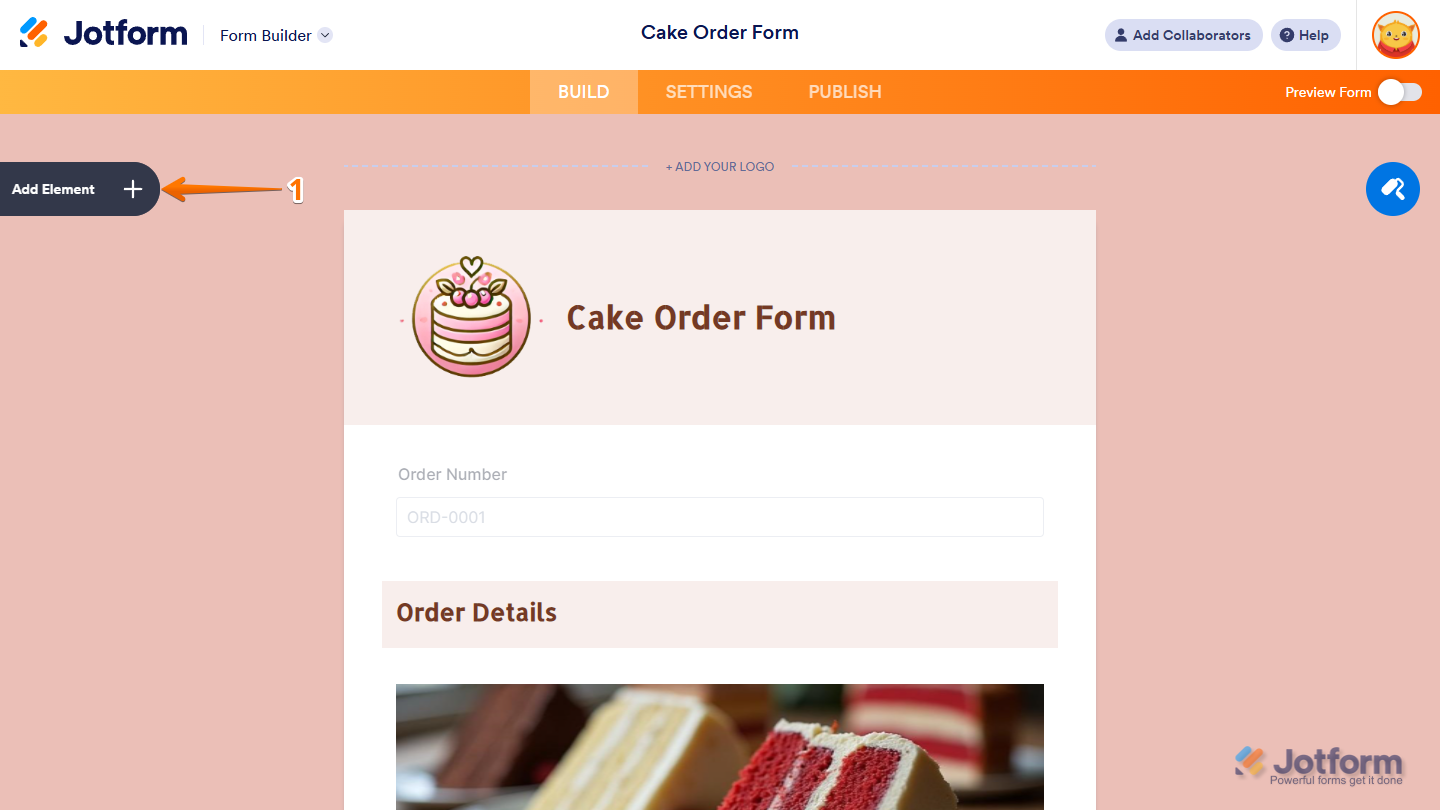
- Now, in the Form Elements menu, under the Widgets tab, search for Image Slider and click on it. Or, just drag and then drop it to where you want it to be on your form.
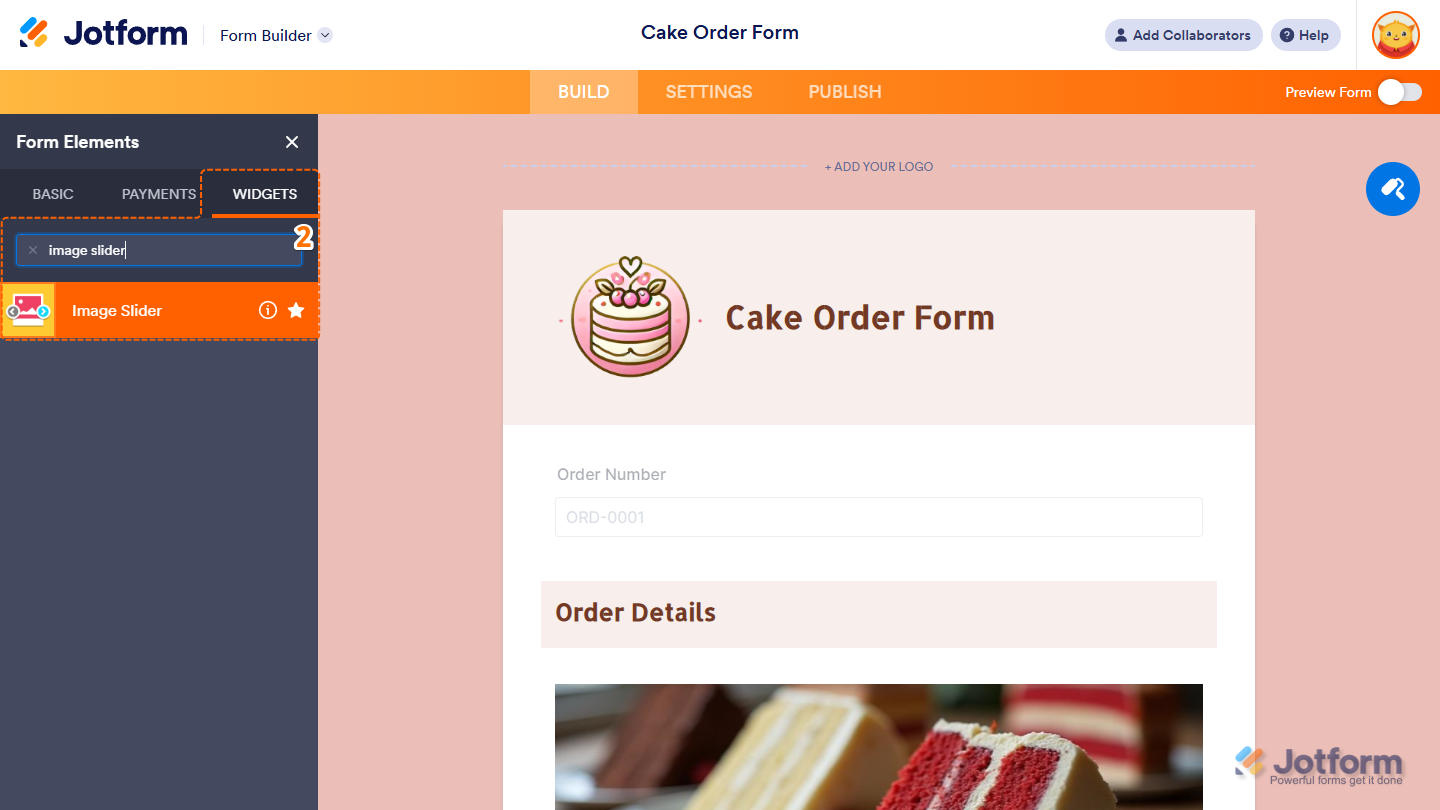
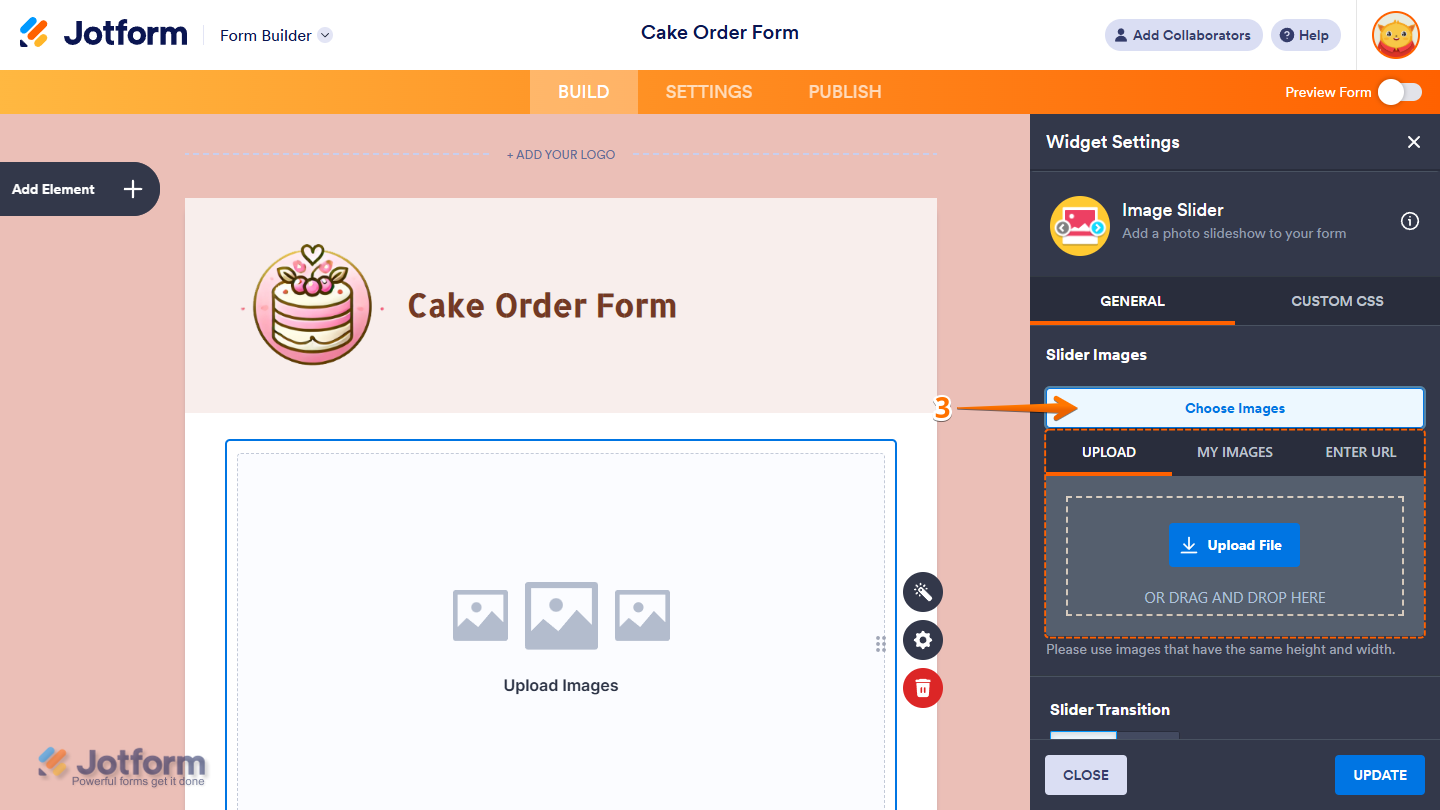
- Next, in the Widget Settings window that opens on the right side of the page, click on Choose Images and, in the menu that opens, go to one of the following tabs to add your images:
- Upload — Select one or more images directly from your device.
- My Images — Choose multiple saved images from your account.
- Enter URL — Paste direct image links (each on a new line) to add multiple images at once.
Pro Tip
For the best results with the Image Slider widget, use images that have the same height and width.
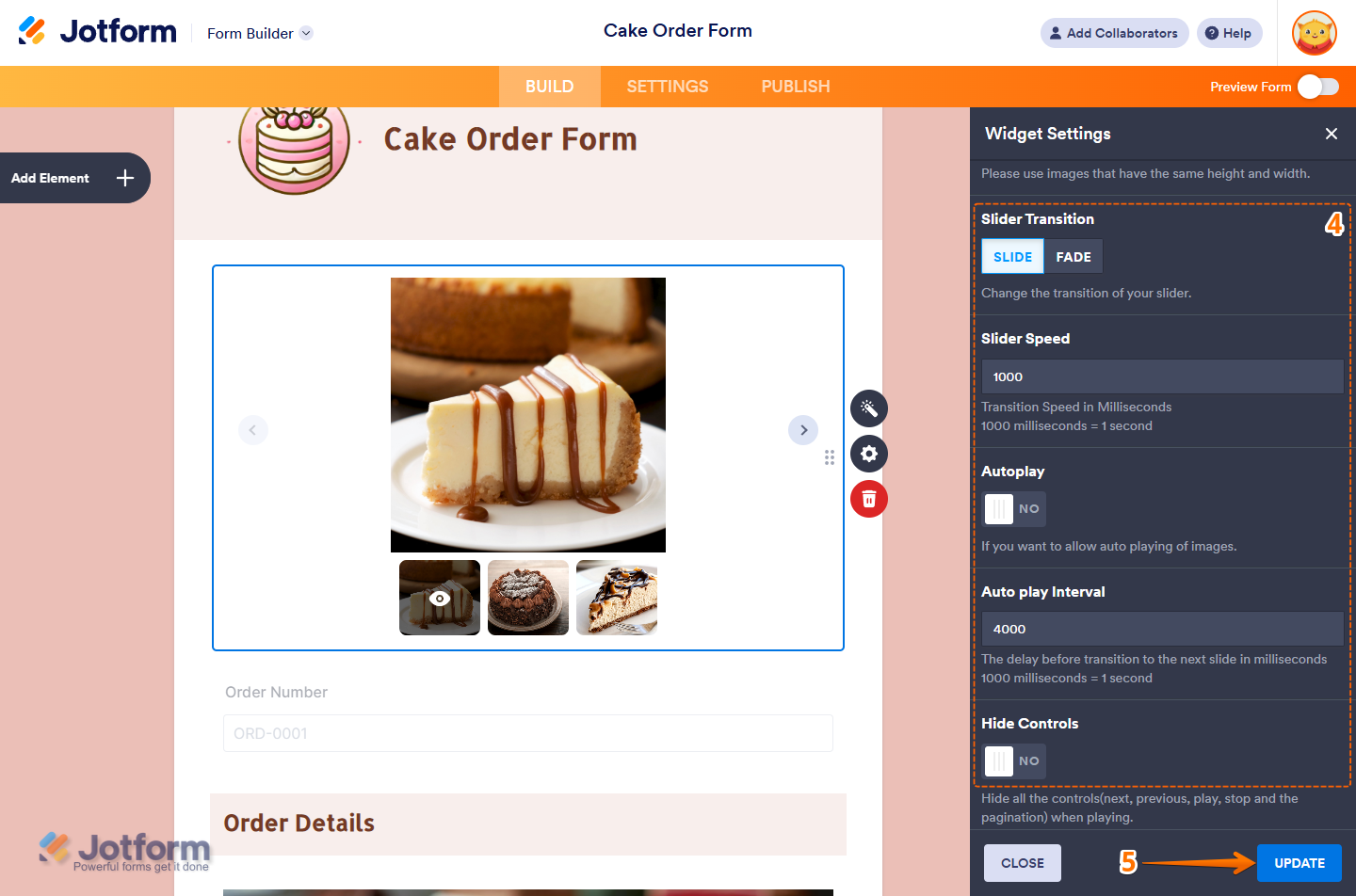
- Then, configure the rest of the settings as needed:
- Slider Transition — Choose between Slide or Fade to set the transition effect.
- Slider Speed — Enter a value in milliseconds to control how fast the images change (e.g., 1000 ms = 1 second).
- Autoplay — Toggle this to Yes to let the images play automatically.
- Autoplay Interval — Toggle this to Yes to let the images play automatically.
- Hide Controls — Toggle this to Yes to hide navigation buttons and pagination while the slider is playing.
- Once you’re done, click on Update.
That’s it. You’ve successfully added the Image Slider widget to your form. You can see it in action on this demo form.
Notes
- For advanced styling of the Image Slider widget, you can add your own custom CSS code under the Custom CSS tab in the Widget Settings. Our guide on How to Inject CSS Codes to Widgets walks you through everything.
- You can also configure the widget properties, like alignment, labels, size, visibility, and more, to control how it looks and behaves on your form. Check out our guide on How to Access and Configure the Question Properties of a Widget to learn more.
Updating the Widget’s Images
If the images in your Image Slider widget are outdated, no longer relevant, or not in the right order, you can update them in a few easy steps. Here’s how to do it:
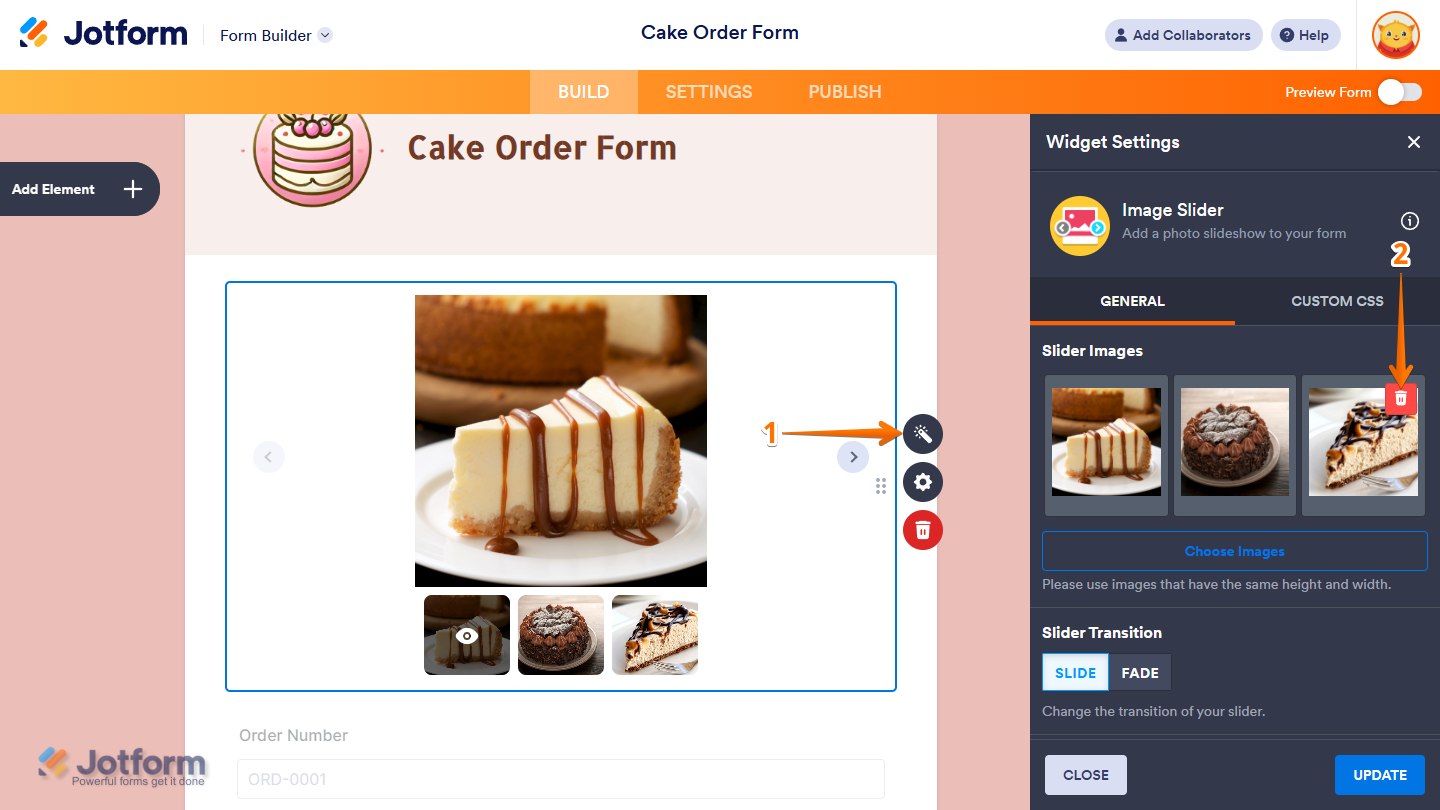
- In Form Builder, click on your Image Slider widget and then click on the Wand icon on the right side of it.
- Then, in the Widget Settings window, hover your mouse over an image thumbnail and click on the Trash icon that comes up on the top-right side to delete it.
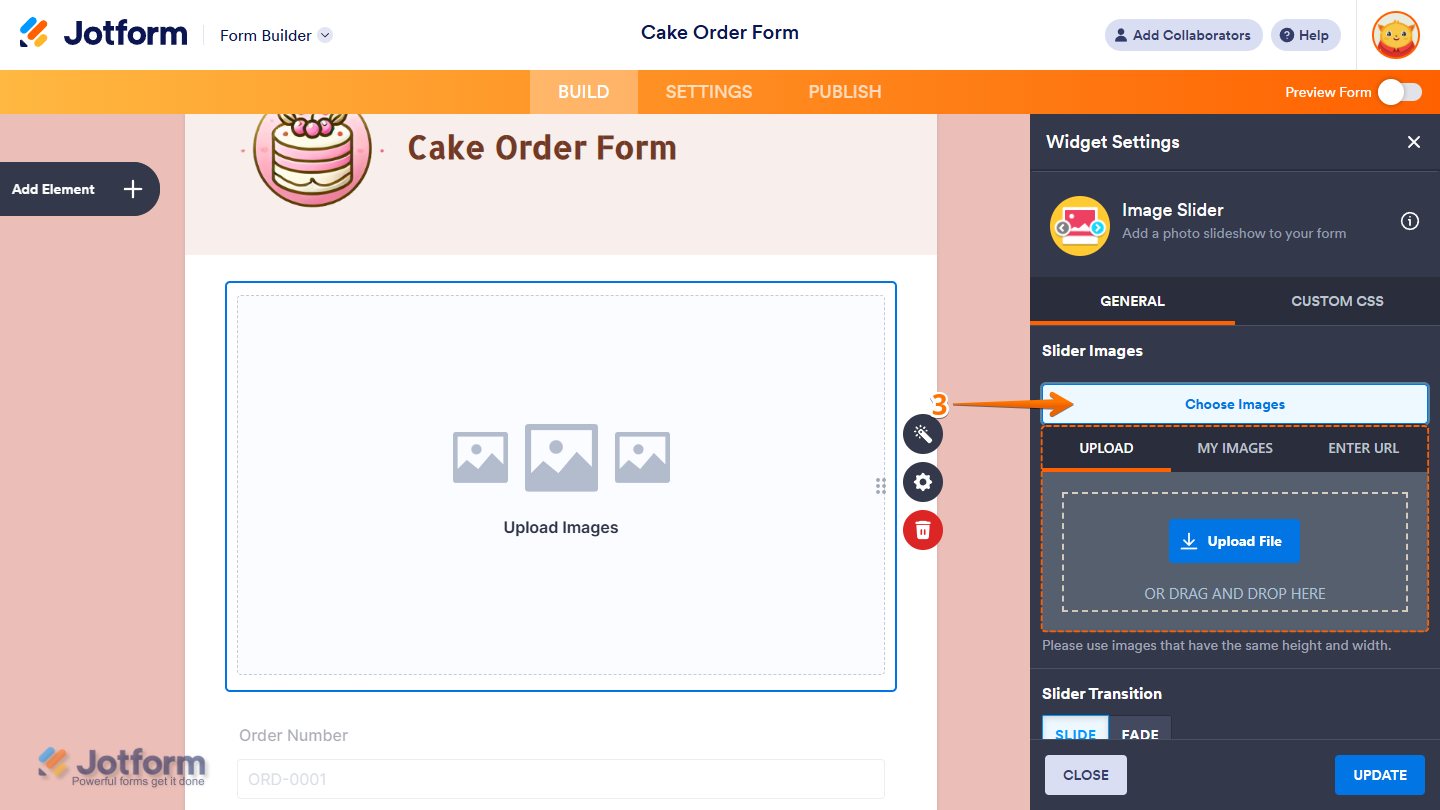
- Now, click on Choose Images and then, in the menu that opens, go to one of the following tabs to add your new images:
- Upload — Select one or more images directly from your device.
- My Images — Choose multiple saved images from your account.
- Enter URL — Paste direct image links (each on a new line) to add multiple images at once.
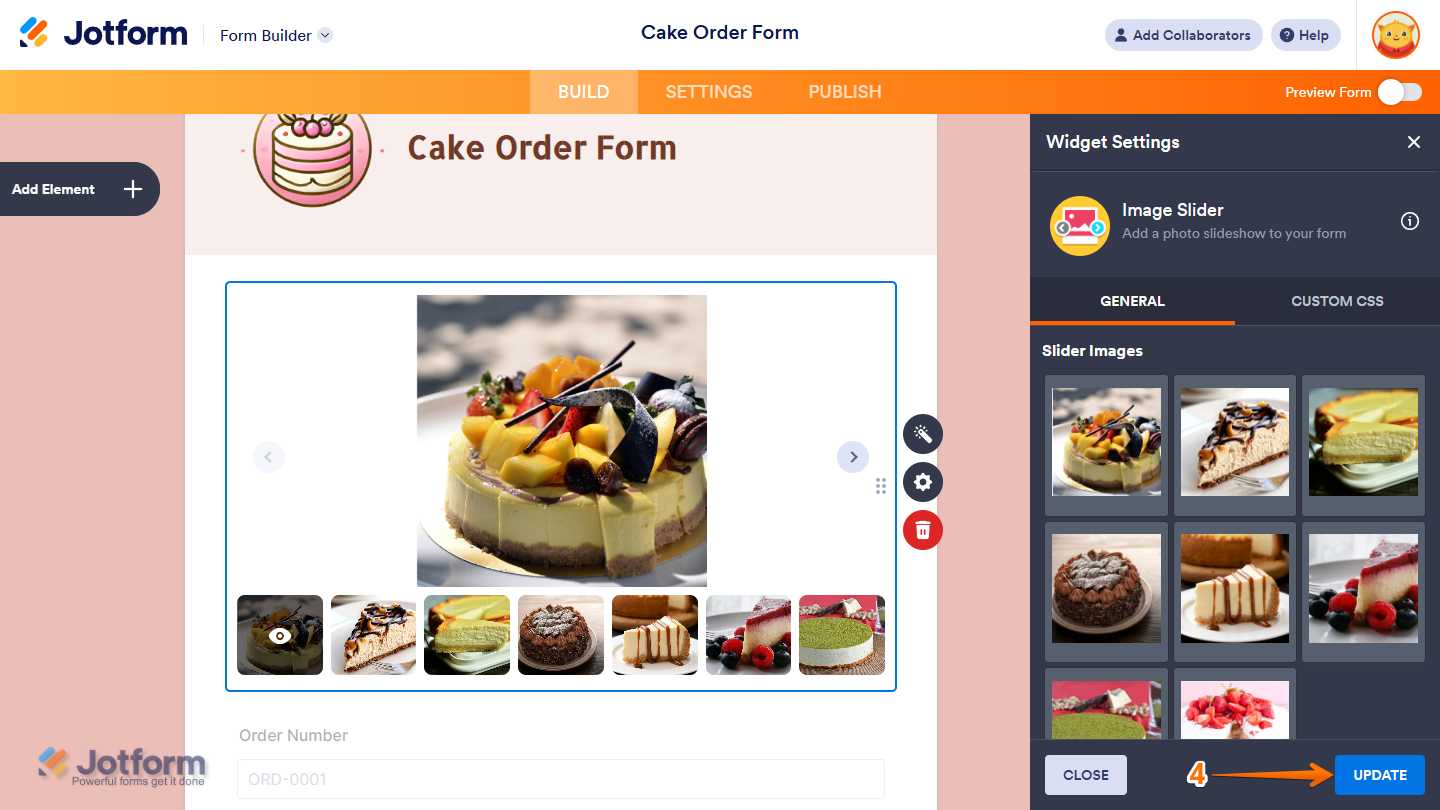
- Once you’re done, click on Update to save the changes.

Send Comment: