Make your forms more inclusive and user-friendly with an accessibility scan. This tool helps you identify potential accessibility issues that could prevent people from successfully completing your form. By running a scan, you’ll receive actionable feedback on areas that may need improvement, helping you create forms that are easier to navigate, understand, and use for everyone.
Enabling Form Accessibility
Whether you’re creating a new form or updating an existing one, enabling Form Accessibility is simple—here’s what to do:
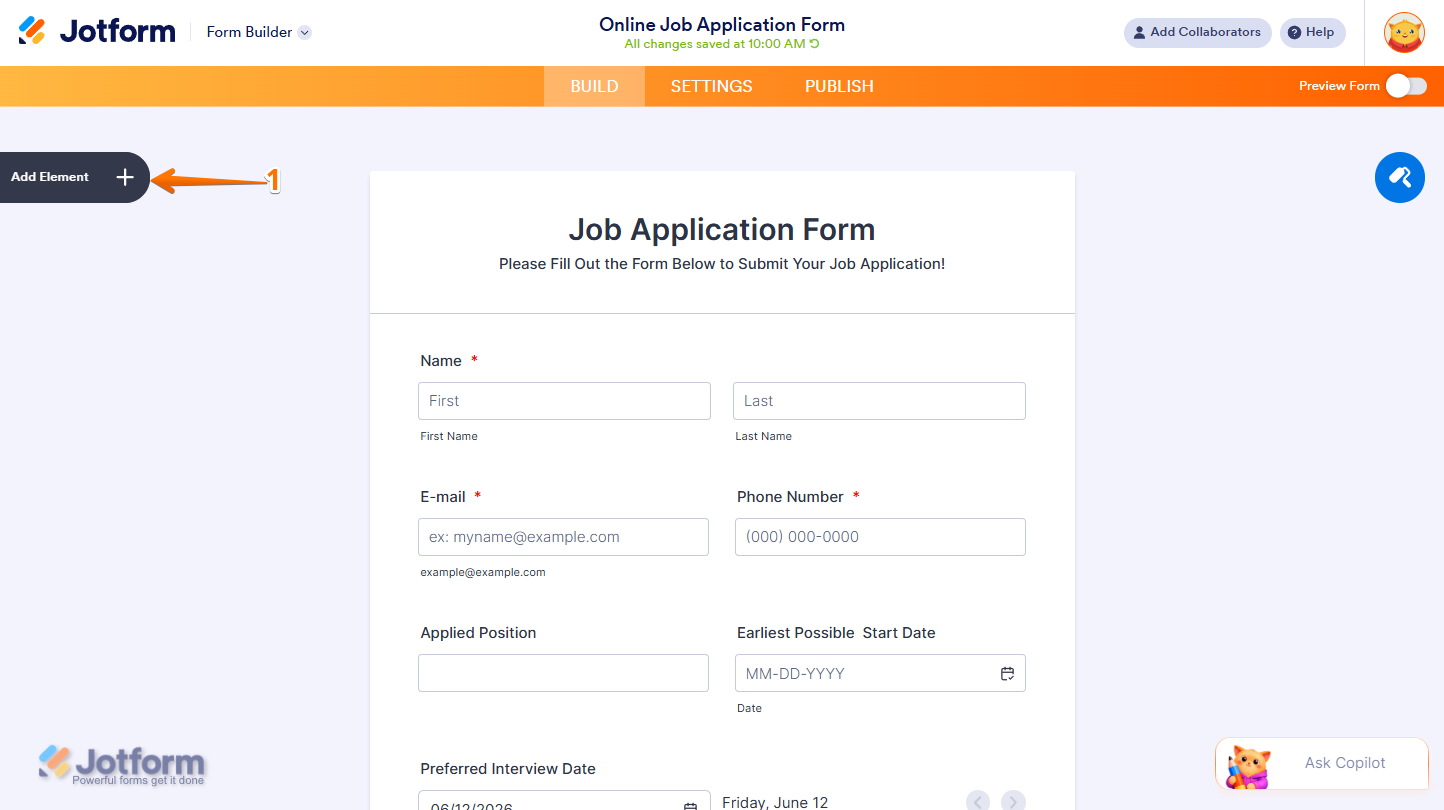
- In Form Builder, in the orange navigation bar at the top of the page, click on Settings.
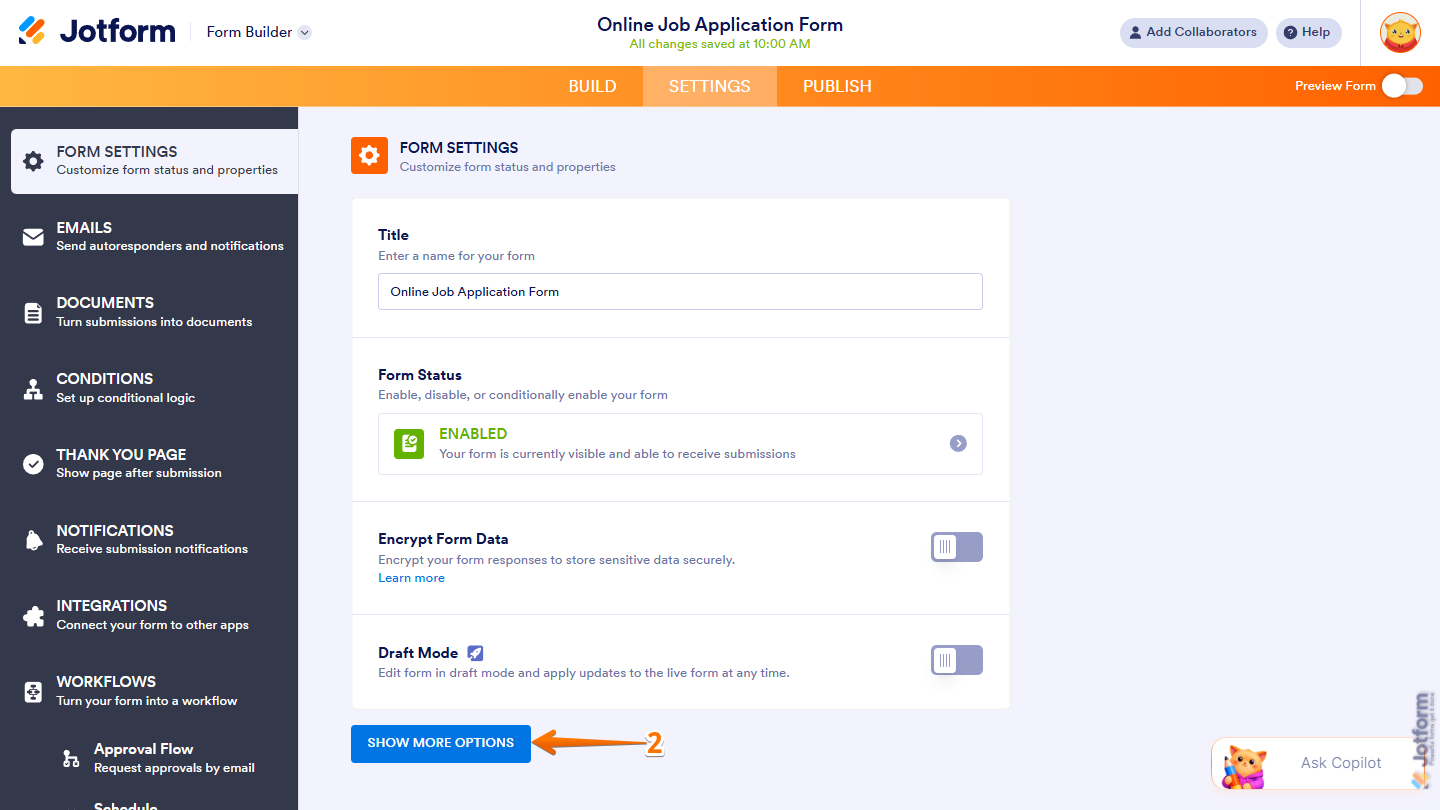
- Then, under Form Settings, click on Show More Options at the bottom.
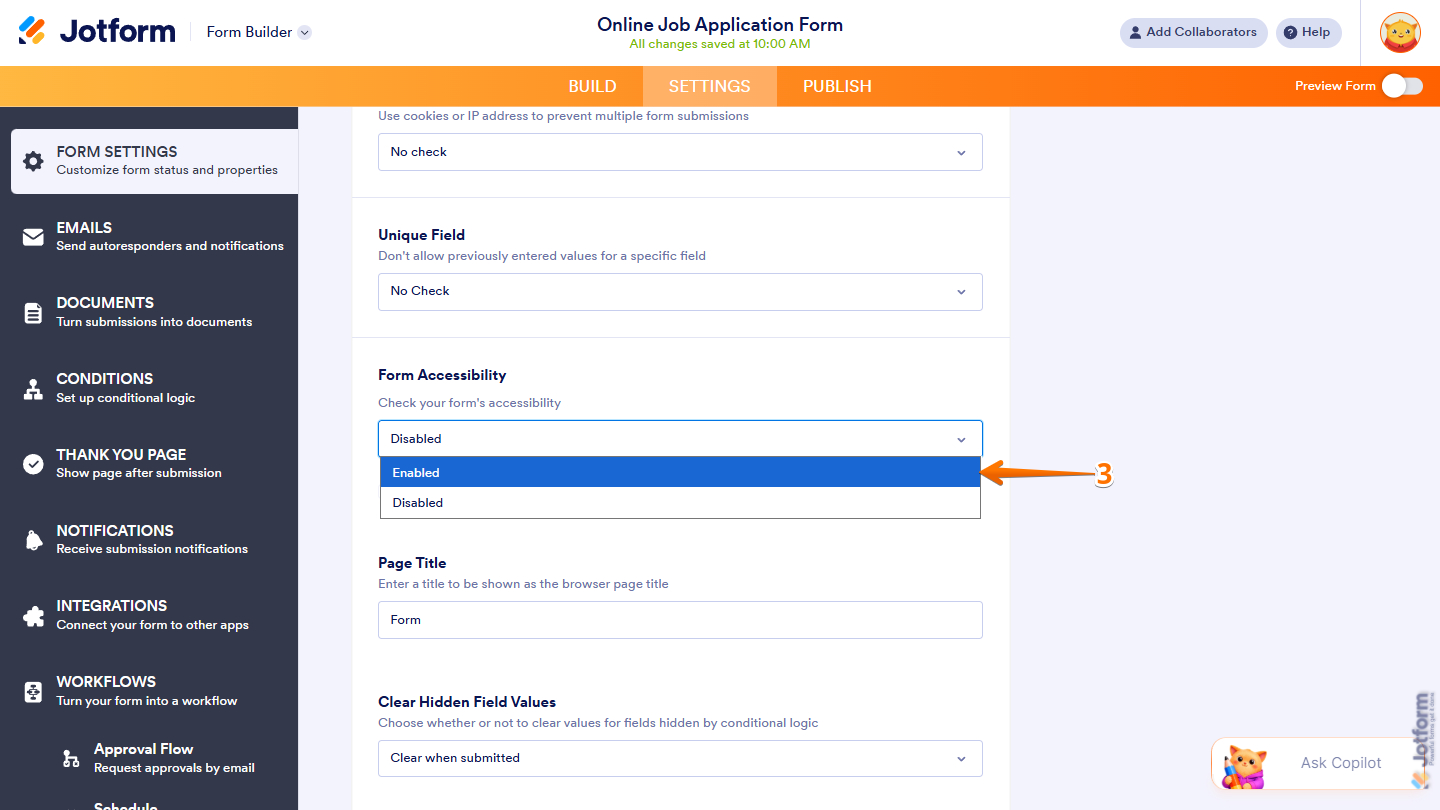
- Next, scroll down to the Form Accessibility section and select Enabled from the dropdown menu.
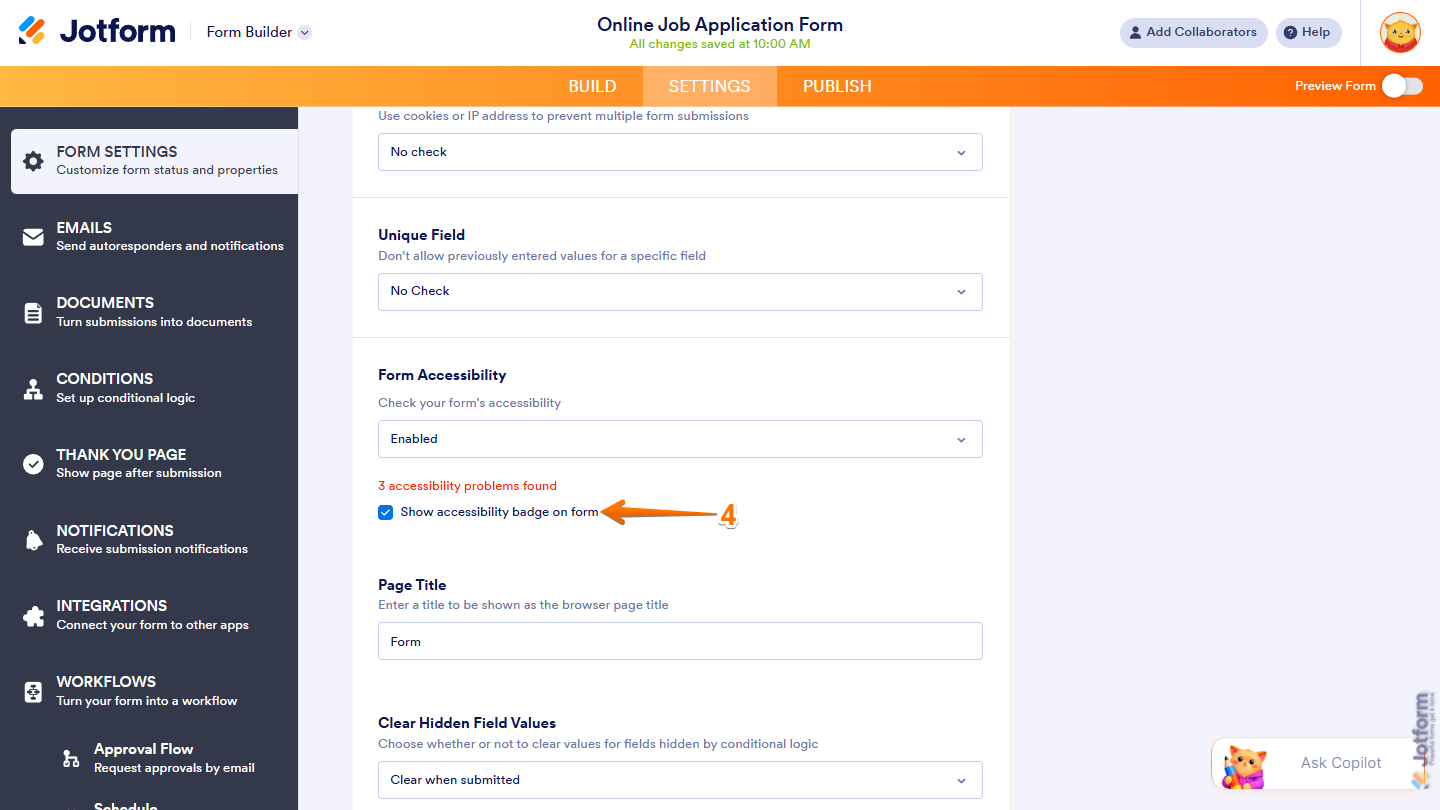
- Now, check the Show Accessibility Badge on Form option to show the Accessibility badge at the bottom-right corner of your form.
This is how the badge in your form will look:
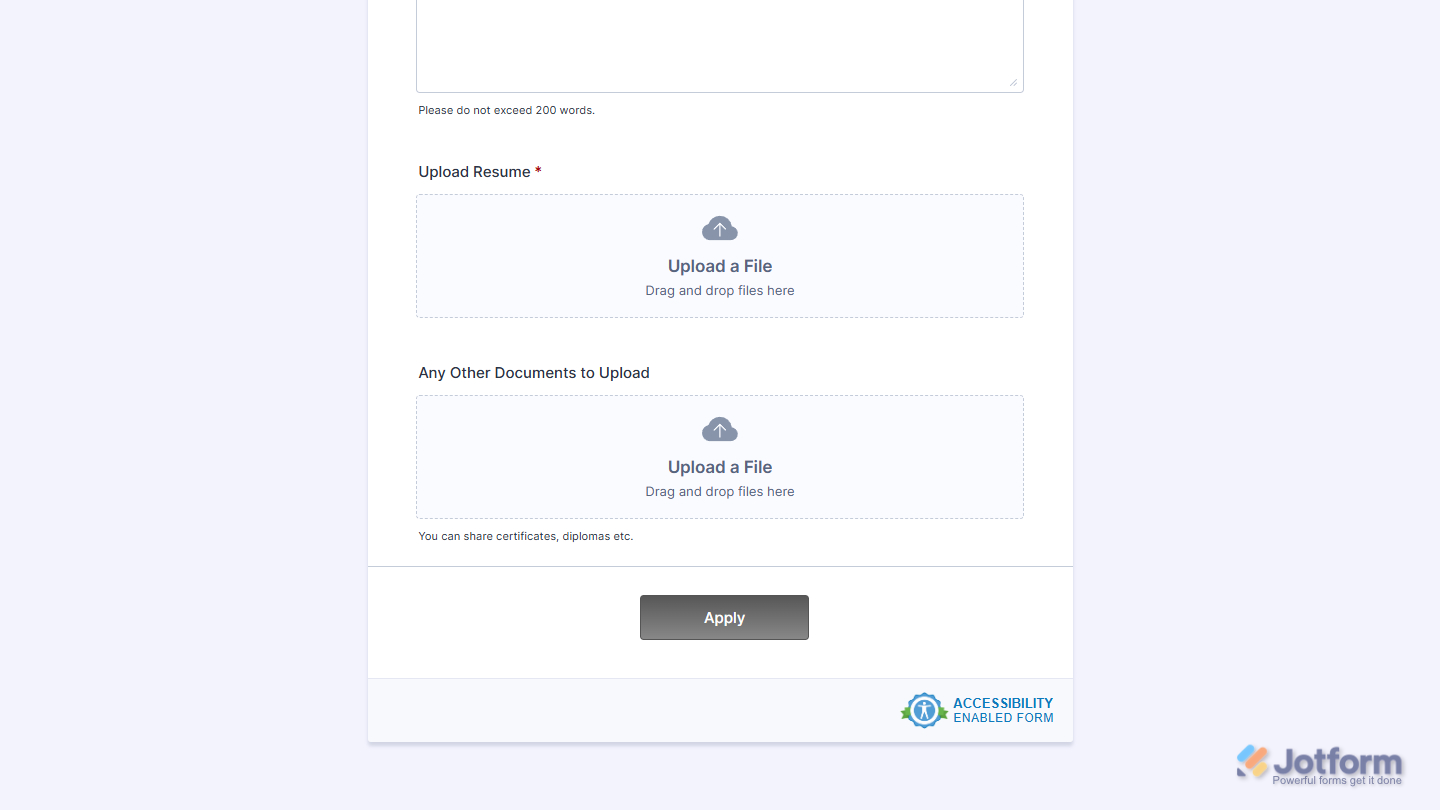
That’s it! You have enabled accessibility on your form. You can now run scans to identify potential accessibility issues and receive recommendations to improve your form’s usability.
Running the Accessibility Scan
Once enabled, the accessibility scanner automatically analyzes your form and highlights any issues it detects. Use its real-time feedback to review your form as you build, helping you identify potential barriers and ensure a seamless, accessible experience for all users. To get going, here’s what you’ll do:
- In Form Builder, click on the Red Person icon below the Add Element button.
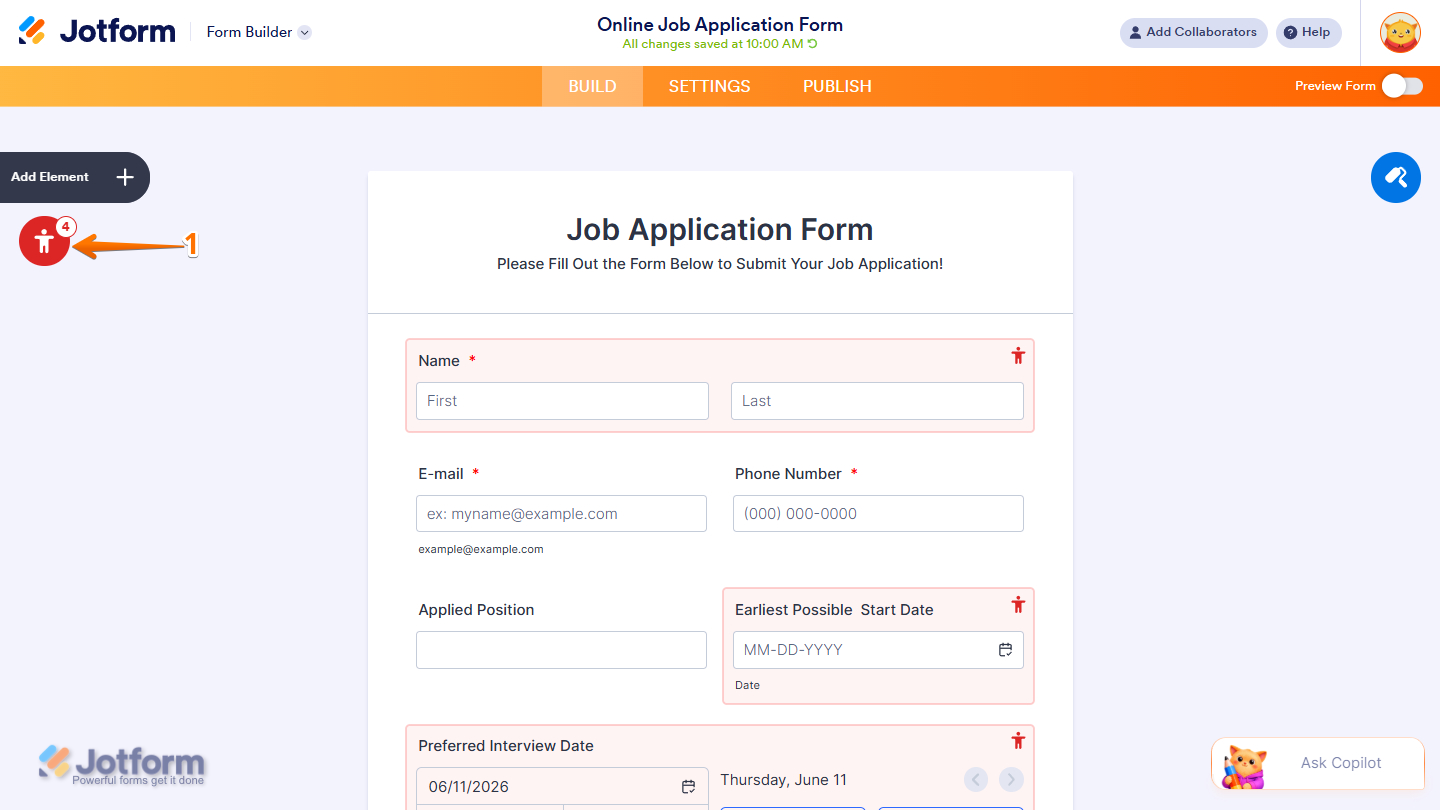
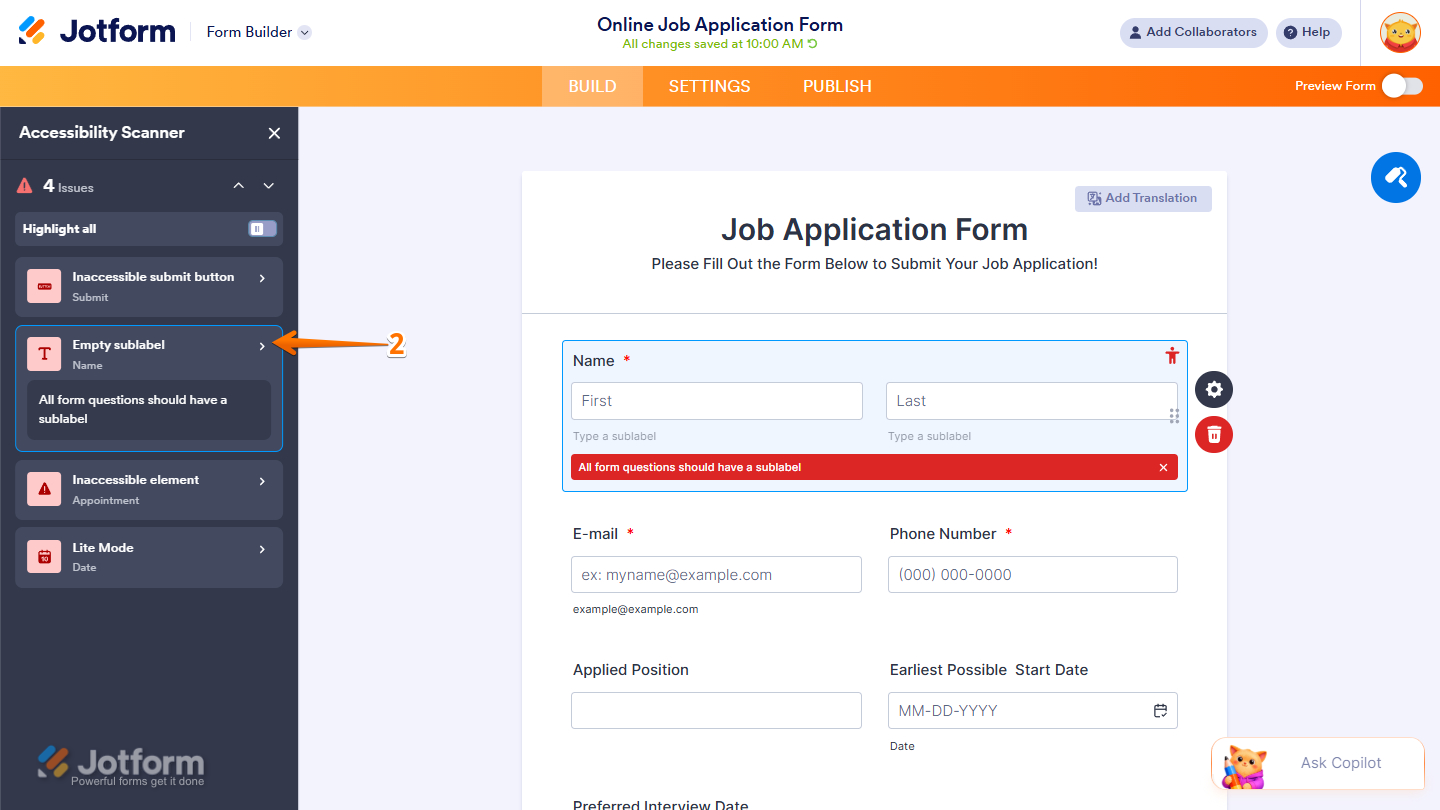
- Then, in the Accessibility Scanner menu that opens on the left side of the page, click on an issue. For example, Empty Sublabel.
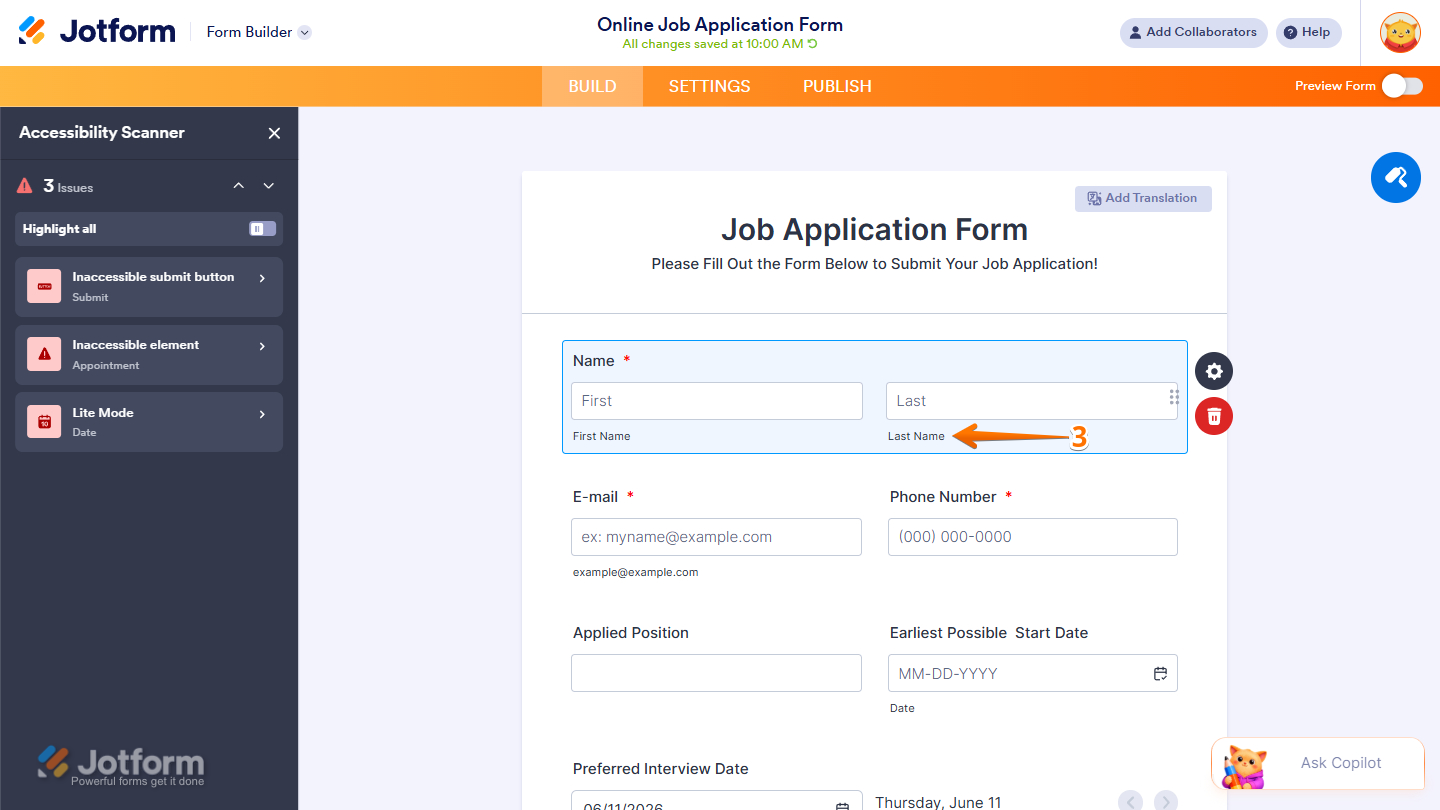
- Next, fix the issue by adding the sublabel of the Full Name element. The issue should disappear as soon as you do this.
- To view all detected issues, toggle on Highlight All. This will display every accessibility issue and make it easier to locate them
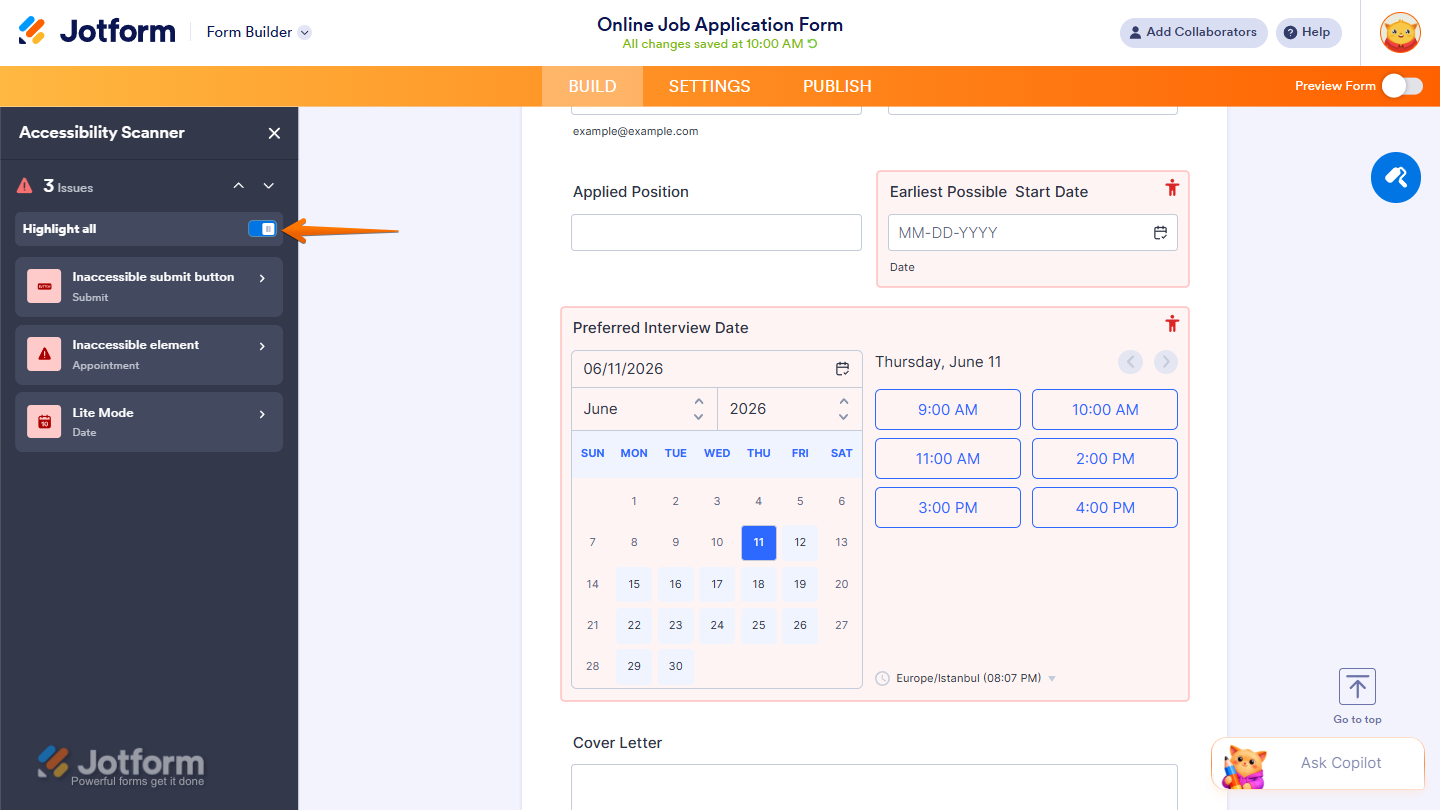
That’s it! You’ve successfully run an accessibility scan on your form. Review any identified issues and apply the recommended fixes to improve your form’s accessibility. Regular scans can help ensure your form remains inclusive, easy to navigate, and accessible to all users.
Looking for more info? Check out these helpful guides for more details:

Send Comment: