
Canva is one of the most popular graphic design tools in the world. It makes creating high-quality designs for everything from social media posts and event invitations to marketing materials and infographics fast, accessible, and repeatable. Are you a complete beginner looking to improve your website? Or an experienced professional designer working on advanced data visualization? In either case, Canva has the tools you need to get great results.
In this guide we’ll look at Canva’s most important features, from its most basic design tools to its advanced professional and collaboration options. We’ll also touch on how Jotform for Canva can turn your designs into data-collecting forms.
So, if you’ve ever wondered how to become a web designer or just wanted to make better-looking social media posts and presentations, read on.
What is Canva?
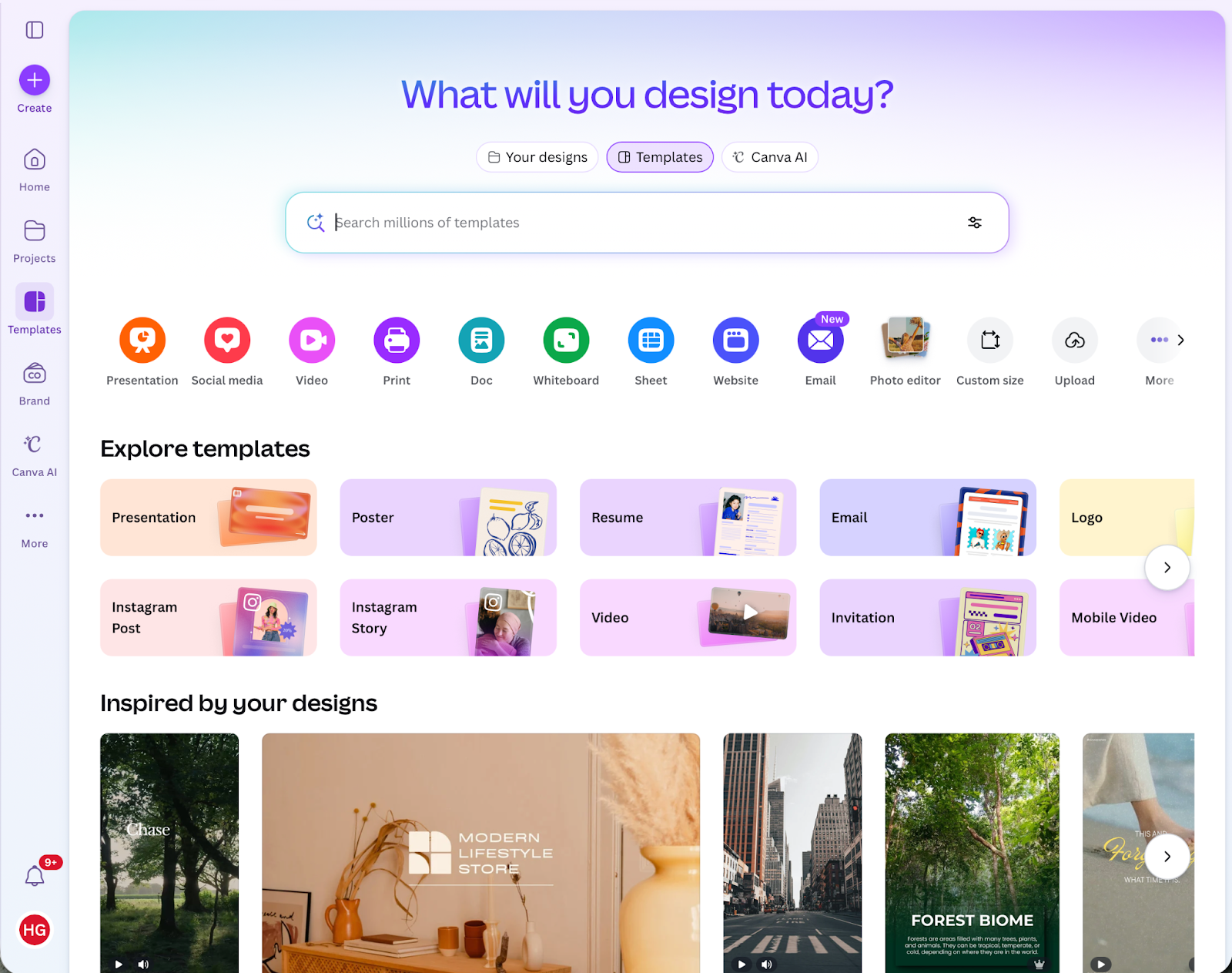
Canva is a web-based and mobile-friendly online design platform that enables anyone to create professional designs with easy-to-use tools and millions of pre-built templates, images, graphics, and other resources. It’s less complicated than traditional design and layout apps, but still makes it possible to get professional-level results.
Since launching in 2013, Canva has grown from a design-app for non-designers to a professional design studio for individuals, teams, and large organizations. While it’s added features like collaboration, brand identity, and AI, it hasn’t lost sight of its simple roots.
Canva is popular with a wide range of users. Students use it because of its excellent free plan. Businesses use the collaboration and brand kits features so any staff member can reliably and consistently create on-brand marketing materials. Solopreneurs and content creators benefit from the countless templates and pre-built graphics that match any use case.
There is almost nothing you can’t design in Canva. With that said, some of the areas Canva is best suited to are
- Social media graphics and ads.
- Presentations and slide decks.
- Posters, flyers, business cards, and brochures.
- Greeting cards, labels, and invitations.
- Logos and marketing materials.
- Infographics.
- Resumes, documents, and reports.
- Video and photo editing.
Core features of Canva
Now that you understand what Canva can do, let’s look at some of its key features.
Drag-and-drop design editor
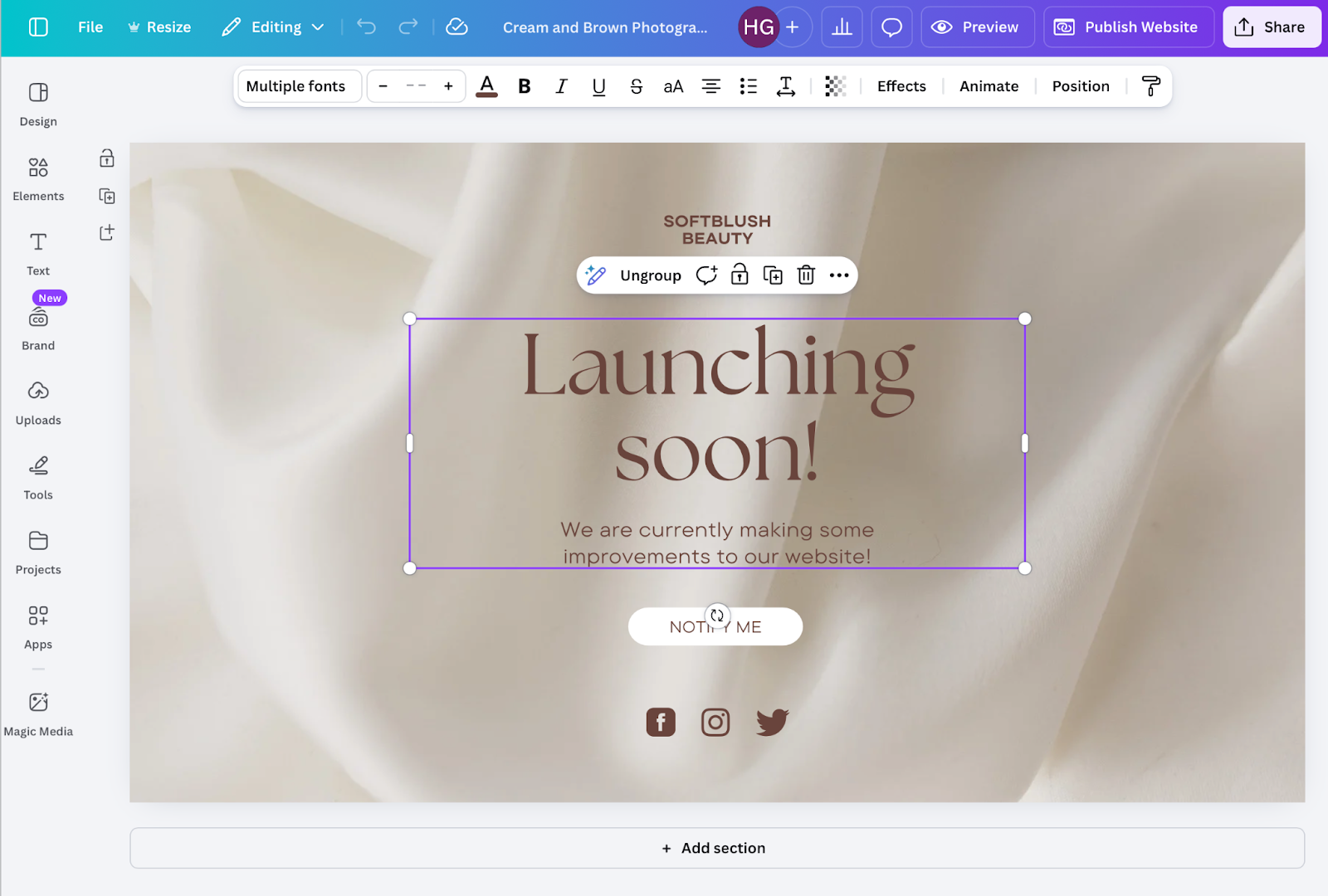
Canva’s drag-and-drop editor is incredibly intuitive. Elements like text, images, and other graphics can be added using the sidebar menus and positioned anywhere on the canvas. You don’t need deep technical knowledge to create something that looks good.
Extensive template library
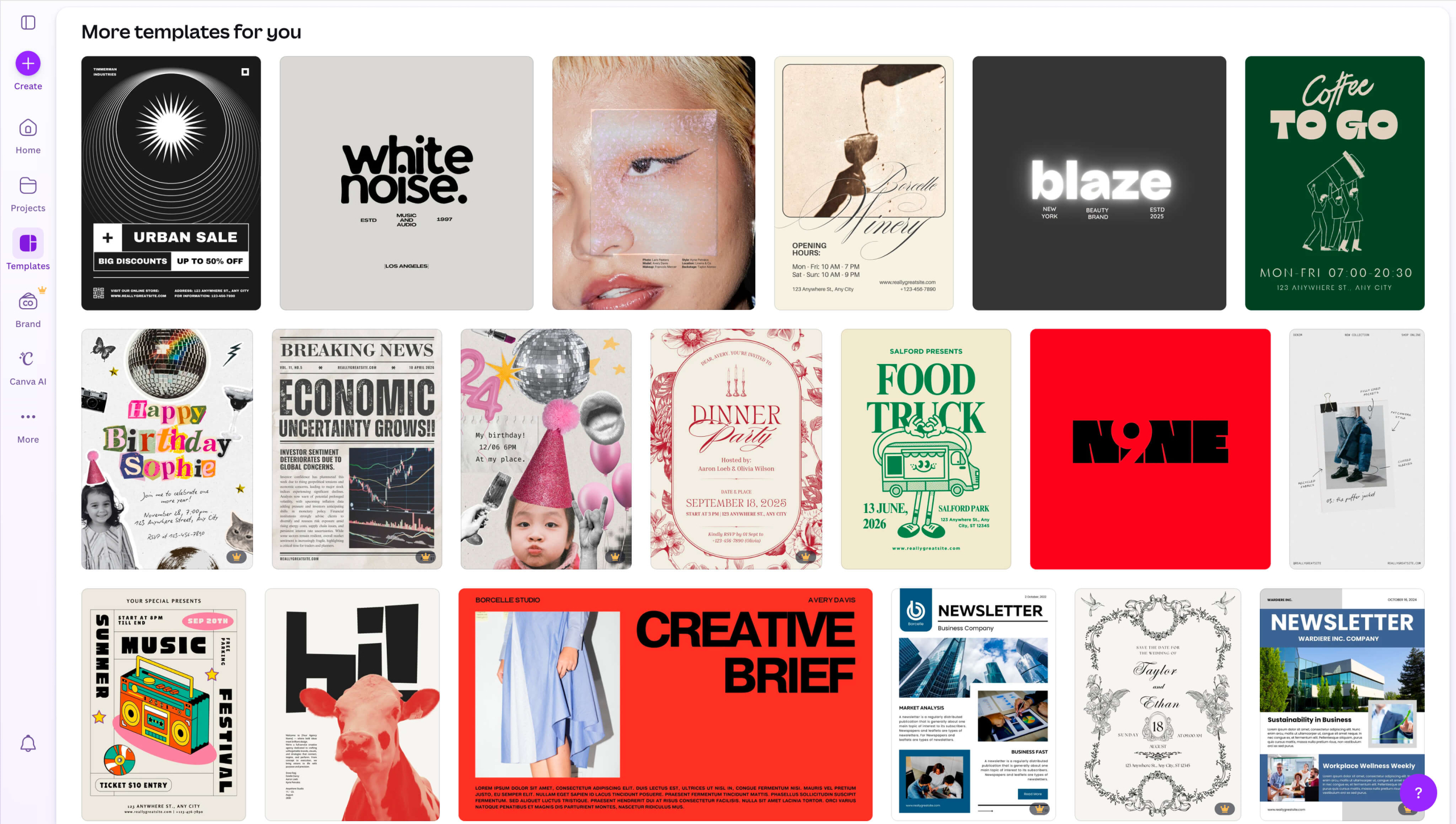
Canva has millions of professionally designed templates for nearly every format and use case imaginable. Need a social media post for Black Friday? There are hundreds of Canva templates to choose from. What about a pitch deck for investors? There’s probably one tailored to your specific niche.
Stock photos and illustrations
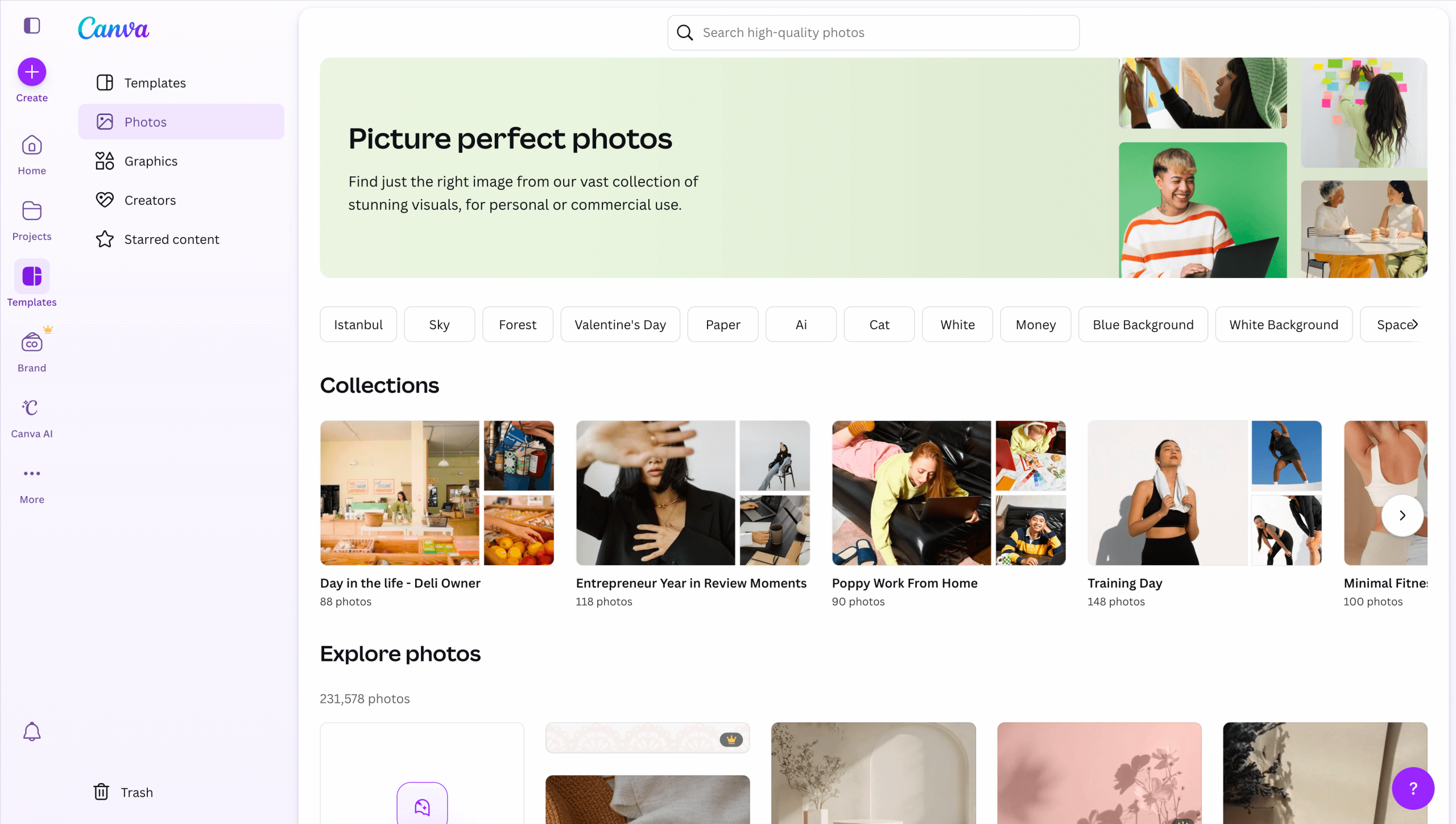
Canva has a huge built-in library of stock photos, graphics, icons, and fonts you can use to customize your designs. Some assets are limited to paid plans, but there are plenty available to free users.
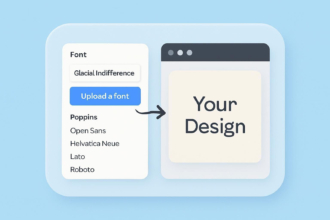
Font pairing and text customization
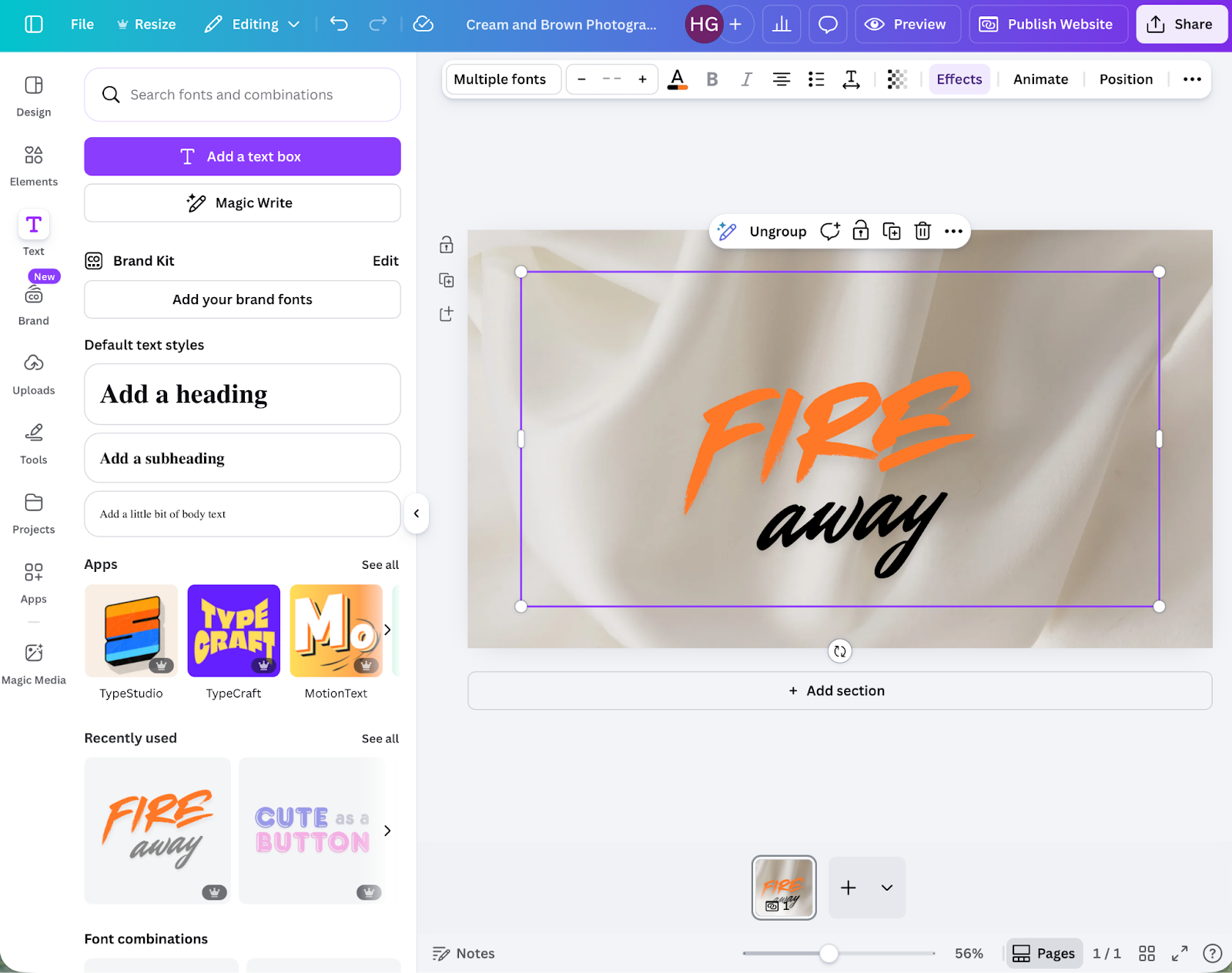
Text is an incredibly important part of design. Canva suggests fonts that look good together, and it has advanced text effects. All the fonts are fully customizable so you can tweak them to fit the needs of your design.
AI everywhere
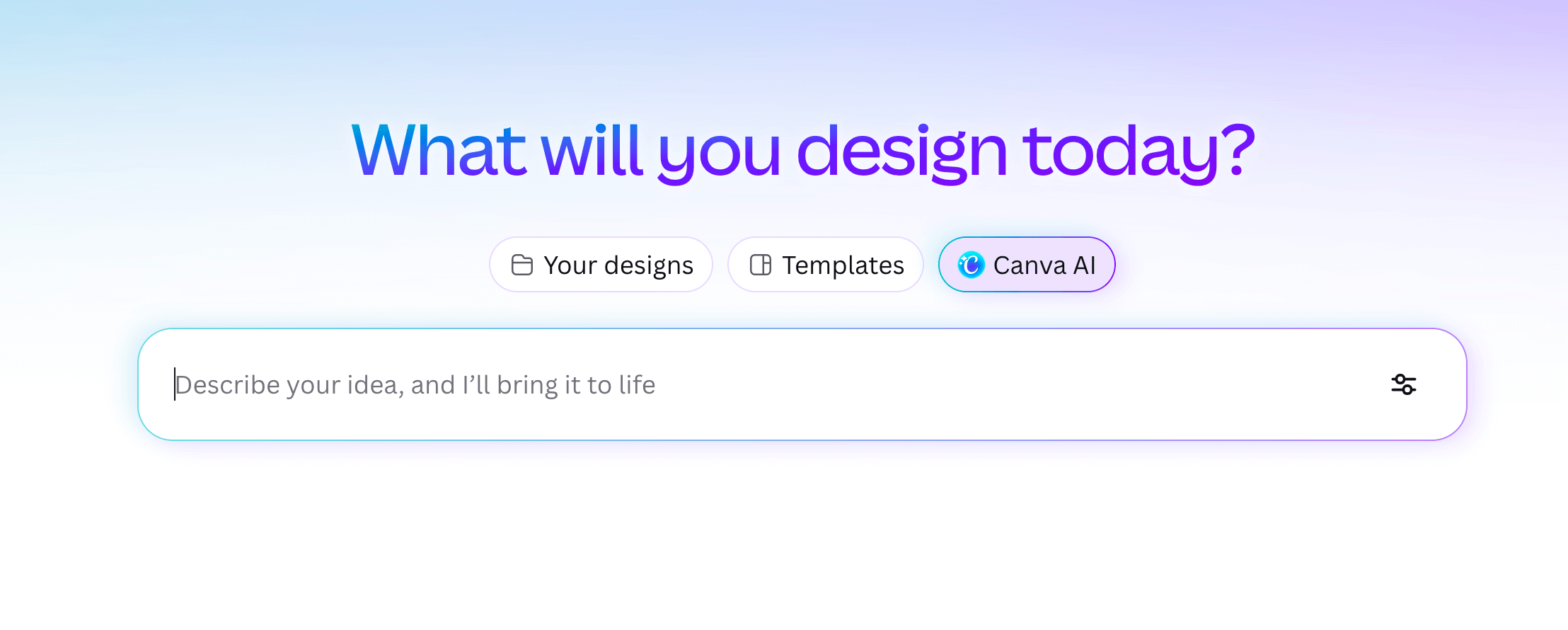
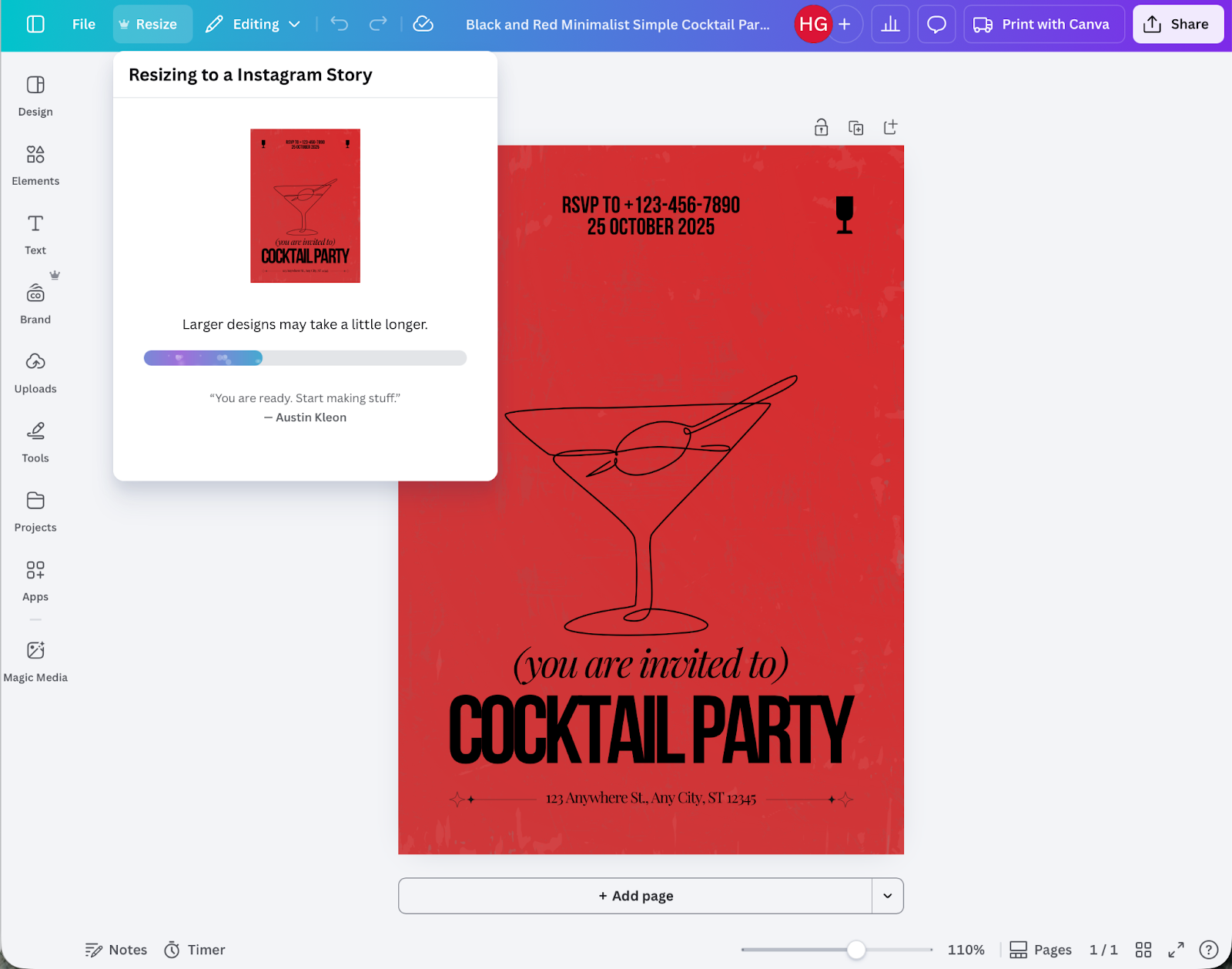
Over the last few years Canva has rolled out powerful AI features in every aspect of its app. You can generate templates just by describing them, use the built-in Magic Media image generator and Magic Write text generator to rapidly add graphics or text to your designs, and even rely on Magic Resize to automatically resize and redesign templates to fit a different medium — for example, by turning a social media post into a poster.
Canva Pro features
While Canva’s free plan offers a huge amount at no cost, paid plans add more resources and features designed for speed, consistency, and collaboration. Canva Pro costs $15 per month or $120 per year and is available only to individual users, while Canva Business costs $20 per month per user or $200 per year per user and is available to individuals and teams. There’s also an Enterprise plan, but you have to contact sales.
Some of the most important premium features available on the Pro, Business, and Enterprise plans are
- Access to more templates and assets. The free plan includes 1.6 million templates and almost 5 million other assets, while the Pro plan includes 3.6 million templates and more than 140 million other assets.
- More access to AI tools like Magic Resize, which resizes and redesigns templates automatically, and automatic background removal.
- The Business Plan includes 100 Brand Kits, advanced collaboration tools, approval workflows and reports, a centralized asset library, and 500 GB of cloud storage per user.
If you’re on the free plan and use the occasional premium asset, you can pay a small fee each time. However, if you use Canva a lot and want access to its full set of assets or use some of its more powerful tools — especially AI tools like Magic Resize — then it can make sense to upgrade to a premium plan.
Specialized tools for designers and professionals
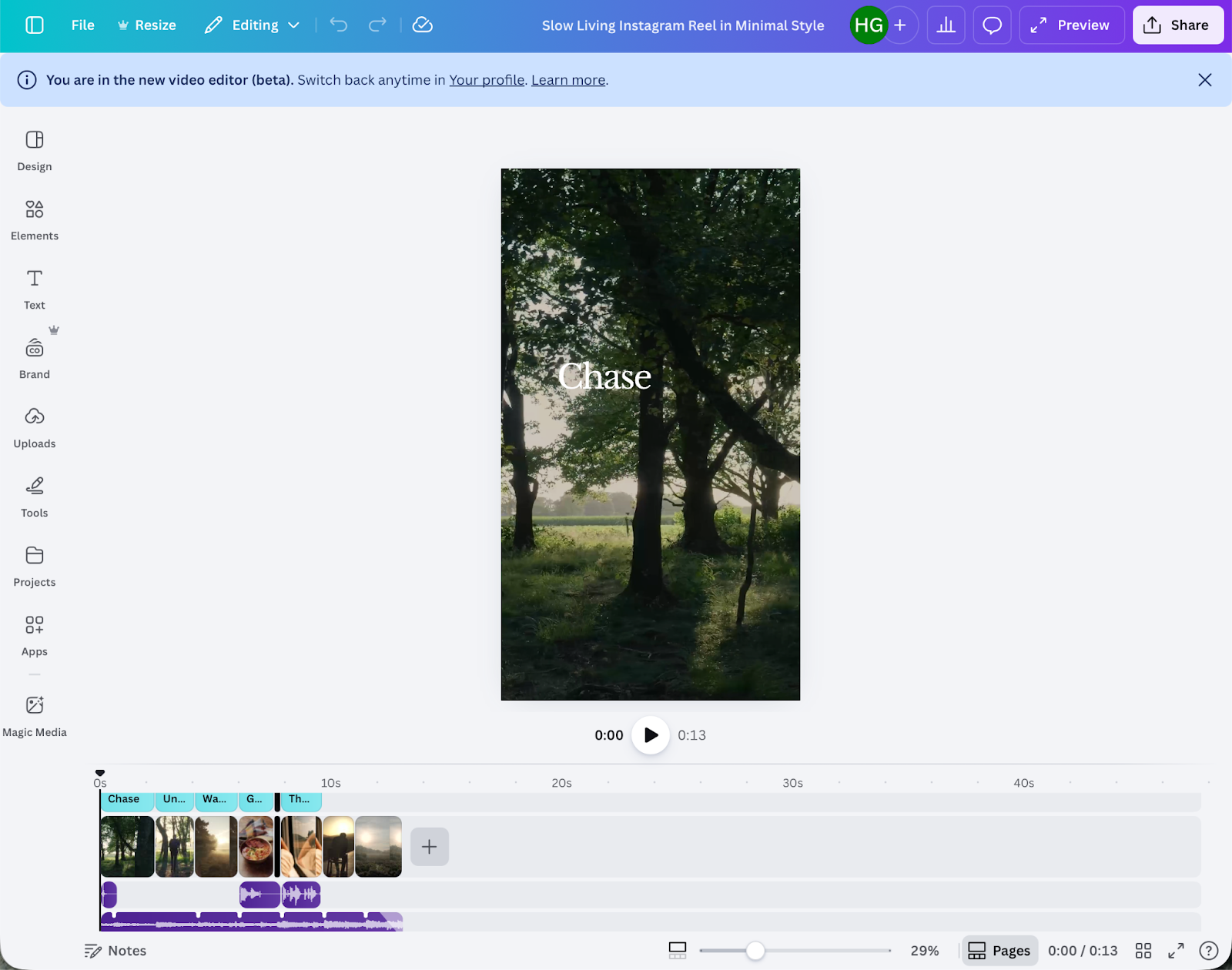
While it’s easy to highlight Canva’s vast range of features that make design accessible to non-designers, it’s worth noting it’s still packed with features for advanced users and can accommodate specific design needs.
These include
- Access to Affinity, a standalone professional photo, vector, and layout editing app.
- Canva’s video editor and animation tools. It’s perfect for creating social media stories, animated ads, and other video projects while being able to integrate Canva’s assets.
- Design insights and analytics. You can see things like visitor metrics about any Canva projects you share online, and how long your collaborators spend reviewing or working on your designs.
- A presentation mode. Canva doesn’t just allow you to create exceptional presentations, but you can also deliver them with its built-in presentation mode.
Jotform for Canva
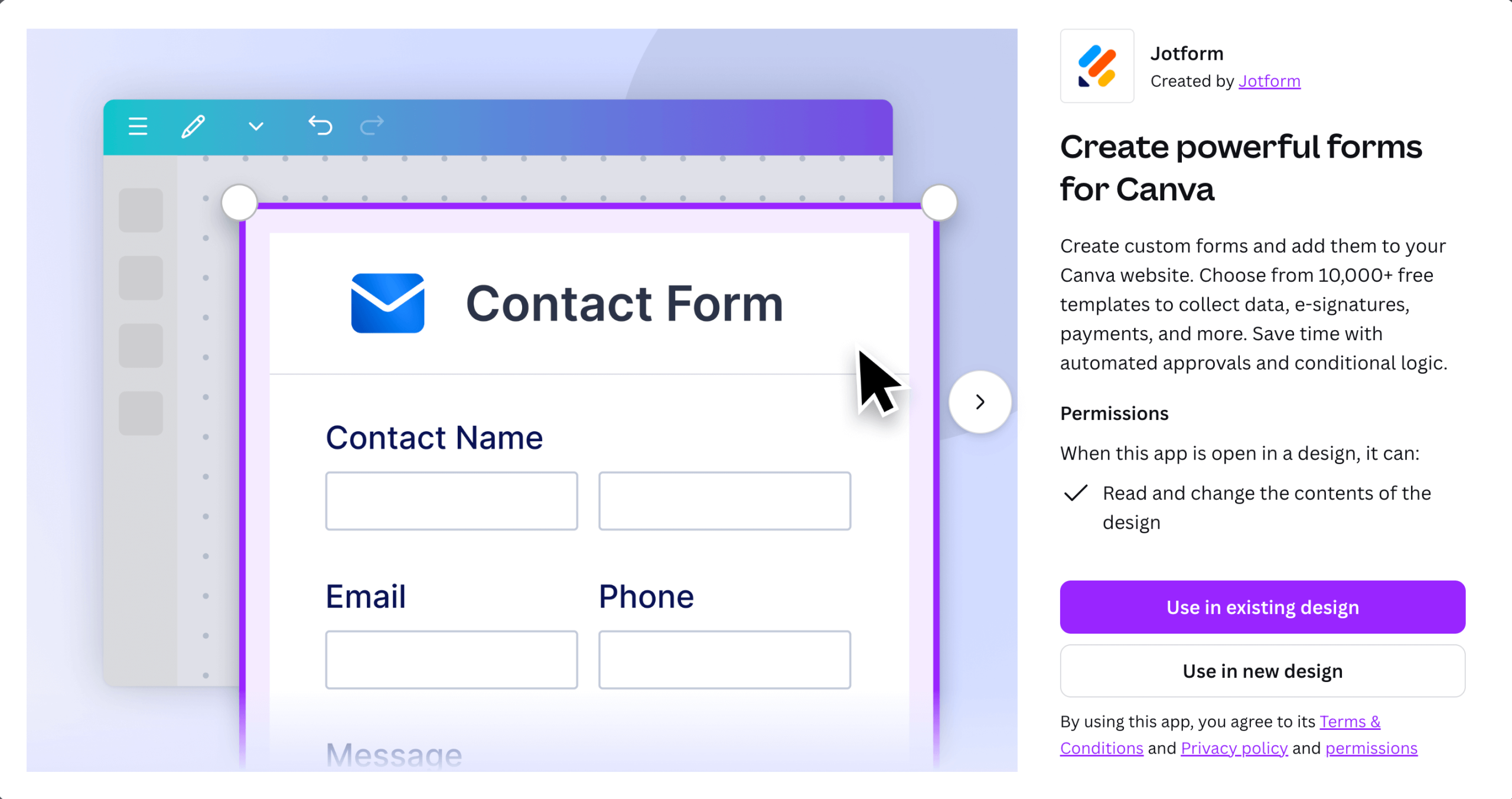
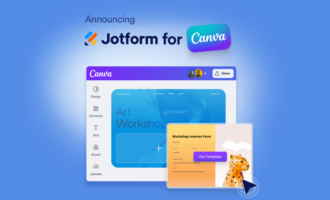
Jotform for Canva lets you seamlessly add a form to Canva designs. You don’t have to bounce around between different tools to get powerful data collection through your Canva designs; instead, you can use one of Jotform’s thousands of pre-designed templates.
As well as centralizing data collection for easy management and analysis, Jotform for Canva supports conditional logic for dynamic forms, payment processing through PayPal, Stripe, or Square, automated approval workflows, and e-signature collection.
Like Canva, Jotform gives you total control over how things look with an easy-to-use drag-and-drop editor, so you can design a custom form that perfectly suits your needs — and fits in with your design.
Pro Tip
Transform your Canva designs into interactive experiences with Jotform AI Chatbot for Canva. Instead of static content, visitors can ask questions, get instant answers, and engage with your materials through natural conversation.
Why you should try Canva
Canva is the go-to online design platform for beginners and professionals for a few reasons. It’s approachable without being too simplistic, it’s powerful without being hard to learn, and it’s flexible without burying you with options. Its drag-and-drop design editor, millions of templates and other graphic assets, collaboration tools, generous free plan, and advanced features make it suitable for everyone from students to Hollywood studios.
And if you want to use your design for data collection or even just embed a form to collect sign-ups, check out Jotform for Canva.
This article is for anyone exploring Canva for design work, from beginners making social posts to teams creating on-brand marketing materials, and for readers who want to understand Canva’s core features, pro options, and form-embedding workflows.




























Send Comment: