If someone in 2010 asked if you had an AI file or if you knew how to use AI, they weren’t referring to artificial intelligence. They wanted to know if you knew how to use Adobe Illustrator, the industry-standard vector design software with files ending in an .ai extension.
In the interim, a startup design software has been slowly becoming an ever-more credible competitor to Adobe’s suite of software: Canva. It has, increasingly, become the de facto tool to quickly edit images and create designs.
Canva and Adobe Illustrator both are design software that can work with vector and other design files to varying degrees, and both include collaboration tools to work on designs in a team. But the similarities end there, with Adobe Illustrator’s desktop-focused advanced creation toolkit starting at $22.99 per month, while Canva’s web-focused simplified design features are available for free. Here’s what makes each platform unique and when you should choose Illustrator or Canva for your work.
 Canva |  Adobe Illustrator | |
|---|---|---|
| Platform | Web-based (browser), requires internet connection for most features | Native Mac, Windows, and iPad software that runs offline |
| Core Focus | Simple and accessible design tools, templates, and online publishing | Advanced vector graphics design with precise editing capabilities |
| Vector Editing | Very limited SVG support – can import, view, edit colors, and move elements in simple files | Full vector editing – edit individual points, lines, and curves with pixel-level precision |
| Color Support | Standard RGB and web colors | RGB, CMYK, and web-safe colors for professional print work |
| AI Design Generation | ||
| Free Plan | ||
| Pricing | $15/month per person (annual plan) – premium templates, 5 brand kits, 100 GB storage | $22.99/month (annual contract) – full features, 100 GB storage, 25 AI credits |
What is Canva?
- Best for: Beginners, non-designers, and simpler collaborative design projects
- Key features: Free design software that runs in your browser with easy-to-learn tools and online publishing options built around collaboration
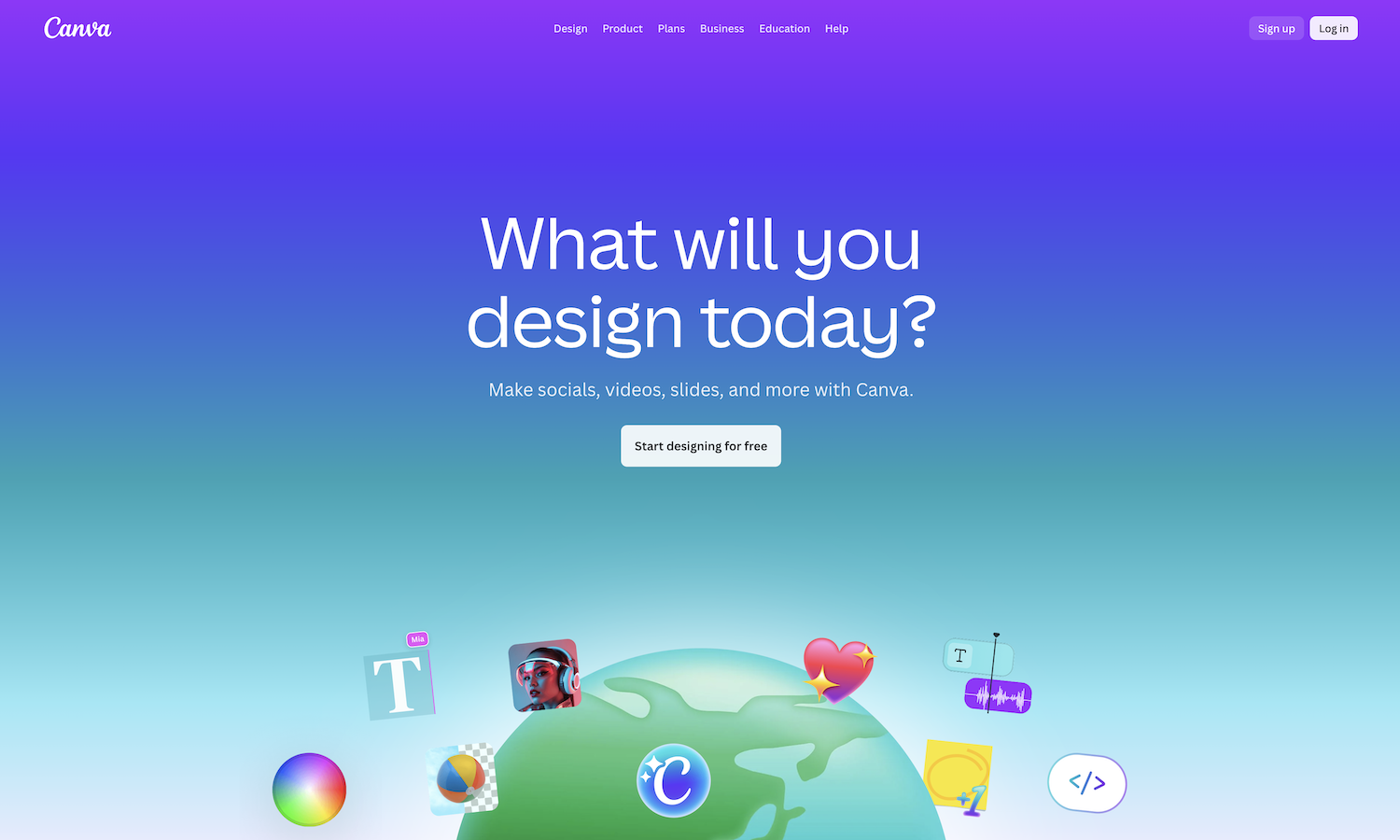
Canva calls itself the “visual suite for everyone.” It’s one of the easiest-to-use design tools, and the vast majority of its features can be accessed for free.
Founded in 2013 after growing from a tool for students to design yearbooks, Canva has always been focused on simple and accessible design tools. Canva runs in your browser, and its native apps require an internet connection for most features. That makes it harder to get work done on a flight but simplifies collaboration.
Canva also includes default templates for social media posts and websites, alongside more traditional print-focused layouts. It lets you publish designs directly to social media, share them in a Canva-powered website, or download them in traditional image formats.
It includes very limited SVG editor features to import, view, and edit the color of SVG vector design files, and edit text and move elements around in Illustrator files as long as they’re not too complex. It’s enough to add a vector icon to your Canva designs and turn them greyscale to match a design, but not enough to replace Illustrator for full vector design work.
Canva is built, instead, for the types of design tasks most beginner designers need to do: editing images — not as much as in Photoshop but enough to tweak brightness and contrast, add filters, and remove backgrounds; adding colors, shapes, and text; and building from templates or using AI to get started quickly. It’s designed to build everything from social media profile images to print brochures and business cards. And if you want to become a web designer, it’s one of the simplest ways to design and publish a website without code.
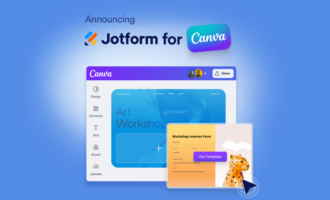
And since Canva’s a web app, it comes with extras and add-ons that make it more than just a design tool. If you build a site in Canva and would like to improve your website and gather data from visitors, perhaps to create an email newsletter or start a tiny online store, you can add a form to Canva with Jotform’s Canva app. With access to over 10,000 pre-designed templates, along with advanced form features like payment processing, workflows, and conditional logic, Jotform’s integration lets you build a far more powerful website with Canva’s design tools.
Canva’s learning curve is less steep than other design software, along with a generous free plan. That makes it the ideal choice for anyone who values simplicity or is just getting started in design work.
Pro Tip
Turn your Canva designs into interactive experiences by embedding Jotform AI Chatbot for Canva, so visitors can ask questions and get instant answers without leaving your page.
What is Adobe Illustrator?
- Best for: Professional designers, vector graphics artists, and collaborating in industry-standard formats
- Key features: Vector graphics design tools; native Mac, Windows, and iPad software that runs offline; advanced typography, print layout, and vector editing features
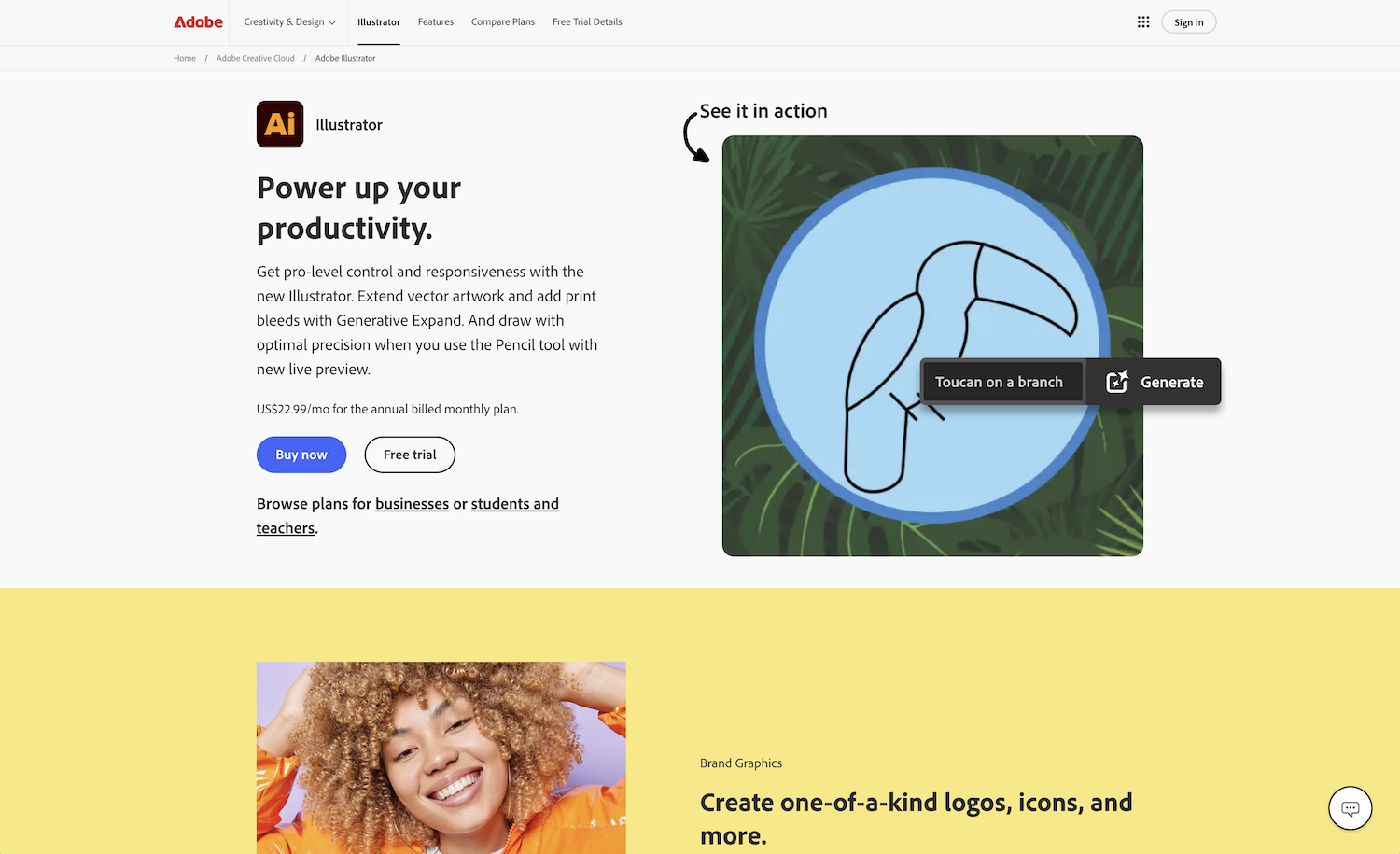
For over 40 years, Adobe Illustrator has been the default vector design software used by professional designers around the world. Launched three years before Photoshop, Illustrator was originally built as a companion to Adobe’s font design business.
Instead of editing JPG and PNG photos as you would in Photoshop, Illustrator is built around creating and editing SVG and other vector files with colors and points, lines, and curves that can be infinitely resized to create icons and layouts as small or large as you need without any loss of quality.
The same goes for creating new digital designs from scratch. Digital painting, with brushes and inks that imitate their physical counterparts and blend together, is a task best left to Photoshop or other photo-focused software like Pixelmator and GIMP or art-focused apps like Procreate. Cartoons, illustrations, icons, and other more structured, less photorealistic designs with crisper edges that can be infinitely resized and recolored are best designed in Adobe Illustrator or other vector design software like Figma or Inkscape. Editing photos for a website’s header? Photoshop. Designing a pixel-perfect icon for that website? Illustrator.
It’s the de facto standard in the design world. If you commission an icon from a designer, you’ll likely get the work in Illustrator’s .ai format. Similarly, if you send a brochure or business card design to a print shop, they’ll likely ask for it in Illustrator format so they can edit and resize elements as needed for print production.
Illustrator, along with Adobe’s other software, comes with a steep learning curve and a high price of entry. Design students often take entire university courses dedicated to mastering Illustrator’s ins and outs. And whether as a standalone, $22.99-per-month subscription with an annual contract or as part of the $69.99-per-month Creative Cloud suite, Adobe Illustrator is priced for those using it professionally on a regular basis.
Feature comparison
Both Canva and Illustrator are great tools for designing graphics. Both, today, are sold with monthly subscriptions. And both include features that let you collaborate on designs with colleagues, along with AI features to create vector graphics from a prompt.
But in many respects, the similarities end there.
Canva vs Illustrator: Ease of use
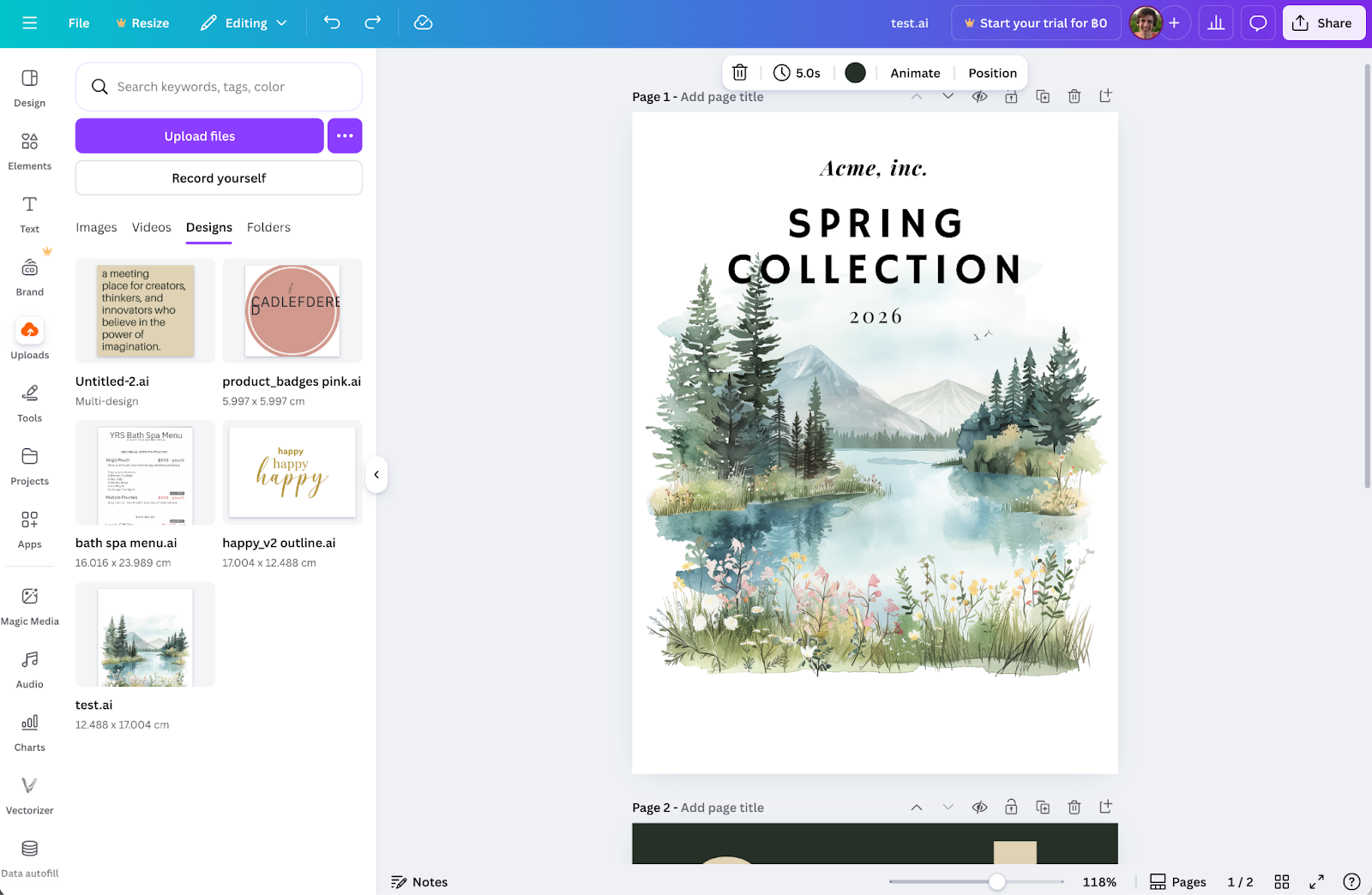
Canva’s easy to use but will leave more advanced designers wanting more. Illustrator’s the industry standard for vector design but its complexity may be a significant roadblock for some users.
Canva starts with templates and AI features that can create new editable designs from a single prompt. Its core interface includes a simple toolbar with 16 tools, along with a sidebar with eight panes to add shapes and other designs, manage a brand kit, add Canva apps to your account, and more. The tools change based on what you’re editing but without ever feeling overwhelming. Add a vector icon, say, and the toolbar will show color tools to recolor the entire vector to any shade you want. It’s easy, and yet even with my limited design skills I often find myself hitting limitations and needing to switch to other software for more advanced tasks. But it is the simplest app to quickly jump in and design something from a template or scratch.
Illustrator, too, includes templates along with a built-in AI to design vector icons and graphics. It includes over 80 tools, each with non-labeled icons and often hidden in sub-menus, along with over 45 sidebar pane windows with additional settings and options. You can search through some of Illustrator’s tools but often need to hunt to find the exact option you need. In return, Illustrator gives you the flexibility to edit anything in a vector graphic, down to the individual points and curves, something Canva cannot do. I’ve used Illustrator for years and still have to search for documentation when I need to perform a new task in it. It’s a complicated but powerful design tool for professional vector work.
Canva vs Illustrator: Customizability and precision
Canva’s core tools are not editable. You can’t move items in the toolbar around or customize which sidebar items are shown. Among the only settings you can customize are options to show or hide guides, margins, print bleed, and comments.
Instead, you can customize Canva with add-on apps, from Jotform’s form integrations to tools that let you design basic vector graphics or add video and databases to your websites. Canva’s apps include a wide range of data visualization tools, for example, including Canva’s own tools powered by Flourish, a tool built around data visualization best practices that Canva acquired in 2023 and then built into its core design software. It’s a minimal app, with any extra features you need bundled into additional apps you can install from Canva and third parties.
And while Canva does include rulers and guides to align and center items, it doesn’t offer pixel-level drawing or point-based vector editing.
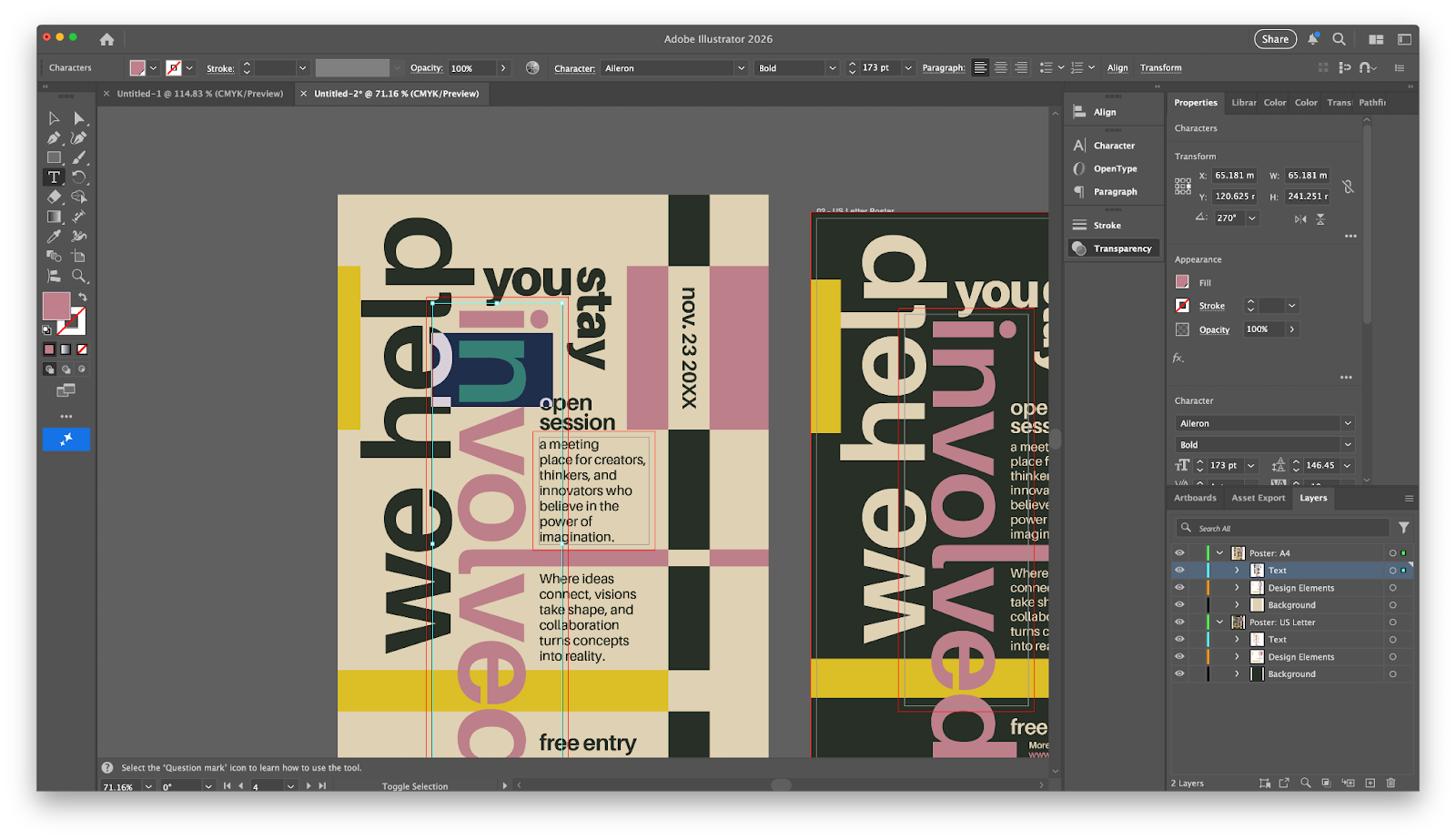
Illustrator, on the other hand, is designed for precision. You can zoom in to the pixel level, draw lines and curves as precisely as you’d like, and edit every point, line, and curve in a vector file, with support for CMYK colors along with standard RGB and web-safe colors. Its print tools are similarly more advanced, with detailed options to place designs on a virtual paper and set margins with bleed and proof marks included in the final printing.
Illustrator is also more customizable — something that can make it far more confusing, if you accidentally move something around and can’t find it later. You can move toolbars around, rearranging them from the side of your screen into floating windows or sidebar panes, or you can close them altogether. You can customize how often gridlines show up and what color they use, and you can save your toolbar layouts as custom workspaces. That lets you customize your layouts to fit your workflow and needs more than you could in a simpler app like Canva.
Canva vs Illustrator: Collaboration features
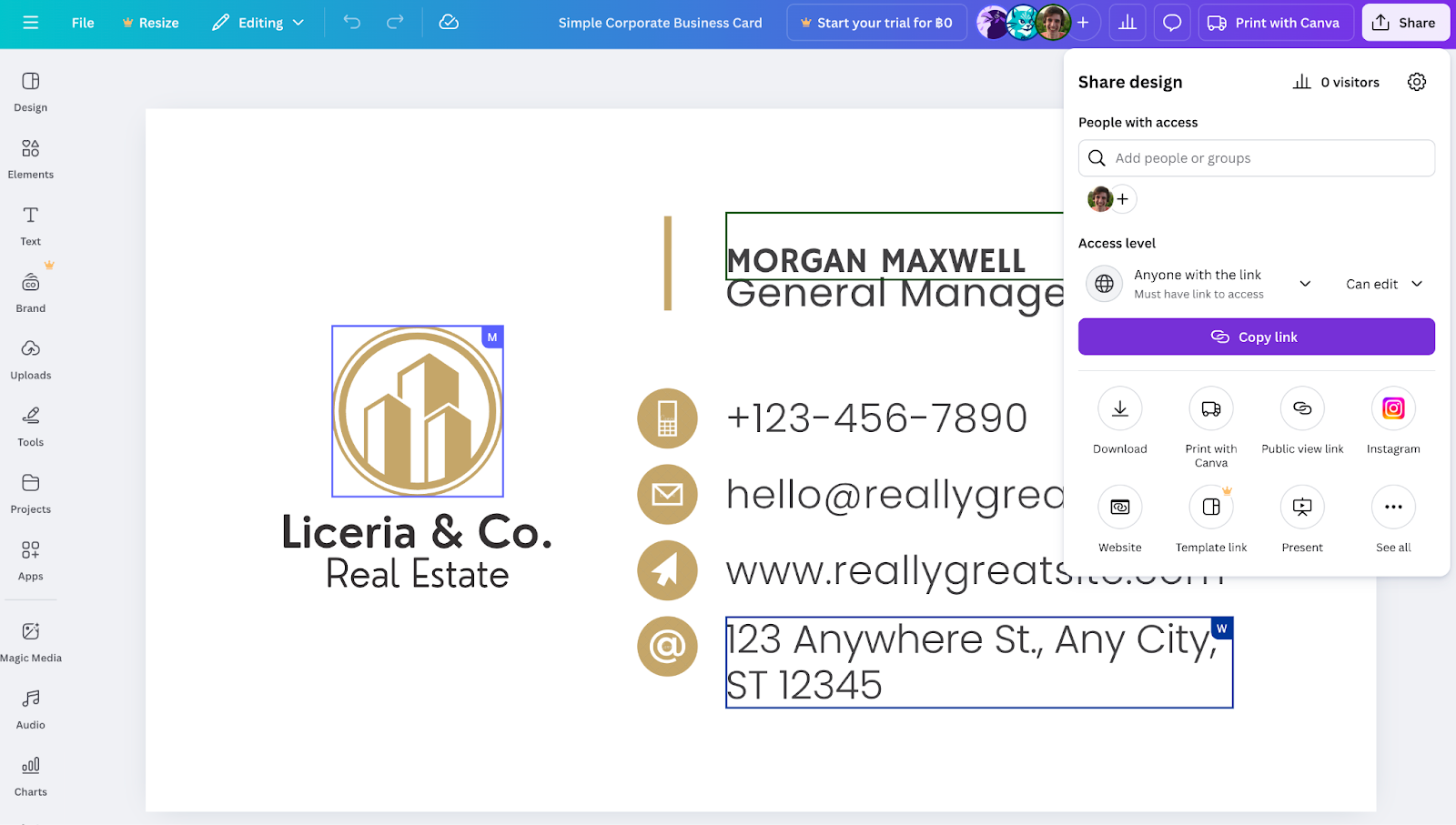
Both Canva and Illustrator support collaboration, but in different ways.
Canva is a web app that’s built for collaboration via shared links. You can invite collaborators by email, or copy a link to your Canva design and share it with anyone — even if they don’t have a Canva account. I especially liked Canva’s Notes pane, where you can leave details about your creation for the record to aid collaboration, along with Google Docs-style comments so collaborators can let you know what they added or suggest changes for you to consider.
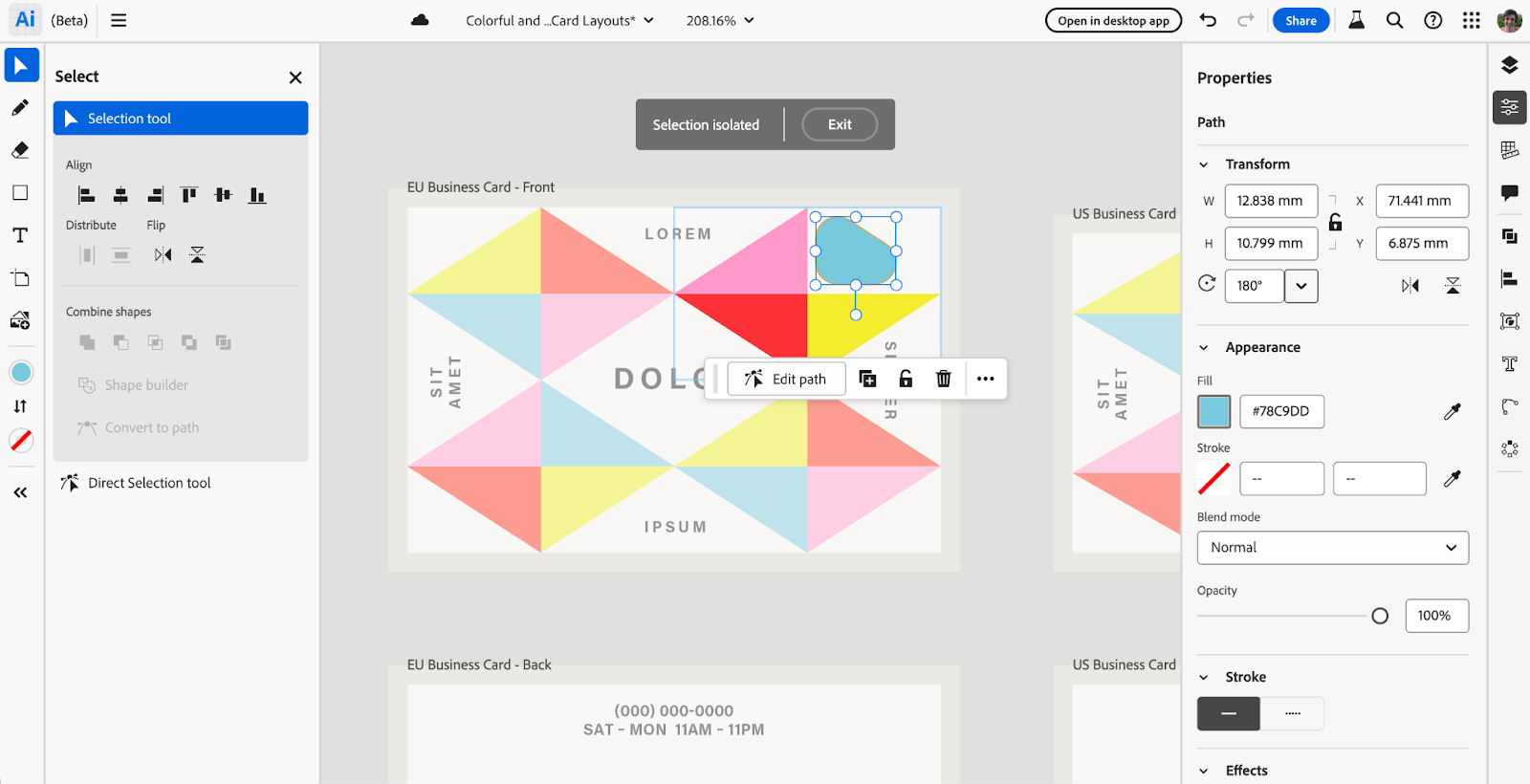
Illustrator collaboration historically relied on shared files, where you’d create a design in Illustrator, then send the file to a colleague to check. Today, though, with Illustrator in Adobe Creative Cloud, you can share a link to your Illustrator designs for others to review and comment on in their browser. And with the new Illustrator on the web app, Creative Cloud users can make quick edits to Illustrator designs online and with collaborators. It’s not full-featured Illustrator, but it still offers more vector design tools than Canva includes.
Canva vs Illustrator: Pricing comparison
Canva and Illustrator’s pricing places each tool in different markets. Canva’s the clear choice if you need a free design tool, while Adobe Illustrator is priced for professional illustrators.
Canva’s pricing starts free for most Canva features, including core templates, one brand kit, and 5 GB of cloud storage. Paid plans start at $15 per month per person, with tools to resize images and remove backgrounds, additional premium templates and graphic assets, five brand kits, and 100 GB of cloud storage.
Adobe Illustrator’s pricing, on the other hand, starts at $22.99 per month with an annual contract for full Illustrator features on desktop, iPad, and web with 100 GB of cloud storage and 25 monthly generative AI credits. Or, for $69.99 per month with an annual plan, Adobe’s Creative Cloud Pro plan includes Illustrator along with Photoshop, Acrobat, Lightroom, InDesign, and more, along with 4,000 generative AI credits per month.
Should you use Canva or Illustrator?
Use Canva when you
- Need a free graphics editor that runs in the browser
- Want to collaborate with anyone on designs
- Don’t need advanced vector editing features
Use Illustrator when you
- Need advanced vector graphics design features
- Want to work offline from a Mac or PC
- Have detailed SVG and Illustrator files you need to work on
Which tool is right for you?
Illustrator’s an advanced design tool, more complicated than most casual designers have the time or patience to learn. Yet if you’re designing detailed vector graphics, or collaborating with a design and print team with pixel-perfect accuracy, it’s the industry-standard software that’s worth using for the best results.
Canva’s a far simpler and cheaper design tool, built to let anyone design anything in minutes, collaboratively or on their own. It includes just enough support for vector graphics to let you import simple Illustrator files and SVG graphics to add logos to your designs, perfect when you’re starting out and don’t yet need to design everything from scratch. And its collaboration and web publishing tools are powerful enough, even professional Illustrator users may want to keep a Canva account around for quick, off-the-cuff, collaborative design work.
This article is for marketers, small business owners, beginners, and designers comparing Canva and Adobe Illustrator to choose the right design tool based on skill level, budget, collaboration needs, and vector precision in real workflows.


























Send Comment: