Canva and Photoshop are two of the biggest names in graphic design, but they’re very different tools. While both enable designers, marketers, and businesses to create graphics, designs, edited photos, and marketing materials, they approach it from opposite ends of the spectrum.
Photoshop is built for power, precision, and professional control — if you can imagine it, and if you have the skills, you can create it in Photoshop. On the other hand, Canva is built for speed, simplicity, and ease of use — its templates make it possible for anyone to quickly create powerful marketing materials.
Determining which design tool is right for you isn’t just a matter of comparing features. It’s about selecting the appropriate workflow for your design needs. A social media manager cranking out dozens of graphics every day has entirely different needs compared to a professional product photographer creating a print ad.
Full disclosure: I use both Canva and Photoshop regularly depending on what I’m trying to do, so this isn’t a simple comparison where one tool is the best in every situation. I’m also mostly focusing on the main Canva and Photoshop apps, not things like Affinity (which is now included with Canva) and Adobe Express (which is Adobe’s template-based Canva alternative).
So, let’s break both down in one big graphic design tools comparison, and look at whether Canva or Photoshop is the right tool for your workflows.

Canva overview
What is Canva?
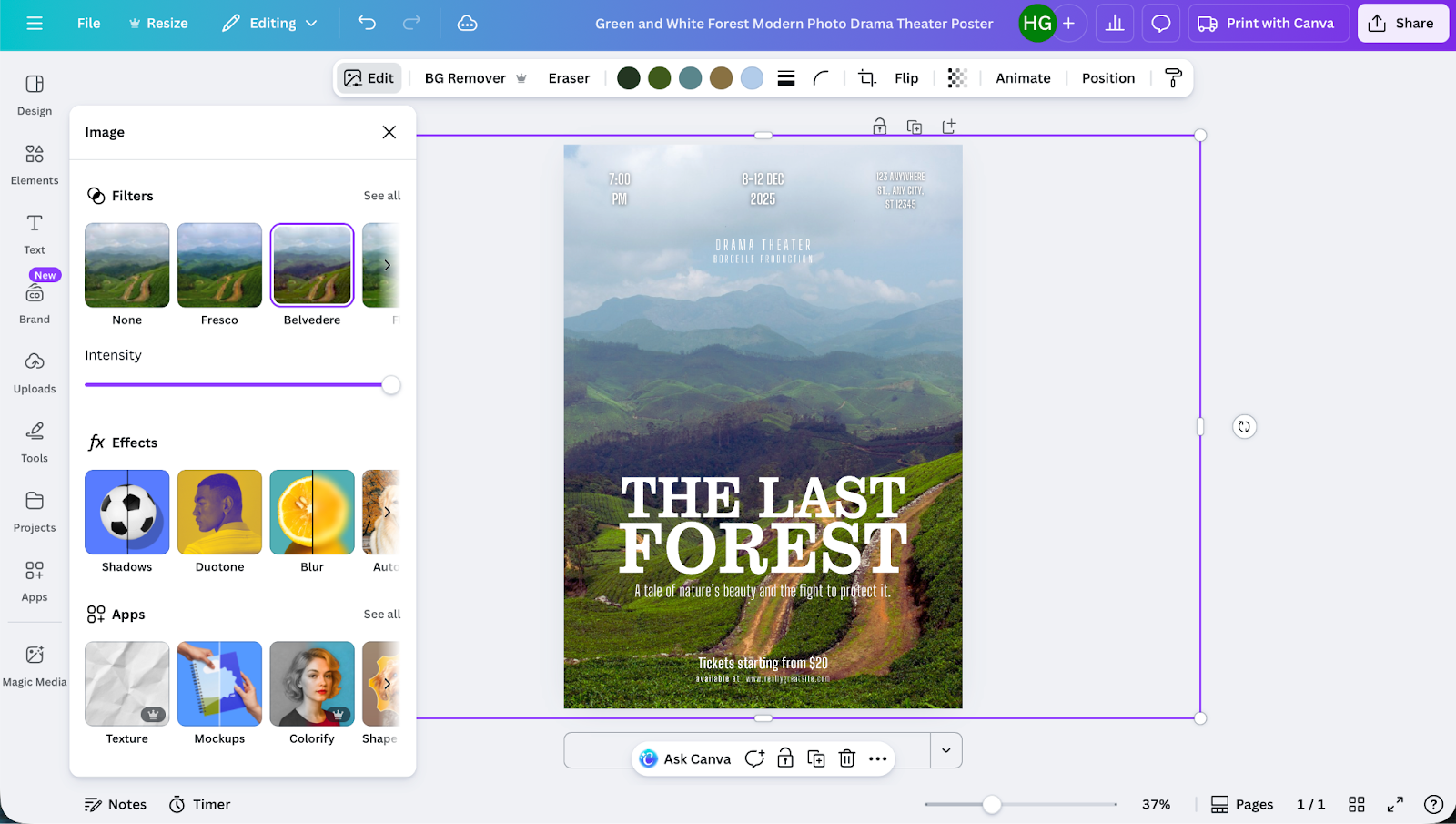
Canva is a cloud-based design platform. Its templates and drag-and-drop editor combine to make professional graphics accessible for everyone. You don’t have to learn layers, masks, and complex keyboard shortcuts to get the most out of Canva. Instead, you start with a template, make a few tweaks, and you’re ready to share your design.
Key features of Canva
- A massive template library: Canva has millions of templates that cover everything from pitch decks, posters, and social posts to YouTube videos, logos, and more. It’s hard to overstate just how broad Canva’s range of templates is.
- Easy-to-use drag-and-drop editor: Canva’s drag-and-drop editor makes it easy to take any template and tailor it to your needs. You can change the image, move text around, and otherwise tweak things with a few clicks.
- Brand kits and consistency tools: Canva makes it easy to create consistent graphics with brand kits (including logos, colors, and fonts) that automatically adjust templates to fit your brand. It can also automatically adjust and resize any template, so you can convert a poster into a Facebook post, for example.
- Built-in collaboration: Canva is designed for teams to work together, both through sharing templates, brand kits, and other assets and through real-time collaboration and comments.
- Artificial intelligence (AI) powered design tools: Canva has developed AI features like Magic Design, Magic Write, and Magic Studio. You can create an AI-generated template, produce AI images, and generate AI text.
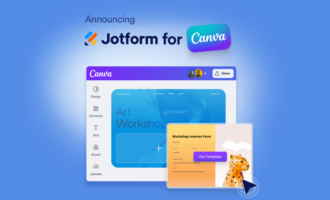
- Integrations — including Jotform for Canva: Canva integrates with other apps and tools, including Jotform. You can create and embed forms directly into your Canva designs and websites to leverage Jotform’s advanced features like e-signatures, payment processing, automated workflows, and conditional logic. With access to over 20,000 pre-designed templates, form creation is simplified, saving time and effort.
Who should use Canva?
Canva is the best graphic design tool if you need a fast, easy-to-use app that offers repeatable results. You don’t need a degree in graphic design to get the most out of it, and since it’s available through your browser, you don’t even need a high-powered computer. If you want to create a few social posts or improve your website with a new logo, it takes no time at all.
In particular, Canva suits small business owners, social media managers and influencers, and digital marketing teams. It’s also great for students and educators.
Pro Tip
Turn your Canva designs into interactive experiences by embedding Jotform AI Chatbot for Canva, so visitors can ask questions and get instant answers without leaving your page.
Photoshop overview
What is Photoshop?
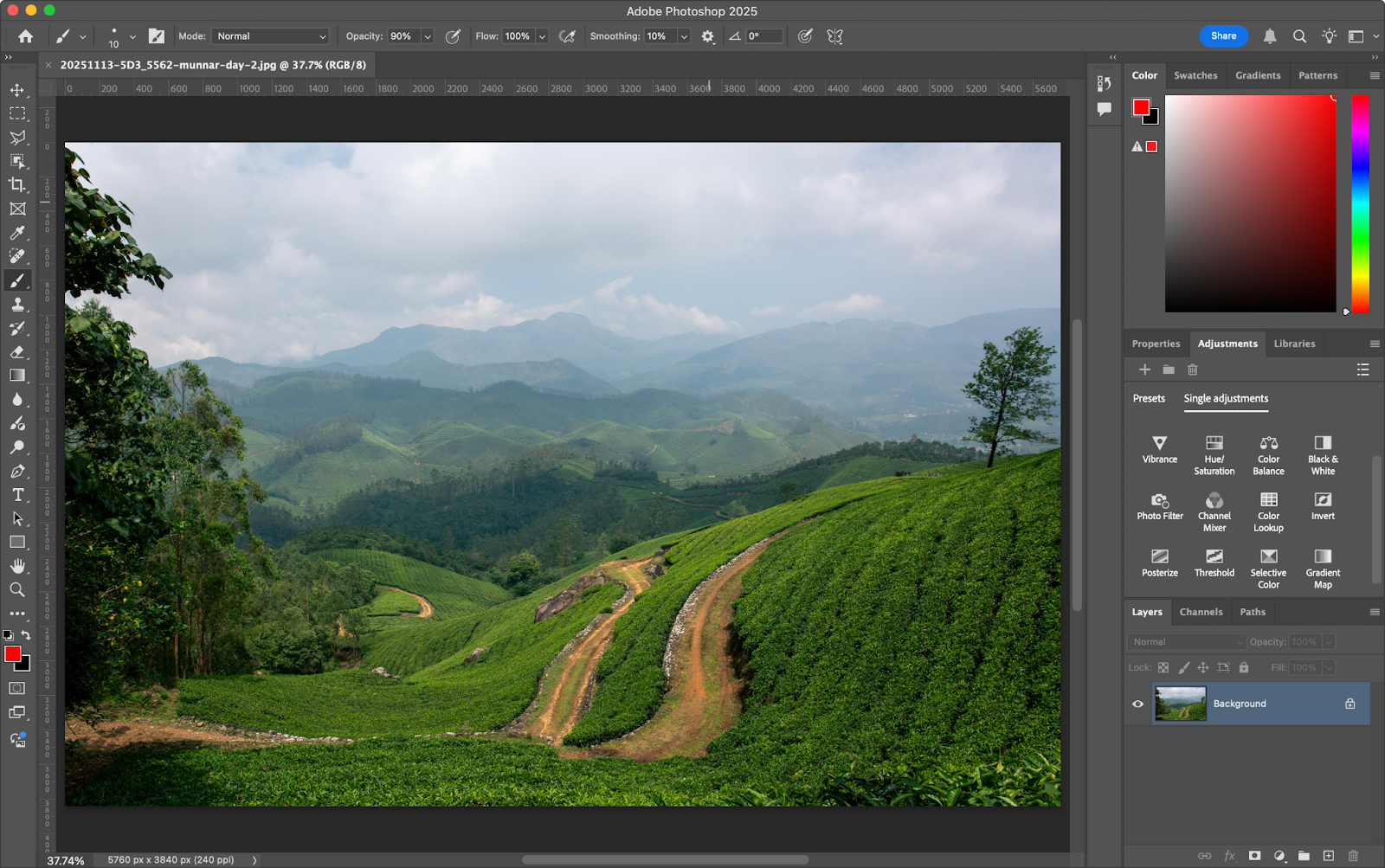
Photoshop is a professional image editing and graphic design powerhouse. It’s been the industry standard for photo editing apps for years because of its flexibility, feature set, and exhaustive capabilities. It’s significantly more advanced than Canva, which is both a positive and a negative. Your only limits are your imagination and your technical skills — but getting those technical skills takes time.
Key features of Photoshop
- Cutting-edge photo editing tools: Photoshop’s combination of adjustment layer, layer mask, blend mode, cloning and healing, color adjustment, and selection tools is second to none. There’s a reason “Photoshopping” has become a verb to mean image editing and advanced photo manipulation.
- Advanced digital painting features: Slightly lesser known but no less advanced are Photoshop’s digital painting tools. The platform supports custom brushes, pressure-sensitive tablets, advanced blending, and so much more — giving illustrators and artists a digital canvas.
- Extensive number of plugins: Photoshop is the industry standard, so countless other tools are built on top of it. You can find workflows, presets, and plugins that add features to Photoshop or make it easier to use. They don’t go as far as Canva’s templates, but they still make things easier.
- Huge educational ecosystem: There are thousands of courses (free and paid) that teach you how to do everything you could want in Photoshop. So, yes, there’s a learning curve, but the resources you need to overcome it are readily available.
- Integration with the Creative Cloud: While you can design logos and create presentations in Photoshop, it isn’t Adobe’s best tool for the job. For that, you want Illustrator and InDesign respectively. But Photoshop integrates with them so anything you do in it is also available across the other Creative Cloud tools. This also allows you to collaborate with others on your team, and use Adobe’s stock image and typography libraries, as well as its generative AI tools.
Who should use Photoshop?
Photoshop is the best graphic design tool if you need the most flexible and powerful professional app available. If you’re jumping into Photoshop for the first time, you will be confused — it’s packed with features, so there are dozens of buttons, menus, and panels with complex names. But if you know what you’re doing, you can create anything.
This makes Photoshop best suited to professional graphic designers, photographers, illustrators, and creative agencies. If you don’t think you need its feature set, power, and flexibility, you don’t need Photoshop.
Canva vs Photoshop: Key differences
User interface and learning curve
Canva has a far simpler user interface, and its drag-and-drop editor makes it very easy to use. I bet you could open Canva right now and create a great-looking social media post for your brand within 20 minutes. Of course, there are still lots of features, and becoming a pro with Canva still takes time — especially if you want to create your own templates and other assets — but it’s much easier to learn than Photoshop.
Photoshop’s user interface can be overwhelming. Tool tips, tutorials, and case-specific workspaces can only do so much when there are dozens of buttons, menus, and features to navigate. I’ve been using Photoshop professionally for more than a decade and I still haven’t mastered every feature. It has a serious learning curve.
Features for beginners vs professionals
Canva’s template-based workflow is incredibly beginner-friendly. Typically, you aren’t creating a design from scratch so much as tweaking an existing design so that it better matches your brand. This isn’t to say Canva isn’t for professionals, but it doesn’t offer the same deep level of control as Photoshop.
Photoshop is pretty unforgiving for beginners. The tool tips and tutorials can help you get by, but it’s a professional-grade tool aimed at graphic designers, photographers, and studios. It has the feature set to back it up, though.
Collaboration and sharing capabilities
Canva offers real-time collaboration through its web app. There are also comments and approval workflows, as well as shared libraries and easy link-based sharing.
Photoshop offers cloud-based collaboration and comments, but it doesn’t allow for two people to work on the same file at once.
Compatibility and device support
Canva has a web app, as well as mobile applications for iOS and Android. (The Canva desktop apps are just a special browser that gives you access to the web app.) This makes Canva accessible from any computer regardless of its performance specifications — though you have to be connected to the internet.
Photoshop is available on Windows and macOS. There’s a web app called Adobe Express that has some features, as well as a stripped-back version for smartphones and tablets. That said, Photoshop is a resource-intensive application; if you’re doing heavy image editing, you’ll need a computer with a decent CPU and amount of RAM.
Pricing comparison
Canva pricing and plans
Canva has four pricing tiers: Free, Pro, Business, and Enterprise. All plans include access to Canva’s Affinity apps.
- Free: This plan includes all Canva’s basic features and access to millions of assets. You also get one brand kit and 5 GB of storage.
- Pro: Pro costs $15 per month and includes Premium tools and features, access to hundreds of millions of assets, and more AI usage. It also includes five brand kits and 100 GB of storage.
- Business: For $20 per user per month, you get all Pro features, collaboration and team admin tools, 100 brand kits, and 500 GB of storage.
- Enterprise: You’ll need to contact sales for the details, but the Enterprise plan adds enterprise-level security and controls as well as additional usage.
Photoshop pricing and plans
Photoshop is available as part of Adobe’s Creative Cloud which can make things very complicated.
- Photoshop only: A month-to-month Photoshop subscription costs $34.49 per month. It includes Adobe Express, Adobe Firefly, and Photoshop’s mobile apps. This goes down to $22.99 per month with an annual commitment.
- Photoshop and Lightroom: For photographers, Photoshop and Lightroom are available as a bundle for $29.90 per month. This doesn’t include the Photoshop mobile apps but does include the Lightroom mobile apps. The price goes down to $19.99 per month with an annual commitment.
- All Creative Cloud apps: Creative Cloud Pro costs $104.99 per month, or $69.99 per month with an annual commitment.
- Plans for businesses: A Photoshop Team plan costs $37.99 per license per month, while a Creative Cloud Pro plan costs $99.99 per license per month. These include collaboration and shared libraries. Enterprises looking for large numbers of licenses have to talk to Adobe’s sales teams.
Canva vs Photoshop pricing
In any head-to-head pricing comparison, Canva wins by a long shot. Not only does it have a great free plan, but even its most expensive plan costs less than Photoshop’s cheapest plan. The counterpoint is that Photoshop is the industry standard — while Canva (and especially Affinity) can do some of the same things, they aren’t the same app. If you want Photoshop features, you have to pay Photoshop prices.
Use cases and best fit
When to choose Canva
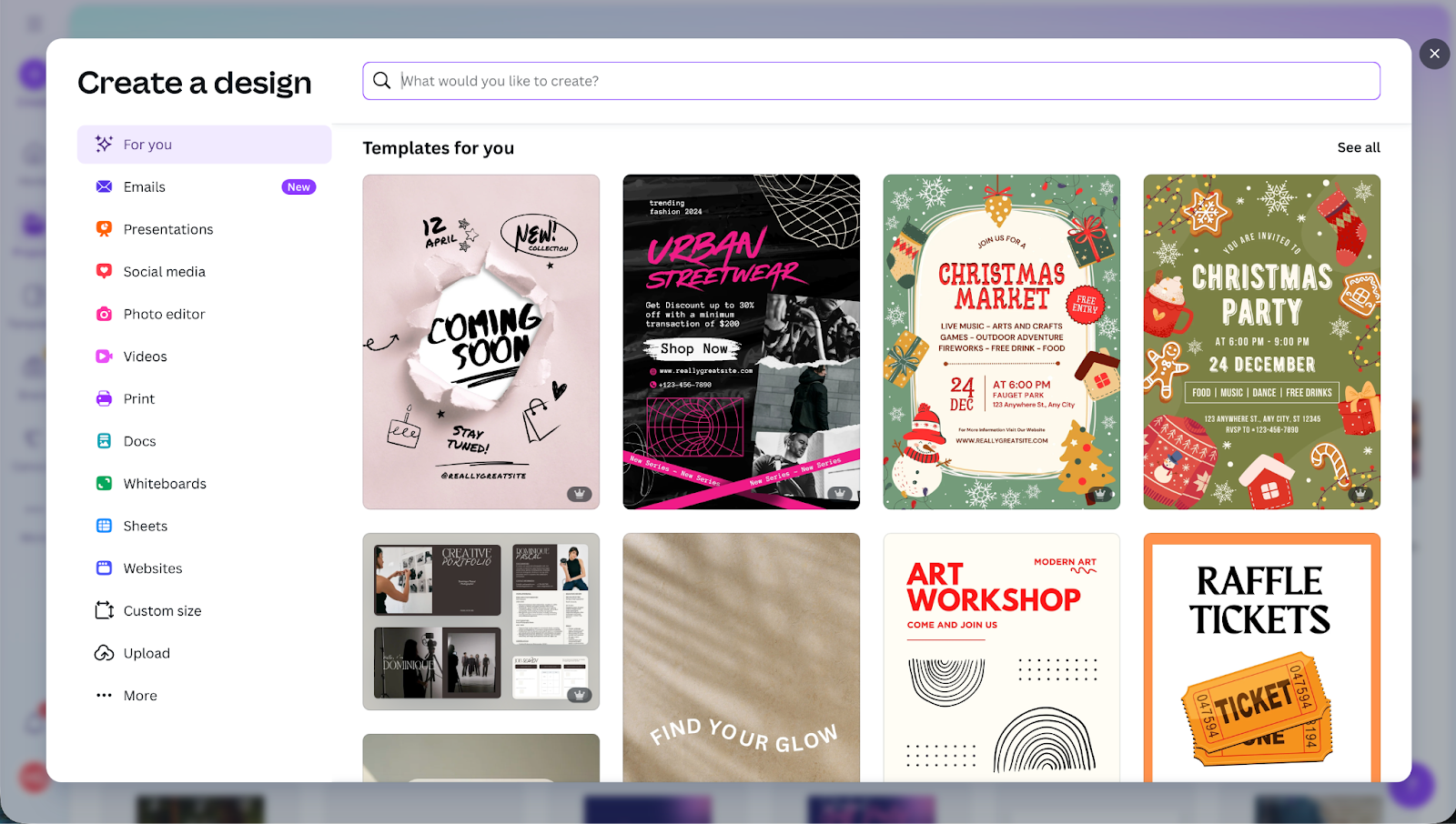
Choose Canva if you want fast, high-quality designs for social content, posters, presentations, and more. It’s ideal for design studios that require real-time collaboration and reusable assets for multiple clients.
Canva is also the better choice for students, design novices, and small business owners who need an easy-to-use tool. Its templates and drag-and-drop editor make it simple for anyone to create great designs.
When to choose Photoshop
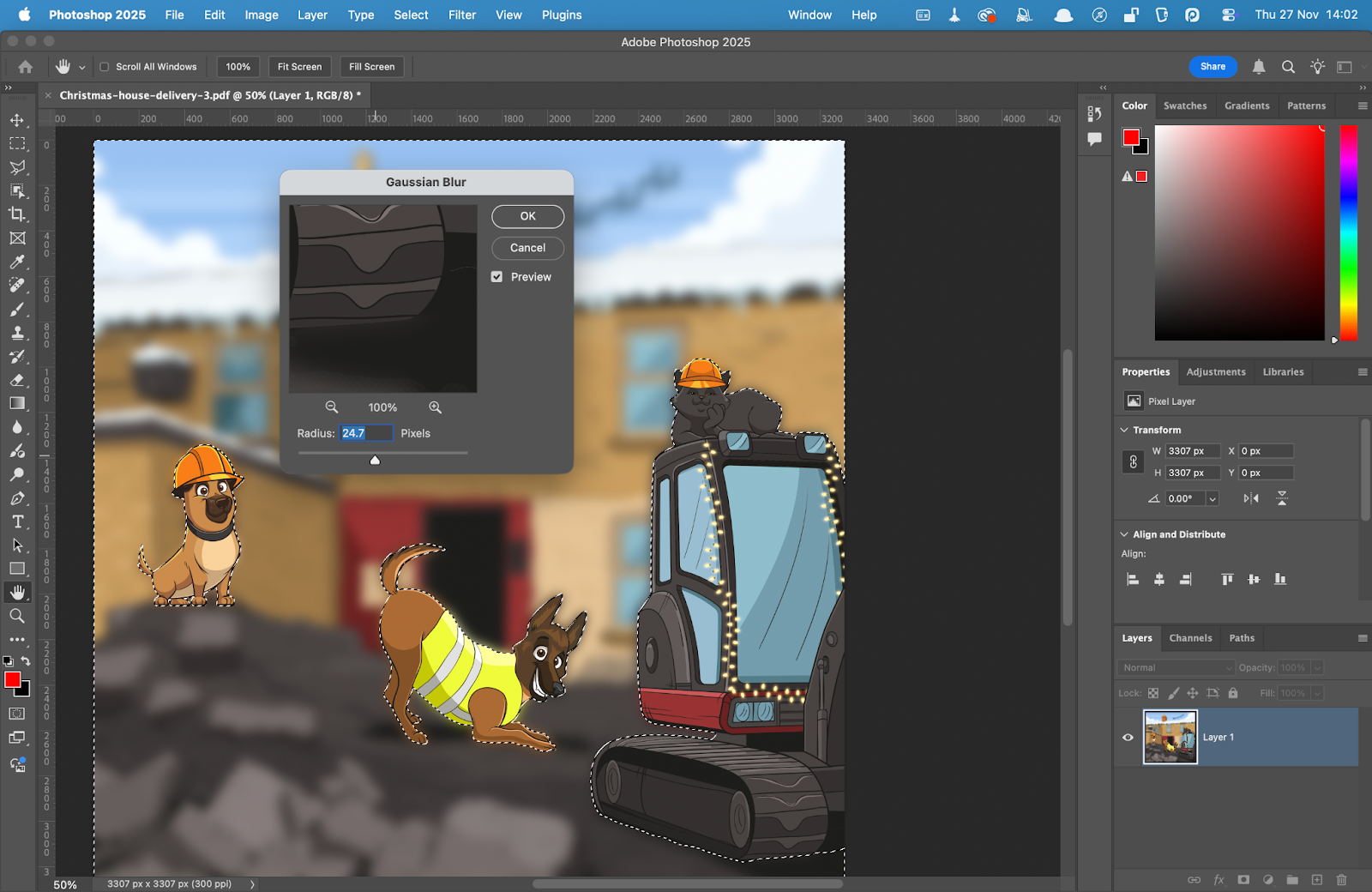
Choose Photoshop if you need pixel-perfect, pro-level performance and advanced photo editing tools. It excels at detailed image manipulation and retouching, digital art, and complex graphics and composites. If you use other apps in the Creative Cloud or collaborate with a team that does, Photoshop is also the obvious choice.
Ultimately, Photoshop is design software for professionals and aspiring professionals. So, if you’ve grand plans to become a web designer, pro photographer, or other creative, it’s the app to use. Unfortunately, if you aren’t making money directly from using it, it’s a very expensive subscription. The cost is probably one of the biggest Photoshop limitations.
Which graphic design tool wins?
“Canva for beginners, Photoshop for professionals” is a neat summary, but it skips all the important nuances. Canva is also better for teams and students, while Photoshop works without an internet connection and has better mobile apps.
Really, both Canva and Photoshop are great tools with lots of overlapping features. You can create social posts, flyers, and so much more in either tool and get impressive results. Especially when you take into account Canva’s Affinity apps and Adobe’s Express app, it’s clear that both tools can get any job you need done well.
However, when it comes to Canva vs Photoshop, there can still be a winner in different circumstances. There’s a reason I’m subscribed to both. Sometimes you need the speed or convenience of Canva, sometimes you need the control or capabilities of Photoshop. The only way to decide which is right for you is to think about what you need a design app to do. If you’re looking for fast, easy, and repeatable, go Canva. For power and options where budget isn’t a concern, go Photoshop.
Or, if you’re like me, use both.
This article is for marketers, small business owners, and content creators who need to understand whether Canva or Photoshop best supports their design needs. If you’re aiming to streamline your production process without sacrificing quality, this comparison breaks down which tool aligns with your goals.

















Send Comment: