
According to BrightLocal’s 2026 survey, 97 percent of customers read online reviews before making a buying decision. If you’re not showing Google reviews on your GoDaddy website, you might be missing out on an easy way to build trust and turn visitors into customers.
This guide shows you how to add Google reviews to your GoDaddy website. It’s straightforward and fast — you won’t need to write a single line of code.
Option 1: Add reviews via the product page
With this option, you use the native Google Reviews GoDaddy integration to add testimonials to your site. Here’s how:
- Sign into your GoDaddy account.
- In the top right, click your name or account avatar, then go to Websites + Marketing > Manage.
- Select Edit Website.
- Open the web page where you want to add reviews, then navigate to the exact location you’d like to place your testimonials.
- Click + > Add Section.
- Look for Reviews, click it, then select Add in the top-right corner of the screen.
- Customize the title, background, and color of the reviews section you’ve just added and click Done.
- Under Connected Account, choose Connect to external source. In the drop-down menu, select Google Business Profile.
- GoDaddy will redirect you to the Google Business Profile login page, allowing you to connect your account to your website. Click Publish once you’re done.
Why this works
With the native integration, you can
- Add Google reviews on your GoDaddy website without third-party tools.
- Automatically update and display Google testimonials (the most recent reviews take up to two days to appear on your site).
- Embed Google reviews without writing code — you just change a few settings.
However, GoDaddy’s Google Reviews integration has limited customization options.
Option 2: Use a Google Reviews widget for GoDaddy (easy and free)
With Jotform’s GoDaddy Google Reviews Widget, you can add Google reviews on your website in a few steps and without spending a single dime.
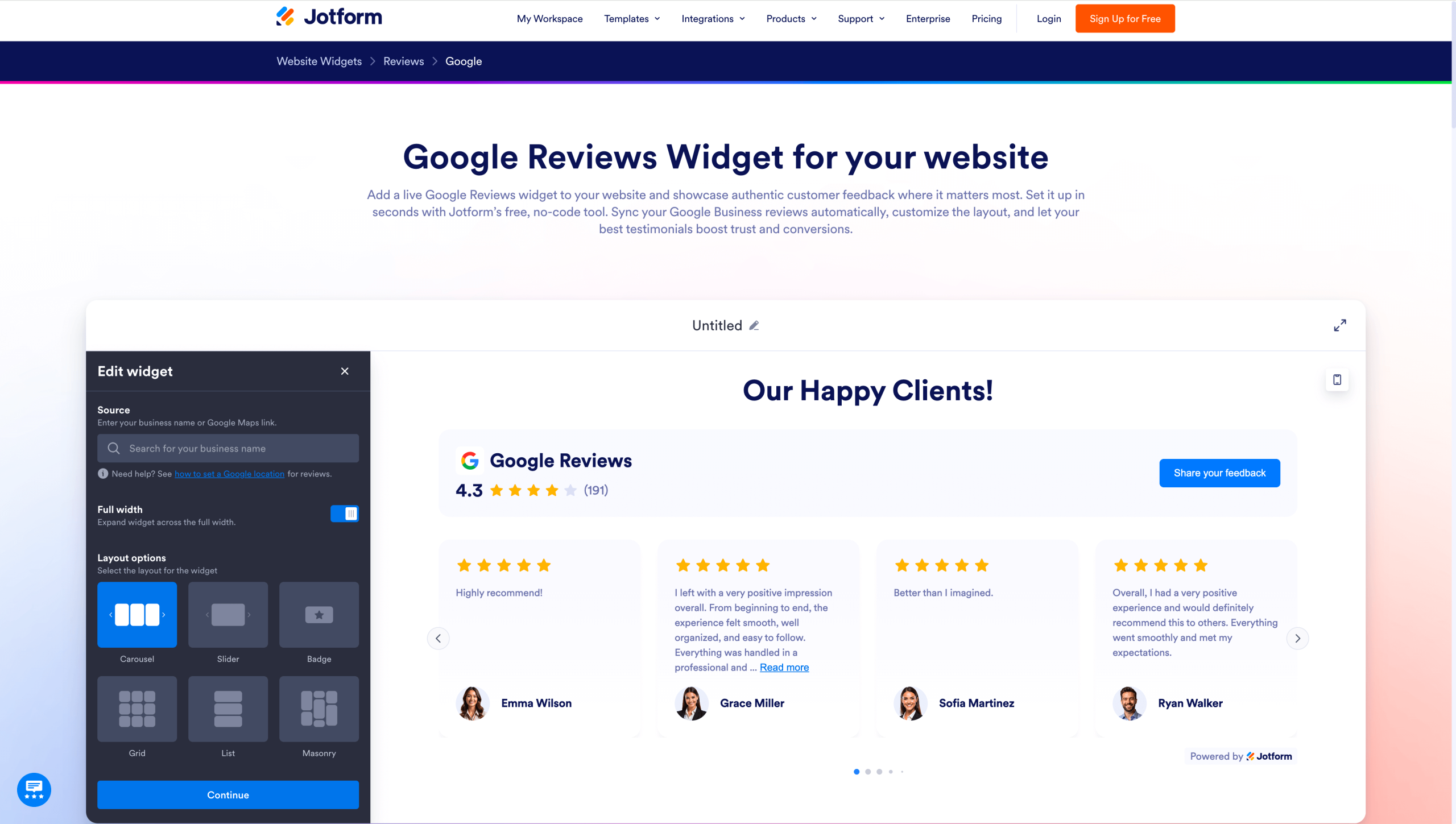
Step 1: Customize your widget
Visit Jotform’s Google Reviews widget page, then enter your business name and address listed on your Google Business Profile (formerly Google My Business). Next, use the free, no-code editor to customize your widget.
You can choose the layout, color, and theme to match your brand and website design. In addition to the actual Google review that will appear on your site, you can also select which extra details you want to display — like star ratings, number of reviews, reviewers’ photos, and customer names.
As you edit your widget, you’ll see in real time how the changes will appear on your website.
Step 2: Grab the embed code
Once you finish editing your widget, click Try it on your website for free. Jotform will automatically generate an embed code that you’ll use to show Google My Business reviews on a GoDaddy website. Click Copy Code.
To copy the embed code, you’ll need to sign up for a totally free Jotform account (or sign in if you already have one).
Step 3: Paste the embed code into your GoDaddy website
Here’s how to add the code to your site and embed Google reviews on GoDaddy:
- Log into your GoDaddy website.
- Click your name or avatar near the top right, then go to My Products >> Websites + Marketing >> Manage.
- Go to the specific web page and the exact place you want Google reviews to appear, then click + > Add Section.
- Look for HTML, click it, and then select Add.
- Paste the embed code in the Custom Code field to the bottom right of the screen.
- Before clicking Publish and making the reviews public, go to Preview to see how they’ll appear.
Why this works
Users love Jotform’s Google Review widget because
- The tool syncs directly with your Google Business Profile, so it automatically shows the most recent Google reviews on your site. You don’t have to update them manually, which saves time and keeps your social proof fresh.
- Even without coding skills, anyone can use it to generate an embed code that lets you add Google reviews to a GoDaddy website.
- It’s completely free — you just need a Jotform account.
- The widget offers extensive customization so you can tailor your reviews page to your brand’s unique needs.
Option 3: Manually add Google reviews to your GoDaddy website
The manual method involves copying reviews from your Google Business Profile account and pasting them directly to your GoDaddy website. This option gives you full control over which testimonials appear on your site. However, the content won’t update automatically when customers post new reviews.
Here’s how to add Google reviews to a GoDaddy website manually:
- In your GoDaddy account, click your name at the top right corner, then navigate to Websites + Marketing > Manage.
- Choose Edit Website.
- Go to the page and the section where you want to add testimonials.
- Click the plus icon and Add Section.
- Find Reviews in the list and click Add in the top-right corner of the screen.
- Customize the new section’s appearance and title, and then click Done.
- Under Connected Account, choose Add reviews manually. Pick one of the placeholders (for example, Title 1) and enter the review title, testimonial text, star rating, customer name, review date, and review link. Repeat this process to add up to nine reviews to your GoDaddy website.
Why this works
When making a website, manually adding Google testimonials takes time and effort, but the approach has several perks and is suitable in certain circumstances:
- You can add reviews from multiple sources, not just Google Business Profile. If you also want to include Facebook, Yelp, and TrustRadius testimonials on your GoDaddy website, the manual approach might be best.
- You can display a select few reviews without needing frequent automatic updates.
- You get complete control over what reviews to use on your website. Since there are no automatic testimonial updates, you can choose to highlight only your strongest Google reviews.
Option 4: Embed Google Maps on your GoDaddy website
Adding Google testimonials manually, setting up Google review widgets, and using GoDaddy’s native integration aren’t the only options.
When you embed Google Maps on your website, visitors can see your total number of Google reviews and overall star rating. However, the embed doesn’t display individual testimonials. Instead, it shows
- Your business location on an interactive map
- Your business name and address
- Your average star rating and the review count
Here’s how to add Google Maps to a GoDaddy website:
- Open your web browser and go to Google Maps.
- Enter your business name and address in the search bar, then press Enter.
- Once your location appears, click Share and select Embed a map.
- Choose your preferred map size — small, medium, large, or custom.
- Click Copy HTML, then paste the embed code into the HTML section of your GoDaddy website.
To find the HTML section of your GoDaddy website:
- Log into your GoDaddy account, click your name, and navigate to My Products >> Websites + Marketing >> Manage.
- Open a web page and go to the specific section you want to embed Google Maps, then click + > Add Section.
- Find HTML in the list and select Add in the top-right corner.
- Paste the Google Maps embed code in the Custom Code field to the bottom right.
Once you publish the changes to the page, the Google Maps embed will appear on your live website.
Why this works
This approach works because
- You show your overall Google star rating directly on your website, which is still powerful social proof.
- Visitors can also see your business location and click through to view reviews.
- You can build customer trust without requiring third-party tools or plug-ins, which reduces the number of software tools you have to manage.
Upgrade your GoDaddy website with easy-to-embed widgets
Besides the highly customizable Google Reviews Widget, Jotform offers widgets for other review platforms, including eBay, Yelp, Facebook, Tripadvisor, and Etsy. If you have reviews on any of these platforms, the corresponding Jotform widget makes it easy to display and automatically update testimonials on your website.
Jotform also offers several other widgets that aren’t related to customer reviews but are just as useful. They include the
- Form Widget: Allows you to create custom forms with AI and easily place them on your GoDaddy website using embed code
- AI Chatbot Widget: Helps you build an AI assistant that can answer customer questions 24-7, provide form-filling assistance, and improve interactive experiences on your site
Try Jotform’s Free Website Widgets and see how they help you improve your site without requiring any coding experience.
This article is for business owners and teams using GoDaddy who want a simple, no-code way to display Google reviews, strengthen credibility, and add social proof to key pages, without rebuilding their site or relying on complex technical setup.




































Send Comment: