
Methods to import Amazon products to WooCommerce
- Using a plug-in
- Manual importing of Amazon products
- Importing Amazon listings
In the world of e-commerce, one key to success is getting your products in front of as many eyes as possible. While Amazon offers one of the best marketplaces for just that, expanding your retail channels to multiple platforms can accelerate your success even further. That’s why many retailers choose to import Amazon products to WooCommerce.
Taking the time to sync Amazon and WooCommerce enables affiliate marketing, store ownership, and WooCommerce dropshipping by creating consistency across your e-commerce channels. Whether you’re struggling with a wide range of products, searching for automated solutions, or just trying to capitalize on passive income opportunities, learning how to sell online with WooCommerce using Amazon products can help you diversify your e-commerce strategy.
To get started, you need to select an import method that best suits your needs or skill level. Read on to learn several key ways to sync Amazon and WooCommerce for maximum e-commerce success.
Key considerations before importing
Let’s take a look at a few factors that will determine the amount of work required to import (and likely influence your choice of import method).
Type of Amazon account
There are two types of Amazon accounts you may need to import Amazon products to WooCommerce: Amazon Seller and Amazon Affiliate.
Seller accounts require greater responsibility over product information, inventory, pricing, and more. This means you’ll have access to more product information for importing, but your importing process will be more complex. This type of account is best suited for full-time store owners, dropshippers, and resellers.
If you plan on using WooCommerce for affiliate marketing, an Amazon Affiliate account will let you access the basic product information you need without overcomplicating your import process.
Dropshipping vs affiliate marketing
Both WooCommerce dropshipping and Amazon Affiliate WooCommerce marketing are effective ways to sell products online without the responsibility of fulfillment. However, there are some key differences between the two methods.
Importing data from Amazon to WooCommerce for dropshipping requires more detail. Your data files will need to be richer in information, including inventory and pricing, and updated more frequently to stay in sync with your suppliers. If you don’t keep your WooCommerce listings in sync with your Amazon store, you will have to handle any customer service issues that arise.
Affiliate marketers, on the other hand, are mostly hands off when promoting other merchants’ products. All you need to do is import the basic product information from Amazon to WooCommerce for the products you wish to promote. Your affiliate links will then redirect users to your partners’ stores, which will handle the bulk of the retail process.
Technical setup requirements
If you plan on expanding your digital retail efforts to WooCommerce, you’ll need to create a functional WordPress site with the WooCommerce plug-in installed and activated. From there, you may need to install further plug-ins to set up your import process.
Depending on how you import Amazon products to WooCommerce, you may need to acquire the application programming interface (API) keys from both Amazon and WooCommerce. These will let you automatically sync Amazon and WooCommerce through either a third-party application or your own custom solution.
You may also need to be familiar with comma-separated value (CSV) files, particularly if you are importing product data manually. When you export product data from Amazon, CSV is the most common file format you will encounter — and the only one you can use to import data manually with WooCommerce’s built-in importer suite.
With these considerations in mind, you’ll be able to make a more informed decision about your import method.
3 methods to import Amazon products to WooCommerce
The Amazon-to-WooCommerce product import method that best aligns with your needs will depend on the level of effort, investment, and control you’re looking for. While some methods may offer convenience, they’ll also likely require an investment of time or money. Meanwhile, other options may require more work but offer total control at no additional cost.
There are three key methods you can use to import Amazon products to WooCommerce: third-party plug-ins, manual imports, and custom-made Amazon API WooCommerce integrations. We’ve broken down the key steps of each method, their pros and cons, and best use cases to help you determine which is best for you.
Using a plug-in to import Amazon products to WooCommerce
Using a third-party Amazon-to-WooCommerce plug-in is the lowest-effort method to import product data. Popular plug-ins like WP All Import and Amazon Product Importer & Affiliate for WooCommerce significantly simplify this workflow.
These tools automatically handle the import process on your behalf, either through an API integration or file uploads. That said, if your plug-in relies on CSV files, you may still need to do some manual formatting.
These tools typically come at a cost, which varies depending on the plug-in you choose. You will also need to sift through the catalog of available options and learn how to operate your chosen integration.
Once you have a plug-in selected, here’s how you get started on importing your product data:
- Install and activate your plug-in in WooCommerce.
- Configure your plug-in’s import settings, like import sync, pricing rules, and affiliate tags, to match your preferences.
- Retrieve Amazon product data using either an API key or by exporting a CSV file.
- Import product data to your plug-in using its designated import process.
- Review product data and make revisions if necessary to ensure accurate mapping to WooCommerce product listings.
- Finalize product data and import. You can also set up automated updates or schedule your next import, if available.
If your chosen plug-in uses an API to scrape product data from Amazon, this may be a one-time process. If it relies on CSV files, you will likely need to repeat this process periodically to ensure accurate updates.
- Pros: Automated updates; lowest-effort method
- Cons: Requires investment; must learn how to use a plug-in
- Best for: Businesses in need of automation willing to invest in an outside solution
Manual importing of Amazon products
For affiliate marketers interested in promoting select products or businesses with simple product catalogs, manual importing is a free option that allows you to maintain tighter control over what you import. However, this process will likely involve quite a bit of additional effort. From the import process itself to the repetition of this workflow, manual methods are the most complex long term.
If you choose to import manually, you can either add affiliate products individually or upload CSV files using WooCommerce’s built-in importer. Here’s a look at both methods:
Affiliate product links:
- Create an Amazon Affiliate account.
- Search for the Amazon product you want to add to WooCommerce, then retrieve its product link.
- Open the WooCommerce Product Menu and click on Add New Product.
- Enter the product name, add a description, and select the categories of your product.
- Under the Product Data dropdown, select the External/Affiliate product option.
- Enter your Amazon product link and update your product’s data.
- Enter a short description and add product images.
- Review your product details and click the Publish button to publish your listing.
CSV file import:
- Open WooCommerce and click on the Products tab, then click on All Products.
- Click on the Import button at the top to open the Upload CSV File screen.
- Choose your CSV file. If you are updating existing listings, check the Update Existing Products checkbox. Then click Continue.
- WooCommerce will automatically attempt to map your CSV file columns to WooCommerce product fields. Use the dropdowns on the right to adjust fields or indicate something as Do Not Import.
- Once your product data is aligned, click the Run the Importer button and wait for your import to finish before leaving the page.
Manual import, while labor intensive, could be optimal for users who want a quick, free way to add small amounts of product to their WooCommerce site. It also allows you to configure products with multiple variations and ensure every SKU is accounted for.
Note, however, that this method is limited by how large a file you can upload to WooCommerce. Your file size limits are determined at the server level, so if you’re trying to import a large product catalog, you may be restricted to smaller files that must be uploaded separately.
- Pros: Free to use; high level of oversight on product data
- Cons: Most involved; must be repeated regularly to maintain accuracy
- Best for: Affiliate marketers and businesses with simple product-import files
Importing Amazon listings to WooCommerce with custom API
If you’re looking for a way to automate your import process without granting a third-party tool access to your product data, you can always opt to build your own API integration. Of all the methods, this is easily the most involved up front. Your team will either need to work with a developer or design and launch an API integration itself.
Your development process will depend on your unique circumstances, but there are a few key steps you will need to take to sync Amazon and WooCommerce using API regardless.
- Acquire Amazon Product Advertising API credentials by registering for an Amazon Associates account and applying for access. This will include the Access Key and Secret Key.
- Design your custom API using the software language of your choice. Your integration should be capable of retrieving, transforming, mapping, and importing Amazon product data.
- Generate API keys for WooCommerce’s REST API under its Advanced settings.
- Request your Amazon data using your integration’s software development kit.
- Make API calls to WooCommerce using your integration to either post new products or update existing ones.
This method may involve significant initial effort, but, once established, it will give your team total control over the automation of your product import sync. Using a custom API, you can set automatic, scheduled updates to request and send product data — so you can remain hands off.
- Pros: Automated; maintains privacy compared to third-party API solutions
- Cons: Highly complex; requires technical expertise
- Best for: Enterprise WooCommerce users looking for privacy
Preparing Amazon product data with Jotform before WooCommerce import
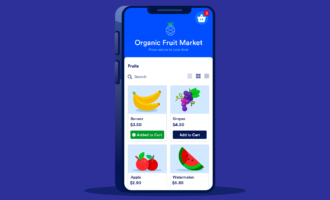
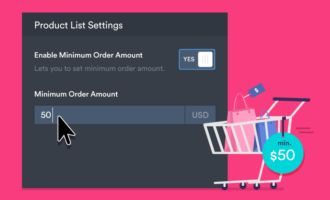
Interested in uploading your Amazon data manually or with a CSV file? The effectiveness of your product data formatting will be essential to how you list products on your website. Issues like formatting errors, missing SKUs, or incomplete descriptions can wreak havoc on your e-commerce efforts. That’s why Jotform’s Product List field with WooCommerce import support is so useful for users looking to optimize their listings.
Using Jotform as a checkpoint for your Amazon product data allows you to
- Edit product names, descriptions, and pricing
- Standardize SKUs and categories
- Remove unwanted items from your catalog
- Repurpose product lists for custom forms, wholesale catalogs, or affiliate landing pages
So, how do you import products into your form? It’s as simple as a few clicks:
- Retrieve Amazon product data using a CSV or Excel file.
- Open Jotform’s Form Builder, add a Product List field, and select Import.
- Upload your chosen file. Jotform will automatically map details like product titles, SKUs, and prices to your Product List field.
- Review, adjust, and finalize your data.
- Export your updated list and import it directly into WooCommerce using its built-in importer, following the steps above for manual import. Or, upload your CSV to a plug-in, if applicable.
Jotform’s Product List field helps reduce errors, improve import success, and minimize headaches from inaccurate product listings. You can use this method to improve multiple import methods — meaning all you have to do is choose the one that fits your needs.
Pro Tip
Since Jotform also supports WooCommerce imports to Amazon, you can use your form to keep your catalog updated across both platforms without the need for messy spreadsheets.
Choosing the right method for your store
Each of the three key methods — plug-ins, manual import, and API — has its own advantages and disadvantages depending on your needs and what method of WooCommerce selling you’re looking to perform.
For example, affiliate marketers may be better off using manual methods, since uploading just a few products may not be worth investing in a paid plug-in, and you may also not have access to the CSV files or API keys necessary to use automated solutions for large-scale retail.
Full-time resellers and dropshippers, on the other hand, will likely find the automation and scalability of plug-ins or custom API solutions better fit their work style. These methods are better suited for large-scale imports and continuous synchronization — qualities necessary for maintaining an accurate WooCommerce store.
No matter which method you use, data accuracy must be your top priority. Before you import your data, consider using Jotform’s Product List field with WooCommerce import support to double-check your data mapping. Taking this extra step can help simplify any method and reduce the risk of errors that could turn an easy import process into an unexpected headache.
This article is for affiliate marketers, WooCommerce store owners, dropshippers, and anyone who wants to streamline the process of importing Amazon products to WooCommerce to expand their product catalog and automate updates.
























































Send Comment: