

Exporting Form Responses to Excel
- Open your Google Form and go to the Responses tab.
- Click the Google Sheets icon to link responses to a spreadsheet.
- Open the linked Google Sheet.
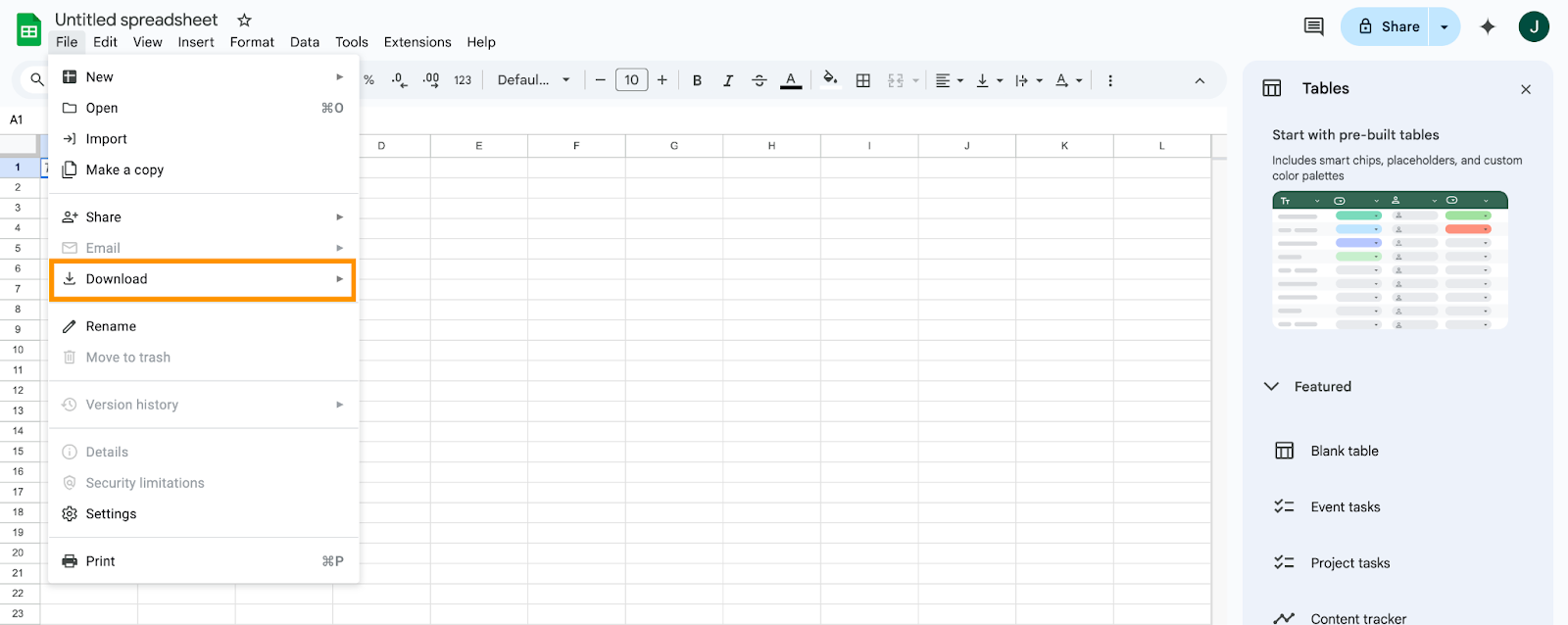
- Click File > Download > Microsoft Excel (.xlsx).
Google Forms is a popular tool for gathering data easily and efficiently, whether you’re running surveys, collecting feedback, or registering attendees for events. But when it comes to analyzing or manipulating this data, many users prefer the powerful capabilities offered by Microsoft Excel.
In this blog post, we’ll explore why exporting Google Forms responses to Excel is beneficial and show you exactly how to do it.


Why export to Excel?
While Google Forms is good at collecting and storing responses, Excel excels (pun intended) at detailed data analysis and reporting. Here are some compelling reasons to export your data to Excel:
- Enhanced analysis: Excel offers advanced analytical features, such as pivot tables, charts, conditional formatting, and formulas.
- Better customization: Excel makes it easy to manipulate your data, create detailed reports, and perform complex calculations.
- Offline accessibility: Users can access Excel files offline, allowing you to work on your data without an internet connection.
- Integration: Excel data can integrate seamlessly with other software or tools used in your business processes.
Google Forms data collection techniques
Google Forms offers straightforward data collection methods suitable for a variety of purposes. Common uses include
- Contact information collection: Embed forms on your website or social media pages to gather emails, phone numbers, or addresses.
- Voting and polling: Conduct votes or polls quickly, collecting real-time results.
- Feedback forms: Obtain customer feedback, employee reviews, or user experience insights easily.
Pro Tip
Try AI Form Builder to import, export, and create Google Forms with AI! Install the add-on from the Google Workspace Marketplace and open it inside Google Forms to move fields from Docs, Sheets, Slides, or other forms without any copy and paste.
How to export Google Forms responses to Excel
To get your Google Forms responses into Excel, you’ll first need to link your form to Google Sheets, then export the data. Here’s how:
Step 1: Link Google Forms to Google Sheets
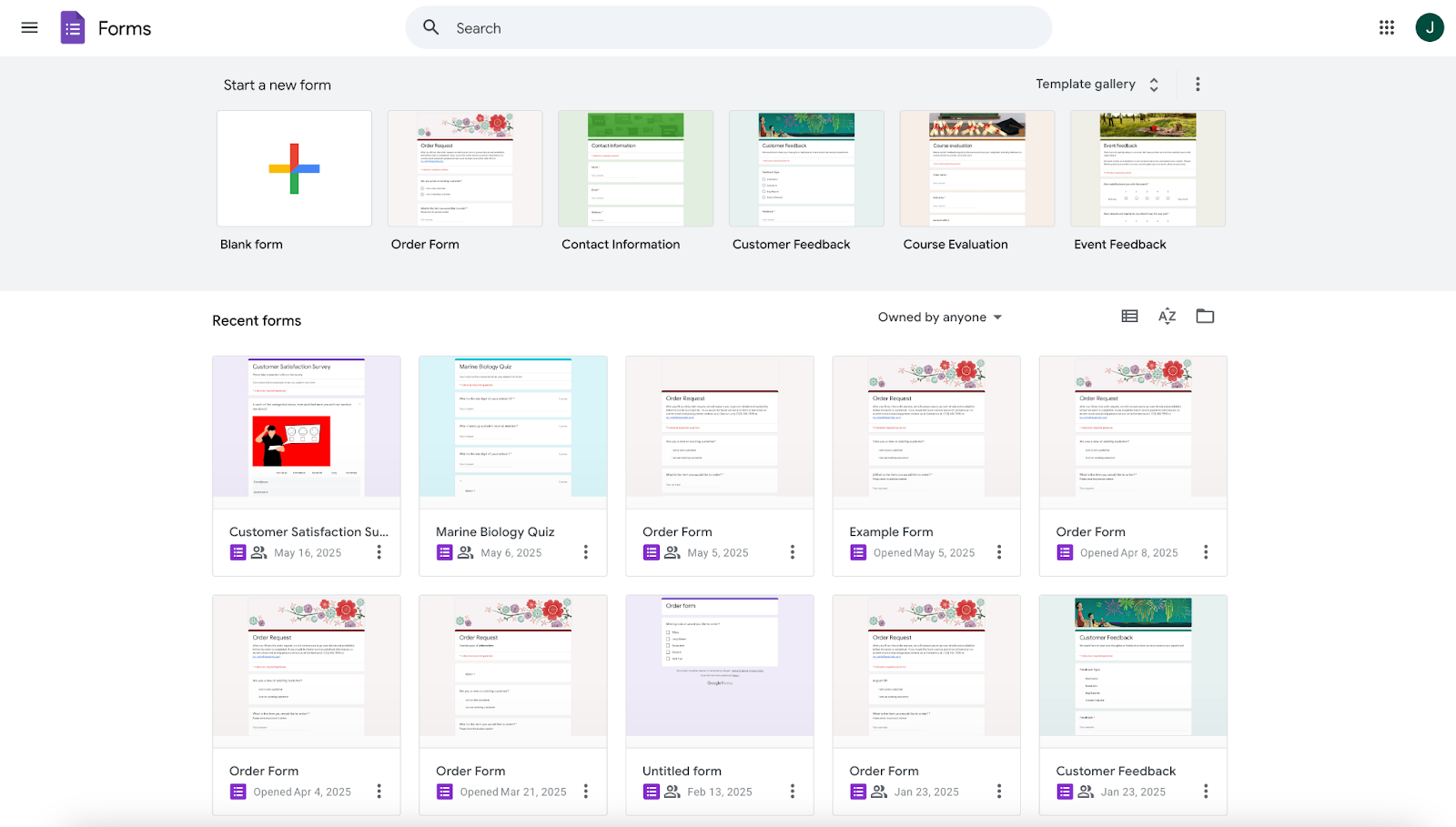
- Open your Google Form.
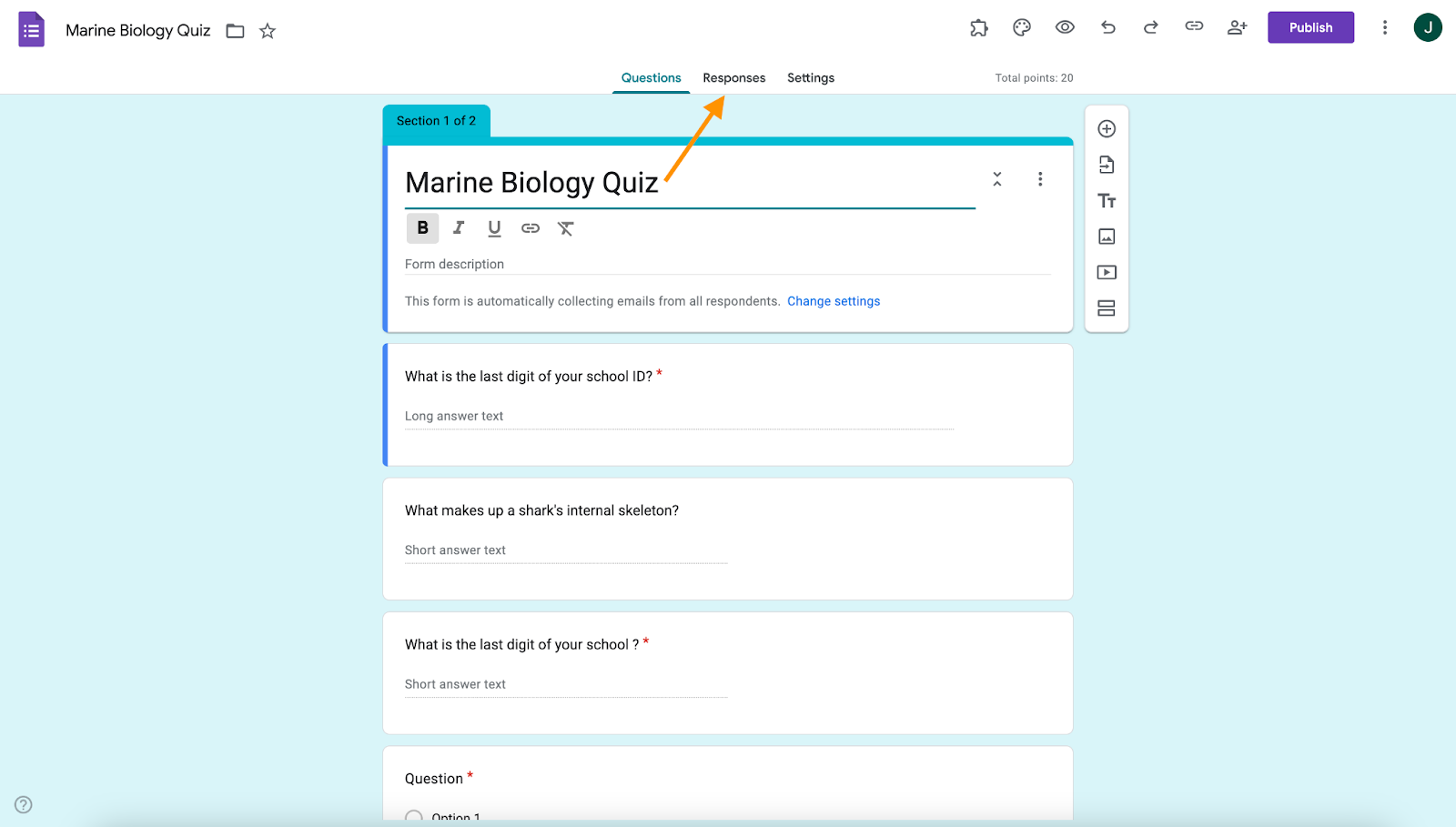
- Click on the Responses tab.
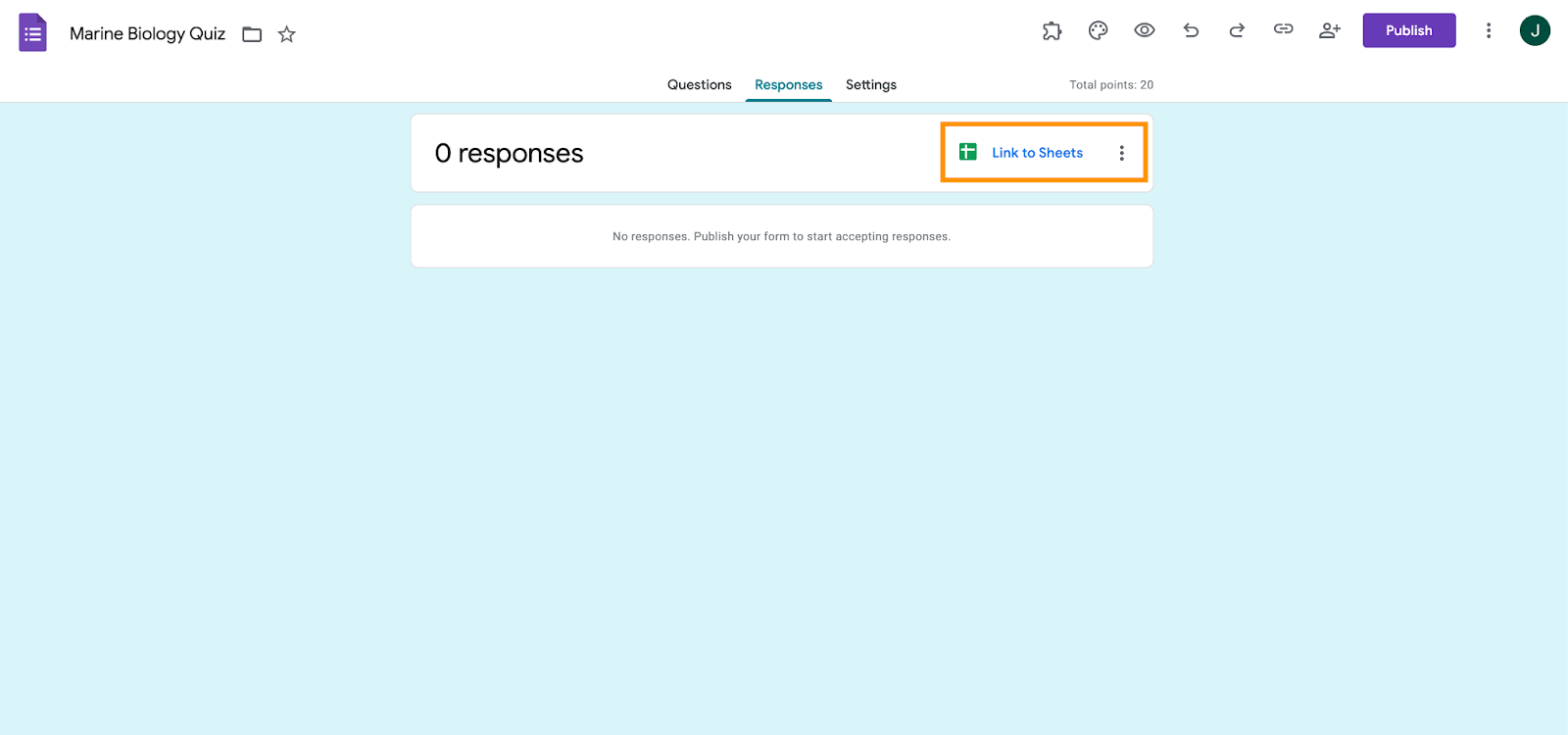
- Click the Google Sheets icon labeled Link to Sheets.
- Choose Create a new spreadsheet or select an existing one. Then click Create.
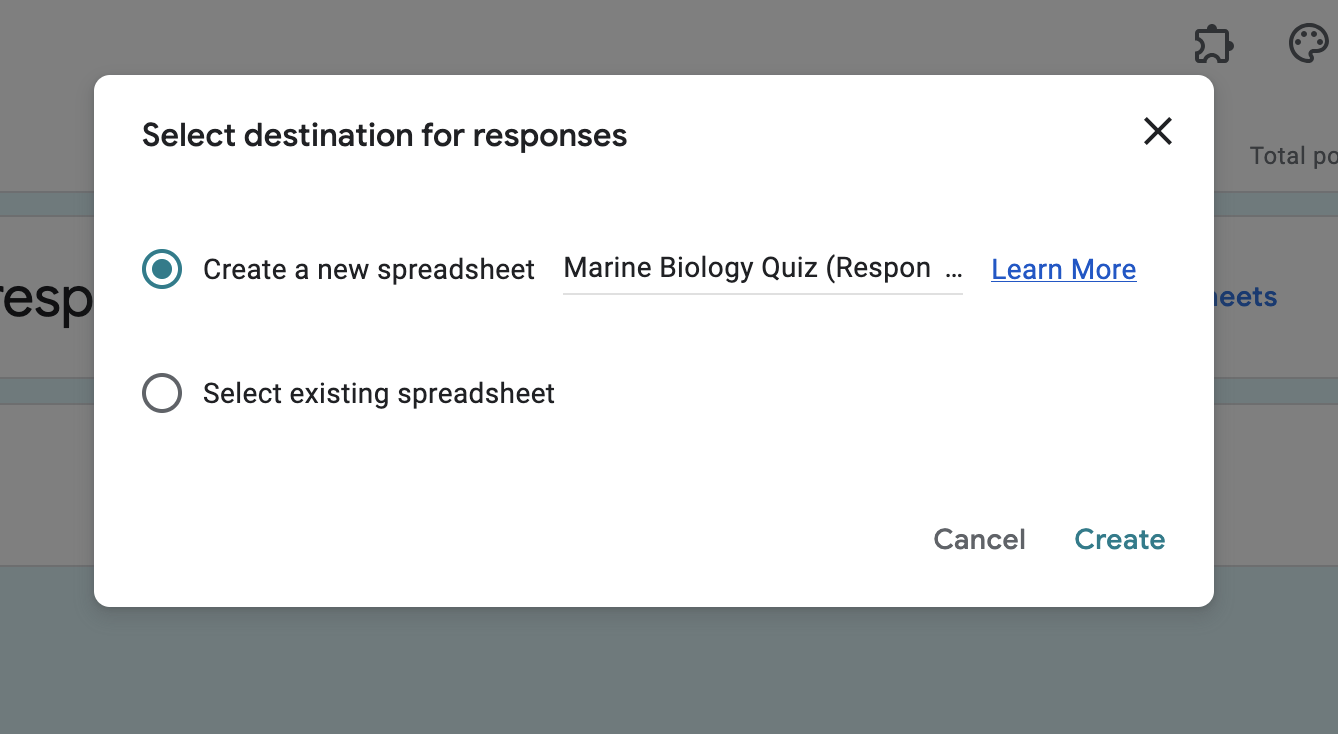
Your Google Form responses will now populate a Google Sheet automatically.
Step 2: Export data to Excel
- Open your Google Sheet.
- Click File > Download.
- Select Microsoft Excel (.xlsx) from the dropdown menu.
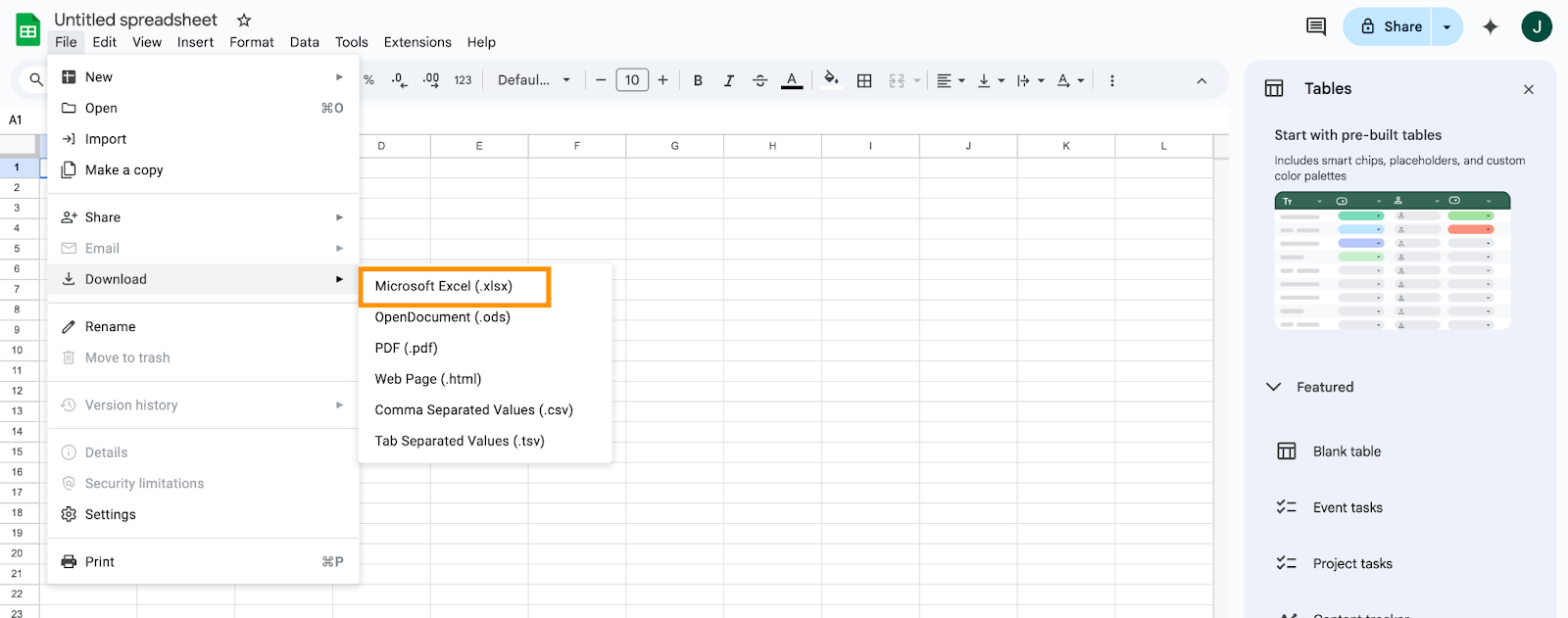
Your responses will now download as an Excel file directly to your device.
How to export form responses to Excel in Jotform
If you’re looking for a more robust alternative to Google Forms, Jotform offers straightforward data collection and export options. Here’s how to export form responses to Excel using Jotform:
- Log into your Jotform account and navigate to My Workspace.
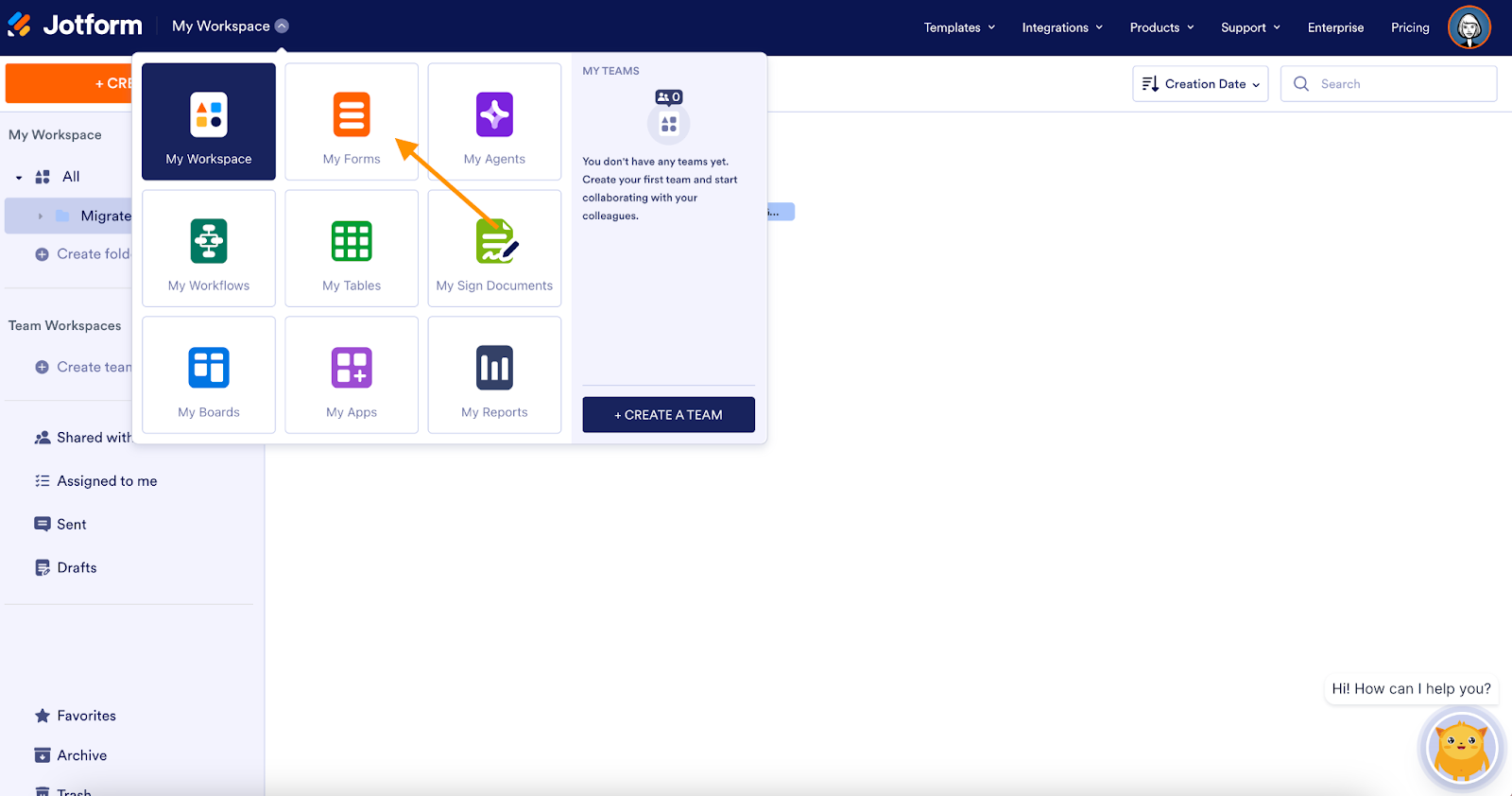
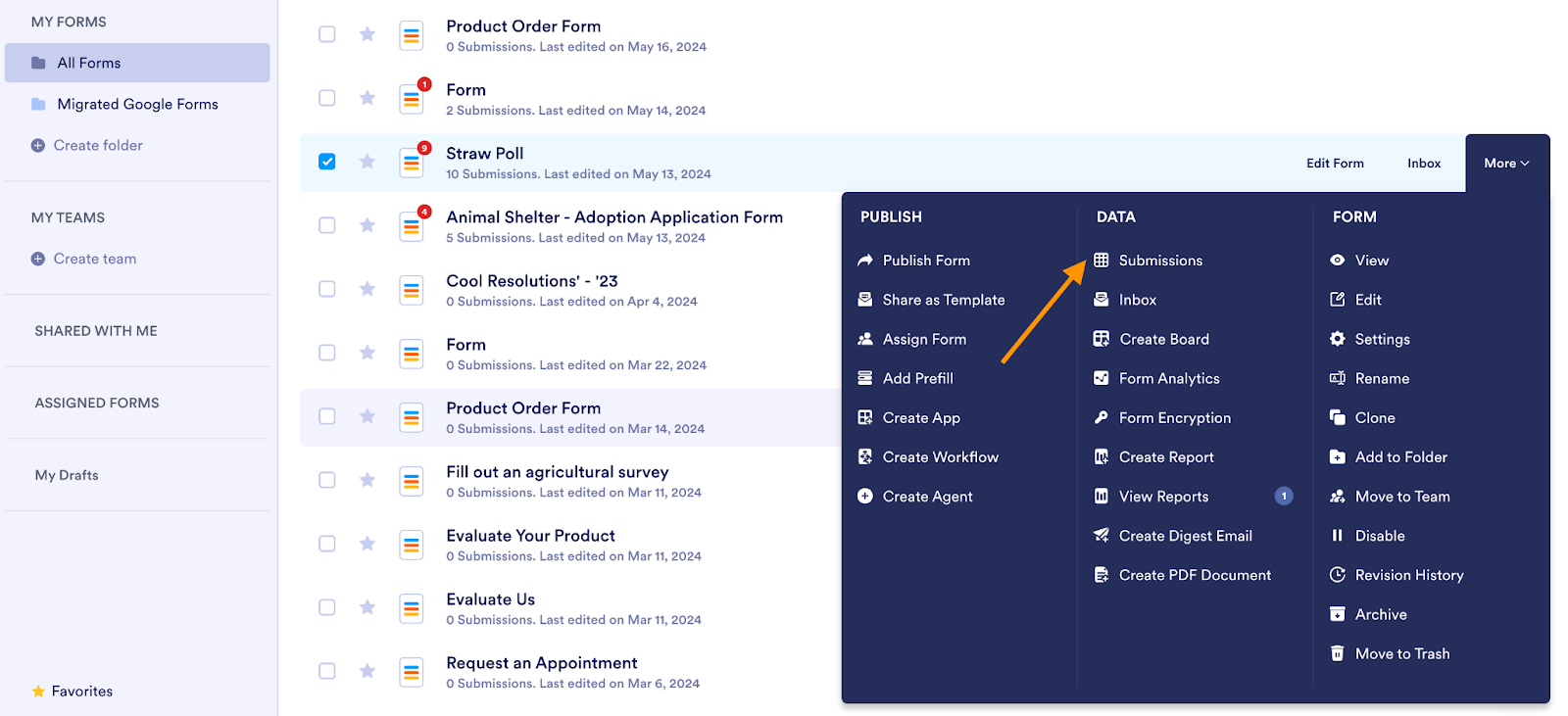
- Select the form containing responses you wish to export.
- Click on Submissions at the top of the Data column.
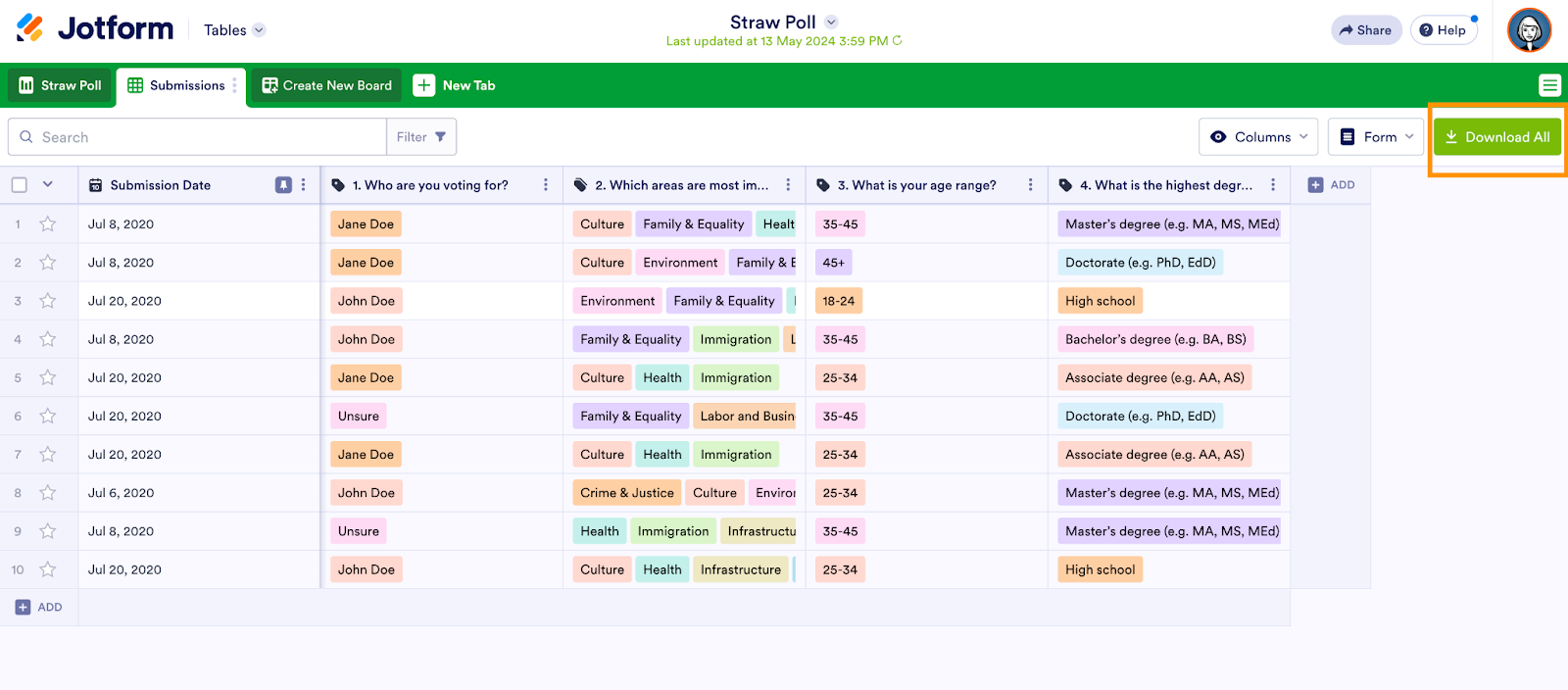
- Click Download All in the top right corner.
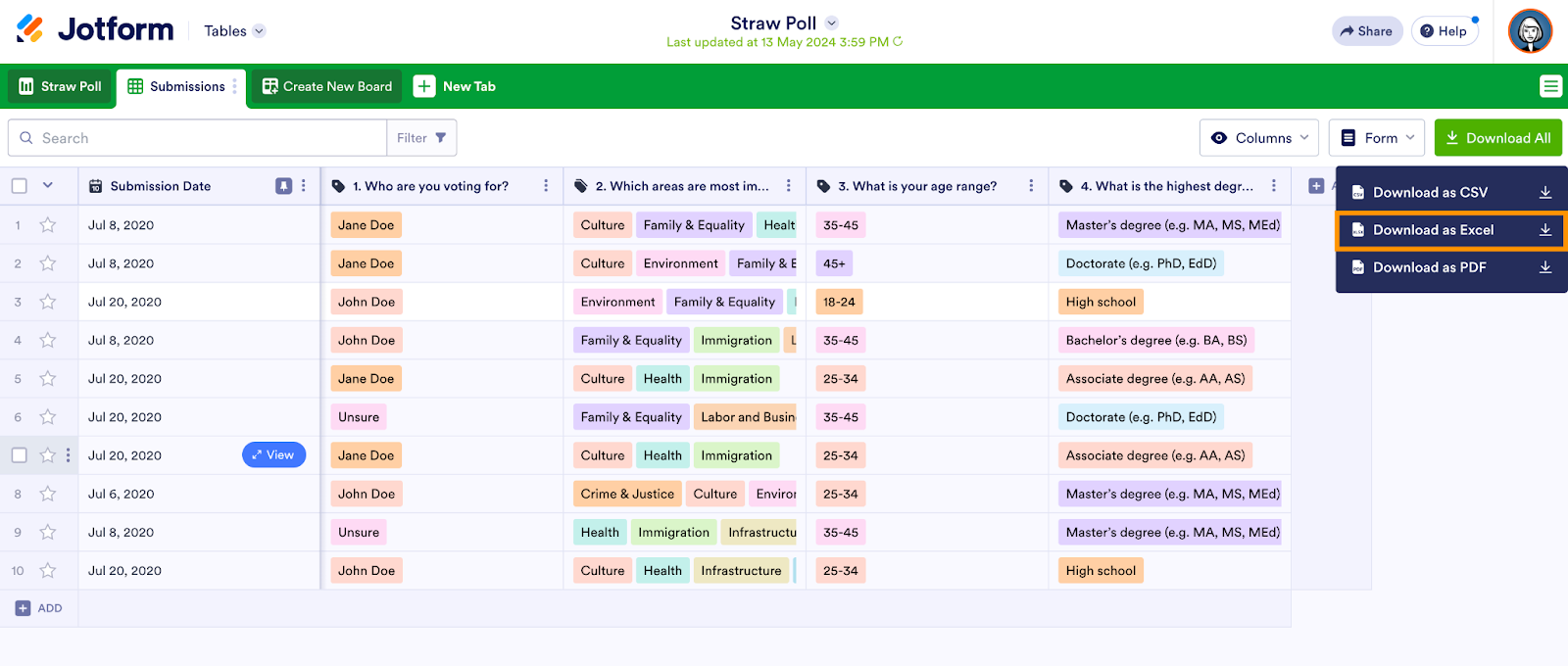
- Select Download as Excel.
How to integrate Jotform with Excel
Jotform also integrates seamlessly with Excel, automating the data collection process and enhancing workflow efficiency. With the Jotform–Excel integration powered by Zapier, you can automatically transfer data collected through your Jotform forms directly to Excel. Here’s how:
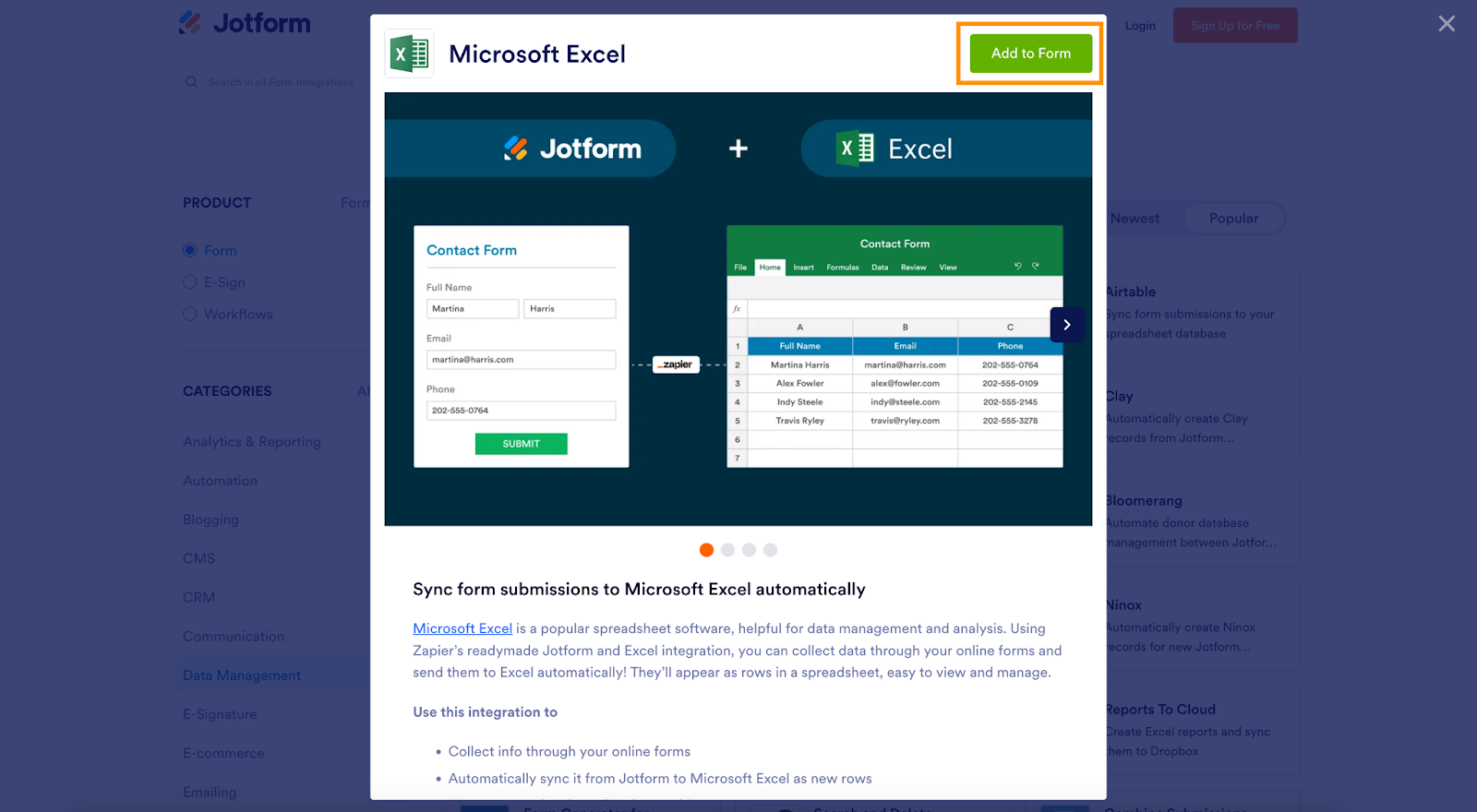
- Visit Jotform’s Microsoft Excel integration page.
- Click Add to Form.
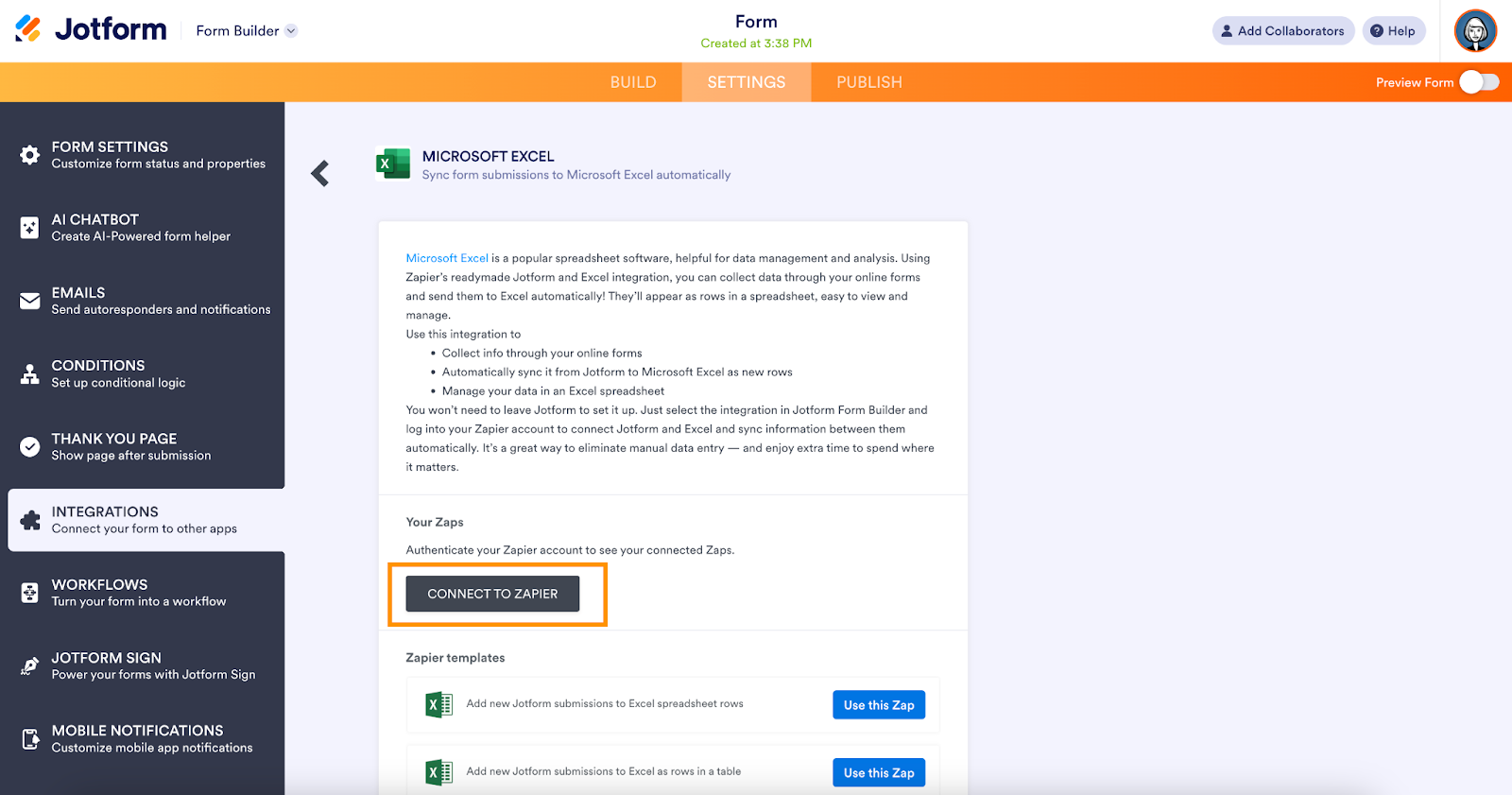
- Connect your Jotform and Excel accounts by clicking on Connect to Zapier.
- Configure your automation settings according to your specific needs.
Now every new submission received via your Jotform will automatically populate an Excel spreadsheet, saving you valuable time and effort.
AI Form Builder: import and export content instantly with AI
If you’re working with Google Forms and exporting responses, AI Form Builder by Jotform can streamline the entire process by helping you create your forms much faster. The add-on installs directly from the Google Workspace Marketplace and lets you generate forms, import existing fields, or move content between files with the help of AI.

AI Form Builder can turn Google Docs, Sheets, Slides, images, or other compatible files into ready-to-use Google Forms. It uses AI to pull out questions and fields, so you don’t have to recreate anything manually. You can also open the add-on inside Google Forms to import or export fields instantly, which helps you launch forms quickly and start collecting data sooner.
You can export your fields to Google Forms, Docs, Sheets, Slides, or straight to your Jotform account, making it simple to connect your form-building process to the tools you already use. If your workflow includes exporting Google Forms responses to Excel for deeper analysis, AI Form Builder saves time right at the start.
Jotform: A great alternative to Google Forms
While Google Forms is a convenient tool for simple data collection tasks, Jotform offers advanced customization, integration capabilities, and other robust features to support a variety of business needs. Key advantages of Jotform include
- Over 10,000 customizable form templates for various industries
- Advanced form fields, widgets, and conditional logic options
- 240+ native integrations and 7,000+ integrations through third-party connectors
If you’re looking for more flexibility, powerful integrations, and seamless export options, consider making the switch. Learn more about why Jotform is an ideal Google Forms alternative.
Exporting your data to Excel gives you greater flexibility and control over data analysis and reporting. So whether you stick with Google Forms or move to Jotform, integrating Excel into your workflow will significantly enhance your data-handling capabilities.
This article is tailored for professionals who use online forms for tasks like customer feedback, event registration, internal surveys, or contact collection — and need to analyze that data more effectively in Excel.
Photo by Campaign Creators on Unsplash








































































































Send Comment: