

Embedding a Google Form in an email
- Create your Google Form.
- Click Share Icon on the right-side corder.
- Enter the recipient’s email address.
- Select the box next to Notify People.
- Click Send.
Interactive step-by-step tutorial
Engaging customers by email is one of the simplest ways to grow your business. A quick quiz, feedback survey, or newsletter can help you connect with both existing and potential customers.
While email marketing services like Mailchimp, ActiveCampaign, and MailerLite are great options for creating and embedding creative content into emails, they’re not the only ones.
An online form builder like Google Forms can also help elicit customer feedback and foster engagement.
To take advantage of the platform as a customer interaction tool, all you have to do is embed a Google Form in an email.
How to embed a Google Form in an email
Here’s how to embed a Google Form in an email:
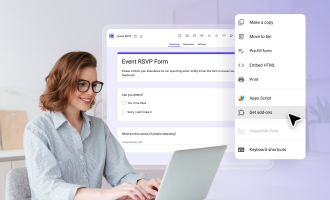
- After creating your Google Form, click Share Icon located in the upper-right corner.
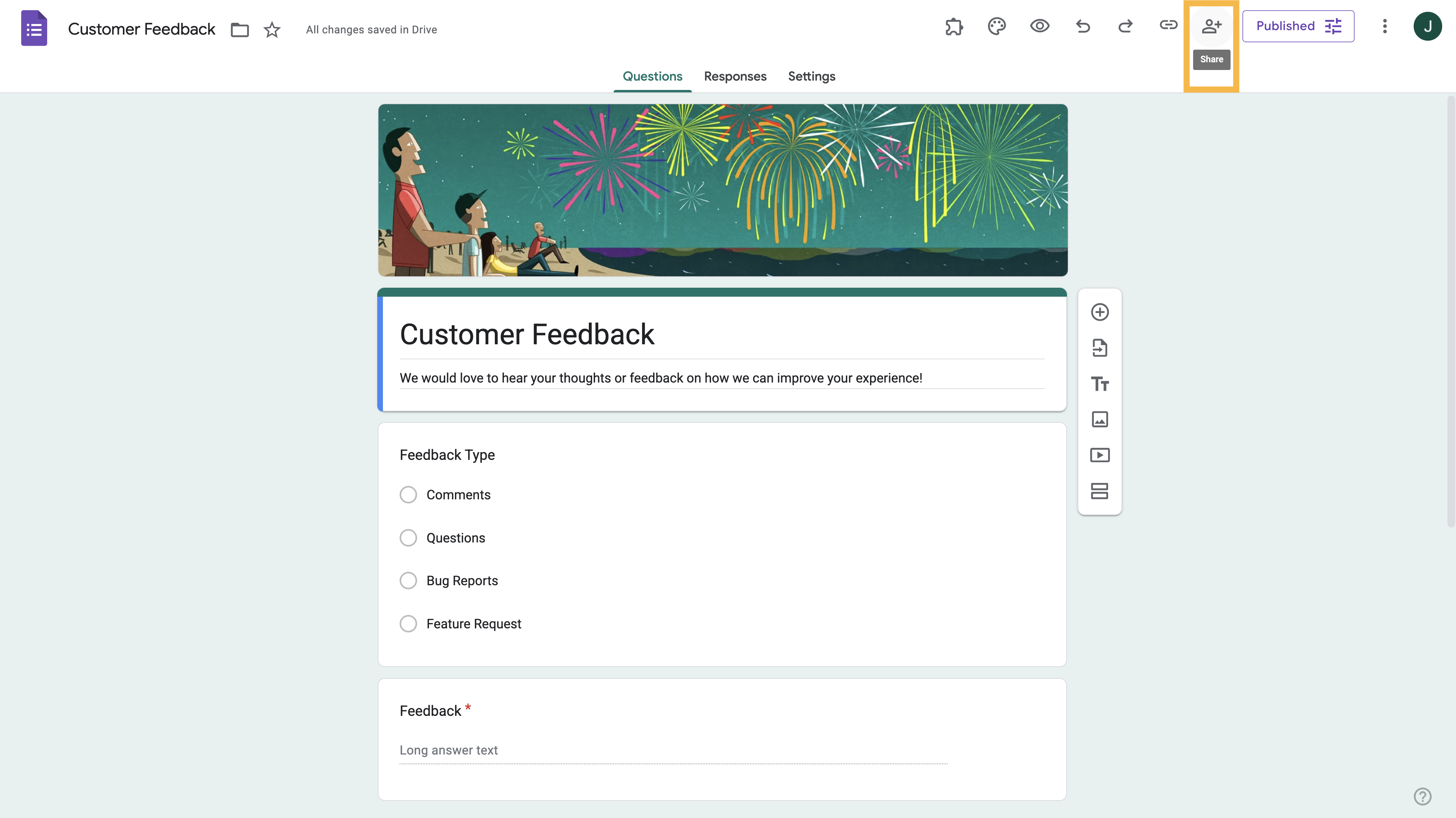
- Enter the recipient’s email address in the box. You can also add groups or events.
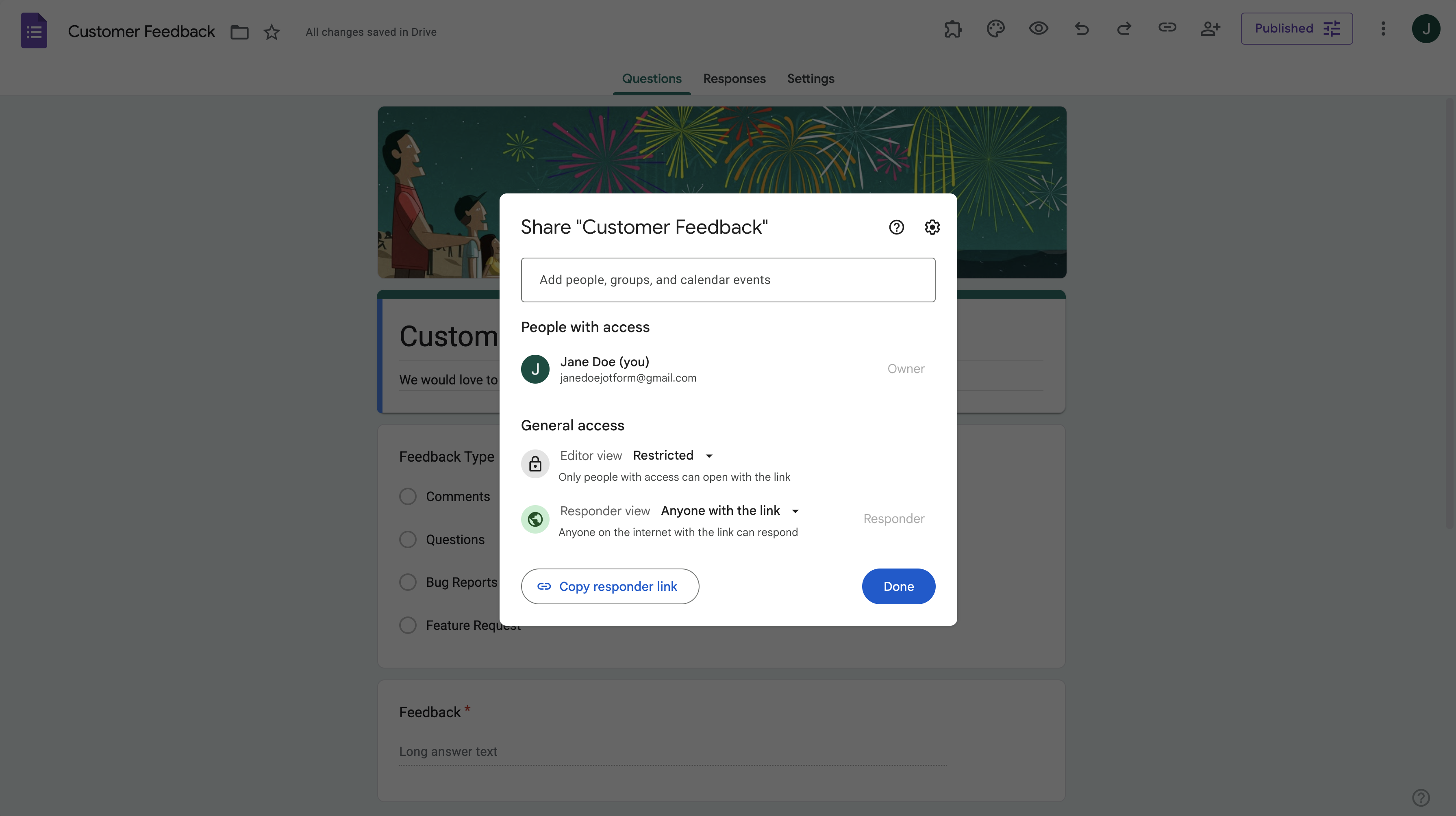
- To send the form automatically in an email notification when sharing, select the box next to Notify People. When notifying responders upon publishing the form, the email sent to them will include the form.
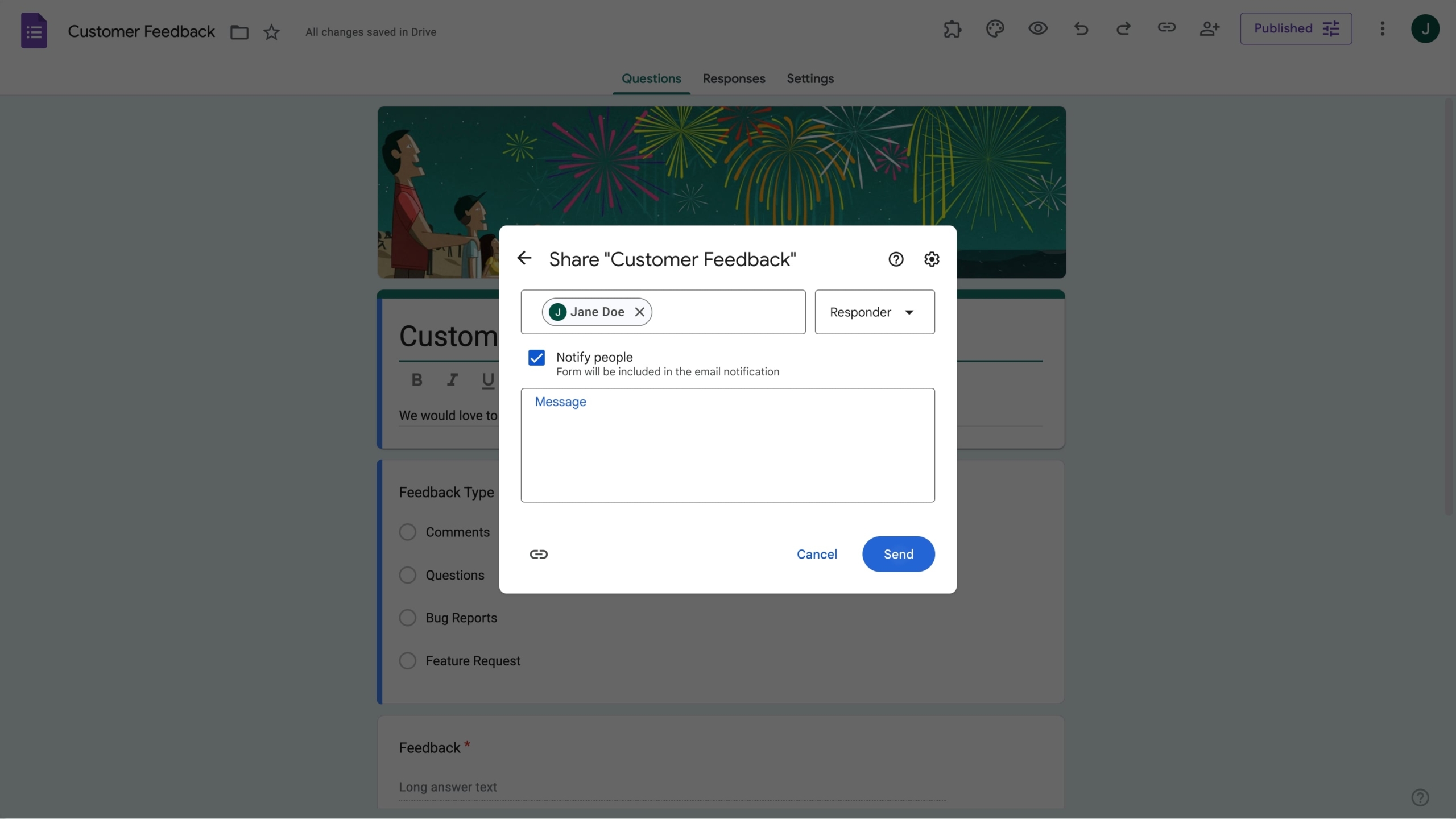
- Click Send.
Congratulations! You now know how to embed a Google Form in an email.
How to track form responses in Google Forms
Google Forms also gives you the ability to see, manage, and track the responses to your form. There are a couple of different ways to do this.
Option 1: Enable email notifications for form responses
Turn on this feature if you want an email notification every time a respondent submits a form.
- Go to your Google Form and click on the Responses tab at the top.
- Select the three vertical dots option at the top right.
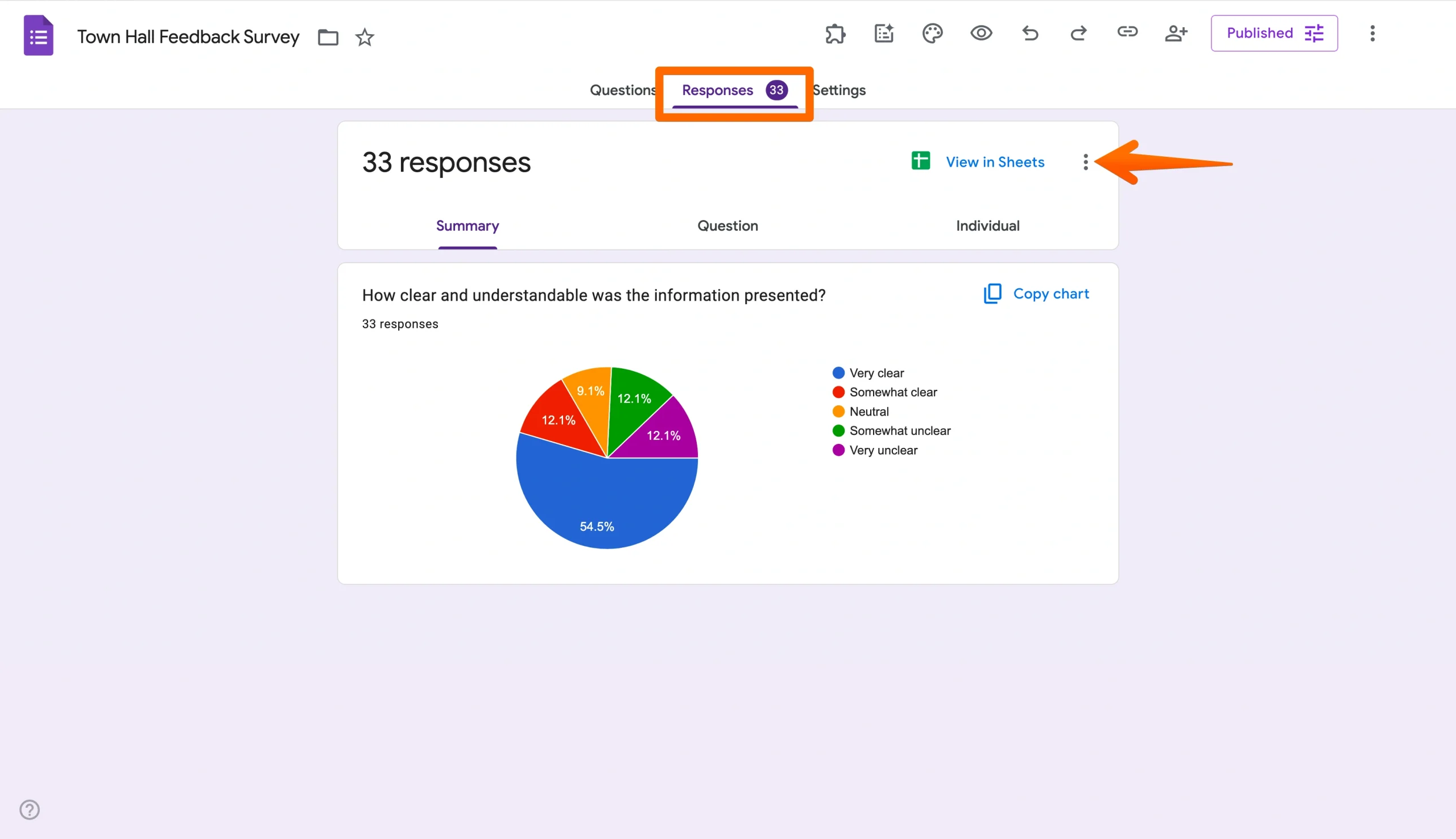
- Click on Get email notifications for new responses.
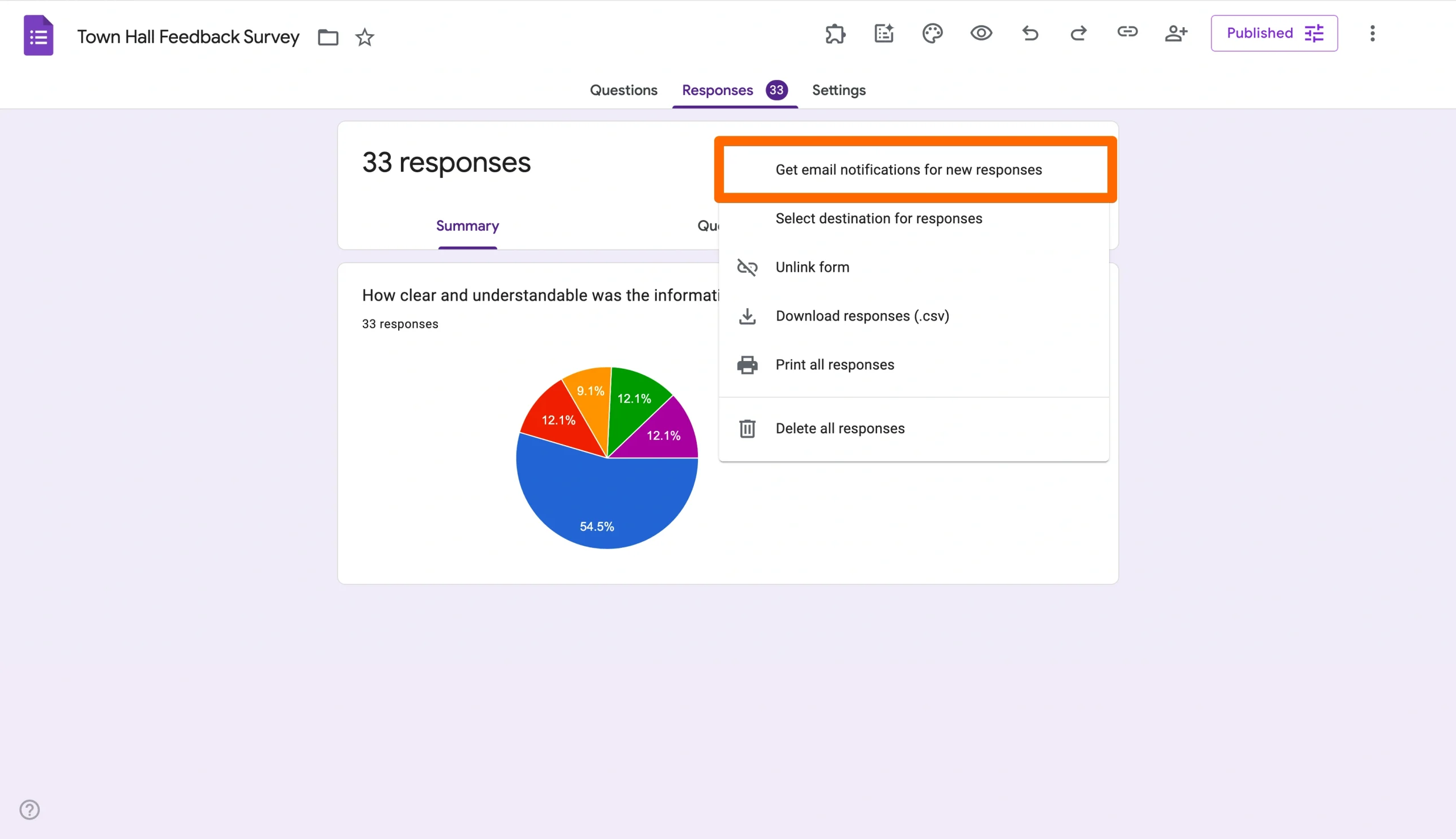
You’ve now activated this feature. Every time a respondent submits a form, you’ll receive a notification in the Gmail account associated with the form.
Option 2: View answers in the Responses tab
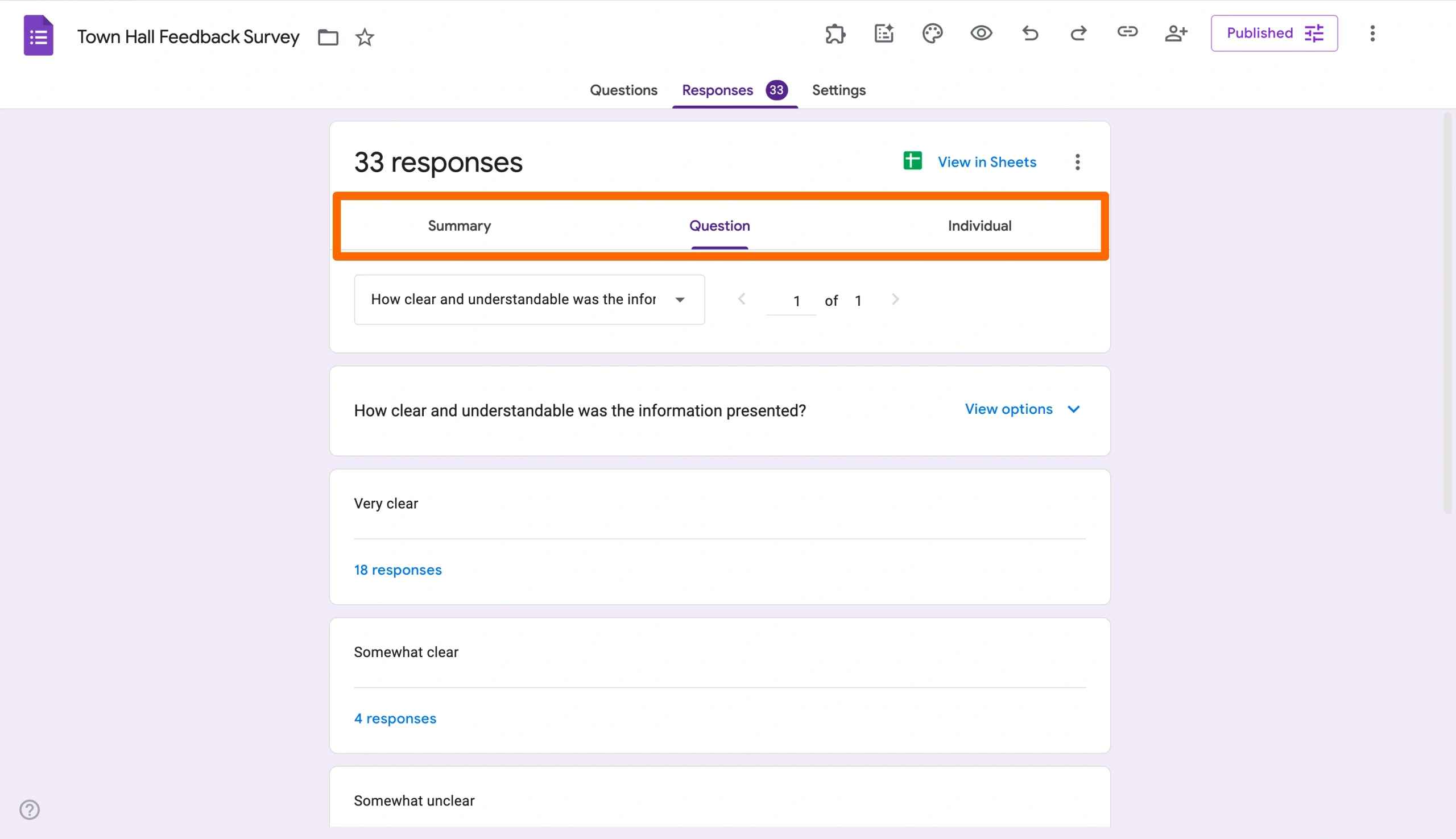
If you just want to view all the responses, click on the Responses tab. You can see the responses in three different areas:
- The Summary sub-tab provides you with a brief overview of all the responses.
- The Question sub-tab provides you with a breakdown of responses by question.
- The Individual sub-tab provides you with a detailed view of each individual answer for your form.
Option 3: Send Google Forms responses to a Google Sheet
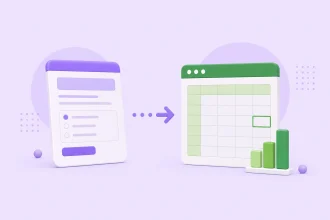
If you’d like to view and track form responses in a spreadsheet, you can easily connect your Google Form to a Google Sheet.
- Go to your Google Form and click on the Responses tab at the top.
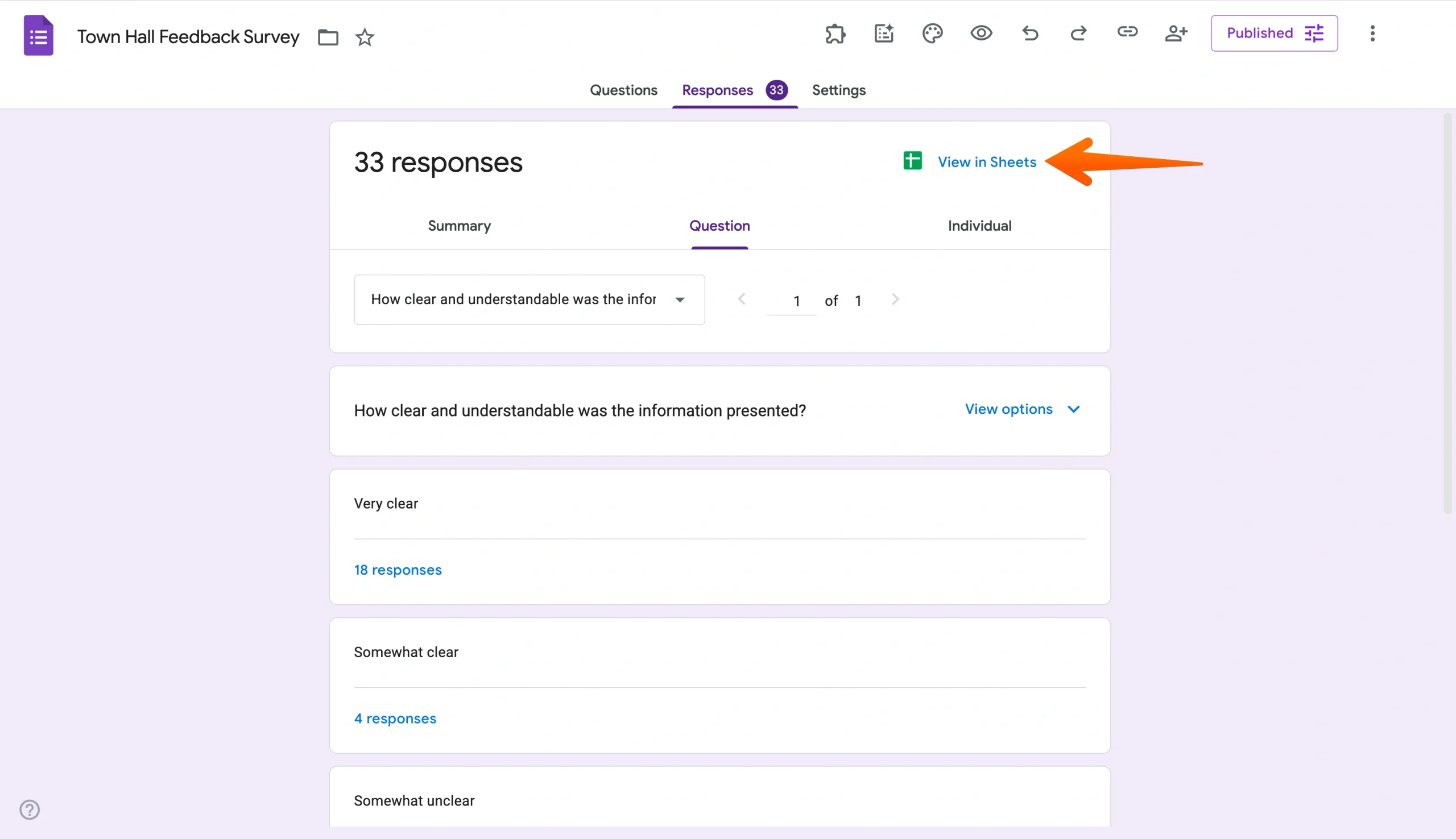
- Click Link to Sheets at the top right.
- Choose Create a new spreadsheet or Select existing spreadsheet, depending on your needs.
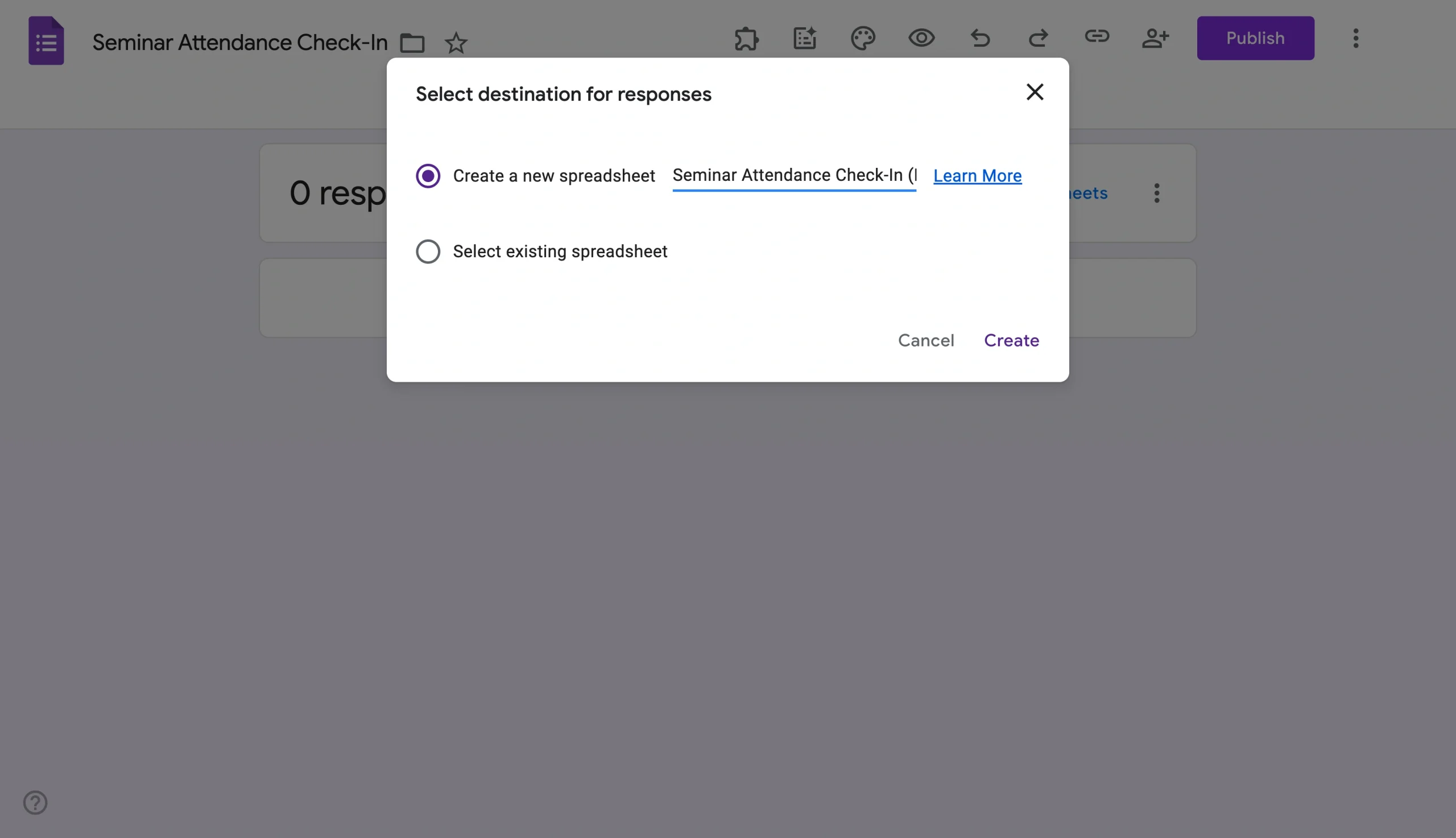
Your form responses will now immediately feed into the Google Sheet you’ve selected.
Why you might want to embed Google Forms in an email
It’s perfectly acceptable to just include a link to the Google Form in your email, so why should you bother with the additional step of embedding the form?
Here are some reasons for doing it:
- It removes an additional step for the form respondent. When you embed the form within the email, the customer doesn’t have to click through to the form. It’s already there for them to see and fill in, making it more likely they’ll take action.
- It increases your chances of getting form responses. Many customers skim through emails without reading them in detail. They may scroll past a form link, but an entire form is too big to miss!
- It makes emailing forms easier. Embedding a form in your Gmail involves just a few steps, and it can be significantly easier than using a complicated mass mailing system that requires specialized coding knowledge in order to embed items in the body of an email.
What to know before embedding a form in an email
While embedding a form directly in an email may seem convenient, many email clients do not fully support interactive forms. Recipients may see broken fields or no form at all. Embedded forms can also raise security concerns since some providers block interactive content to protect users from spam, phishing, and malicious scripts.For a more reliable option, many businesses include a direct form link instead. Sending users to a dedicated form page creates a smoother and more secure experience. It also makes it easier to customize your form, track responses, and share it across websites, landing pages, and social media.
How to use a Google Forms alternative: Jotform
Google Forms isn’t the only online form builder on the market. Jotform is one of Google Forms’s biggest competitors, thanks to its library of 20,000-plus form templates, drag-and-drop functionality, mobile payment processing capabilities, robust integrations, powerful Report Builder, and top-notch security.
Jotform is simple to use, fully customizable, and completely code free, helping even those with no design or coding experience make professional-looking forms. However, unlike Google Forms, you can’t embed a Jotform in an email, and that’s for security reasons.
Jotform prides itself on the way it protects forms and user data — thanks to encrypted forms, Payment Card Industry (PCI) certification, and spam protection — and embedding a form into an email compromises Jotform’s security standards.


Instead, for a safer, more reliable user experience, you can share a link in an email that will allow respondents to access your form with a single click.
Here’s how to do it:
- Create your form with Jotform in seconds.
- Click Publish
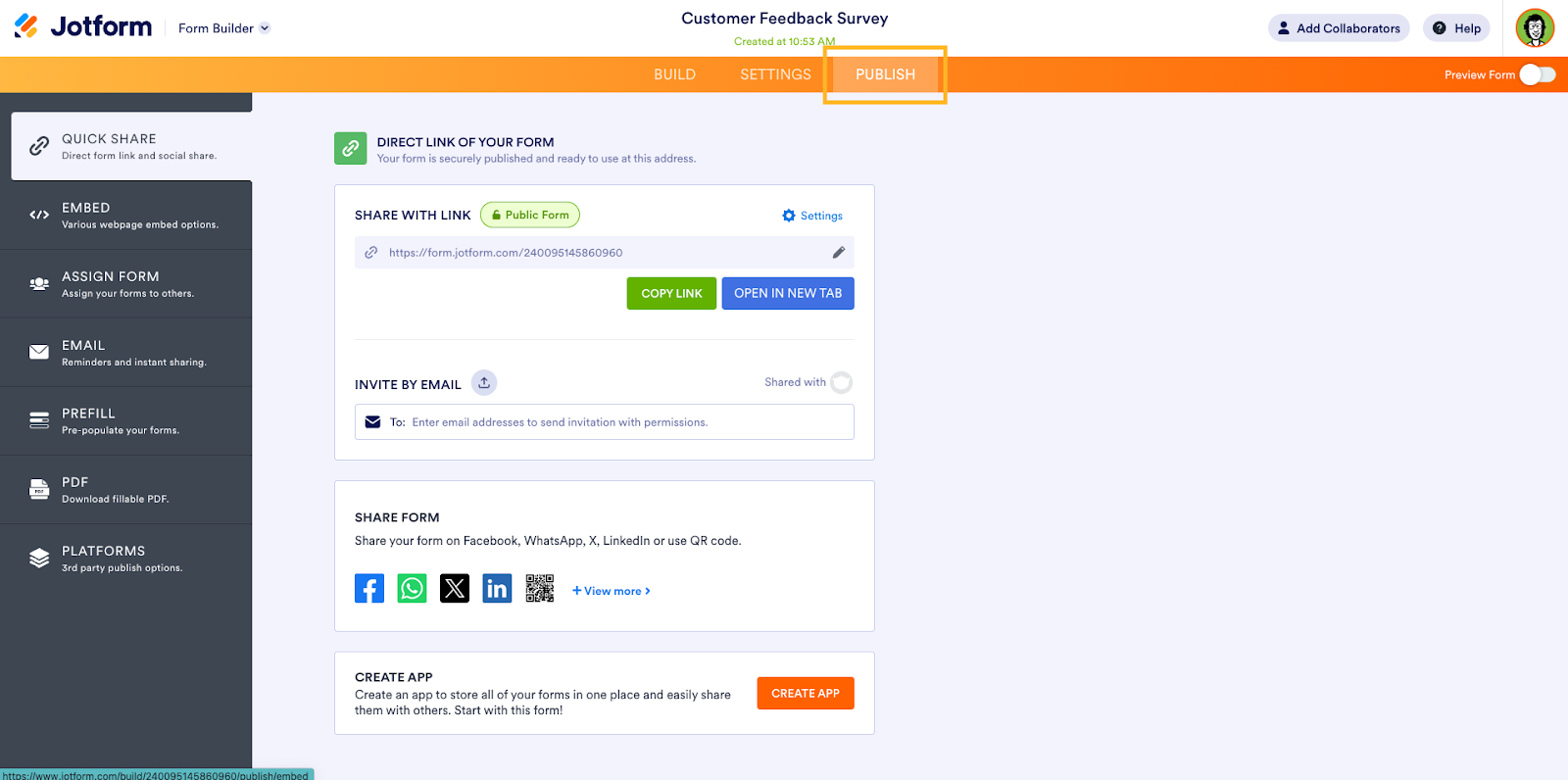
- Under the Quick Share tab — this is the default, so you should already be in it — click the Copy Link button to copy your form URL. You can also send a link to the form through email in the Invite by Email section.
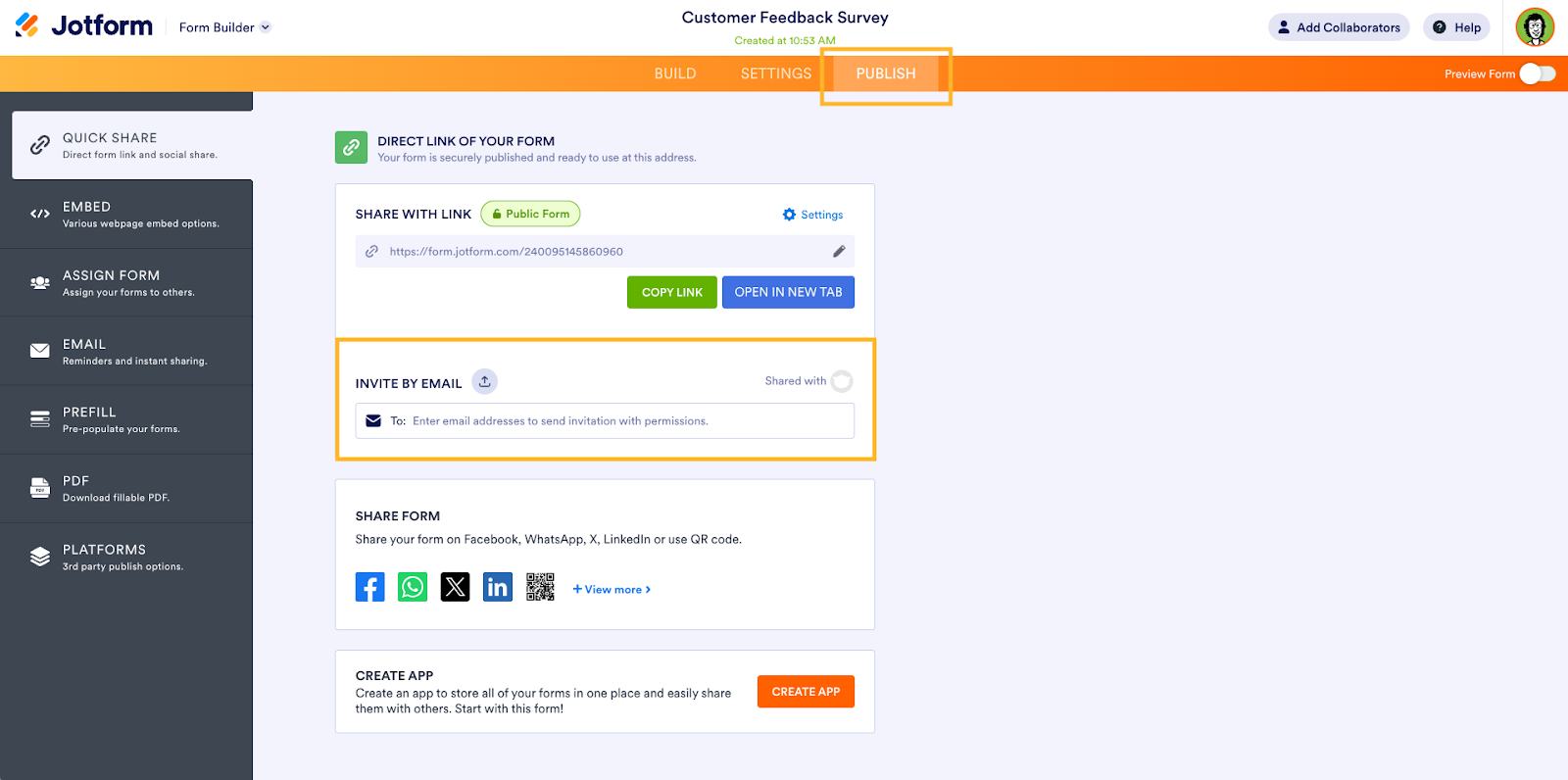
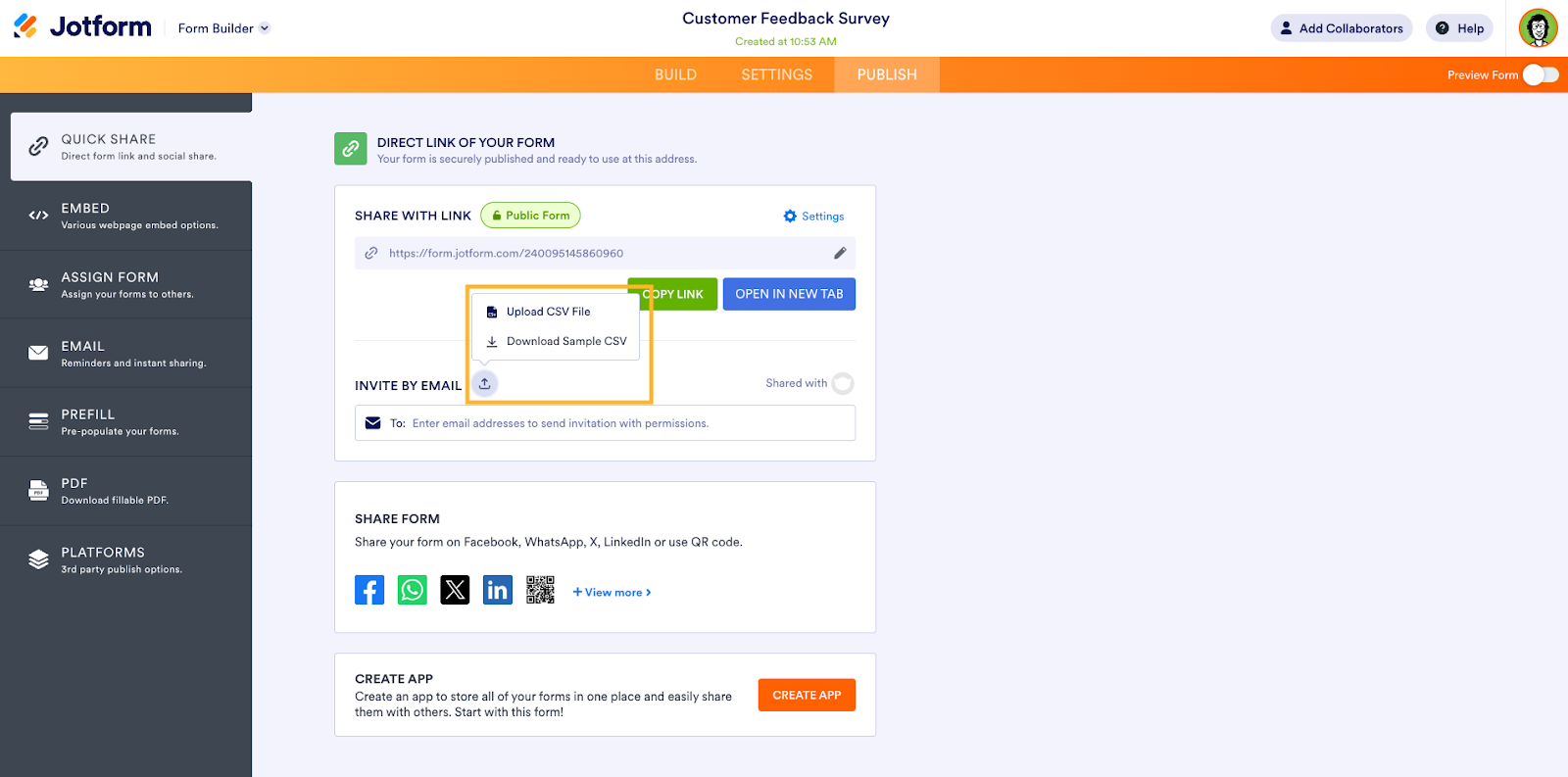
- If you’re sending a link to the form, paste the form URL into your email through your chosen email provider and send it out. If you’re sending the form through email in Jotform, add the recipient addresses manually or upload a CSV list of email addresses.
That’s it! You’ve successfully created a form with Jotform and shared it with your respondents via email.
Create a form and send it to respondents via email to collect valuable customer information and feedback. With the right software, it’s easy to do. So whether you use Google Forms or Jotform to create and share your forms, you can trust that they’ll impress your respondents and supply you the feedback you need to boost customer loyalty and grow your brand.
Photo by Alizée Baudez on Unsplash


























































































Send Comment: