

SurveyMonkey was launched in 1999, nearly a decade before Google announced its Forms add-on for spreadsheets. Today, those two tools exist at nearly opposite ends of the software spectrum. SurveyMonkey is a premium survey platform built for researchers and marketers. It has advanced question branching, AI features, design customization, and a network of respondents you can recruit from. Google Forms, on the other hand, is a free minimalist survey builder that has barely changed since it was promoted from an add-on to a standalone tool.
Still, there are plenty of situations when Google Forms works perfectly in a professional setting and, conversely, when a paid SurveyMonkey account makes sense for something less serious, like a hobby-related meetup. Or there may be times when you need to create a survey and neither tool quite fits the bill. I tested and compared SurveyMonkey and Google Forms to see how they hold up in 2026, breaking down what they do really well and when you might want to consider a third option.
 SurveyMonkey |  Google Forms |  Jotform | |
|---|---|---|---|
| Best for | Professional-looking, far-reaching surveys | Free surveys that integrate with Google Workspace | Affordable, highly customizable forms for every use case |
| Unique features | Research Panel network for recruiting specific types of respondents | Ability to tag Drive documents when generating a form via AI | Integrated response database and automation builder |
| Survey analytics | Custom dashboards, multi-survey analysis, and AI analysis | Autogenerated response graphs and AI answer summaries | Custom dashboards and respondent tracking metrics |
| AI features | Survey generation and results analysis | Survey generation and results summaries | Form generation and AI Agents |
| Free plan | |||
| Pricing | Starting at $39/month | Free | Starting at $34/month |
What makes SurveyMonkey unique?
Most form builders on the market today want to cover every possible type of data intake, from RSVP forms to performance evaluations and purchase orders. The SurveyMonkey team has taken a different approach, building a tool that is narrowly focused on gathering feedback and opinions, then analyzing those responses. You could create an appointment booking form or device checkout form in SurveyMonkey, but it would be awkward.
When you add a question, SurveyMonkey suggests pre-written, validated phrasing for common surveys, such as Net Promoter Score, employee satisfaction, and product feedback. Its conditional logic can branch based on different combinations of responses. You can refer to a respondent’s earlier answer during follow-up questions and conduct A/B testing for different ways to phrase questions. These are just a few examples of how SurveyMonkey is optimized more for survey data collection than for other types of forms.
Google Forms includes only a small fraction of the field types and templates that SurveyMonkey offers. So although SurveyMonkey may be a far more specialized and survey-specific platform, the number and quality of features on paid plans are light-years ahead of what Google provides. And if you’re looking for something that occupies the space between these two extremes, there are plenty of SurveyMonkey alternatives that take a more measured approach.
What makes Google Forms unique?
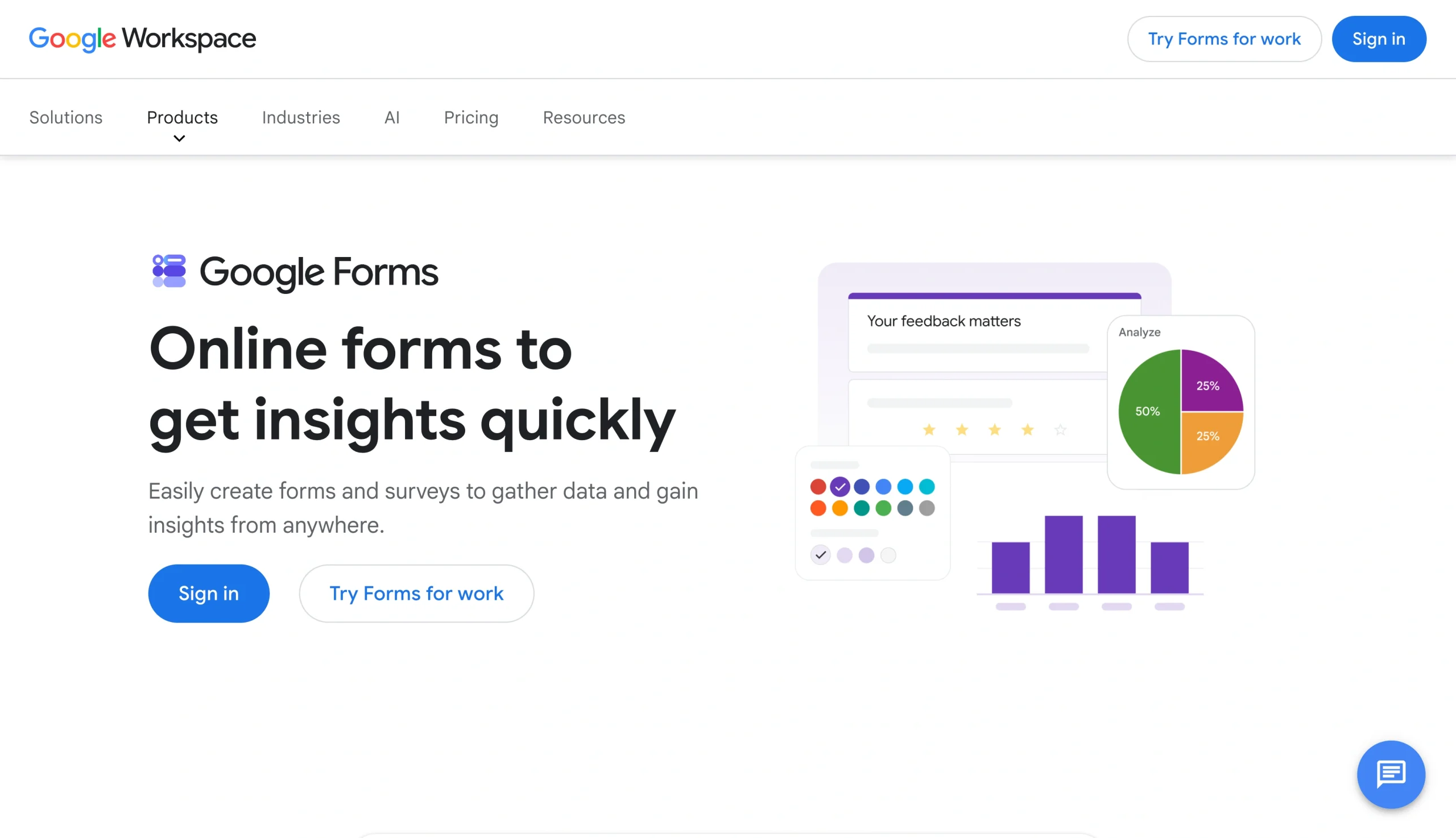
Google Forms is completely free. Even if you have a paid Workspace or Education account, only a few benefits affect forms: increased storage limits for file uploads and more admin controls. Everything inside the form builder looks the same for every type of account. With Google Forms having only 12 field types to choose from, limited design options, Sheets-only response storage, and a mere three total Google Forms survey templates, you can experience everything this app has to offer in less than half an hour.
Despite its short list of available question types, Google Forms covers all the basics. You can ask for star ratings, insert linear scale fields, let respondents provide paragraph answers or file uploads, randomly shuffle question order, and require a Google login to complete a survey. Although the conditional logic options do little more than skip certain questions based on answers, they can get the job done for basic customer satisfaction and Net Promoter Score surveys.
Beyond the recent addition of AI form generation (including the option to tag an existing Drive document in your prompt for more context), Google Forms looks and performs like a form builder from more than a decade ago. You can’t randomize response choices, add any images or branding beyond a banner image, or redirect respondents to a different URL. That’s fine for low-stakes surveys between friends or coworkers. But anyone surveying leads or customers would be better off using one of the many Google Forms alternatives with more advanced features.


SurveyMonkey vs Google Forms in 2026: Head-to-head comparison
While it would be easy to write off the comparison between these two apps as free and basic versus paid and premium, there’s more to it than that. Anything owned and maintained by Google enjoys unprecedented market penetration and support, which translates into better integrations and user friendliness. SurveyMonkey, for its part, has dedicated far more resources and attention to its survey tool than Google, giving it more polish and depth. There’s plenty of nuance to explore when looking at the two tools side by side.
Ease of use and setup
Anyone with a Gmail address or Google account can begin building a Google Form right away. You don’t have to sign up or configure your account. You can create a form by clicking the New button in Drive, or simply by entering forms.new into your browser’s address bar. There are only three tabs inside the builder — Questions, Responses, and Settings — plus the Customize Theme button next to the sharing settings at the top of the screen. Click the plus icon to add a new question, grab the 3×2 grid of dots to drag and reorder questions, and add redirects by clicking the three vertical dots next to a question. Sure, there are some power user tips for using Google Forms, but 90 percent of what most people need to do is covered in this paragraph.
SurveyMonkey is a different story. The main dashboard isn’t too crowded, with a list of all your surveys and folders in the left-hand pane and survey creation options in the center. But eventually you’ll land in a drag-and-drop builder that’s noticeably more cluttered than Google Forms. And it’s not the most intuitive interface. For example, you might have to open the Settings pane on the left, then click on the Options button in the upper right corner to open a separate group of toggles, before viewing the third and separate Options menu for individual fields.
Analytics, reporting, and survey depth
Google Forms may trounce SurveyMonkey in simplicity and user-friendliness, but the opposite is true for survey analytics and depth. SurveyMonkey lets you filter response data by audience segments, compare that data side by side with data from other surveys, fine-tune graph settings, and then export a polished report as a PDF or PowerPoint.
Google Forms, meanwhile, has lackluster reporting features. Google Forms has no way to track respondent metrics such as time on page or device used. It allows exporting only to a flat CSV file and autogenerates bar charts that cannot be filtered, relabeled, or reordered without leaving the app and opening Sheets. You can have AI generate Google Forms and summaries of responses in paragraph fields without a paid account, though, a feature SurveyMonkey gives only to higher-tier subscribers.
Integrations, collaboration, and workflow fit
SurveyMonkey beats Google Forms in terms of native integrations, with over 100 to choose from, and a Zapier connector for virtually any other tool. Enterprise coverage is robust, with integrations for Salesforce, HubSpot, Microsoft Teams, and others. Collaboration isn’t quite as developed as I would like, but it’s still better than Google Forms. SurveyMonkey lets you create shared brand kits with logos and survey templates, leave comments on surveys for colleagues to address, and set user-level roles and permissions.
When you create a survey in Google Forms, you’re mostly limited to Drive integrations unless you set up Zaps in Zapier. Anyone with a Google account and the appropriate sharing link can edit your survey and view responses, but there’s no way to comment on specific fields, suggest or approve/reject edits, or even tell when someone is editing your file, all things you can do in other Google apps.
With real-time form collaboration and more than 150 integrations, Jotform is worth considering as a third option if automation, group planning, and workflow customization are a priority for your surveys. Jotform, like SurveyMonkey, has native connectors for Salesforce, HubSpot, and other enterprise tools, with the added bonus of a built-in workflow tool for if-then automations.
SurveyMonkey pricing vs Google Forms value: Is it worth the money?
SurveyMonkey has five tiers for individuals and three for teams, which has its drawbacks. Consider, for example, that the most expensive individual plan ($139 per month) both costs more and limits you to significantly fewer responses (40,000 per year) than the cheapest team plan, which is $90 per month for 50,000 responses per year, including three accounts.
More than a few important survey features are limited to SurveyMonkey’s most expensive plans. You’ll need to be on the highest-level team or individual tier to remove their branding or have full access to conditional logic. Perhaps the best reason to accept these costs is the platform’s Research Panel network of respondents, which lets you define a desired survey audience and pay $1 for each matching respondent that SurveyMonkey finds for you. That can save market research teams hundreds of hours compared with manual outreach and make it much easier to stomach SurveyMonkey’s relatively high costs.
The pros and cons of Google Forms feel much more aligned with its always-free approach to surveys. It isn’t as visually appealing, but at least Google doesn’t put its name or branding anywhere on the page. It also isn’t as advanced in terms of field types or conditional logic, but it doesn’t limit the number of responses you can accept (unless you count Sheets’ 5-million-cell limit).
I’d say that internal, informal, or small-scale surveys (going to fewer than 10,000 people) should use Google Forms or Jotform. For about the same price as the cheapest SurveyMonkey plan, Jotform gives you more than 10 times the number of responses, AI Agent surveys, and the ability to remove branding.
SurveyMonkey or Google Forms: Which one should you choose?
Despite the nuance presented in this comparison, there are big-picture takeaways. So even if your survey circumstances are unique and evolving, you can likely get close to a final decision based on one of these generalizations:
Choose SurveyMonkey if
- Your branding and design customization are nonnegotiable. Google Forms lets you add a header image, select a solid background color, and choose from a short list of fonts. That’s it. SurveyMonkey, while not the best survey tool for small business, is far better than Google Forms at design.
- Your response data needs to be presented, exported, or mixed with external data sources. SurveyMonkey has excellent analysis and reporting features, not to mention far more options for saving and integrating data in third-party apps.
- Your minimum acceptable number of total responses is high. Although it’s a fairly niche feature, the ability to source respondents without manual research is invaluable and virtually unheard of in any other app.
Choose Google Forms if
- You need to create only a few forms. Unless the scale of your one-off forms is gigantic, paying for a (relatively expensive) SurveyMonkey account and learning how to use it is a waste.
- You’re creating surveys for educational or classroom use. Between the Make This a Quiz feature, the easy-to-learn interface, and user authentication options, Google Forms is the better option for time-strapped teachers who need a survey tool that isn’t limited to opinion-based forms.
- You need to create a lot of surveys based on existing documents. Gemini’s ability to create a Google Form simply by reviewing a presentation or spreadsheet is super convenient. SurveyMonkey has AI features too, for what it’s worth; they just require a little more input and context.
Because they serve broad but distinct survey workflows, SurveyMonkey and Google Forms are good enough for lots of people and businesses. You’d probably prefer something better than “good enough,” though. While there are plenty of alternatives to either app, I’d encourage you to start with the Jotform vs SurveyMonkey and Jotform vs Google Forms guides. There is a lot more to building great surveys than analytics and integrations.
Try Jotform for better surveys
Forms are used for much more than only opinion surveys. You might start with a customer feedback form. Then someone asks for an event registration page, and then you want to experiment with selling something online or letting people apply for jobs on your website. Eventually all those narrowly focused survey tools and features go from being the best thing about your tool of choice to its biggest drawback. Jotform Surveys retains all of that specialization, without limiting you to one type of form.
Jotform has tools, templates, integrations, and AI built for many specific and distinct form workflows. So although adding a signature in SurveyMonkey surveys is next to impossible, Jotform has an entire e-signature suite, maintained by people who understand what that requires and how it should work in surveys. The same goes for payment gateways, response databases (we call them Jotform Tables), and AI chatbots that can gather all the necessary data in more organic conversations. And you can try all of them for free.
Everything Jotform offers, from the library of more than 20,000 free form templates to Google Apps integrations, is built around pay-for-only-what-you-need subscription plans. It doesn’t matter if you need a single account that can collect 10,000 responses per month or a team plan to collect 1,000 responses; Jotform has something that will fit. Sign up for a free account today and give it a try.
Already using Google Forms? Migrate to Jotform with a single click
One reason people stay with Google Forms longer than they should is inertia. They assume that rebuilding existing forms in a new tool would be tedious and time-consuming. Jotform has an automated Google Forms migration tool, letting you re-create existing surveys in a platform with far more functionality in a matter of minutes. That way, you can collect Google Forms electronic signatures, beautify your surveys, and let respondents submit payments.

Convert a Google Form to Jotform today.
This article is for small business owners, marketers, HR teams, educators, operations managers, and researchers trying to choose between a free, familiar form tool and a more advanced survey platform.






































































































Send Comment: