
Hosting a giveaway contest is a great way to promote your business while capturing fresh audiences. You can use the contest to build awareness of your company, collect leads for future marketing campaigns, and build hype around new products and services.
But the success of your giveaway can depend on choosing the right form builder to collect and organize your entries. Google Forms is a popular option worth exploring.
In this article, we show you how to set up a giveaway on Google Forms. We also explore another form builder with advanced customization features that may work better for your needs: Jotform.
What is a giveaway form?
An online giveaway form is used to digitally collect participant information for contests, such as
- Their full name
- Their mailing address
- Their email address
- Their phone number
- Where they heard about the contest, like on social media or via a third-party website
If structured well, giveaway forms can help you organize entries efficiently and save lead contact information for future nurturing. They can also ensure fair participation by only allowing users to enter a contest once.
How to set up a giveaway on Google Forms
Here’s how to create a Google Forms giveaway form. (If you’re looking for details on how to use Google Forms, check out our helpful guide.)
- Open Google Forms.
- Click Blank form.
- Add a form title, such as “Brand Giveaway Entry Form.” Add a form description if needed.
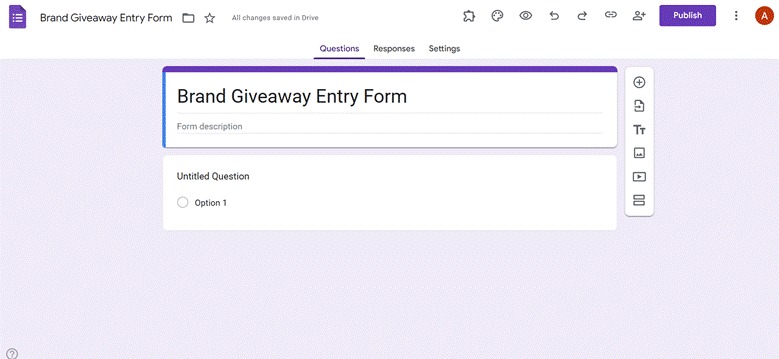
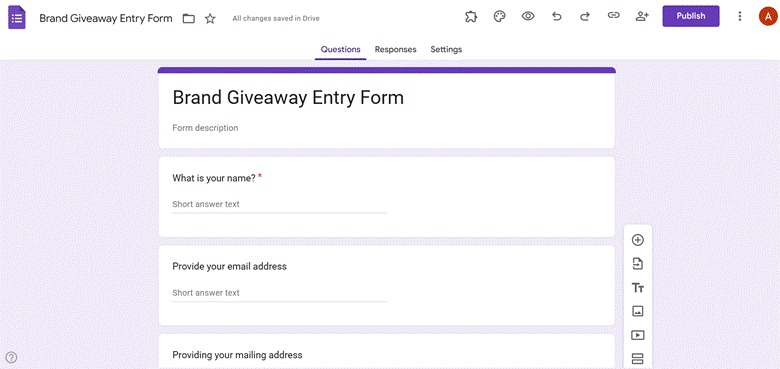
- Include the necessary form fields, such as name, email, and mailing address. For more information on how to build and customize forms, check out How to create a Google Form.
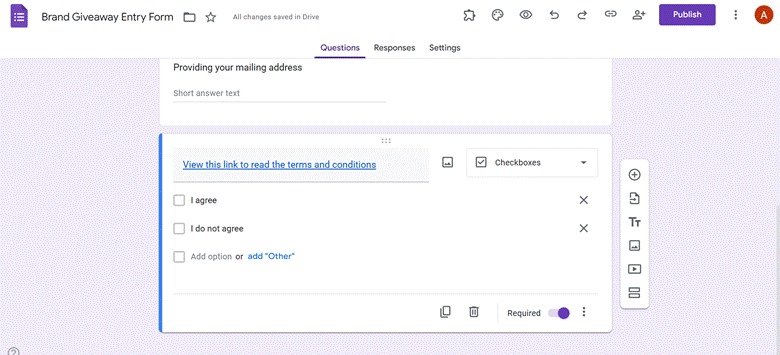
- Include your giveaway contest terms and conditions either directly in the form or as a link. Add a checkbox using a Checkboxes question type so users can confirm they agree with the terms and conditions.
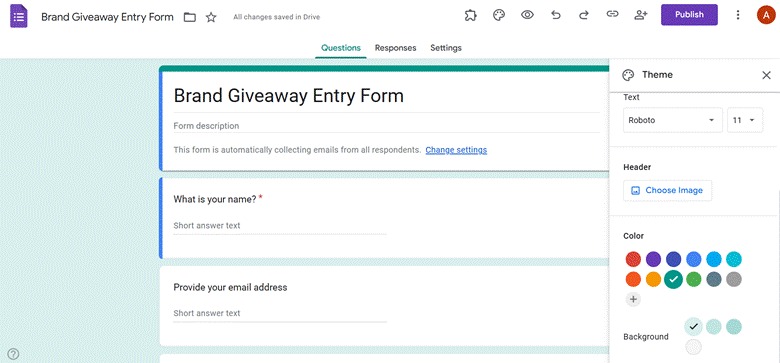
- Click the paint palette icon to customize the theme, colors, and font to match your company branding.
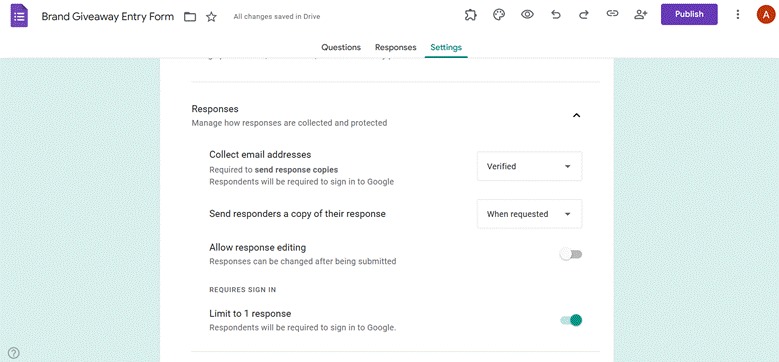
- Click Settings. Enable Limit to 1 response to avoid duplicate entries.
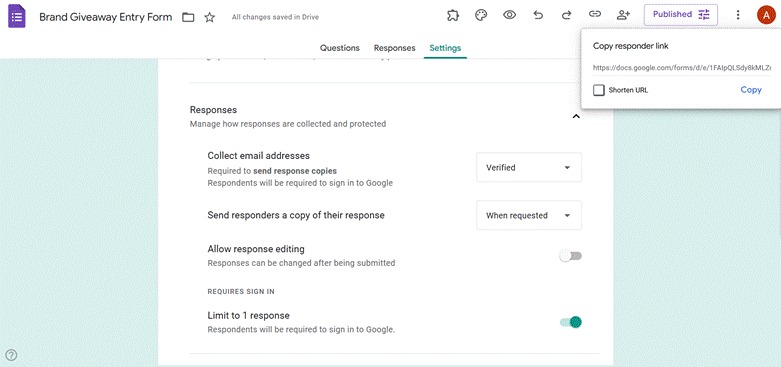
- Click Publish. To share the Google Forms promotion form for the giveaway, copy the responder link and share it via email, social media, or SMS. You can also embed the form on your website.
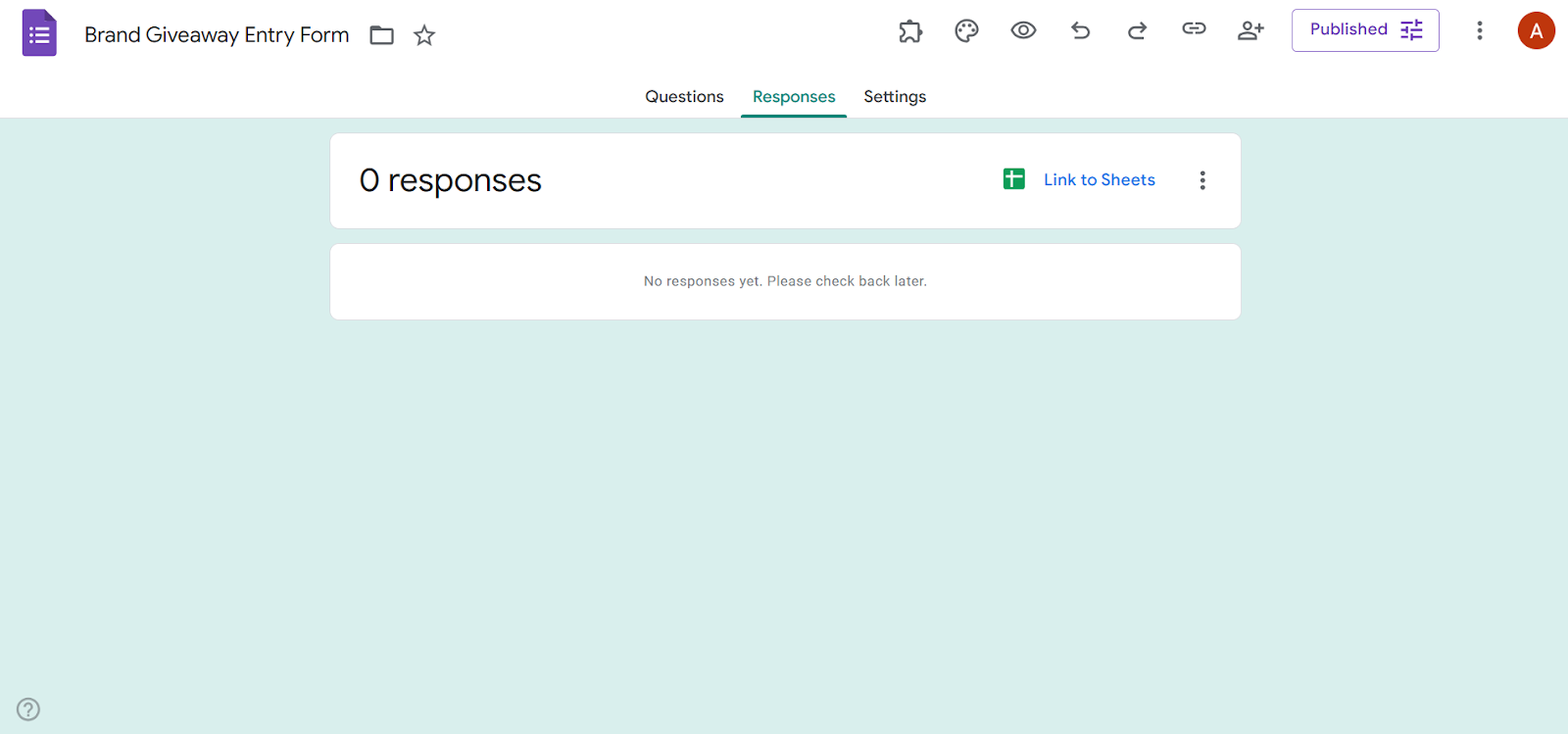
- Click Responses. Here, you can track the contest entries as they start to come in. Export them to Google Sheets for analysis when the contest is complete.
Create custom giveaway forms effortlessly with Jotform
While you can create a giveaway with Google Forms, it’s important to remember that it’s a basic form builder. As such, it doesn’t offer advanced customization and response tracking control. But that’s where Jotform comes in.
As a sophisticated form builder that’s intuitive and easy to use, Jotform offers a better way to collect entries than Google Forms. Here’s why brands around the world choose Jotform to create giveaway forms:
- Stunning giveaway form templates: Jotform comes with beautifully designed, ready-to-use templates for lead generation, promotions, contests, and more. Each template is fully customizable based on your brand’s needs.
- Easy customization: Jotform’s drag-and-drop form builder lets you personalize your form layout, branding, and visuals — no coding skills required. Beginners and experts alike can learn how to use the form builder in seconds.
- Sophisticated response tracking: Jotform’s forms connect to Jotform Tables, where you can collect, manage, and track participants; oversee contest entries; and mark winners effortlessly. Jotform can also help you turn your data into reports for actionable insights.
Jotform makes your giveaway a success
If you’re looking to do an online giveaway, you’ve got to choose the right giveaway form tool. Google Forms offers a simple way to host giveaway forms. However, you don’t have access to attractive giveaway form templates, advanced customization options, or comprehensive tracking features.
With Jotform, you get so much more than just a form builder.
Jotform offers a complete, customizable solution that also includes advanced built-in tracking and data analysis tools. It also has a free plan, so you can explore Jotform’s features today and see how they stack up to Google Forms’.
Frequently asked questions
Create an invitation RSVP form with Google Forms (including questions like attendance status and dietary requirements) and share it with event attendees. You can then review replies in the Responses tab or export them into Google Sheets.
You can create an event form in Google Forms from scratch or use one of the event form templates provided. Common questions to include are name, email, number of guests, and any special requests.
This article is for marketers, small business owners, content creators, and anyone who wants to run online giveaways efficiently using Google Forms or explore more customizable alternatives like Jotform.








































































































Send Comment: