Surveys are a powerful way to gather insights, measure customer satisfaction, and collect feedback. With Jotform, you can create and customize professional survey forms quickly and efficiently—no coding required.
Creating a Survey Form
You can easily create your survey form from scratch. Here’s how to do it:
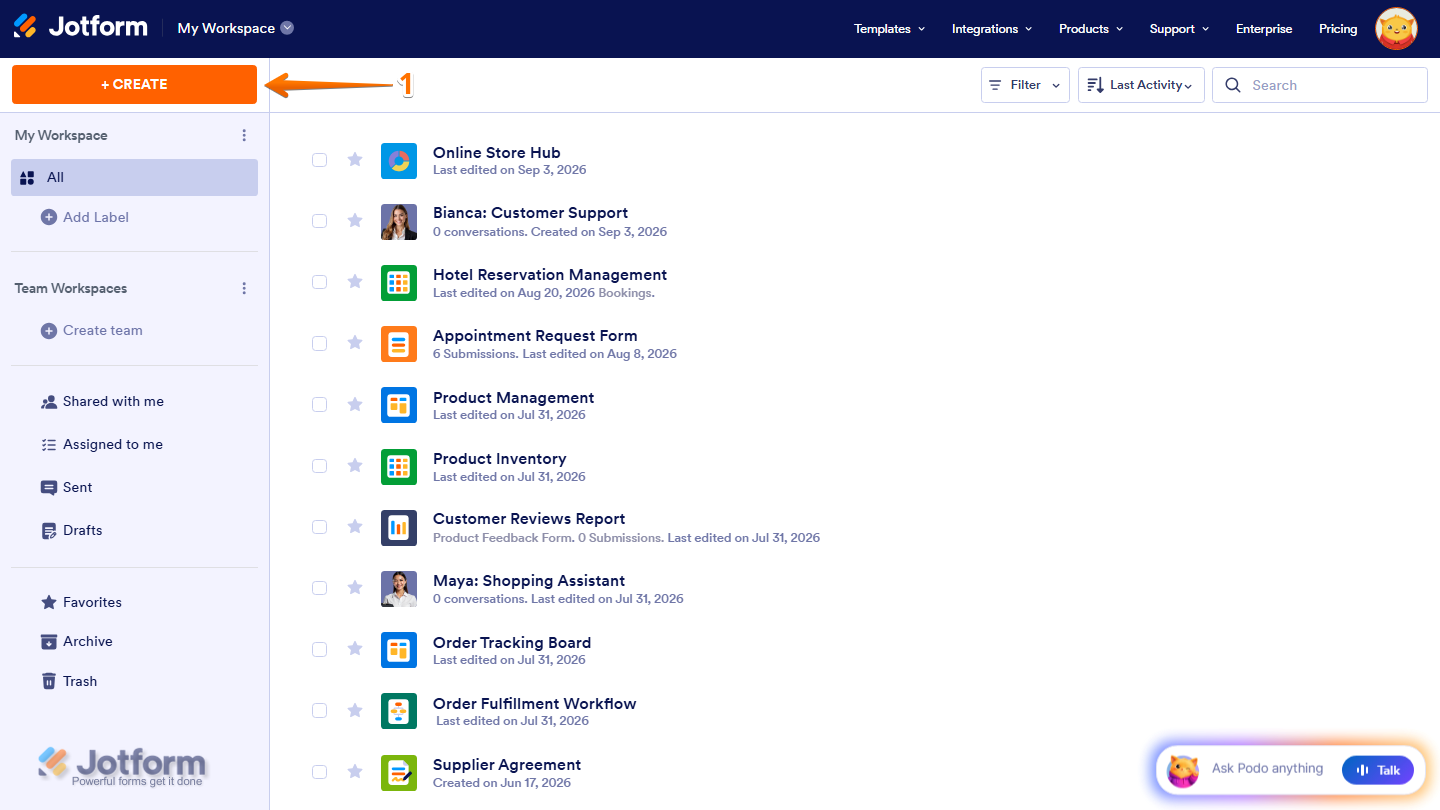
- On the top-left side of your Workspace page, click on Create.
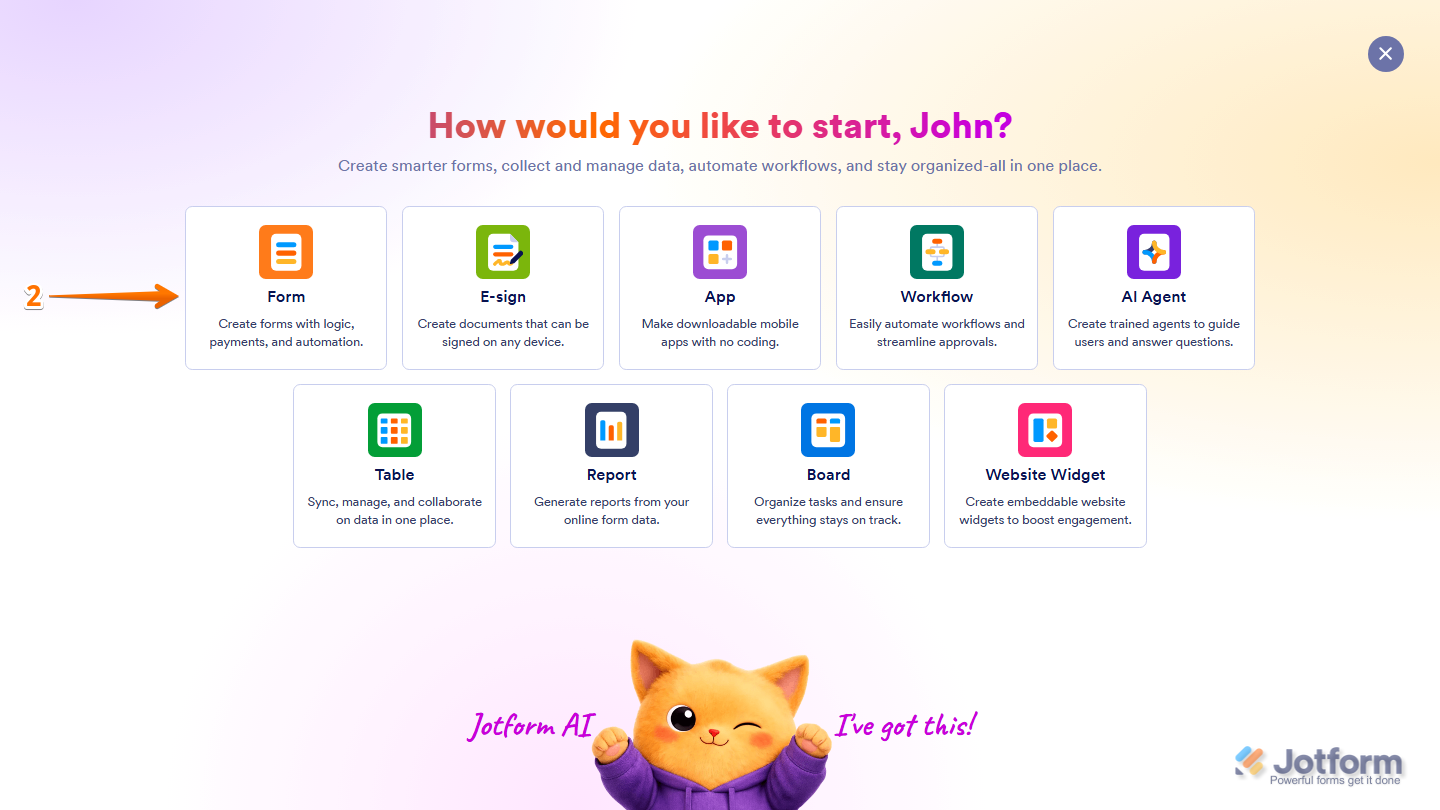
- Then, in the menu that opens up, select Form.
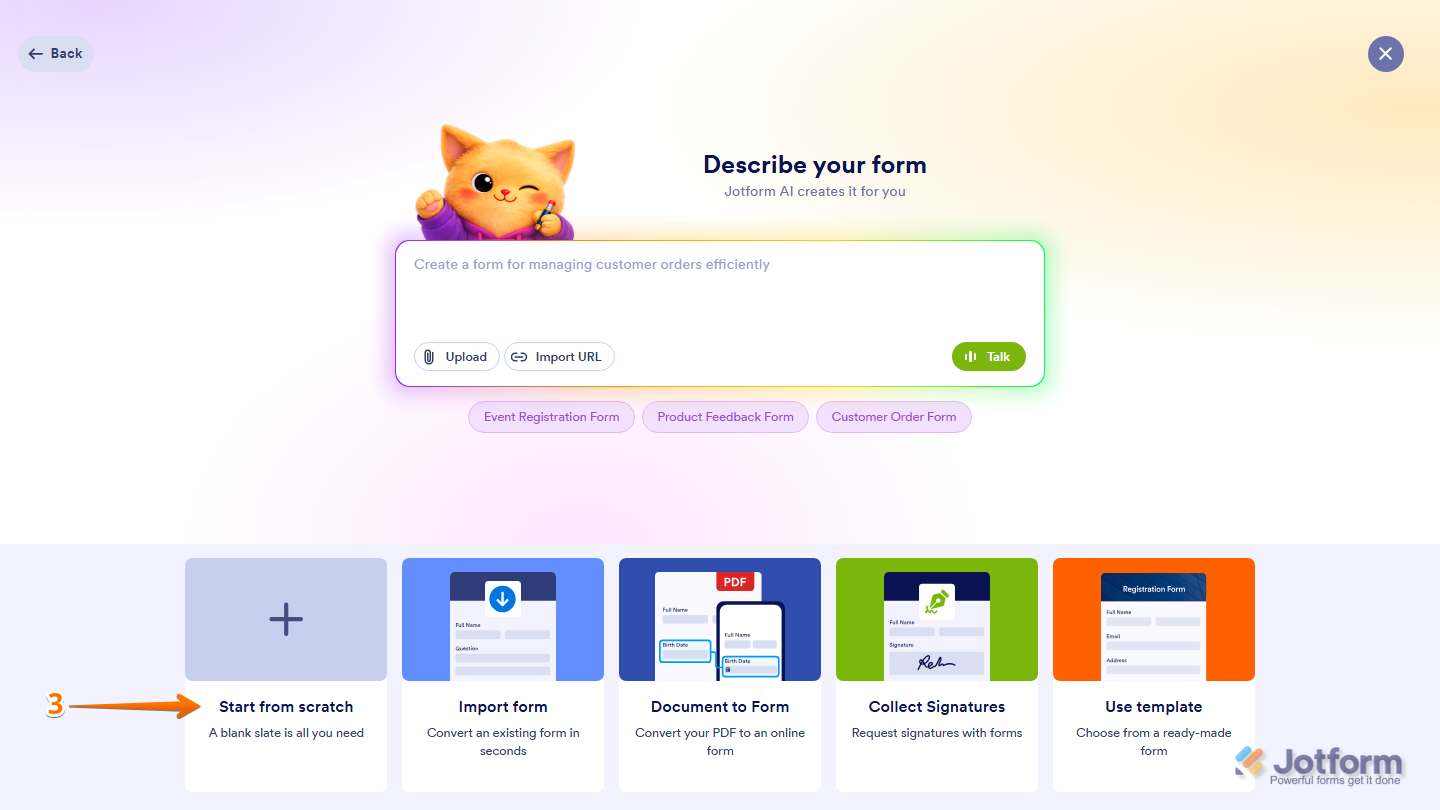
- Next, at the bottom of the page, click on Start From Scratch.
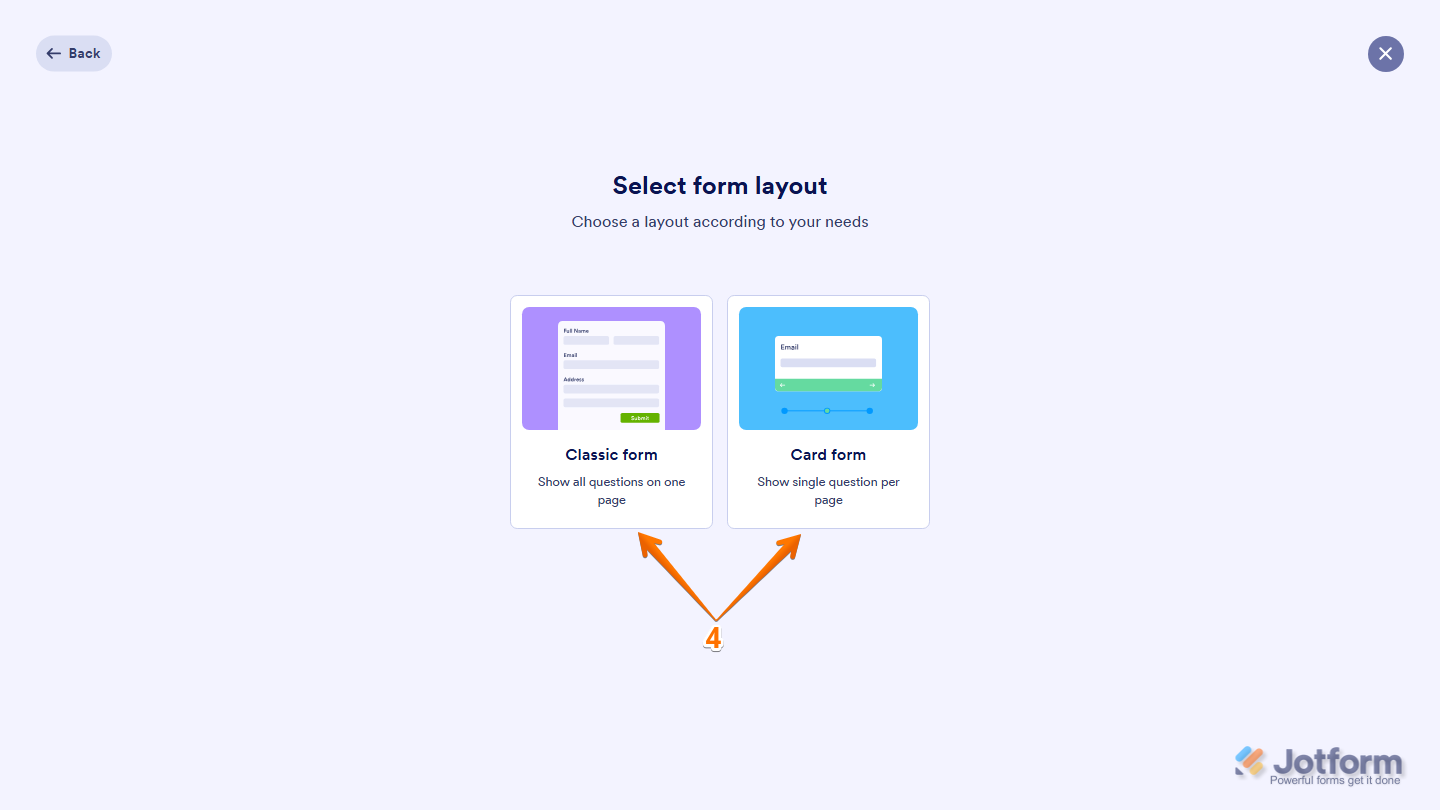
- Then, select one of the following layouts:
- Classic Form — Displays all the questions on a single page.
- Card Form — Shows one question on each page for a guided experience.
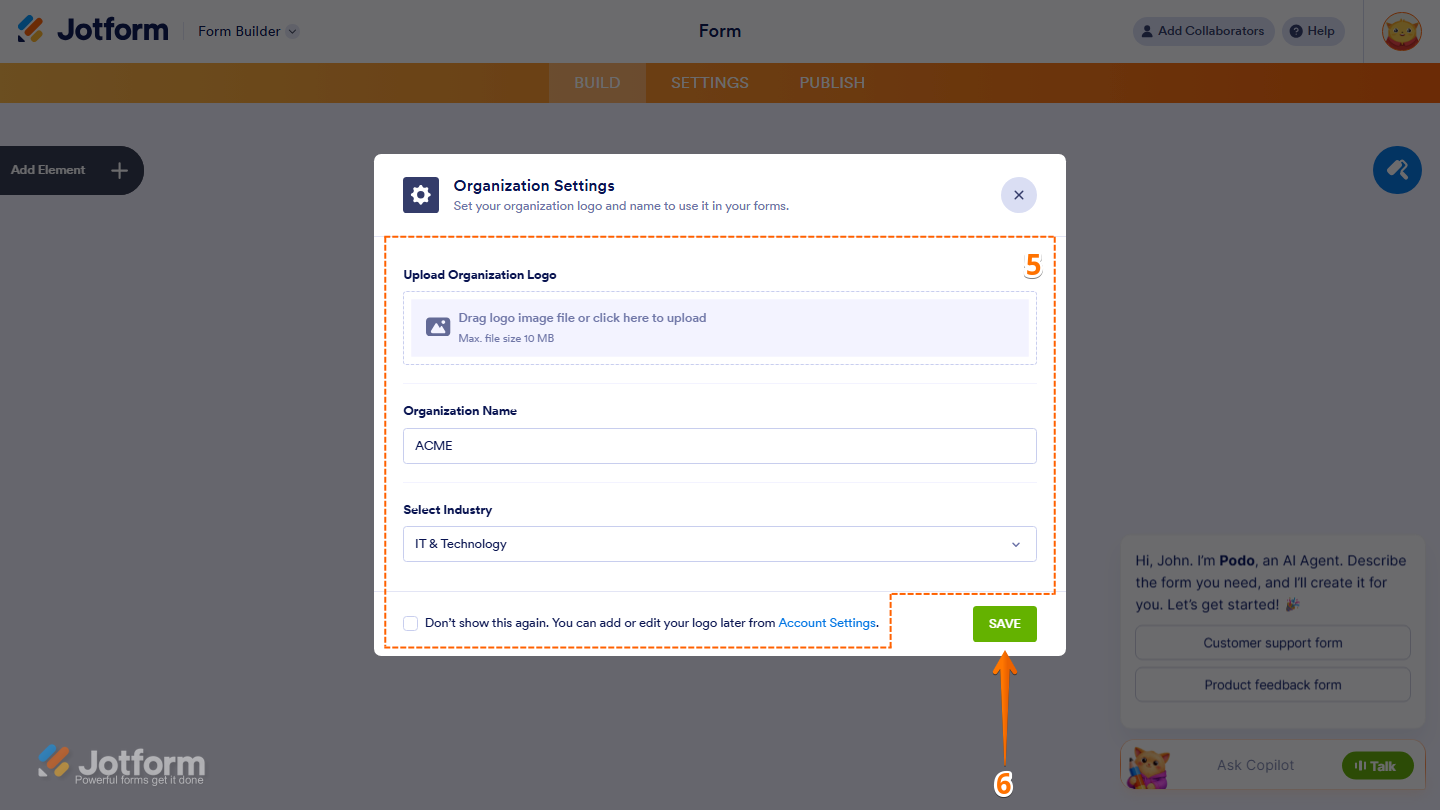
- Now, you’ll be redirected to Form Builder, where the Organization Settings window opens. Here, you can configure the following:
- Upload Organization Logo — Add your organization’s logo.
- Organization Name — Enter or edit your organization’s name.
- Select Industry — Choose the industry that best matches your organization.
- Don’t Show this Again — Prevent the prompt from appearing again in the future.
- Once you’re done, click on Save.
Adding Survey Questions
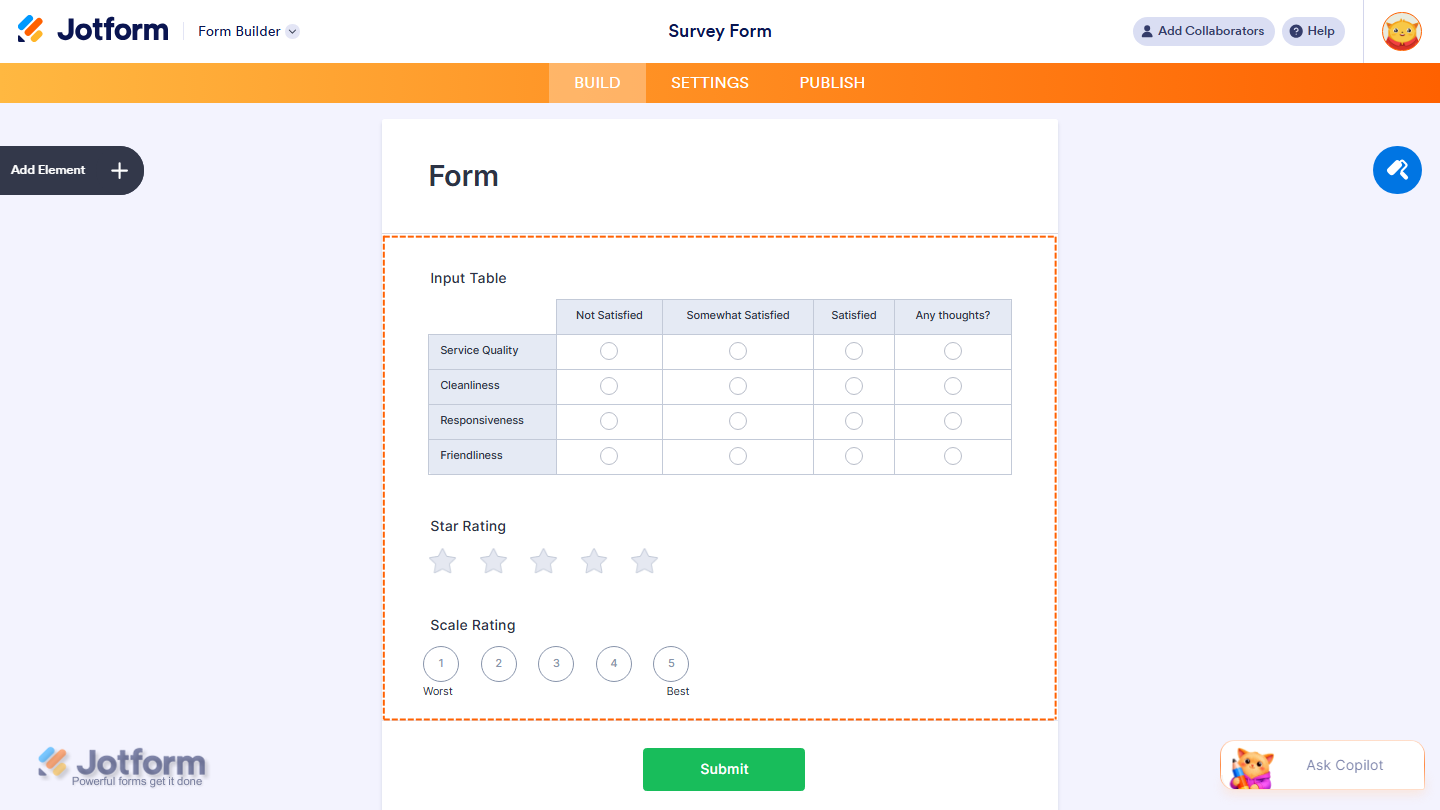
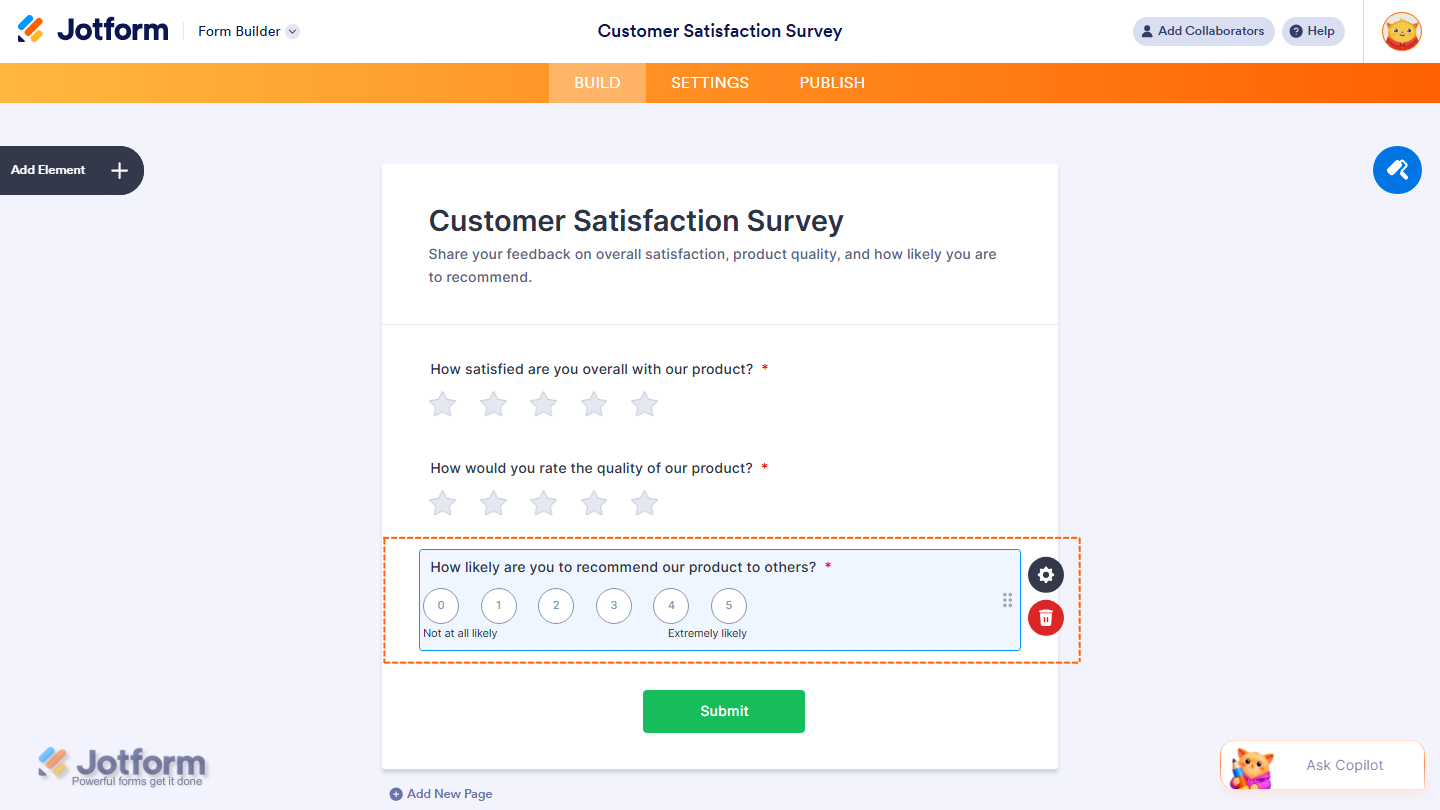
To create an engaging and effective survey, start by adding relevant survey fields such as an Input Table, Star Rating, and Scale Rating. Here’s how to do it:
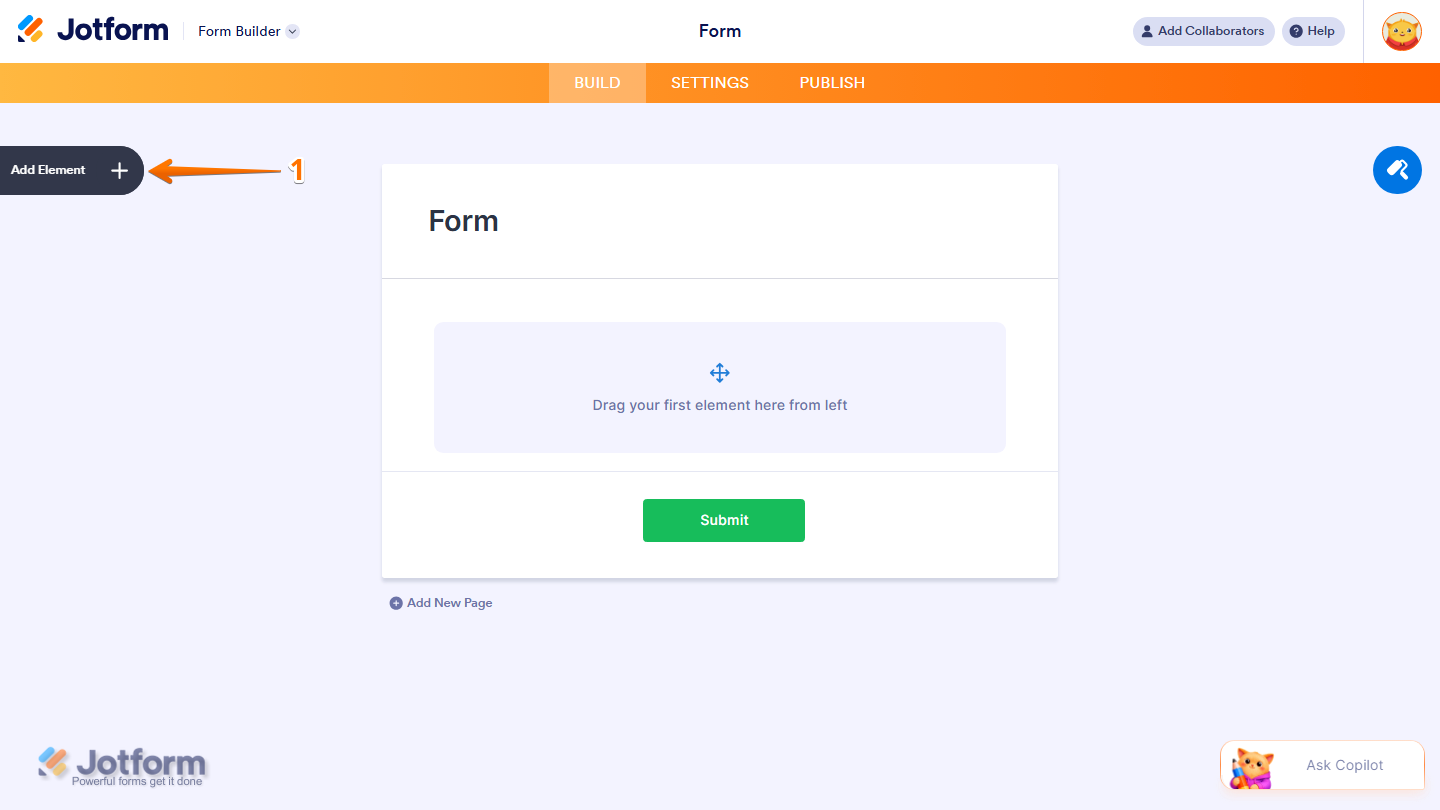
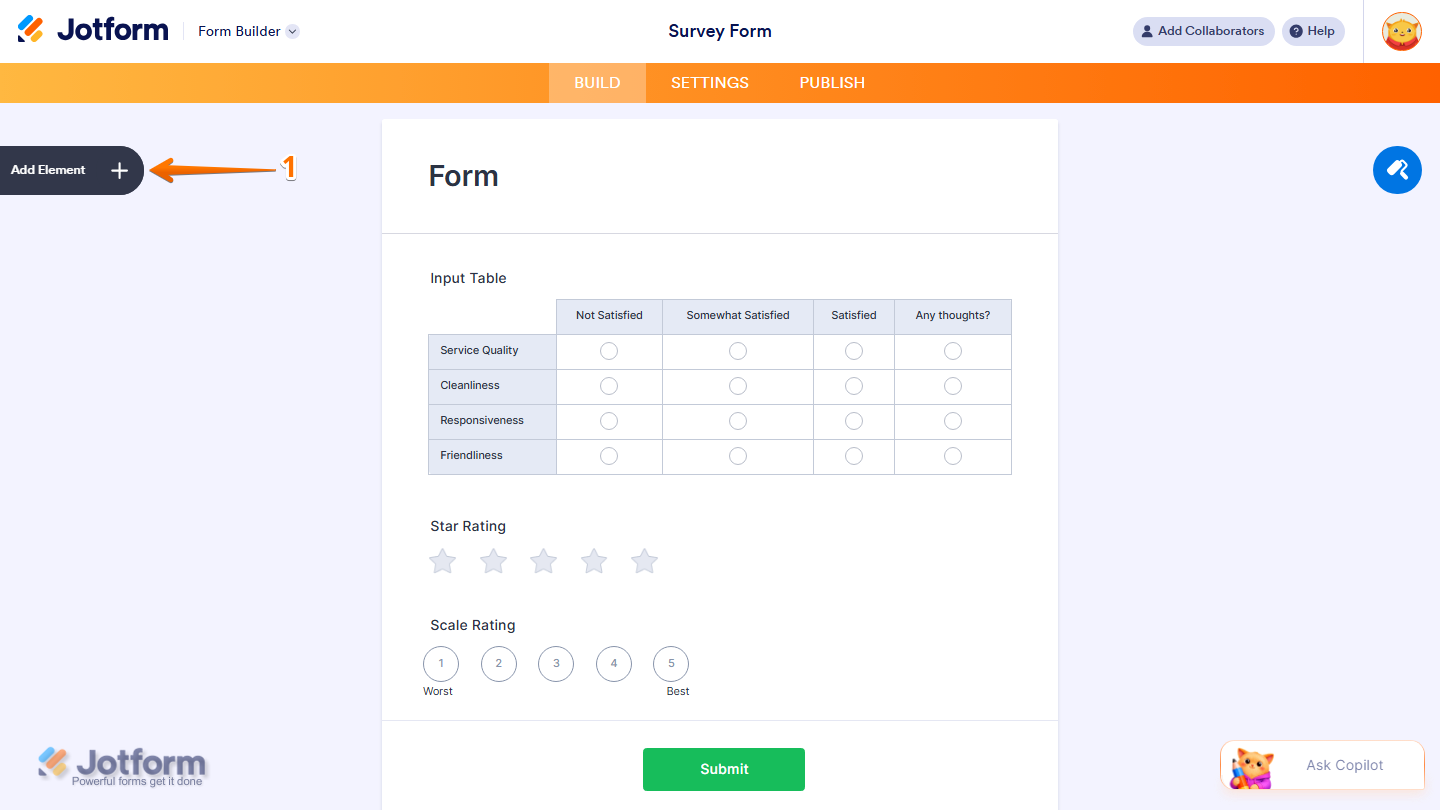
- In Form Builder, click on Add Element on the left side of the page.
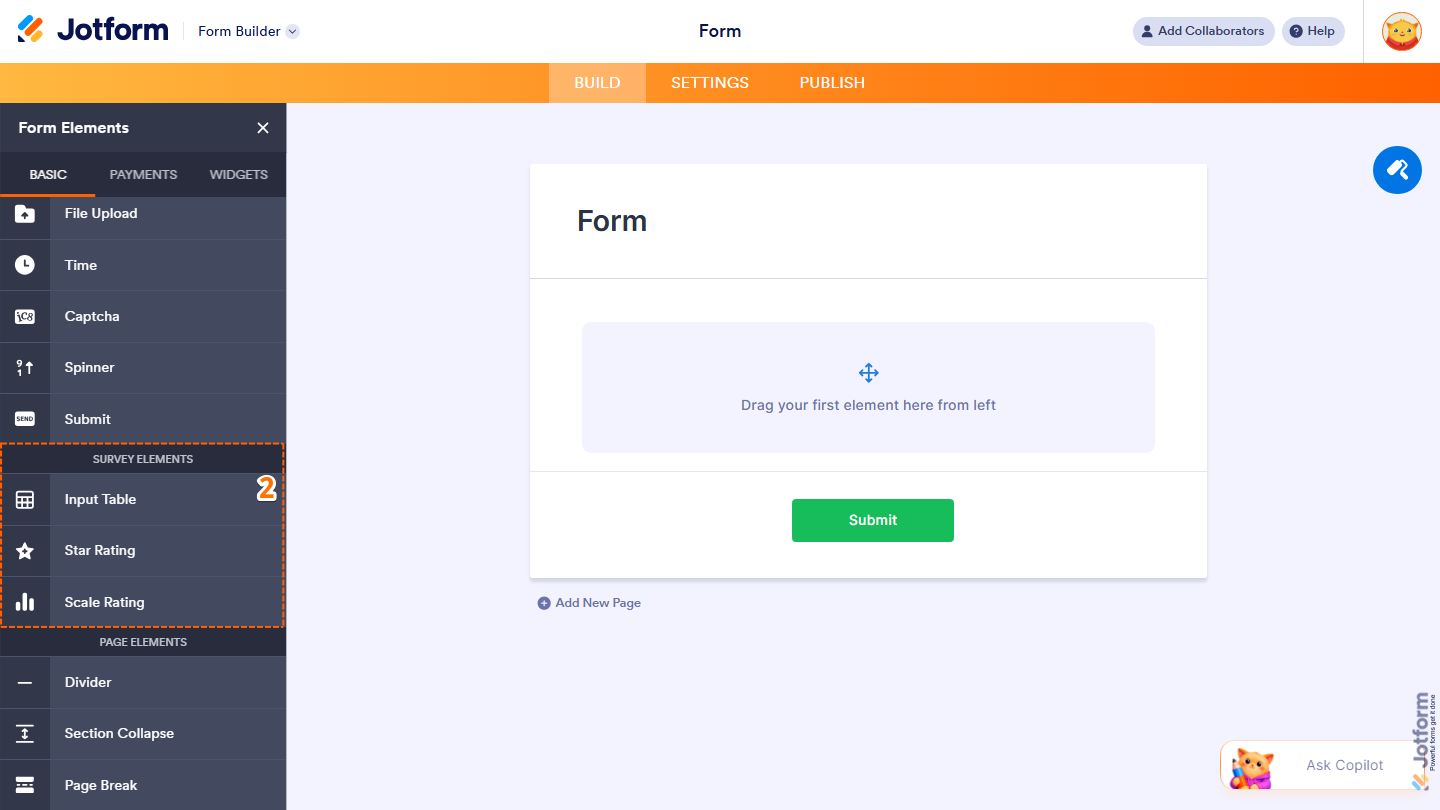
- Then, in the Form Elementsmenu that opens, scroll down to the Survey Elements section, and choose the relevant survey elements and click on them or drag them to where you want them on your form.
- Input Table — Present matrix-style questions with multiple response options.
- Star Rating — Collect feedback using a star-based rating system.
- Scale Rating — Use a Likert scale for measured responses.
You’ve now successfully added a Survey Questions.
Enhancing Your Survey Questions
A well-structured survey improves user experience and completion rates. Break up long surveys into sections for clarity. You can use Divider, Section Collapse, and Page Breaks to organize content more effectively, making the survey easier to navigate. Here’s how to do it:
- In Form Builder, click on Add Element on the left side of the page.
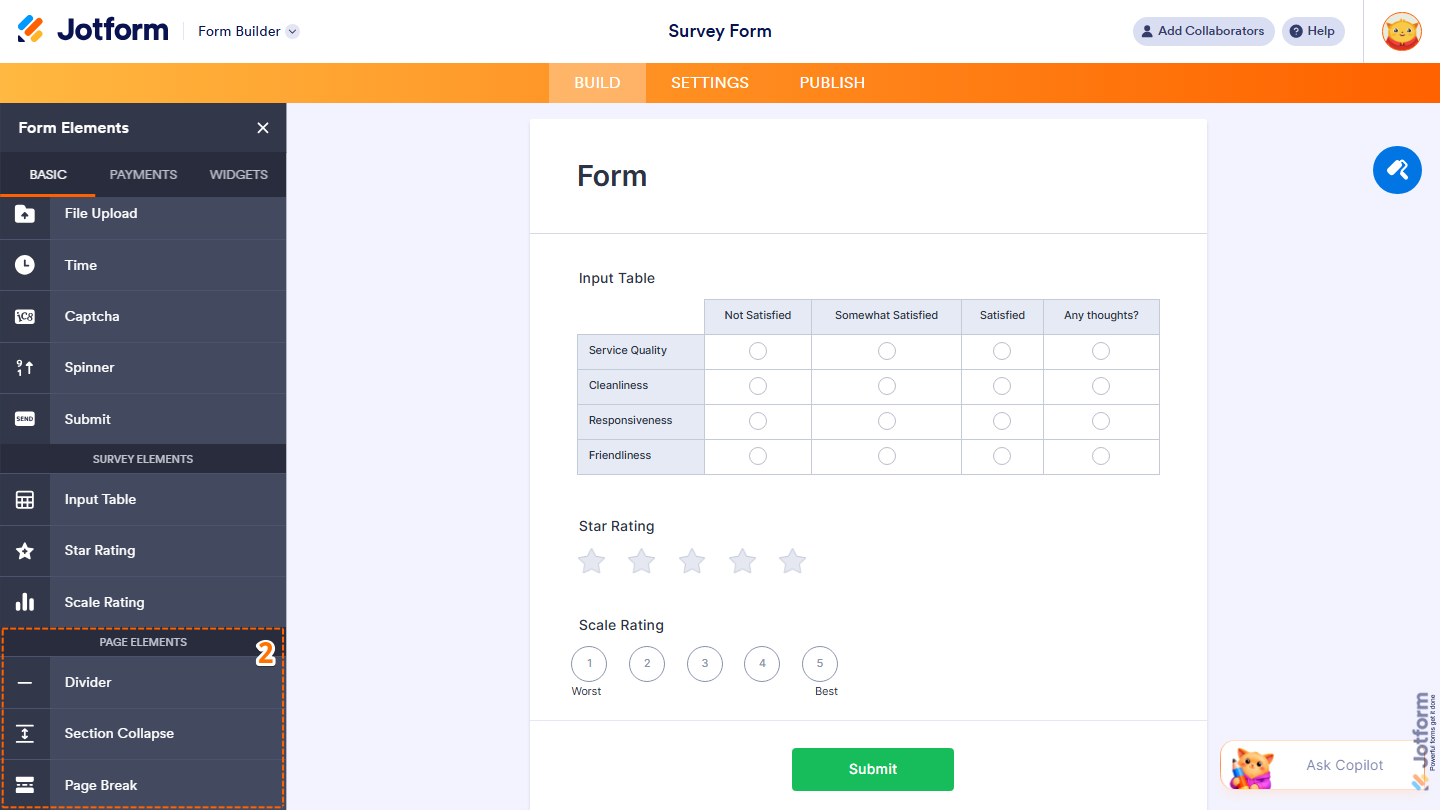
- Then, in the Form Elementsmenu that opens, scroll down to the Page Elements section, and choose the relevant page elements and drag them to where you want them on your form.
- Divider — Use a divider to separate different sections of your survey, making it more organized and easier to navigate.
- Section Collapse — Collapse sections to keep the survey compact and allow respondents to focus on one section at a time.
- Page Break — Insert a page break to divide your survey into multiple pages, helping respondents navigate longer surveys more easily.
Customizing the Survey Form Design
Make your survey visually appealing and consistent with your brand identity. Here’s a quick how to:
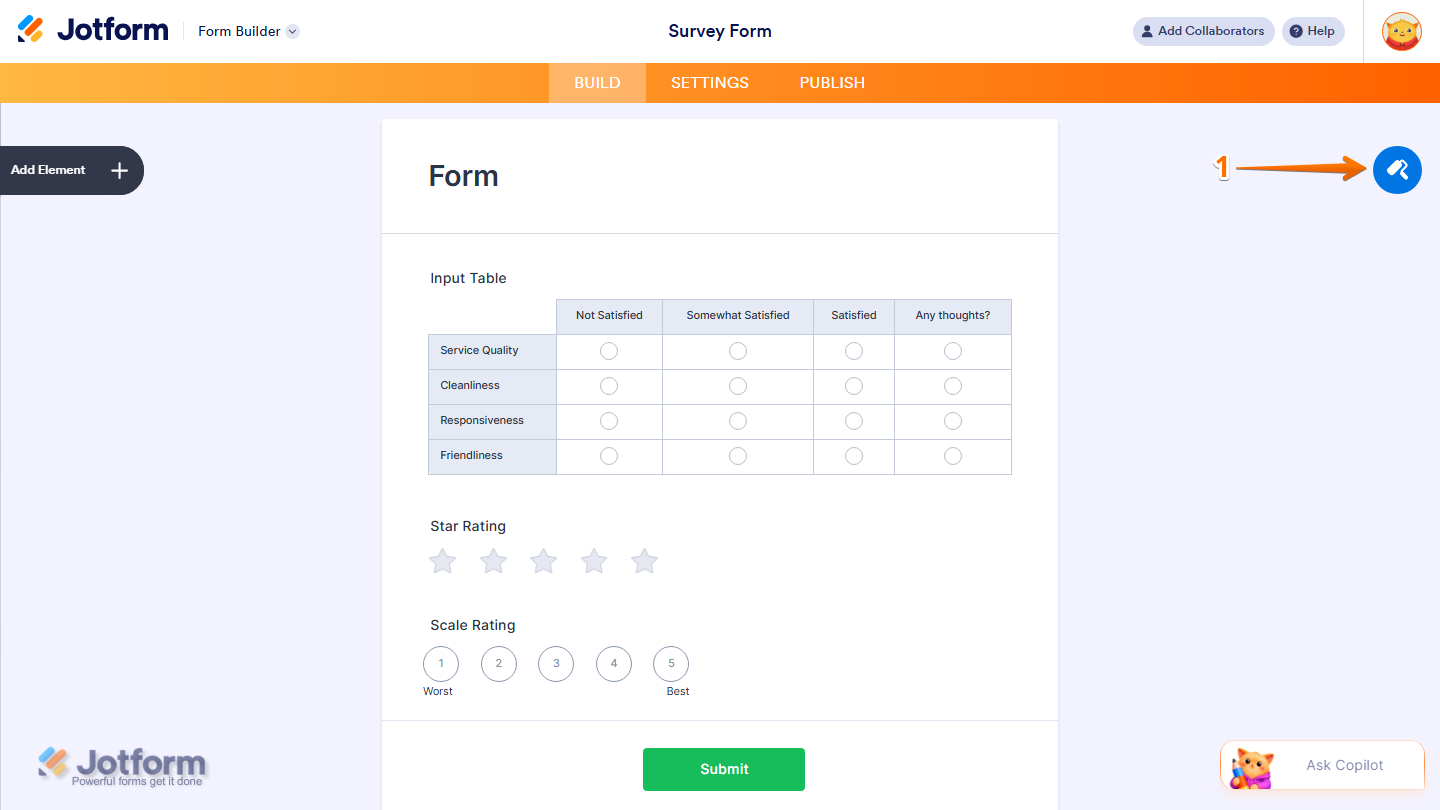
- In Form Builder, click on the Paint Roller icon on the top-right side of the screen to open Form Designer.
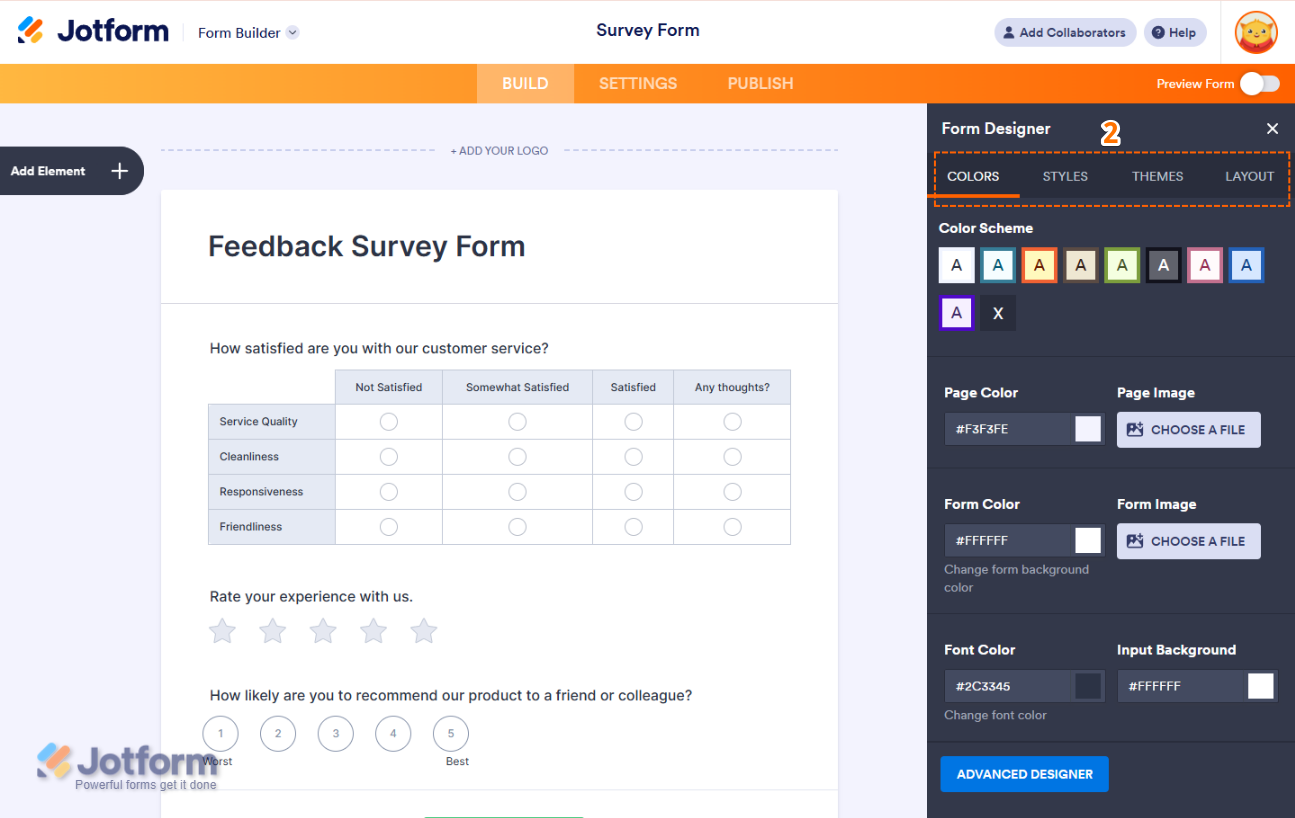
- Now, in the Form Designer menu, you can customize the following aspects of your form:
- Colors tab — Change the background, button, and text colors.
- Styles tab — Modify font styles, spacing, and field alignment.
- Themes tab — Apply a pre-made design theme to give your form a professional look.
- Layout tab — Choose between a single-page (Classic) or one-question-per-page (Card) format.
You might also want to check out our guides about How to Open the Form Designer and How to Access and Use Advanced Designer to learn more.
Publishing and Sharing Your Survey Form
Once your survey is ready, you can share it with your audience through different channels. Here’s how to do it:
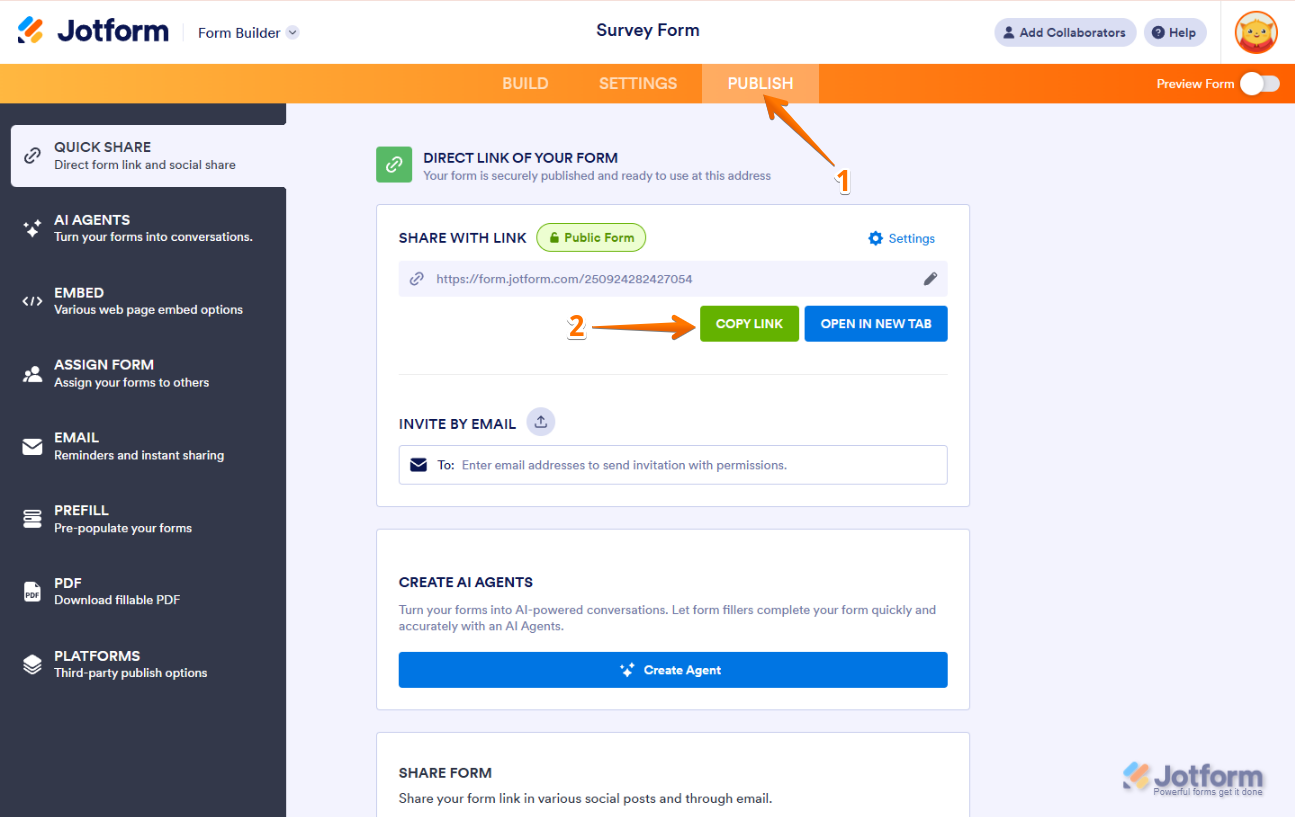
- In Form Builder, in the orange navigation bar at the top of the page, click on Publish.
- Then, click on the Copy link and send it directly to your users via email or social media.
You can also check out our guides about How to Send a Form via Email and Embedding a Form Into a Web Page.
Creating a Survey Form with Jotform AI
You can also use Jotform AI to generate a survey form based on your description. Here’s how to get started:
- On the left side of your Workspace page, click on Create.
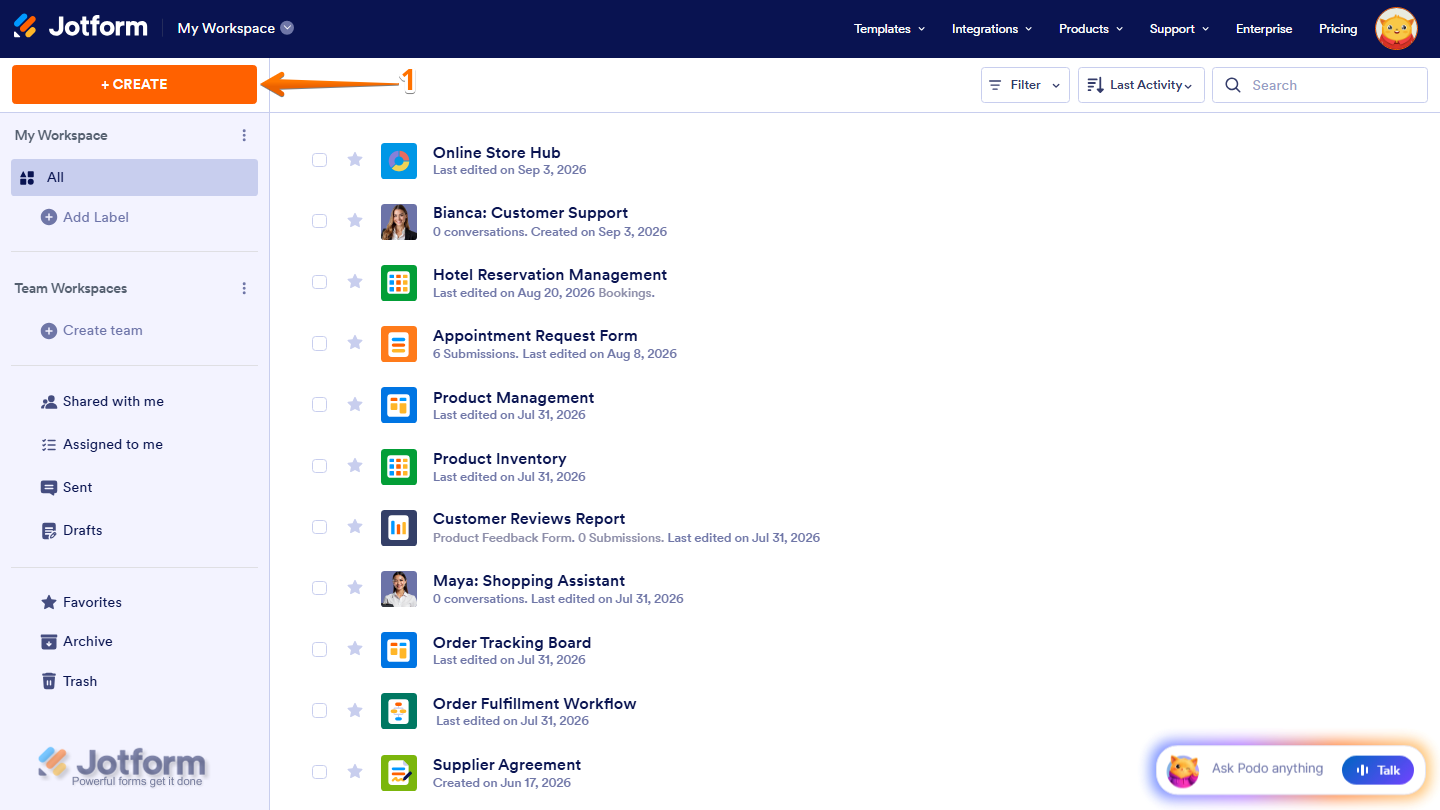
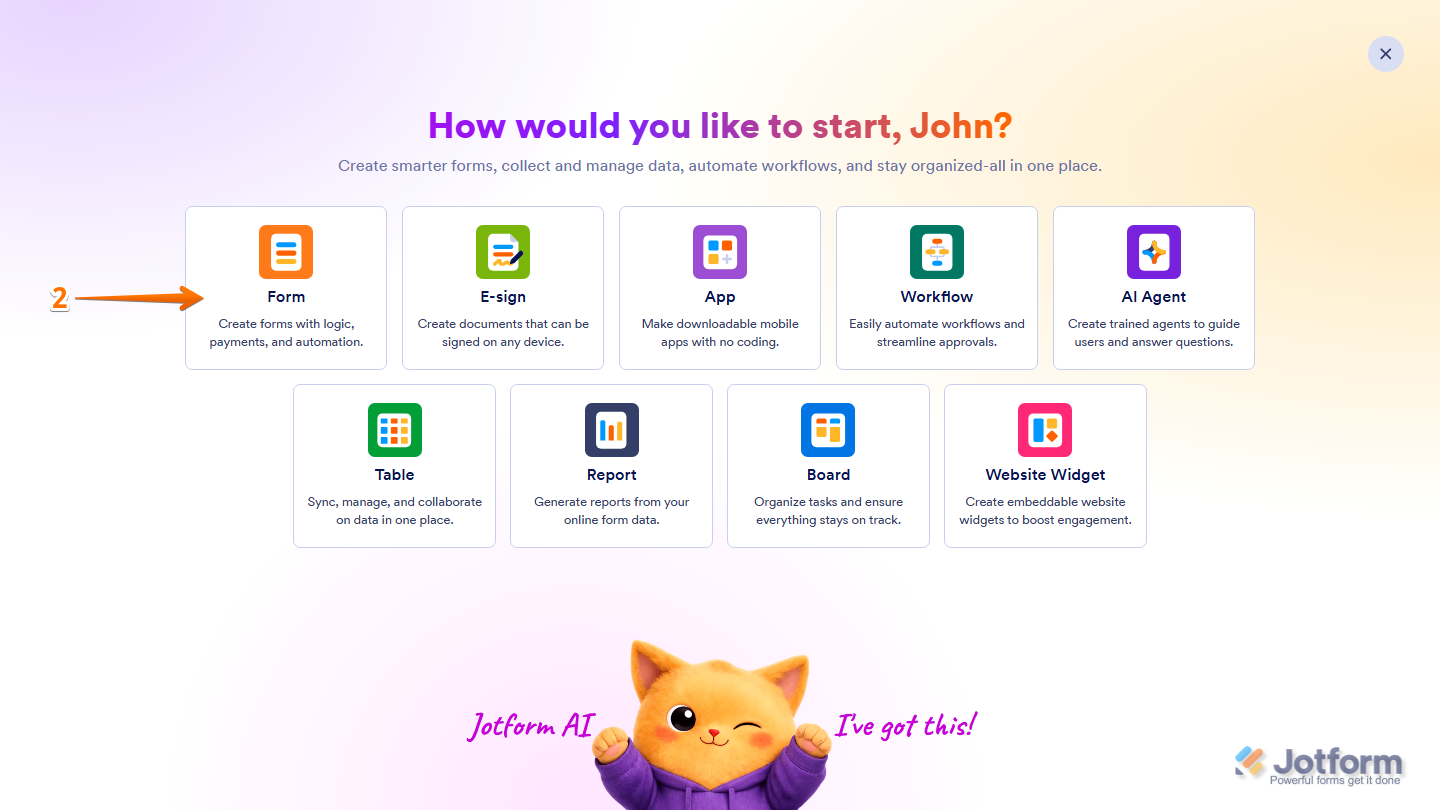
- Then, in the menu that opens up, select Form.
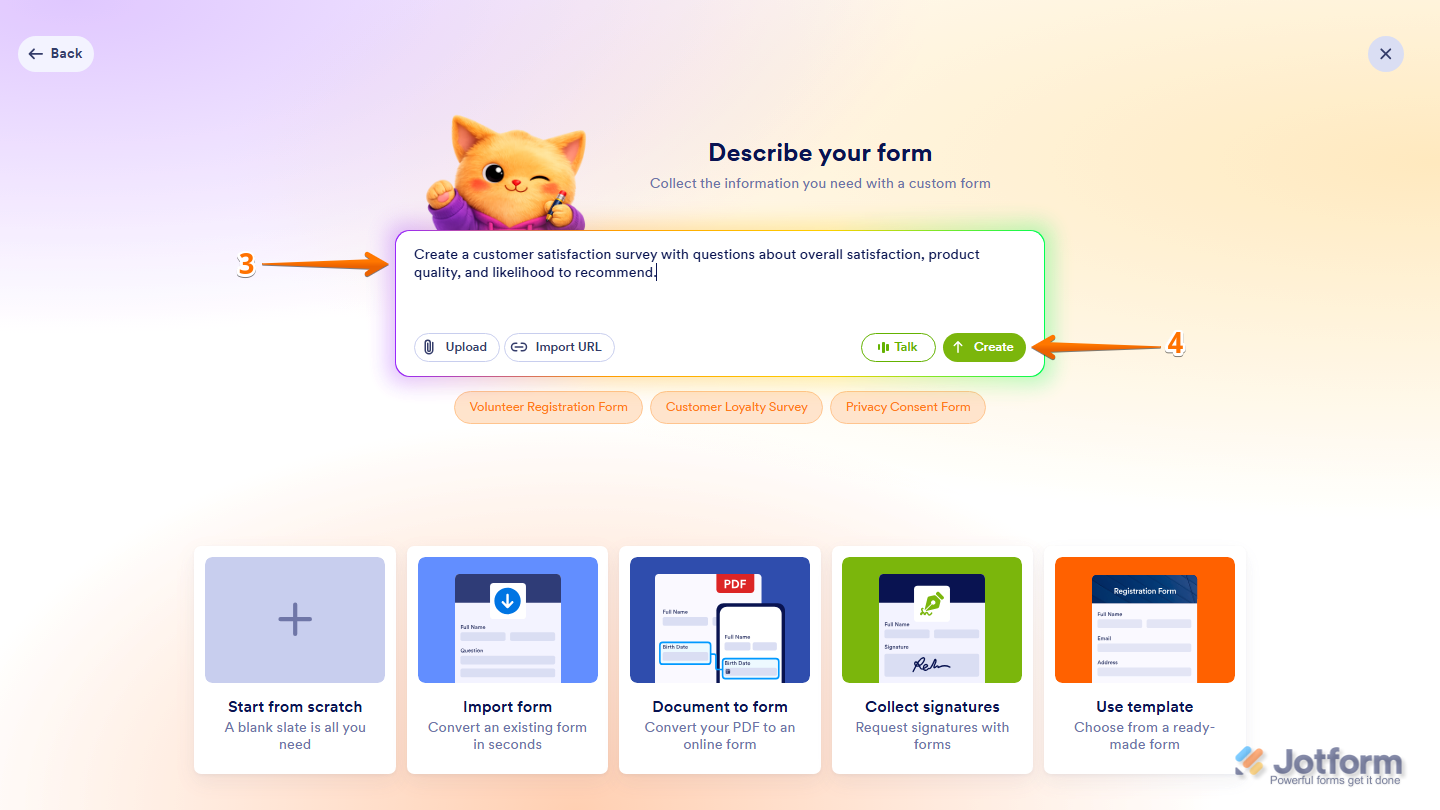
- Now, in the Describe Your Formsection, enter a description of the survey you want to create in the Prompt box. Here are a few prompts you can try:
- Create a customer satisfaction survey with questions about overall satisfaction, product quality, and likelihood to recommend.
- Create an employee engagement survey to measure job satisfaction, workplace culture, and team collaboration.
- Create a post-event feedback survey to collect ratings and feedback about the event experience.
- Once you’re done, click on Enter on your keyboard or click on Create at the bottom-right corner of the Prompt box.
And that’s it! Your survey form is ready to customize and use.

Send Comment:
25 Comments:
August 6, 2024
I'm sorry if I am missing this- but how can I format questions in a survey, as far as bold, indentation, extra spacing?
Thank you!
August 1, 2023
Can i input multi type rows in table field
April 20, 2023
How can I create a new second form (but still want to keep the original form)?
May 19, 2020
Can I use a pdf form with fillable fields that has already been created?
May 5, 2019
Trying to make forms like this, multi page, also notice how they use pictures as the question and the form captures all questions from all clicks on pictures to create successful form
All clients have to do is click then maybe at end of form they input name phone number and email
Please direct me thank you
April 18, 2019
how can i change the format for the ratings in decimal points?
February 12, 2019
Is there a way of adding pictures? I need to make a survey with suggestions on things to donate.
It would have the picture of the item then 3 boxes- ( Yes, donate; Keep; Other with option to type suggestions)
January 9, 2019
Thank you
April 12, 2018
Are there further CSS options?
This solution here just changes part of the background... Furthermore I would like to change the text color: give the matrix an individual text color but "font" doesn't seem to work within .form-matrix-values.
Thanks.
November 8, 2016
Can I set up a matrix so that the user can select both options in the column?
October 26, 2016
How do I add another column in the matrix?
January 1, 2016
Is there a way that I can create sign area below the survey?
November 25, 2015
Is there a CSS to change background colour of a matrix?
October 27, 2015
I don't need to show the column name. How to I hide it? Is there CSS for that? Thanks
August 26, 2015
How do I change the size of the text box inside the survey/matrix?
June 23, 2015
Nice article! I've been a big fan of using Form Analytics so far.
May 18, 2015
Hello I have done survey on two phases and want to jot down data in matrix format. Topic is viability of HR practical training in market based on colleges and corporates. How to use the data to create a matrix
April 10, 2015
Hi, I want to include a matrix with numeric text boxes in my order form. When I type a number in the box of the matrix in the preview (as the drop down doesn't seem to work) the font color of the number is white in both Chrome and Explorer (I can tell the number is there because I can highlight it). How can I change the color of the font in the matrix input boxes? Thanks!!
December 10, 2014
Hi, How do i change the font size on a matrix
April 12, 2014
Hi, i would Like to know how can i customize the matrix column that allows me to fill in my statement on the left and right with the ratings being in the middle so that could allow my respondents to rate on how much they agreed to a certain statement.
For example
[As a student]
(Left)I think that guidance from the teachers are very important for my studies. (Middle) 1 2 3 4 5 6 7 (Right)I think that relying on my own study is more important.
March 24, 2014
Is there a way to hide a certain radio buttons on certain columns or rows?
February 6, 2013
how can I change the dimensions of the matrix, particularly with the column entries? We have statements that the matrix doesn't wrap, but rather extends the column to the end of the statement. The result is a very wide matrix that does not fit into the desired form dimensions.
December 7, 2012
how do i get the individual radio button in a matrix to centre with its label (have the entire column centred) and to have each column spaced out evenly across a row. (eg, one row named "select one" with 7 column choices).
October 22, 2012
How do we add an "Other" field to this where someone can fill in their own? For example, rating various applications where not all possible applications are in the matrix
May 9, 2012
Good!