First impressions matter, especially when it comes to your online forms. Whether you’re collecting customer feedback, event registrations, or generating leads, the way your form looks and feels can make all the difference.
With Jotform’s wide selection of fonts and easy customization tools, you can quickly create a polished, professional form that reflects your brand, no coding needed. One of the Form Designer’s most frequently used core features is the ability to change fonts, either by selecting from the built-in font selector or Injecting Custom CSS Code.
- In Form Builder, click on the Paint Roller icon on the right side of the page to open Form Designer.

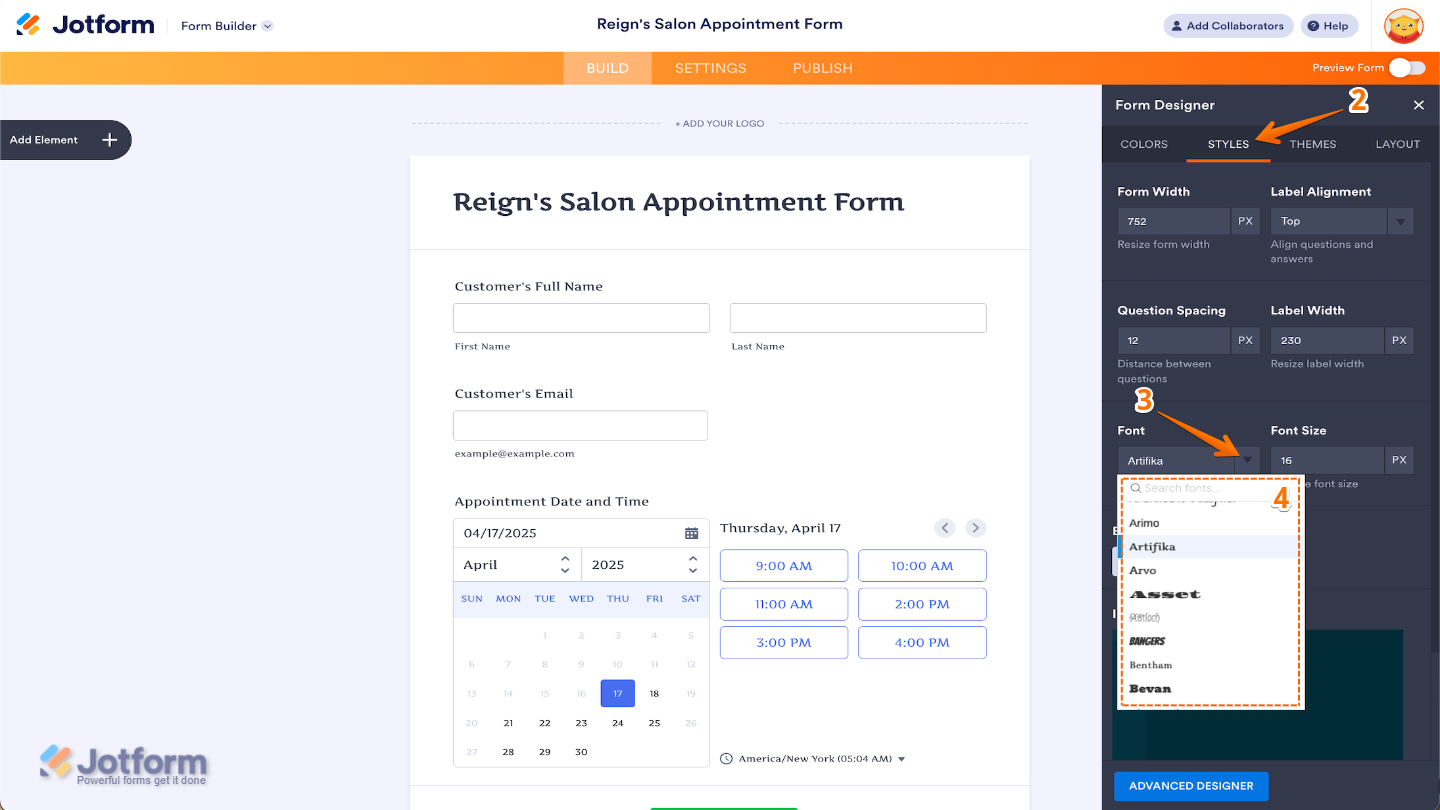
- Now, in the Form Designer window, click on the Styles tab.
- Then, in the Font section, click on the Downward Arrow icon.
- In the Dropdown menu, select or search for the font you want to use.
Notes
- There are other style options that you can use under the Styles tab.
- The Form Builder saves your selections and changes automatically.
- Adding a customized font is possible by injecting custom CSS code into your form. We have a guide about How to Inject Custom CSS Codes that you can check out.

Send Comment:
17 Comments:
February 27, 2024
Hi Team,
How do I remove the colour from the background of the drop-down box selections?
ATM it comes out a light blue-grey colour in the PDF.
Kind regards,
Luke
August 2, 2021
Step 1 - While in the Form Builder, click Form Designer:
Step 2 - Click the Styles tab.
Step 3 - On the Font dropdown, select the font from the list:
Step 4 - Scroll down and click the Save button. You're good to go after that.
July 23, 2021
Step 1 - While in the Form Builder, click Form Designer:
Step 2 - Click the Styles tab.
Step 3 - On the Font dropdown, select the font from the list:
Step 4 - Scroll down and click the Save button. You're good to go after that.
June 18, 2021
We know there’s nothing worse than signing up for a new tool and realising that the user experience is a deal breaker.
February 5, 2021
Hi Jotform
Thank you for this very useful guide. I am having a few issues, though:
- When I embed the form on my page, it has a sort of shadow frame around it which I would like to remove to make it blend in completely with the background - is that possible?
- Underneath the form the jotform URL appears - is there a way to hide it? It doesn't appear in the example from your link
I hope you have a great solution :-)
Kindly,
Sophia
July 2, 2020
Im trying to change the font colour in the selection drop down box as it currently shows as white against a white background and therefore can been seen. Same occurs in the input background field. Can you please help with the font coding
February 9, 2018
thank you sir
September 21, 2017
Proud to say, we are one of the users of JotForm.
Congratulations!!
3 Million ? No... It will be multiplied more and more!
God Bless!
September 20, 2017
WOW
September 20, 2017
Gracias por ayudarme, desde Argentina !!!!!!!
September 19, 2017
Привет.
September 19, 2017
hands down the best form tool on the planet, nothing even comes close
September 19, 2017
Ye!!!
Proud to be one of the earliest and oldest users from India... and probably the largest as well!!! Our trust in the team and our love for the product has never waned even for a second. Hearty Congratulations on a new Milestone.
September 19, 2017
Very friendly, creative and easy i like it, Thanks JotForm.
September 19, 2017
Com Jotform se tornou tudo bem mais fácil, só tenho a agradecer. Obrigado!
September 18, 2017
Jotform was the best thing that ever happened to our F&B company. Thanks Jotform team!
September 5, 2017
After I click in Form Designer, I only see palettes, themes and custom. And all these options only allow me changing the colour. Is there anywhere I can click for font and other style change? Thanks.