
Top 6 signature apps for Android
- Jotform Sign Mobile: Best for mobile professionals and structured signing flows
- Adobe Acrobat Reader: Best for occasional signing
- Docusign: Best for adding attachments to documents
- Signeasy: Best for team collaboration
- Zoho Sign: Best for business app integration
- PandaDoc: Best for creating documents
The first time I signed a writing contract in 2019, I used the built-in markup tools on my Samsung Galaxy A10. It felt quick and convenient, but I didn’t realize that my signature was basically an image. There was no audit trail, no time stamp, and no way to prove that the document hadn’t been altered after I signed it. If anything had gone wrong with that client, that signature wouldn’t have protected me.
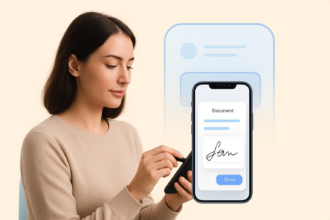
Many Android users also rely on PDF viewers or markup tools on their phones to scribble a signature and call it a day. But these tools lack tamper protection, identity verification, and a reliable way to track who signed what. That’s where dedicated signature apps make a real difference. They offer the same convenience of signing electronic signatures on a phone but with added technical layers that ensure its legality, including security, audit trails, compliance, authentication, and structured workflows to keep documents moving.
Over the years as a freelance tech writer, I’ve tested dozens of e-signature apps across mobile and desktop. I recently reviewed the most popular options for Android users to find the best apps for everyone on both sides of the signing workflow. In this guide, you’ll discover the six best electronic signature apps for Android and their features, pros, and cons. Interested in seeing which app offers the best balance of mobility, ease of use, and security? Let’s dive in.
| Platform | Best for | Key differentiator | Pricing |
|---|---|---|---|
 Jotform Sign Mobile |
Mobile professionals and structured signing flows |
Simple, mobile-first signing experience |
|
 Adobe Acrobat Reader |
Occasional signing |
Tools for editing, converting, and compressing PDFs |
|
 Docusign |
Adding attachments to documents |
Allows you to include non-signing participants in the signing flow |
|
 Signeasy |
Team collaboration |
One-click-copy-all for multipage signing |
|
 Zoho Sign |
Business app integration |
Allows you to recall documents after sending them out |
|
 PandaDoc |
Document creation |
Unified workflow for recurring business documents |
|
How to choose the right signature app for Android
If you search for “digital signature app” on the Google Play store, you’ll find hundreds of apps for mobile document signing. But many of them are awful to use or lack critical features expected from modern e-sign apps. Before choosing an e-signature app, it’s important to think about how you’ll actually use it. Some people just need a quick way to sign PDFs on their phone; others need workflows that keep documents moving across teams. No matter the case, evaluating your needs upfront makes it easier to choose an app that fits your volume, workflow, and budget. Here’s the criteria I followed in selecting these apps and some guidance to help you make the right choice:
- Define the volume of signatures and the workflow you need: If you sign documents occasionally, a lightweight tool may be enough. But if you send contracts regularly, manage approvals, or need templates and automation, look for apps built for higher-volume document processing. They usually include routing, reminders, reusable templates, and team dashboards.
- Check compliance and security: If you’re signing anything business-related, legal compliance is non-negotiable. Look for apps that explicitly support the Electronic Signatures in Global and National Commerce (E-SIGN) Act; the Uniform Electronic Transactions Act (UETA); and Electronic Identification, Authentication, and Trust Services (eIDAS). These standards govern how e-signatures work. Also, look for apps that offer strong security features, such as encryption, user authentication, audit logs, and access controls, to protect your documents.
- Compare free vs paid options and pricing scalability: Many signature apps for Android offer free plans with limited signing, which you can quickly outgrow. Check how many documents you can send each month, whether templates are limited, and how pricing scales as your needs grow. You want to make sure long-term costs align with your expected usage.
- Prioritize usability: The best signature apps on Android make mobile document signing fast, not frustrating. Choose tools with intuitive interfaces, reliable PDF handling, and features designed for on-the-go use.
- Evaluate how the app fits into your existing workflow: If you send signed documents to your cloud storage, CRM platforms, or project management tools, integrations are essential for saving time and keeping documents synced across your systems.
The 6 best signature apps for Android I’ve tested and how I picked them
To make this list, I rounded up over 30 e-sign apps, but that was too many to test meaningfully. So I cut the list down by reading user reviews and checking websites to exclude any app that didn’t meet the criteria or had generally poor user feedback. That reduced the list to about 15 apps.
For each app, I created an account, uploaded a test document, and sent it to another email address so I could sign as both the sender and the recipient to get a feel for the overall workflow. At this stage, I cut apps that took forever to load, crashed every time I launched them, were not intuitive, or didn’t seem like a good fit. Then I spent more time exploring the apps that passed and tested all their features. Based on all that, here are the six best signature apps for Android in 2026.
1. Jotform Sign Mobile: Best for mobile professionals and structured signing flows
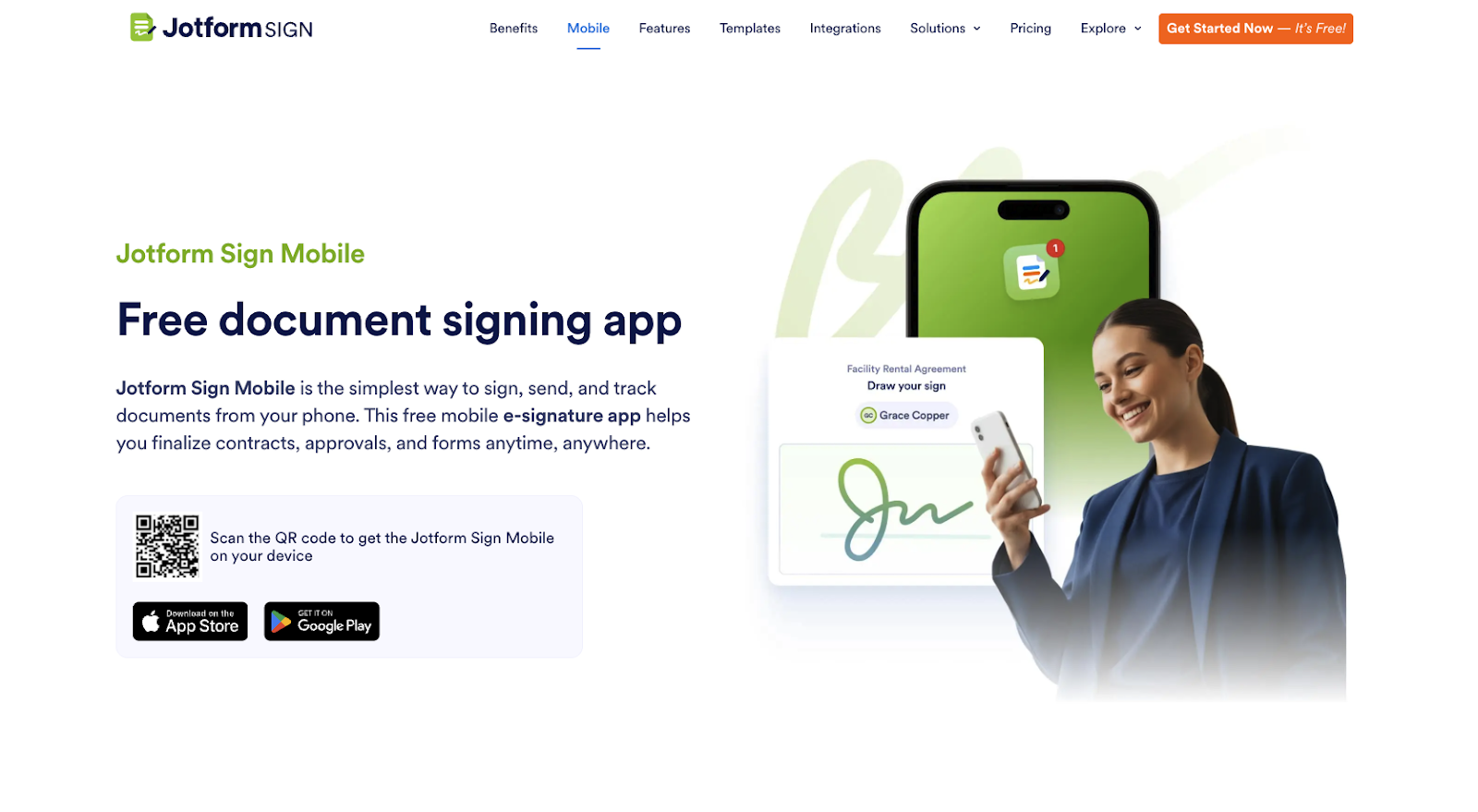
Jotform Sign Mobile is the best signature app for Android, and for good reason. It’s free and easy to use, and it meets all the requirements a mobile professional needs to sign, send, and manage documents anywhere. There’s no desktop or printer required.
Getting started with Jotform Sign Mobile is very straightforward: download the app, create an account or log in with your Jotform credentials, and immediately you’ll be prompted to add your signature to the app by drawing or typing it. Once you’re set up, you can start signing documents yourself or invite others to sign. The app gives you a bunch of ways to bring in documents, including uploading files from your device or cloud, scanning a physical document to make it digitally signable, or choosing a ready-made signable document from the template library.
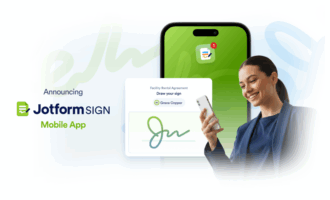
Jotform Sign Mobile is set up to make it easy for you to track all your documents. From your screen, you can see the docs you have yet to sign, those waiting for recipients to sign, completed documents, and declined signature requests. And if you’ve set up an automated document workflow using Jotform Sign for desktop, you can manage approvals right from your phone. To get a closer look at everything the mobile app offers, meet Jotform Sign Mobile.
- Key features
- Sign existing documents: Open the app and sign any file saved in your account or uploaded from your device. You can also reuse previously signed documents as templates to launch new sign flows.
- Fill, edit, and preview documents: Jotform Sign Mobile includes editing tools for completing multipage documents, such as rental agreements, business proposals, letters of authorization, and more. You can adjust and review your documents before sending them out for signature.
- Start with document templates: Save time on document preparation by starting with a template. Jotform Sign Mobile includes more than 600 contract and agreement templates across real estate, financial agreements, HIPAA compliance features, inventory, employment, and more.
- Use in-person signing: During face-to-face transactions, you can collect multiple signatures on your phone even if you’re offline. This is ideal for real estate, sales, or field work.
- Digitize documents for signing: Use your phone’s camera to digitize paper documents instantly for e-signing. Jotform will immediately locate the designated areas for signing so you don’t have to select them manually.
- Invite others to sign: Set signing order and send signature requests via email or shareable links for remote signing. Jotform will guide recipients through the signing flow, and they can sign on any device without creating a Jotform account.
- Track and manage your progress: Use Jotform Sign Inbox and My Sign Documents to monitor signing progress and view all ongoing and completed documents.
- Get real-time notifications: Get instant alerts when documents are signed or pending.
- Create secure and legally binding documents: Every document you sign or send includes a document ID and an audit trail for tracking all document activities. Plus, all signatures are encrypted to meet global compliance standards, including the US UETA, the E-SIGN Act, the European Union (EU) eIDAS, SOC 2 Type II, and HIPAA.
- Use integration and automation: Jotform Sign Mobile integrates with the rest of Jotform’s ecosystem, enabling you to automate your e-signing process and move documents across your business-critical apps, including CRM, project management, and communication apps.
- Use it for free: Jotform Sign is available for free, with up to 10 signatures per month, which is perfect for professionals and small teams.
- Pros
- Hundreds of customizable document templates for signing on the go
- Super intuitive and easy to use
- Available for free
- Cons
- Limited storage space on the free account
- Pricing
- Jotform Sign Mobile is an extension of the Jotform Sign for desktop, so it’s included in your monthly Jotform subscription.
- Free for up to 10 monthly signed documents
- Bronze: $34 per month for 100 signed documents per month
- Silver: $39 per month for 250 signed documents per month
- Gold: $99 per month for 1,000 signed documents per month
- Enterprise: Custom pricing for unlimited signed documents
- Jotform Sign Mobile is an extension of the Jotform Sign for desktop, so it’s included in your monthly Jotform subscription.
Send my document for signature
File type is not allowed.
Maximum file size limit exceeded. (5MB)
Something went wrong.
2. Adobe Acrobat Reader: Best for occasional signing
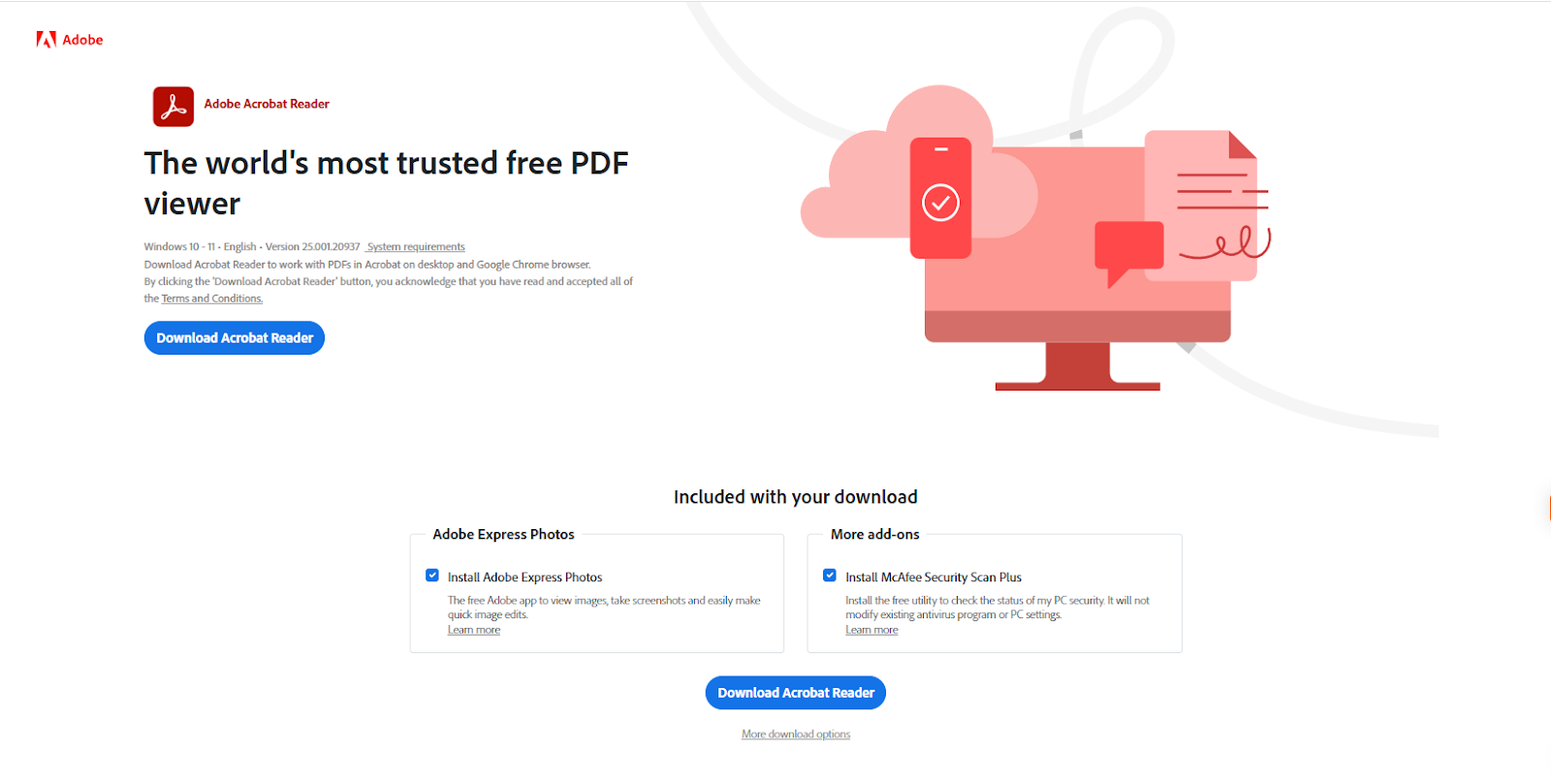
Adobe Acrobat Reader is a widely used PDF app for Android with built-in signing capabilities for handling documents on the go. Once you download the app and sign in, the interface feels intuitive, and you’ll find tools for creating, editing, signing, combining, and even compressing PDFs. If you’ve received a document on your phone or in your cloud storage, you can quickly sign it by opening the file in Adobe Reader, then selecting “Fill & Sign.” Acrobat Reader lets you add your signature by drawing it, uploading an image, or taking a photo with your camera. Once you’re done, you can save the file to your device or share it with anyone via a link.
Adobe Acrobat Reader lets you send only two free signature requests per month, and while you can use the app to sign documents for free, the tools for editing, creating, and organizing PDFs require an Adobe Acrobat subscription.
💡 Pro tip
If navigating Adobe’s tools and pricing feels too complicated, we cover the best Adobe Sign alternatives to help you find other reliable options.
- Key features
- Fill-and-sign tools for PDFs
- PDF annotation, markup, and editing options
- Secure cloud storage via Adobe Document Cloud
- Native integration with Adobe Acrobat Sign for compliant, trackable workflows
- Offline access for viewing, reading, and signing PDFs
- Pros
- Very reliable and widely adopted
- Intuitive and easy to use
- Works seamlessly with Adobe Acrobat Sign for advanced needs
- Cons
- The free version includes ads and pop-ups.
- Pricing
- Free to use for self-signing, but a subscription is required for sending more than two signature requests per month and editing PDFs.
3. Docusign: Best for adding attachments to documents
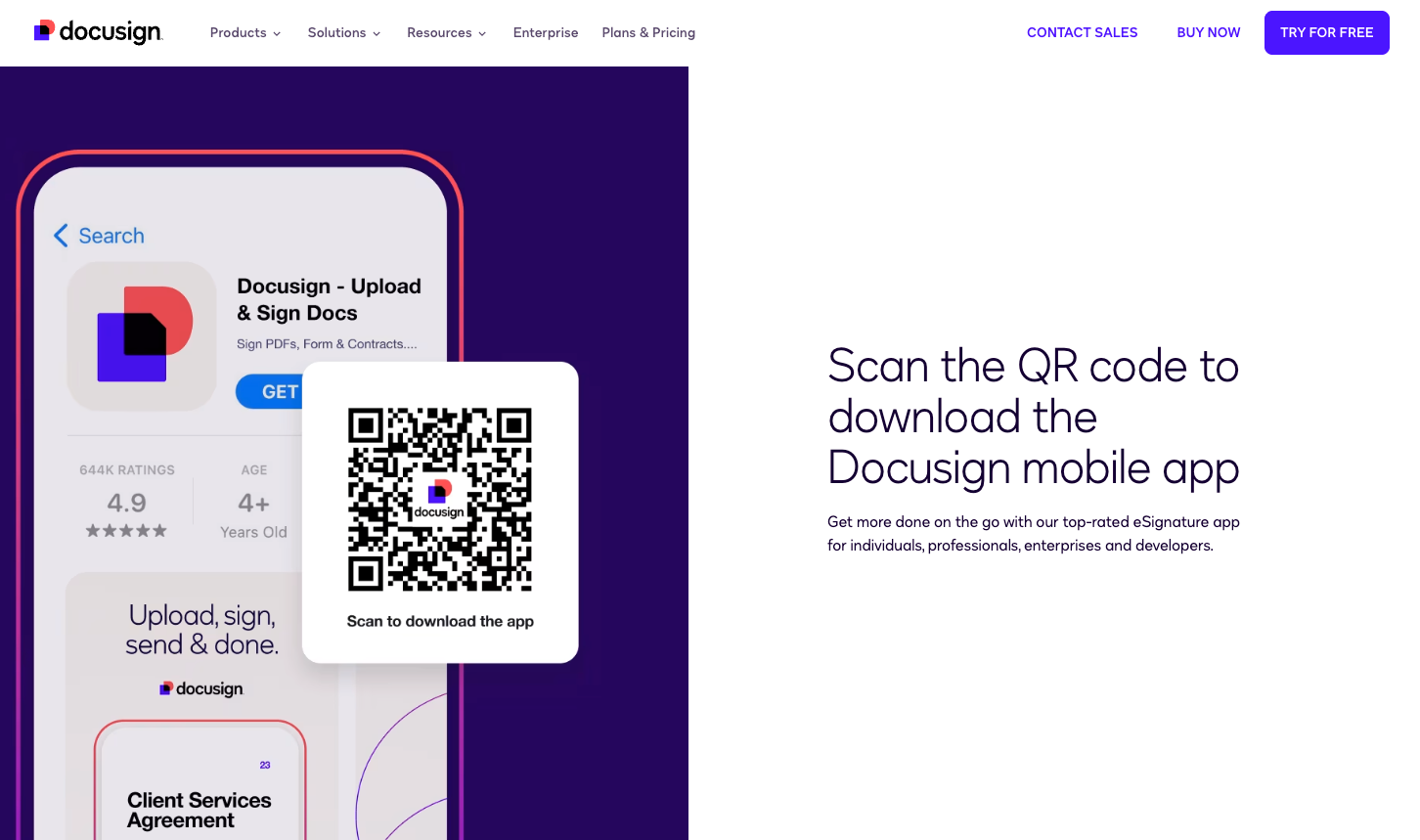
Docusign is one of the most popular digital signature solutions on the market, and its mobile app lets you sign and track documents from your phone. The Docusign mobile app is built for speed. To sign a document or request a signature, simply scan a paper document with your phone or import from your device, then map the necessary fields, add signers, and send. Recipients can sign in with one click, and the app will notify you in real time with push notifications. Docusign also allows you to add attachments to your documents when requesting signatures. This feature is a great way to include supporting information for your contracts and agreements. The mobile app offers unlimited free signings for you and three signature requests per month.
- Key features
- Real-time status tracking and notifications
- Duplicate completed signing workflows to reduce document preparation time
- Detailed audit trail for legal and compliance
- Developer resources for integrating the software into a third-party app
- Integration with popular cloud storage services, Salesforce, and more
- Pros
- Smooth mobile experience
- One of the most trusted e-signature solutions
- Great for high-volume or business-critical workflows
- Cons
- Doesn’t allow editing of document before signing
- Pricing
- Free for self-signing and three signature requests monthly
- Paid plans from $10 per month (annual billing)
4. Signeasy: Best for team collaboration
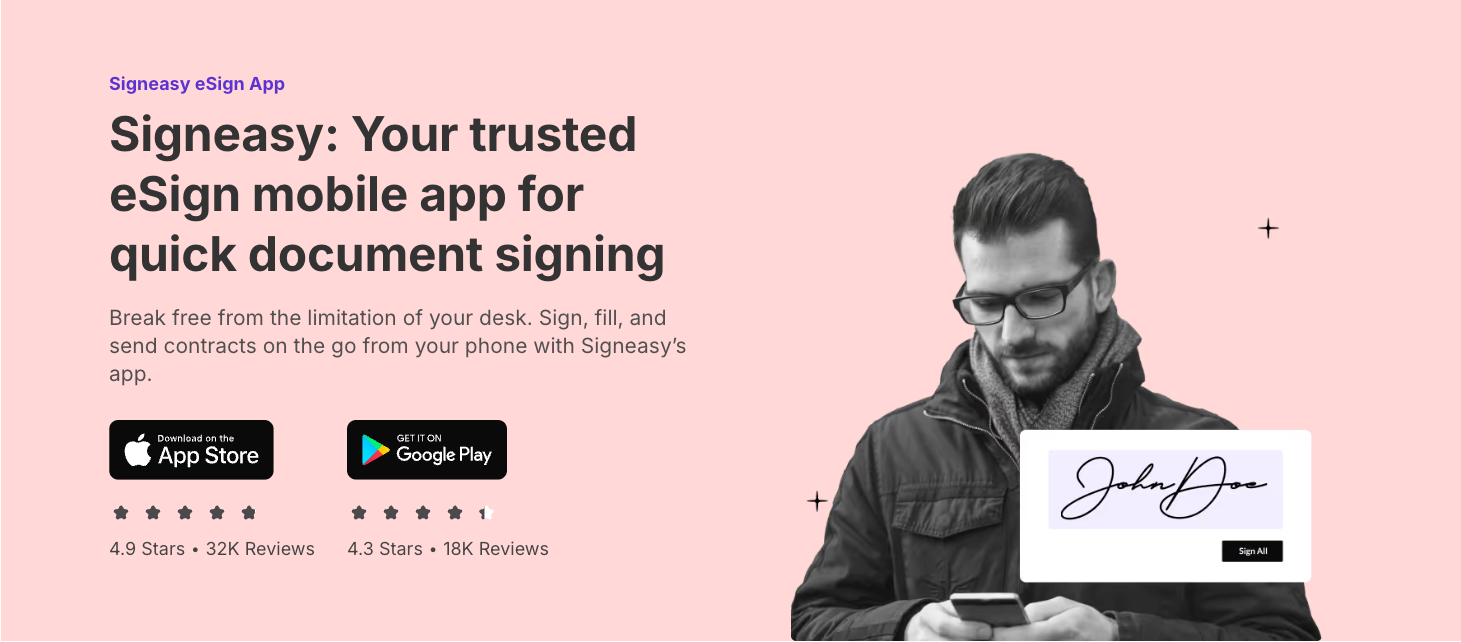
Signeasy’s mobile app makes signing, tracking, and managing documents very easy. After you sign up and add your signature, you can upload PDFs, Word docs, Excel files, and even PNG files from your device or cloud storage. You can then send them to signers using a range of options, including email, bulk send, QR code, or SMS.
Signeasy allows you to sign documents inside Google Workspace and Microsoft apps. For teams, it offers features such as template sharing, signer attachments, and two-factor authentication (2FA) to encourage collaboration and manage document access. Team members can track documents with unique links and stay on top of their document workflows using widgets on their dashboard. The app also supports offline signing and stamp signing to speed up document workflows.
- Key features
- Supports all popular document formats
- Allows you to edit the signer list even after sending for signature
- Provides strong security features, such as passcode/biometric authentication, 2FA, trust seal, and more
- Comes with an AI assistant for summarizing and reviewing contracts
- Offers an API for bringing Signeasy into third-party apps
- Pros
- Super intuitive and easy to use
- Useful workflow tools such as templates, multi-party flows, and cloud sync
- Offline signing for mobile teams
- Cons
- Advanced features are locked behind higher-tier plans, which can be expensive for small businesses.
- Pricing
- Seven-day free trial, then paid plans from $10 per user, per month
5. Zoho Sign: Best for business app integration
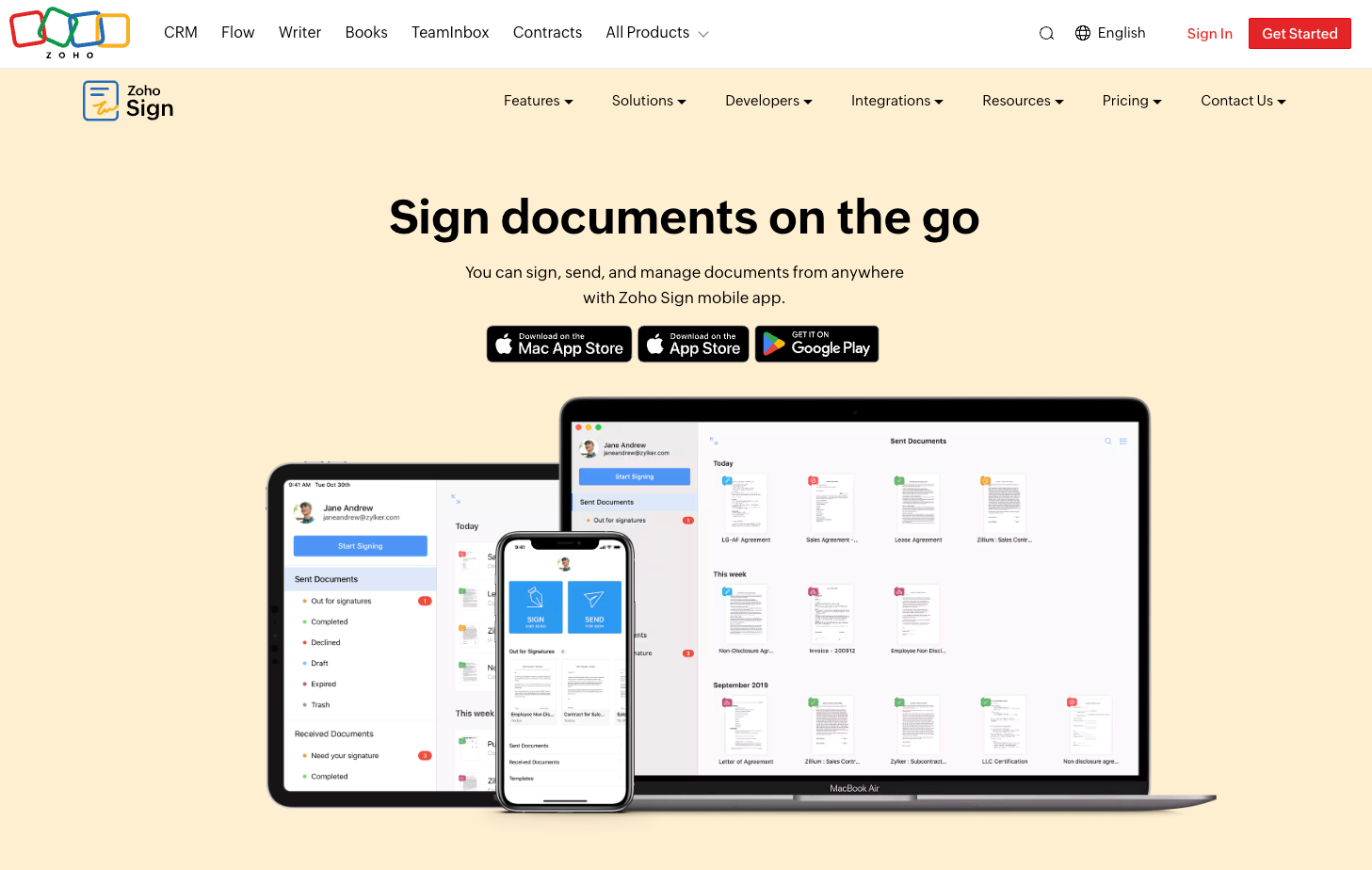
Zoho Sign is known for its secure, cost-effective electronic signature solution. With its Android mobile app, anyone can sign, send, and manage documents from anywhere. Start by scanning physical documents with your phone’s camera or importing saved files from your cloud storage. From there, the app lets you prepare your doc using a range of elements in its intuitive dashboard. Once your document is ready, you can send it to recipients via email or bulk send for multiple signers.
Zoho Sign lets you sign different types of electronic signatures, including qualified electronic signatures and advanced electronic signatures. It also lets you recall sent documents, track document status, and give signers language-specific signing options. Most important, it integrates tightly with the rest of the Zoho suite and hundreds of business-critical apps.
- Key features
- Strong security and compliance tools
- Ability to collect payments alongside signatures
- Qualified electronic signing through InfoCert and Uanataca for signers in the EU
- Workflow tools such as status tracking, reminders, document recall, and more
- Pros
- Mobile-friendly and easy to use
- Integrates well with Zoho tools and third-party apps
- Perfectly balances simplicity and advanced features
- Cons
- Doesn’t support offline access
- Pricing
- Free for five monthly signature requests
- Paid plans from $10 per user, per month
6. PandaDoc: Best for creating documents
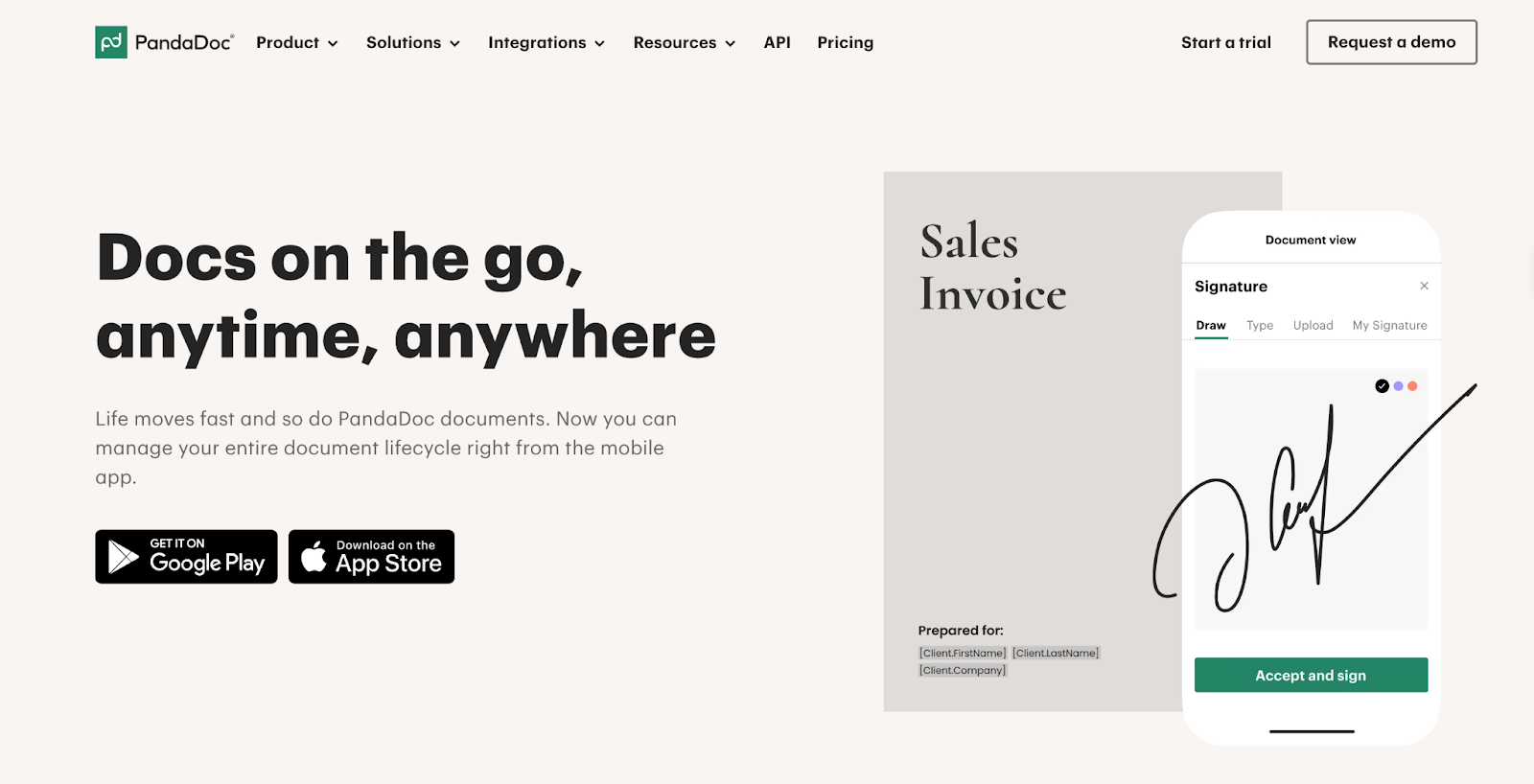
PandaDoc is a document creation and agreement management tool with a solid mobile signing app. As soon as you sign up, you’ll notice the vast library of templates for creating every kind of business document, including contracts, proposals, quotes, and invoices.. To send a document for signing, you can choose a template, upload a file from your device, or scan a physical doc with your phone. Then edit it using built-in tools, assign signer fields, and request signatures via email or a shared link.
The mobile app is incredibly easy to use, with a colorful dashboard for tracking document activity in real time. You can see when your document is opened and viewed and whether it has been completed. You can also send reminders, leave comments, or approve docs right from your phone.
- Key features
- Easy-to-use document builder plus customizable templates
- Real-time document tracking and status notifications
- Audit trails and digital signature certificates for legal traceability
- Payment collection after signing
- Pros
- Great set of workflow tools
- All-in-one tool for document creation, signing, delivery, and payment
- Cons
- Limited document editing on the mobile app
- Pricing
- Free for five monthly signatures
- Paid plans from $19 per user, per month
Which is the best signature app for Android?
Choosing the best signature app for Android ultimately depends on how often you sign, how much structure your workflow needs, and whether you’re handling things solo or collaborating with a team. The apps on this list cover a wide range of needs, so the best approach is to consider how each one fits into your current workflow.
For a mobile-first signing experience that combines ease of use with structured document management, Jotform Sign Mobile is the best option. It brings the full power of Jotform Sign to your Android device so you can finalize up to 10 contracts monthly for free, approve documents, fill out forms, and securely store everything from your phone.
If you work across multiple locations or travel frequently, explore how Jotform Sign Mobile solves contract hassles for digital nomads. The app also benefits solo business owners, small to medium-size teams, and nonprofit organizations looking to keep document workflows moving. Get started by downloading Jotform Sign Mobile from the Google Play Store, then create your first document or choose a template from the library. Add your signers and fields, invite participants, and track everything from your Sign Inbox.
Send my document for signature
File type is not allowed.
Maximum file size limit exceeded. (5MB)
Something went wrong.
AS ALWAYS, CONSULT AN ATTORNEY BEFORE RELYING ON ANY INFORMATION ON THIS PAGE. THE CONTENT ABOVE IS FOR INFORMATIONAL PURPOSES ONLY. JOTFORM IS NOT PROVIDING LEGAL, FINANCIAL OR OTHER ADVICE.
This article is for Android users, mobile professionals, and anyone who wants to securely sign and manage documents on the go using the best signature apps for Android.





































































Send Comment: