
Key takeaways
- Canva can’t create real fillable PDFs on its own (but it’s great for designing professional PDFs and documents).
- It’s a two-step process to create a fillable PDF in Canva — design it in Canva, then make it interactive with the free Jotform Fillable PDF integration.
- Use visual elements — text boxes, lines, shapes, etc. — to show users where to type or sign.
- Export your completed design as a PDF Print file before making it fillable.
- Jotform Fillable PDF then turns your Canva file into a fully fillable PDF form, with minimal — if any — manual work involved.
Whether you’re collecting information from new leads, taking orders, gathering feedback from customers, or anything else, it’s easy to turn any Canva PDF into a real fillable PDF with Jotform.
You can embed one of your existing Jotform forms into any Canva design or create a new one, and receive responses directly to your Jotform account. Join us as we explain how it works.
Pro Tip
Here from our official Canva integration? Keep reading to learn how to create a fillable PDF in Canva that connects directly to a Jotform form.
Create or open your design in Canva
- Start with one of Canva’s professionally designed templates, or create your own PDF document from scratch.
- Search for the type of form you want to create.
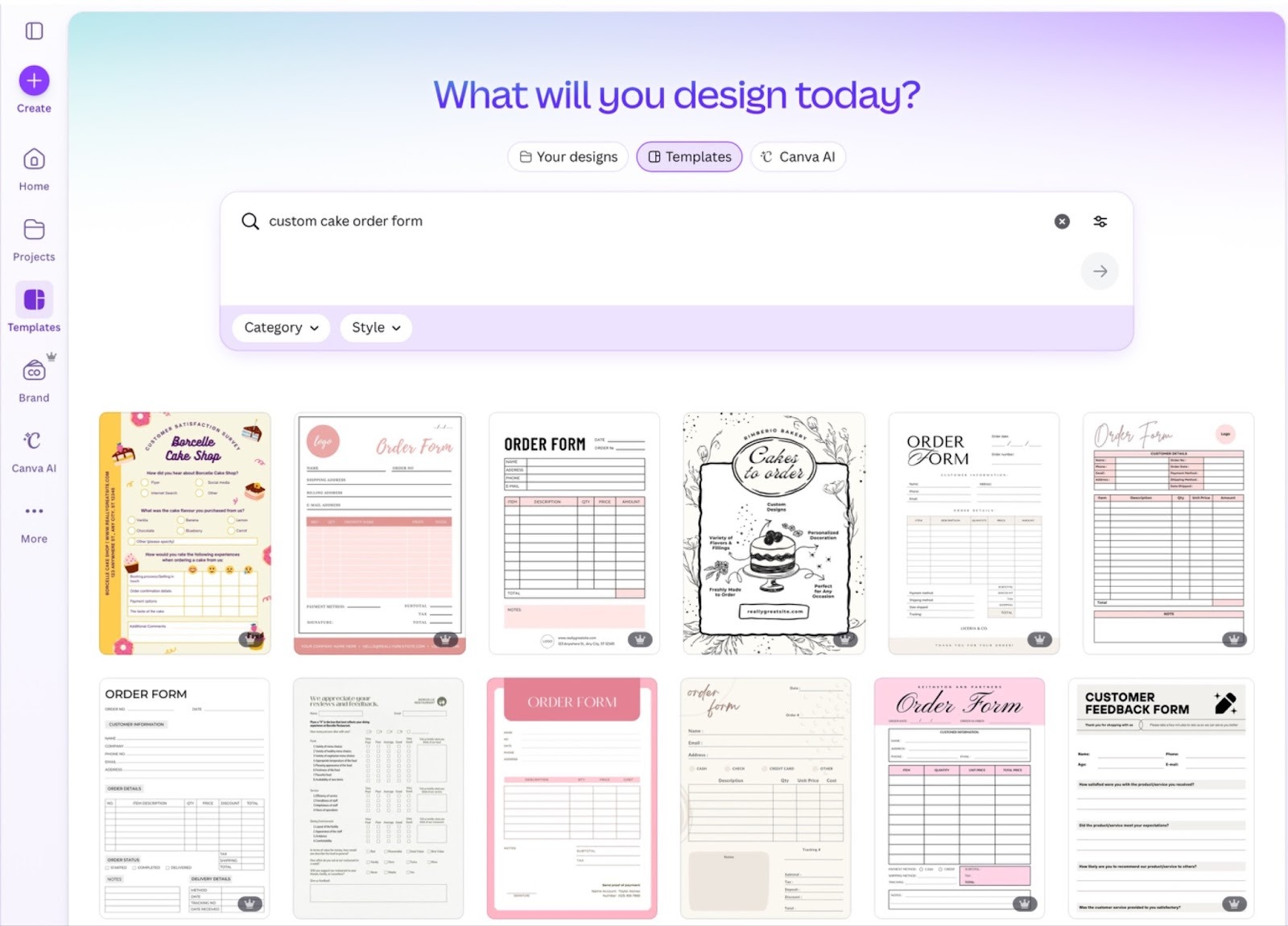
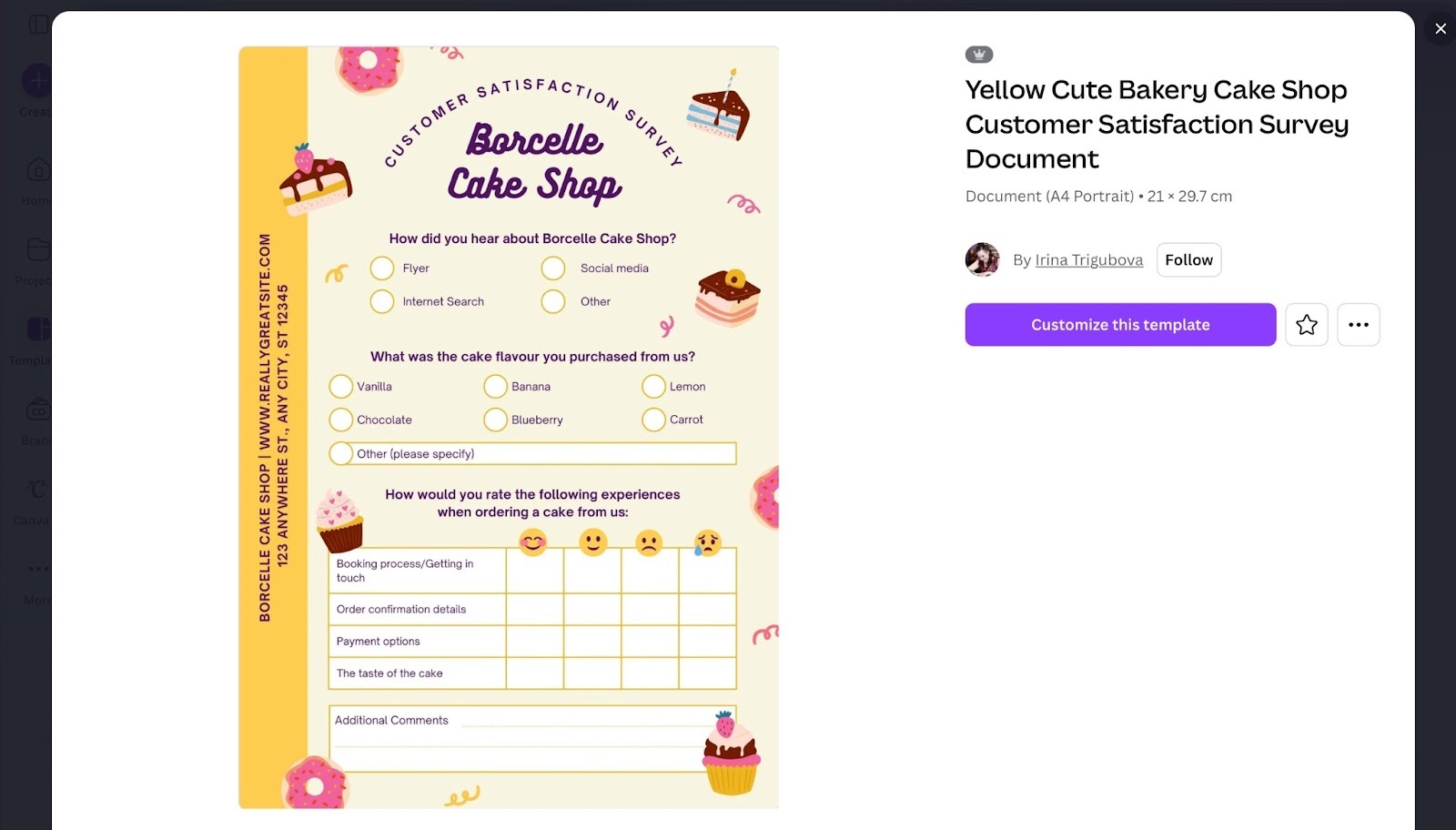
- Click the template you like best, and click Customize this template to start editing it.
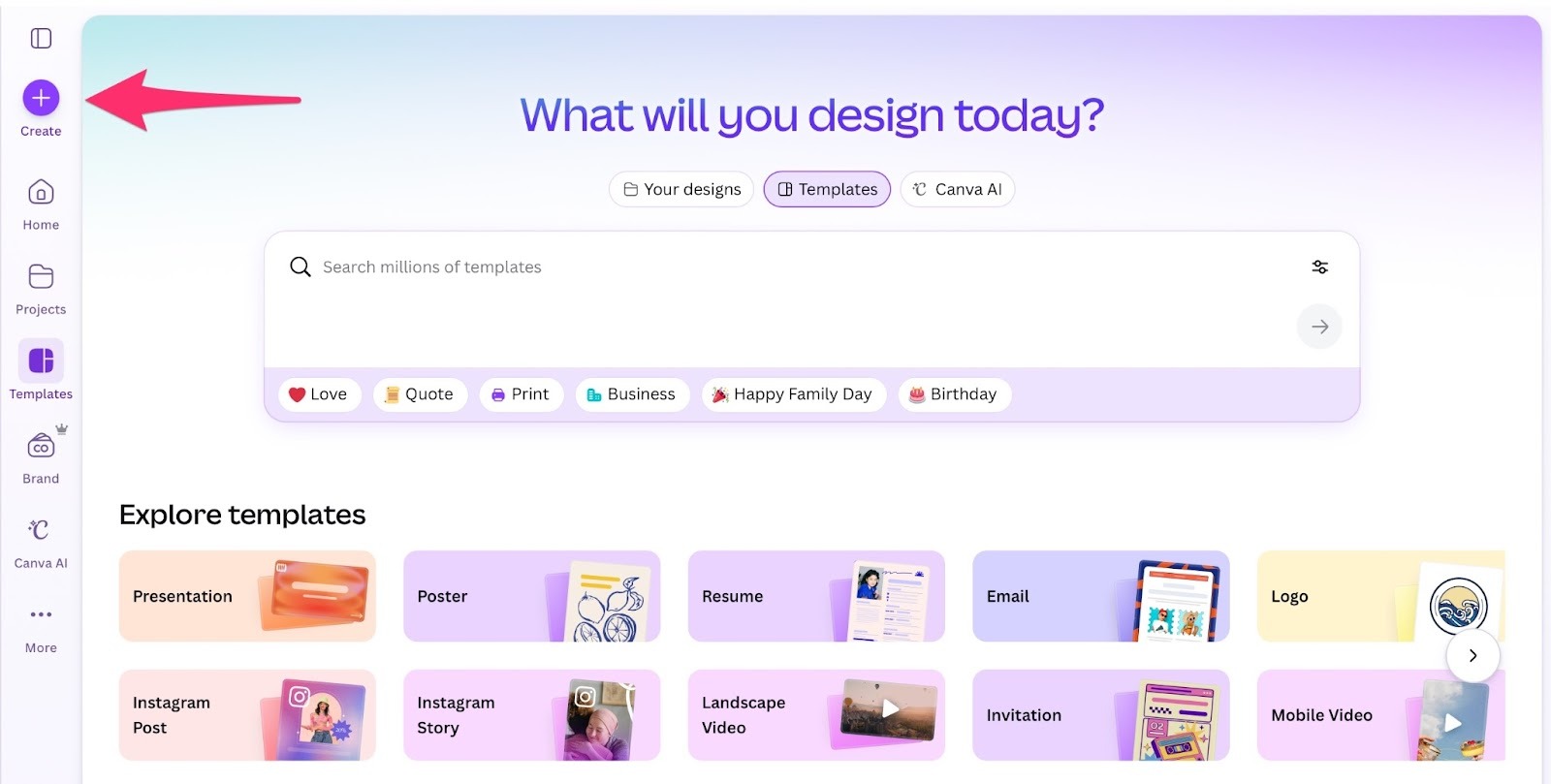
- If creating from scratch, consider whether you want a landscape (wide) or portrait (tall) document orientation, and click the Create icon at the top left to get started.
Add visual placeholders for form fields
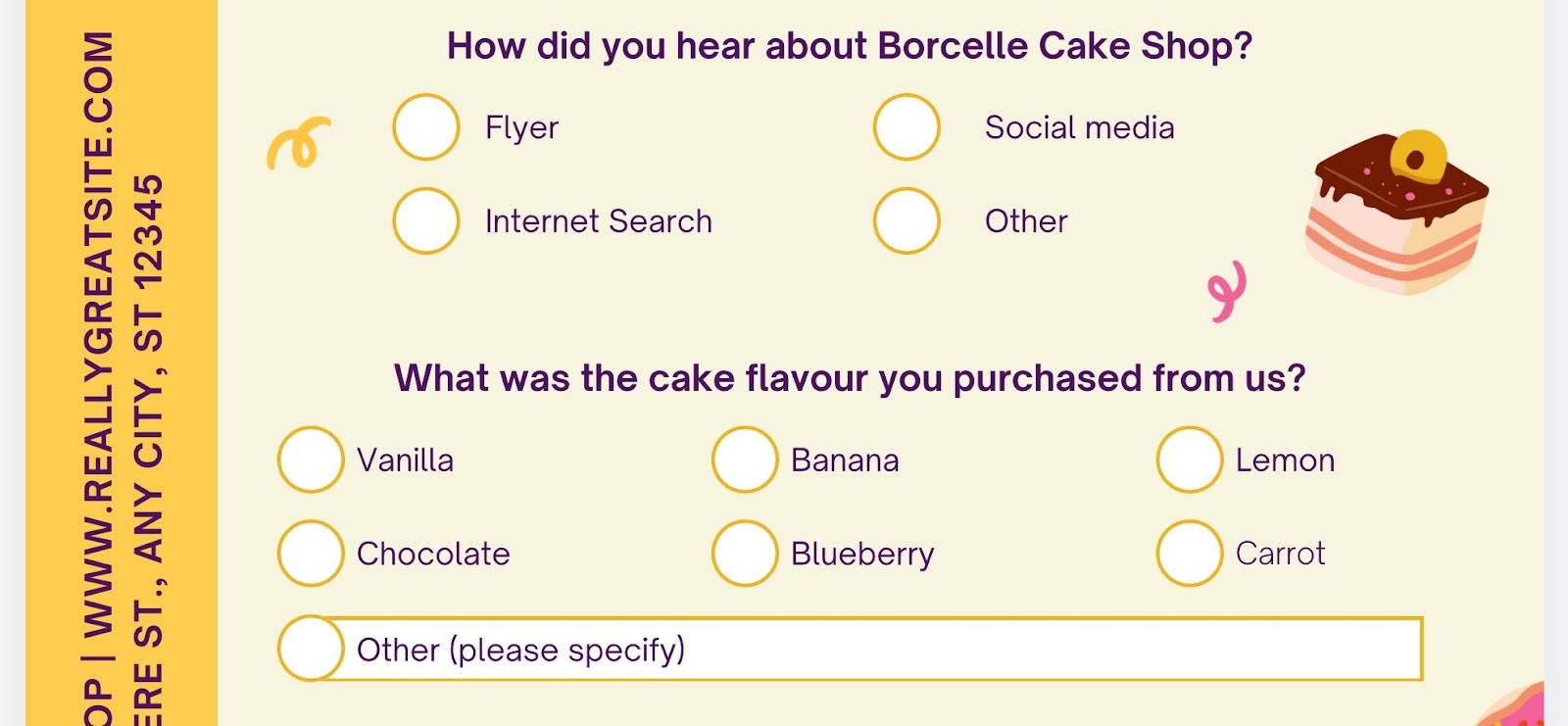
- Be sure to visually indicate where people should fill in form information. For example, use a rectangle shape or line to create a “text box” so people know where to type their answers. (These are just visual placeholders for now. We’ll make them actually fillable later.)

- Visual cues can also help people quickly identify where to fill out the form. Examples include adding a drop shadow to text boxes, using a lined border, and using a color for the box that contrasts with the background color.
- For non-text information, such as option selection, use a symbol or a shape to indicate where to click to select that option — like the circles in this document.
Download your design as a PDF
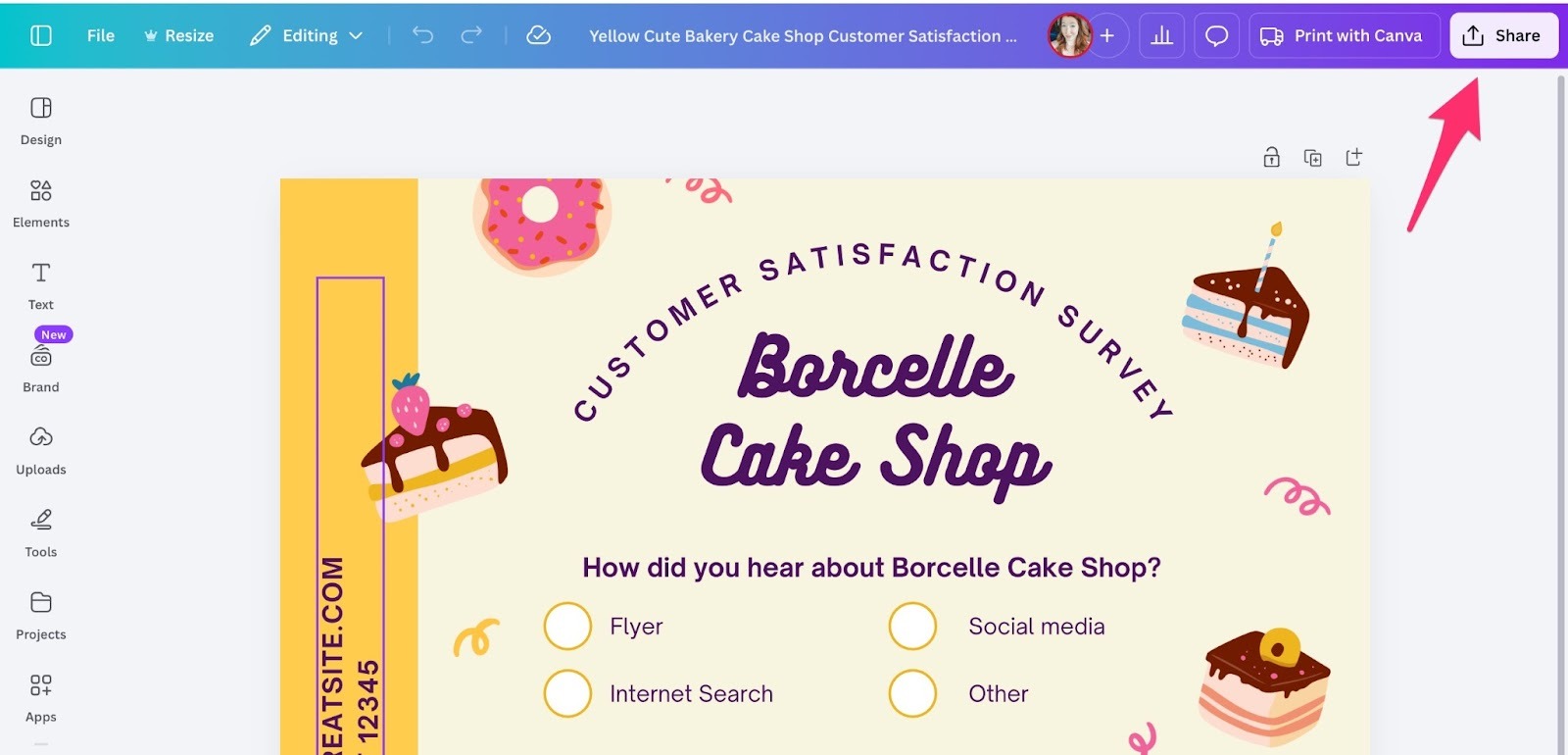
- When you’re finished designing your PDF, click Share at the top right.
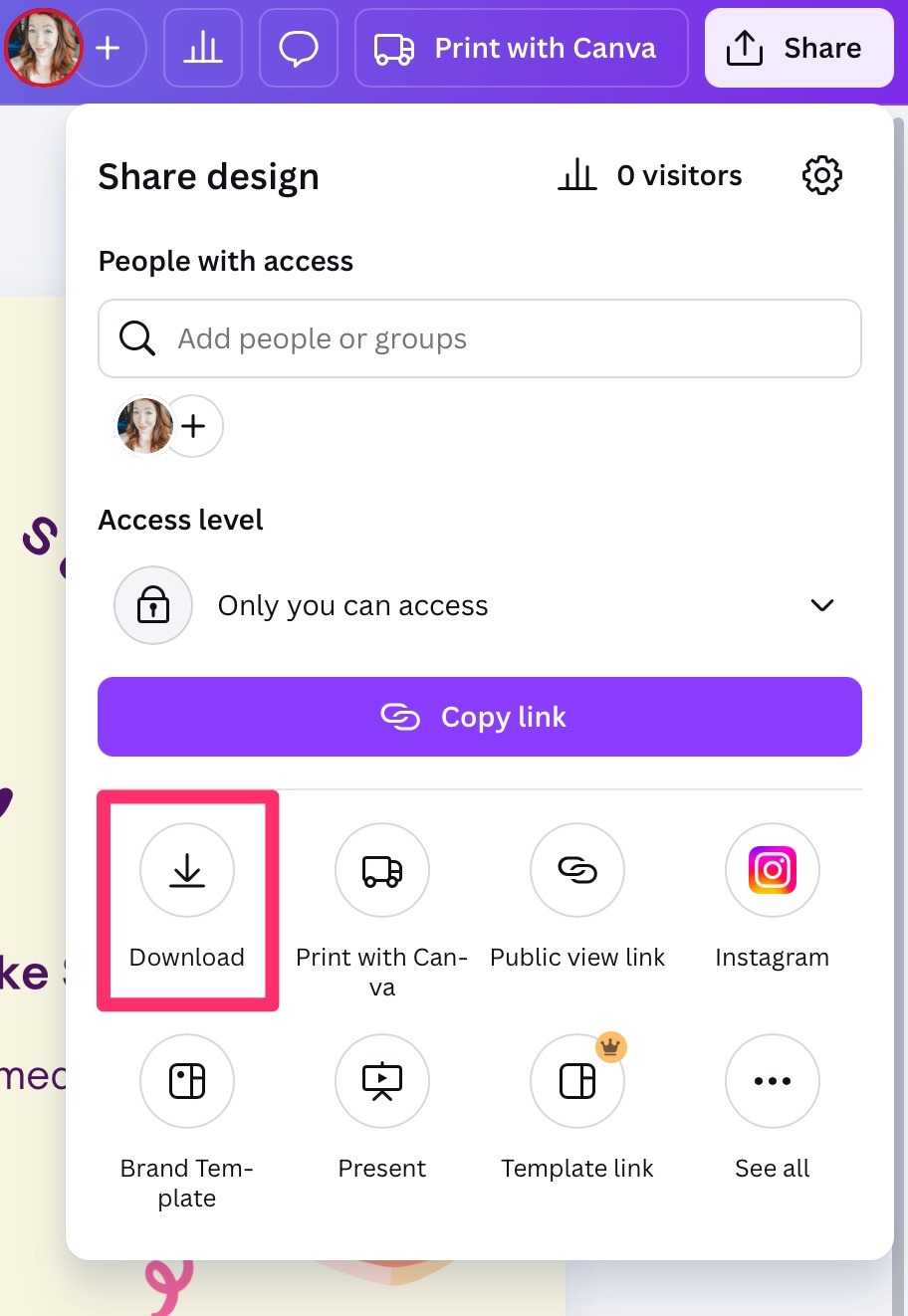
- Then click Download.
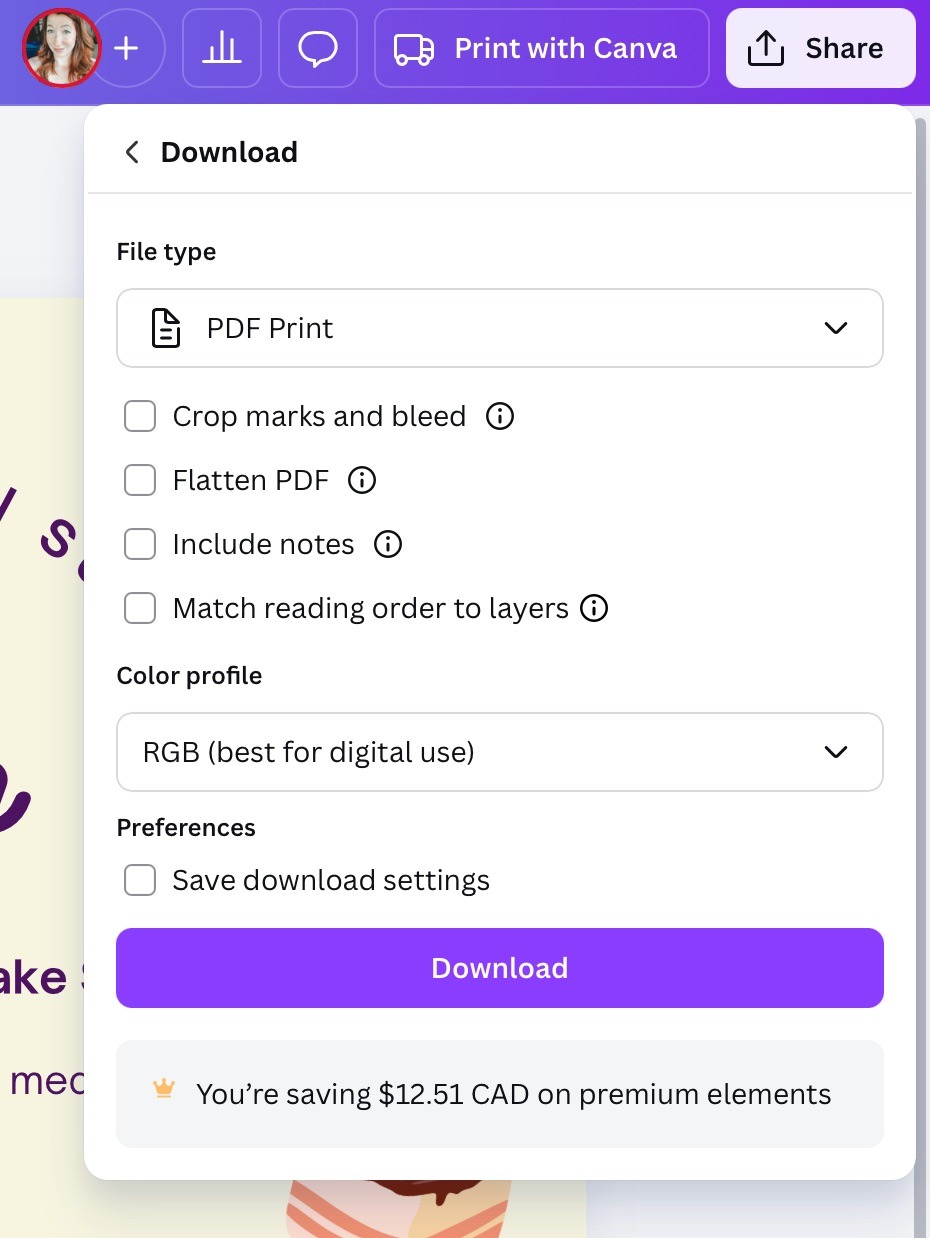
- Click the File type selector and choose PDF Print. We won’t be printing it, but it gives you the highest quality file.
- Then click Download to save your PDF. It will save to wherever your browser saves downloads by default.
Upload the PDF to Jotform Fillable PDF Form Creator
- Now it’s time to make your Canva PDF fillable. Go to Jotform Fillable PDF Form Creator.
- Click the blue Convert PDF to fillable form button.
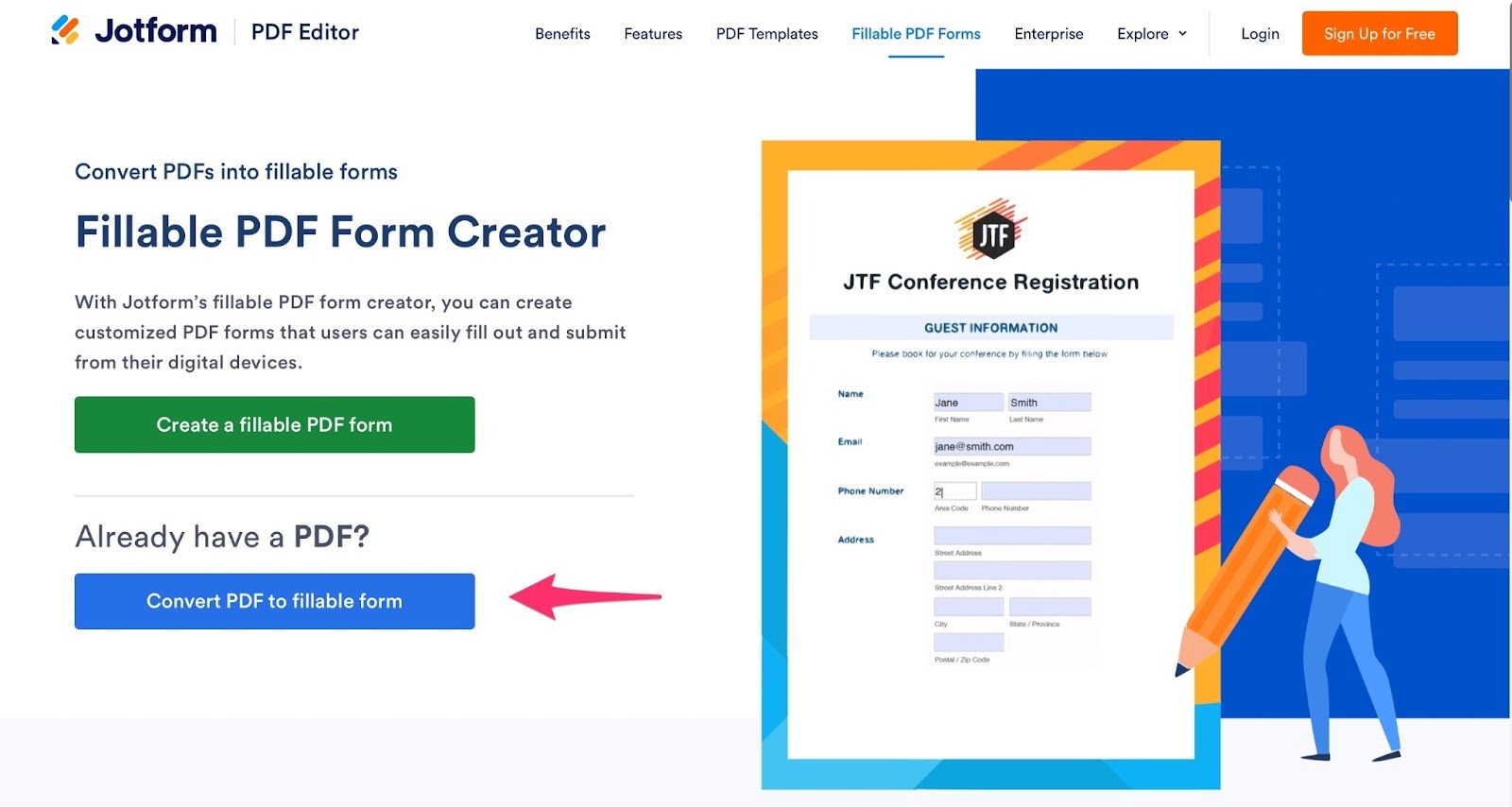
- Upload the PDF you just downloaded from Canva.
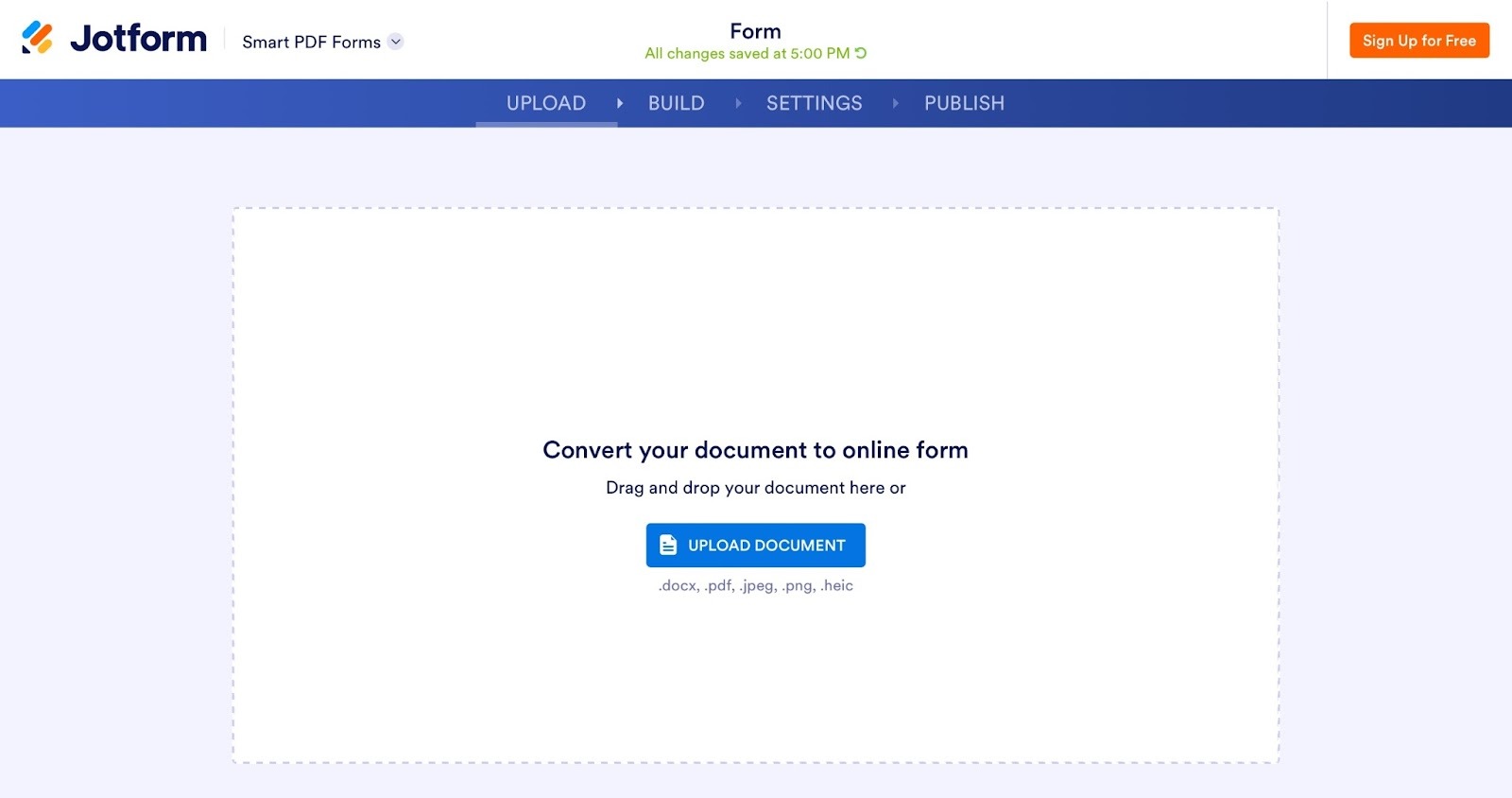
- Jotform will analyze your document and, after a few seconds, automatically create a new form based on your PDF.
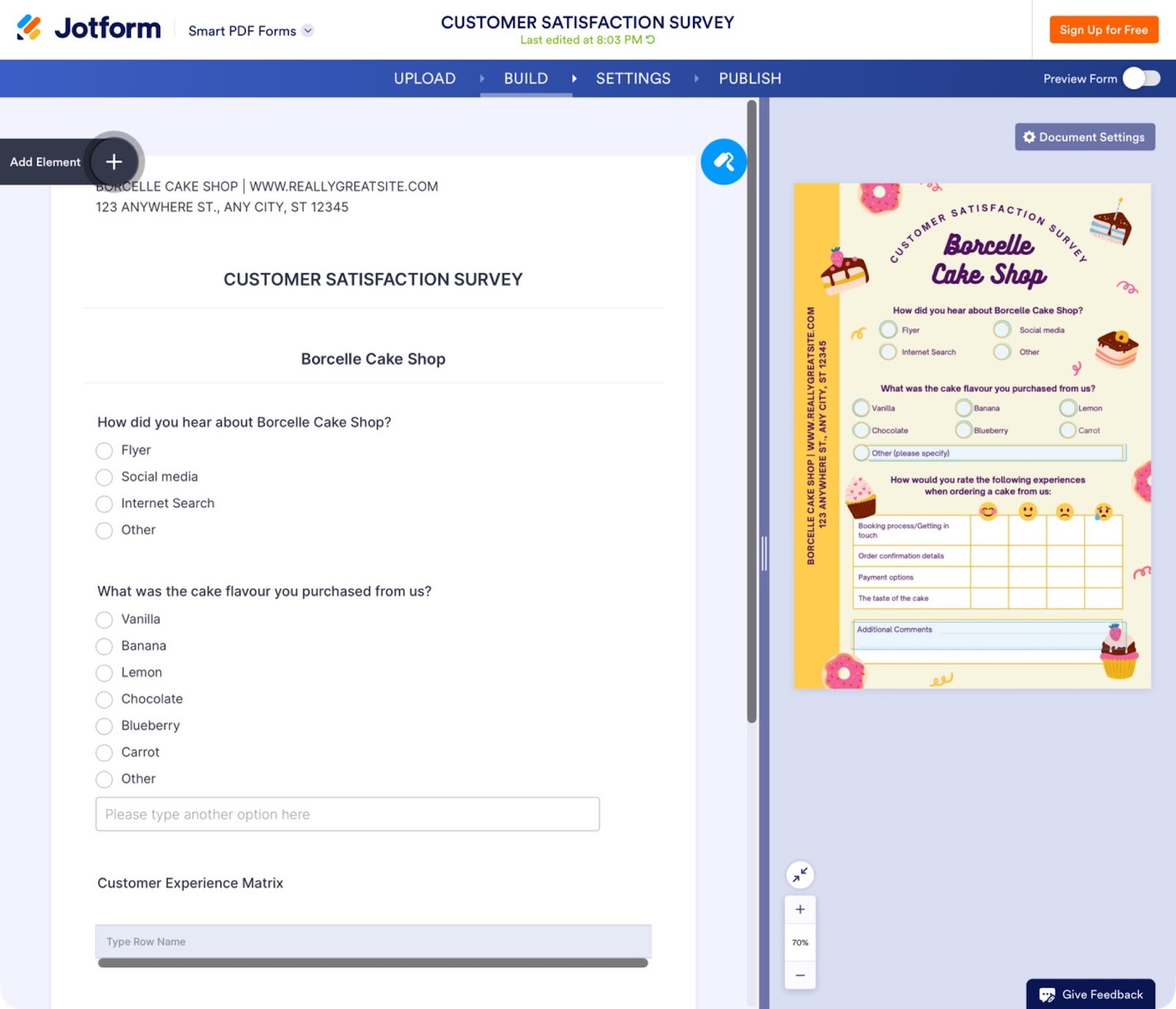
- Double-check the questions and fields for accuracy. To change anything, click the question or field and then the Properties button will appear.
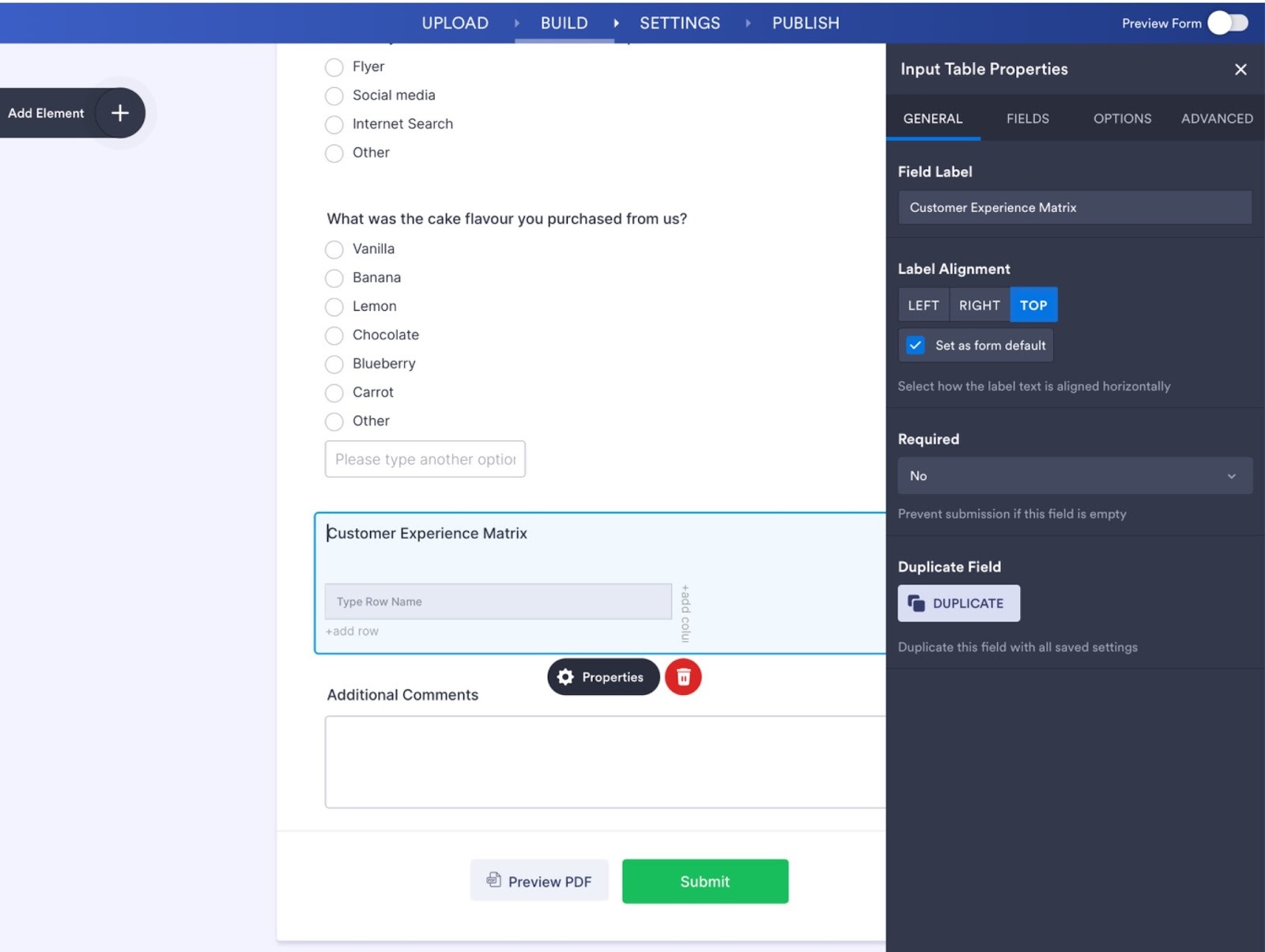
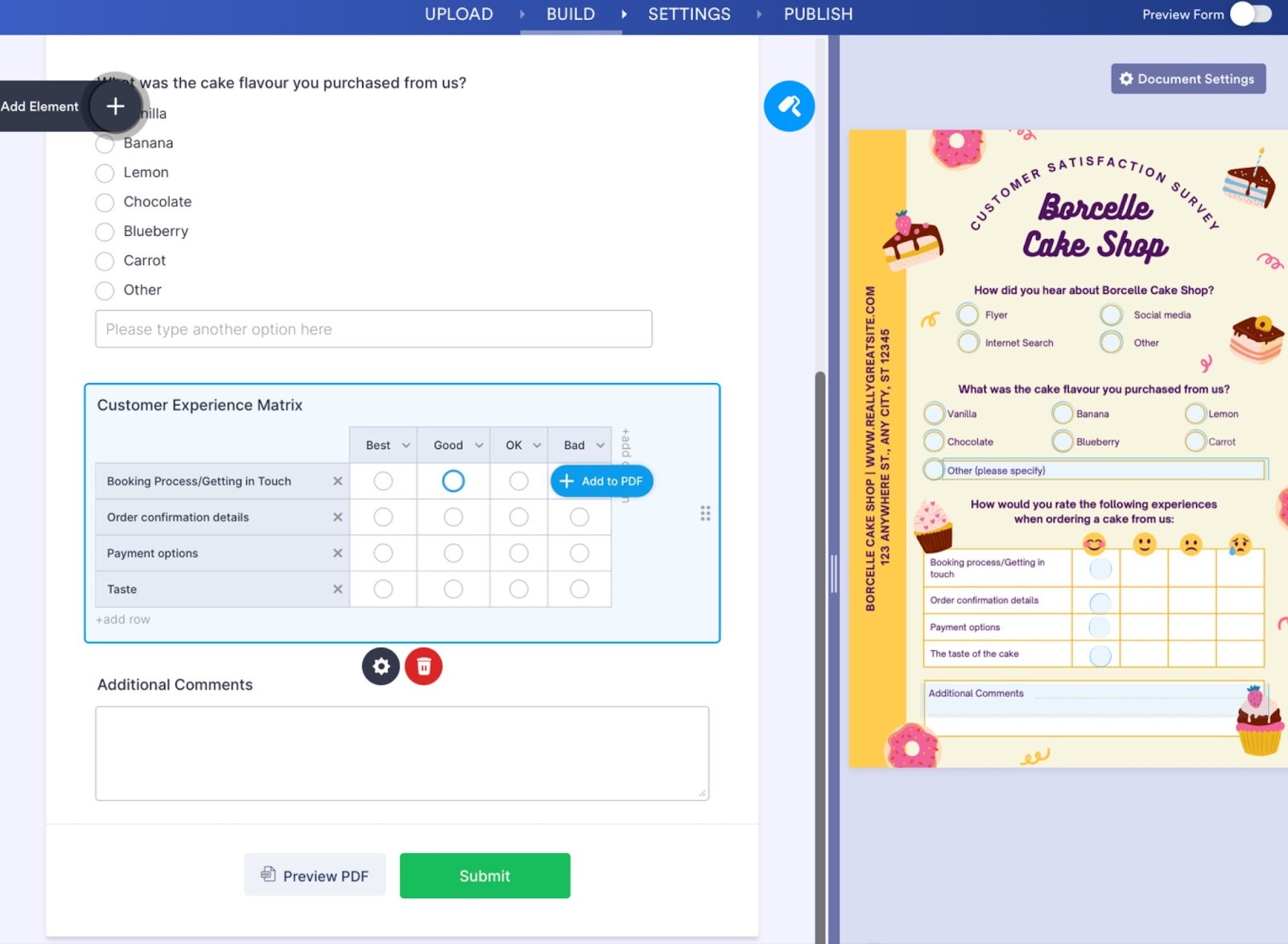
- The rows of the customer experience section of this document didn’t import. If something similar happens to you, you can add fields manually in the Fields tab. You can also use this tab to change how your online form will work, if needed.
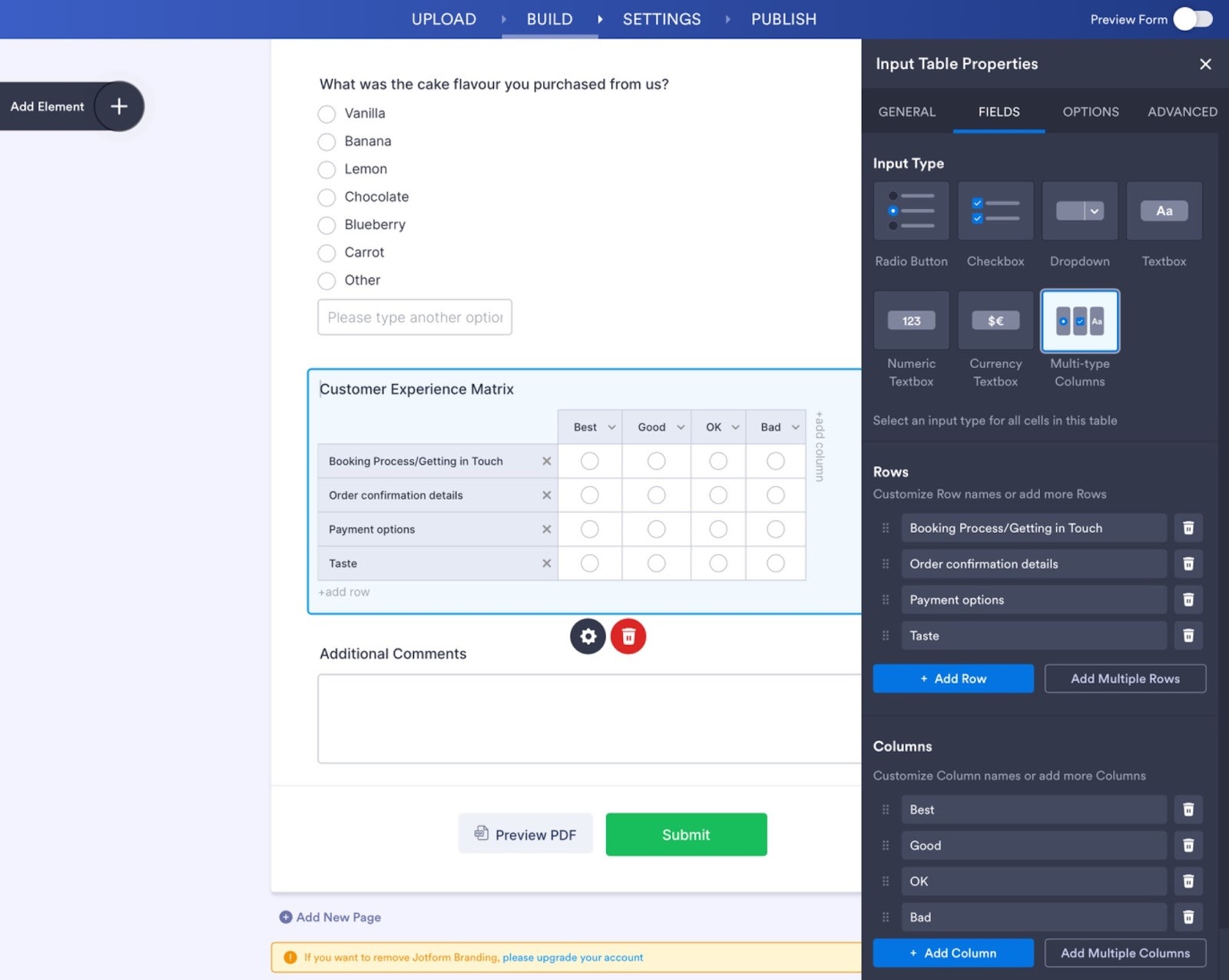
- Once you’ve created the rows and columns for this section, you need to match up the choices to the boxes on the PDF. Click anywhere to leave the Properties window, then click each box in the table and the Add to PDF button. Click the corresponding box on the PDF preview on the right to connect the elements.
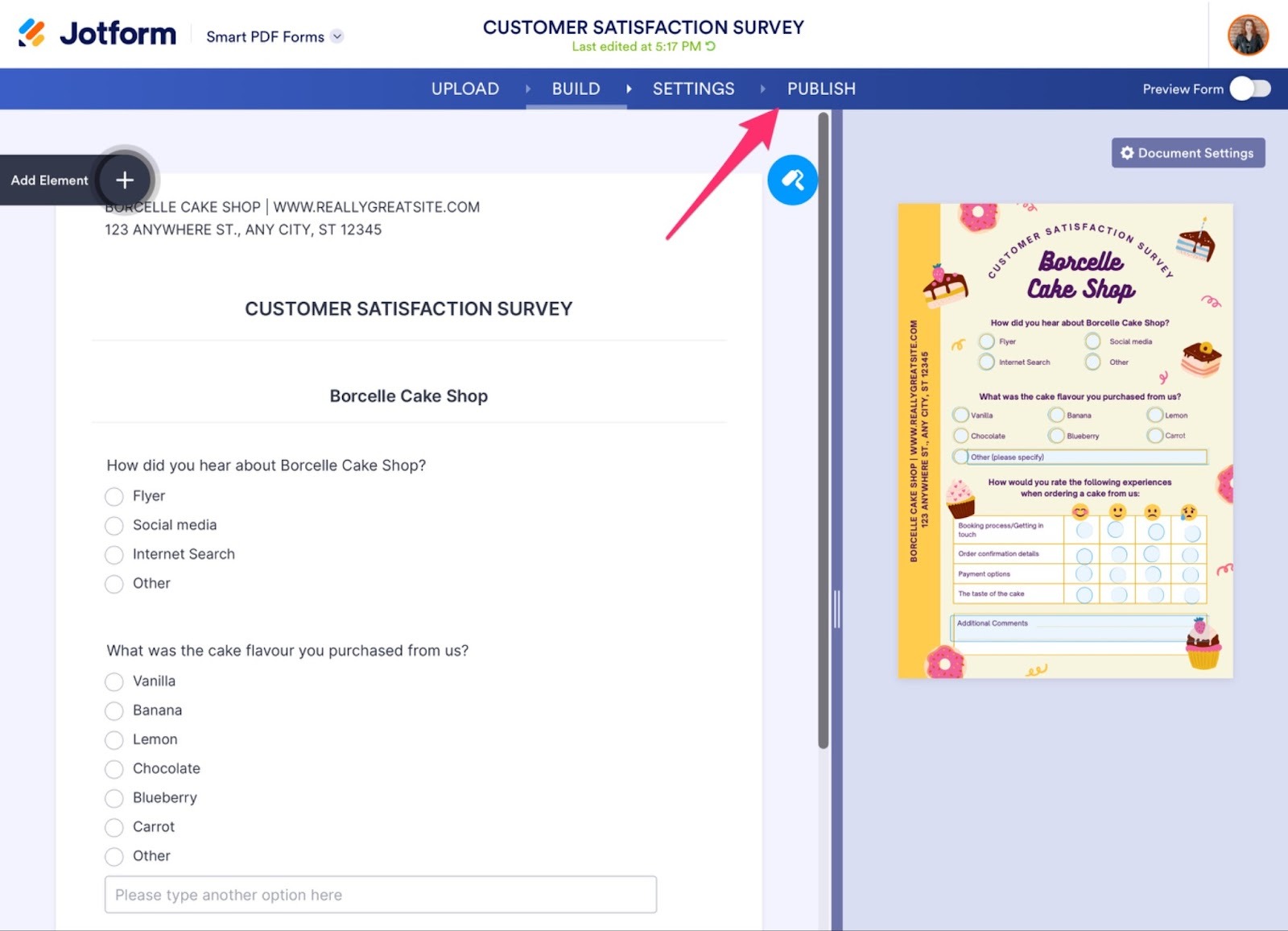
- Once you’re happy with your fillable PDF, click Settings at the top to fill out any that apply to you, and then click Publish. You can copy a link to your form, send it via email, embed it on your website, and much more.
Alternatively, you can also create a PDF from your Jotform account. The Jotform Smart PDF Forms tool converts PDFs to online forms so people can digitally fill them out on any device. It then produces a filled-out version of your PDF to download and save. You get the best of both worlds: online convenience plus your original PDF layout, preserved and completed.
You can also add e-signatures to your form with Jotform Sign. Check out our full tutorial on adding e-signature elements for more information.
Test the PDF before sharing
- In the Publish tab, click the Open in New Tab button to open it and fill it out to make sure it’s working as expected. Double-check that the form includes everything on the PDF, and that submissions appear in your Jotform account.
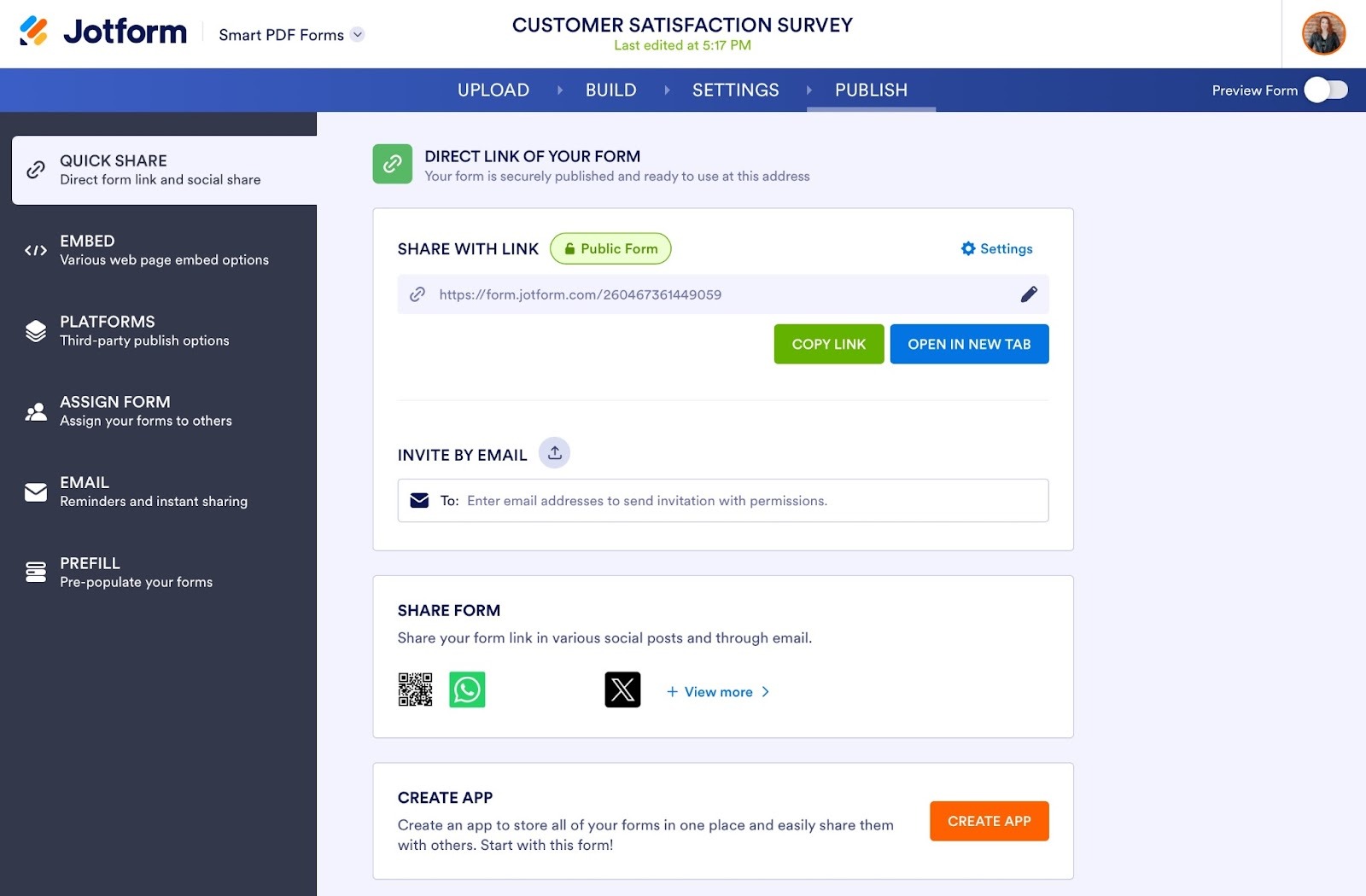
- Once you’re happy with your new fillable PDF and form, send it out via the Publish page.
Do more with Jotform and Canva
Canva empowers everyone to create professional, world-class digital materials with its easy-to-use and feature-rich design platform. Jotform’s powerful data collection, AI Agents, and workflow automations create an all-in-one productivity ecosystem for organizations of all sizes. Together, they give you the power to create beautiful and fully functional forms.
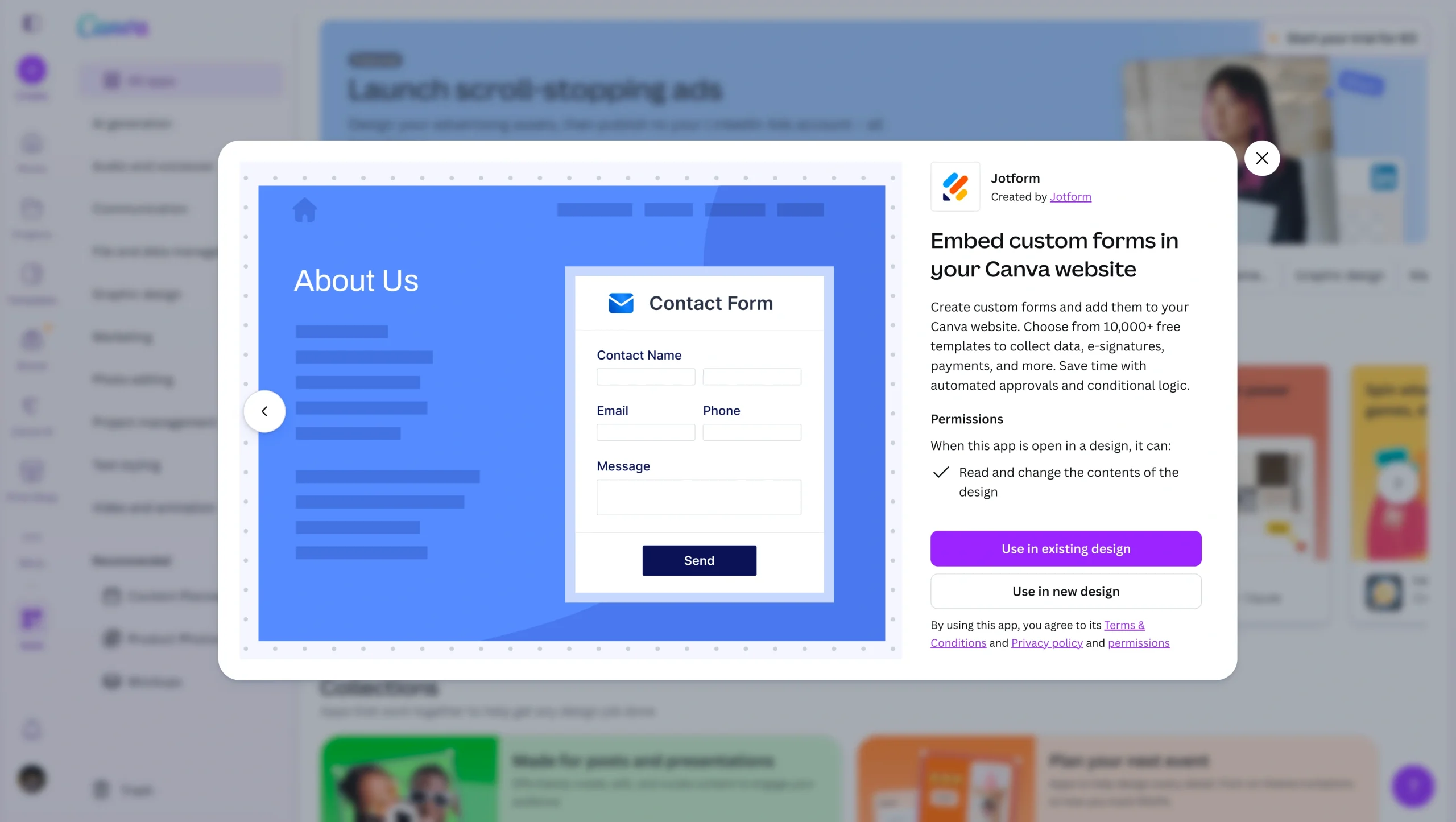
By adding Jotform forms to your Canva designs, including to create fillable PDFs, you no longer have to choose between creating a form that looks good or one that actually works and speeds up your workflows. You can also embed Jotform forms in your Canva website to gather information, capture e-signatures, process payments, and much more — complete with conditional logic and advanced automations.
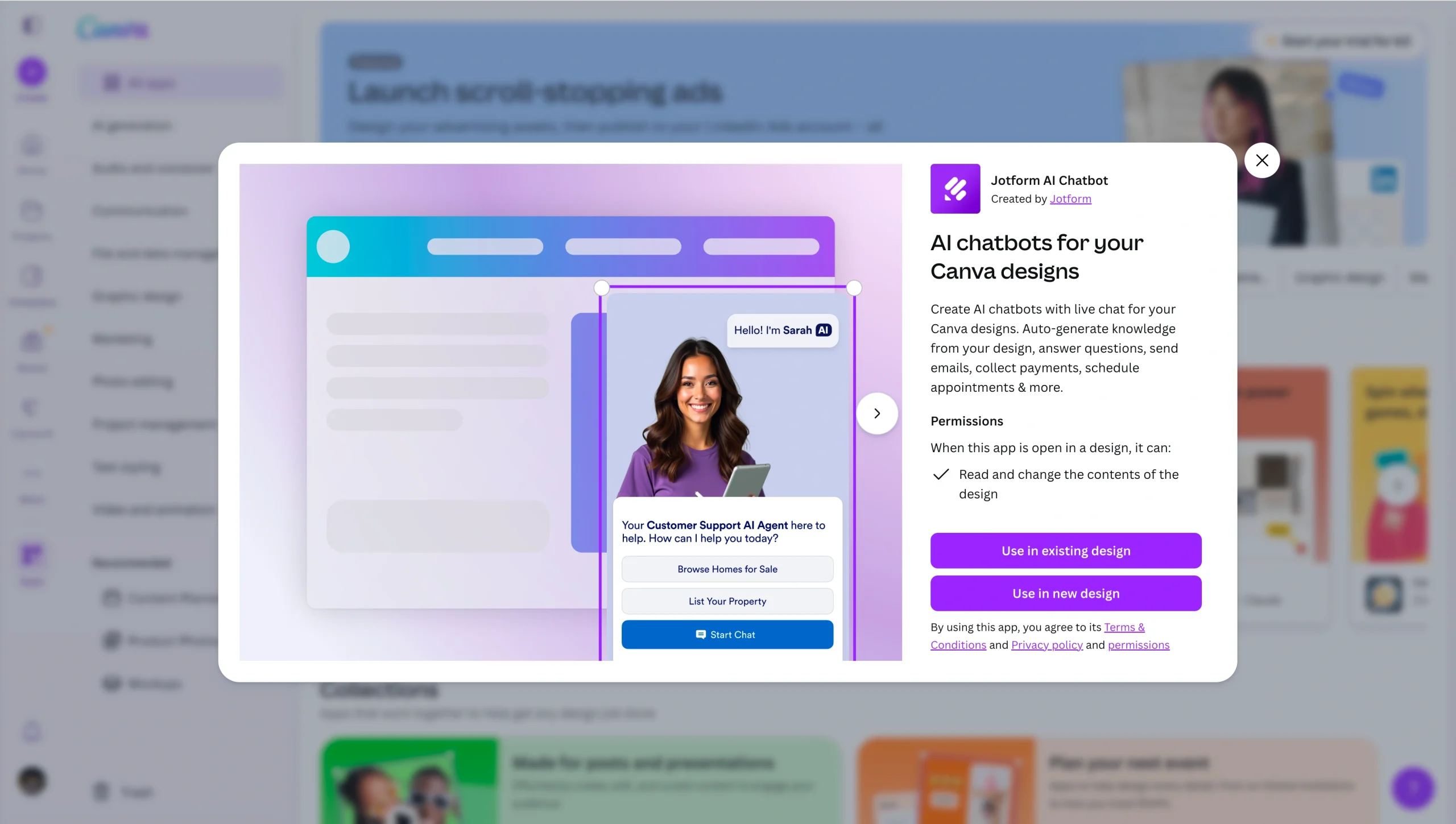
To take your designs even further, Jotform AI Chatbot for Canva lets you add an interactive, AI-powered chat experience directly into your Canva projects, no coding required. The chatbot can answer questions, qualify leads, and guide visitors to the right form, helping you turn static designs into dynamic, conversion-focused experiences.
Ready to start creating with Jotform and Canva? Get inspired by these top ways to use both Canva and Jotform, then start your own project.
FAQs about Canva fillable PDFs
Upload any PDF document to Jotform Fillable PDF Form Creator to instantly turn it into a real fillable PDF and online form — for free.
Plus, use Jotform Smart PDF Forms to create a convenient online form that also produces a printable PDF version of completed forms, using your original PDF document template.
When editing your Canva document, add a text box by selecting Text from the left navigation, then click Add a text box. Bear in mind that this text box is only editable within Canva. When you download your file, it won’t be fillable. You’ll need to use a third-party tool, such as the Jotform integration, to convert a Canva PDF file into a fillable PDF.
This article is for small business owners, marketers, HR teams, educators, freelancers, and operations professionals who want to design professional-looking forms in Canva and turn them into fillable PDFs without advanced design or PDF editing skills.
































Send Comment: