Blog

How to Disable Log-in Requirements to View Submission Data

2 min read Last Update Date: 
How to Disable Log-in Requirements to View Submission Data

You can allow users to view submission data without logging in by adjusting the team’s security settings. Here’s how:

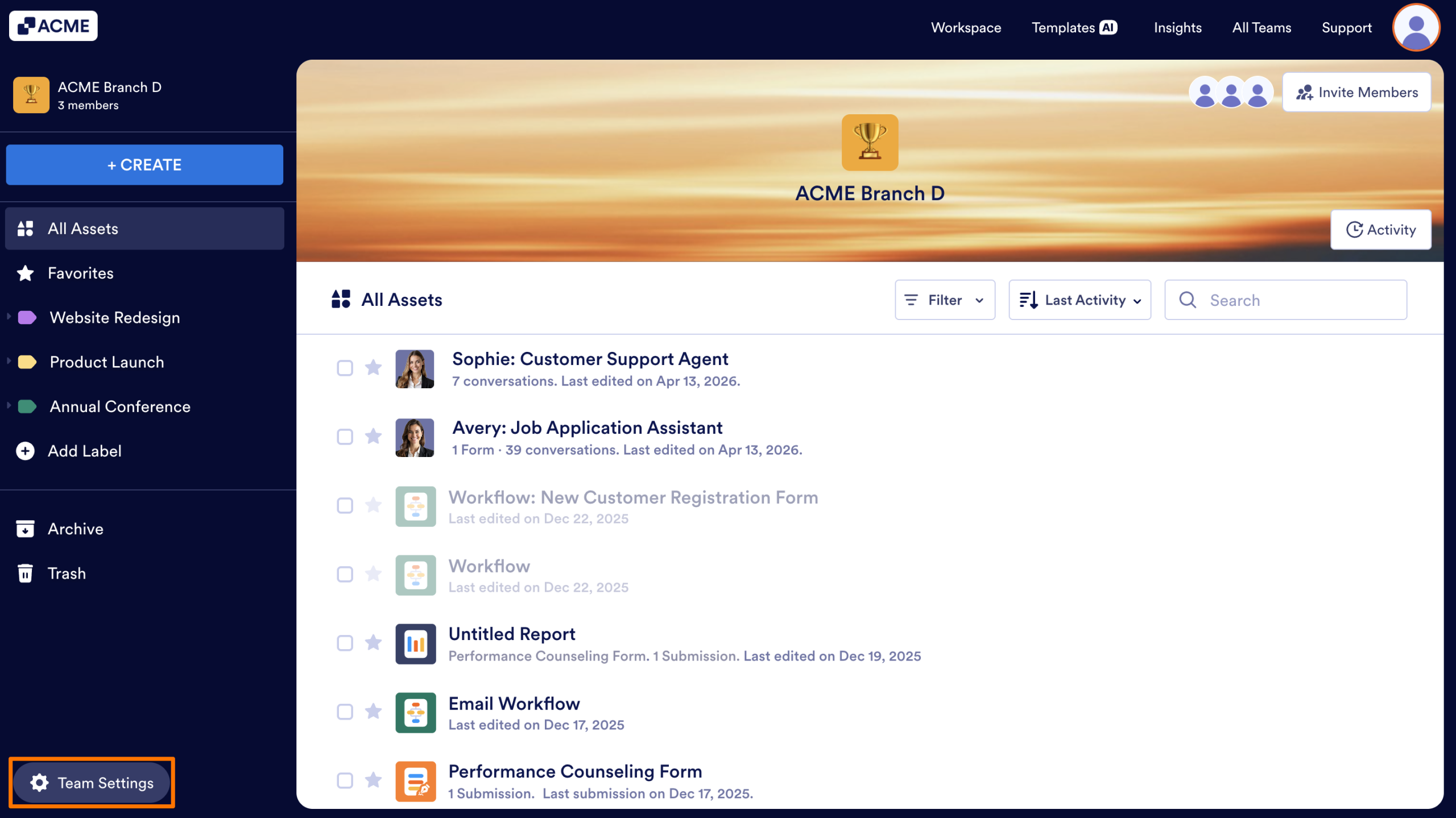
  1. First, in the Team Workspace, click on the Team Settings button in the bottom-left corner of the screen. 
How to Disable Log-in Requirements to View Submission Data Image-1
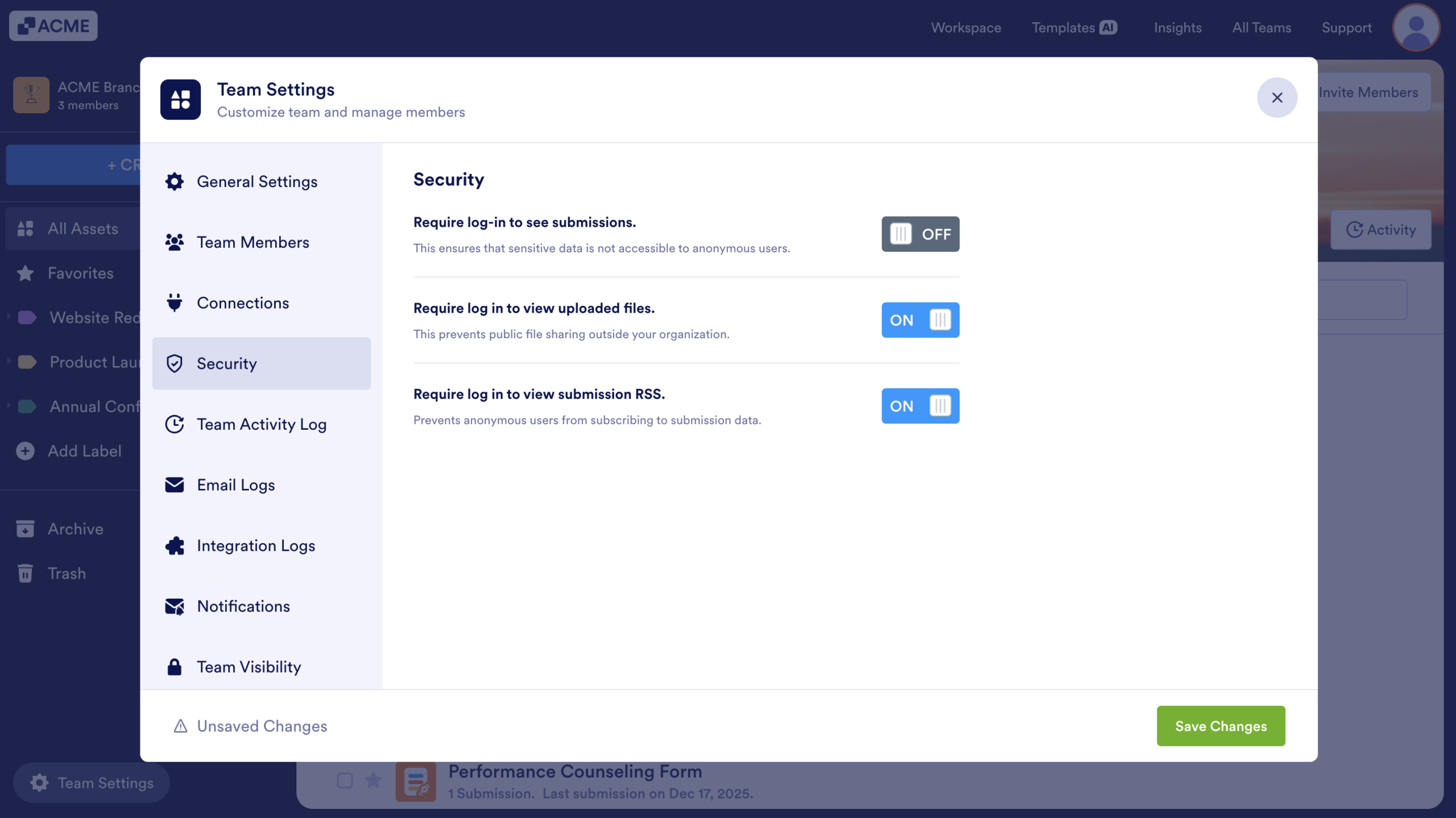
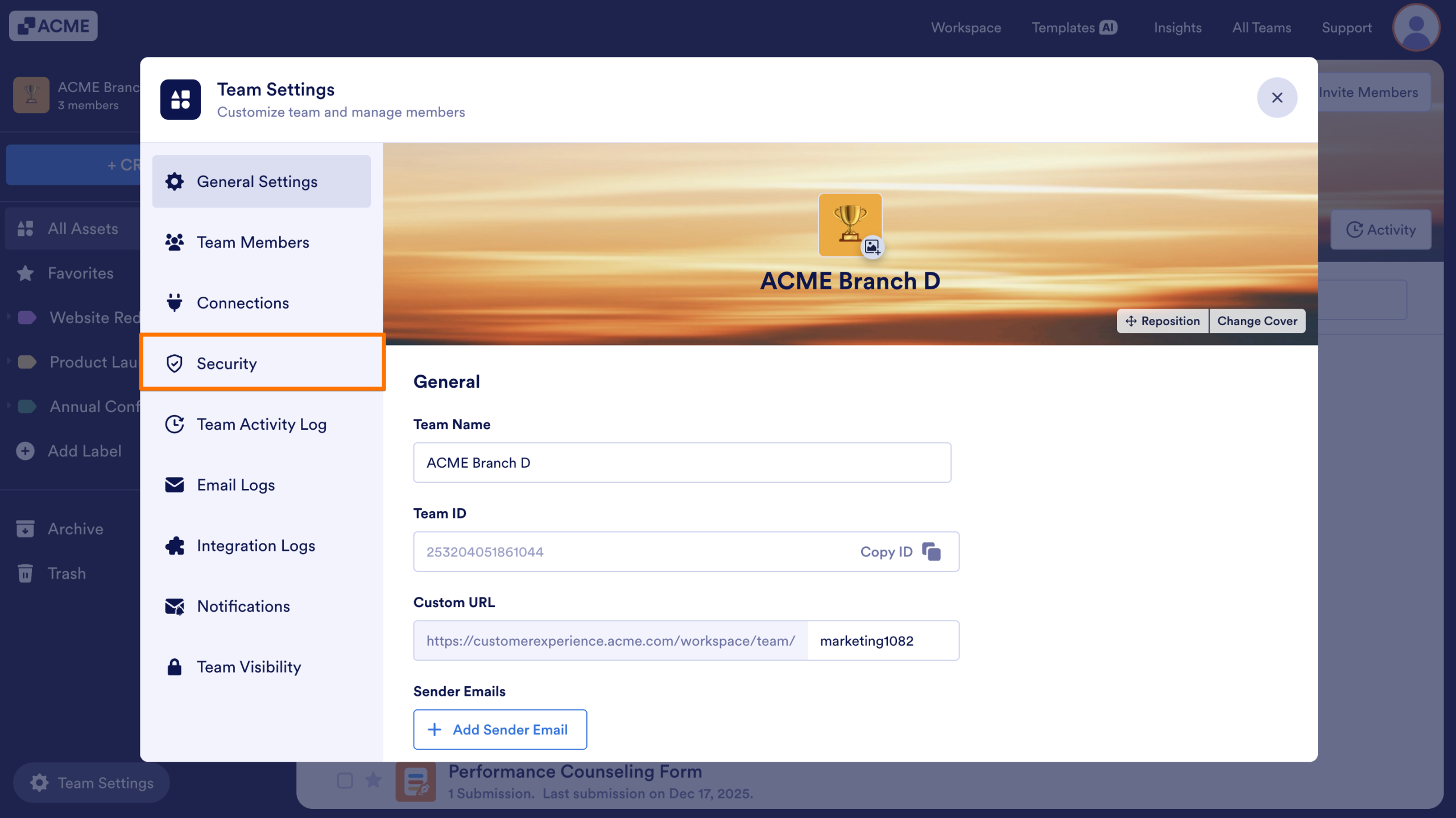
  1. Next, click on Security in the sidebar of the menu that appears on your screen.
How to Disable Log-in Requirements to View Submission Data Image-2
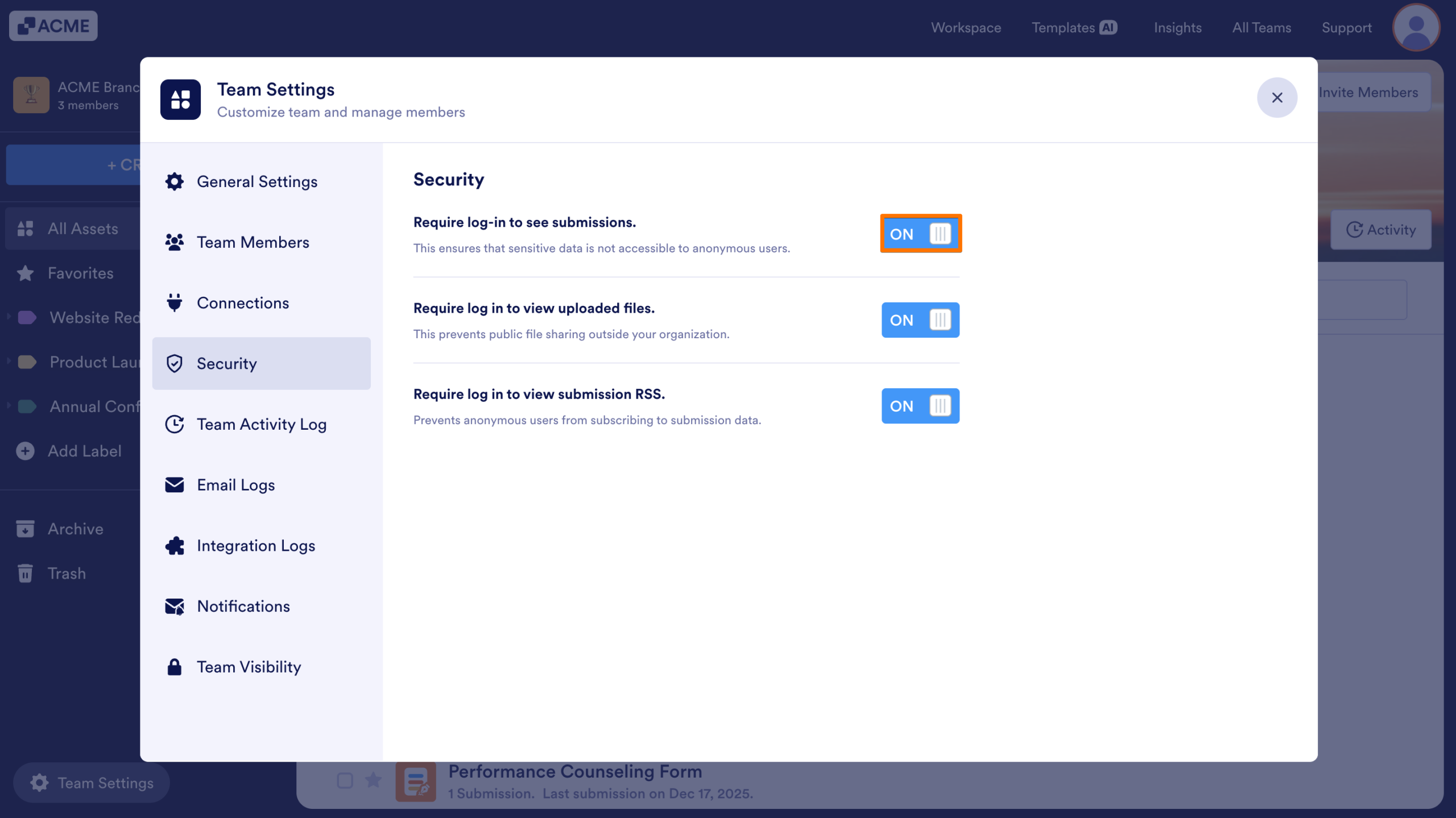
  1. Then, toggle Require log-in to see submissions to off.
How to Disable Log-in Requirements to View Submission Data Image-3
  1. Save changes.
How to Disable Log-in Requirements to View Submission Data Image-4

Users with the Share Link will now be able to view submission data without needing an account.

How to Get Share Links for Submission Data

Sharing a Table

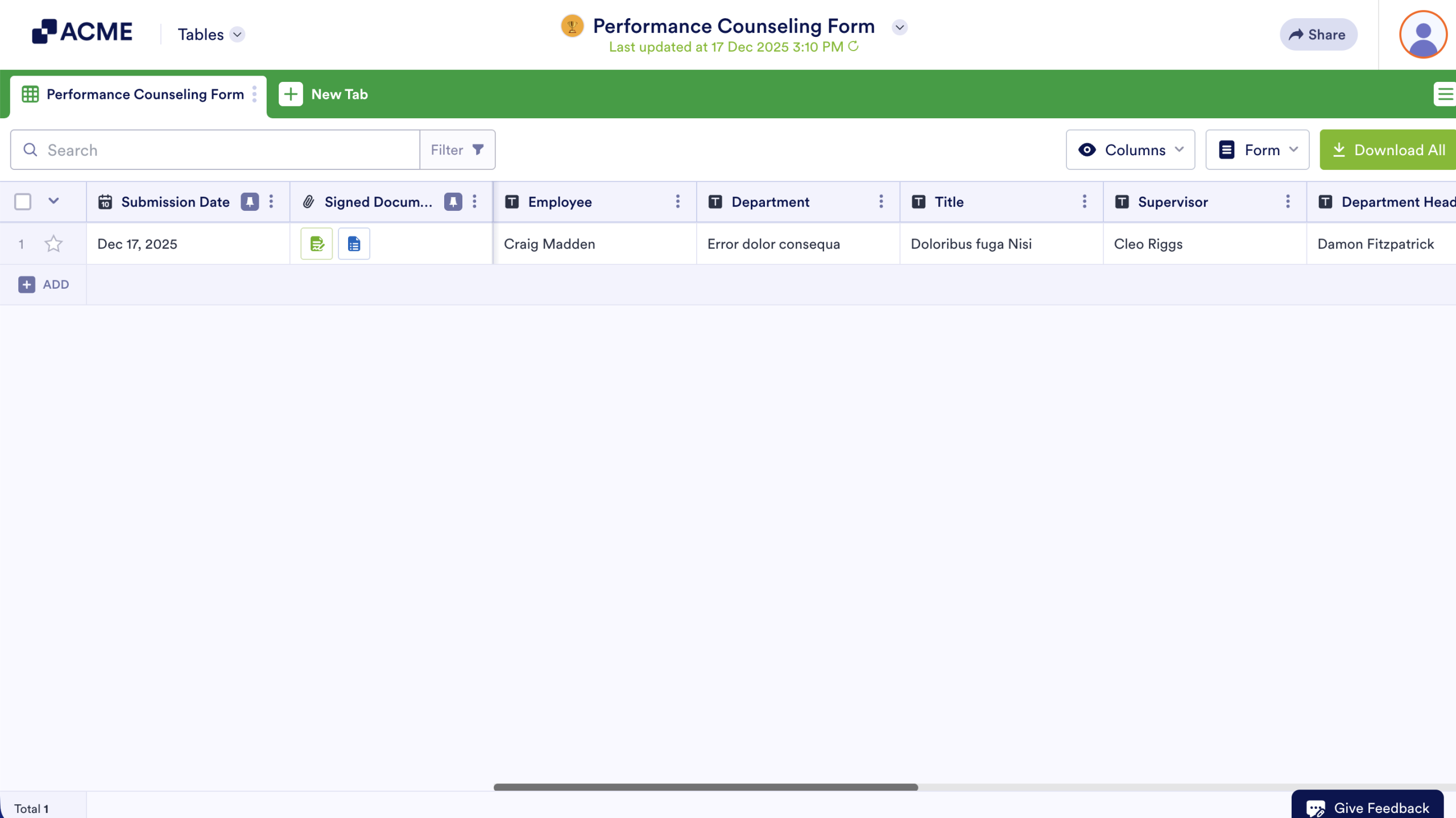
  1. First, open the Table where submission data is stored.
How to Disable Log-in Requirements to View Submission Data Image-5
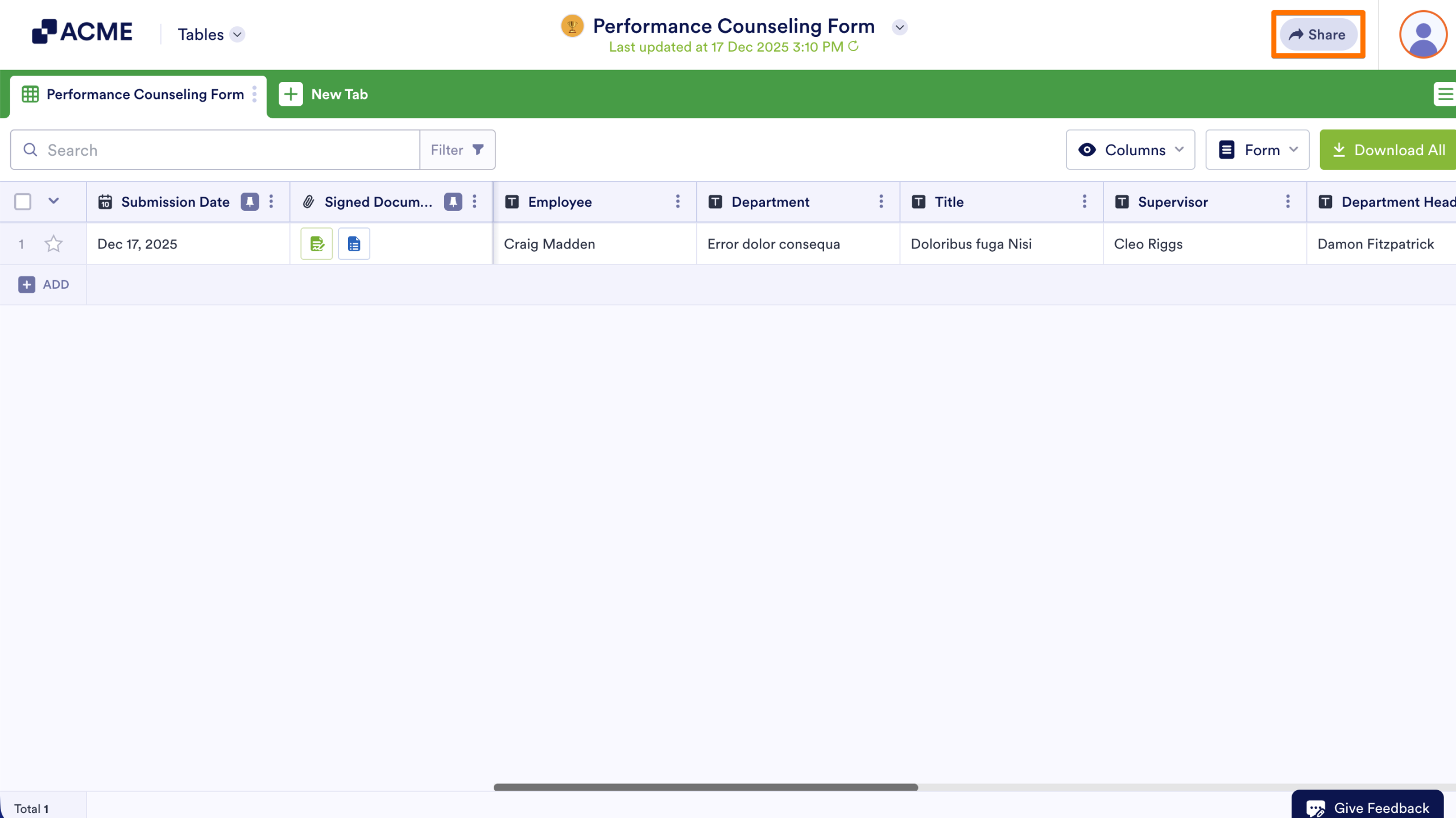
  1. Next, click the Share button in upper right corner of the screen.
How to Disable Log-in Requirements to View Submission Data Image-6
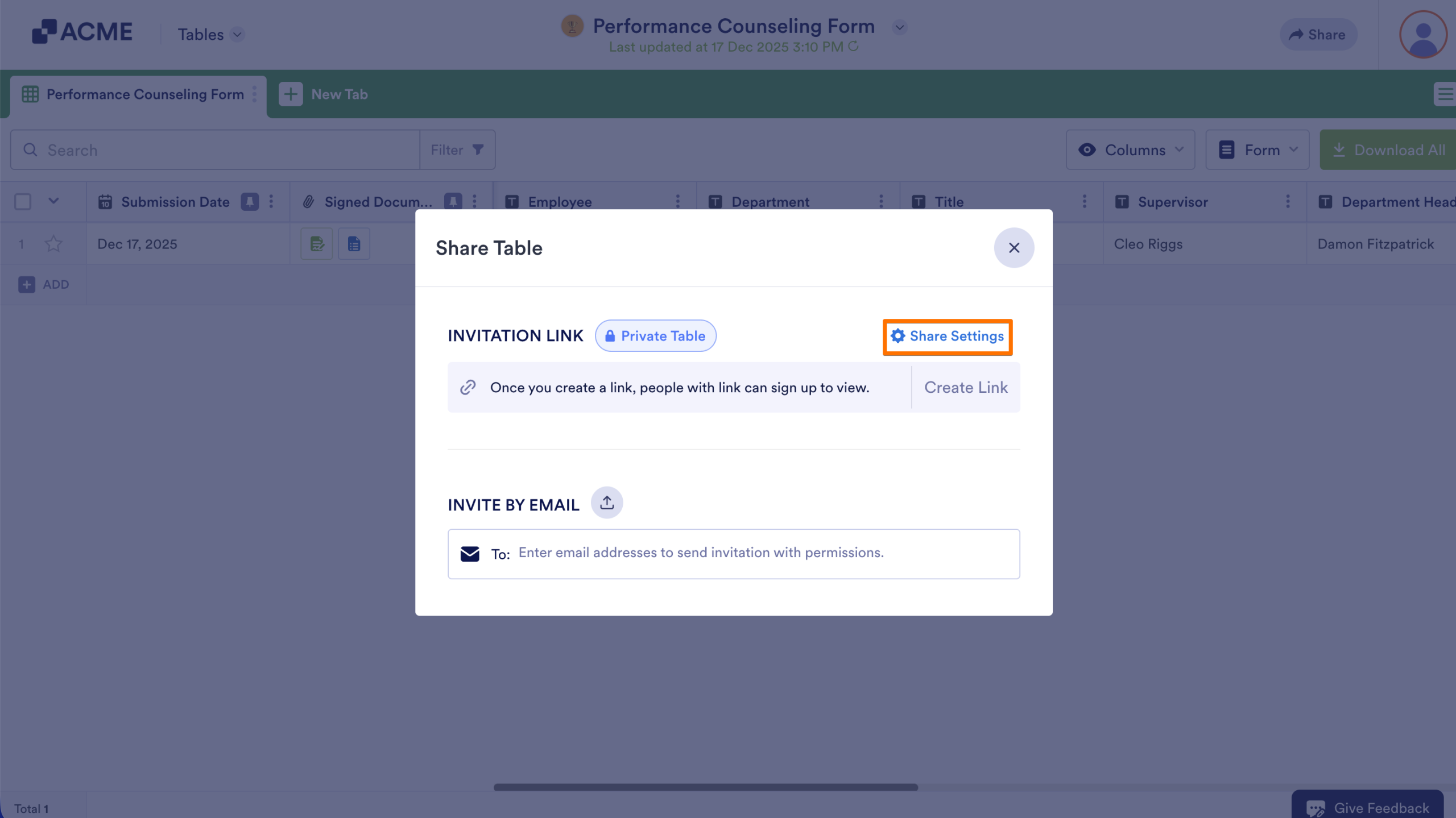
  1. Then, click on Share Settings.
How to Disable Log-in Requirements to View Submission Data Image-7
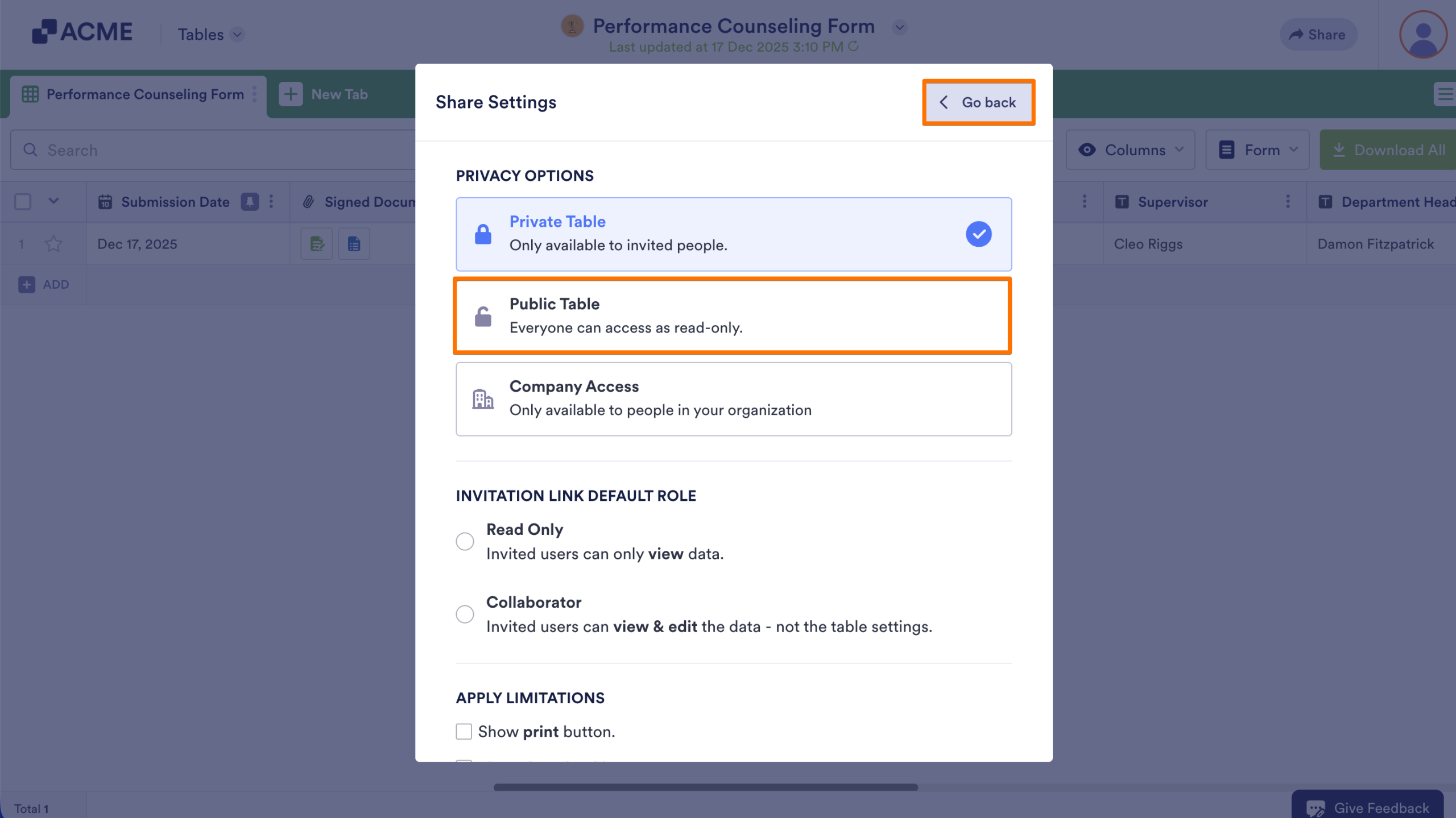
  1. Select the Public Table and go back to the Share menu.
How to Disable Log-in Requirements to View Submission Data Image-8
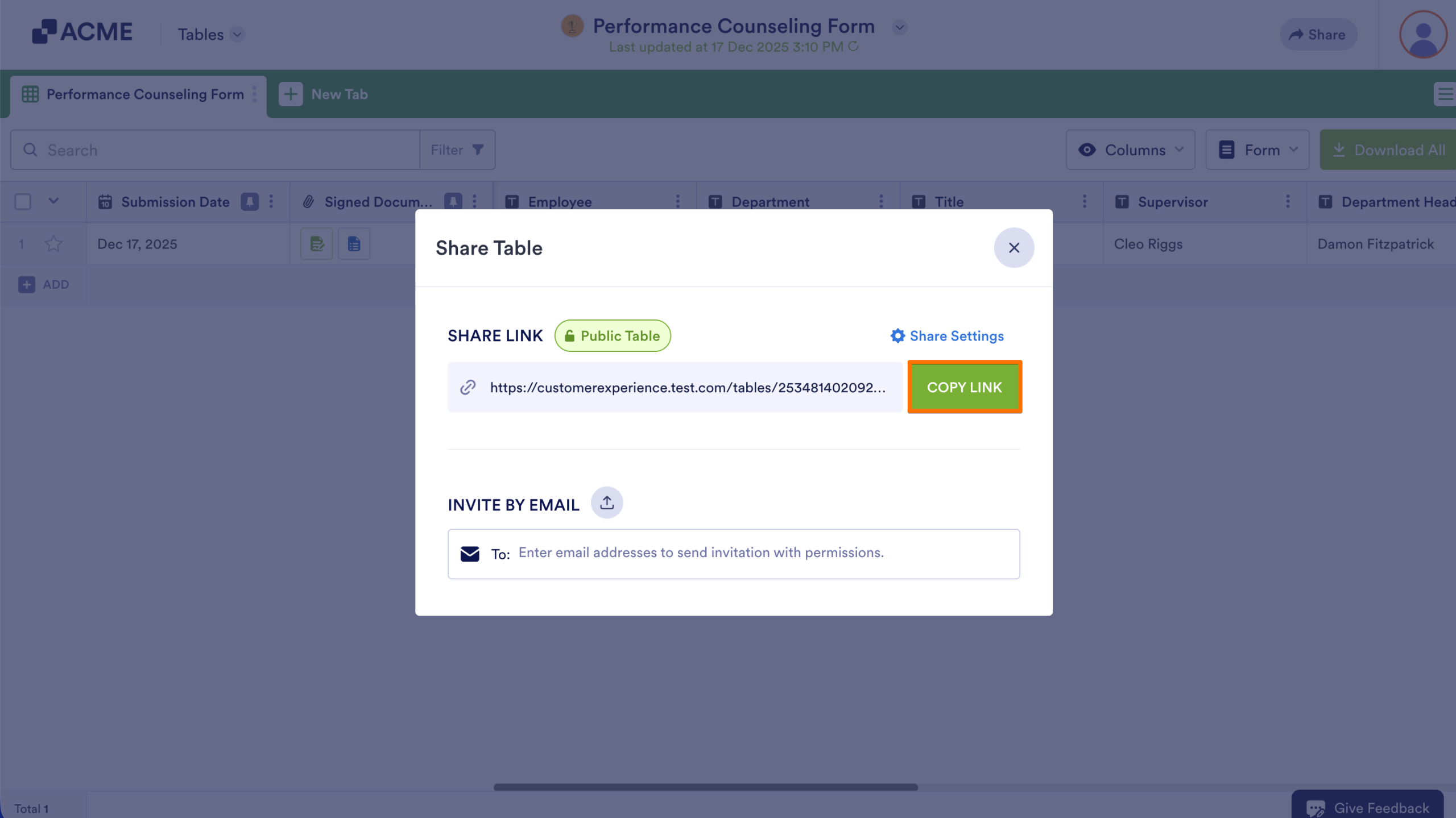
  1. Finally, copy the link that appears and provide it to anyone who needs to access to the Table.
How to Disable Log-in Requirements to View Submission Data Image-9

Sharing a Report

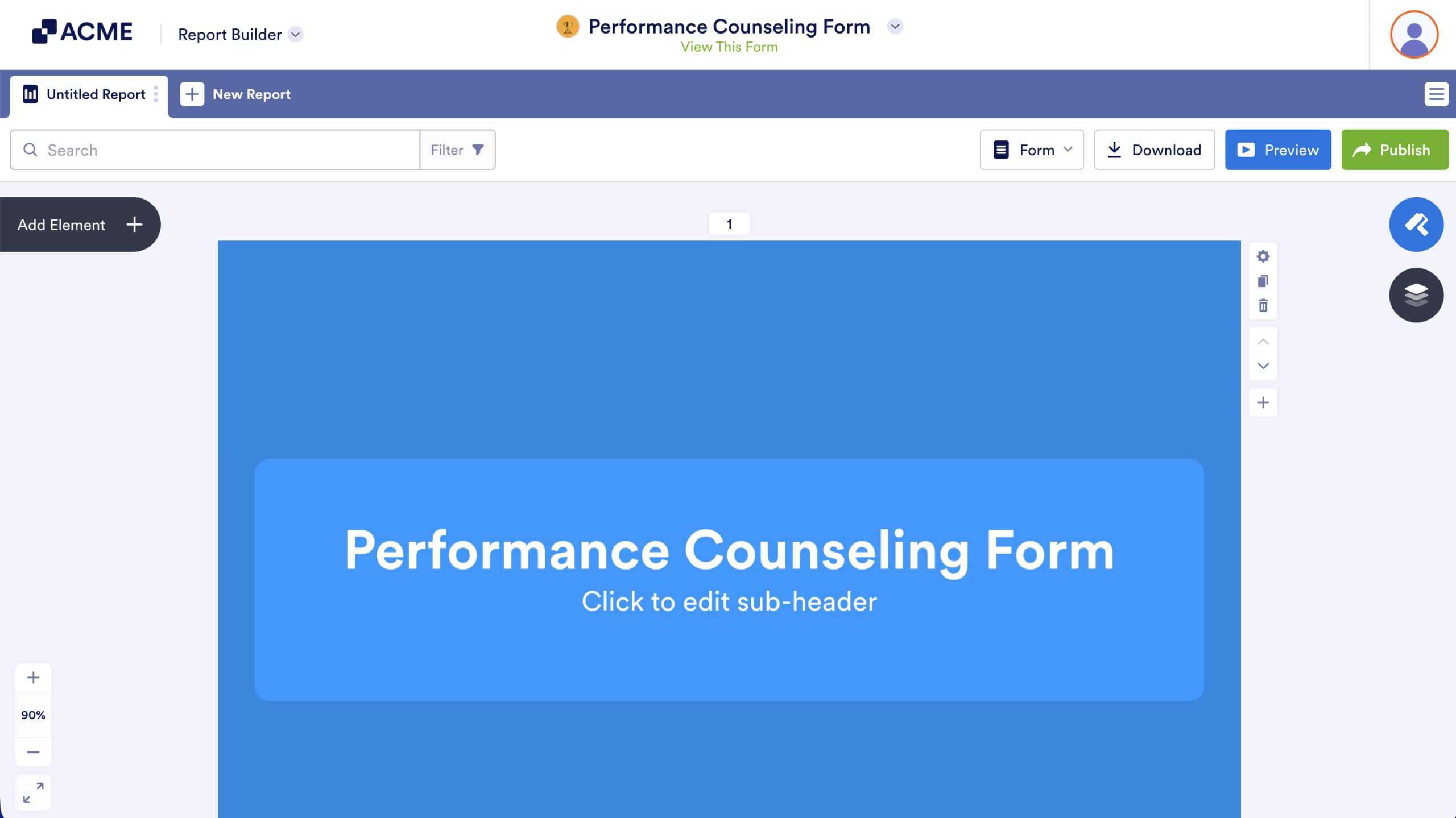
  1. First, open the Report you want to share.
How to Disable Log-in Requirements to View Submission Data Image-10
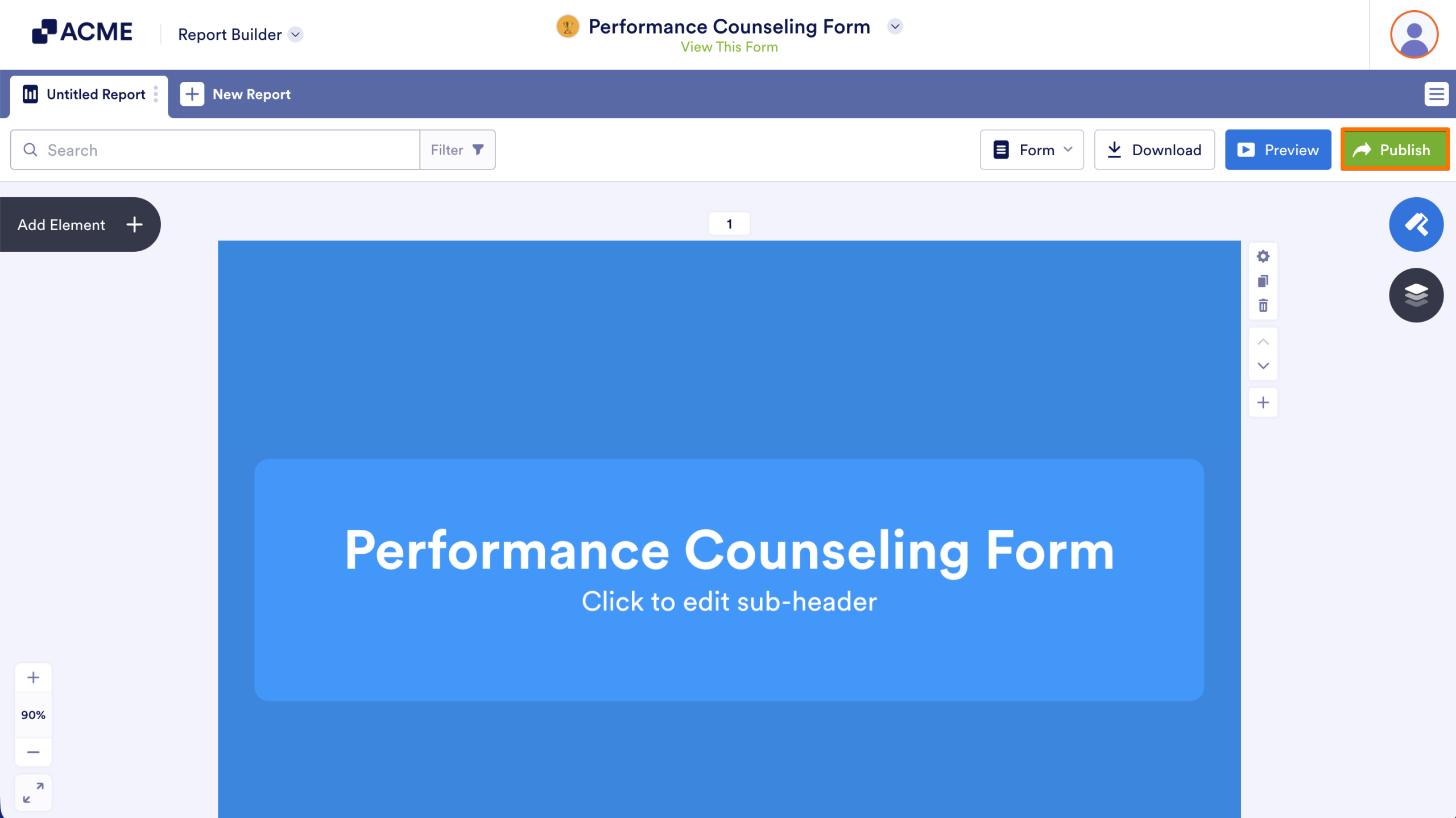
  1. Next, click on the Publish button in the upper right corner of the screen.
How to Disable Log-in Requirements to View Submission Data Image-11
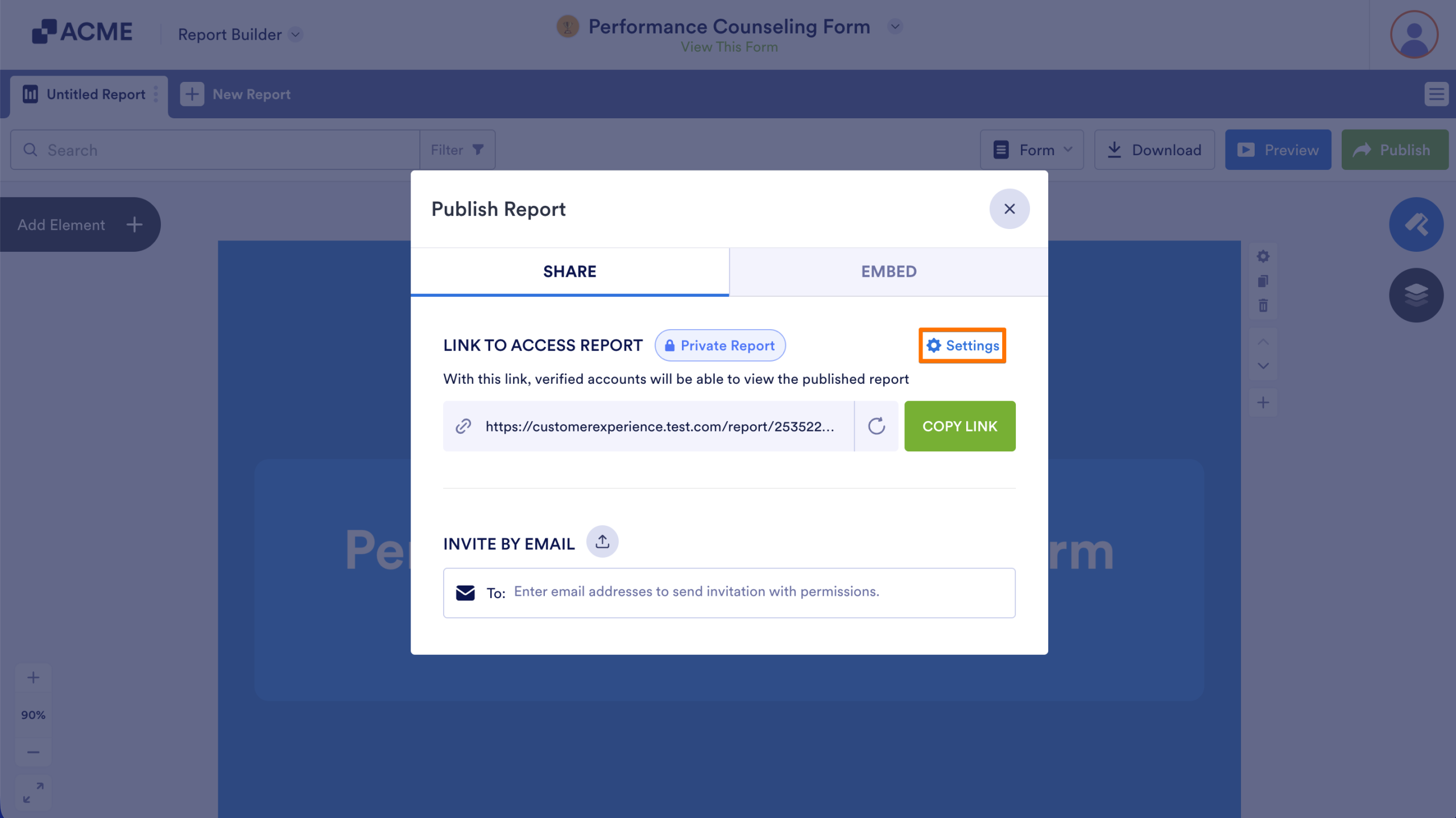
  1. Then, click on Settings 
How to Disable Log-in Requirements to View Submission Data Image-12
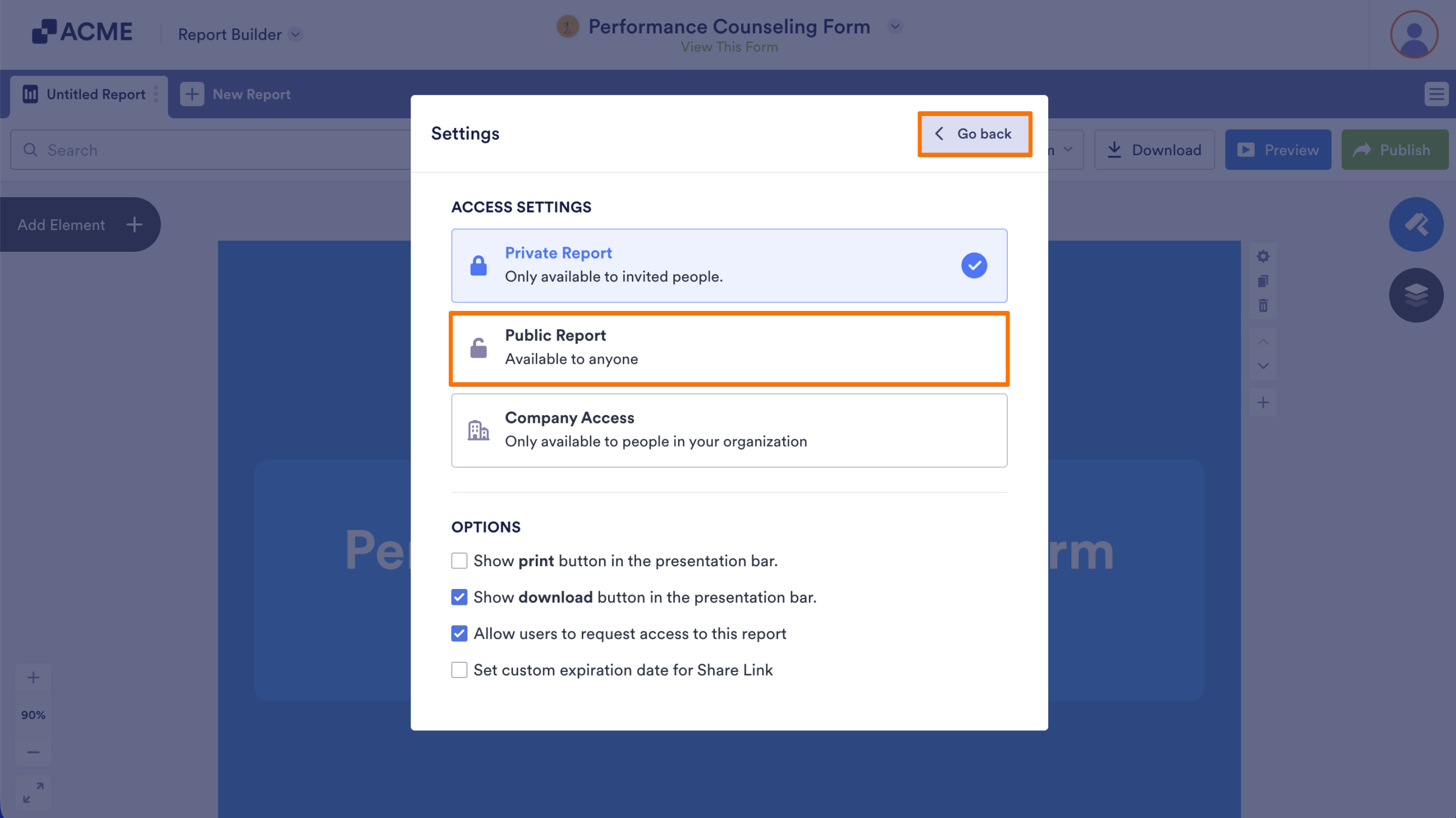
  1. Select the Public Report and go back to the Publish menu.
How to Disable Log-in Requirements to View Submission Data Image-13

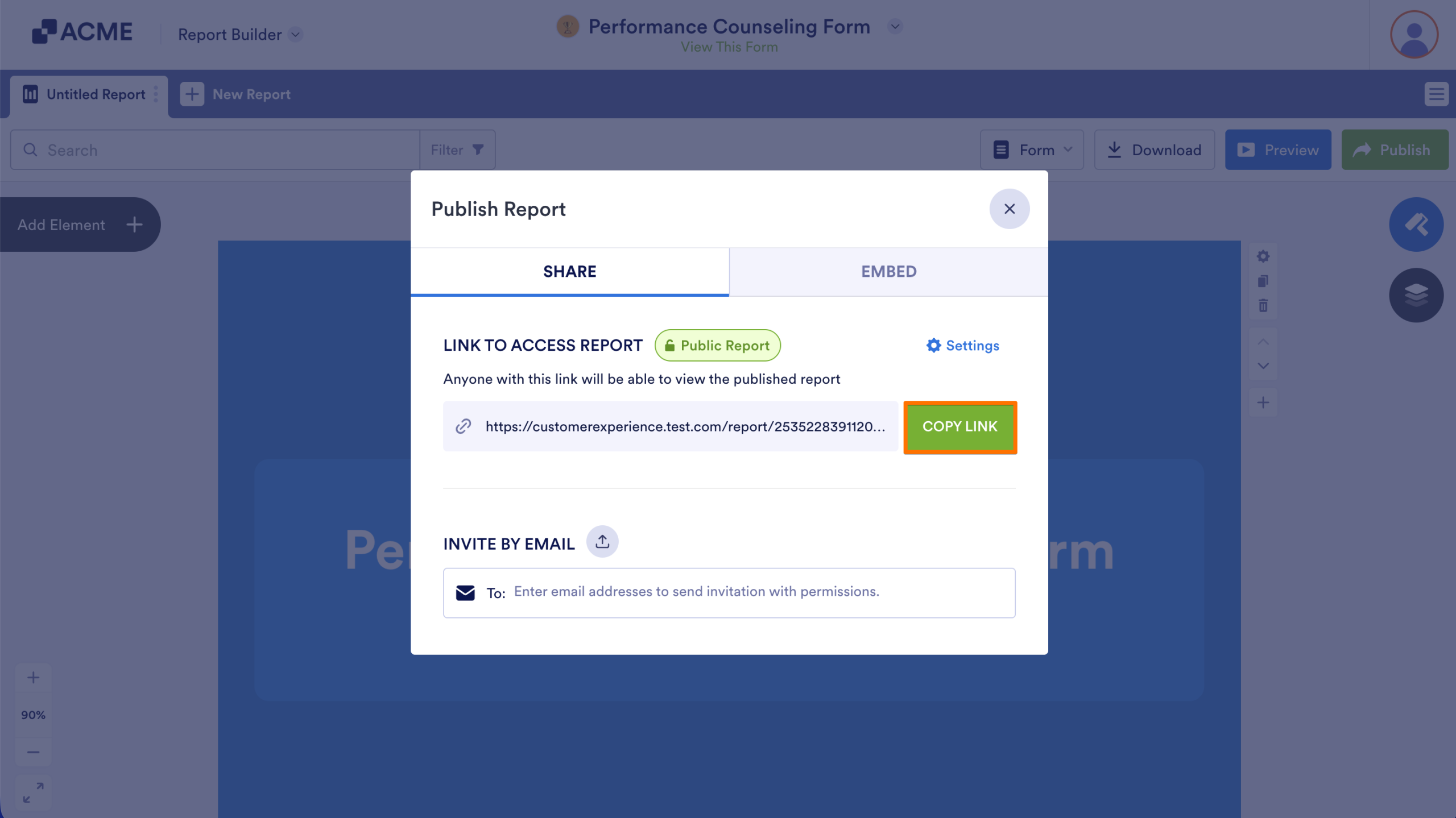
Copy the generated link and provide it to anyone who needs to access to your Report.
How to Disable Log-in Requirements to View Submission Data Image-14

Sharing an Inbox

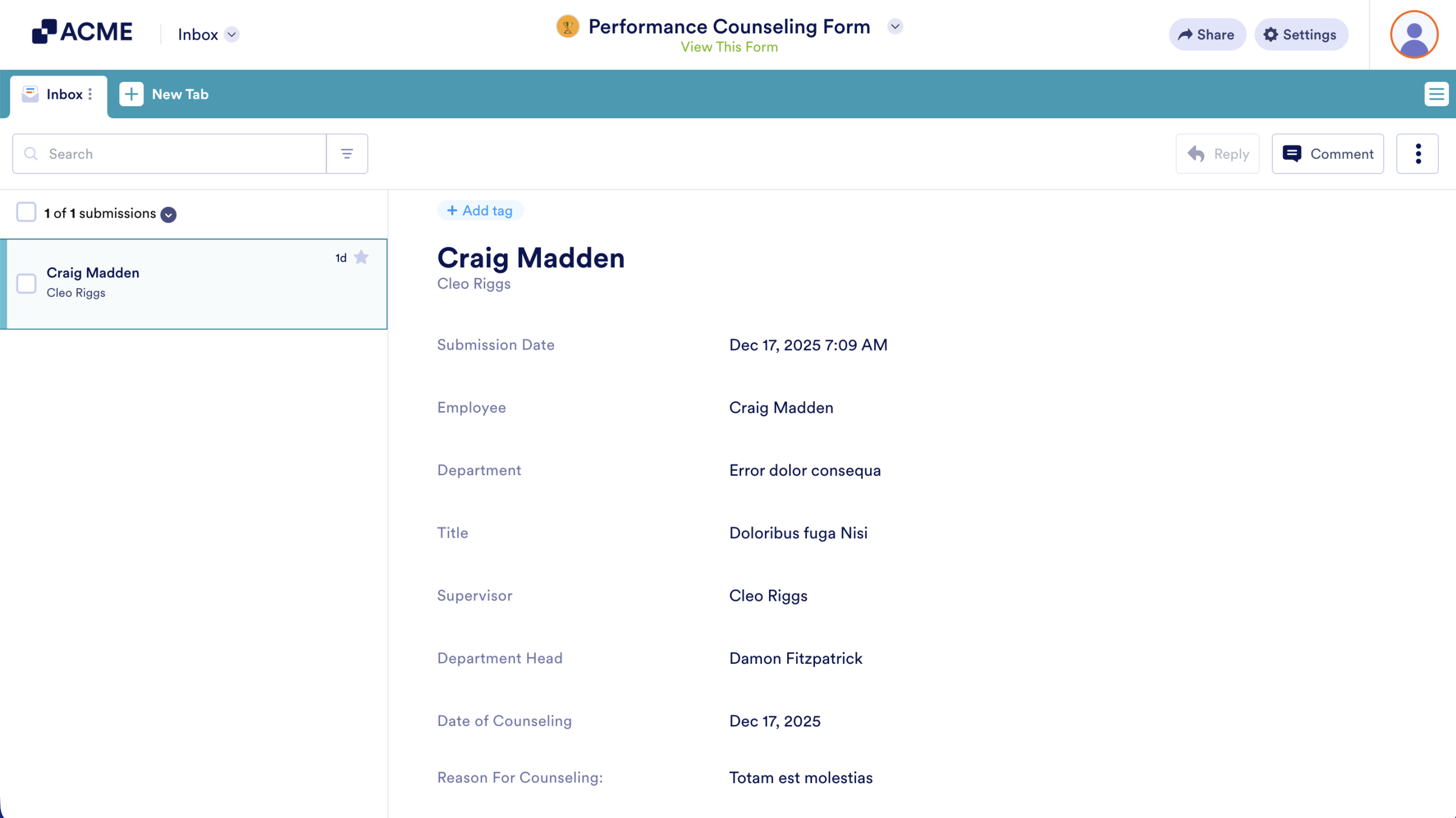
  1. ​​First, open the Inbox for the Form whose submissions you want to share.
How to Disable Log-in Requirements to View Submission Data Image-15
  1. Next, in the top right corner of the screen, click the Share button.
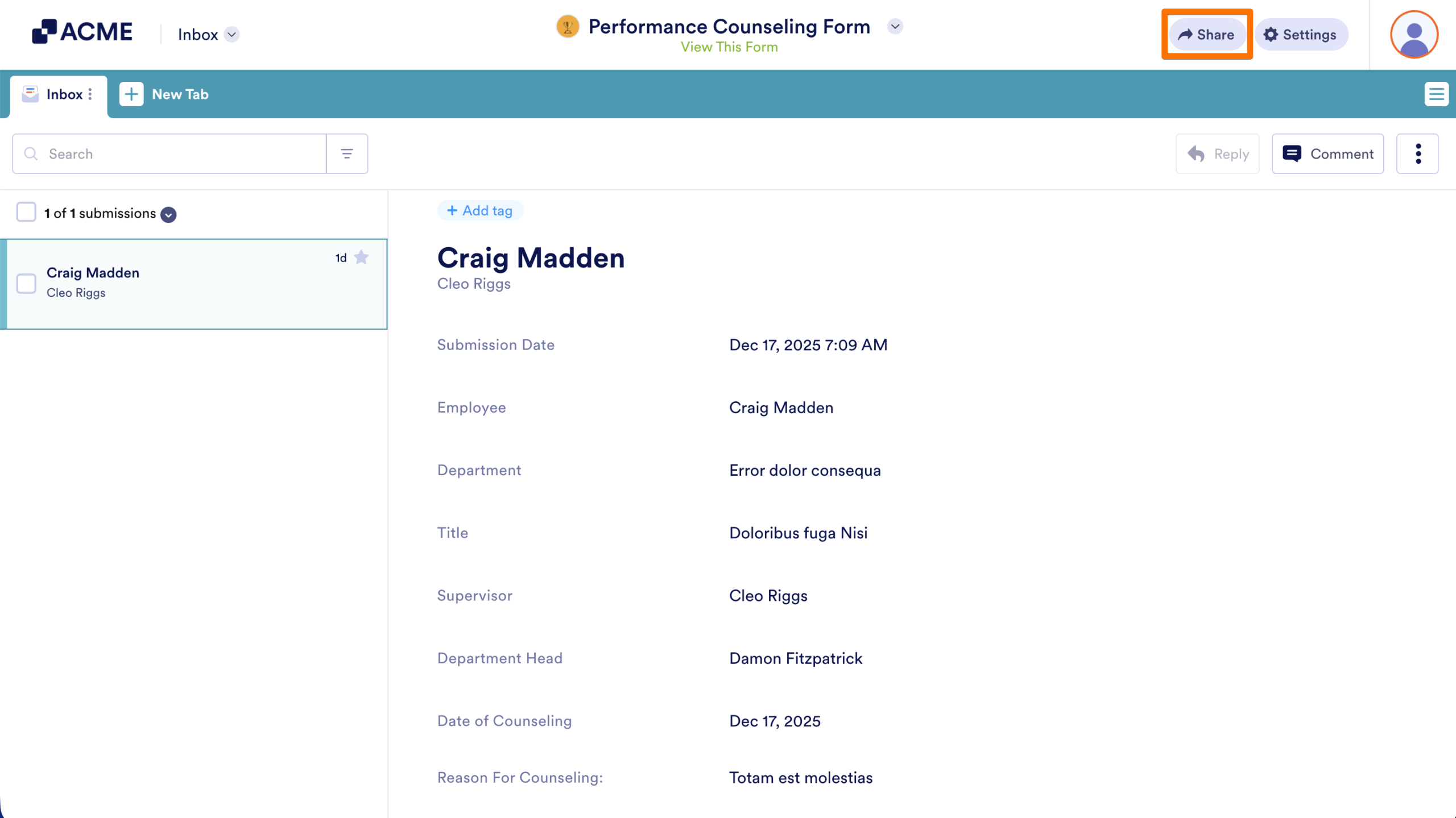
How to Disable Log-in Requirements to View Submission Data Image-16
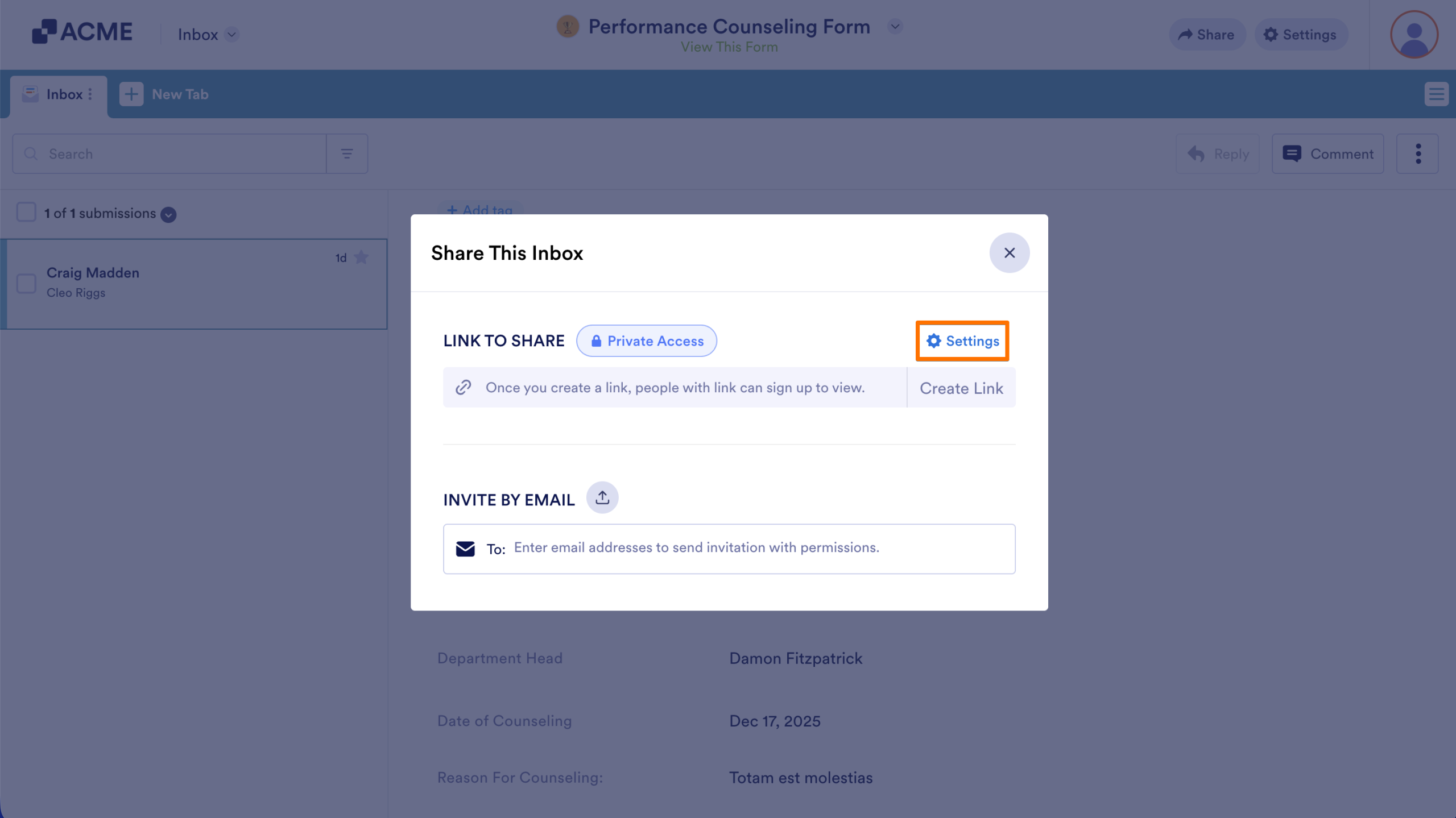
  1. Then, click on Settings
How to Disable Log-in Requirements to View Submission Data Image-17
  1. Select Public Access and go back to the Publish menu.
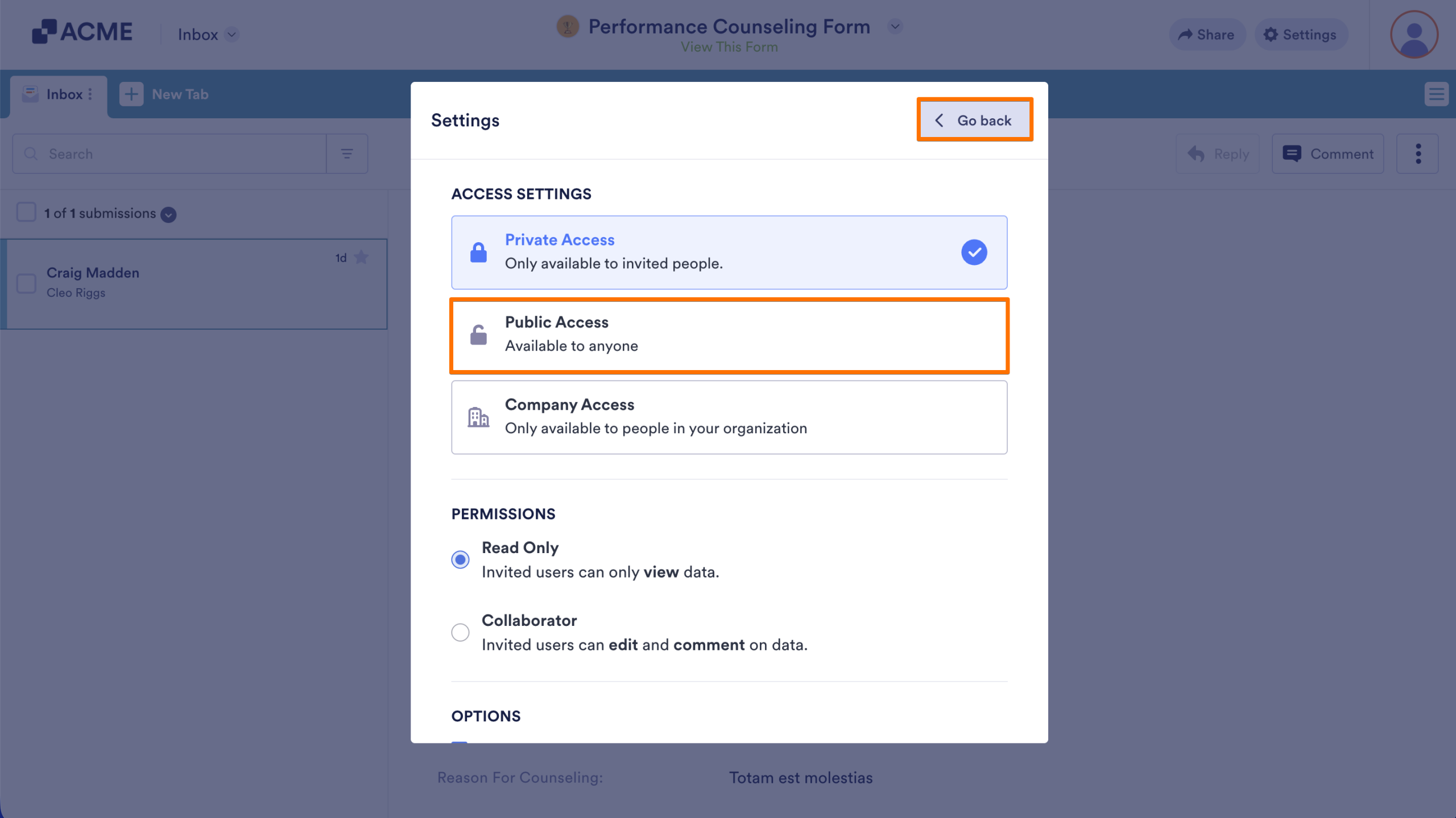
How to Disable Log-in Requirements to View Submission Data Image-18
  1. Finally, copy the generated link and provide it to anyone who needs to access to your Form’s Inbox
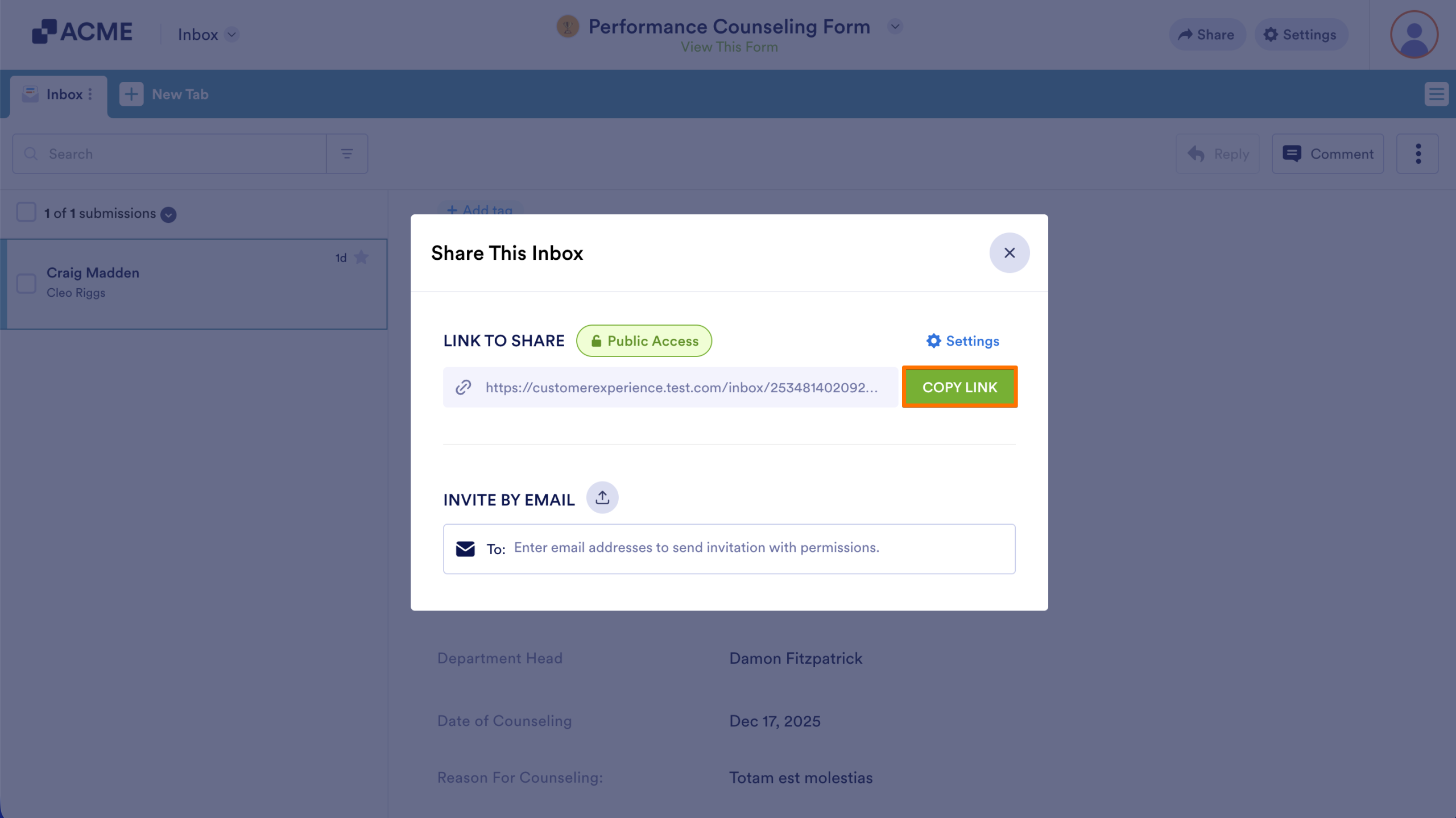
How to Disable Log-in Requirements to View Submission Data Image-19

Send Comment:

Jotform Avatar
This site is protected by reCAPTCHA and the Google Privacy Policy and Terms of Service apply.

Podo Comment Be the first to comment.