
As Eater said in 2024, Yelp helped create an entire culture of rating everyday experiences. The food website called it “The Yelp Effect.” And because of legal protections that shield Yelp from liability for what users post, reviews on the platform are notoriously hard to delete.
That durability comes from Section 230 of the Communications Act of 1934, and Yelp has fought and won major legal battles specifically to preserve consumers’ ability to leave honest feedback about local businesses. The trust is spreading: Yelp’s reviews, ratings, and business details now surface directly inside ChatGPT, Apple Maps, Alexa+, Bing, and other AI platforms people use to find local businesses.
But WordPress, versatile as it is, doesn’t include a native Yelp block that dynamically pulls those reviews onto your site. So you have three options: Install a review WordPress plug-in, embed a visual widget, or build a custom integration using Yelp’s API.

Let’s go through each one and find the right one for you.
Option 1: Install a WordPress Yelp reviews plug-in
Our first stop is the WordPress Plugin Directory, where a search for Yelp turns up dedicated review plug-ins alongside broader social-proof tools.
- Search the Plugin Directory: From your dashboard, go to Plugins > Add Plugin, then search “Yelp reviews.” You’ll land on a cluster of Yelp reviews plug-ins, each with its own install count and rating to weigh. Make sure you pick one that works without the need to create a Yelp API key.
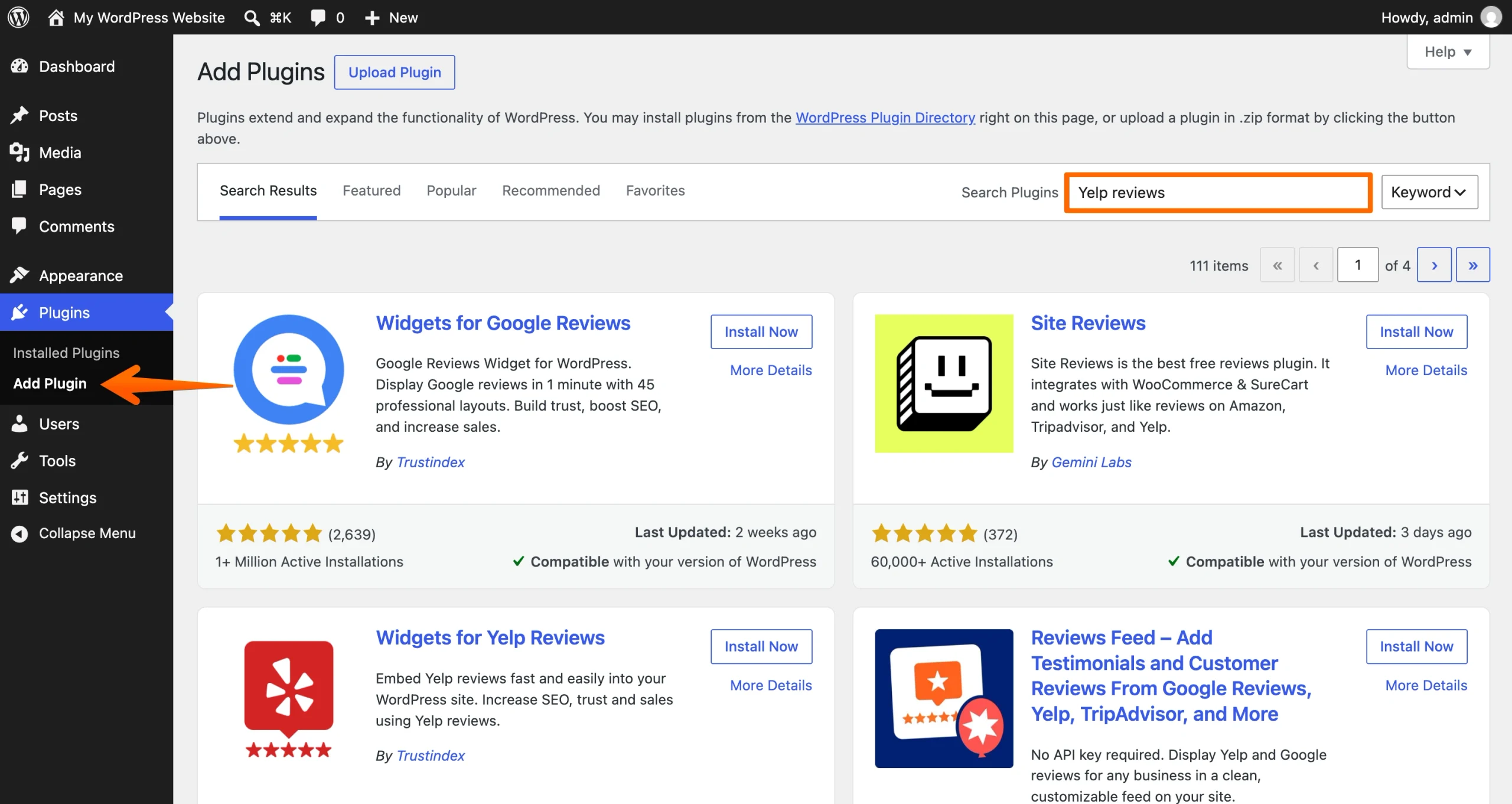
- Install and activate: Pick a plug-in, click Install Now, then Activate. This will drop a new settings page into your dashboard, usually under Settings or its own top-level menu item.
- Add your Yelp business: Go to Reviews Feed > All Feeds > Add New, then choose Add Source and select Yelp. Paste in the URL of your Yelp business page. If you’re using the free no-API option, follow the prompt to verify your email address. Once you’re connected, select your business as the review source.
- Customize and embed your reviews: Choose the default feed template, then use the live preview to adjust how your reviews appear. When you’re happy with it, click Embed. You can add the feed directly to a page with the WordPress block editor or copy its shortcode and paste it wherever you want the reviews to appear.
Here are this method’s limitations:
- First, several of the higher-rated options in the directory still route you through the Yelp Developers portal to generate an API key before the plug-in does anything. That’s exactly what we’re trying to avoid at this step.
- Second, carousels, masonry grids, and the ability to filter out one-star reviews often require a premium upgrade. Paid Yelp review plug-ins start at around $49 per year.
- Third, every plug-in you add translates to more weight your theme has to carry.
Pro Tip
Before adding another plug-in, run your site through this WordPress Plugin Bloat Scorecard. The scorecard looks at factors such as front-end requests, JS/CSS weight, database overhead, and Core Web Vitals risk, giving you a baseline you can compare against after installation.
Option 2: Use a free, customizable reviews widget
Now let’s skip the API key, the plug-in, and the database bloat entirely. The Jotform Yelp Reviews Widget connects directly to your public Yelp business page, automatically keeps eligible reviews and ratings in sync, and generates an embed code you can drop into WordPress.
Here’s how to set it up:
- Add your Yelp business URL: Open the Yelp Reviews Widget and paste the URL of your public Yelp business page into the Yelp URL field. Jotform pulls in the available review data automatically, so there’s no developer portal, API credential, or authentication involved.
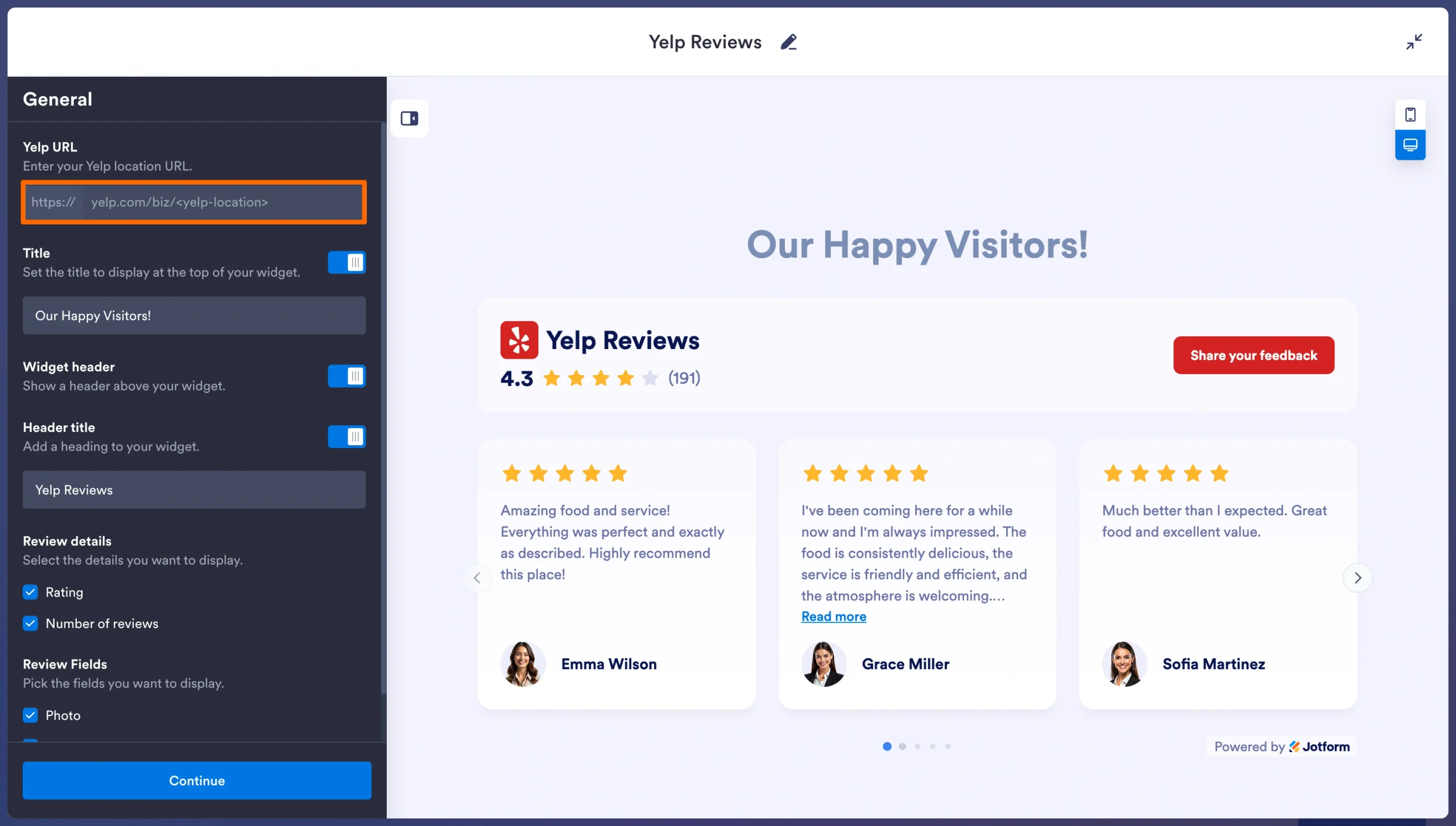
- Customize your review widget: Choose how you want your reviews displayed: carousel, slider, badge, grid, or list. You can also adjust the width, spacing, typography, colors, light or dark theme, header, review details, navigation controls, and CTA button.
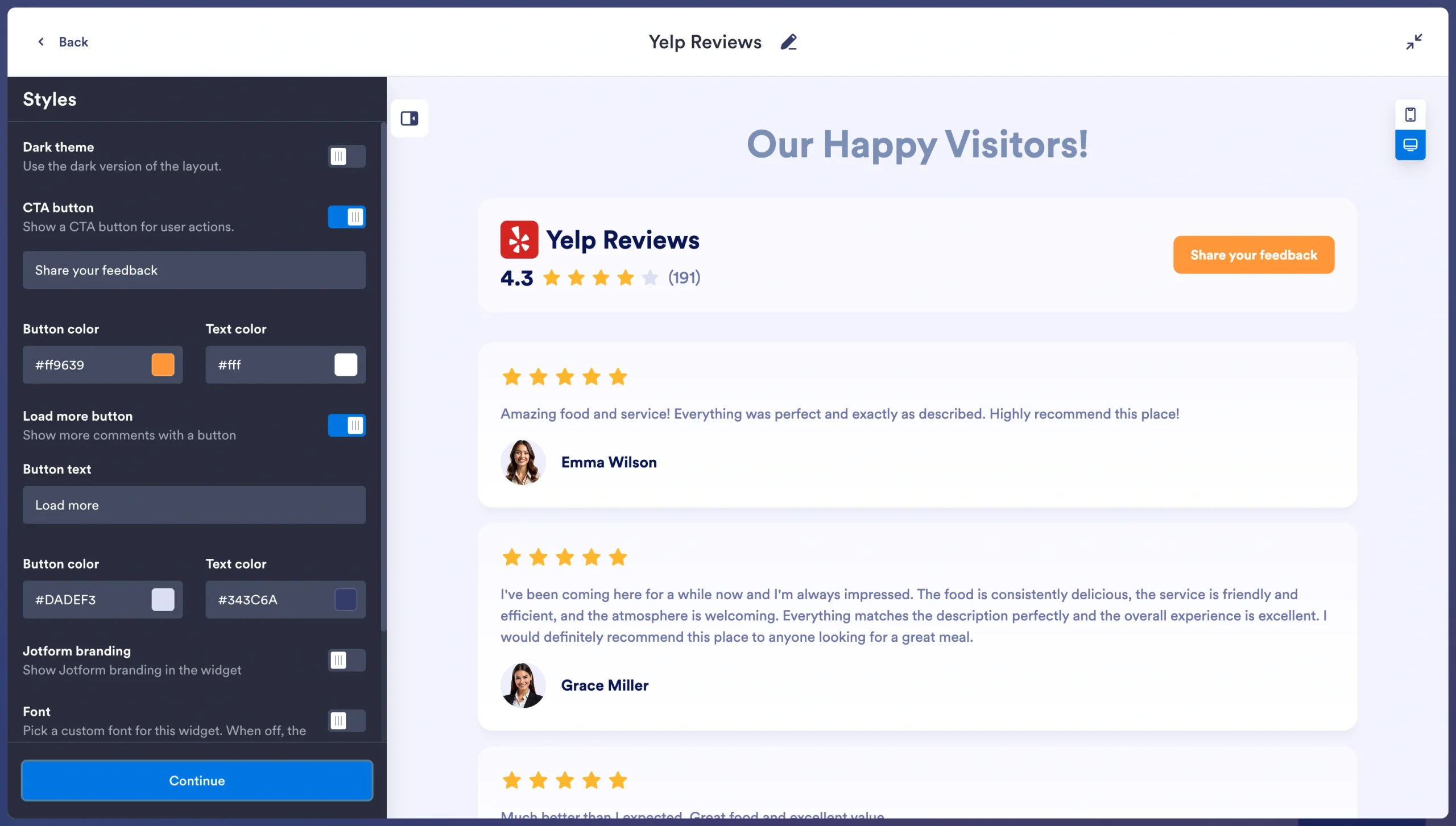
- Get the code: Once everything looks right, click Try It on Your Website for Free, then Copy Code.
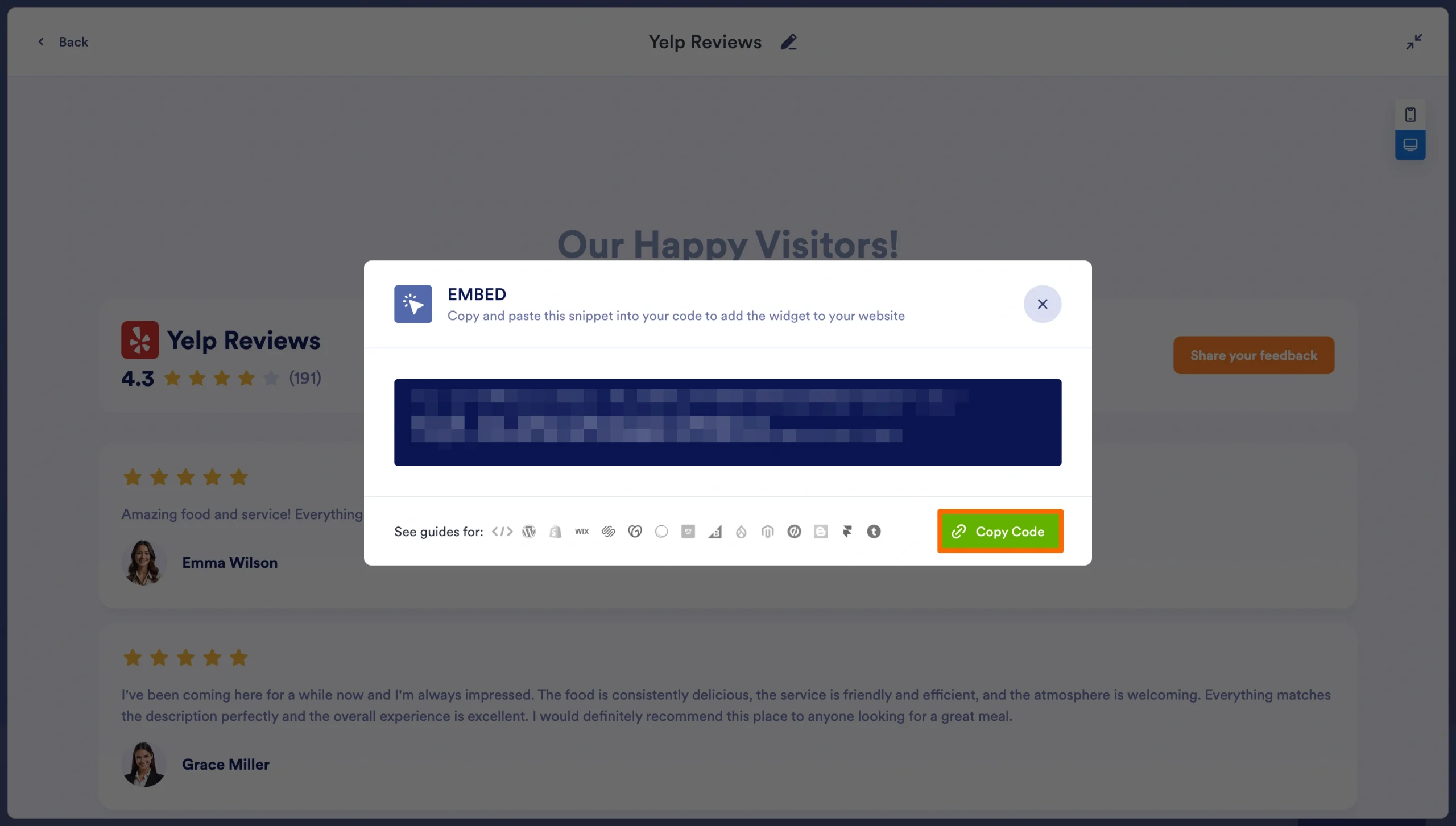
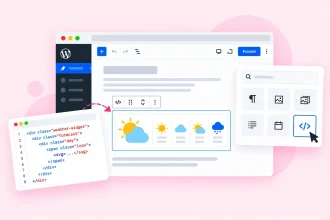
- Embed the widget in WordPress: Open the WordPress page or post where you want your Yelp reviews to appear and add a Custom HTML block. Paste in the Jotform embed code, preview the page, and publish.
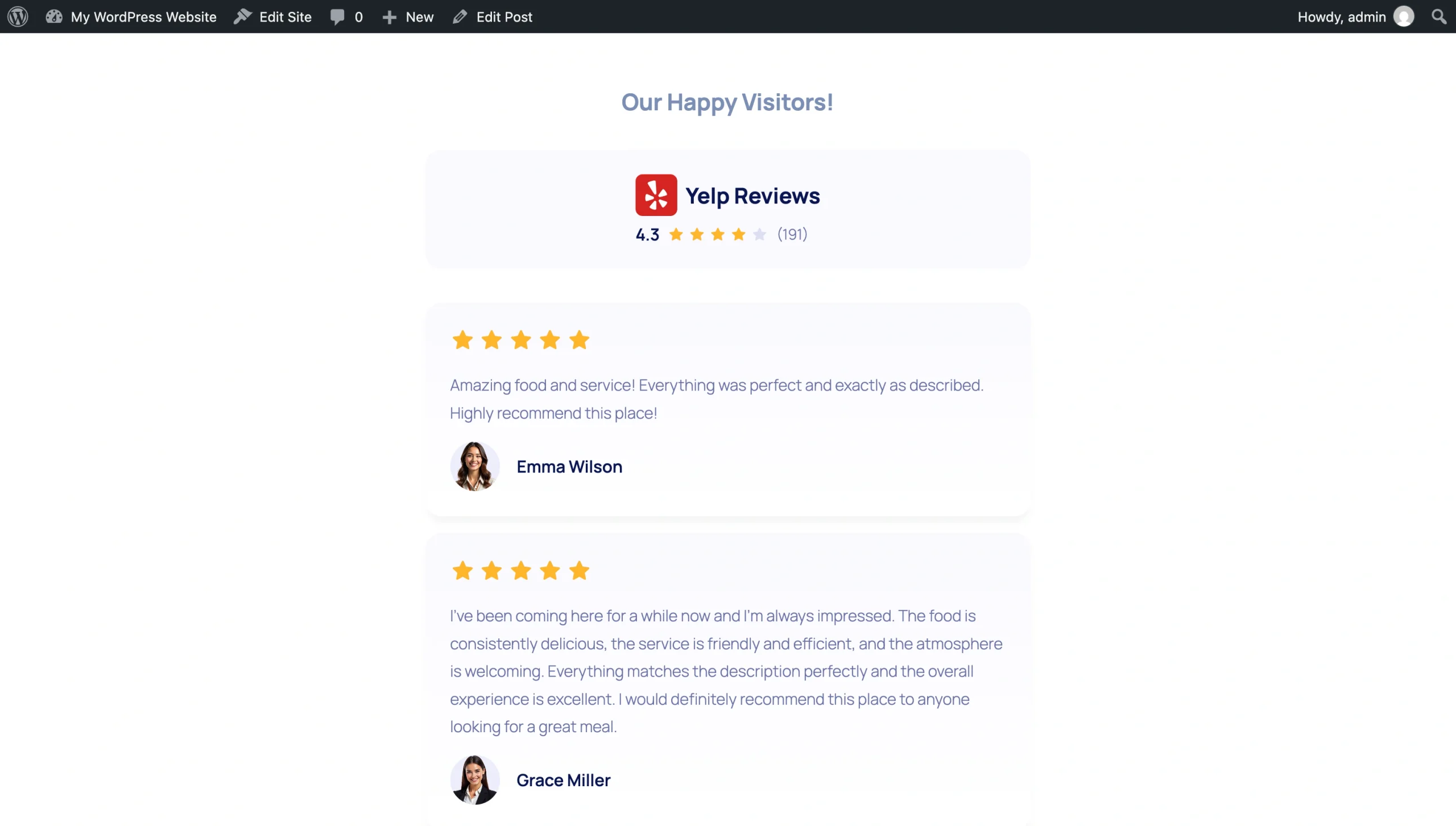
That’s it. The appeal here is what you don’t have to do. There’s no Yelp Developers account standing between you and a working widget, and because Jotform hosts the widget itself, there’s nothing new installed on your WordPress site.
Note
As of this writing, Jotform doesn’t let you hand-pick individual Yelp reviews. The widget highlights eligible four- and five-star feedback from your connected listing automatically, which are the ones you want to display anyway.
And you aren’t stuck with one presentation. Jotform’s Yelp review examples range from compact rating badges to masonry galleries and rotating carousels. Read our full guide on how to embed Yelp reviews on your WordPress website.
Jotform Website Widgets are free to use, with unlimited access to all features until January 2027. That includes the customization options available for the Yelp Reviews Widget, so you can test multiple layouts without hitting a feature paywall.
Option 3: Connect directly via the Yelp Fusion API
If plug-ins and hosted embeds aren’t a possibility, you can go straight to the source and build your own integration with Yelp’s API.
Yelp houses its Fusion endpoints under the Yelp Places API. This route gives you control over how the reviews are requested, cached, styled, and rendered in WordPress, but you’ll need to write and maintain the backend code yourself.
- Create a Yelp app and API key: Start in the Yelp Developers portal and create an app. Yelp will generate a private API key, which you’ll use to authenticate requests. You’ll also need the right Places API plan.
- Request the reviews from WordPress: Next, use PHP on the server to send an authenticated request to Yelp’s Reviews endpoint:
GET https://api.yelp.com/v3/businesses/{business_id_or_alias}/reviews.
You can use either the Yelp business ID or its alias. Send your API key in the authorization header as Bearer API_KEY, then parse the JSON response for fields such as the review excerpt, rating, reviewer name, and Yelp review URL. - Build and style the review feed: Use your own HTML and CSS to turn the API response into cards, a grid, a slider, or whatever your design needs. Make sure the finished implementation follows Yelp’s display and branding requirements.
You’ll need to account for caching, errors, and API limits as part of the build. Yelp says Places API content can be cached for up to 24 hours, so caching the response can also prevent WordPress from calling Yelp every time someone loads the page.
This is not a beginner’s afternoon project; it requires real backend coding fluency. You’ll be writing and maintaining custom PHP that talks to an external API, which means you’ll own that connection. If Yelp changes an endpoint or deprecates a field, or you introduce a syntax error in your template, the failure can take down the page or the site, depending on where that code lives.
Plus, the Yelp Places API Base plan doesn’t provide review excerpts. You’ll need the Enhanced plan, at $299 per month, for up to three excerpts; or the Premium plan, at $643 per month, for up to seven.
And even after all that engineering and billing, the payoff is thin. Yelp’s standard Fusion API caps the business reviews endpoint at three reviews per business, returned as 160-character excerpts rather than full text.
Keep your WordPress site simple and lightweight
A plug-in keeps the setup inside WordPress, a custom API integration gives developers the most control, and a hosted widget offers the simplest route if you’d prefer no plug-in and no Yelp API key.
Yelp plays by stricter rules than many other review platforms, so a little restraint goes a long way. Whether you use a WordPress plug-in, hosted widget, or the Yelp API, follow these guidelines:
- Don’t ask customers for Yelp reviews: Yelp’s policy prohibits businesses from soliciting reviews or offering incentives for them.
- Keep the original wording intact: If you share a Yelp review in your marketing, Yelp recommends using the review as written, displaying recommended reviews, and crediting the reviewer.
- Make Yelp clearly identifiable as the source: Yelp’s display requirements call for its logo to appear prominently alongside Yelp-originated content and for ratings, review excerpts, and review counts to link back to the relevant Yelp page.
The Jotform Yelp Reviews Widget handles the display without adding another plug-in to your WordPress installation. And Yelp reviews are only the beginning.
The Jotform Website Widgets directory also powers a Google Reviews Widget for your Business Profile stars, and an Airbnb Reviews Widget for anyone running a property listing alongside their main site.
And for now, experimentation is especially cheap. Jotform Website Widgets are free, with unlimited access to all features until January 2027. Try a few; your WordPress plug-in list will survive without another resident.
Add Yelp reviews to WordPress FAQs
Yes. Plug-ins such as Reviews Feed display Google and Yelp reviews; its free version supports up to 10 recent reviews for one business without the need for an API key.
This depends on your sources, layouts, and budget. If you want a free Yelp review widget for WordPress instead, Jotform saves you from having to install another plug-in entirely. For Yelp reviews through Elementor, paste its embed code into Elementor’s HTML widget.
This article is for local business owners, restaurateurs, and agencies using WordPress who want to build immediate local trust by showcasing their 5-star Yelp reviews without slowing down their site or wrestling with complex API setups.



































































































Send Comment: