
Forms and spreadsheets are fundamental tools for anyone who works with data on a regular basis — and life is much easier when these tools work together.
If you’re using (or thinking of using) Google Forms, you might be wondering how well it functions with its suitemate Google Sheets. Can you easily convert Google Forms to Sheets or embed a Google Sheet in a Google Form? Unfortunately, the answer is no — there’s no native integration between the two that allows for direct, automatic conversion in either direction.
But that doesn’t mean it can’t be done. In this article, we’ll show you two options for simplifying data transfers between these tools: one involves a quick Jotform migration and another uses an add-on called AI Form Builder.

Looking for the best alternative to Google Forms?
Jotform’s full-featured form-building solution is mobile-friendly and has the most integrations in the industry. Use it to collect payments, automate workflows, gather leads, and more.
How to connect Google Forms to Google Sheets
So, there’s no native integration that takes spreadsheet content and converts it into a Google Form, or takes form questions and converts them into a Google Sheet. How do you put Google Form responses in a spreadsheet automatically then?
Well, Google does have you covered there — the one functionality these tools have when it comes to integrating data is basic response syncing. That means you can set a specific Google Sheet to automatically update every time a new form is submitted.
To connect Google Forms to Google Sheets in any other meaningful way requires a manual workaround — essentially copying and pasting the questions or data from your Google Sheet into a Google Form, setting up each question type manually.
But there is a way to avoid the time, effort, and inaccuracies associated with manual work: Try using Jotform instead. Both of the options below are fast, easy and, importantly, don’t require you to start from scratch.
Pro Tip
WordPress user wondering if you can connect Gravity Forms to Google Sheets? Unfortunately there’s no direct integration, but take a look at a few ways to get the job done.
An easier way to connect Google Forms to Google Sheets with Jotform
There are two methods you can use to manage workflows between these tools. If you’d like to take advantage of a more advanced form builder that has plentiful automation options, try the first method, which is to migrate your Google Form to Jotform. Or, if you’d prefer to streamline the process of form creation and stay inside Google Sheets, try the AI Form Builder method. Both methods reduce manual editing and eliminate copy-paste workflows.
Pro Tip
Need a refresher on the basics of Google Forms and/or Sheets? Check out our other resources that outline how to use Google Forms, how to create a Google Form, and how to use Google Sheets.
Option 1: Migrate your Google Form to Jotform
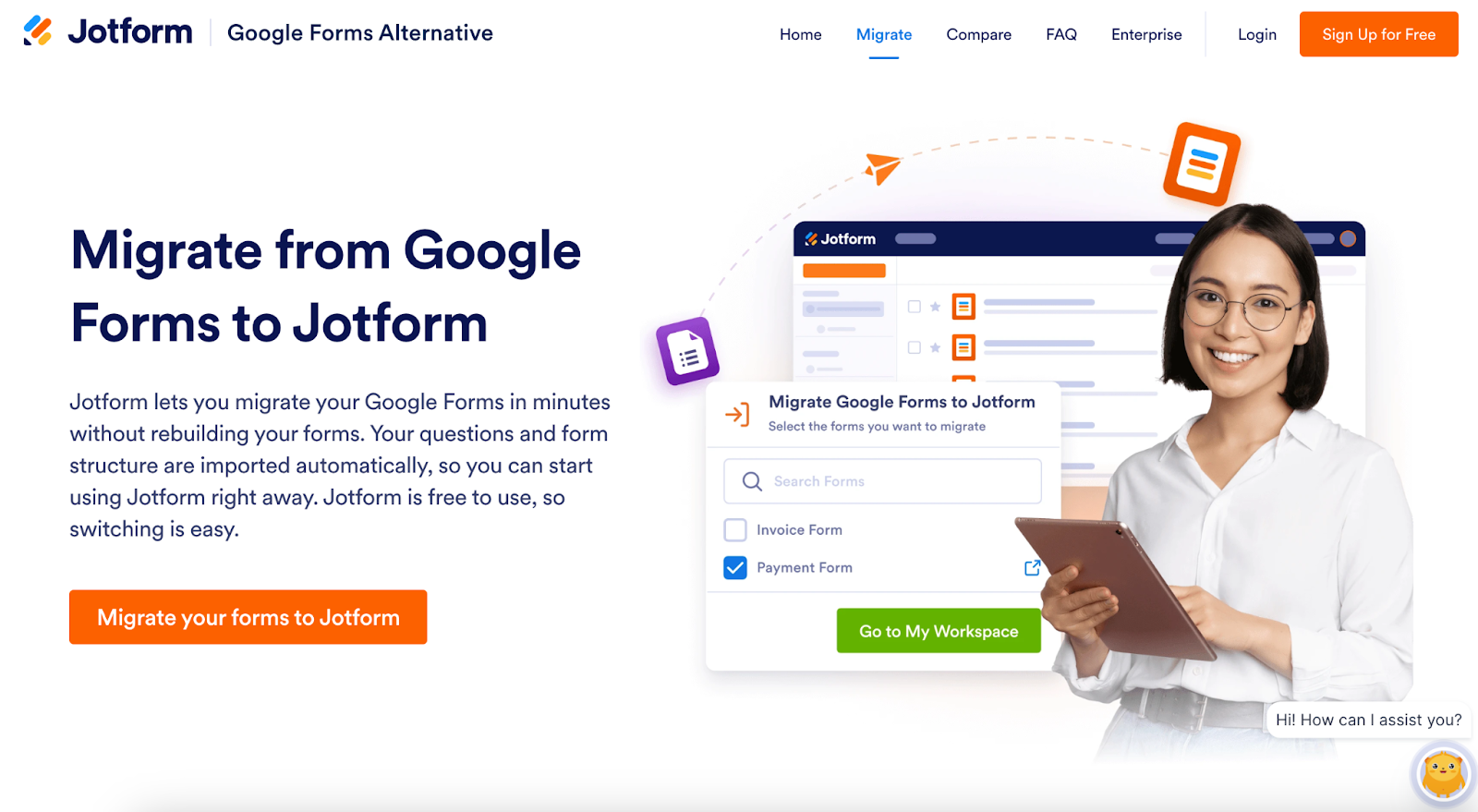
If you’ve been using Google Forms but would like to see what an advanced form builder has to offer, take advantage of Jotform’s free Google Forms migration tool. It allows you to transfer your Google Forms over to Jotform in a matter of minutes. The questions and form structure are imported automatically, so this method is virtually effortless.
After migrating, you can start using Jotform right away. It’s the ideal form builder for sheets-to-forms (and vice versa) workflows. With its built-in integrations, you can automatically transfer form submissions from your Jotform forms to Google Sheets. You can also upload an existing Excel spreadsheet and use it to create a form.
But there’s more to Jotform than just that. It also has advanced form building capabilities, better automation tools, and stronger workflow functionality than Google Forms and Google Sheets alone. There are loads of Jotform Google integrations (as well as integrations with other popular tools) that will improve the efficiency of all your data-related tasks, too.
Ultimately, migrating your existing Google Forms to Jotform presents a more scalable, long-term solution for managing form data.
Option 2: Use the Jotform AI Form Builder add-on inside Google Forms
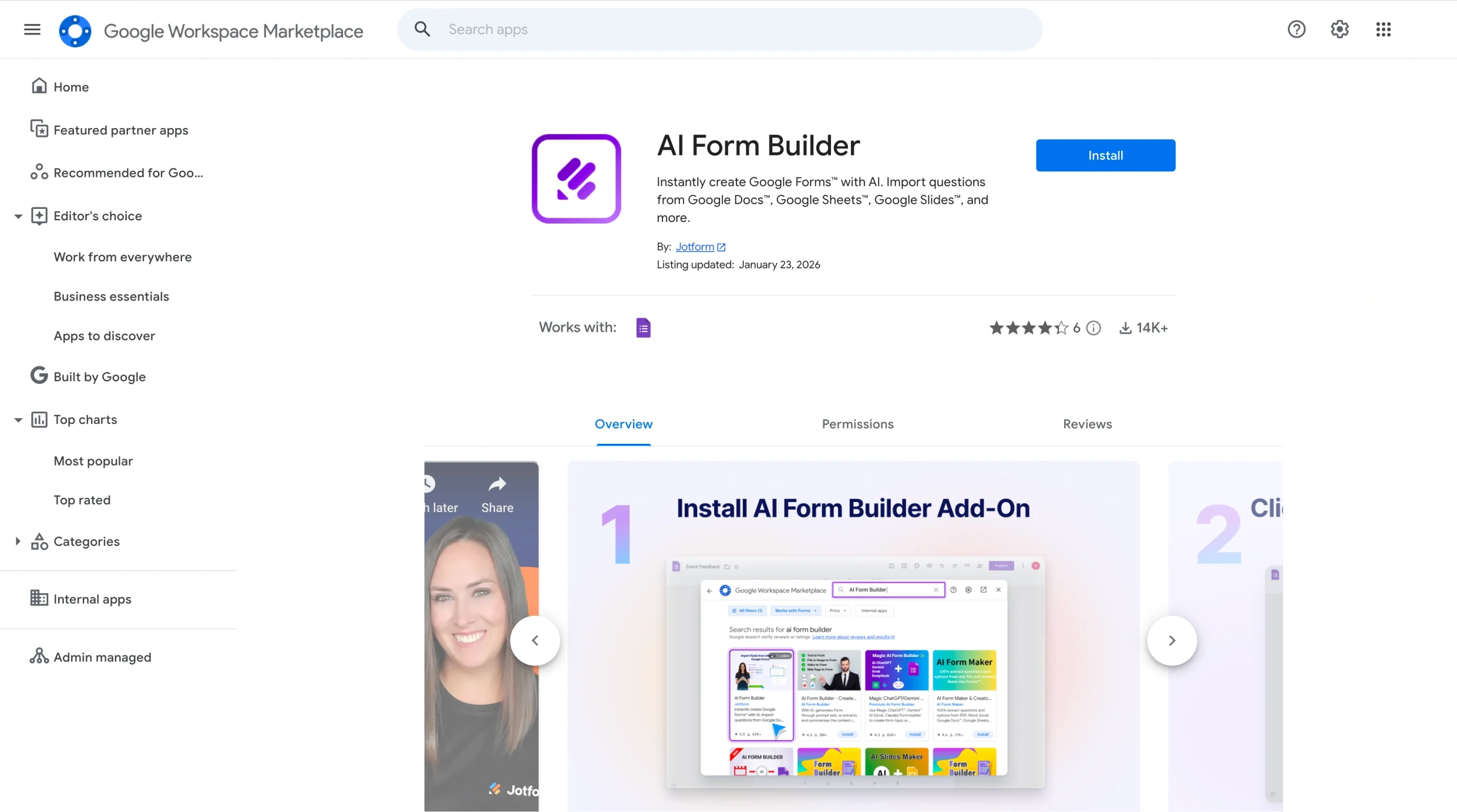
Another way to avoid the manual work of connecting Google Forms and Sheets is to use AI Form Builder.
This is a free, no-code add-on that instantly updates or creates Google Forms using AI. You can use this add-on to embed a Google Sheet into a form or simply to pull information from a Google Sheet (or nearly anywhere else) and convert it into a form.
The AI Form Builder is a powerful option because it
- Pulls content from Google Docs, Sheets, Slides, Drive, or other Forms
- Automatically converts imported content into structured questions
- Allows exporting questions to Forms, Docs, Sheets, Slides, or Jotform
- Has smart field recognition and preview mode
- Offers random selection and shuffling options
- Offers prompt-based AI question generation
AI Form Builder is an excellent choice if you’re looking for an easy way to import, generate, and export form questions directly inside the Google environment.
To start using it, follow the relevant set of directions below — one is for importing content into a Google Form and the other is for exporting form content to a Google Sheet.
How to import content from a Google Sheet into a Google Form with AI Form Builder
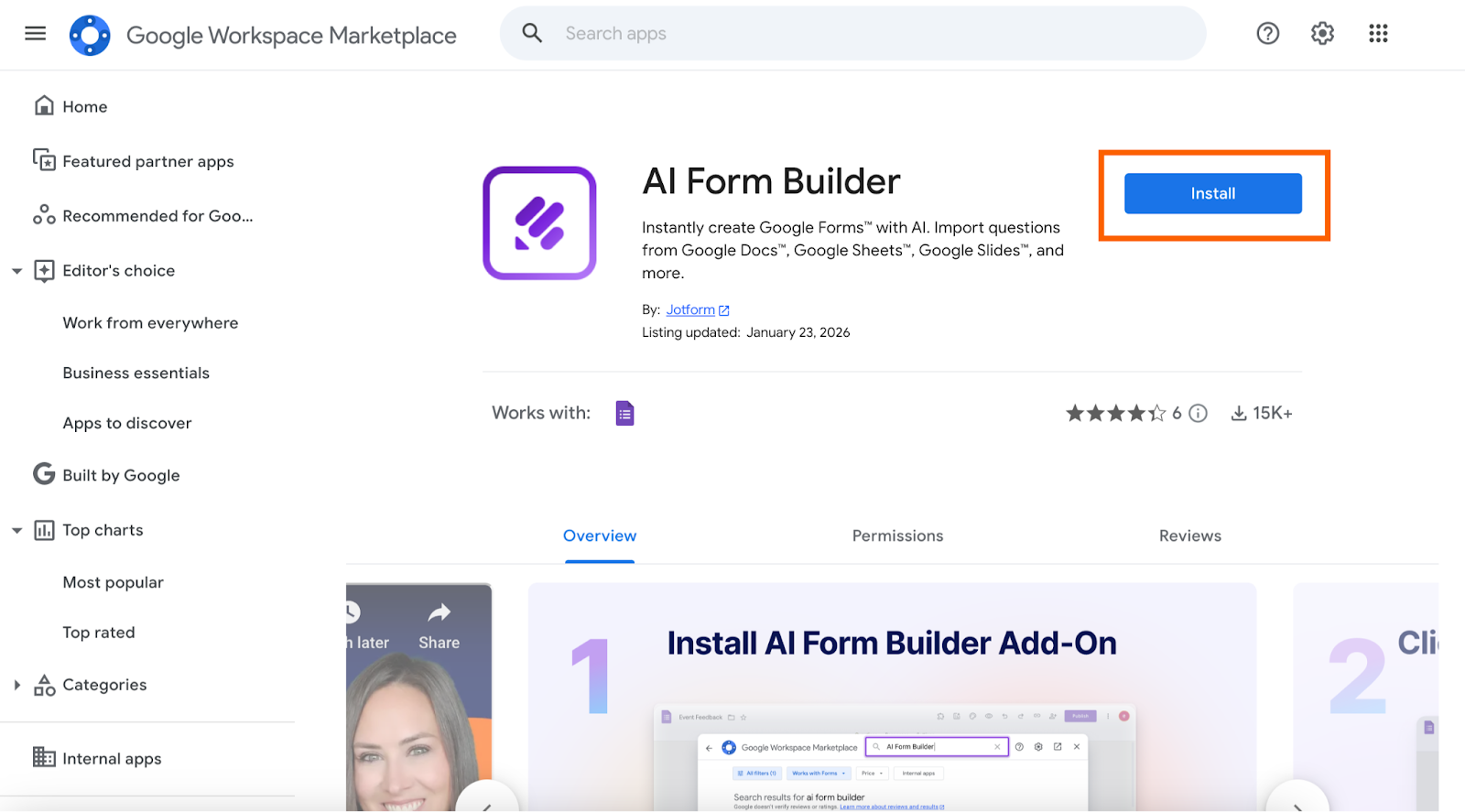
- Install AI Form Builder via the Google Workspace Marketplace.
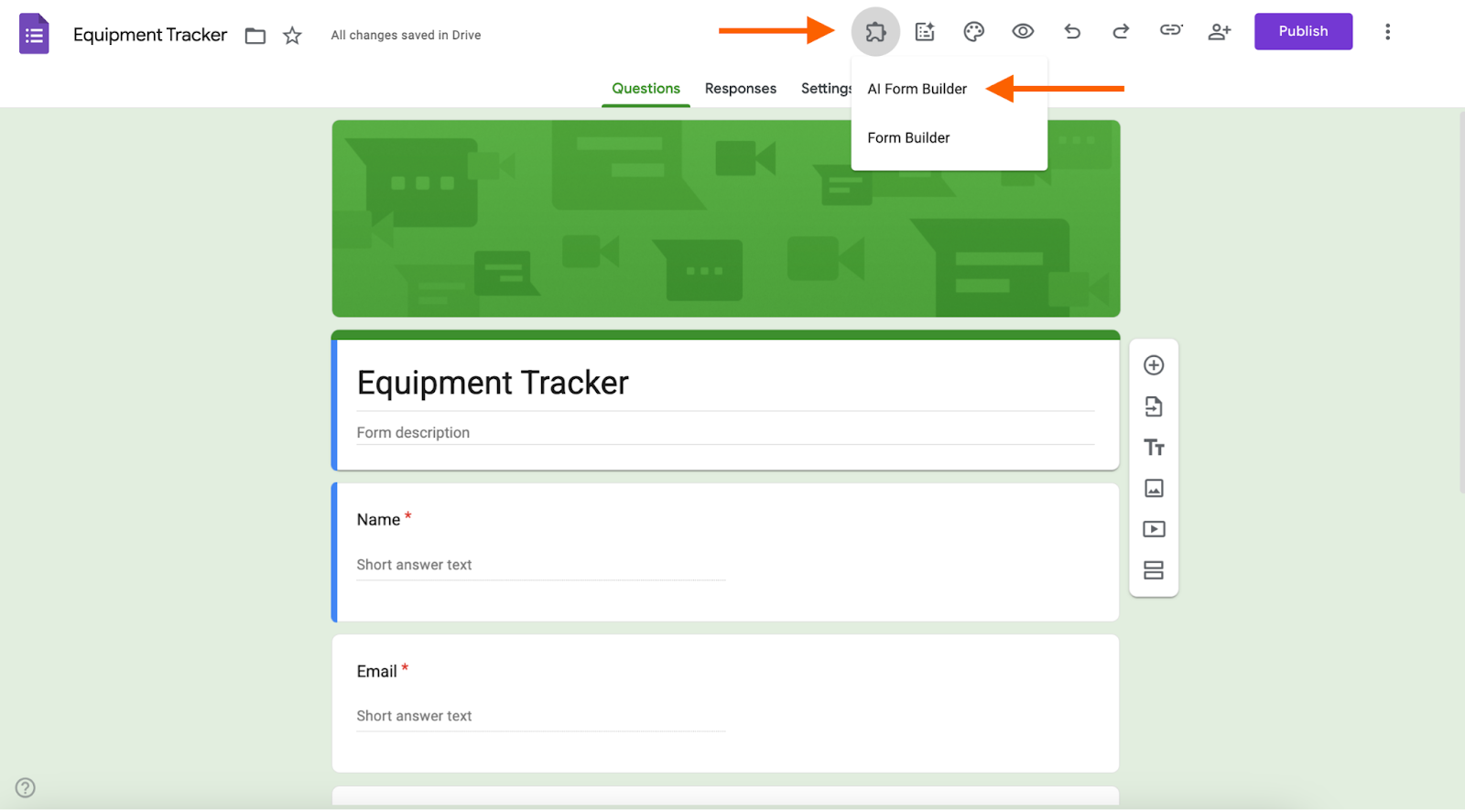
- Open the Google Form you want to populate. Go to Add-ons > AI Form Builder to open the sidebar.
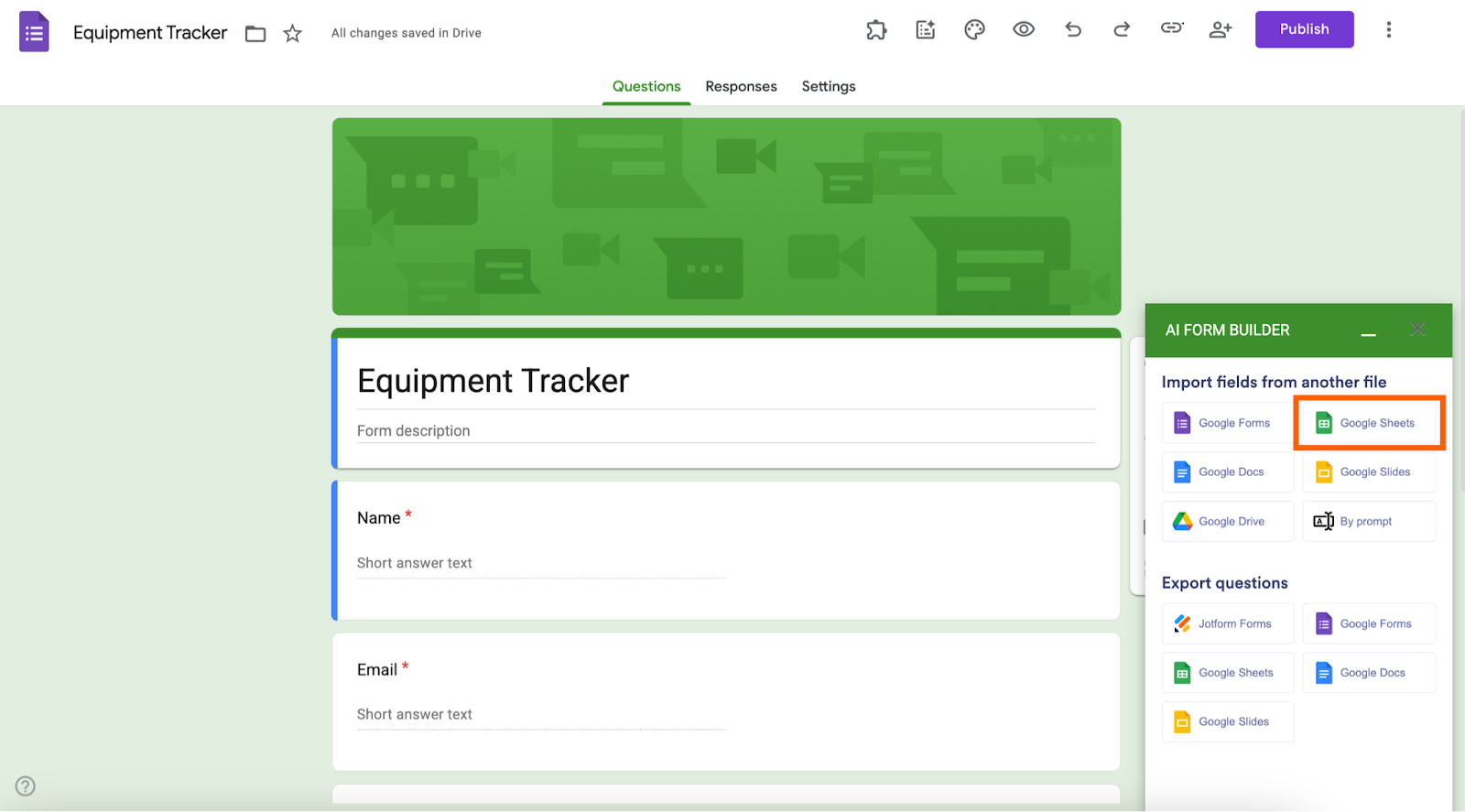
- Under “Import fields from another file,” select Google Sheets as your source file.
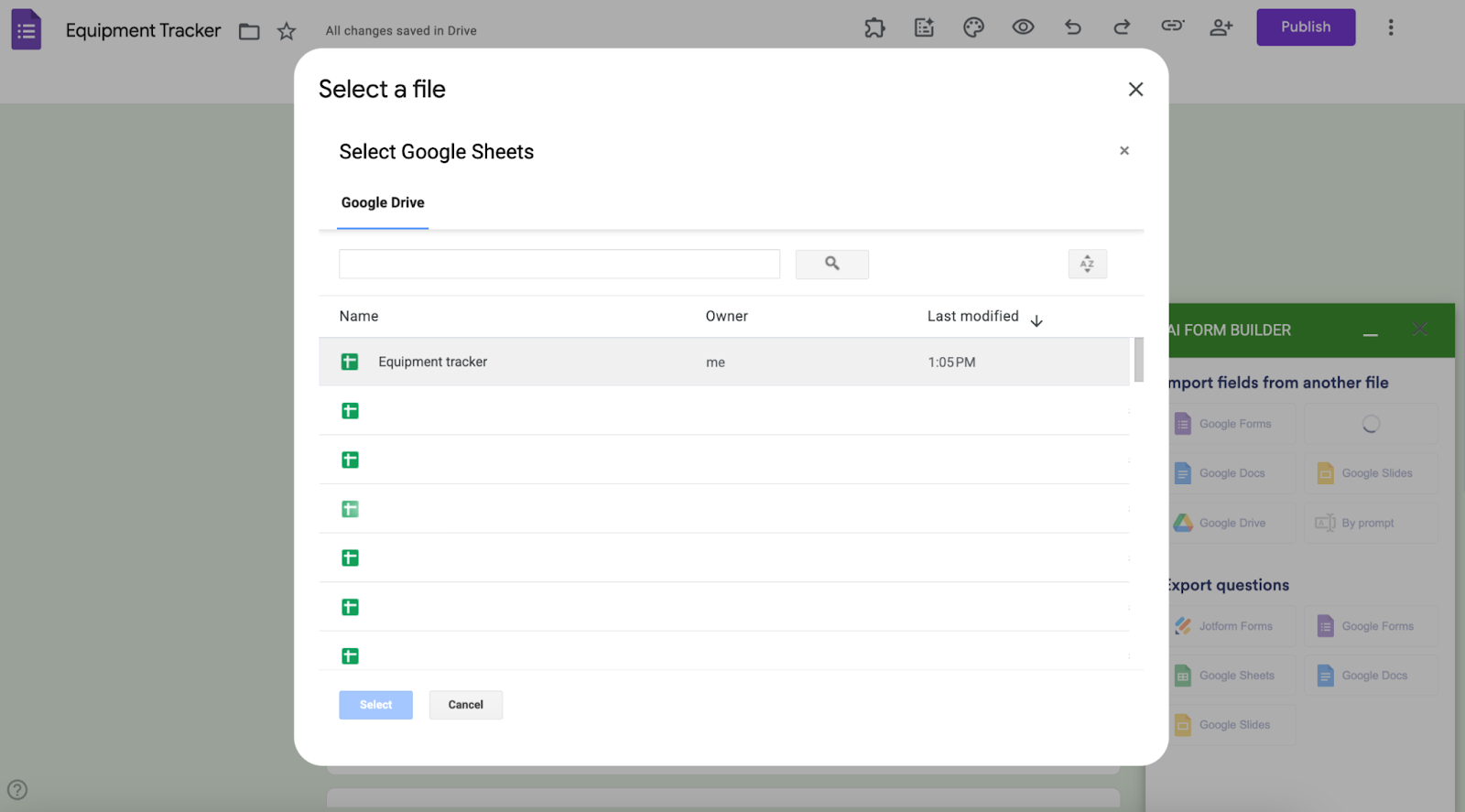
- Select the file you want to use.
- Choose the relevant tab of the sheet you’re using and select the form type — either Form or Quiz. Then click Get Questions.
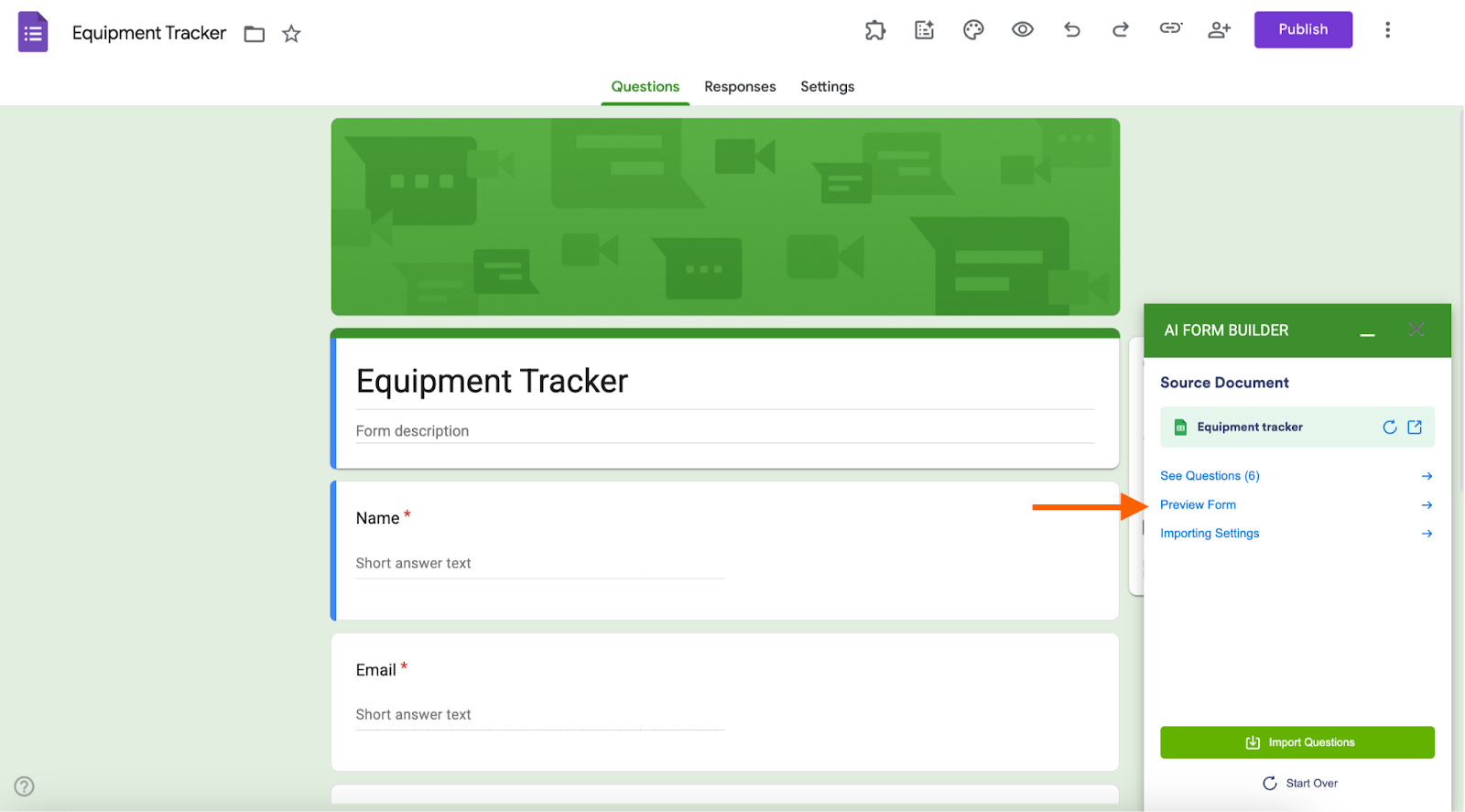
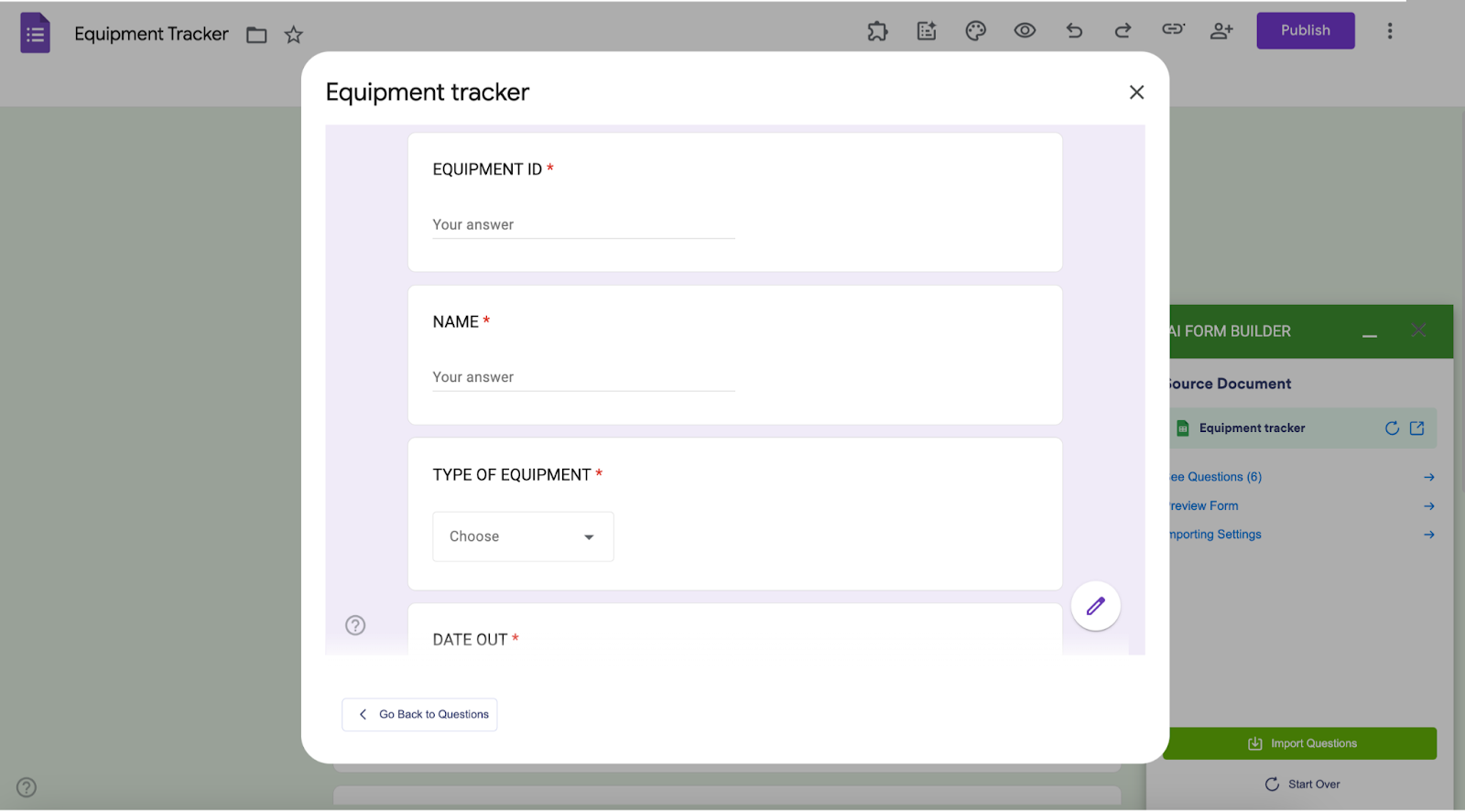
- After the AI has scanned your tables, lists, or cell content and converted the content into questions, options, or checklists, click Preview Form.
- Edit, refine, or regenerate the form as needed.
How to convert a Google Form to a Google Sheet with AI Form Builder
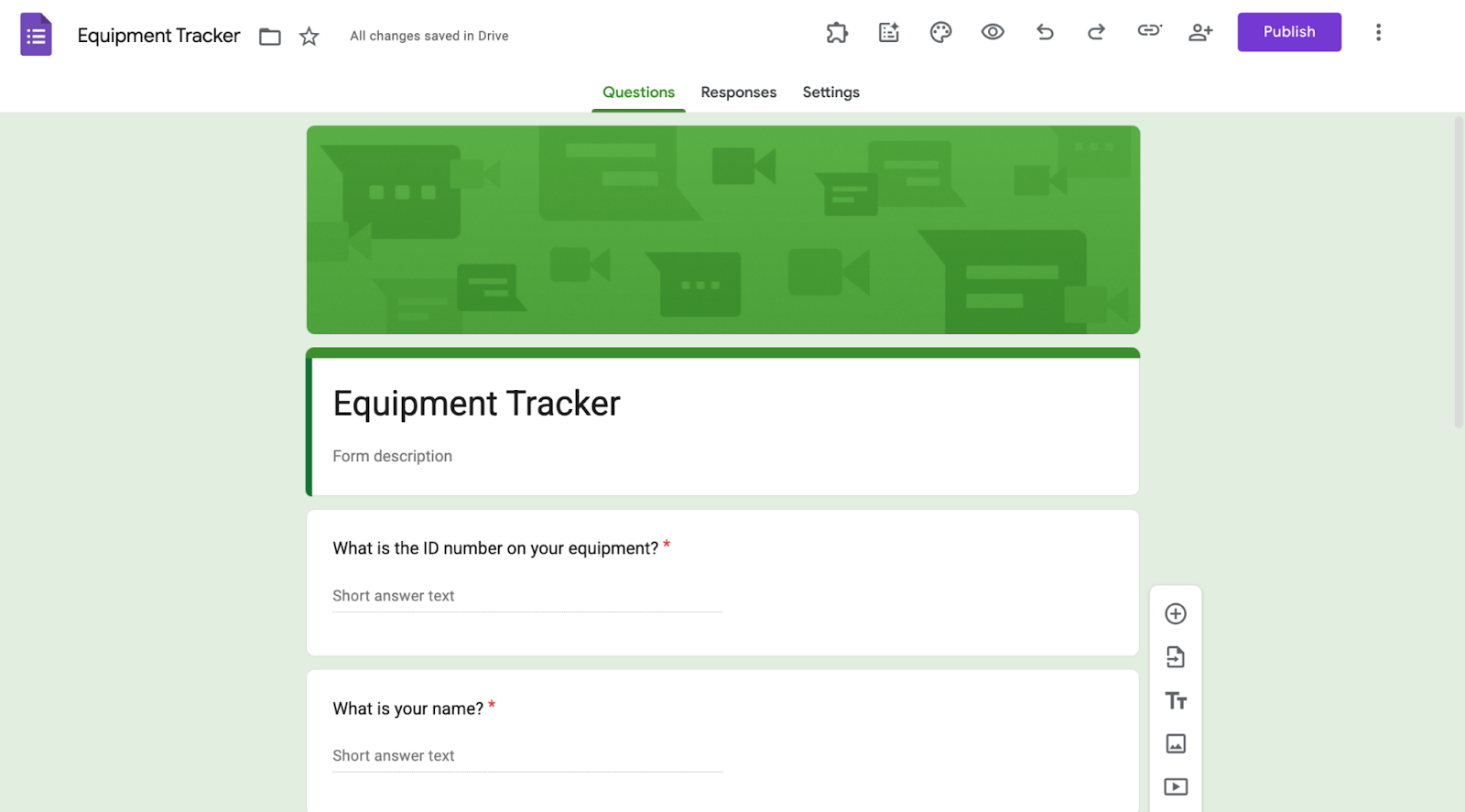
- Open the Google Form you want to export.
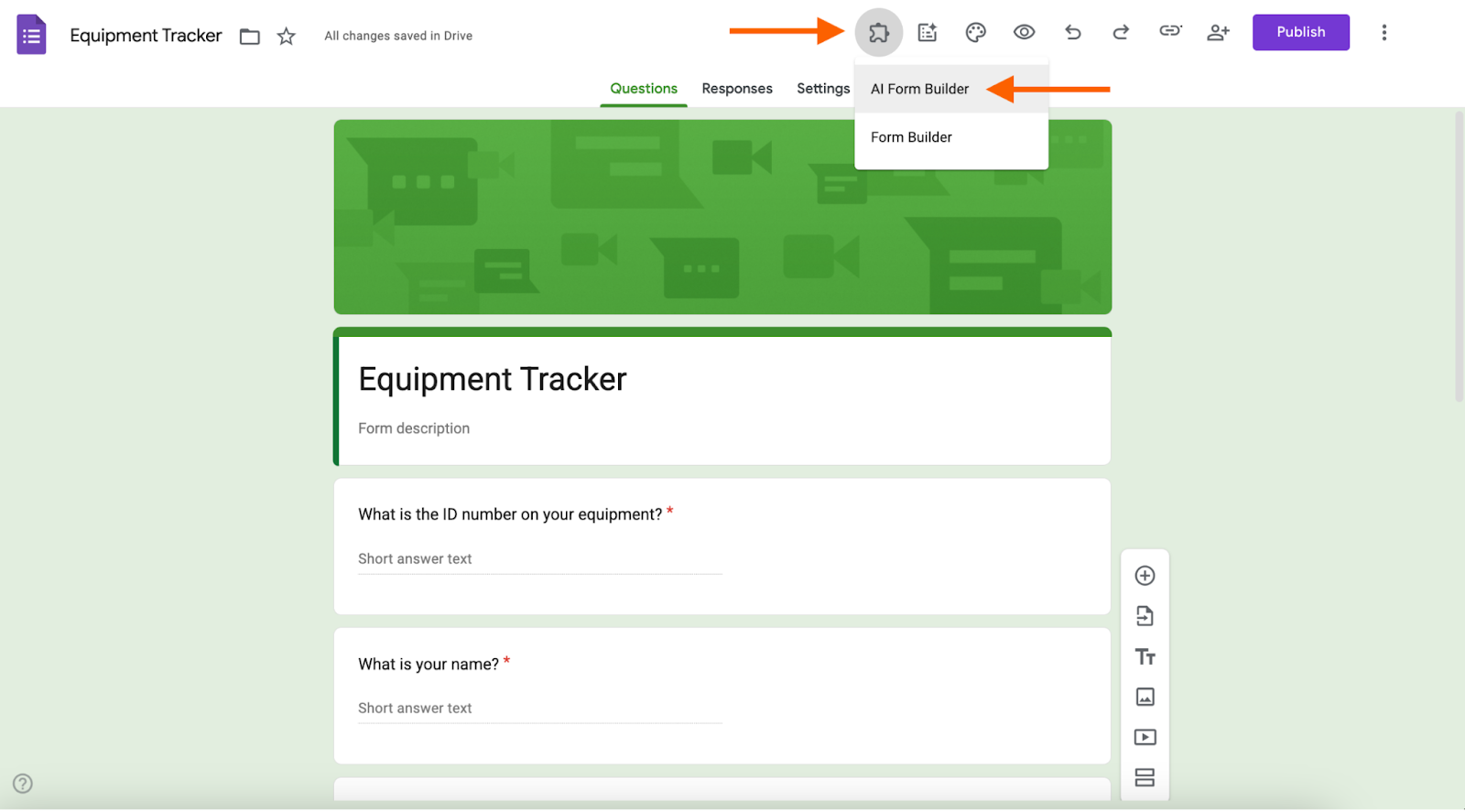
- Go to Add-ons > AI Form Builder.
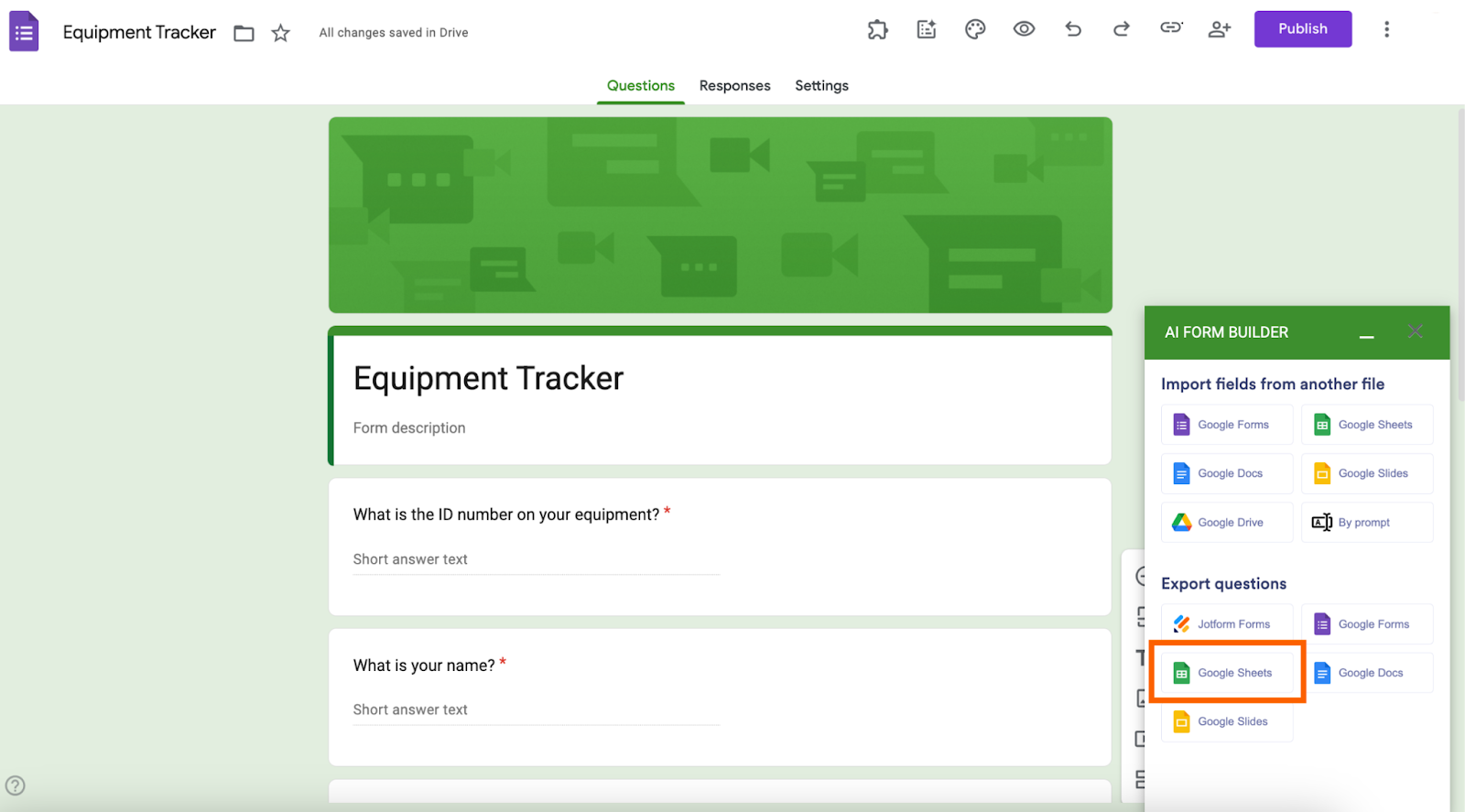
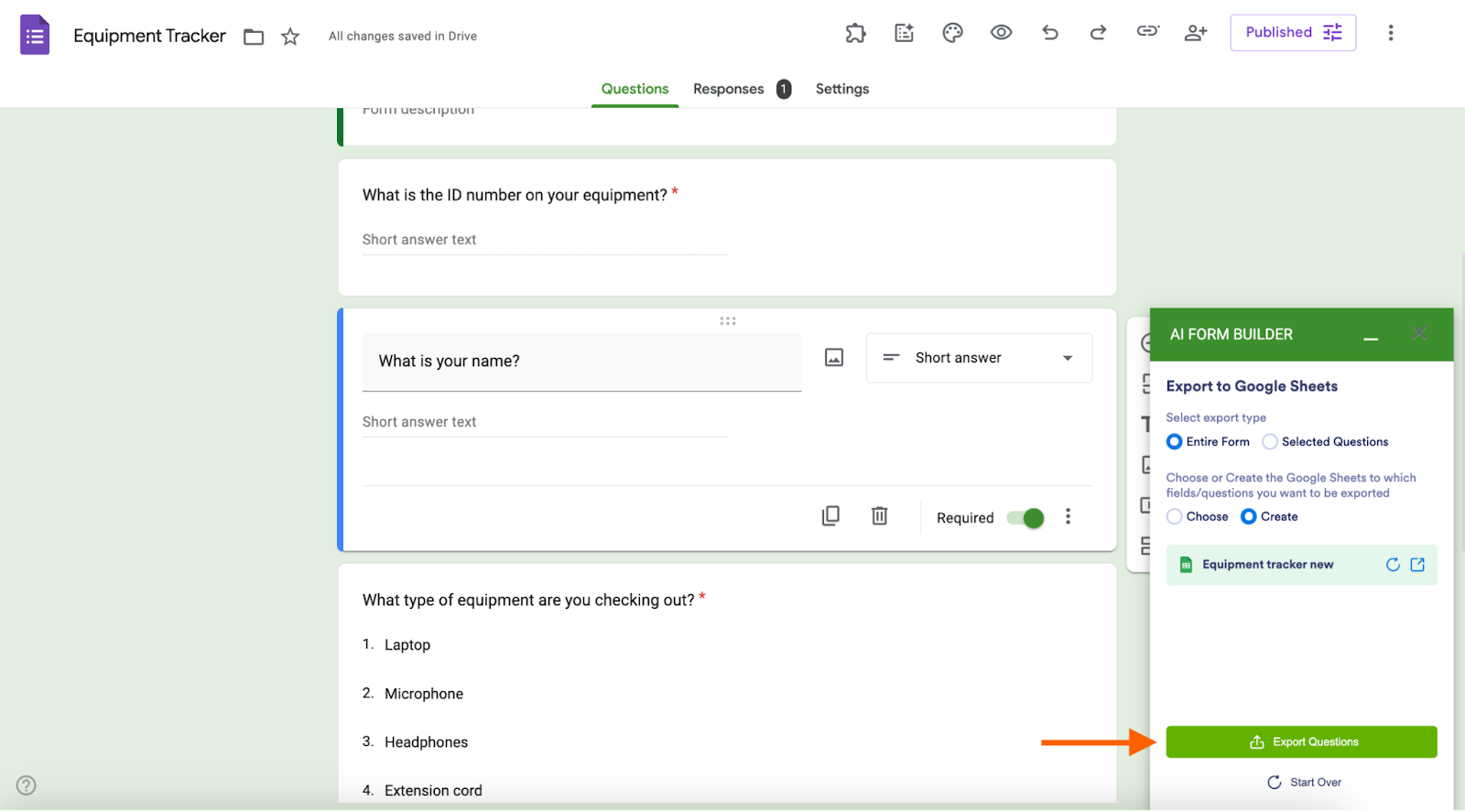
- Under “Export questions,” choose Google Sheets as the destination.
- Select the export type — either Entire Form or Selected Questions, depending on what you want to export from the form. Then click Choose to select an existing sheet to transfer content to, or Create to start a new sheet. If you’re creating a sheet, give it a file name. Click Create then click Export Questions.
- Once the AI has formatted your questions into a sheet, open the generated sheet to review the output.
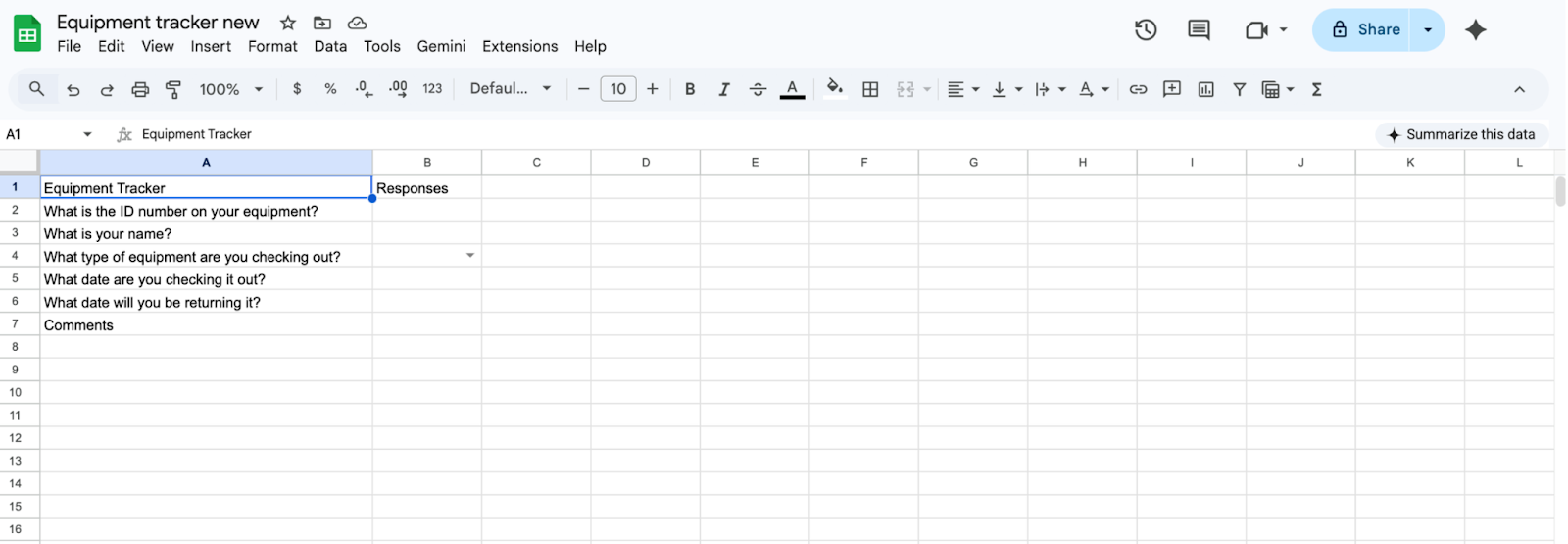
- Run the export again anytime you update the form.
Find the best way to transfer from Forms to Sheets now
To sum up, neither Google Forms nor Google Sheets has a native integration that makes it easy to convert spreadsheet content into a Google Form or turn form questions into a Google Sheet. You can complete these processes using those tools, but you’ll have to do so manually — by copying and pasting.
Luckily, Jotform has faster, more accurate methods you can use. One option is to migrate your Google Form to Jotform. This allows you to take advantage of Jotform’s automation features and advanced workflows, simplifying data management.
Another is to use Jotform’s AI Form Builder add-on inside Google Forms. Using this method, you can both import from Sheets and export to Sheets without leaving the Google ecosystem.
If you regularly use forms and spreadsheets for data collection and organization, consider giving Jotform a try. A powerful Google Forms alternative, it’s currently ranked the number one form-builder platform on G2. Plus, you can get started for free. So what’s stopping you?
FAQs on how to link Google Forms to Google Sheets
Google Sheets can sync up with Google Forms so that the sheet automatically updates every time a new form response is submitted. To set this up, you’ll need to link a specific sheet to your form in the form’s “Responses” tab.
First, create your form as usual. When your form is done, sync it with a Google Sheet by going to the “Responses” tab in the form. There you’ll find an option to link the form with a specific sheet — either a newly created one or one that already exists.
This article is for website operators, content managers, educators, and anyone who wants to streamline data collection by automatically linking Google Forms to Google Sheets for real-time syncing, automation, and easier response management.







































































































Send Comment: