
Key takeaways
- Google Forms doesn’t have a universal “submitted forms” list you can browse.
- The fastest way back to your Google Forms submission history is the View/Edit your response link shown after you have submitted the form, if the form owner has enabled it.
- Your next-best option is to search your email for a response receipt or a copy of your answers.
- If you still have the form link, open it while you are signed into the same Google account you used to submit the form.
- If you lost the link, your browser history may help you find your submitted Google Form again.
- If none of these solutions work, the form likely wasn’t configured to show responses back to respondents. You’ll need to contact the form owner to see the form again.
Want to take a look at answers you’ve already submitted in a Google Form? Unfortunately, there’s no directory of forms that will help you track yours down, so it may be difficult to locate.
But all is not lost. In this article, we show you five different solutions that address the question of how to see Google Forms you submitted.
1. Check the confirmation screen (the fastest option)
This method is best if you’ve just recently submitted your form and you want to view the Google Forms responses.
When you submit a Google Form, you’ll automatically be sent to a post-submission confirmation page. The information on the page will differ depending on the settings the form owner has enabled and customized, but you may see
- The form title
- A thank-you message
- A link to edit or view your response (if editing responses on Google Forms has been enabled by the form creator)
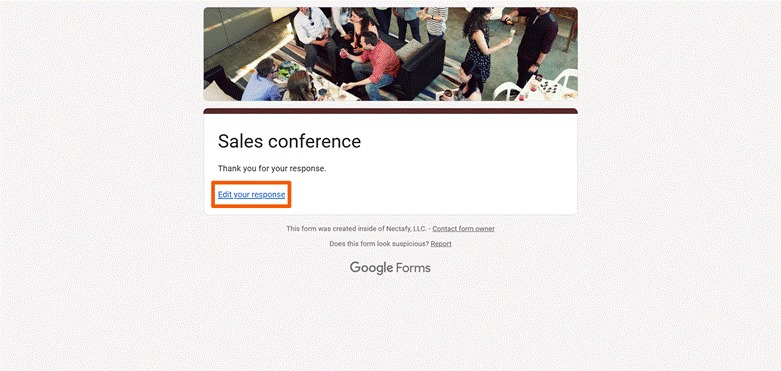
Check your Google Forms response receipt page to see if there’s a link to edit or view your response.
If you want to see your Google Forms answers, click View your response. If you want to redo a Google Form, click Edit your response. And if these options aren’t available, try one of the other solutions below.
2. Search your email for a copy of your response
This method for viewing a Google Form after submitting it only works if the form owner has enabled the settings to send respondents a copy of their form submission.
In some cases, your responses are automatically emailed to you once you complete the form. In other cases, you have to request that the form responses are emailed to you by toggling a setting at the end of the form. (Your case will depend on the settings the form owner has enabled.)
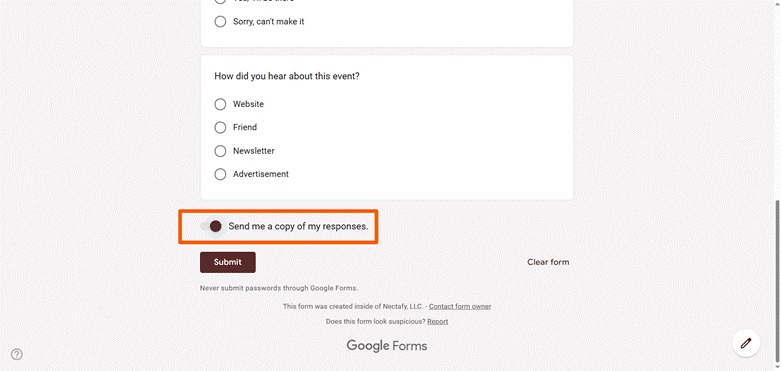
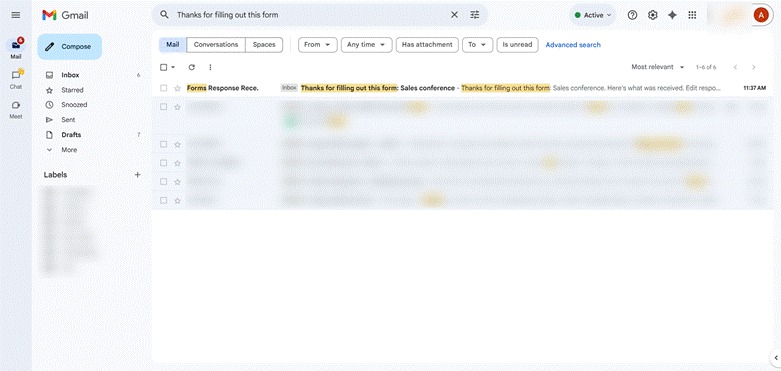
Search your email inbox for the Google Form submission email. Try searching for
- “Google Forms”
- “Your response has been recorded”
- “Thanks for filling out this form”
- The form title
- The sender’s organization name
Pro Tip
If you don’t immediately see responses for Google Forms in your inbox, don’t panic. Try searching other folders besides your inbox, such as Spam, Promotions, and other tabs. The Google Forms response receipt email may be in a different folder.
3. Open the form again when signed into the same account
This method might work for you if a few specific conditions are in place:
- The form owner has enabled settings to collect email addresses from form respondents.
- The form owner has enabled settings to require respondents to be signed into an email account.
- The form owner has enabled settings to allow editing after the form has been submitted.
- You haven’t permanently deleted any form-related emails from your inbox.
- You remember what email you signed into in order to complete the form.
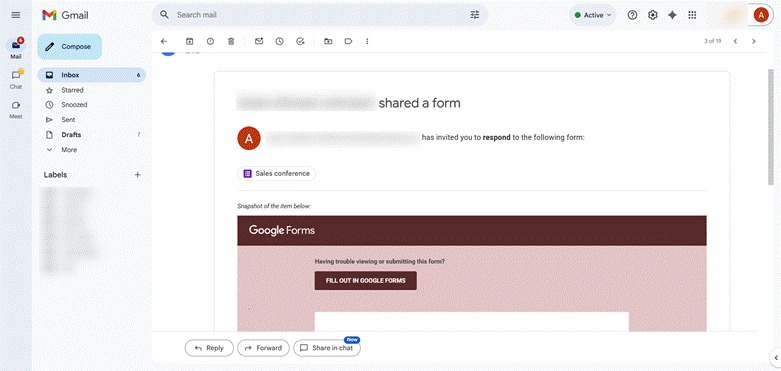
If all these conditions are met while using Google Forms, you can try to open the form again from the form invitation. Here’s what you need to do:
- Log into the Gmail account you used when you filled out the form.
- Search for the form invitation.
- Open the form invitation.
- Click Fill out in Google Forms. This will open the Google Form. Note that the form may not have saved your responses depending on the form and browser settings.
Pro Tip
Don’t see any Google Forms email notifications or form invitations in your inbox? It’s possible you’re using a different email account than the one you used to submit the form. Make sure you’re logged into the right email account when trying this method.
4. Check your browser history (if you don’t have the form link)
One of the major cons of Google Forms is that it doesn’t let you see your Google Forms history. If you don’t have a Google Forms response email and none of the above methods have worked so far, try checking your browser history.
This method will only work if you’re using the same device and browser you used to submit the form. Your network administrator also has the ability to turn off browsing history.
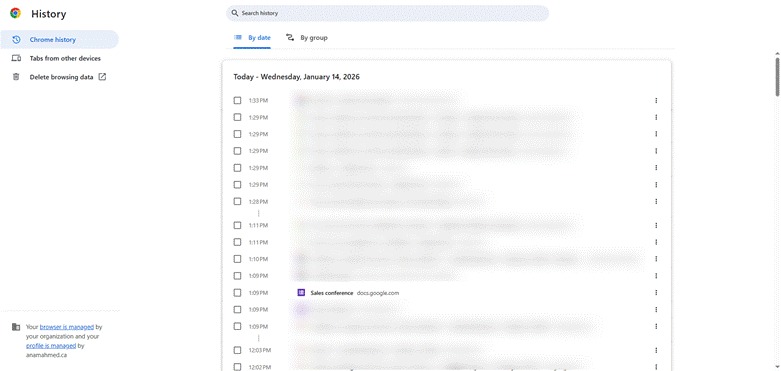
The steps for checking your browser history will differ slightly depending on your browser and settings. Here are the steps to check your browser history in Chrome:
- Open Chrome.
- Click the vertical three-dot icon in the top right.
- Click History > Select History.
You can now see your browser history by date or by group. Scroll through the history to find the Google Form you submitted. Click on the Google Form to open and view it.
5. Contact the form owner
If you’ve tried all the methods above and still haven’t been able to see the Google Form you submitted, it’s time to try this last solution: Contact the form owner.
To do this, you’ll need to have their email address or phone number. You can then take the following actions depending on your needs:
- Ask for a copy of your form response or submission confirmation via email: This way, you can review the form you submitted and make edits using the “Edit your response” link if it is available.
- Ask to confirm your submission date and time: Use this information to look up your browser history and find the link for the Google Form.
- Ask if you can resubmit your form: If the form owner accepts duplicate submissions, you can submit another copy of the form.
Pro Tip
Are Google Forms’ limitations holding you back? Why not explore a more sophisticated online form builder like Jotform? One of the best Google Forms alternative solutions out there, Jotform offers a range of features like conditional logic, response validation, 20,000-plus form templates, and so much more.
FAQs about seeing Google Forms after submission
Once you’ve submitted your form, you may receive a Google Forms submission confirmation via email. Your responses will automatically be saved in Google Forms and exported to Google Sheets by the form owner.
Once you’ve submitted a Google Form, you can’t recover it. However, if the form owner has enabled certain settings, you can view or edit the form by clicking on the link on the Google Forms confirmation screen or in the Google Form submission confirmation email. You can also resubmit the form if duplicate submissions are allowed.
To find a Google Form you made previously, go to Google Forms. Search for the form title in the search bar or scroll through your recent forms.
If the form owner has enabled certain settings, you can view a Google Form after you’ve submitted it. Look at the Google Forms confirmation screen or Google Forms submission confirmation email to view your response. You can also try checking your browser history to go back to the form.
This article is for students, employees, customers, and anyone who filled out a Google Form and needs to find their submitted answers again. It should help readers understand what’s possible (and what isn’t), then walk them through the most common ways to recover a submission, confirmation link, or email receipt, plus what to do when viewing responses isn’t enabled.








































































































Send Comment: