
If you’ve ever created a multiple-choice quiz from scratch, you know it’s not easy. Coming up with the right questions, figuring out the ideal quiz structure, and determining the best design takes time and effort. Luckily, you can use artificial intelligence tools like ChatGPT to make the process easier and more efficient.
If, however, you’re a Google Forms user, there’s something you need to be aware of: Google Forms doesn’t have a native integration with ChatGPT, meaning you’ll have to use a work-around with Google Apps Script.
This solution may feel like a hassle for nontechnical users — it involves code and introduces room for error. But don’t worry. In this article, we’ll provide step-by-step instructions for creating a multiple-choice quiz in Google Forms using ChatGPT and Google Apps Script, so you’ll know exactly how to make your own. Plus, we’ll introduce you to an easier alternative: Jotform, the online form builder with a native ChatGPT app that makes building quizzes a breeze.
Looking for the best alternative to Google Forms?
Jotform’s full-featured form-building solution is mobile-friendly and has the most integrations in the industry. Use it to collect payments, automate workflows, gather leads, and more.
Step by step: How to generate a multiple-choice quiz in Google Forms using ChatGPT
Google Forms has many useful features, but one major downside is its lack of a native way to connect with ChatGPT. As a result, you’ll have to use a complex work-around if you want to create a quiz in Google Forms using the AI platform.
While the process isn’t speedy or simple, using Google Apps Script helps get the job done. But this method may seem intimidating if you don’t have any experience using code. Let’s walk through it step by step:
- Open ChatGPT.
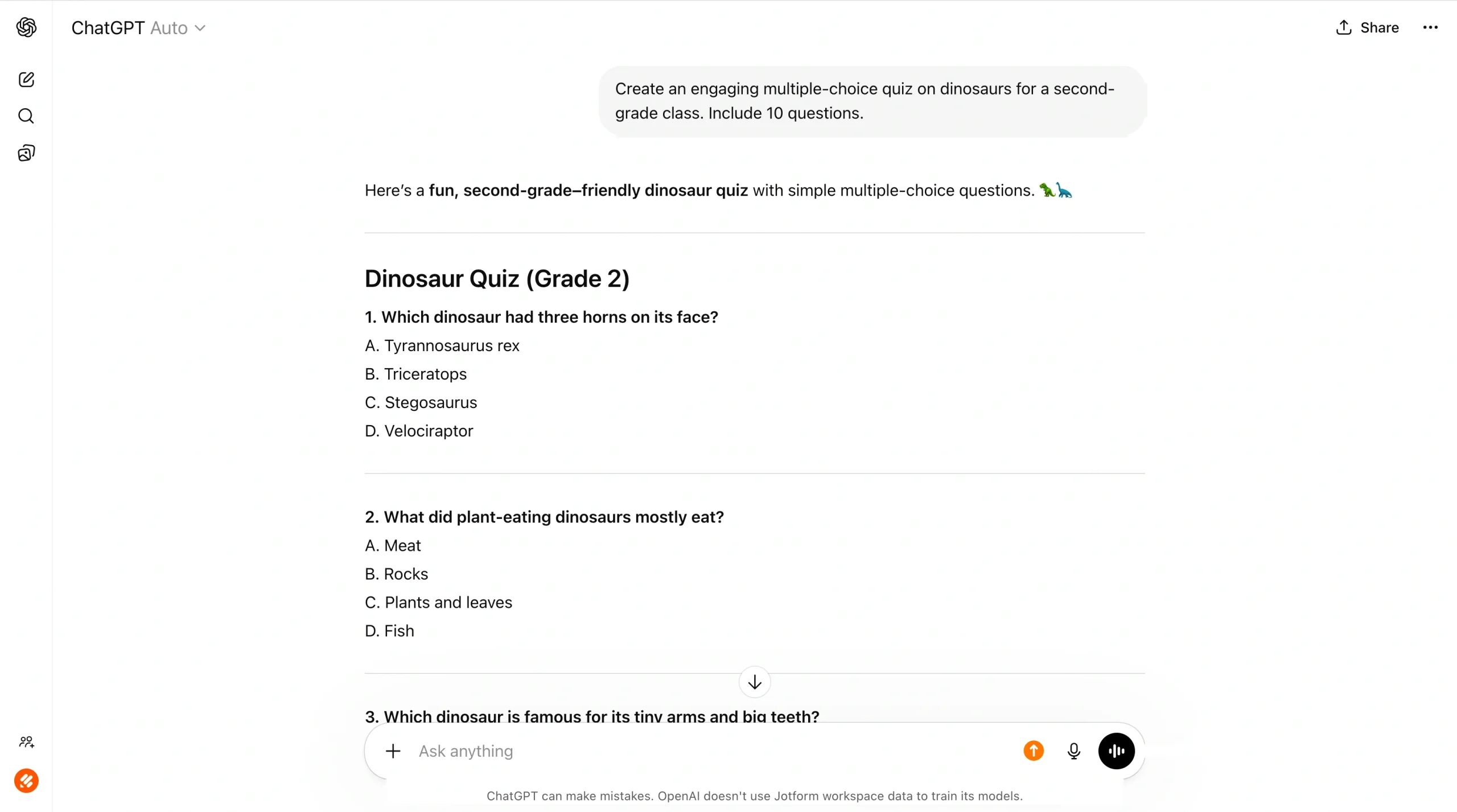
- Prompt ChatGPT to provide you with quiz questions. Be as specific as possible to get the best results.
Example prompt: Create an engaging multiple-choice quiz on dinosaurs for a second-grade class. Include 10 questions.
ChatGPT will then generate the quiz content for you.
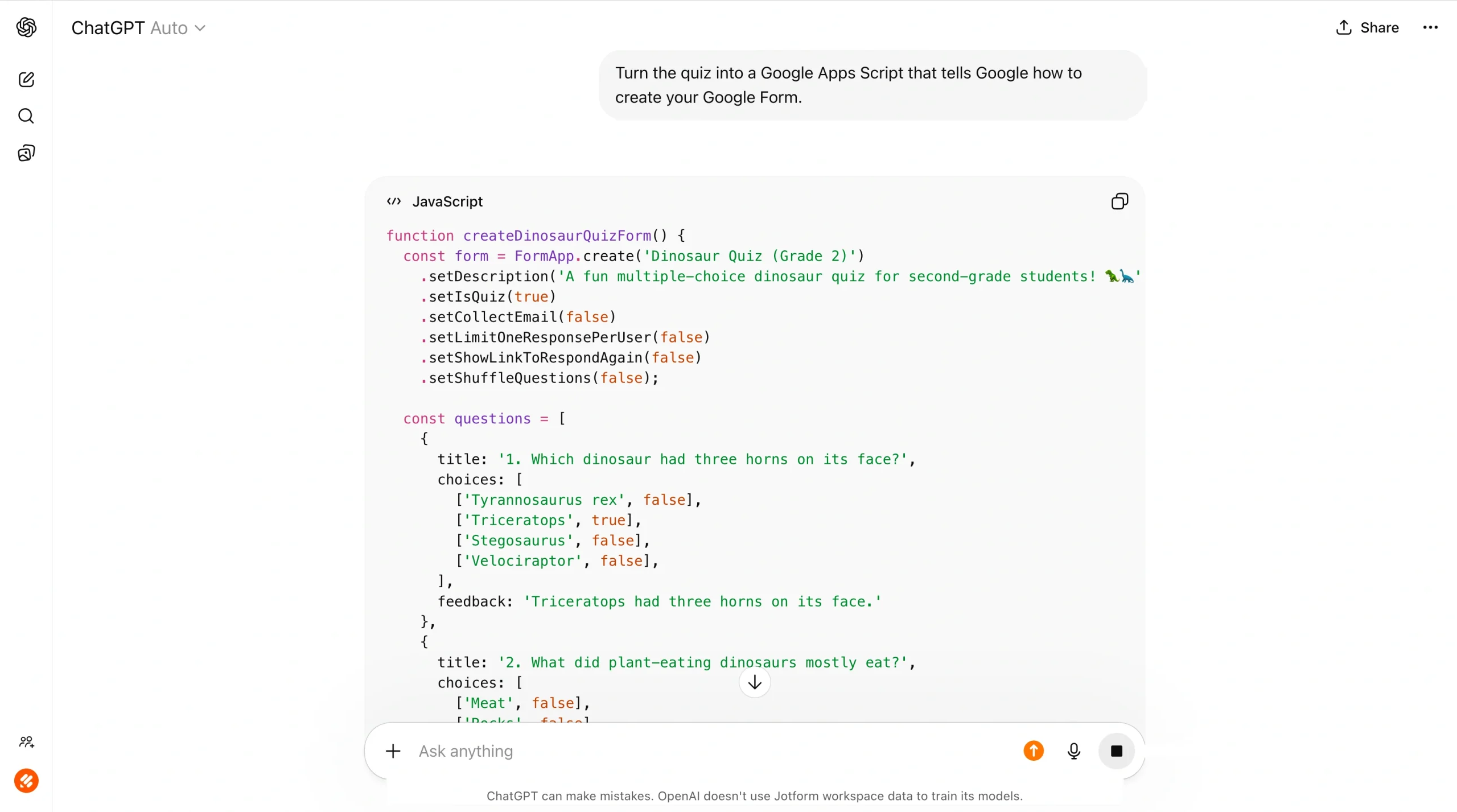
- Next, prompt ChatGPT to turn the quiz into a Google Apps Script that tells Google how to create your Google Form. ChatGPT will provide you with a block of code. Click the copy icon in the upper-right corner of the chat window to copy the code.
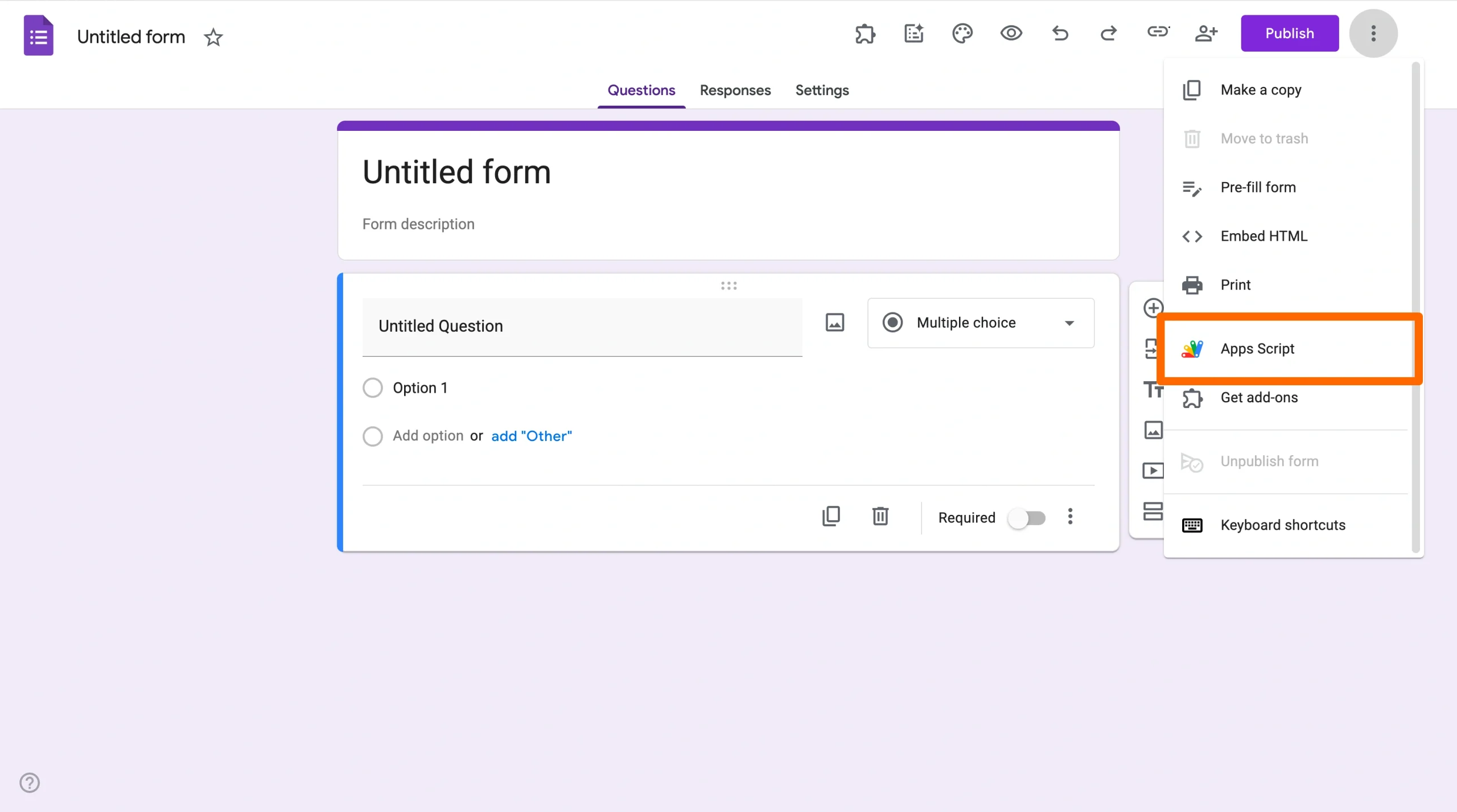
- Go to Google Formsand open a blank form.
- Click the vertical three-dot icon and select Apps Script from the dropdown menu.
- Paste the code copied from ChatGPT in Step 3 into the script.
- Select Save. Then,click Run.
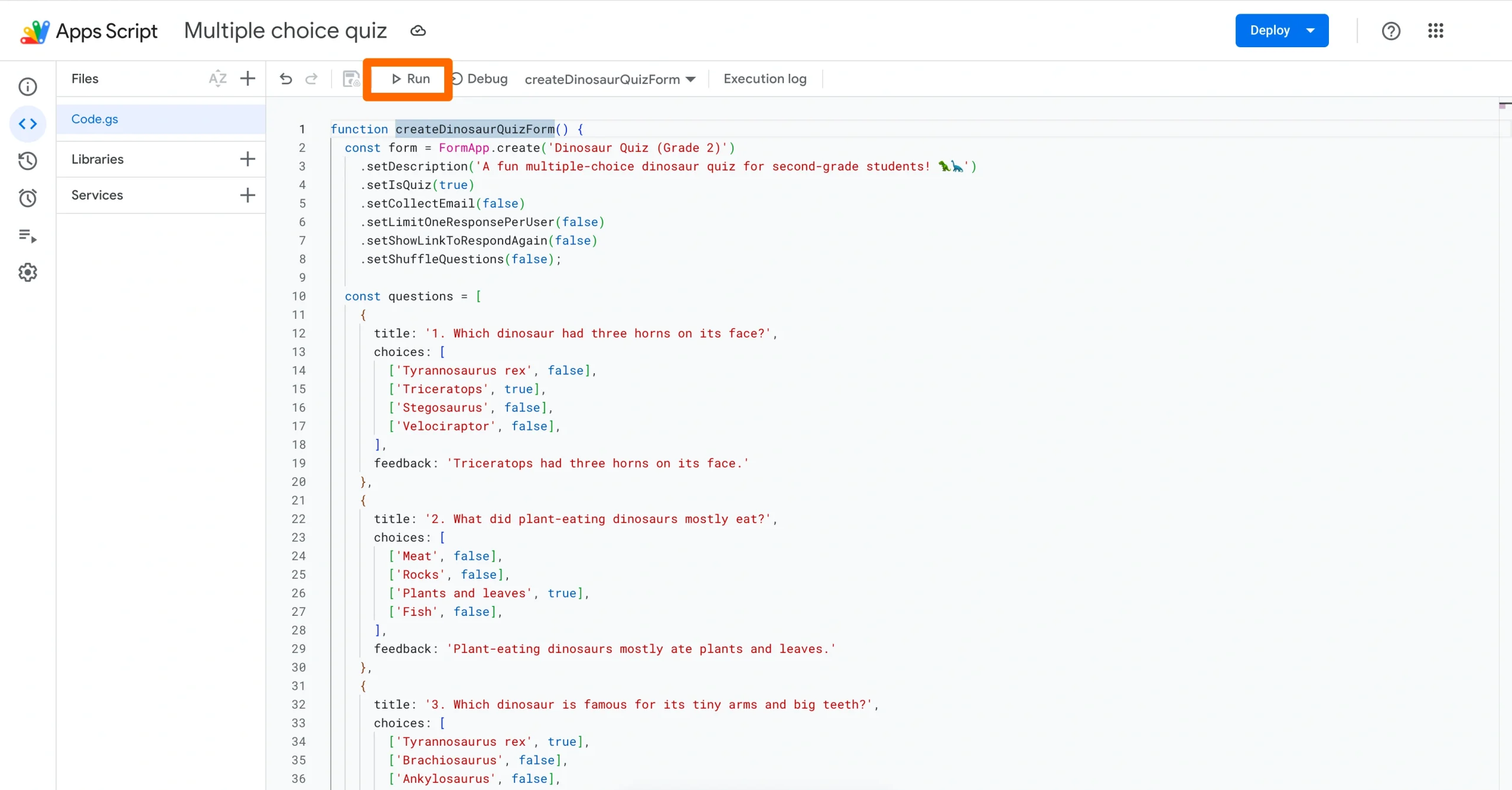
Google Apps Script may request permissions to complete the action. After you provide any necessary authorization, it will create your multiple-choice quiz in Google Forms, which you can then find in your Google Drive.
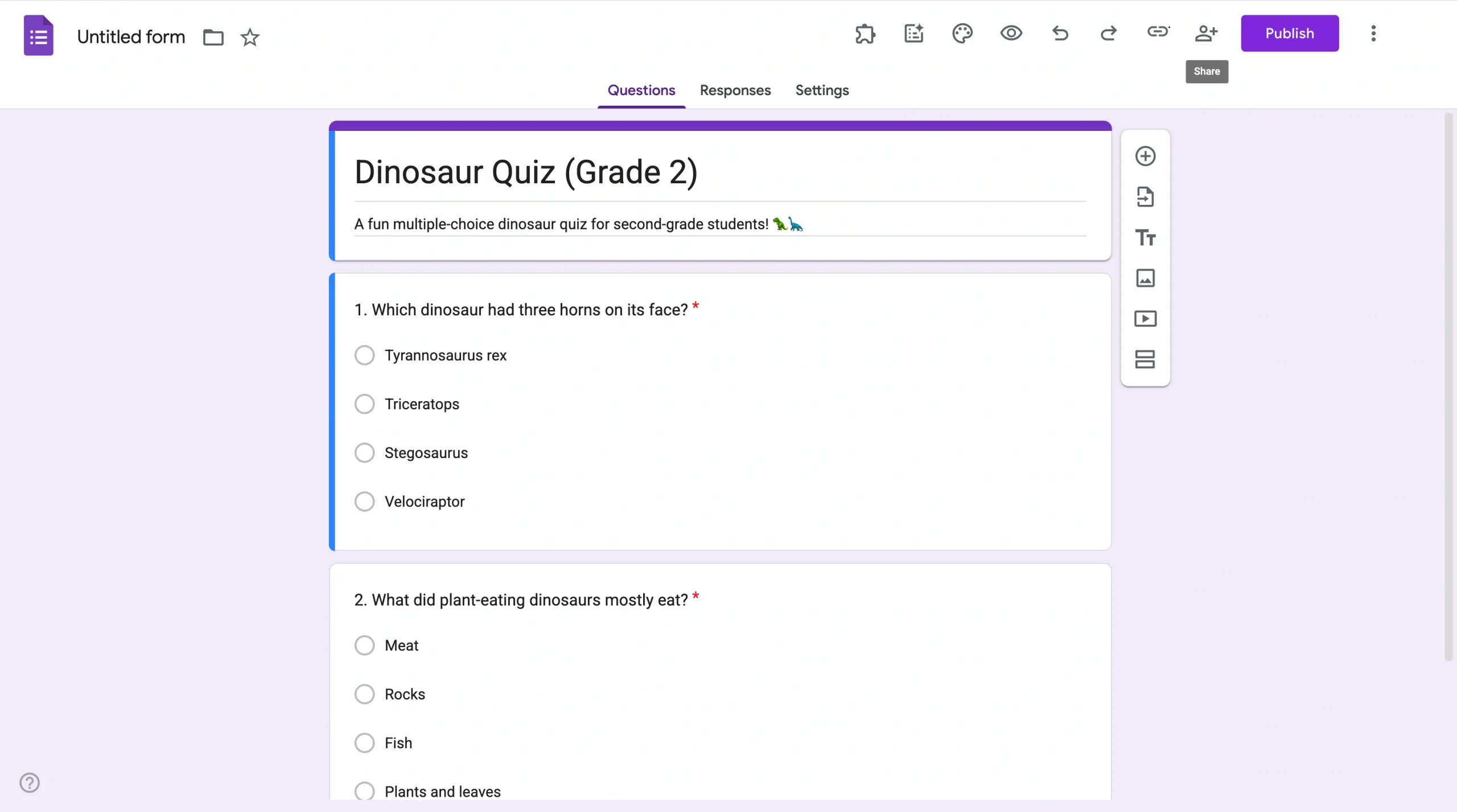
- Review the quiz and make any edits as necessary. Then, click Publish.
Pro Tip
To learn more about the process of creating Google Forms quizzes without AI tools, check out our helpful guides on how to use Google Forms, how to create a Google Form, and how to add a multiple-choice grid in Google Forms.
Troubleshooting suggestions
While using Google Apps Script is a good way to create a multiple-choice quiz in Google Forms using ChatGPT, you may still encounter some code-related issues. If that’s the case, try these fixes to correct the problem:
- Prompt ChatGPT to revise the code based on the error message generated by Google Apps Script.
- Make sure you’ve copied and pasted the full code from ChatGPT into Google Apps Script.
- Use a new Google Apps Script file instead of writing over an older one.
Jotform ChatGPT App: An alternative way to create multiple-choice quizzes
If you’re frustrated by how difficult it is to make a multiple-choice quiz in Google Forms using ChatGPT, it’s time to explore other options. Enter Jotform.
Jotform is the best Google Forms alternative around, combining the intuitiveness of Google Forms with sophisticated and highly advanced features like conditional logic, custom design, and so much more. (Want to see how Jotform works? Learn all about the form builder tool here.)
Unlike Google Forms, which has no native integration with ChatGPT, Jotform also has a native ChatGPT App that lets you create quizzes and forms directly inside ChatGPT using simple prompts.

Here’s what you can do with the Jotform ChatGPT App:
- Create and edit forms without any scripts: Use prompts in ChatGPT to generate any kind of form, quiz, or survey. You can also use prompts to update existing questions, settings, and structure, as well as add or remove fields.
- Customize form design: Ensure that every form you create aligns with your preferred style by using simple prompts to change the theme, layout, and colors. There’s no need to fiddle with complex code or design tools.
- Analyze results: Use prompts to pull response lists for a form and filter answers by data, status, or keyword. You can also ask ChatGPT to spot trends or highlight unusual answers to trigger a specific response.
Jotform ChatGPT App offers native integration with ChatGPT, so there’s no need to go back and forth between tools. Everything happens inside ChatGPT until you’re ready to open your form in Jotform.
How to create a multiple-choice quiz using Jotform ChatGPT App
Want to learn how easy it is to use the Jotform ChatGPT App? Simply follow the steps below. Note that you will need both a ChatGPT account and a Jotform account to proceed.
- Open ChatGPT.
- Click Apps. Then, search for and select Jotform.
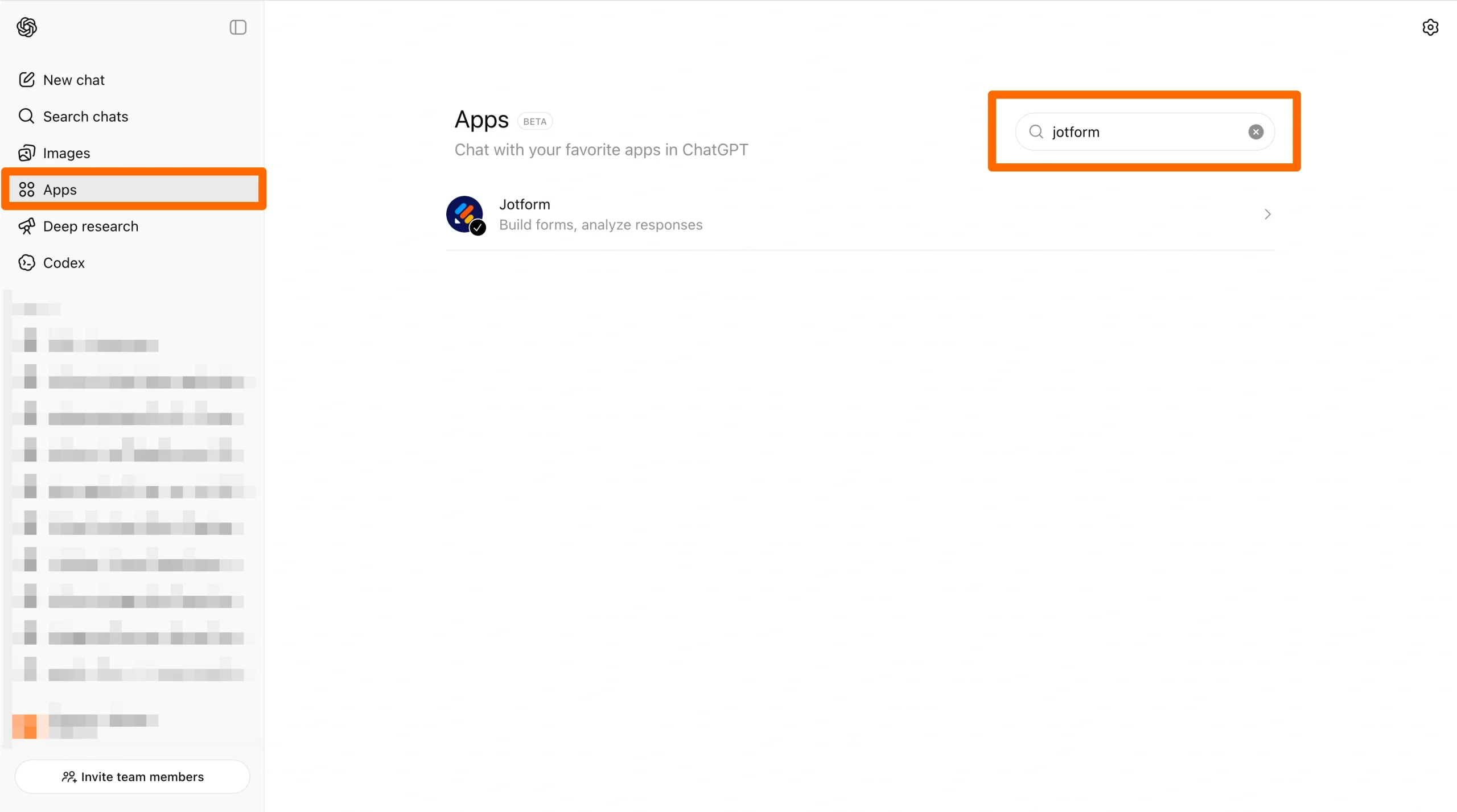
- Click Connect. Follow the prompts to connect the app with your Jotform account.
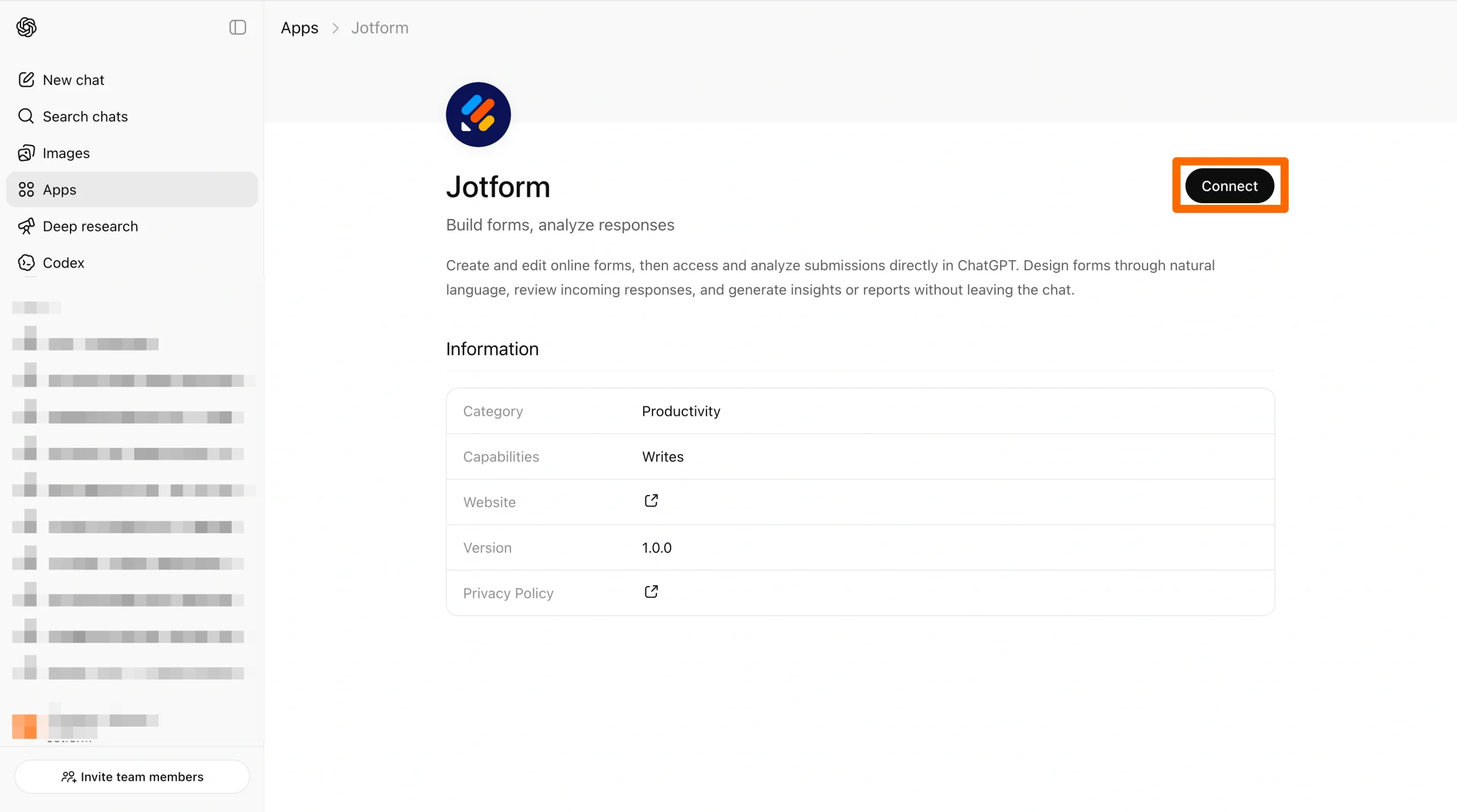
- Click Start chat.
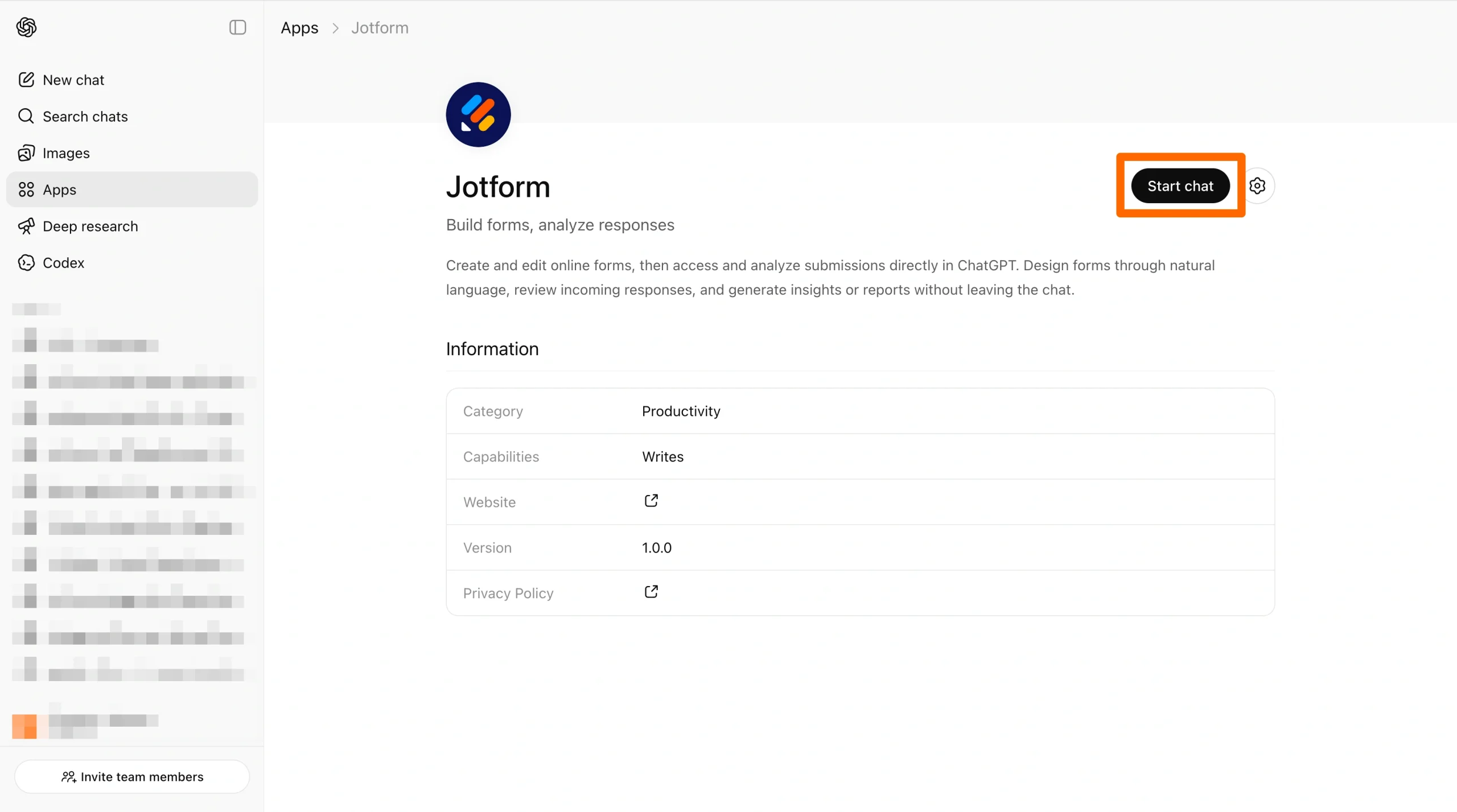
- Enter a prompt to create your multiple-choice quiz.
Example prompt: In Jotform, create a multiple-choice quiz for lead generation for a skincare company. The quiz helps prospects figure out which product is right for them.
Once submitted, ChatGPT will generate your quiz and display a preview with an “Edit in Jotform” option.
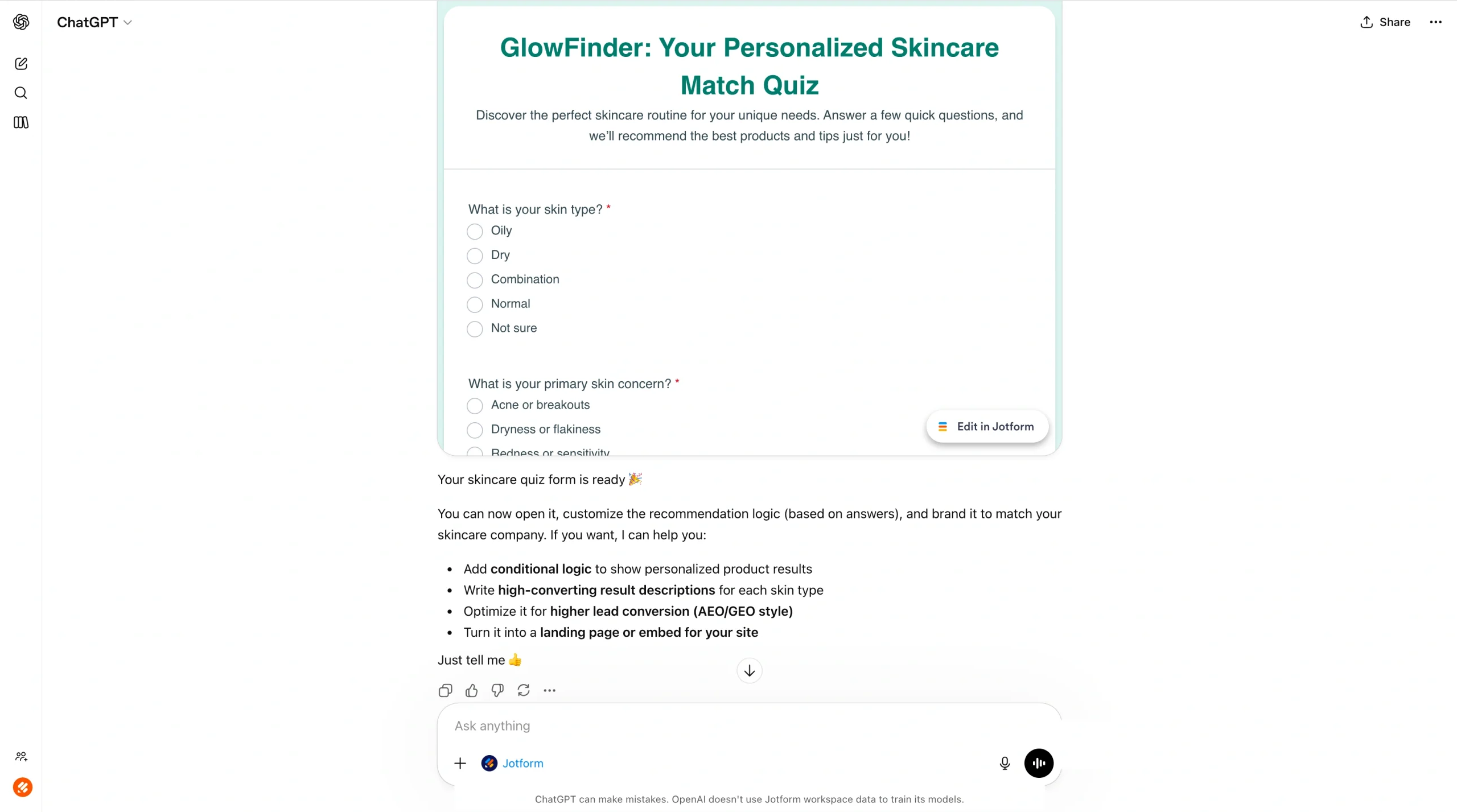
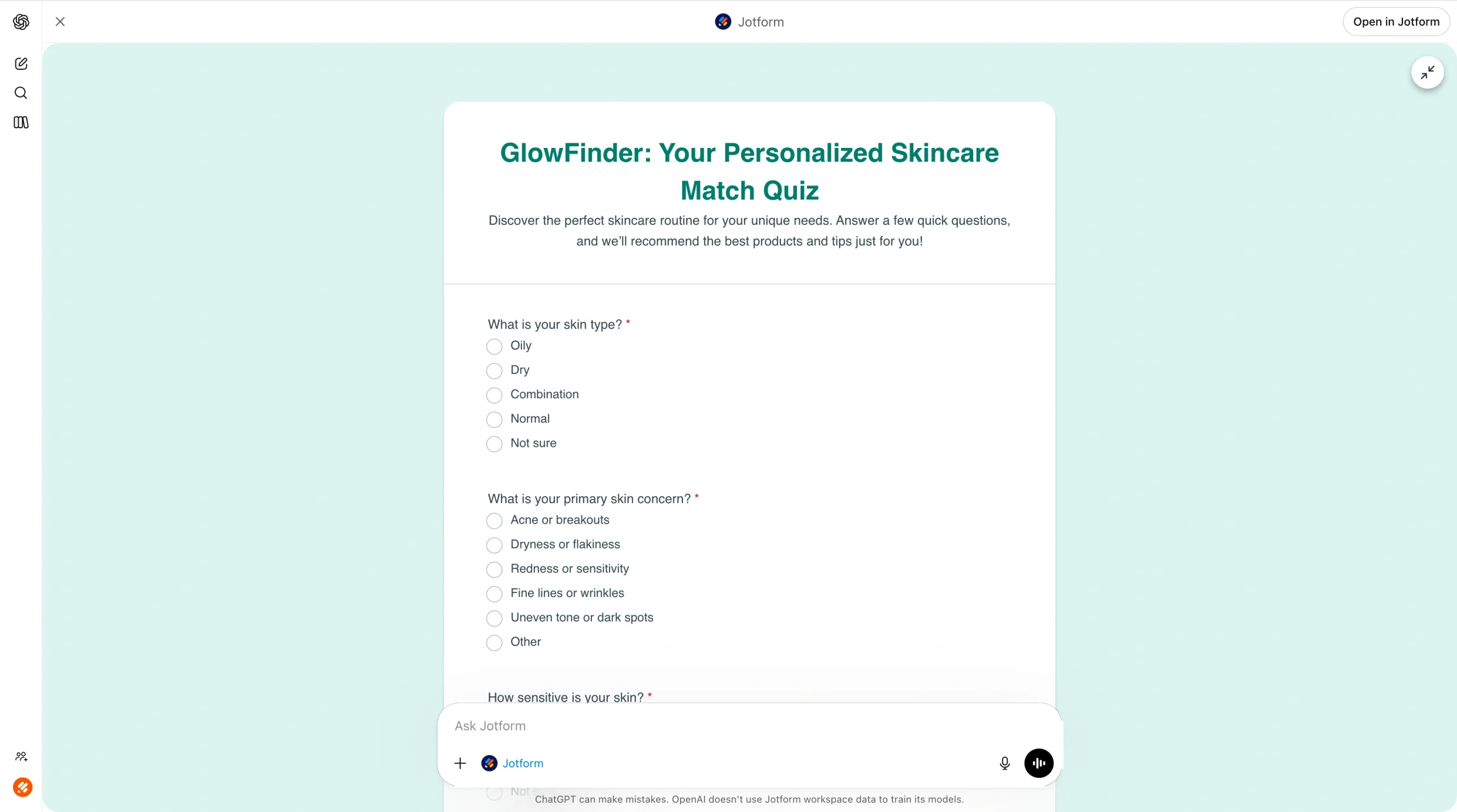
- Click the expand icon on the quiz preview to view the full form.
You can then edit the quiz by asking for more details or requesting a change in ChatGPT. For instance, you could say, “Add a question about their skincare routine.”
- Refine the quiz by asking for design edits as needed. For example, prompt the Jotform ChatGPT App to “refresh the design so that it is simple, clean, and modern.”
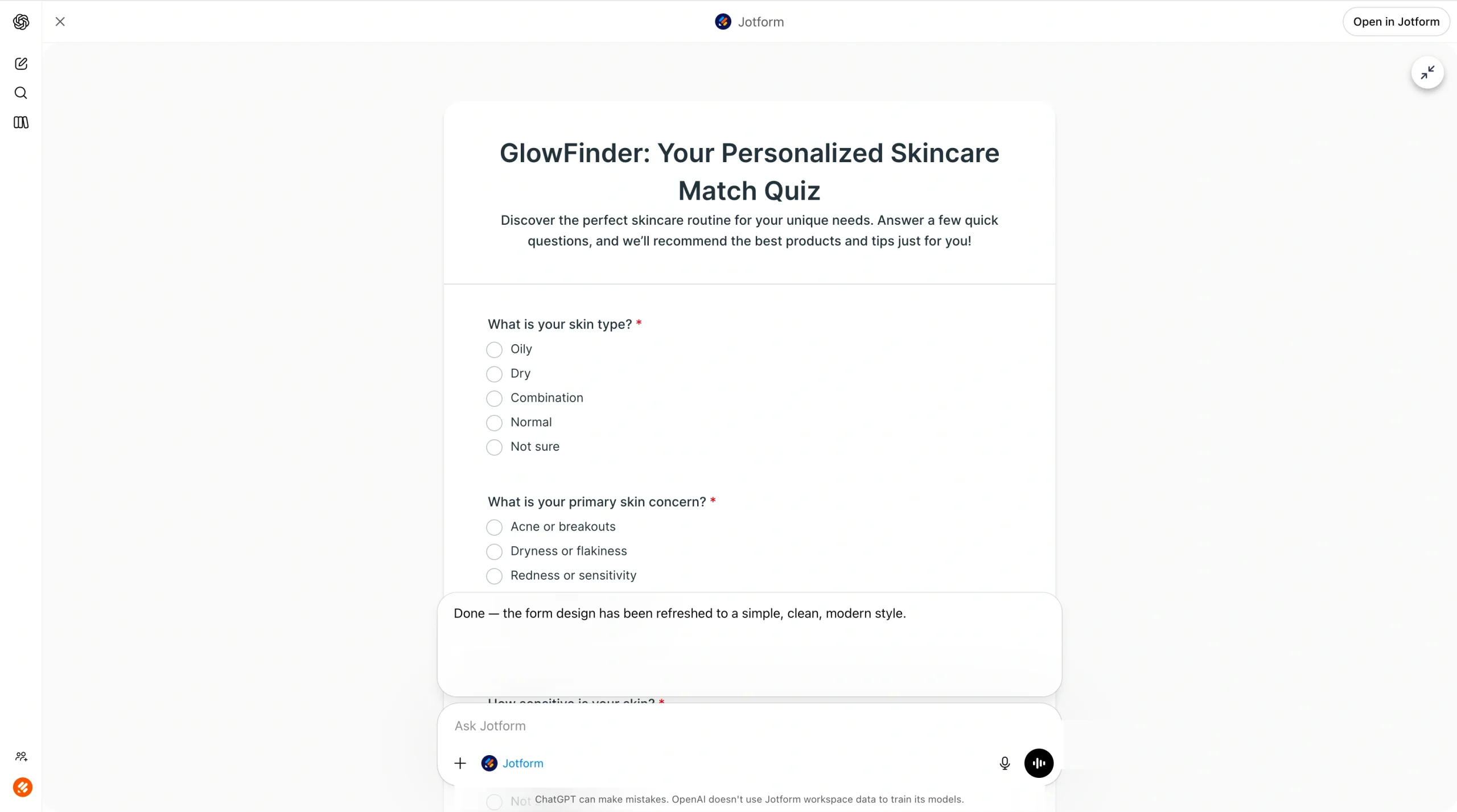
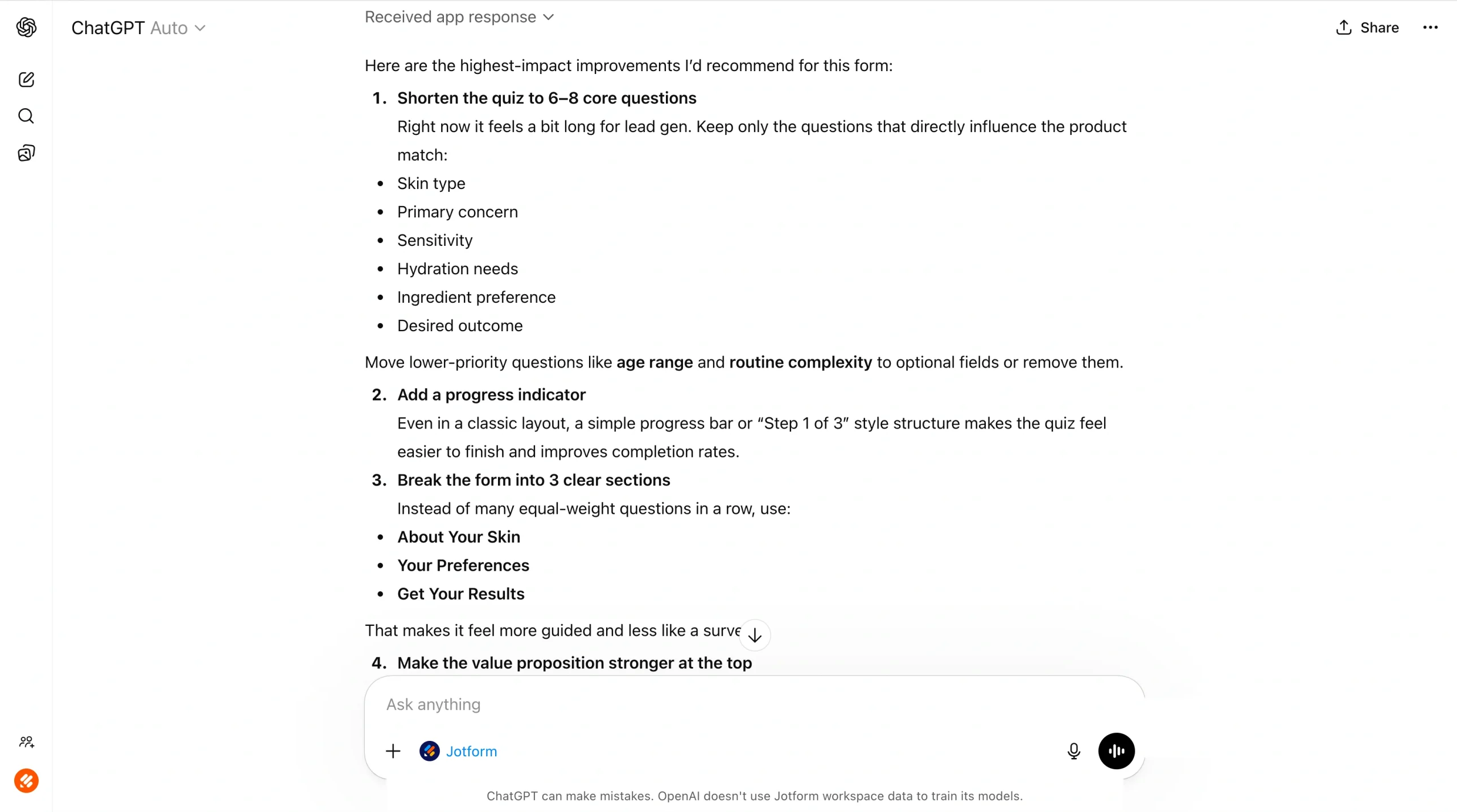
As it makes the edits you’ve requested, the Jotform ChatGPT App offers a detailed rundown of all its actions. This way, you can either confirm that you’re happy with the modifications made or request additional changes as needed. The app also provides further suggestions for refinement. In our multiple-choice skincare quiz example, ChatGPT suggests adding a progress bar to the quiz.
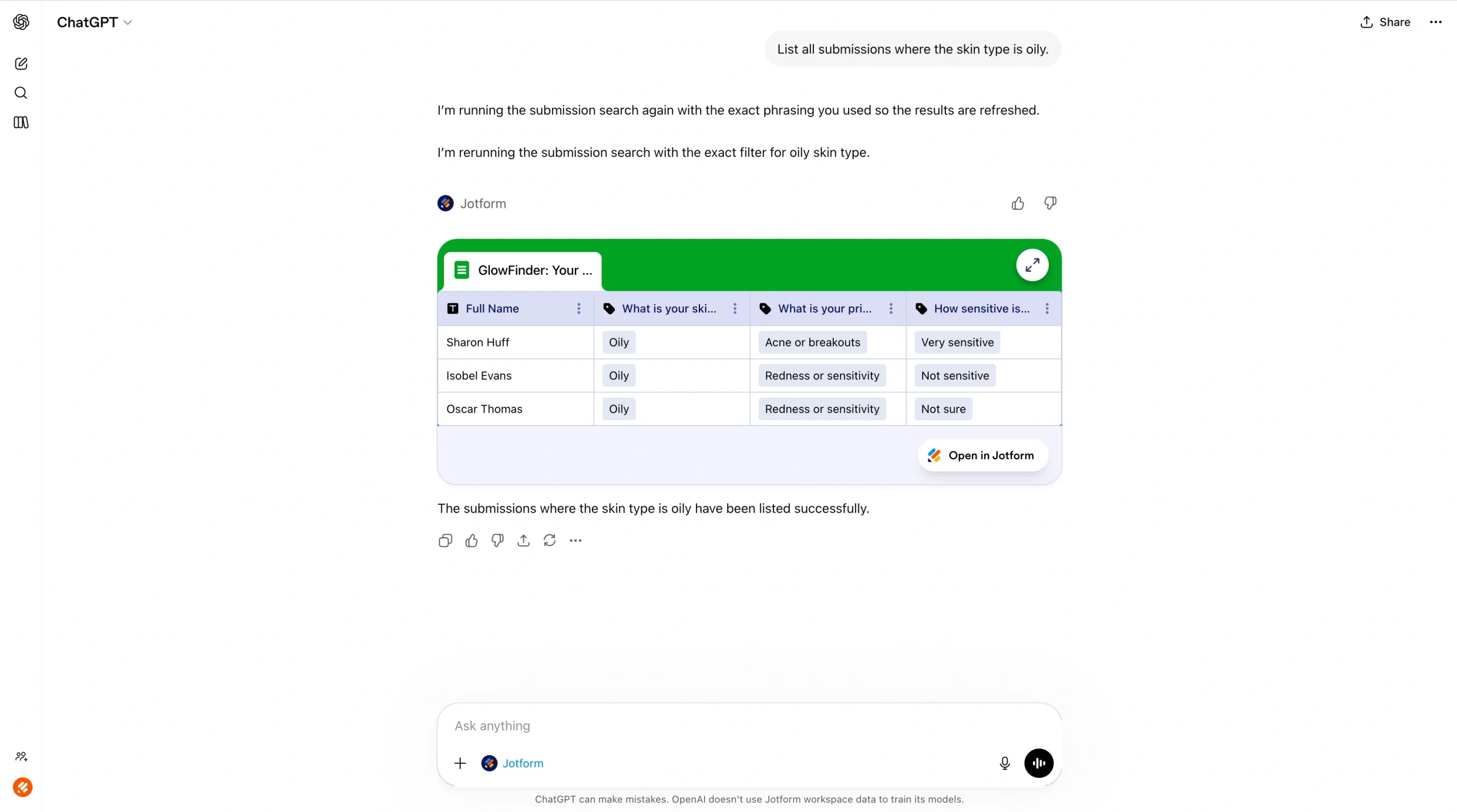
- Once your quiz is finalized and you have sent it to respondents, you can use the Jotform ChatGPT App to analyze responses. For example, you can prompt the app to list responses and summarize trends, filter submissions by a specific answer, or highlight any patterns or anomalies.
Make multiple-choice quizzes the easy way with Jotform
While you can technically create a multiple-choice quiz in Google Forms using ChatGPT, it’s no easy task. With no native integration, you have to use Google Apps Script to do the job, which can be difficult for those without coding experience.
The Jotform ChatGPT App is an excellent alternative. An easier, more intuitive way to create quizzes with the help of AI, Jotform ChatGPT App lets you create, edit, refine, and analyze multiple-choice quizzes directly within ChatGPT. Simply prompt the app to tell it what you need, and it provides you with a fully complete multiple-choice quiz in Jotform.
The Jotform ChatGPT App is free to use, making it accessible for everyone. Try it today and see just how easy it is to create multiple-choice quizzes with ChatGPT and Jotform!
This article is for readers exploring AI-assisted quiz creation, especially those comparing Google Forms work-arounds with more intuitive form-building options and looking for a simpler way to create, refine, and manage multiple-choice quizzes.








































































































Send Comment: