
Key Takeaways
- Google Forms does not support true ranked-choice voting, but you can approximate it using a work-around like a multiple-choice grid or separate multiple-choice ranking questions.
- The multiple-choice grid method is the most reliable option inside Google Forms since it prevents duplicate rankings and keeps responses structured.
- Using a separate multiple-choice question for each rank is easier to set up, but it increases the risk of inconsistent or repeated answers and requires more cleanup.
- Google Forms can’t automatically count ranked-choice results, so tallying votes usually requires manual work or spreadsheet formulas.
- Jotform provides native ranked-choice voting, avoiding the need for work-arounds and ensuring cleaner data and simpler analysis.
A ranked-choice voting question lets respondents rank options provided in order of preference, such as first, second, and third. If you’re trying to create ranked-choice voting in Google Forms but are having trouble, you’ve come to the right place.
While Google Forms does not have a native ranked-choice voting question, there are a couple of work-arounds you can use instead. We’ll walk you through two methods for enabling ranked-choice voting in Google Forms, then show you a form builder tool that offers a more accurate solution for when ranking results truly matter: Jotform.
Pro Tip
If you’ve already created a Google Form and don’t want to start a new form from scratch in Jotform, you can migrate your existing Google Form to Jotform and set up ranked-choice voting easily.

Migrate existing forms instantly
There’s no need to rebuild your online forms from scratch. Instead, migrate existing forms and submission data into your Jotform account in one click — so you can collect data without skipping a beat.
Method 1: Use a multiple-choice grid (most popular work-around)
While you can’t create a true ranked-choice poll in Google Forms, one of the best work-arounds is to use a multiple-choice grid question. It is the closest question type to ranked-choice voting.
Follow these steps to use Google Forms’ multiple-choice grid ranking:
- Open the Google Form you want to use for ranked-choice voting.
- Add a new question and select Multiple-choice grid as the question type from the dropdown menu.
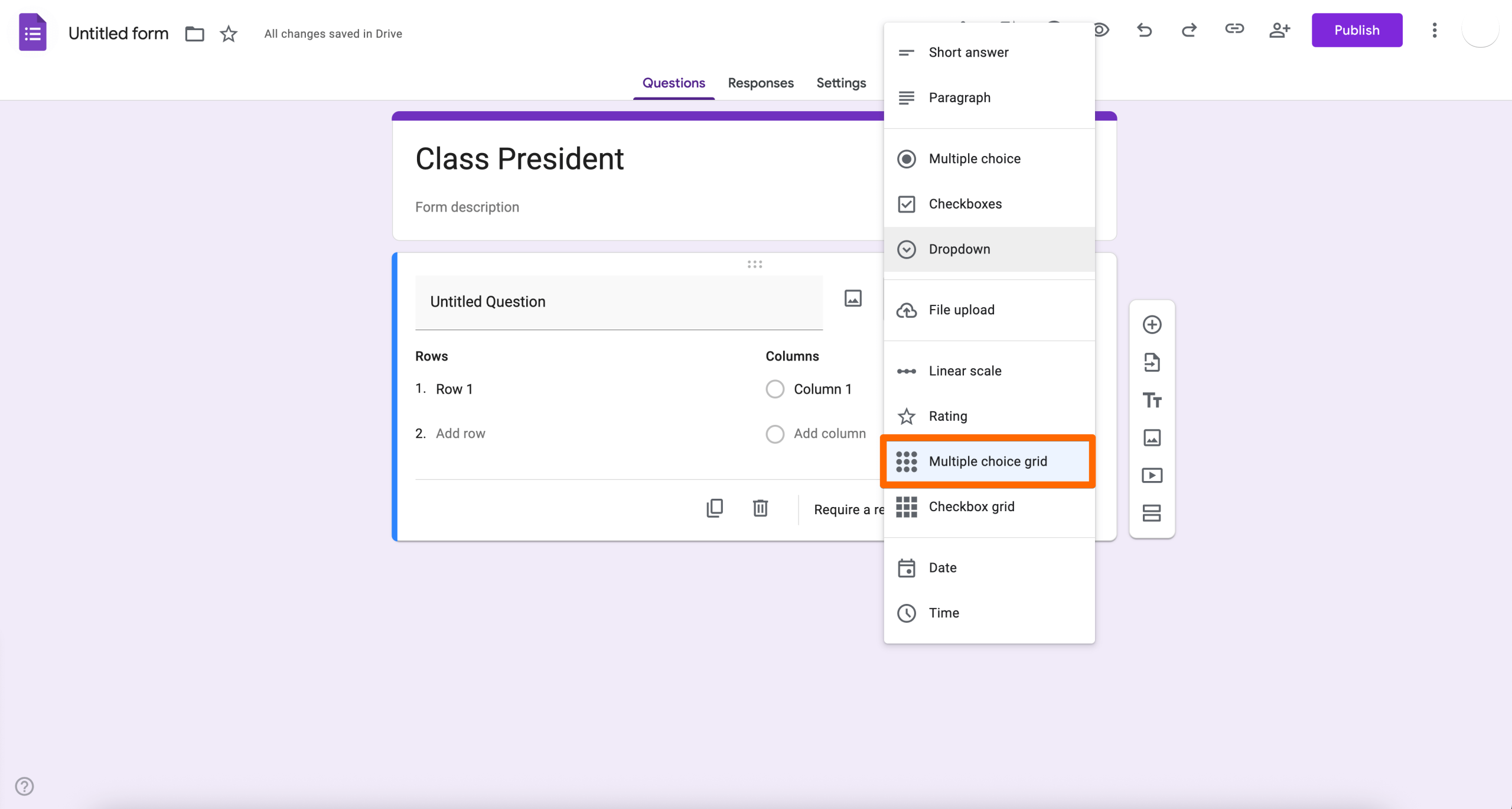
- Type in your directive or question. Example: Who do you want to be class president?
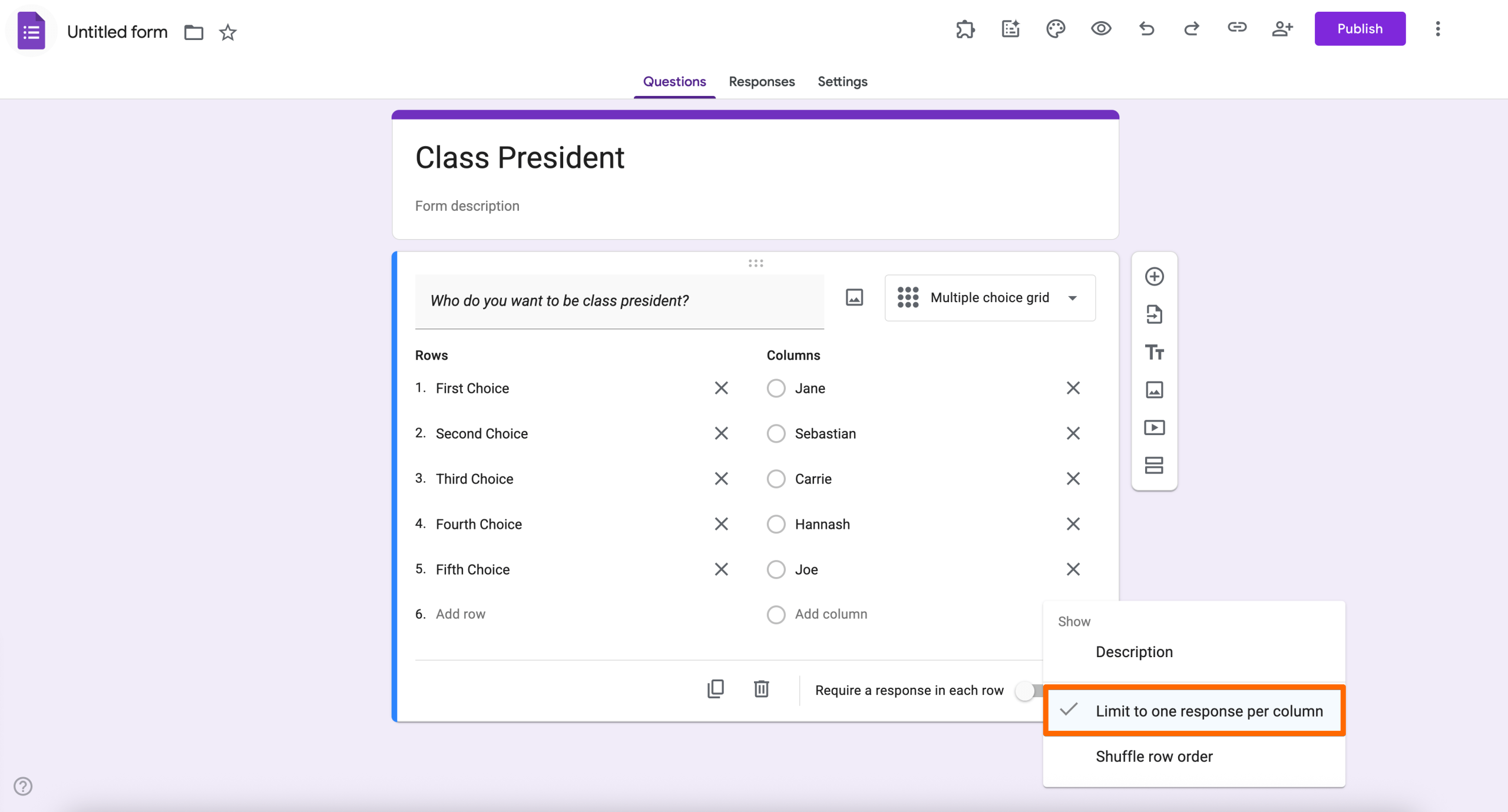
- Under Rows, enter the ranking positions. Example: First Choice, Second Choice, and Third Choice.
- Under Columns, enter the options for respondents to rank. For this example, you would enter the names of all students running for class president.
- Toggle on Require a response in each row.
- Click the three-dot menu that appears. Select Limit to one response per column.
Use a multiple-choice grid when
- You want all respondents to provide a ranking. You can toggle Require a response in each row to ensure the ranking is completed.
- You want to have unique options for each ranking. You can select Limit to one response per column so respondents cannot use the same option twice.
- You have a manageable number of options. The multiple-choice grid works best when there are fewer than 10 options. Otherwise, it can be visually overwhelming.
Do NOT use a multiple-choice grid when
- You want easy-to-understand voting results. You’ll have to export the data to Google Sheets and then tally up the ranked results, which can be confusing when you’re using a multiple-choice grid question.
- You have too many options. The grid can be confusing if you have more than 10 options.
Method 2: Use a separate multiple-choice question for each rank (simplest setup)
Another way to hack ranked-choice voting in Google Forms is to use a separate question for each rank. This method is simpler to set up than a multiple-choice grid, but the data you receive will require some cleanup.
Here’s how to use separate questions to simulate ranked voting in Google Forms:
- Open the relevant Google Form.
- Add a new question and select Multiple choice as the question type.
- Type in your question. Example: Who is your first choice for class president?
- Add the answer options.
- Toggle on Required.
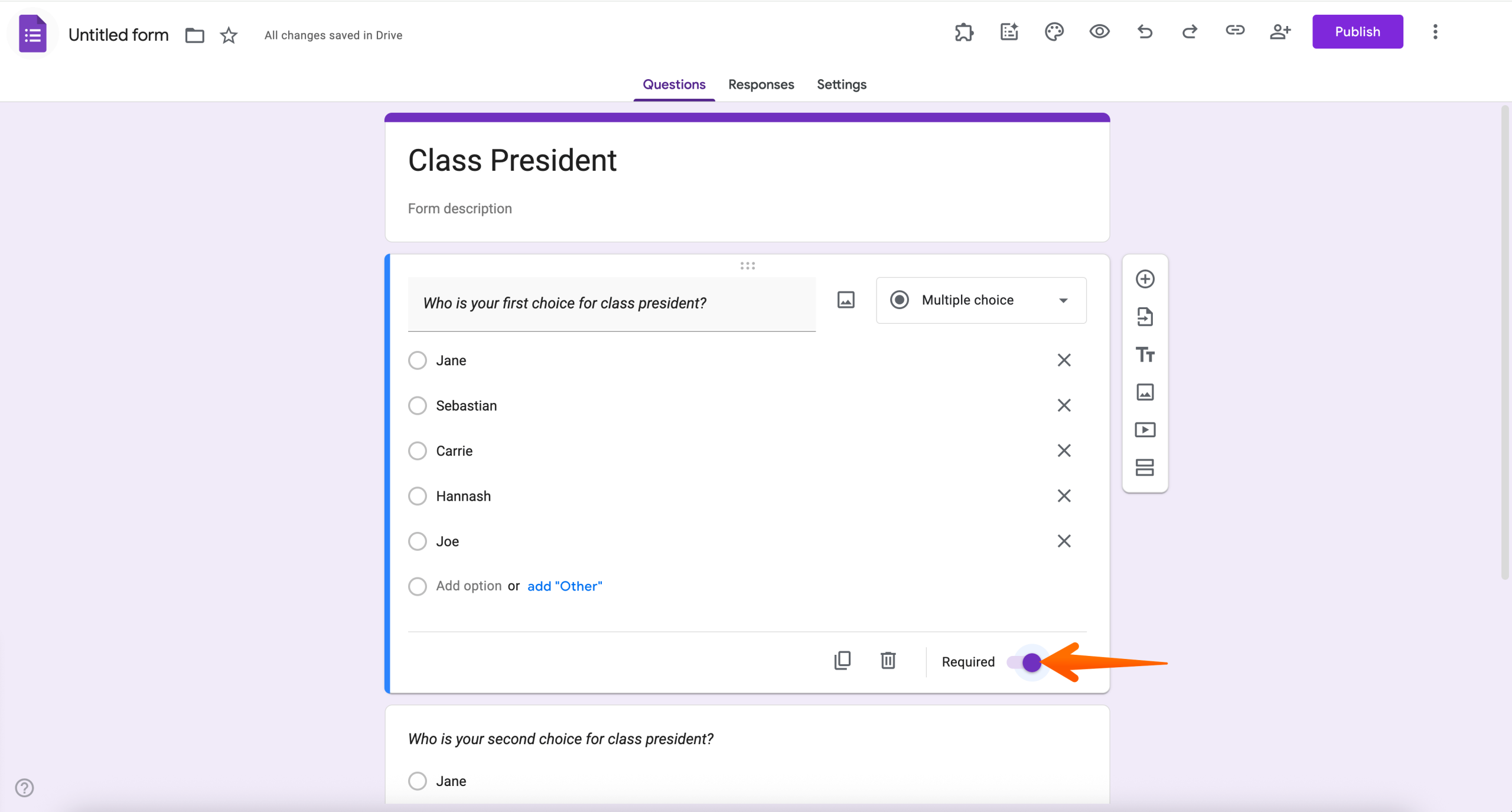
- Create a new question for each additional ranking you want the respondent to provide. Example: Who is your second choice for class president? Who is your third choice for class president? etc.
Use separate questions for each rank when
- You want to keep things simple for respondents. A multiple-choice grid can be more overwhelming than a regular multiple-choice question.
- You don’t mind repetitive answers. With this method, a respondent may select the same option for multiple ranked positions. This can make for difficult data analysis later on in Google Sheets.
- You have a large selection of options. Using separate questions, you can get the desired ranking data without cluttering up your form.
Do NOT use separate questions for each rank when
- You need unique selections for each rank. In this case, a multiple-choice grid may be the better question type.
- You want to make sure every option is ranked once. You cannot do this by using separate multiple-choice questions.
Use Jotform for true ranked-choice voting
Trying to create a Google Form ranking question can be frustrating when there’s no built-in solution. If you’re looking for a form builder tool that supports true ranked-choice voting without the hassle of work-arounds, it’s time to explore Jotform!
Already created your form in Google Forms? Don’t let that stop you. You can easily migrate an existing Google Form to Jotform and then continue working from there.
Whether you create a form in Jotform from the ground up or migrate one from Google Forms, here’s how to add ranked-choice voting to your Jotform form:
- Open the relevant Jotform form.
- Click Add Element on the left side of the page.
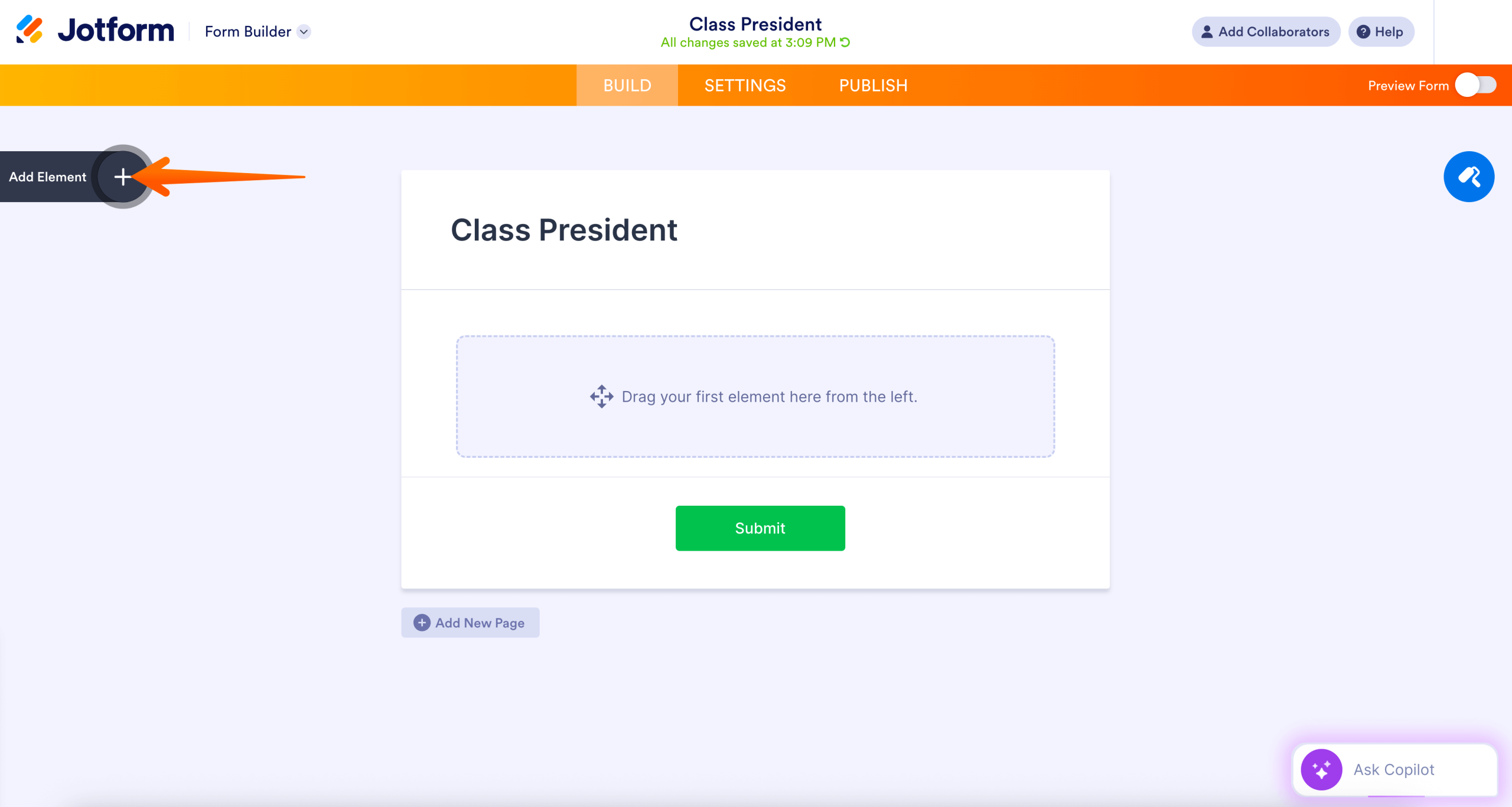
- Click Widgets. Then search for and click on Orderable List.
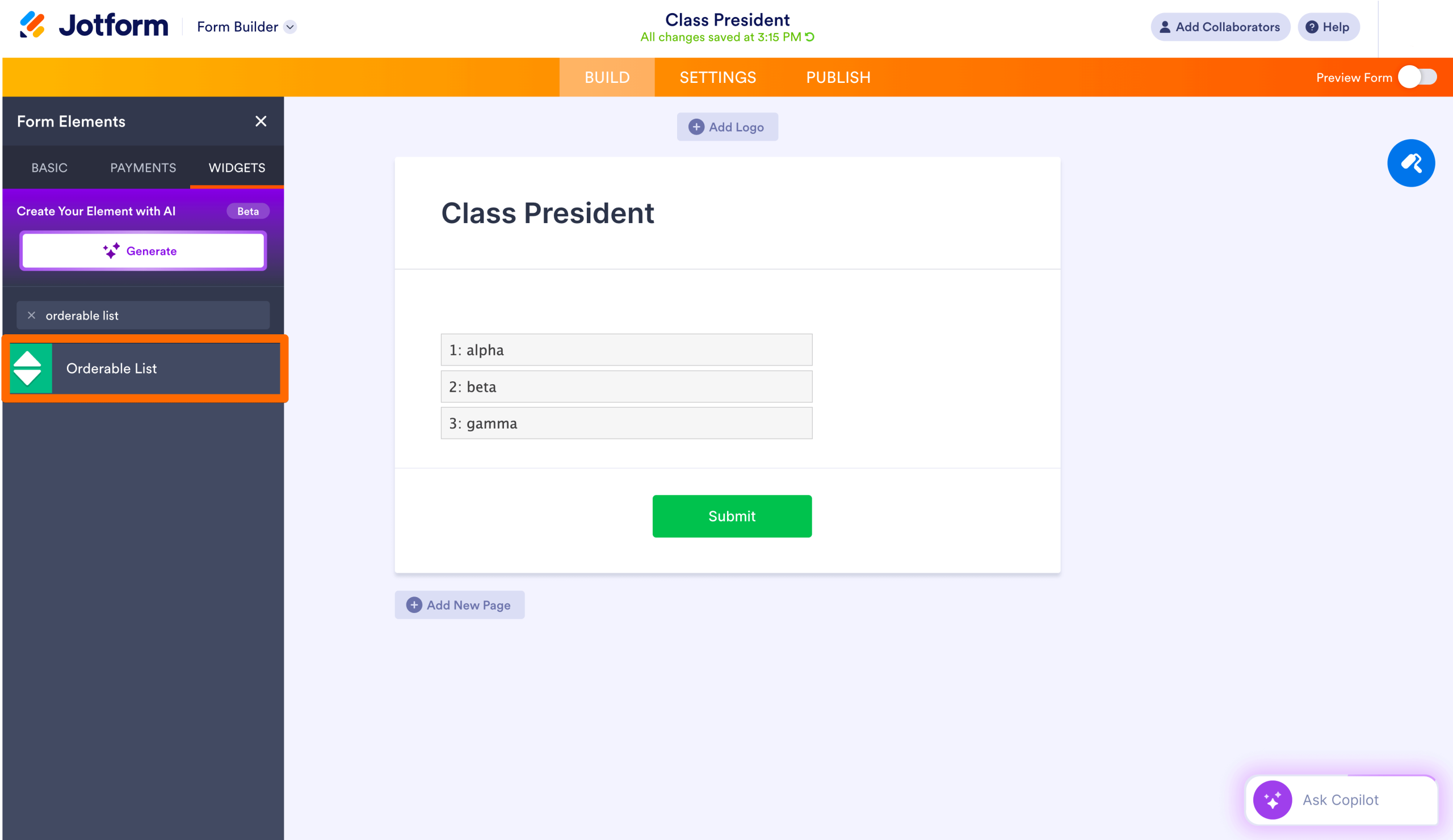
- Type in your ranked-choice voting question in the form builder and use the Widget Settings menu to enter in the voting options.
- Click Update.
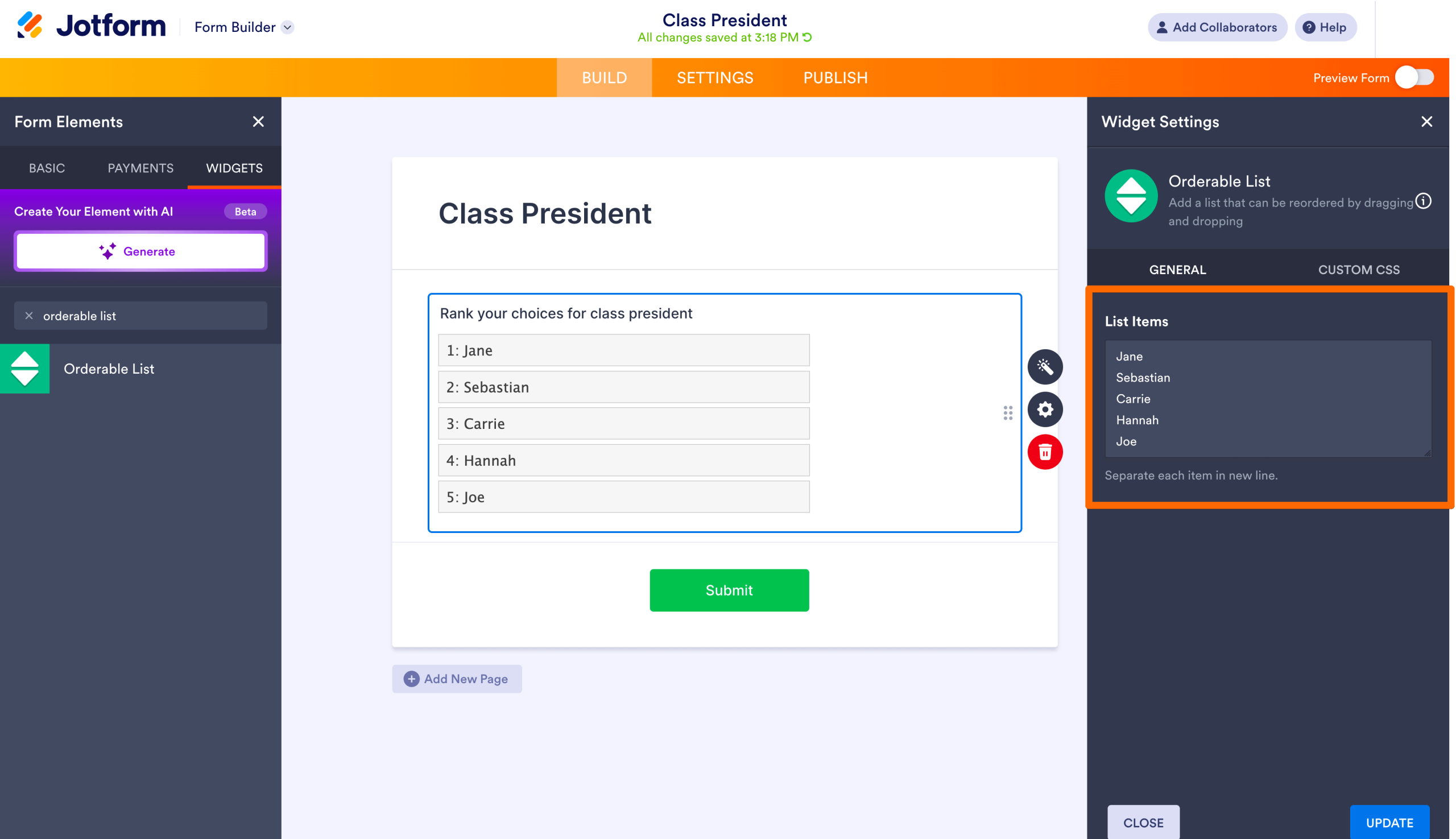
It’s just that easy! Respondents can vote by clicking and dragging the options into their preferred order — no work-arounds needed. You get clean, structured data while form respondents have a pleasant form-filling experience.
Pro Tip
Jotform is known for its form templates, offering over 20,000 templates for almost every use case imaginable. We also have a template for ranked-choice voting forms so there’s no need to create one from scratch or migrate a Google Form if you don’t want to. We even have a template for a ranked-choice voting Jotform AI Agent that helps voters make their selections through engaging conversations. Jotform is the ideal choice when ranked results matter!
Best use cases for Jotform ranked-choice voting
- You want to save time on form creation. With Jotform, there’s no need to mess with complicated work-arounds. Jotform offers multiple built-in ways to include ranked-choice voting in your form, such as the Orderable List widget and ranked-choice voting templates.
- You want form respondents to have a smooth experience. Jotform’s ranked-choice voting is easy for respondents to navigate. They simply click and drag the options to rank them.
- You want options when it comes to building your form. You can either migrate your existing Google Form to Jotform, create a new Jotform form from scratch, or choose from one of Jotform’s thousands of pre-built form templates.
Jotform vs Google Forms: Which is better for ranked-choice voting?
Jotform vs Google Forms: When it comes to ranked-choice voting, the answer is clear.
While Google Forms is easy to use, it doesn’t have a built-in way to create ranked-choice voting, so you have to go with a work-around. Jotform, on the other hand, offers multiple ways to create ranked-choice voting questions within your forms, from widgets or form templates to AI Agent templates. Jotform is a highly sophisticated form builder that’s just as intuitive to use as Google Forms.
Explore how simple it is to create ranked-choice voting questions in Jotform and see how it compares to Google Forms today.
This article is for educators, student organizations, nonprofits, HR teams, community groups, and small businesses who want to run ranked choice voting using Google Forms, and need clear workarounds or a more accurate alternative without complex tools or technical setup.








































































































Send Comment: