If you have a File Upload in your form specifically for accepting images, you could do some tricks to display the uploaded images in the Notification Email, Autoresponder, and Thank You Message page.


Note
Displaying the image to users through Autoresponder and Thank You Message Page will require you to disable the Login to view uploaded files option from your Privacy Settings. Visit How to Unrequire a Login to View Uploaded Files to learn more.
The trick would be to add the IMG: prefix in the unique field tag/name of the file upload element. Let’s start!
Display Uploaded Images in Form Emails
To display uploaded images in the form’s email alerts
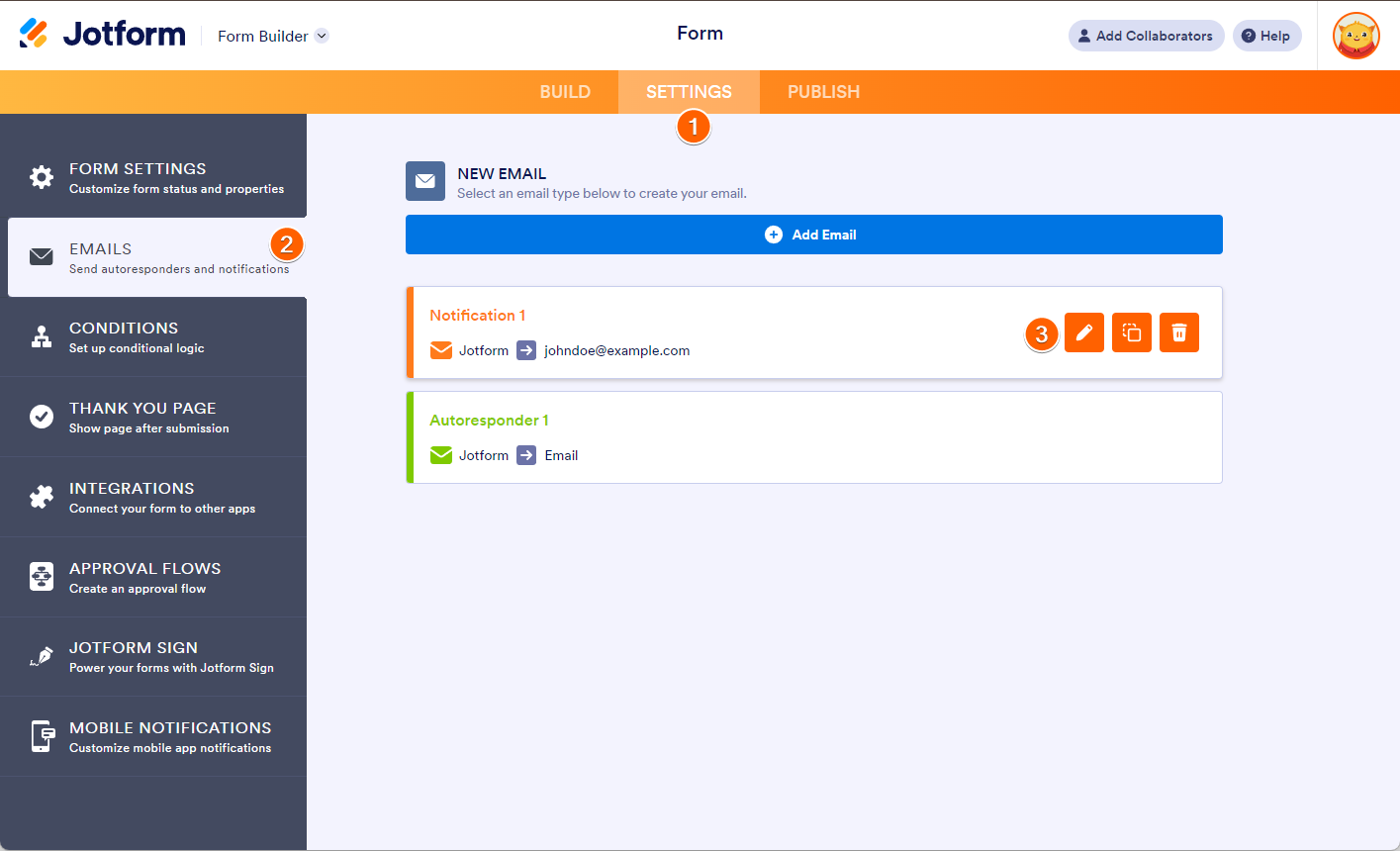
- In the Form Builder, go to the Settings tab.
- Select the Emails tab from the left panel.
- Hover over the Notification or Autoresponder Email and click the pencil icon to edit.
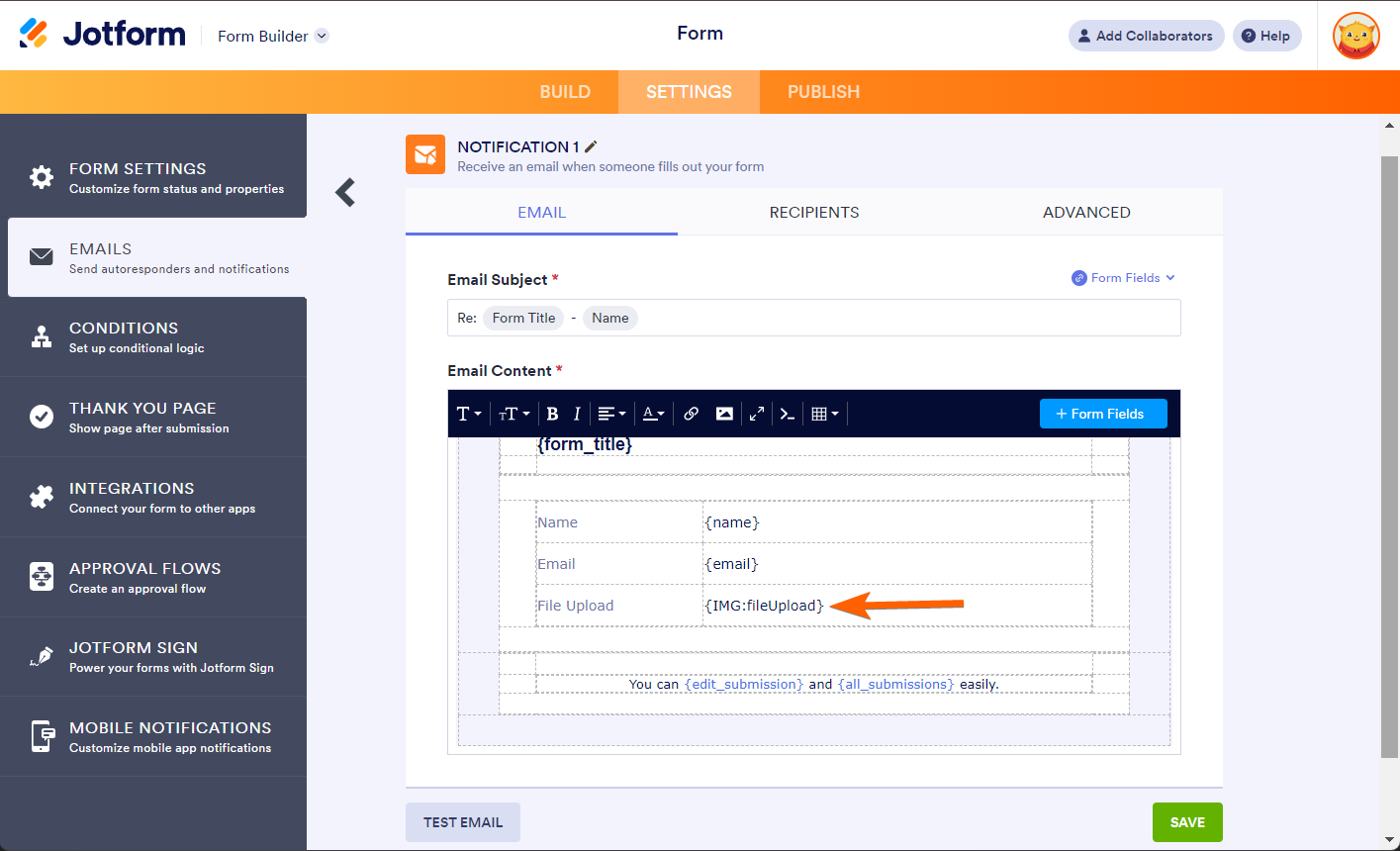
- Add the prefix to your file upload element’s unique name/tag. For example, if you see {fileUpload}, change it to {IMG:fileUpload}.
The above trick will display the images in their original dimensions. To display the images in certain sizes, you must specify it after the unique name/tag. Here are examples:
- {IMG:fileUpload:100:200} will put an image 100px wide and 200px tall.
- {IMG:fileUpload::200} will set the width automatically but limit the height to 200px.
Note
You can still download the images in their original sizes even if you set their specific sizes.
Display the Uploaded Image on the Thank You Page
After submitting the form, you can also display the uploaded image on the Thank You page.
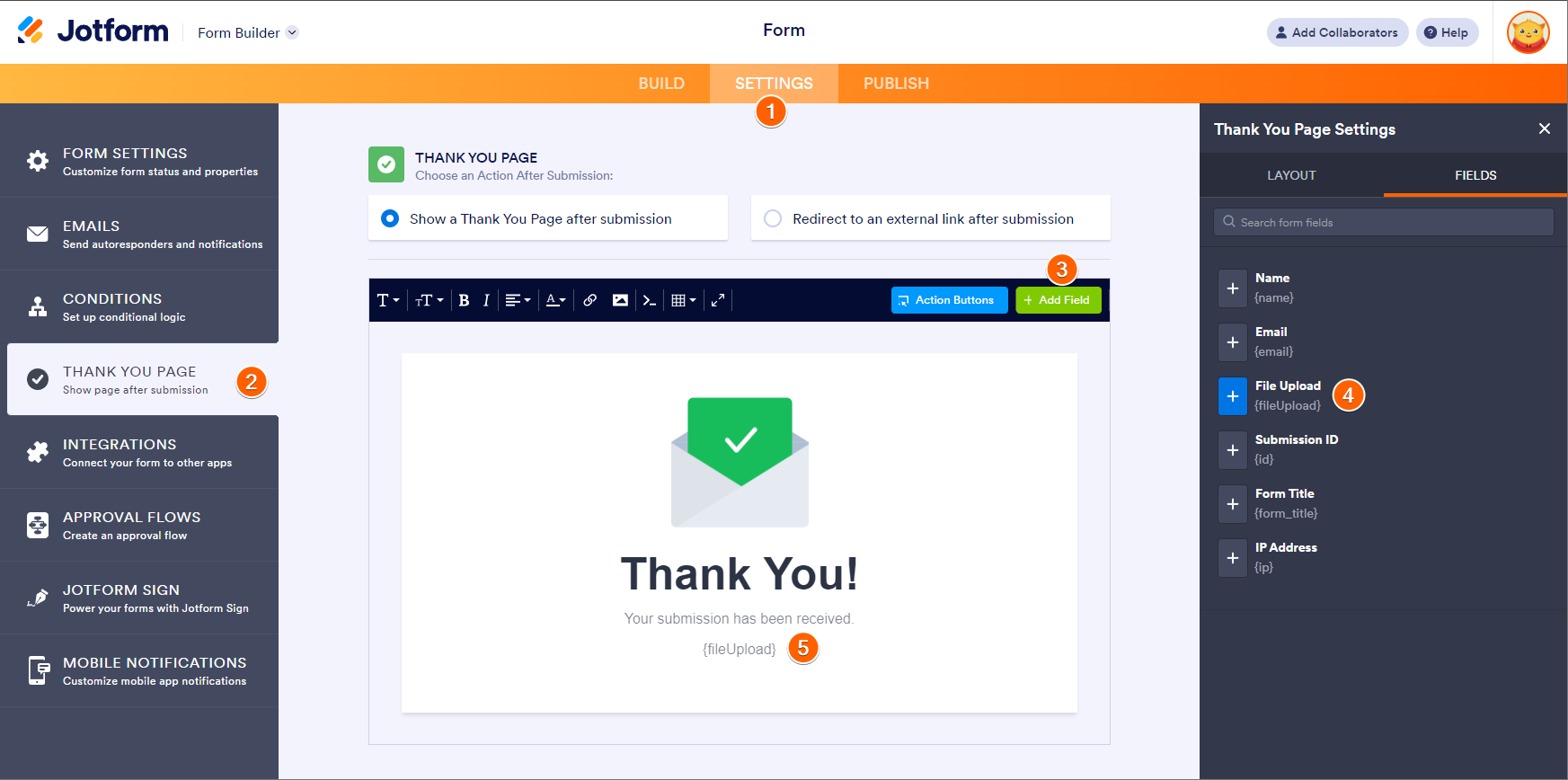
- In the Form Builder, go to the Settings tab.
- Select the Thank You Page on the left panel.
- Click the +Add Field button.
- Select an area where you want to display the image and click on the File Upload field to add it.
- Add the IMG: prefix, and that’s it!

Send Comment:
26 Comments:
January 13, 2026
I have a Supply Order Form created where I uploaded images so individuals would know what they are ordering. How can I make these images transfer over to the form when it is submitted so that the person filling the order will be able to see the image when the email is received after submission?
November 25, 2024
how do you remove a picture from the thank you setting
August 19, 2023
what about if i need the plain URL of the attached file (as text)?
July 21, 2023
If you have trouble displaying the images in your form notification email, check if you have disabled the option "Require log-in to view uploaded files" in the privacy section of your account, that was the solution for me.
As John from support said: "If you're logged out, viewing the emails would display the signatures/images as a broken image."
June 23, 2023
I tried this but it only displays the image icon, could this be because any email setting?
April 13, 2023
same as everyone who left comments below....... It doesn't work for me either.....
November 10, 2022
This doesn't work I have updated my settings and the details in the email but the image doesn't appear
October 17, 2021
Greetings. How do we make a field fully transparent in submitted forms?
August 13, 2021
Once someone has submitted an image on the form, how do we download the jpeg? The link in the email report of the submission says its broken. On the website I can see the image uploaded but I can't download it to my computer.
June 4, 2021
In my case the pictures are not displayed in the Email. (only a small little x-ed box)
You can test it by yourself:
April 3, 2021
What is the suggested size (or best size) for a Jorform form header image? I would likely use 1200 x 630 pixels. Does Jotform staff have a suggestion here?
January 5, 2021
I am trying to use pre-existing forms by drag and dropping them into my jotform. I can't get them to save in the page. Please help. I can't find the answer anywhere. Thank you!
October 30, 2020
I'm trying to use this feature to get the electronic signature to appear in the responder that goes back to the person who submitted. I tried inserting IMG: but it didn't work. Any other ideas?
September 25, 2020
I have tried this simple step, and it works
{IMG:NameOfPictureWidget::200} (as long as you have internet connection, because pictures have to reach the server to be displayed. Also, you have to enable "display pictures" in case of the security warning.
Glad we found this article, because 5MB limit on attachment is very limited. Considering that only one picture can take as much disk space.
September 17, 2020
Adding IMG: as shown in this page https://www.jotform.com/help/405-how-to-display-uploaded-image-in-the-form-emails-or-thank-you-message/ does not send the photo in the email.
I add a Take Photo widget to the form then edit the content of the email body from {typeA} to {IMG:typeA} but it does not include the taken photo in the email.
Please advise.
Kind regards,
Paul Wilson
July 10, 2020
Does this work with Kloudless file uploader?
May 5, 2020
Is there a similar way to get an image from multiple file upload field?
March 26, 2020
unfortunally it does not work at all. As the email is conntected to Trello we need the files/images as attachments. Isnt there any resolution about this?
October 2, 2019
This works when I receive emails on my phone but not in Outlook office 365. I have to select download image from the small box with the red tick in it then Nothing appears
September 10, 2019
using "Take Photo" Widget, how to adjust dimensions of the uploaded image? {IMG:uploadImage:100:200} / {IMG:uploadImagine:100:200} doesn't work.
{uploadImaginehead}
at the same time, i can't edit the source code in email setting like this:
{uploadImaginehead}
thanks in advance.
April 19, 2019
Does this only work if I have not ticked in my settings the "Require log-in to view uploaded files." option?
February 10, 2019
Hi not having much luck with this. Did as shown but just getting blue ? where the image should be..
Any ideas on how to fix?
June 12, 2018
Is there any way to do this with an uploaded PDF instead of an image?
April 22, 2018
Я ваще такова не видел!!!это круто!!
April 20, 2018
That's just amazing! we'll give it a try for sure and let you know how it works!!