

Docusign in-person signing is a business process where all signees meet physically in the same place to sign electronic documents, such as contracts or agreements, using the same device. Compared to the remote electronic signature process — when you send a link to the document for signers to complete on their own mobile devices or computers — in-person signing requires that all parties come together face-to-face.
For many business professionals, sales teams, real estate agents, and field service operators, in-person signing can be convenient and quick, especially with mobile e-signature tools. It also assures a secure transaction and boosts the personal connection between signees.
In this article, we’ll provide step-by-step instructions for Docusign in-person signing and explore the pros and cons of using Docusign for this process. We’ll also introduce you to Jotform Sign Mobile, a smarter, more flexible solution for professionals collecting signatures on-the-go.
How to use Docusign in-person signing step-by-step
Before you start using Docusign, it’s important to note how e-signatures work: E-signatures use digital signature technology and have clear attribution to the person signing the document, such as through an email trail, IP address, or time stamp. (For more information on Docusign specifically, read What is Docusign and how does it work?)
Here’s how to sign Docusign documents in an in-person setting:
- Log in to your Docusign account.
- Find the envelope that contains the document you need to sign.
- Click Sign.
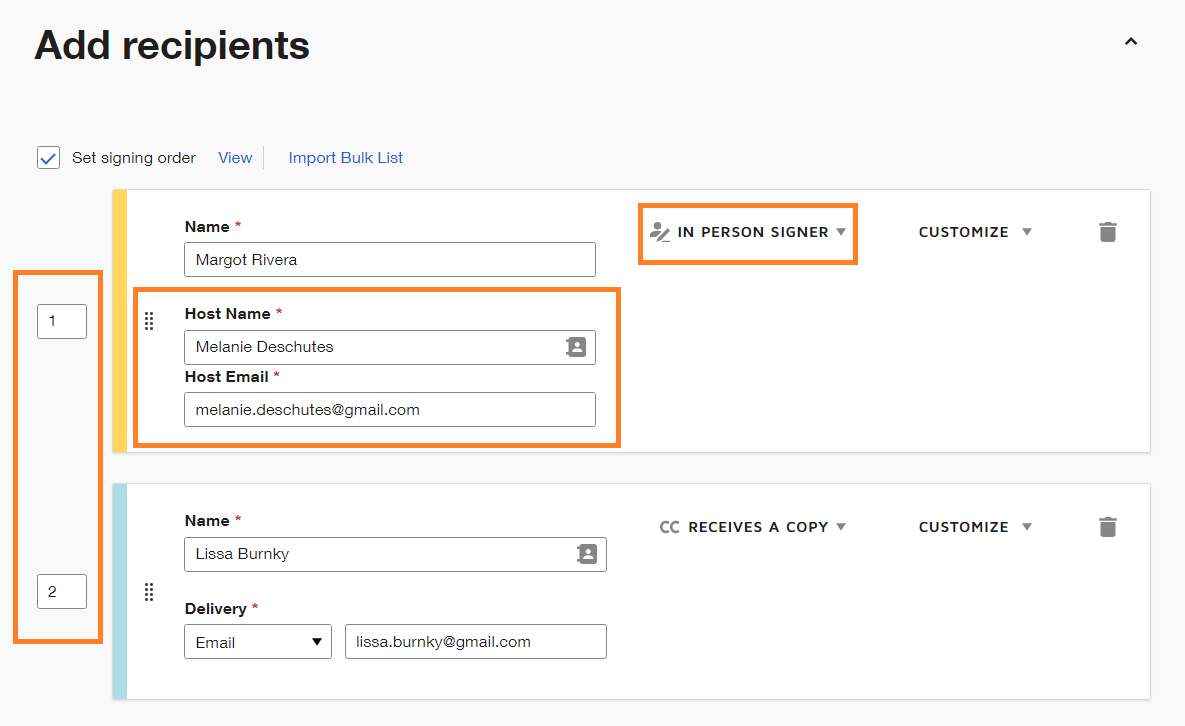
- A selection list will appear for you to delegate signing in Docusign. Pay attention to these key areas:
Host: There are blank fields for Host Name and Host Email. The host is designated as facilitating the session and can be you or anyone else who has an active Docusign account. Signers must be in the presence of the host and use the host’s device to complete the signing. You’ll need to fill out the host details and (if they also need to sign the document) add them as a recipient to the recipient list.
Status: Designate the signer as an In-person signer. If you want someone to get a copy of the document but not sign it, select Receive a copy.
Signing order: Choose which recipient will initiate the signing by setting the signing order.
- Follow the Docusign wizard to collect the necessary signatures and any other requested information for the document, such as initials.
- Repeat step 5 for each additional signer present, using the same Docusign host device.
- Once all parties have signed the document, the host, signers, and any others who have been marked to receive a copy will get a PDF of the signed document via email.
Pro Tip
Docusign lets you control document visibility and access for in-person signers the same way it does for regular recipients. Note that in-person signers who are the senders will be able to see all documents within the envelope.
Docusign in-person signing: Pros and cons
Docusign is one of the top paperless office software tools on the market, and for good reason. It offers incredible value and works well for nearly any signing situation. But there are aspects of the software that make it less than ideal for some users. Below is a short list of the pros and cons of Docusign for in-person signing.
Pros:
- Trusted platform: Founded in 2003, Docusign is one of the pioneers of electronic signature software. With over 1 million customers and a billion users worldwide, it is a highly trusted, reputable platform.
- Audit trail: Unlike a pen-and-paper signature, an electronic signature on Docusign comes with timestamps, device information, and IP data. It requires an Electronic Record and Signature Disclosure, and it meets compliance standards in many industries.
- Robust compliance and security: Encrypted documents, identity verification, electronic seals, and other compliance and security measures are available when you choose face-to-face signing on Docusign.
Cons:
- Setup complexity: If you’re new to Docusign, you may find the setup for in-person signing more complicated. It involves account permissions, document templates, signature routing settings, and more.
- Host device required: In-person signing must be completed on a Docusign host device. The host is responsible for setting up the session and needs to have an active Docusign account.
- Unintuitive in some cases: If the host doesn’t have the document ready to go and the recipient already set up, the process is slow. For example, a door-to-door salesperson may find in-person signing with Docusign difficult to complete on the spot.
A smarter in-person signing alternative: Jotform Sign Mobile
Docusign is not your only option for secure in-person signing. Meet Jotform Sign Mobile, a leading Docusign alternative.
Jotform Sign Mobile is a mobile-first e-signature app designed for on-the-go workflows. Whether the signing is in-person or remote, you can do it easily using Jotform Sign Mobile on your Android or iPhone.
It’s built for professionals who need to sign, send, and manage documents anywhere — no desktop or printer required. Plus, it’s available for free and is fully integrated with the Jotform Sign ecosystem.
Here’s what you can do with Jotform Sign Mobile:
- In-person signing: Collect multiple signatures on one mobile device.
- Sign existing documents: Easily open and sign any file saved in your Jotform Sign Mobile account or uploaded from your device.
- Scan to sign: Have a paper document? No problem! Use your phone’s camera and Jotform Sign Mobile to digitize paper documents instantly for e-signing.
- Invite others to sign: Send signature requests via email or shareable links for remote signing using the app, so you can keep workflows moving while you’re on the go.
- Track and manage documents: Use Sign Inbox and My Documents in Jotform Sign Mobile to view all ongoing and completed signature flows. Everything is always at your fingertips.
- Get real-time notifications: Receive instant alerts when documents are signed or pending, so you’re never the bottleneck. Completing electronic signatures on your phone has never been easier.
- Create new signature flows: Launch new signature requests using existing documents as templates — it’s one of the ways Jotform Sign Mobile saves time and money.
- Preview and edit documents: Review or adjust documents before sending directly within Jotform Mobile Sign.
For mobile professionals like real estate agents, sales reps, field service reps, and more, Jotform Mobile Sign simplifies every in-person signing process. Whether you usually sign contracts in person, on your desktop, or on paper, you can move your contract processes to Jotform Mobile Sign without disrupting the flow.
Learn how to use Jotform Mobile Sign for in-person signing
Using Jotform Mobile Sign to complete in-person signatures is simple. Start by downloading Jotform Mobile Sign from the App Store or Google Play. Install the app on your phone and enable notifications. Then log into the app using one of the options provided.
Follow these steps for in-person signing on Jotform Mobile Sign:
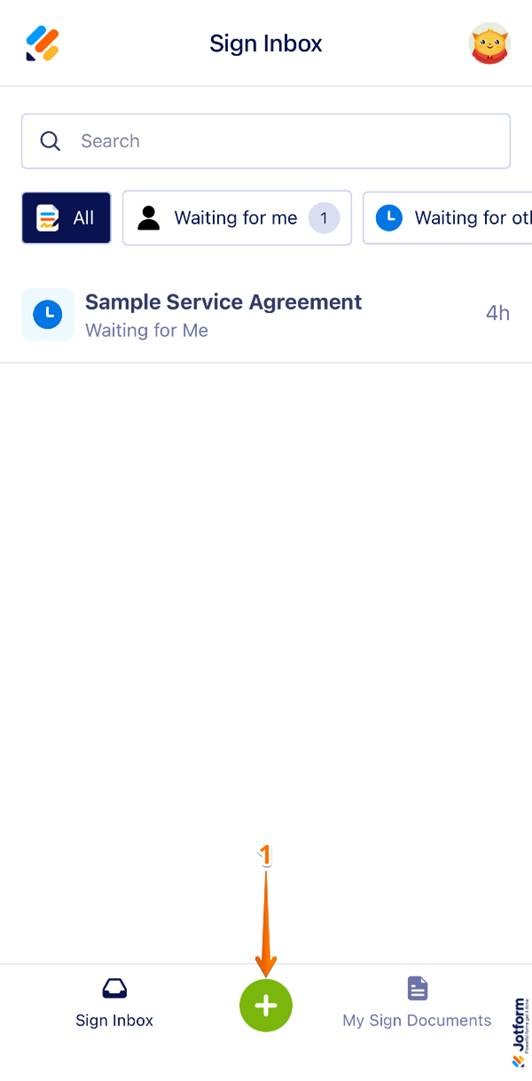
- Tap the Green Plus icon.
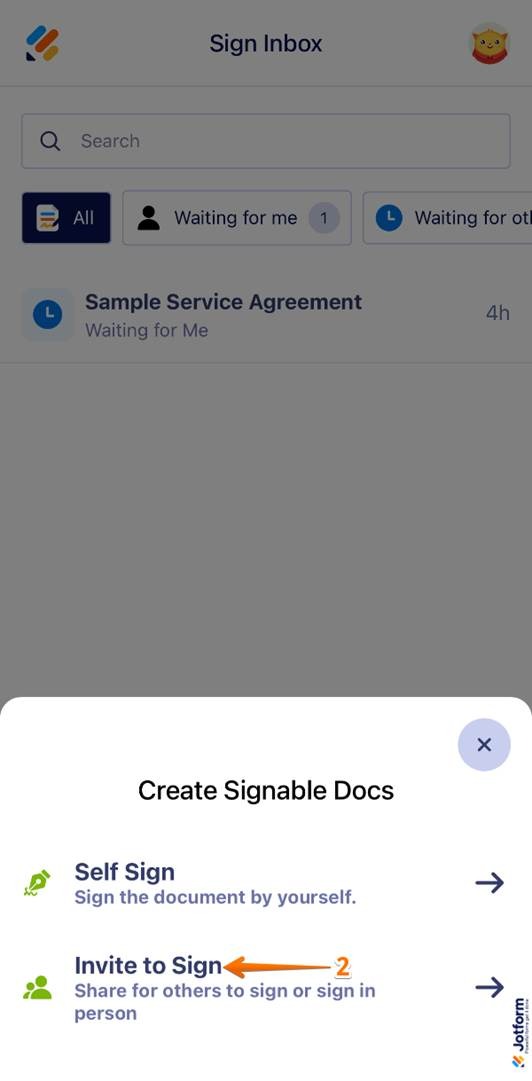
- Tap Invite to Sign in the Create Signable Docs window.
- Select one of the following options based on your document needs:
- Upload Document
- Scan Document
- My Documents
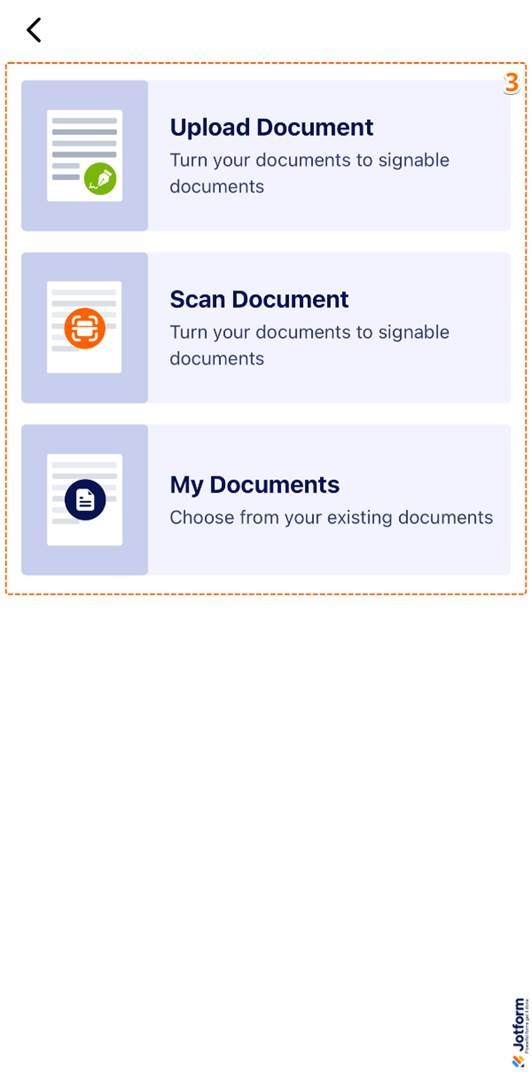
- In this example, we’re selecting Upload Documents. Fill out the Document Name field. Tap Next.
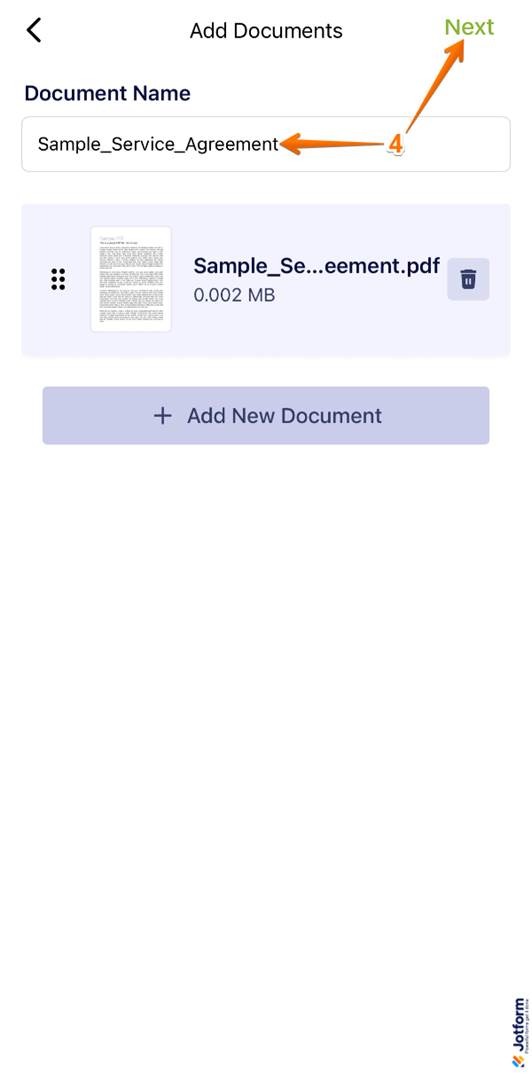
- Tap Add Element.
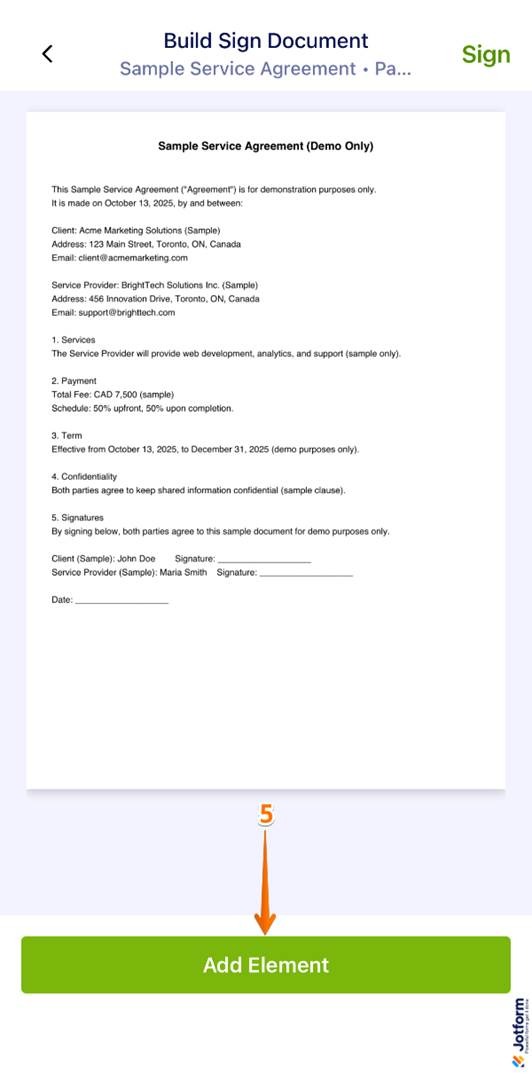
- Add Document Elements as needed, such as signatures and initials.
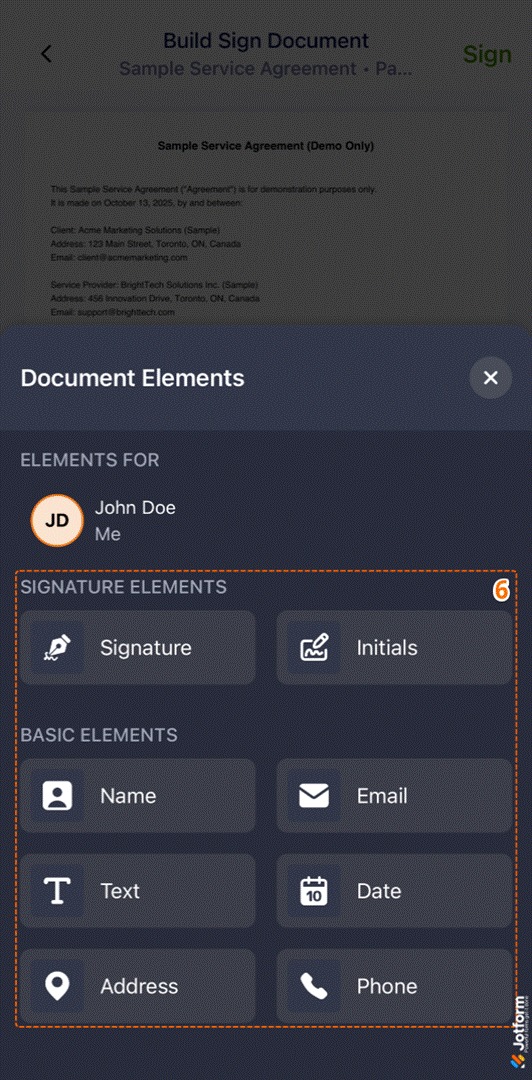
- Tap Elements For.
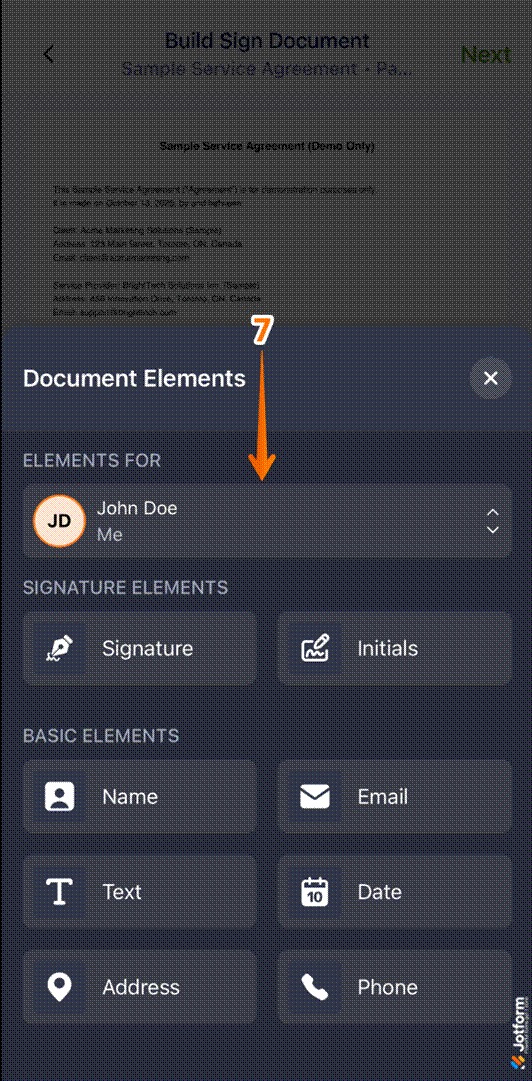
- Tap Add Signer. Enter the name of the signer.
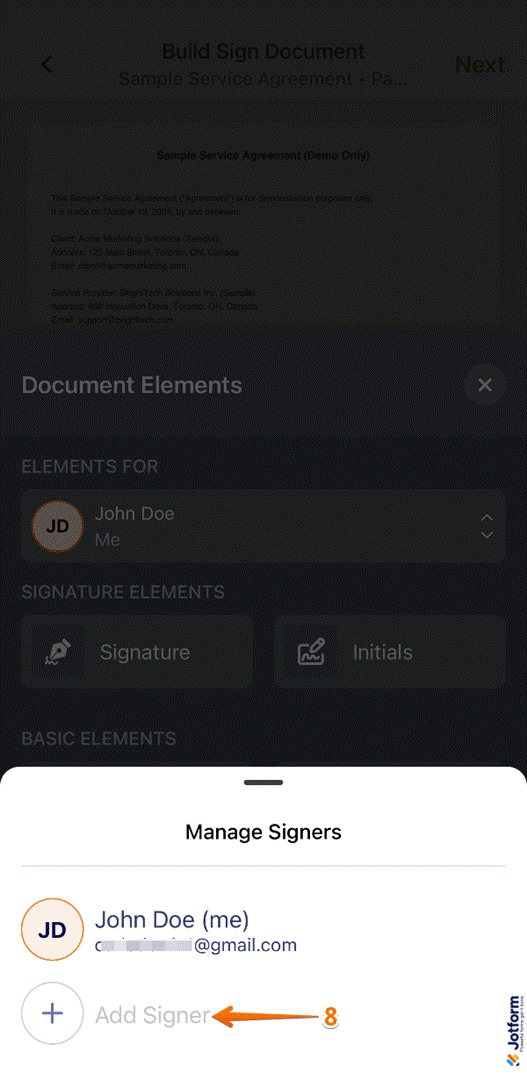
- Select the signer you added.
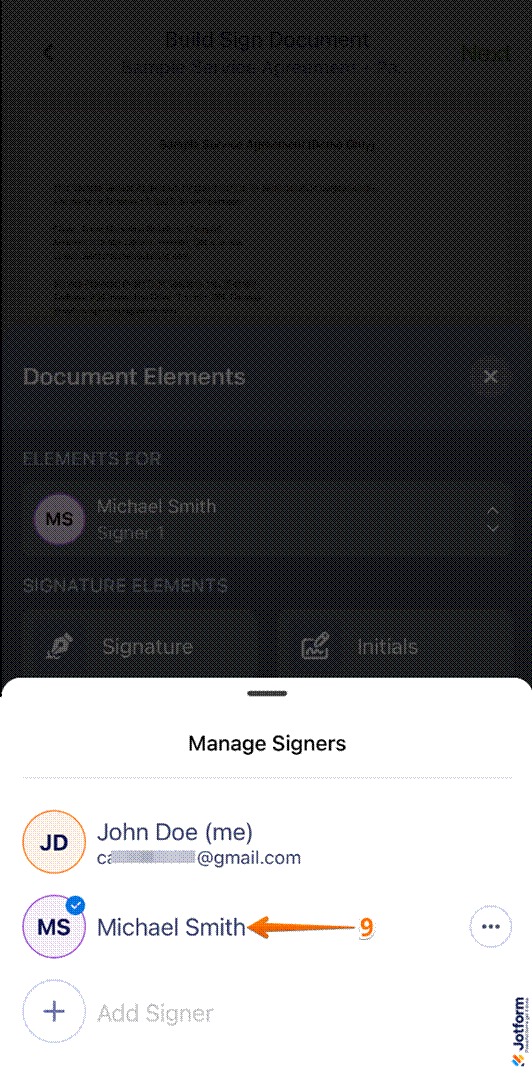
- Tap outside the Document elements menu to return to the Build Sign Document page. Tap Next.
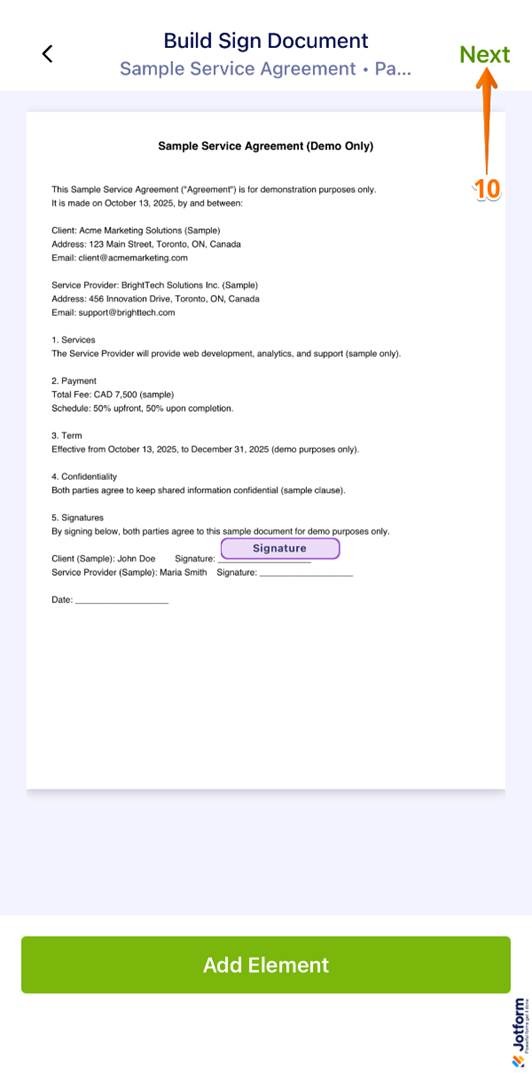
- Select In-Person Sign in the Signature Type section. Fill in the signer’s details.
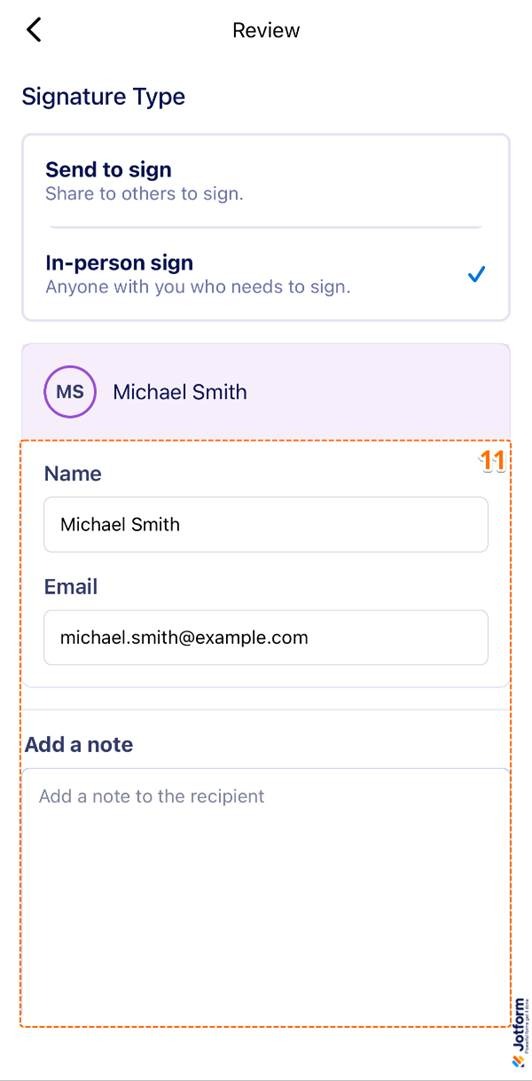
- Tap Start to Sign.
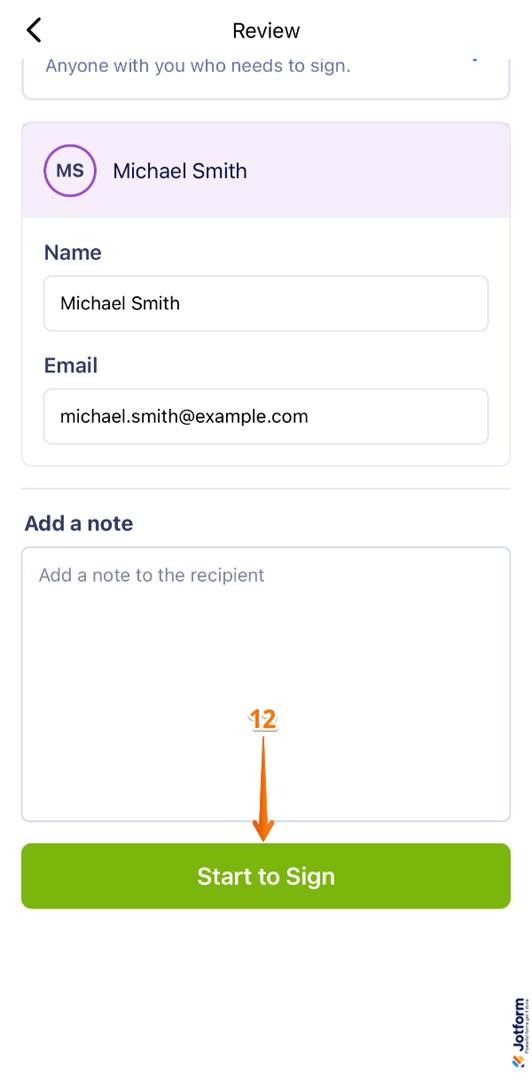
- Tap Start Signing.
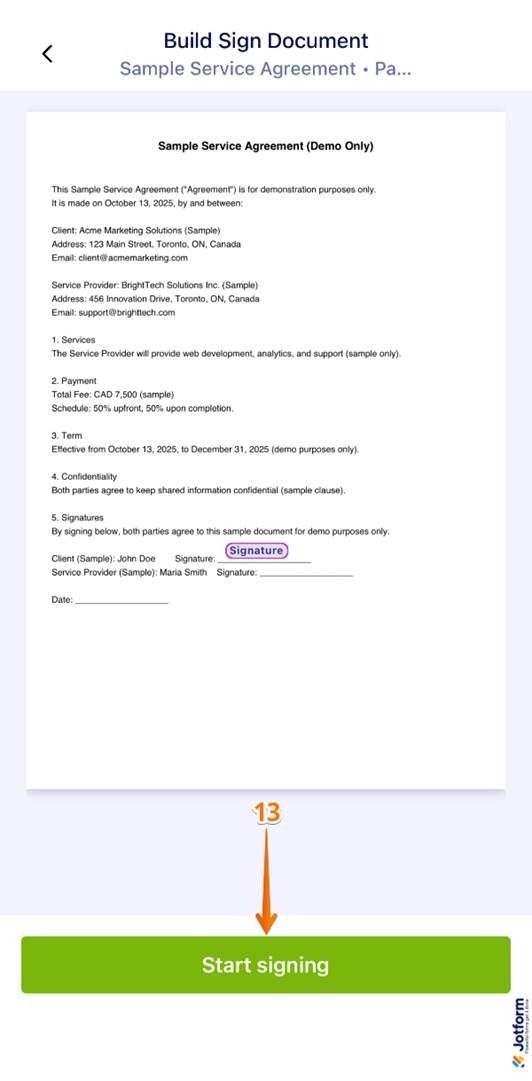
- Tap Finish once signing is complete.
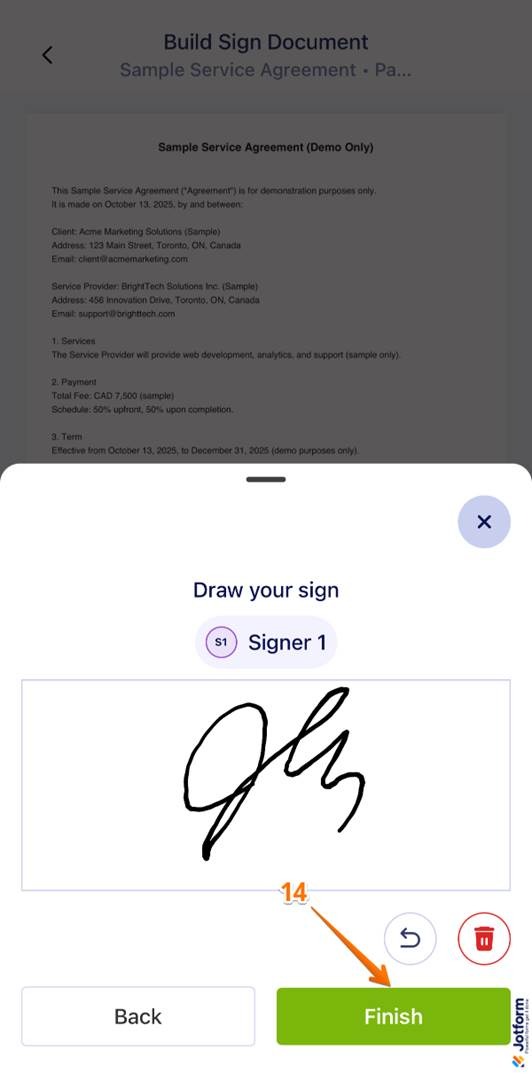
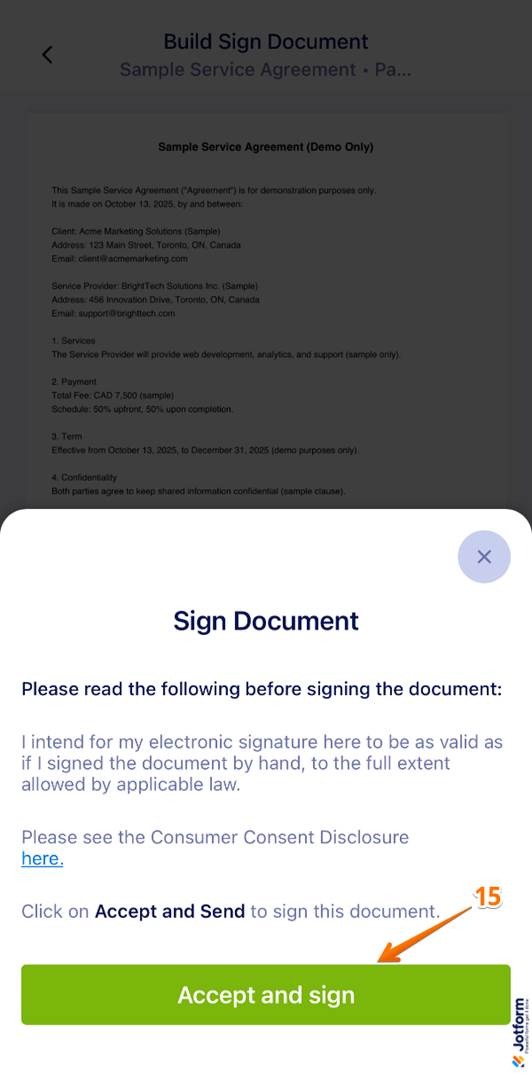
- Tap Accept and Sign.
How to choose the right in-person signing tool
With multiple options to choose from when it comes to in-person signing tools, how do you go about deciding? Here are some key considerations:
- Match the in-person signing tool to your workflow: Office-based signings and mobile field operations require different types of solutions. Enterprise office-based tools focus on scale and centralized control, while mobile-first tools offer speed and simplicity. Some tools, like Jotform Mobile Sign, have the best of both worlds.
- Evaluate the cost of devices, training, and mobility: Tools like Docusign require you to equip your team with a host device, such as a tablet, laptop, or phone. Also consider whether your team will require specialized training to use the device in the field.
- Check integrations with forms, CRM, and mobile apps: It’s important to be able to share data across your tools and documents with ease. The right in-person signing tool should plug into your existing workflows, so you can prefill documents, trigger signature processes based on CRM status, and send completed files back easily.
- Focus on time to value: If you already use Jotform for form creation or Jotform Sign, then using Jotform Sign Mobile for your field-based document workflows is a no-brainer. Jotform Sign Mobile offers a quick and easy phone-based signing experience for both in-person signing and remote signing.
Jotform Sign Mobile: A leading Docusign alternative for in-person signing and beyond
Docusign offers in-person signing, but setup can be cumbersome. You need to have a Docusign host manage the process and use their device.
For a truly mobile, highly flexible in-person signing experience, Jotform Sign Mobile stands out as a strong alternative. When choosing your in-person signing software, assess both Docusign and Jotform Sign Mobile to see whether they can meet your specific use case and workflow demands.
With Jotform Sign Mobile, you can complete in-person signing from your phone with your stakeholders present. You can also sign paper documents using your phone camera to digitize them in an instant. Not only that, but Jotform Sign Mobile offers the ability to track and manage all your documents in the signature workflow from one central location so you can monitor them with ease.
Plus, Jotform Sign Mobile is free! Download it today and see how easy it is to complete seamless in-person and remote signing from your phone.
This article is for business professionals, sales teams, real estate agents, and field service operators who use e-signature tools and want to understand how Docusign’s in-person signing works — and explore more mobile-friendly, flexible alternatives like Jotform Sign Mobile for on-the-go document workflows.





































Send Comment: