

I’ve built forms in a browser tab, a Notion database, a spreadsheet, and once, regrettably, over the phone. Now, I can describe the form I need in ChatGPT and tell it to build one. Once people have filled it out, I can come back and see what they said, with no data to download.
If you use the Tally.so form builder, you can connect Tally to ChatGPT. Tally has an official plug-in built on the Model Context Protocol (MCP).
Here is the setup, step by step. But there’s one thing we need to be clear about before we start: The way you talk to ChatGPT changes when you’re connected to a form builder. The form builder’s features and integrations, however, still determine what the form can accomplish.
If you need a form that books appointments, collects payments, or sends customer details to a CRM, explore those capabilities before getting cozy with Tally in ChatGPT. We’ll also look at where Jotform fits into those workflows.
Step 1: Find Tally in ChatGPT’s plug-in directory
The plug-in availability depends on your ChatGPT plan. The Tally connection itself is free on every Tally plan.
Open ChatGPT and click Plugins in the left sidebar, then type “Tally” into the search bar.
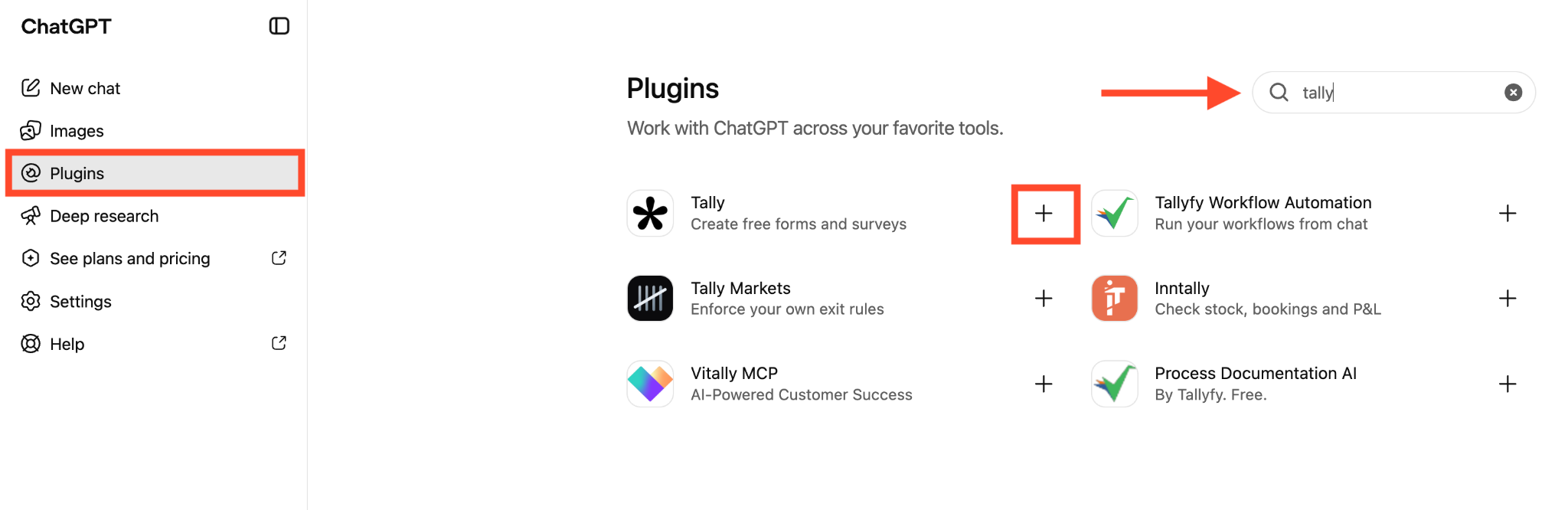
You’ll get several results. Ignore Tally Markets, Tallyfy, Inntally, and anything with a stock chart for an icon. Those are likely related to the accounting software that is also called Tally.
Select the Tally that has a black asterisk logo and the description “Create free forms and surveys.” Click the + next to it.
If search isn’t cooperating, try the direct link to the listing on Tally’s ChatGPT integration page.
Step 2: Install the plug-in and connect Tally
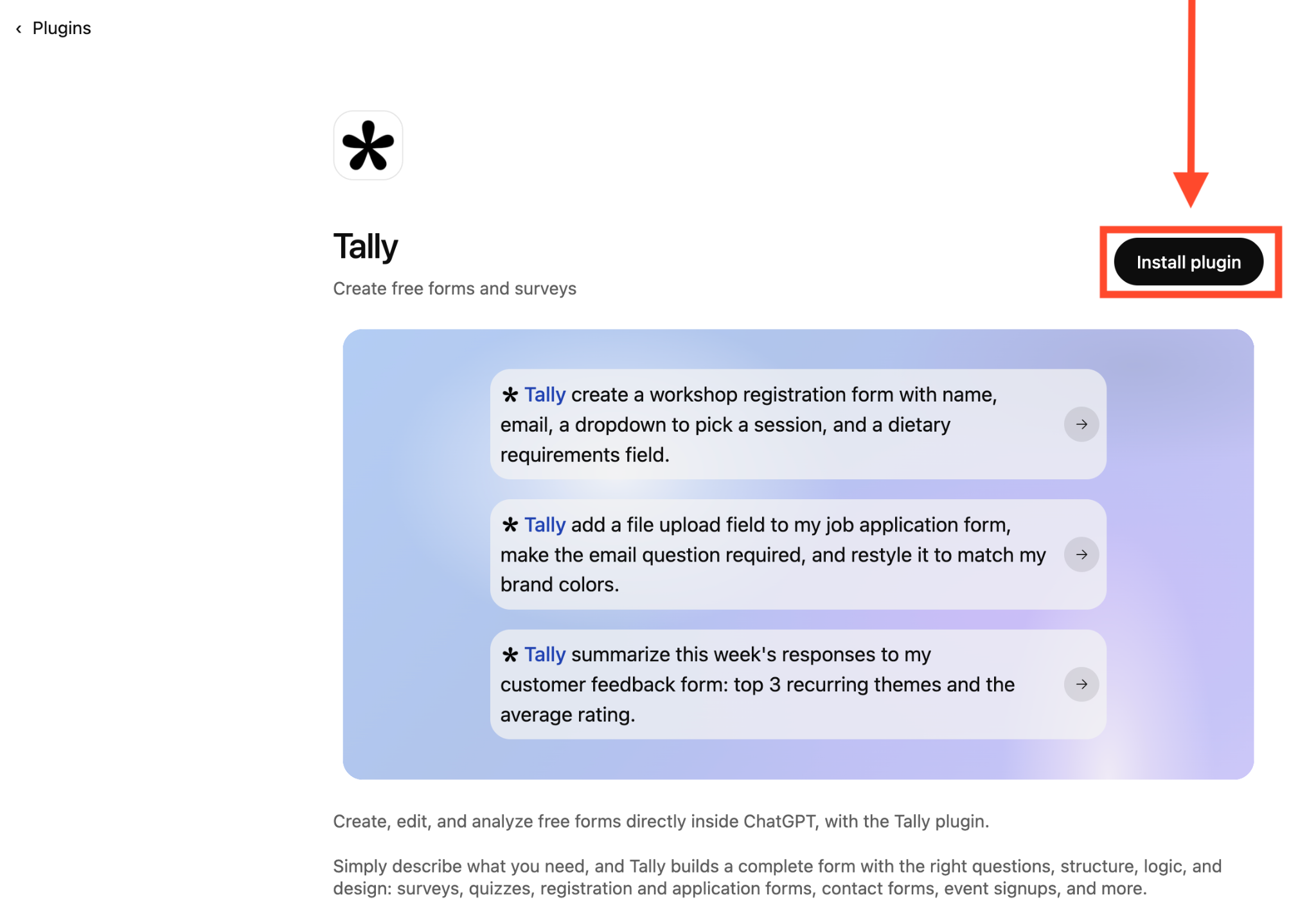
Clicking + opens the Tally listing. Click Install plugin on the top right.
A Connect Tally dialog will appear. Read this before you click through, because it’s where ChatGPT tells you what it’s about to share.
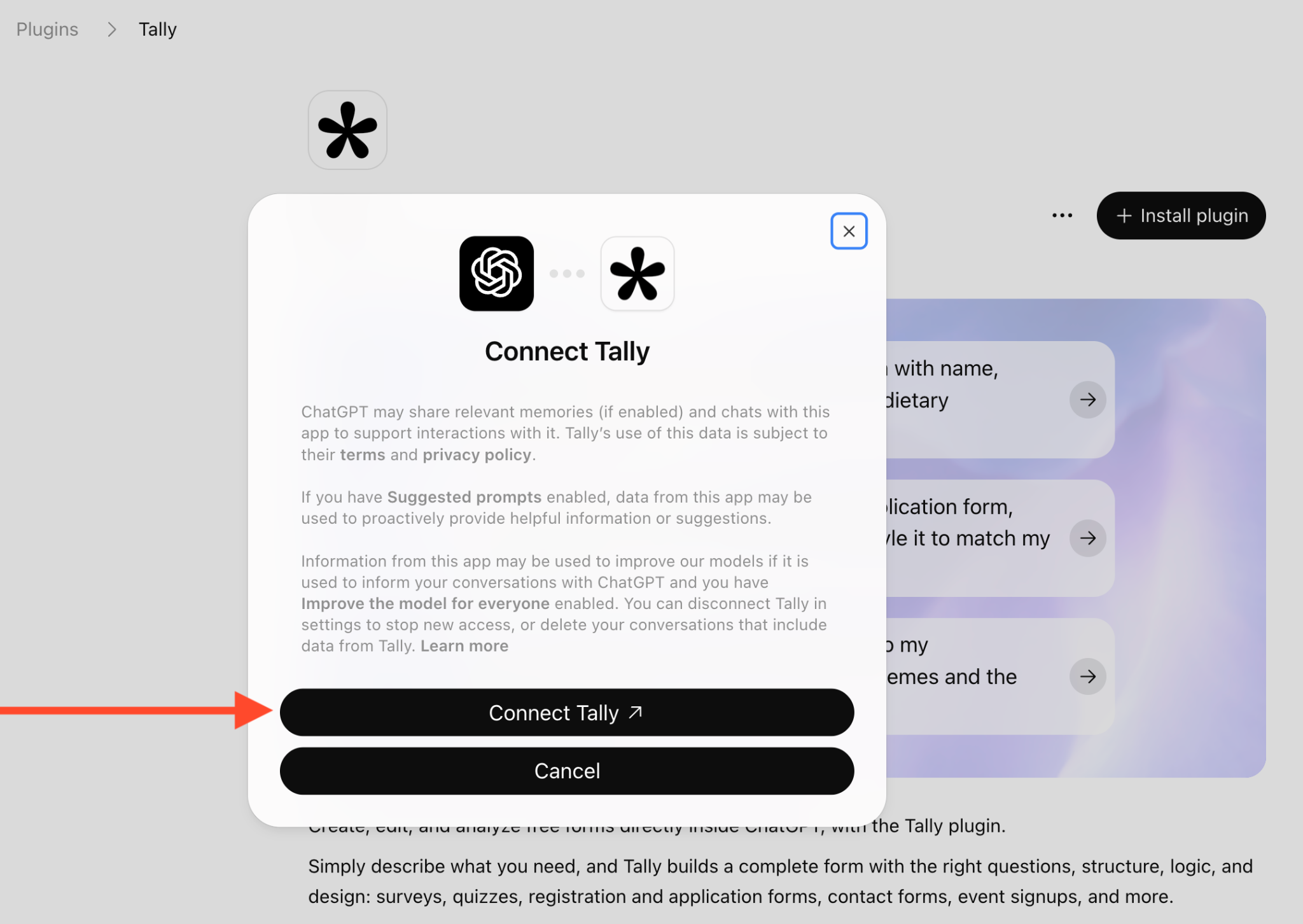
There are three things it says, in summary:
- ChatGPT may pass relevant memories (if you have those enabled) and chat content to Tally to support the interaction.
- If Suggested prompts is on, data from Tally may inform proactive suggestions. If Improve the model for everyone is on, information from Tally used in your conversations may also be used to improve OpenAI’s models.
- If you’d rather keep those responses out of model training, make sure Improve the model for everyone is switched off before bringing them into a chat.
Ready? Click Connect Tally.
Step 3: Authorize the Tally connection
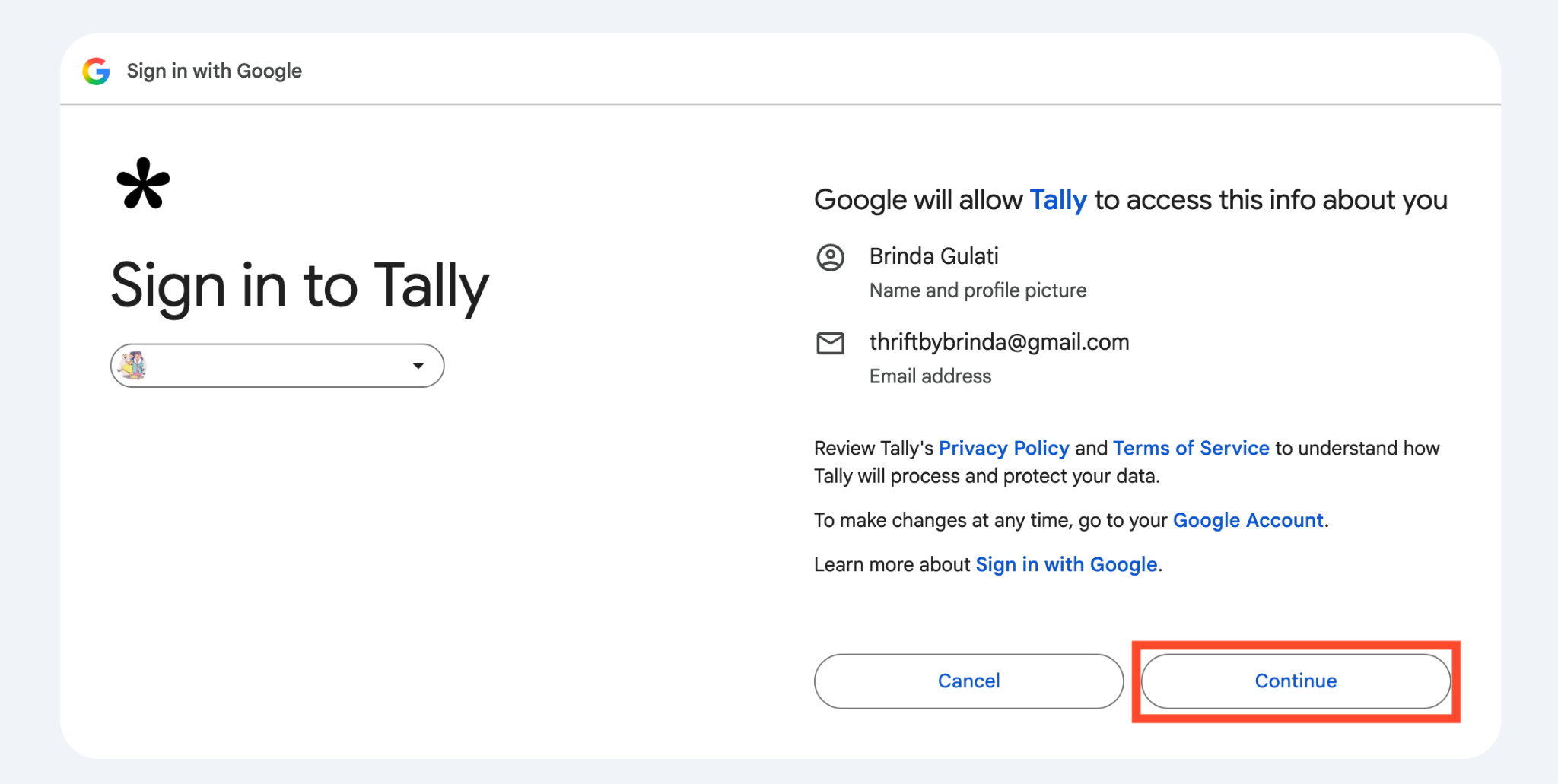
Sign in using the Tally account with the forms you want ChatGPT to work with. If you sign in through Google, as I did, check the selected account and click Continue.
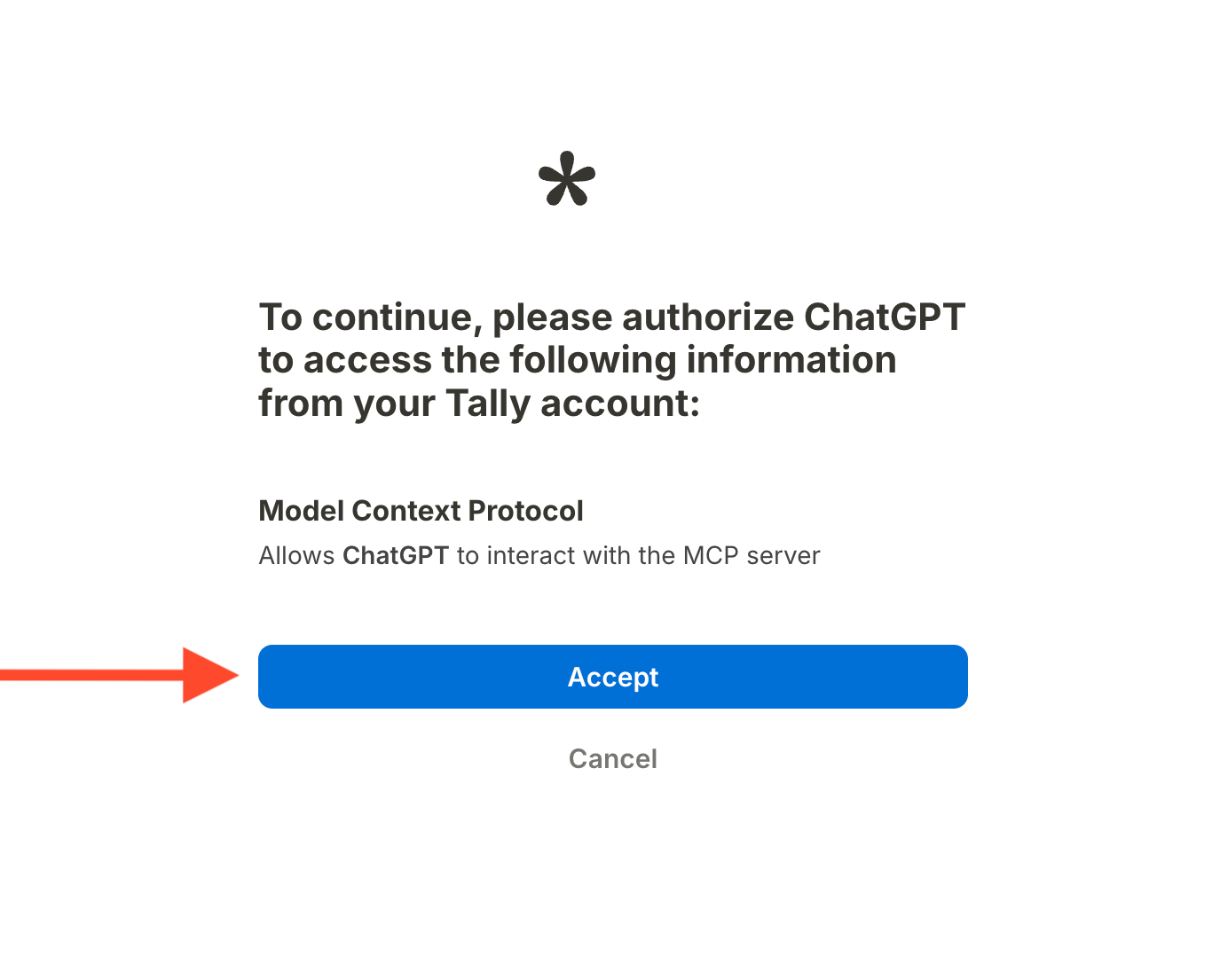
Next, Tally asks you to authorize ChatGPT to interact with its MCP server. That’s the connection that lets ChatGPT work with your forms and submissions.
Review the request and click Accept.
Step 4: Start a chat with Tally
Once you accept, you’re bounced back to the Tally ChatGPT plug-in page, now with two new buttons where Install plugin used to be: Manage and Try in chat. Manage opens the plug-in’s settings.
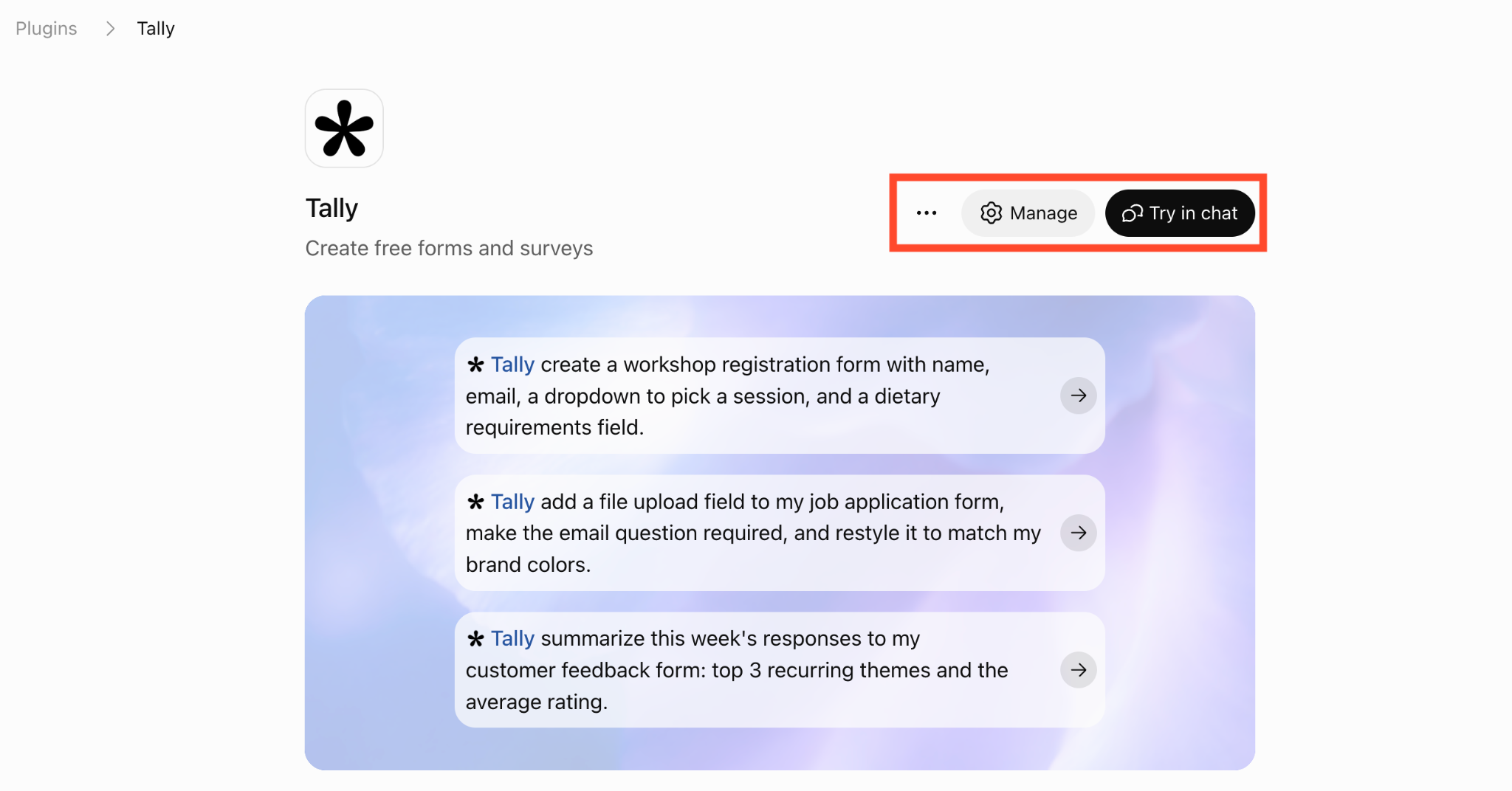
Try in chat is the one you want now. Click the button.
ChatGPT opens a conversation with Tally already selected in the prompt box. You’ve connected the form builder, so your request can become a working form in your workspace.
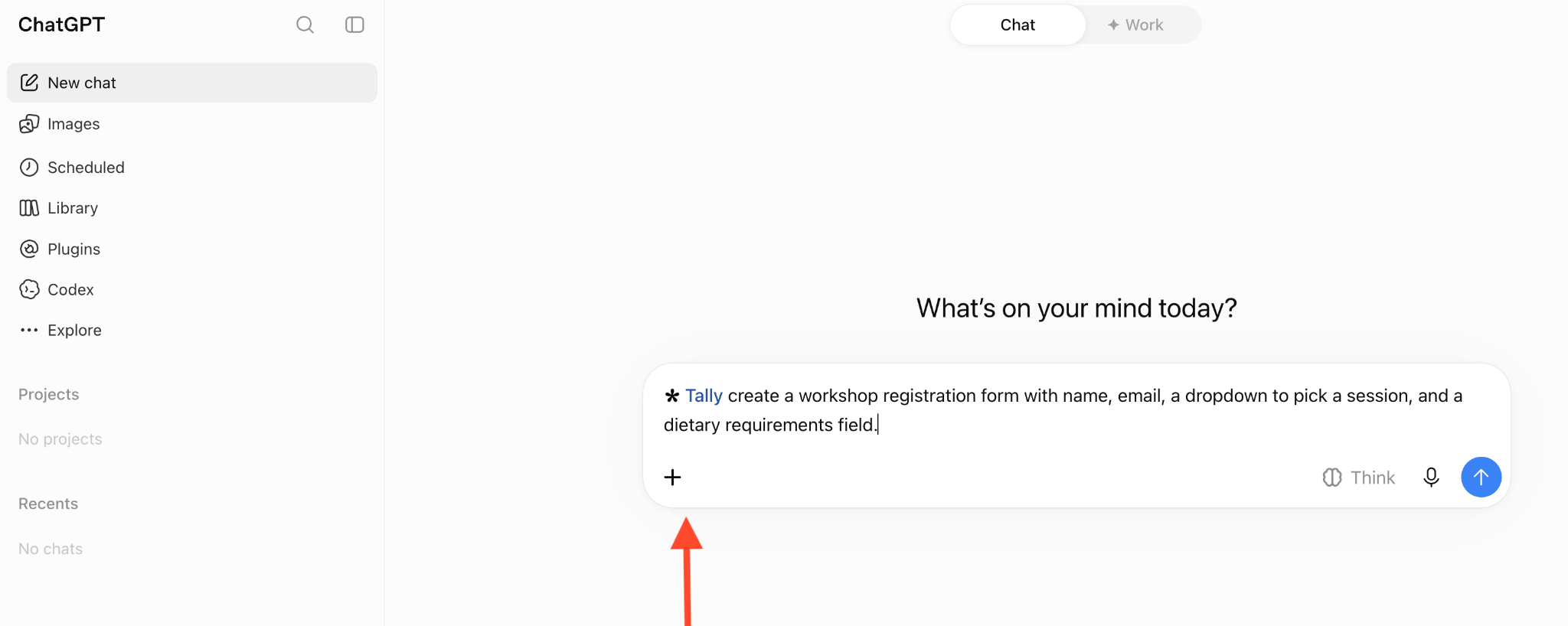
If you’d like something to start with, the listing page has three example prompts: build a form, edit an existing one, and summarize responses.
In any future conversation, type in @ to pick Tally from the menu.
Our setup is done!
Tally’s limits are still Tally’s limits with ChatGPT connected
Tally has some limits: It doesn’t support recurring payments, collecting a preferred time from the user won’t reserve a slot in your calendars, and your CRM still needs connecting. Ask ChatGPT for a consultation intake form, and it can build the questions. But getting someone booked, billed for an ongoing service, and assigned a follow-up involves a few more steps.
Here’s how to set up those jobs:
- Your recurring payments need a separate billing setup: Tally can collect one-time payments through Stripe, but its payment documentation says recurring payments are unsupported. With Jotform, however, supported gateways let you collect recurring payments through the form. The Jotform-Square integration, for example, supports recurring credit card subscriptions.
- You still have to book the appointment: Tally’s date and time fields only collect an answer. For clients to book an available appointment, you can embed a scheduler such as Calendly, then configure its calendar connection and availability. Otherwise, you’re back to emailing. Jotform Appointments provides booking pages with configurable time slots, calendar integrations, and payment options, so clients can book and pay within the appointment flow.
- Your clients’ company details won’t go into your CRM: Tally has direct integrations with tools including Google Sheets, Notion, Airtable, and Attio, alongside automation routes through Zapier, Make, n8n, and webhooks. Those connections still need to be set up. Even its native Attio integration requires you to map fields, define actions, and activate the workflow. Jotform gives you connections to Salesforce and HubSpot for sending submissions straight to your CRM records.
For example, at CoverManager, the team has given itself less copying and pasting to do with Jotform. The restaurant tech company, serving 17,000 restaurants, starts its new-client intake with a Jotform connected to Salesforce.
The submitted details go straight into the CRM, and the team configured automatic translation into six languages.
“It’s been a life changer for us. We’d have to work way more without it,” says Claudia Corradini, CoverManager’s marketing and communications executive.
Read more: 7 best Tally form alternatives for 2026
Jotform in ChatGPT: Build the form, and the form can finish the job
Jotform has its own ChatGPT plug-in, and it runs the same loop as Tally’s: describe, build, edit, read the responses. The form can become part of a booking and billing process, with customer details going into your CRM, because Jotform has those features and integrations.
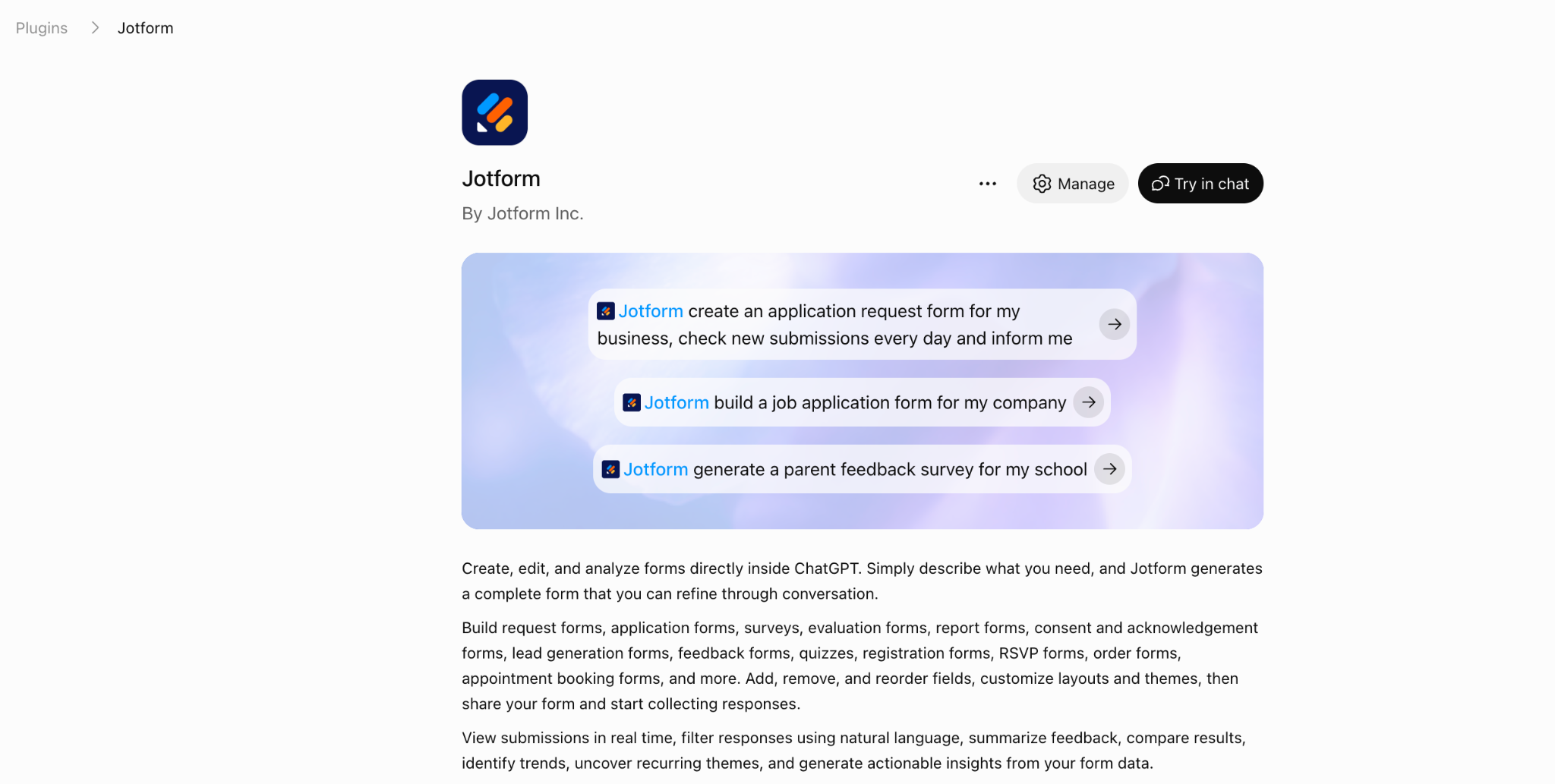
Here’s what the plug-in does for you:
- Create the form in ChatGPT: Ask for a consultation intake form and specify what you need to know before getting on a call: name, email, company, project type, budget, and an appointment field. Jotform creates it in your account and gives you a preview and a link. You can also start from a document, an image, or a URL.
- Refine it through conversation: Add, remove, and reorder fields. You can also tell it who should see which questions. Set that up through conditional logic, then open the form link and try both routes yourself.
- Find and manage what you already have: Ask for your forms, find the consultation intake by name, and keep working on it. The plug-in can search, list, and sort forms, rename them, or archive and delete them.
- Turn responses into something you can act on: Pull submissions for a form, then filter by date, status, keywords, or a field value. From there, ask what clients keep requesting, or find every submission mentioning a particular problem.
These are three prompts I’d use to cover the previously mentioned loop:
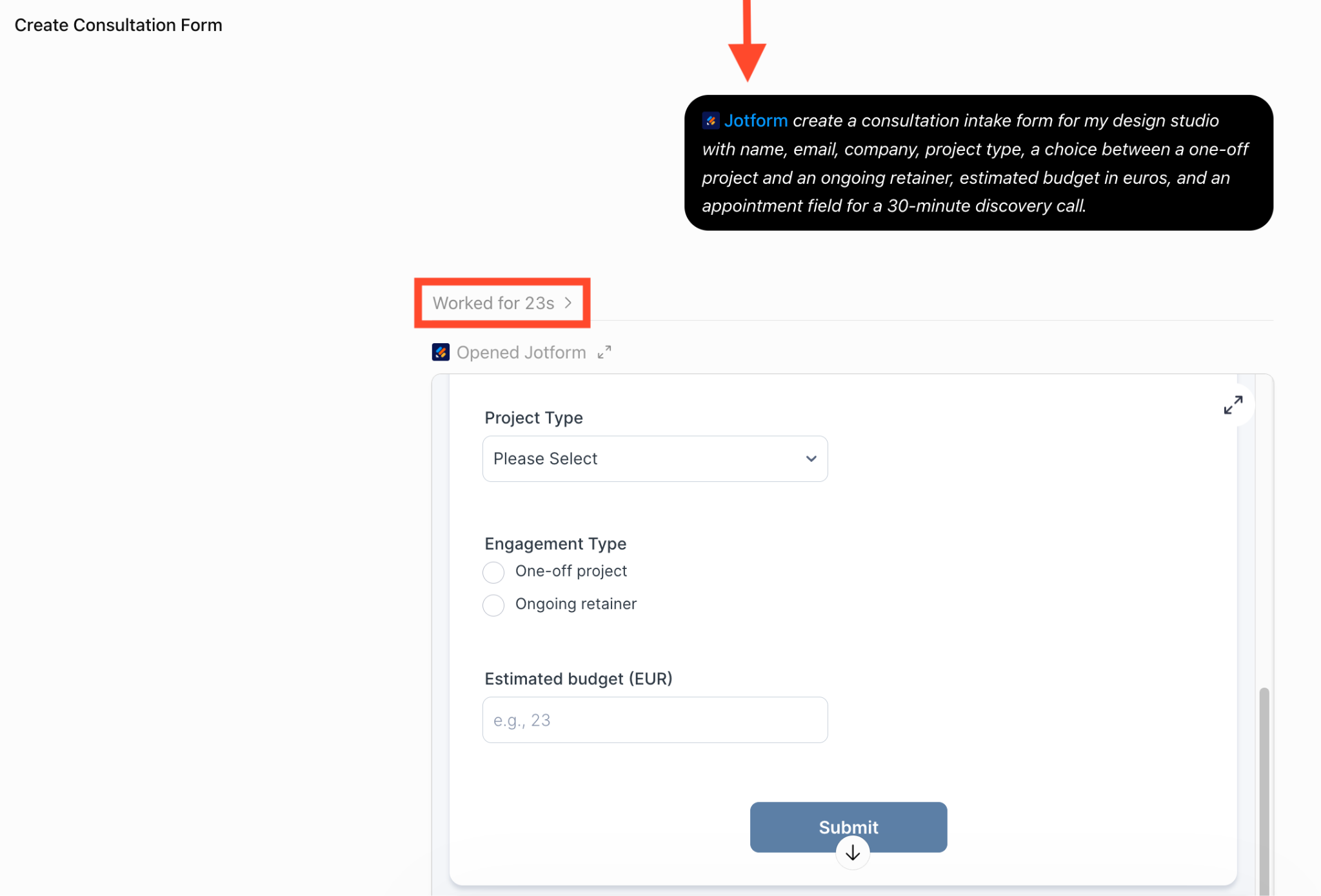
- Create: @Jotform, create a consultation intake form for my design studio with name, email, company, project type, a choice between a one-off project and an ongoing retainer, estimated budget in euros, and an appointment field for a 30-minute discovery call.
- Refine: On the consultation intake form, make email required, move project type above company, and show a monthly budget question only when someone selects “ongoing retainer.” Use a cream background, dark green headings, and a single-column layout.
- Analyze: Show consultation requests from the last 30 days with estimated budgets above $5,000. Group them by project type and summarize the most common requests. Include counts and flag anything you couldn’t classify.
In Jotform’s launch webinar, Kimberly Hinojosa, customer education specialist at Jotform, built an RSVP form from one line: “I didn’t tell it what questions it needed to have. It automatically knew, OK, I should probably ask the name.”
And because the plug-in sits inside your chat, it reads what came before it.
Chad Reid, VP of marketing at Jotform, who planned Jotform’s 20th-birthday event in ChatGPT before asking for the form, also said: “ChatGPT already knew what I was looking for in the event because of the conversation details.”
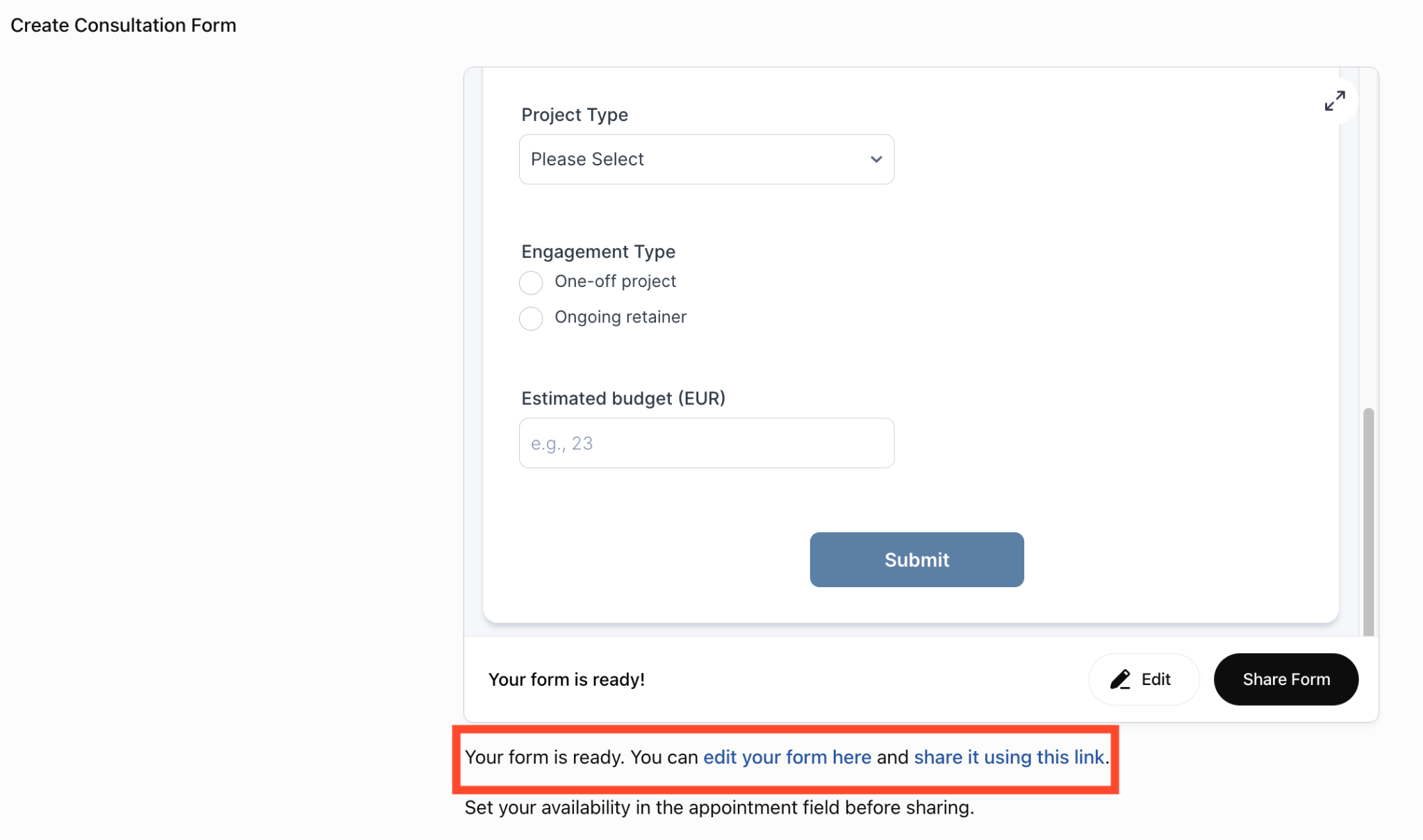
In my test, ChatGPT reported 23 seconds of work and returned an embedded preview, with links to edit and share the form.
I also got a line telling me to set my availability before sharing.
Now back to the consultation form. Once configured, the appointment field can offer available slots and prevent bookings beyond the limits you’ve set. Add a payment field and connect a supported gateway to collect a deposit or set up recurring billing. The responses are available in Jotform Tables, and, with your CRM integration configured, the responses can create or update the records you’ve mapped them to.
None of this happens because we phrased the prompt beautifully; it happens because Jotform has the tools to do it.
“This is AI,” Kimberly said. “Sometimes it might come back and say, ‘I can’t do that for you.’ If that happens, just reword your question.”
Or retagging @Jotform can fix it too.
This is the setup you then complete in Jotform:
- Set your availability and configure calendar syncing so clients can book the times you’re prepared to give them.
- Choose a payment gateway that supports your deposit or subscription, connect your account, and set the amount and billing schedule.
- Authorize the integration and map the form answers to the fields where they belong: Salesforce, HubSpot, and the rest are on the CRM integrations list.

You can start on Jotform’s free Starter plan, including payment integrations, but watch the allowances: 100 total submissions and 10 payment submissions a month. If you collect a deposit with every request, you’ll reach the payment submissions number first.
Bronze raises those limits to 1,000 total submissions and 100 payment submissions and removes Jotform branding. Check the current plans against your expected volume, along with any fees or plan requirements from your payment processor, calendar service, or CRM.
Start building with Jotform in ChatGPT
If you’ve followed the Tally setup, you know most of this already. We’re just using a different plug-in.
- Connect Jotform: Open Plugins in ChatGPT’s sidebar, search for Jotform, and click Install Plugin. If you’re already signed in to Jotform in the same browser, authentication can happen automatically. Otherwise, sign in when prompted.
- Start the conversation: Click Try in Chat, or type @ in the prompt box and select Jotform. Describe the form you need, including its name and questions.
- Work on what comes back: Review the preview, then keep chatting to change the questions, field order, or design. You can also open the form in the Form Builder from the result. The setup guide walks you through each screen.
When the consultation turns into paid work, connect the Jotform Sign plug-in, where you can upload your existing contract, prepare the signature fields, review it, and send it to the client from ChatGPT.
Pro Tip
If you already have a ChatGPT and Jotform account, use this link to get set up in under 45 seconds.
When you have responses to the first two prompts, move on to the third:
- Create: Create a form called “Project feedback” with a 1–5 satisfaction rating and questions about what went well, what was frustrating, and whether the client would work with us again.
- Refine: Change “What was frustrating?” to “What could we have done better?” and make the written answers optional.
- Analyze: Review “Project feedback” submissions from the last 90 days. What problems come up repeatedly? Include the number of responses mentioning each problem and compare them with the previous 90 days.
Tally will get you a very good form, but Jotform will get you the form and the booking, the payment, and the follow-up, all from the same chat window.
Start with Jotform in ChatGPT.
How do I connect Tally to ChatGPT: FAQs
Yes. The Tally ChatGPT integration can update forms already in your connected workspace, including their questions, field order, conditional logic, and design. Just name the form and describe the change. You don’t have to rebuild something just because you originally made it without ChatGPT.
Yes. You can analyze Tally submissions with ChatGPT without exporting them first. Ask for a summary, a trend over time, or responses mentioning a particular issue. Specify the form and date range.
When comparing the best ChatGPT form apps, look at what you need after someone submits. The Jotform ChatGPT App, part of Jotform AI, lets you create, refine, and analyze forms through conversation.
Jotform also offers appointment booking and recurring payments through supported gateways; Tally’s payment block doesn’t support recurring charges.
Tally is a good fit if you want to create Tally forms with ChatGPT. The Tally Forms ChatGPT plug-in lets you build, edit, and analyze responses in conversation. Google Forms may be all you need for surveys and quizzes your team manages in Google Workspace, with shared editing and responses available in Sheets.
This article is for marketers, small business owners, and operations teams who want to create forms, edit questions, and analyze Tally submissions through ChatGPT. They are also evaluating which form builder can support their business as their data collection needs grow.







































































































Send Comment: